
How to Fix kernel_task Using High CPU on Mac
Discover effective fixes for kernel_task using high CPU on Mac to improve performance and prevent overheating.
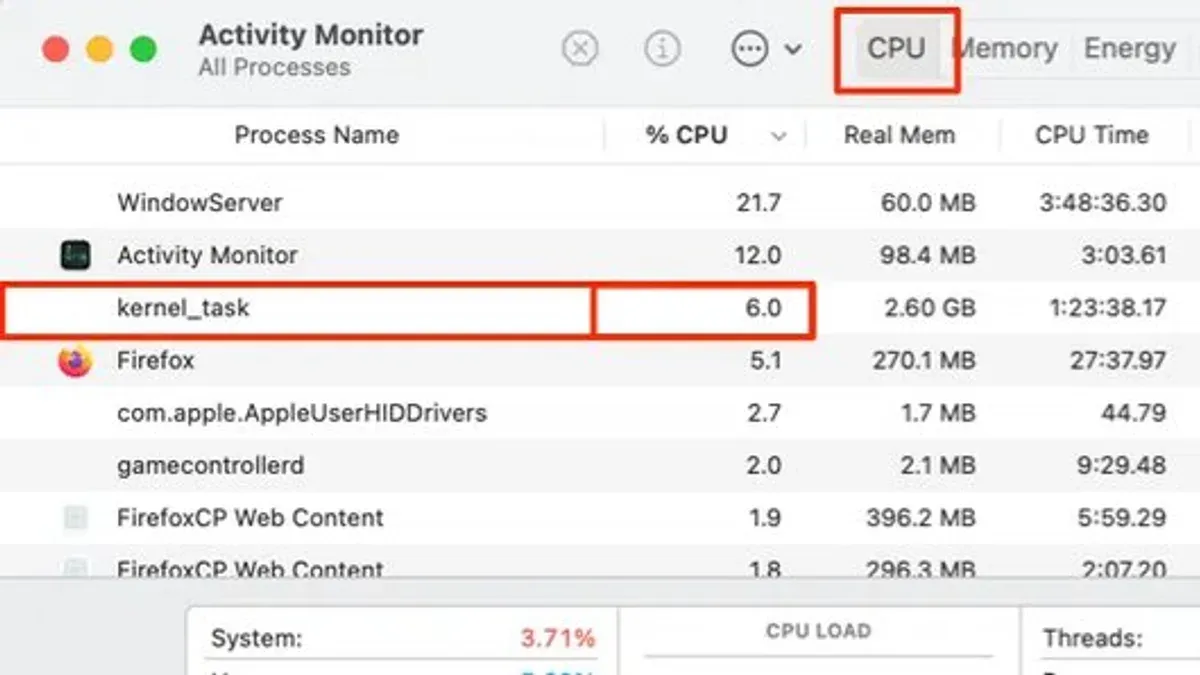
Most Mac users don’t realize that kernel_task, a core macOS process, actually protects your CPU from overheating by intentionally using more CPU cycles itself. This system behavior can make kernel_task appear as if it’s hogging resources, but it’s a built-in safeguard to reduce CPU activity when temperatures rise. If you’re searching for a kernel_task using high CPU on Mac fix, the key is understanding that force quitting this process is not supported and can destabilize your Mac.
This guide walks you through diagnosing and resolving the real issues that trigger kernel_task’s high CPU use, tailored for both Intel and Apple Silicon Macs.
Quick overview of kernel_task CPU issues on Mac
- Fixes vary by Mac type: Intel Macs may need an SMC reset; Apple Silicon Macs require full shutdown and wait.
Checked in November 2026 against Apple Support, AppHalt, NSF Technology (full list at the end); details like these change, so the date matters.
What is kernel_task on Mac Activity Monitor
kernel_task is a core macOS system process designed to manage your Mac's CPU temperature and overall system pressure. When your Mac heats up or faces heavy workload, kernel_task automatically limits CPU availability to reduce heat generation, protecting your hardware from damage.
You can monitor kernel_task’s activity in Activity Monitor. To find it, open Finder, then go to Applications > Utilities > Activity Monitor. Select the CPU tab, then sort the processes by % CPU to see which apps use the CPU most intensely. kernel_task often shows high CPU usage not because it is the problem itself, but because it is responding to system pressure from active apps or thermal conditions.
Identifying the actual apps or conditions causing this pressure helps you address the root cause effectively.
The quickest way to reduce kernel_task high CPU
Start by opening Activity Monitor located in Desktop → Go menu → Utilities. Click the CPU tab and sort processes by the % CPU column to identify apps and browser tabs using excessive CPU. Close any unnecessary CPU-heavy apps or browser tabs. When done correctly, you should see kernel_task CPU usage drop as your Mac cools.
Next, disconnect any external devices like USB-C hubs, docks, or chargers that are not essential. These peripherals can cause kernel extensions to misbehave, contributing to higher kernel_task CPU usage.
Move your Mac to a hard, flat surface to improve airflow and reduce heat buildup. Avoid soft surfaces like beds or couches that trap heat.
On MacBooks, use the right-side USB-C charging port when possible. This port placement can lower charging-related heat and thus reduce kernel_task CPU load.
How to fully diagnose and fix kernel_task high CPU with all options explained
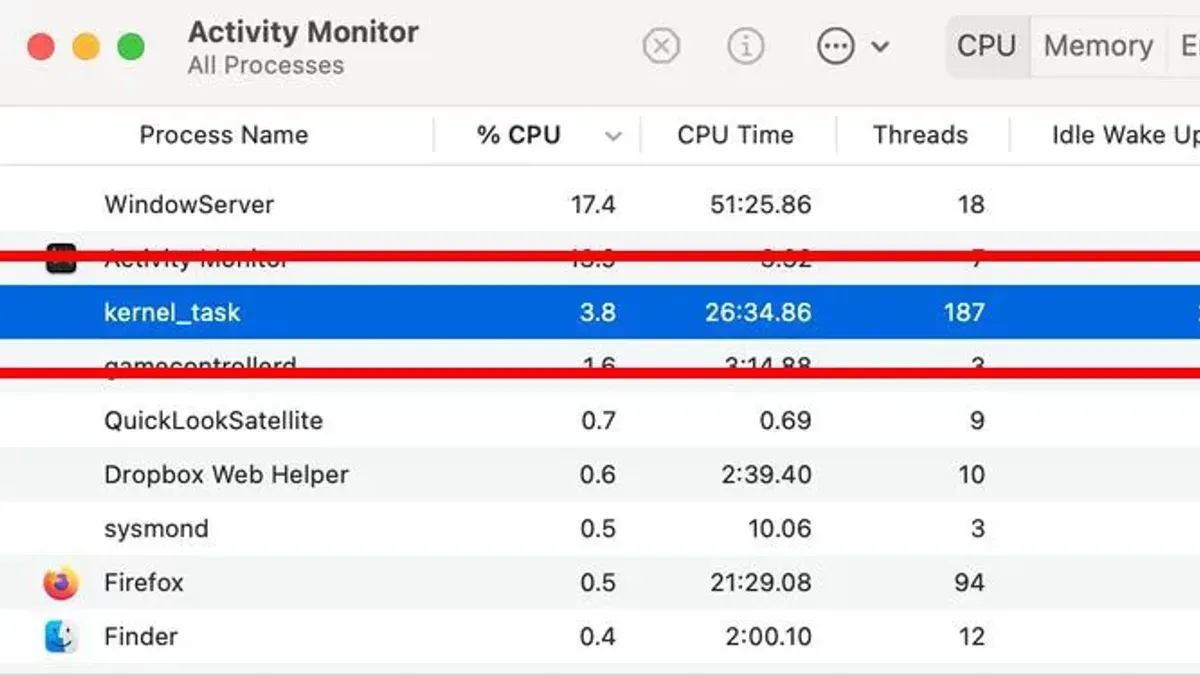
- Open Activity Monitor from the Utilities folder and sort processes by % CPU. Identify any apps using significant CPU and quit or pause them to check if kernel_task CPU drops.
- If you have an Intel Mac, reset the System Management Controller (SMC) by shutting down, then holding Shift + Control + Option + Power button for about 10 seconds, releasing all keys, and restarting. This addresses fan and thermal management problems that trigger kernel_task high CPU.
- For Apple Silicon Macs, perform a full shutdown and wait at least 30 seconds before powering on. This resets system management functions without an SMC reset option.
- On Intel Macs, reset NVRAM to restore system settings that might cause kernel_task CPU spikes. Shut down, then power on and immediately hold Option + Command + P + R keys for about 20 seconds until the Mac restarts.
- Boot into Safe Mode by shutting down, then pressing the power button while holding Shift until the Apple logo appears. Safe Mode disables third-party kernel extensions and login items, helping determine if these cause kernel_task high CPU.
- Check for macOS updates, especially if kernel_task high CPU began after a recent update. Installing patches may resolve kernel extension incompatibilities.
- Disconnect external peripherals one at a time, monitoring Activity Monitor after each removal. This isolates any device causing kernel_task to use excessive CPU.
Common mistakes that worsen kernel_task high CPU and what to avoid
Do not try to force quit kernel_task. This system process manages critical CPU and thermal functions and cannot be quit like normal apps. Attempting to do so can destabilize macOS and will not reduce CPU usage.
Avoid killing random processes without identifying the actual CPU consumers in Activity Monitor. Terminating unrelated processes may cause system instability without improving performance.
Do not rely on unverified cleaner tools promising quick fixes. These often lack diagnostic precision and can introduce new problems rather than resolve kernel_task issues.
Do not assume your Mac hardware is damaged solely because kernel_task uses high CPU. This usually reflects temporary workload or thermal conditions rather than hardware failure.
Using low-quality or fake chargers can cause your Mac to overheat and increase kernel_task CPU usage. Always use genuine or certified chargers to avoid adding thermal stress.
- Never force quit
kernel_task. If CPU usage remains high, proceed with proper diagnostics. - Identify CPU-intensive apps in Activity Monitor before terminating any process.
- Use only genuine or certified chargers to prevent overheating.
How external devices and thermal issues cause kernel_task high CPU
External devices such as USB-C hubs, external displays, and chargers can trigger kernel extensions or drivers to malfunction, which raises kernel_task CPU usage. Even genuine chargers may contribute to heat buildup, intensifying kernel_task’s activity. On certain MacBook models, using the right-side USB-C charging port can reduce this heat-related CPU pressure.
Thermal issues also play a key role. Dust accumulation inside your Mac or dried thermal paste reduces heat dissipation efficiency, causing internal temperatures to rise. This prompts kernel_task to increase its CPU management workload to protect the system.
To identify if peripherals or thermal problems are causing high kernel_task CPU usage, disconnect each external device one by one. After unplugging each device, open Activity Monitor and sort processes by % CPU. If kernel_task’s CPU usage drops after disconnecting a device, that peripheral is likely the culprit.
- Disconnect one external device and wait a few minutes.
- Open Activity Monitor (found in Applications > Utilities) and sort by % CPU.
- Observe kernel_task’s CPU usage: if it decreases, note the device as problematic; if not, reconnect it and try the next device.
What to do after reducing kernel_task CPU usage
- Open Activity Monitor regularly and sort processes by % CPU. Look for apps or background tasks that spike CPU usage, and close or pause them. You should see kernel_task and CPU usage remain stable.
- Keep macOS and all installed apps updated. Updates often improve driver and kernel extension compatibility, which can prevent renewed CPU pressure. When updates are current, kernel_task CPU spikes become less frequent.
- Maintain good airflow around your Mac. Avoid blocking vents and place your Mac on a hard, flat surface. Periodically clean dust from vents and fans to avoid thermal buildup. Proper cooling helps keep kernel_task CPU usage low.
- If kernel_task high CPU usage returns, retrace the diagnosis steps: check Activity Monitor, disconnect peripherals one at a time to isolate issues, and consider Safe Mode or system resets. Persistent problems may indicate hardware faults, for which contacting Apple support is advisable.
- Monitor CPU usage in Activity Monitor regularly
- Install macOS and app updates promptly
- Ensure vents are unobstructed and clean dust regularly
- Disconnect peripherals to test for device-related issues if problems recur
- How to Fix the Spinning Beach Ball on Mac: Clear Steps to Stop It
- How to Fix Blurry Text on a Second Monitor with Your Mac
- Master Finder’s Column View for Faster Folder Navigation
- How to Calculate Folder Size in Finder on macOS Accurately
Frequently asked questions
Why task manager using high cpu?
High CPU usage in the task manager typically indicates that one or more processes are demanding significant system resources. On a Mac, this often includes kernel_task managing thermal conditions or an app misbehaving. Identifying the exact process in Activity Monitor sorted by % CPU helps pinpoint the cause.
What is kernel_task on Mac?
kernel_task is a core system process responsible for managing CPU and thermal pressure to protect your Mac's hardware. It cannot be force quit, and its high CPU usage is usually a sign that it is actively regulating system temperature or resource allocation.
Why is the task manager using high CPU on my Mac?
This usually happens when kernel_task responds to overheating or hardware stress by throttling CPU usage to prevent damage. Alternatively, a misbehaving app or peripheral causing excessive load can indirectly cause kernel_task to increase CPU time.
Steps to Diagnose and Reduce kernel_task High CPU Usage
Once you complete these steps, the most useful next action is to maintain good airflow around your Mac and regularly check for software updates. These updates can include improvements to system management and thermal controls that help prevent kernel_task from spiking in CPU usage again. If issues persist, consider evaluating any recently installed software or external hardware that might be contributing to system load or thermal stress.
Pages this guide relies on
- If kernel_task is using a large percentage of your Mac CPU - Apple Support — Apple Support
- kernel_task High CPU on Mac? What It Means and How to Fix It — AppHalt
- Fix kernel_task High CPU on Mac (Intel & Apple Silicon) — NSF Technology
- 6 Ways to Fix Kernel_Task High CPU Usage on Mac Issue — Stellar Data Recovery Blog



