How Many External Displays Does the MacBook Air 15 Inch M5 Support?
Learn how many external displays the MacBook Air 15 inch M5 supports and how to connect multiple monitors effectively.
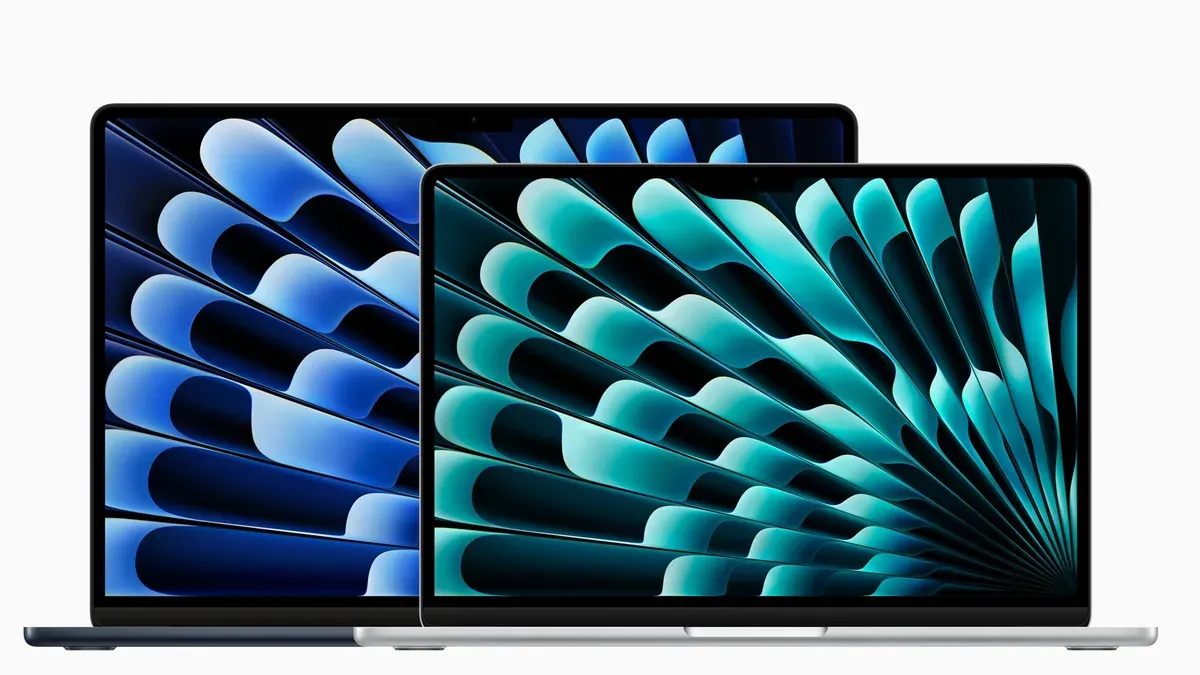
You’ve got your new MacBook Air 15 inch M5 set up and want to expand your workspace with external monitors. Maybe you’re wondering how many screens you can add or what types will work best with your MacBook Air. The question "MacBook Air 15 inch M5 how many external displays supported" is common among users aiming for efficient multi-display setups for work or creative projects.
This article walks you through the technical capabilities of your MacBook Air’s display outputs and explores practical ways to connect multiple external monitors. You’ll learn step-by-step setup tips, how to use adapters like DisplayLink to increase your monitor count, and common pitfalls to avoid. Finally, it helps you decide when a more powerful Mac might be necessary for your multi-display needs.
Key takeaways
- The MacBook Air 15 inch M5 natively supports only one external display via its Thunderbolt ports.
- Using DisplayLink adapters allows you to connect additional monitors beyond the native limit.
- Proper setup involves checking display resolutions, cable types, and macOS display settings.
- Common mistakes include using incompatible adapters or expecting multiple outputs from a single port without DisplayLink.
- For multiple high-resolution monitors running simultaneously, consider Mac models with higher native external display support.
Understand the MacBook Air 15 Inch M5 Display Output Basics
The MacBook Air 15 inch powered by the M5 chip integrates a GPU designed to handle external displays efficiently but with defined limits. Officially, this model supports one external display up to 6K resolution at 60Hz through its Thunderbolt 4 ports, which use USB-C connectors. These ports are the primary way to connect monitors directly, offering high bandwidth for crisp visuals and smooth refresh rates.
It's important to differentiate between native support and workarounds. Native support means the MacBook Air’s hardware and macOS directly manage the external display, ensuring optimal performance and minimal latency. By contrast, solutions like DisplayLink use software drivers and specialized adapters to connect multiple additional monitors but rely on CPU resources and can introduce slight delays or lower display quality.
For example, if you connect a 6K monitor via Thunderbolt 4, the MacBook Air handles it natively with full 60Hz refresh rate. However, trying to connect a second monitor this way isn’t supported natively. Instead, you'd need a DisplayLink adapter to add more screens, though with some performance trade-offs. Understanding these basics helps you plan your setup effectively and know when additional tools are necessary.
Check How Many External Displays You Can Connect Natively
The MacBook Air 15 inch M5 chip supports one external display directly without requiring any additional hardware or software. This single external monitor can run at a maximum resolution of 6K (6016 x 3384 pixels) at 60Hz when connected through Thunderbolt 4 or USB-C ports. This means you can enjoy very high-resolution content on a large external screen with smooth refresh rates ideal for video editing or detailed graphic work.
macOS handles this single external display as an extended desktop by default, allowing you to drag windows and applications between your MacBook Air screen and the external monitor seamlessly. Mirroring is also available as an option through System Settings > Displays, but it does not increase the number of connected monitors.
For example, if you connect a 6K Pro Display XDR to your MacBook Air 15 inch M5, you will have one large, crisp external workspace alongside your built-in Retina display. However, trying to connect a second external monitor directly will not work due to the M5 chip’s hardware limitations. Users seeking multiple native external displays will need to consider other Mac models.
Use DisplayLink Adapters to Expand External Monitor Count
DisplayLink technology allows you to connect multiple external monitors to your MacBook Air 15 inch M5 beyond its native single-display limit. It works by sending video data over USB instead of relying solely on the Thunderbolt connection. On macOS, DisplayLink requires you to install a dedicated driver that manages these USB video signals, enabling extra monitors to function as extended desktops.
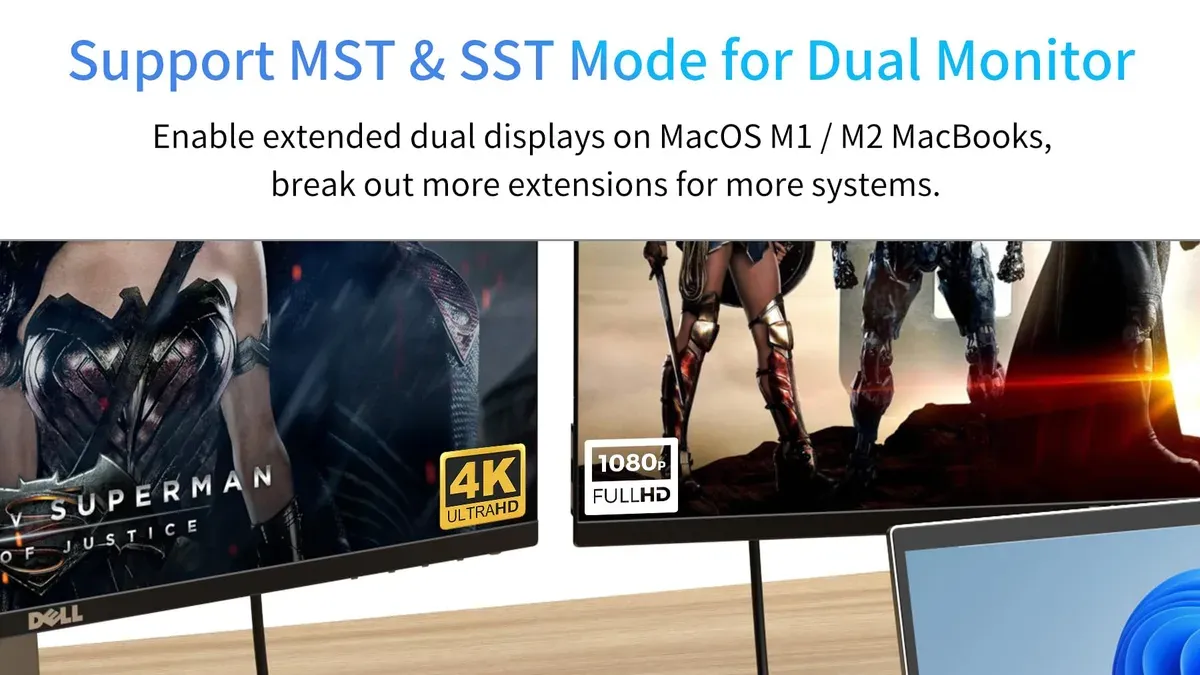
When using DisplayLink adapters, expect slightly higher CPU usage compared to native Thunderbolt displays, which may affect performance during intensive tasks like gaming or video editing. However, for typical office work, web browsing, or design layouts, the experience is generally smooth. Compatibility is good with macOS, but you should ensure your system is updated and that you download the latest DisplayLink Manager app from their official site.
For example, you can connect one 6K native display via Thunderbolt and add two or three Full HD monitors through DisplayLink USB adapters. This setup is ideal if you need multiple screens for multitasking but don't require all to run at maximum resolution or refresh rate. Keep in mind that DisplayLink monitors may introduce minor latency and color calibration differences compared to the native display.
Set Up Your External Displays Step-by-Step
First, identify the ports on your MacBook Air 15 inch M5. It features USB-C/Thunderbolt 4 ports, so you'll need the appropriate USB-C to DisplayPort or USB-C to HDMI cables or adapters for your external monitors. If you use a DisplayLink adapter to connect multiple monitors, ensure it is properly plugged into a USB-C port and the monitors are connected via USB or HDMI as specified by the adapter.
Once physically connected, open System Settings and navigate to Displays. Here, you will see icons representing your MacBook screen and all connected external displays. Drag these display icons to match your physical setup—for example, place a monitor icon to the right or left of the MacBook screen to set its position logically. This arrangement controls cursor movement and window dragging between screens.
Adjust each display’s resolution and refresh rate by selecting its icon and choosing options like “Default for display” or “Scaled” to match your needs. For instance, you might set your external 4K monitor to 3840x2160 at 60Hz for sharp image quality. If a monitor shows no signal, try reconnecting cables or restarting your Mac. Also, verify that your cable and adapter support the desired resolution and refresh rate, as lower-quality cables may cause flickering or no display.
Avoid Common Mistakes When Connecting External Displays
One common pitfall is assuming all USB-C hubs or docks support multiple external displays. Many hubs only offer additional USB ports or Ethernet without video output capabilities. Always check the hub’s specifications for explicit support of dual or multiple monitor outputs, ideally listing DisplayPort or HDMI versions and maximum resolution support. For example, a hub advertising USB 3.0 and Ethernet might not handle more than one video stream, causing frustration if you expect to connect two 4K monitors simultaneously.
Another frequent issue is mixing different resolutions or refresh rates across your displays. Using a 4K@60Hz monitor alongside a 1080p@30Hz screen can cause flickering, lag, or unstable connections. macOS tries to manage these differences but can struggle with mismatched settings. Ensure you align resolution and refresh rates by visiting System Settings > Displays and manually adjusting each external display to compatible values.
Finally, be mindful of thermal output and power draw when running several high-resolution displays. The MacBook Air 15 inch M5 is compact and can get warm, especially when powering 6K or multiple 4K monitors through adapters. Excess heat may throttle performance or cause unexpected disconnects. Use powered hubs and avoid daisy-chaining many devices through a single port to reduce power bottlenecks and heat buildup.
Know When to Consider More Powerful Mac Models for Multiple Displays
The MacBook Air 15 inch M5 supports only one external display natively, which limits its ability to handle multi-monitor setups common in professional environments. If your workflow requires connecting two or more external displays—such as in video editing suites, software development with multiple code windows, or financial trading desks—you might find the Air’s capabilities restrictive. For example, a video editor working with Final Cut Pro who needs a 6K reference monitor alongside a 4K preview display will benefit from a MacBook Pro or Mac Studio, which natively support multiple high-resolution external monitors without relying on adapters.
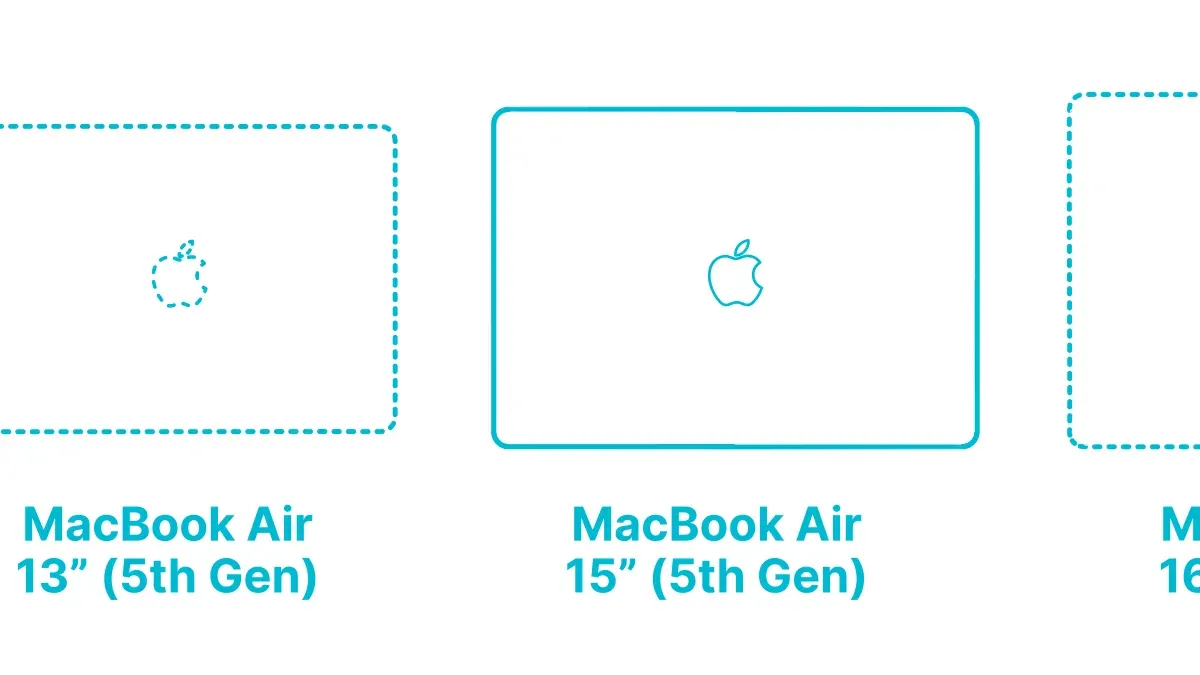
Comparing models, the MacBook Pro 14 inch and 16 inch with M2 Pro or M2 Max chips can handle up to four or even six external displays, depending on configuration, while the Mac Studio supports even more. These models provide more Thunderbolt ports and higher graphics performance to drive complex monitor arrays smoothly. Before investing in expensive DisplayLink adapters or USB hubs to expand your Air’s display count, evaluate whether your workflow demands native multi-display support to avoid performance compromises and setup complexity.
Consider your daily tasks: if you regularly juggle multiple apps, windows, or video streams across several monitors, choosing a Mac with built-in multi-display capability will save time and frustration. The Air excels in portability and efficiency for simpler setups, but professional multi-monitor users often require the expanded output options and graphics power of the Pro or Studio lines.
Frequently asked questions
Can I connect two 4K monitors to the MacBook Air 15 inch M5?
The MacBook Air 15 inch M5 natively supports one external display up to 6K resolution at 60Hz via its Thunderbolt ports. To connect two 4K monitors simultaneously, you would need to use a DisplayLink adapter or docking station. This method allows multiple external monitors but may introduce some performance trade-offs compared to native support.
Does the MacBook Air 15 inch M5 support 5K or 6K external displays?
Yes, it supports one external display with up to 6K resolution at 60Hz through Thunderbolt 4 ports. This lets you connect high-resolution monitors like the Apple Pro Display XDR or similar 5K/6K panels natively without additional adapters.
What types of cables and adapters do I need for multiple monitors?
For a single high-resolution monitor, a Thunderbolt 4 or USB-C to DisplayPort/HDMI cable works best. To add more monitors beyond the native limit, you will need a DisplayLink-enabled docking station or adapter along with its required driver software. Make sure to use certified cables that support the resolution and refresh rate of your monitors.
Will using DisplayLink adapters affect my MacBook’s performance or battery life?
Using DisplayLink adapters can increase CPU usage because video data is compressed and sent over USB, which may cause slight performance drops during heavy multitasking. Battery life can also be reduced compared to native connections due to extra processing and power consumption. However, for typical productivity tasks, the impact is generally manageable.
Understand the Limits and When to Explore Other Options
This article does not cover detailed driver installation issues for DisplayLink software updates, which may vary between macOS versions and can affect multi-display setups. If you require ultra-high refresh rates—such as 120Hz or higher—or professional-grade color accuracy across multiple external displays, the MacBook Air 15 inch M5 may not meet those demands due to its hardware limitations. Additionally, if you need to run several 4K monitors simultaneously with maximum performance, consider exploring MacBook Pro models or Mac Studio, which offer broader native multi-display support and more powerful graphics capabilities.
The single most useful next step is to identify your primary use case and connect one external display first using the native Thunderbolt port. Confirm that the resolution and refresh rate meet your needs before adding DisplayLink adapters or additional monitors. This approach helps you isolate potential issues early and ensures your setup runs smoothly without overwhelming the system’s capabilities.
See also: Discover the MacBook Air 15 Inch M5 Specs: What You Need to Know · Does the MacBook Air M5 Have an SD Card Slot? Full Guide · Can Mac Use External GPU? Clear Answers and How to Set It Up · MacBook Air 15 Inch M5 Review 2026: Performance, Value, and Comparison