
Moving from Schoology to Google Classroom: Your Complete Checklist
This checklist guides you through essential steps for a smooth transition from Schoology to Google Classroom, covering data migration and user training.
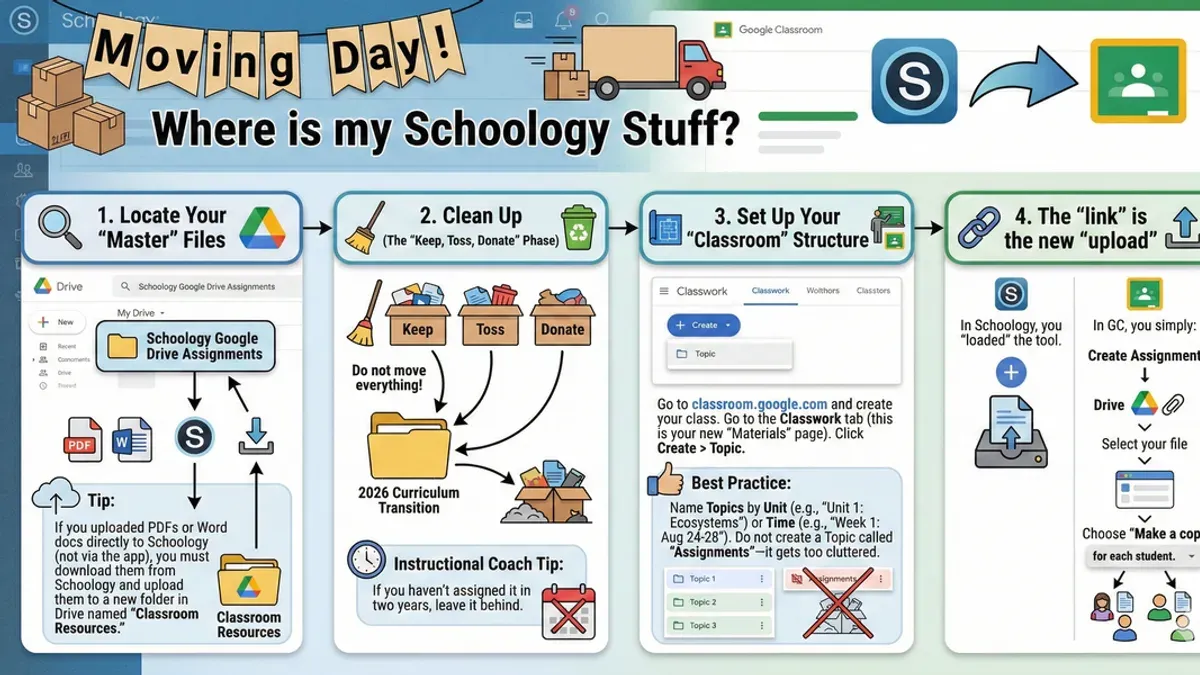
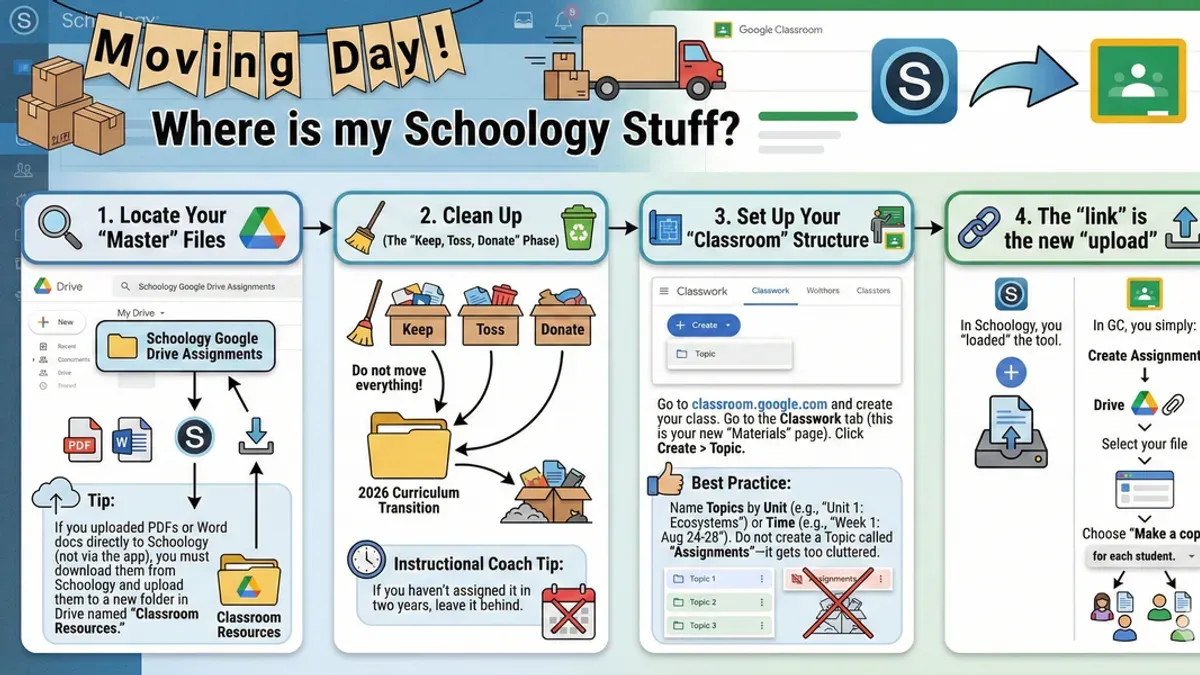
Short answer: Successfully moving from Schoology to Google Classroom requires careful planning around data migration, feature differences, and user training. A moving from Schoology to Google Classroom checklist ensures you cover essential steps like exporting courses, mapping user roles accurately, and setting up Google Classroom permissions before going live.
This article provides a thorough, practical guide to help you navigate the complex realities of switching LMS platforms. You’ll find detailed comparisons of key features, real-world challenges often overlooked, and a step-by-step roadmap to execute your migration confidently. Whether managing the technical transfer or preparing educators and students, this guide equips you with the insights needed for a smooth transition and lasting success with Google Classroom.
Understand Why Moving from Schoology to Google Classroom Matters
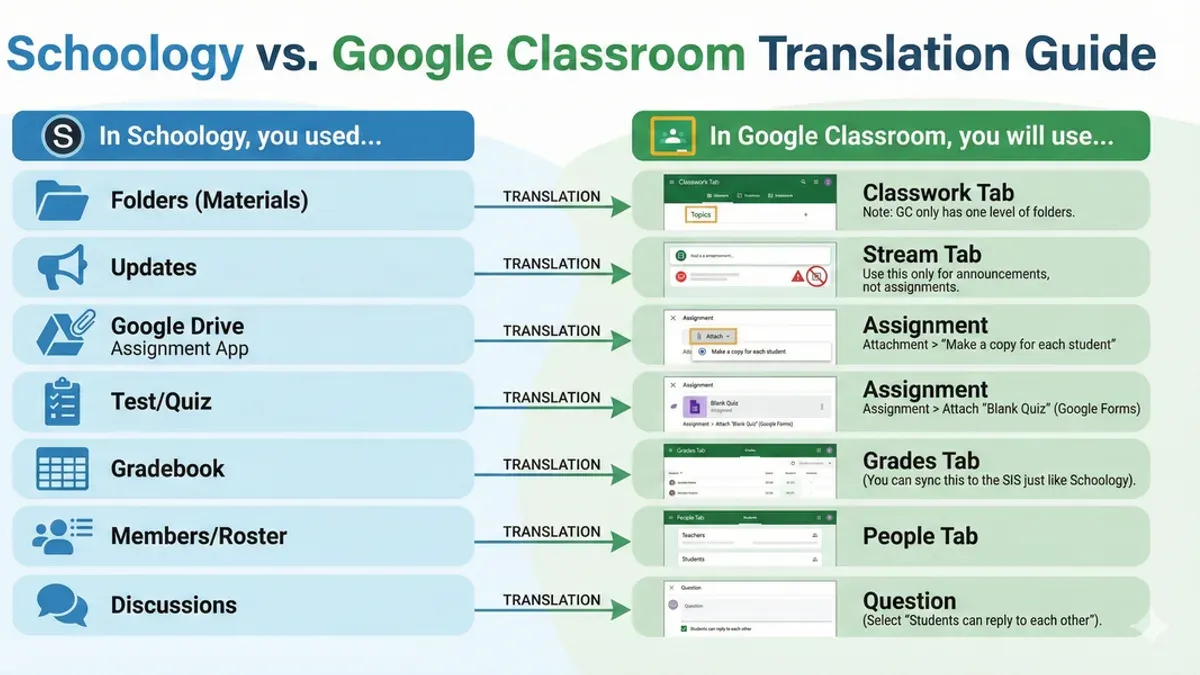
Schoology offers a comprehensive LMS experience with deep customization, robust grading options, and a detailed course management system. Google Classroom, in contrast, emphasizes simplicity and seamless integration with Google Workspace apps like Docs, Drive, and Meet, streamlining collaboration and reducing administrative overhead. Institutions often choose Google Classroom to lower costs and simplify user adoption, benefiting from its intuitive interface that requires less training for educators and students.
However, this shift affects teaching workflows. For example, automated grading and complex rubric features available in Schoology may not directly translate to Google Classroom, requiring educators to adjust assessment strategies. Meanwhile, students gain access to real-time collaboration tools, enhancing group work and feedback cycles.
A recent survey of K-12 districts switching platforms highlighted that ease of use and Google Workspace integration topped the list of motivations. User satisfaction ratings show Google Classroom scores higher in collaboration and accessibility, while Schoology leads in LMS feature depth.
| Feature | Schoology | Google Classroom |
|---|---|---|
| Course Customization | Extensive | Basic |
| Integration | Third-party apps | Google Workspace native |
| Assessment Tools | Advanced grading and rubrics | Simple grading, no rubrics |
| User Satisfaction | High for LMS depth | High for ease of use and collaboration |
Picture a high school history teacher accustomed to Schoology’s detailed gradebook and assignment options. Moving to Google Classroom means relying more on Google Sheets for grade tracking and adjusting lesson plans to leverage Docs and Slides for collaborative projects. Recognizing these shifts helps you anticipate training needs and set realistic expectations for your team.
Map Out How Data and Content Transfer Works Between Platforms
When moving from Schoology to Google Classroom, understanding what data transfers smoothly and what requires manual effort is crucial. Schoology allows you to export courses, assignments, and user lists via its "Export Course" feature found under Course Options > Export. This produces a ZIP file containing course materials and CSV files for enrollments.
Google Classroom does not support direct imports of Schoology export files. Instead, you recreate courses and assignments manually or use third-party tools like CloudExtend or migration services that parse Schoology exports and input data via Google Classroom’s API. These tools can automate user enrollment and assignment creation but often require configuration and may not support all content types.
For example, quizzes created in Schoology using its native quiz engine cannot be fully transferred to Google Classroom. You will need to rebuild quizzes using Google Forms or other integrated assessment tools. Gradebook exports from Schoology come as CSV files, which you can import into Google Sheets but cannot directly sync with Google Classroom’s gradebook.
Multimedia content such as embedded videos or files within Schoology assignments must be manually re-uploaded to Google Drive and linked in Google Classroom assignments, as automated migration typically excludes these assets.
Beware of potential data loss risks: if you skip exporting enrollment lists or overlook assignment attachments, you might lose critical context. A common missed step is verifying that all exported CSV files are complete and properly formatted before attempting import.
- Export courses and enrollments from Schoology via Course Options > Export
- Use third-party tools for partial automation, understanding their limitations
- Manually recreate quizzes and re-upload multimedia content in Google Classroom
- Import gradebook CSV files into Google Sheets; manual grade entry needed in Classroom
- Verify completeness of exports to minimize data loss risk
Prepare Your Team and Stakeholders for the Transition
Successful migration hinges on engaging your team early and setting clear expectations. Start by identifying key users—teachers, instructional coordinators, and IT staff—who will act as champions throughout the transition. These champions receive focused training enabling them to support peers and troubleshoot initial challenges.
Create a detailed communication plan with milestone dates, training sessions, and feedback loops. For example, schedule a three-week training rollout: Week 1 covers basic navigation and assignment creation; Week 2 focuses on grading workflows and integration with Google Drive; Week 3 offers Q&A sessions and hands-on practice. This staged approach increases user confidence and minimizes overwhelm.
Set clear expectations about how workflows will change. For instance, unlike Schoology’s gradebook, Google Classroom uses a simplified grading interface without weighted categories, which may require adjusting assessment strategies. Share comparisons upfront so users prepare mentally for new processes.
A real case showed user readiness scores improving from uncertain to confident after a structured training schedule. Without this, users often struggle with the switch, causing delays and frustration.
- Identify and train LMS champions early
- Develop a clear, phased communication and training timeline
- Set realistic expectations about feature differences and workflow changes
- Incorporate hands-on sessions and feedback opportunities
Step-by-Step: Execute Your Migration Checklist with Confidence
Begin by auditing your Schoology environment: review all courses, materials, and user roles via the "Manage Courses" and "Users" sections. Document what must transfer and identify outdated content to exclude. Back up all critical data using Schoology’s export features—export gradebooks as CSV, course materials as ZIP files, and download multimedia assets separately to avoid loss.
Next, configure your Google Classroom environment. Create organizational units in Google Admin Console to mirror your Schoology user groups, then set up user accounts with appropriate roles through the "Users" menu. Preconfigure default course settings such as grading categories and permissions under "Settings" in Google Classroom.
Import content carefully: upload zipped course materials via Google Drive, then use Google Classroom’s "Create" > "Import Class" option for structured setup. Since quizzes often cannot transfer directly, rebuild assessments using Google Forms linked to Classroom. For example, a common error is missing permissions on Drive files, which causes import failures—verify sharing settings before import.
Test functionality by running pilot classes with a small user group. Check assignment visibility, submission workflows, and grade syncing. Collect detailed feedback via Google Forms to troubleshoot issues, such as notification delays or link breakages.
- Audit Schoology content and roles (2-3 days)
- Back up all critical data (1 day)
- Set up Google Classroom and user accounts (2 days)
- Import content and configure courses (3-5 days)
- Conduct pilot runs and gather feedback (1-2 weeks)
- Address issues and finalize migration (ongoing)
Avoid Common Pitfalls When Switching from Schoology to Google Classroom
One frequent mistake is underestimating the manual effort required because of data incompatibilities. For example, Schoology’s rich quiz formats and multimedia attachments often don't transfer directly, forcing manual re-creation in Google Classroom. Overlooking this leads to lost time and frustrated educators.
Neglecting comprehensive user training and support resources compounds transition challenges. Educators unfamiliar with Google Classroom’s interface and workflow struggle, which can stall adoption and reduce classroom productivity.
Failing to align grading scales and assessment methods causes confusion. Schoology supports weighted grading categories with complex point systems, while Google Classroom’s grading is more straightforward. Without recalibrating grading policies, students and teachers face inconsistent feedback and reports.
Ignoring integration requirements with other tools disrupts daily operations. For instance, if your institution relies on third-party apps linked to Schoology’s API, these may not function seamlessly with Google Classroom, necessitating alternative solutions or workflows.
A comparative analysis of failed and successful migrations shows that institutions who anticipate these issues and plan accordingly reduce downtime and improve user satisfaction. One district found that dedicating time to retrain teachers and manually rebuild assessments upfront prevented a semester-long disruption.
- Audit all quiz and multimedia content for manual migration needs
- Schedule targeted training sessions focusing on Google Classroom workflows
- Review and adjust grading policies to fit Google Classroom’s system
- Evaluate third-party tool compatibility and plan alternatives
Optimize Your Google Classroom Setup for Long-Term Success
Customizing Google Classroom to align with your institution’s educational goals ensures smooth adoption and sustained engagement. Start by leveraging Google Workspace tools like Google Docs, Sheets, and Slides, integrated directly via the Classwork tab, to streamline collaboration and real-time feedback. For assessments, use Google Forms with auto-grading and quiz features, embedded seamlessly within assignments.
Set consistent naming conventions by establishing a clear format, such as "CourseName_Term_GradeLevel" for classes and "AssignmentType_Date" for tasks. This aids in organization and retrieval, especially when managing multiple sections or terms.
Extend functionality through add-ons such as Kami for PDF annotation, or Classcraft to gamify learning. These can be enabled via the Google Workspace Marketplace, accessible from the Classroom settings under "Add-ons." One common oversight is neglecting to configure permissions properly, which can limit tool effectiveness or raise privacy concerns.
Establish ongoing support by scheduling quarterly training sessions for educators, focusing on new features and sharing best practices. Supplement this with an internal help resource hub using Google Sites for quick troubleshooting and updates.
- Integrate Google Workspace tools for assignments and feedback
- Implement clear naming conventions for classes and assignments
- Use add-ons from the Google Workspace Marketplace with appropriate permissions
- Set up regular training and a dedicated support resource hub
For example, a school that standardized class names and assignment titles saw faster navigation and reduced confusion among teachers and students, improving assignment submission rates noticeably.
Read next
- Moving from Schoology to Canvas: Your Complete Transition Checklist
- Schoology Implementation Timeline: Your Step-by-Step Guide
- Google Classroom Implementation Timeline: Your Step-by-Step Guide
- Switching from Canvas to Brightspace: Your Complete Expert Guide
Frequently asked questions
Can I migrate all my Schoology quizzes and grade data to Google Classroom?
Complete migration of quizzes and grade data from Schoology to Google Classroom is limited by platform differences. While you can export gradebooks as CSV files and import grades manually into Google Classroom, quiz questions and settings often require rebuilding. Consider exporting quizzes as PDFs for reference, then recreate them in Google Forms or Google Classroom’s quiz feature to maintain functionality.
What are the best tools or services to assist with the migration?
There is no official tool that fully automates Schoology to Google Classroom migration. Third-party services like Clever or Eduphoria may facilitate partial data transfer but often require manual adjustments afterward. Using Google Workspace for Education’s built-in import/export features combined with CSV files provides the most control and reliability during migration.
How do I handle student accounts and privacy during the switch?
Ensure that student Google accounts are properly provisioned via your institution’s Google Workspace Admin Console before migration. Communicate clearly about data sharing and privacy policies aligned with FERPA or other relevant regulations. Use Google Classroom’s built-in privacy settings to restrict access, and avoid exporting sensitive data unless encrypted and authorized.
What should I do if some content doesn’t transfer correctly?
Identify content that failed to transfer by comparing course materials side-by-side. Manually upload missing files or recreate interactive elements like discussions and assignments within Google Classroom. Document what did not transfer to adjust training and future migrations, ensuring all stakeholders understand these limitations upfront.
Quick checklist
- Confirm data export formats from Schoology (CSV for grades, IMS for roster)
- Verify Google Workspace admin permissions for bulk user and class creation
- Communicate migration timeline and expectations clearly to educators and students
- Test import of a pilot course to Google Classroom before full rollout
- Plan for manual re-creation of assessments and assignments not supported in data transfer
- Train educators on Google Classroom’s grading, feedback, and communication tools
- Schedule follow-up support sessions to address post-migration questions
This guide’s limits
This guide does not cover migrating from custom or heavily modified Schoology setups; institutions with complex integrations may require specialized IT support. If your LMS involves third-party tool integrations, proprietary plugins, or advanced analytics dashboards, engage your IT department or a dedicated LMS consultant to tailor the migration process.
Additionally, this checklist assumes standard Google Workspace for Education licenses—enterprise or premium editions with different feature sets may require adjusted steps.
The single most useful next step is to set up a pilot migration with a small group of courses and users. This hands-on trial reveals hidden challenges early, allowing you to refine your data mapping, training, and communication plans before scaling to your entire institution.



