
Switching from Canvas to Brightspace: Your Complete Expert Guide
Learn expert strategies for switching from Canvas to Brightspace, ensuring smooth migration and effective course management.
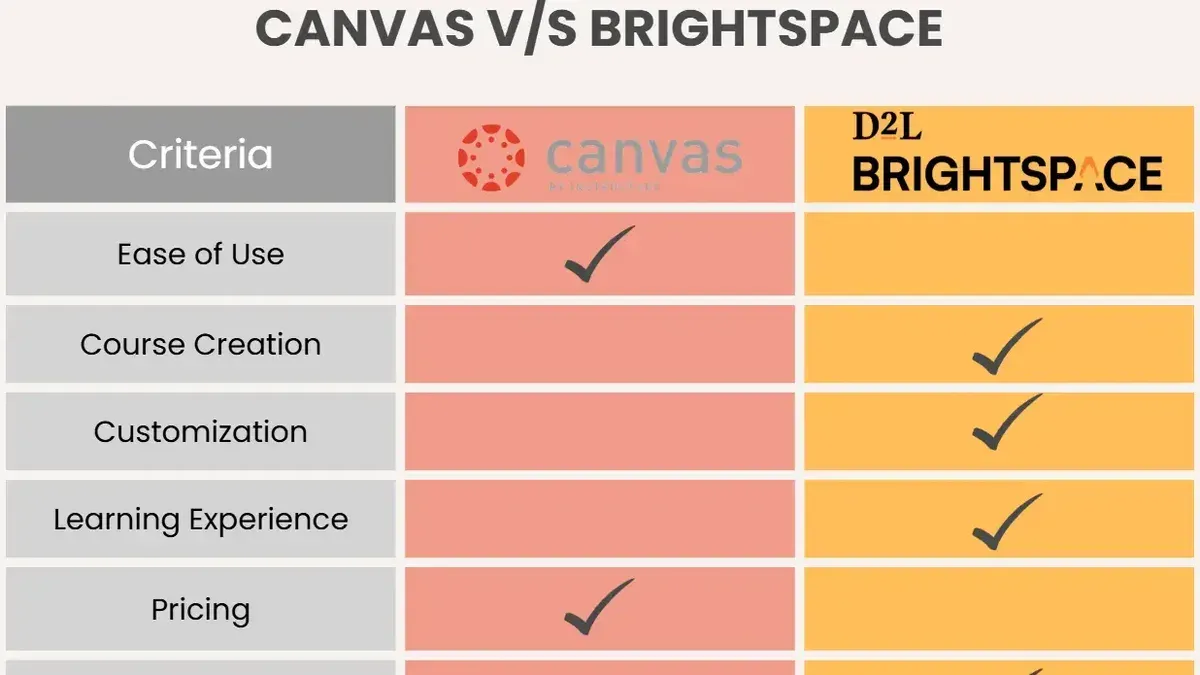
Short answer: Switching from Canvas to Brightspace involves understanding key differences in interface, course management, and customization options before migrating. Brightspace offers flexible workflows and advanced analytics that can enhance your institution’s teaching and learning experience once you navigate its unique settings.
This guide covers a detailed comparison between Canvas and Brightspace, explains how to use Brightspace effectively, and provides a step-by-step roadmap for migrating your courses. You will learn practical tips for maximizing Brightspace’s customization capabilities and managing courses efficiently, ensuring a smooth transition with minimal disruption to instructors and learners.
Understand if Brightspace is like Canvas
Both Canvas and Brightspace are leading Learning Management Systems (LMS) designed to facilitate online education, but their approaches differ notably. Canvas offers a clean, intuitive interface favored for its simplicity and straightforward course creation tools. Brightspace, while also user-friendly, emphasizes adaptability and granular control over course management and learner engagement.
Key features such as grading, communication, and content organization exist in both platforms but manifest differently. Canvas uses a gradebook accessible via the "Grades" tab, featuring intuitive drag-and-drop assignment weighting. Brightspace’s gradebook, found under "Assessment > Grades," supports complex grading schemes and customizable rubrics, appealing to institutions with intricate assessment needs.
Communication tools in Canvas include announcements, inbox messaging, and integrated video conferencing, whereas Brightspace integrates email, announcements, and a detailed discussion board system with threaded replies and moderation options.
User roles and permissions also differ. Canvas assigns roles like Instructor, TA, and Student with predefined capabilities. Brightspace offers more customizable role definitions, allowing administrators to tailor access levels precisely, useful for institutions with diverse staffing structures.
Brightspace’s design philosophy prioritizes flexibility and scalability, often requiring a steeper learning curve compared to Canvas’s streamlined, user-friendly layout. For example, a course designer moving from Canvas might find Brightspace’s multi-step workflow for adding activities more detailed but also more powerful for customization.
| Feature | Canvas | Brightspace |
|---|---|---|
| Interface | Simple, intuitive, minimal clicks | Flexible, modular, more configurable |
| Grading | Drag-and-drop gradebook, basic rubrics | Advanced gradebook, customizable rubrics |
| Communication | Announcements, inbox, integrated video | Email, announcements, threaded discussions |
| User Roles | Predefined roles with fixed permissions | Highly customizable roles and permissions |
| User Satisfaction (Qualitative) | Favored for ease of use | Favored for customization and control |
Understanding these distinctions helps set realistic expectations as you plan your transition. Recognizing that Brightspace offers deeper customization at the cost of increased complexity will prepare you for training needs and workflow adjustments.
How to use Brightspace effectively
Start by familiarizing yourself with the Brightspace dashboard, which organizes your courses, notifications, and tools in a clear sidebar menu. Navigate to Course Admin to begin setting up your course. Here, use the Manage Dates tool to align module release and due dates efficiently.
Create course modules under Content > Table of Contents. Use the New Module option to group lessons logically, then add topics such as files, assignments, or quizzes. For example, a "Week 1: Introduction" module might include a syllabus file, a discussion topic, and a quiz.
Brightspace excels in communication through its Announcements and Email tools located under Communication. Schedule announcements to appear at specific times to maintain learner engagement. Use Classlist to send targeted messages to groups or individual students.
Assessment setup is streamlined via Assessments > Quizzes and Assignments. Leverage Brightspace’s robust grading schemes and rubrics by creating them in Gradebook Setup, then linking them to assignments for consistent evaluation.
To customize your instructor experience, adjust tool visibility and navigation links in Course Admin > Navigation & Themes. Enable accessibility features like alternative text prompts and keyboard navigation through the Accessibility Checker found in the content editor.
For example, when setting up a course, you might create a module with a lecture video, linked reading, and a quiz with auto-feedback. Then, schedule an announcement reminding students two days before the quiz deadline. Use the Gradebook to apply a rubric that clearly defines grading criteria, ensuring consistency and transparency.
- Use Course Admin to set course dates and structure
- Organize content logically in Table of Contents modules
- Schedule announcements to maintain communication
- Create and link rubrics in Gradebook Setup for grading
- Customize navigation and enable accessibility tools
How to switch Canvas to Light Mode
If you prefer a brighter interface while working in Canvas, enabling Light Mode is straightforward. Canvas offers a dark mode toggle that you can switch off to return to the default Light Mode, which presents a clean and familiar layout.
To activate Light Mode, begin by clicking your profile icon in the global navigation bar on the left side of the screen. From the dropdown menu, select Account, then navigate to Settings. Within Settings, look for the Dark Mode toggle near the top of the page. If it is enabled, simply click it off to switch back to Light Mode.
Canvas Light Mode uses a white background with dark text, enhancing readability and reducing eye strain in well-lit environments. For example, if you are reviewing student submissions or setting up assignments, Light Mode provides clear contrast and reduces distractions from vibrant or dark backgrounds.
Comparatively, Brightspace defaults to a light theme but offers more granular theme customization options, allowing you to adjust colors and fonts at the institution or course level. When transitioning from Canvas, anticipate a similar bright, clean interface but with added flexibility. Adjust your Canvas Light Mode usage before switching platforms to ease your visual adaptation.
Remember, adjusting to the interface color is a personal preference and can affect how you interact with course content or manage administrative tasks.
- Click your profile icon in Canvas's global navigation.
- Select Account > Settings.
- Find the Dark Mode toggle and switch it off to enable Light Mode.
- Familiarize yourself with Brightspace’s theme customization options for a smoother transition.
- Test Light Mode during different times of the day to confirm comfort.
How to change spacing in Canvas
In Canvas, adjusting spacing between text elements or around images is primarily managed through the Rich Content Editor (RCE). To modify line spacing or paragraph space, you can use the editor’s formatting toolbar: select the text, click the paragraph format dropdown, and choose spacing options like “Normal,” “Heading,” or apply line breaks manually. However, explicit line-height control isn’t available in the default editor, so spacing adjustments often rely on inserting <br> tags or extra paragraphs.
For element spacing such as margins around images or tables, you must switch to the HTML editor within the RCE and add inline CSS styles like style="margin-top:10px; margin-bottom:10px;". For example, to add space below an image, you would insert <img src="image.jpg" style="margin-bottom:15px;">. This method requires some familiarity with HTML and CSS but offers precise control.
When migrating to Brightspace, note Brightspace’s content editor supports more intuitive spacing controls via paragraph and block settings, including configurable padding and margin presets. Brightspace handles line spacing more consistently across browsers, which means content using manual breaks in Canvas may need redesign for cleaner formatting.
For example, if a Canvas page uses multiple <br> tags to space out text, recreate this in Brightspace by adjusting the paragraph spacing settings or using spacer blocks. This improves readability and maintains responsive design.
Checklist to adjust spacing in Canvas before migration:
- Use the Rich Content Editor toolbar for basic paragraph formats
- Switch to HTML view to add inline CSS margins for precise element spacing
- Identify manual line breaks (<br>) and plan to replace them with paragraph spacing in Brightspace
- Test spacing on multiple devices as Canvas spacing can render inconsistently
- Prepare to redesign heavily spaced content using Brightspace’s block and paragraph settings for better control
How to copy from one Brightspace course to another
Copying course content within Brightspace is essential for efficiently managing your courses, especially when updating or reusing materials. Begin by navigating to the course you want to copy from, then select Course Admin in the navbar. Choose Import/Export/Copy Components to access the content management options.
Next, select Copy Components from Another Org Unit. Use the search box to find the source course by name or course code. After selecting the course, click Search for Components. You'll see a list of content categories such as Content Modules, Quizzes, Discussions, and Grades. Pick the specific items you want to copy or select all if you wish to replicate the entire course structure.
Confirm your selections, then click Continue. Brightspace will start copying the components, and a progress bar will indicate completion. Once done, review the copied content in your new course to ensure all elements transferred correctly.
Best practices include organizing copied content into clear modules and checking for broken links or missing files, which occasionally happen with embedded multimedia. Be aware that some settings, like user enrollments and activity completion statuses, do not transfer and require manual setup.
For example, copying a quiz requires verifying question pools and due dates post-transfer. Common troubleshooting steps involve re-uploading missing files or refreshing the course cache.
- Go to Course Admin > Import/Export/Copy Components
- Choose Copy Components from Another Org Unit
- Search and select the source course
- Select content categories or individual items
- Confirm and start the copy process
- Review and organize copied content
- Manually adjust settings like enrollments and dates
Export from Brightspace to Canvas: What you need to know
Exporting content from Brightspace for use in Canvas involves navigating compatibility challenges due to differing LMS architectures and supported formats. Brightspace primarily exports course content as Common Cartridge packages or ZIP files containing SCORM modules and HTML files. While Canvas accepts Common Cartridge imports, not all elements transfer seamlessly.
For example, quizzes exported from Brightspace as part of a Common Cartridge may lose some question types or feedback settings when imported into Canvas, requiring manual review and adjustment. Similarly, discussion boards and gradebook data typically do not migrate through export/import and need to be recreated or managed separately.
To improve transfer success, use Brightspace’s Export Course Package option under Course Admin to generate a Common Cartridge (.imscc) file. Then, in Canvas, import this file via Settings > Import Course Content > Content Type: Common Cartridge 1.x Package. This approach handles basic content like modules, assignments, and files but demands careful verification post-import.
Third-party tools like Rustici Software’s SCORM Cloud can facilitate smoother handling of SCORM content between platforms, while migration service providers may offer tailored solutions for bulk or complex transfers.
In practice, an instructional designer exporting a Brightspace course with multimedia-rich modules and varied quiz formats should plan for some manual rebuilding in Canvas to ensure full functionality and consistency in learner experience.
- Export course as Common Cartridge via Brightspace Course Admin > Export Course Package
- Import.imscc file into Canvas via Settings > Import Course Content
- Verify quizzes and interactive elements post-import
- Use SCORM Cloud or third-party tools for SCORM content transfer
- Prepare for manual adjustments of unsupported elements
Comparing Brightspace, Canvas, and Blackboard
Brightspace, Canvas, and Blackboard each offer comprehensive LMS solutions, but they diverge in interface design, customization, and support ecosystems. Brightspace emphasizes adaptive learning and analytics, with a highly customizable interface that suits institutions aiming for tailored student engagement. Canvas focuses on intuitive design and broad third-party integrations, making it popular among institutions prioritizing ease of use and rapid adoption. Blackboard offers extensive feature depth and enterprise-grade tools but can feel cumbersome due to its complex interface.
Feature-wise, Brightspace provides advanced competency-based education tools and a robust video assignment feature, useful for competency tracking in professional programs. Canvas shines with its user-friendly gradebook and seamless integration of external apps via LTI tools, easing instructional design workflows. Blackboard stands out with built-in plagiarism detection and comprehensive assessment options, favored in large universities with diverse course needs.
From a user adoption perspective, Canvas tends to have faster onboarding due to its minimal learning curve. Brightspace requires more initial training but rewards with flexible role management and automation. Blackboard’s extensive support network is strong, yet users often report steeper learning curves and interface clutter. For example, migrating a course with multiple assessment types from Blackboard to Brightspace may require careful mapping of custom rubrics, whereas Canvas offers more straightforward export-import processes but less rubric flexibility.
Understanding these differences helps you position Brightspace relative to its main competitors and tailor your switch strategy to your institution’s priorities.
How to brighten an image or photo in Canva
Canva is a popular graphic design tool distinct from Canvas, the LMS platform. When you want to brighten an image for use in Brightspace or any LMS, Canva offers straightforward controls to adjust brightness precisely.
To brighten your image in Canva, first upload or select the image on your design canvas. Click the image to reveal the editing toolbar above, then choose Adjust. This opens sliders for various settings including Brightness.
Drag the Brightness slider to the right to increase brightness. For example, moving from the default 0 to around +20 or +30 typically makes the image visibly lighter without washing out colors. You can also fine-tune Contrast and Saturation here to maintain clarity and color balance.
After adjustment, use the preview to check how the image will appear in your course materials. Bright images improve readability and engagement but excessive brightness may reduce detail, so balance is key.
Remember, Canva’s editing interface is user-friendly and visually oriented, making it easy to experiment with brightness levels. When preparing images for LMS use, optimize resolution and file size to ensure quick loading and good display quality.
- Select your image in Canva and click Adjust
- Increase Brightness slider moderately (e.g., +20 to +30)
- Adjust Contrast and Saturation if needed for balance
- Preview image in context before exporting
- Export optimized image file (PNG or JPG) for LMS upload
Read next
- Switching from Canvas to Blackboard: Your Expert Guide
- Brightspace Implementation Timeline: Your Expert Step-by-Step Guide
- Brightspace Rollout Plan for Teachers with Low Tech Confidence
Frequently asked questions
Is brightspace like canvas?
Brightspace and Canvas share many core features such as course management, grading, and content delivery, but they differ in user interface design and customization options. Brightspace offers more granular control over course structures and adaptive learning tools, while Canvas emphasizes simplicity and third-party integrations. Understanding these distinctions helps you decide which platform aligns better with your institution’s needs.
How to brighten an image in canva?
To brighten an image in Canva, select the image, then click on the Adjust button in the top toolbar. From there, increase the Brightness slider to make the image lighter. Fine-tune the contrast and saturation if needed to maintain image quality.
How to adjust brightness in canva?
Adjust brightness by selecting the image, clicking Adjust on the toolbar, and moving the Brightness slider left or right. You can also modify Contrast and Saturation in the same panel to achieve the desired visual effect. Remember to preview your changes on different backgrounds to ensure clarity.
Can you customize brightspace?
Yes, Brightspace allows significant customization including course layout, navigation menus, and tool availability. You can tailor widgets and modules on course homepages and enable or disable features at the institutional or course level. Additionally, Brightspace supports custom branding and integration with third-party tools via LTI standards.
How to brighten a picture in canva?
Brightening a picture in Canva involves selecting the image, clicking the Adjust icon, then increasing the Brightness slider. To maintain image balance, adjust Contrast and Highlights as needed. This process enhances the image's visibility without losing detail.
Quick checklist
- Assess your current Canvas course structure and identify key components to migrate.
- Familiarize yourself with Brightspace’s course management tools, especially the Course Builder and Class Progress features.
- Adjust Canvas display settings by switching to Light Mode via Account Settings > Display Preferences.
- Modify Canvas spacing using the advanced Rich Content Editor's paragraph and line spacing options.
- Copy content between Brightspace courses through Course Admin > Import/Export/Copy Components.
- Understand the limitations of exporting Brightspace content to Canvas, focusing on compatible file formats and quiz data.
- Review the comparative differences among Brightspace, Canvas, and Blackboard to align your platform choice with institutional goals.
- Use Canva’s built-in brightness adjustment tool under Edit Image > Adjust to enhance course visuals.
What this guide does not cover
This guide does not cover advanced technical migration involving backend data or integrations requiring vendor support. Institutions with complex IT environments, including custom LTI integrations or single sign-on configurations, should consult specialized migration experts to ensure data integrity and system compatibility.
For large-scale enterprise migrations, engaging with Brightspace and Canvas professional services can provide tailored strategies beyond the scope of this roadmap.
Start by thoroughly mapping your Canvas course components and prioritize content migration using Brightspace’s Import/Export tools. This practical first step sets a solid foundation for a smooth transition and maximizes your ability to customize and manage courses effectively within Brightspace.



