
Moving from Seesaw to ClassDojo Checklist for Teachers
This checklist guides teachers through moving from Seesaw to ClassDojo, covering data export, setup, and maintaining classroom engagement.
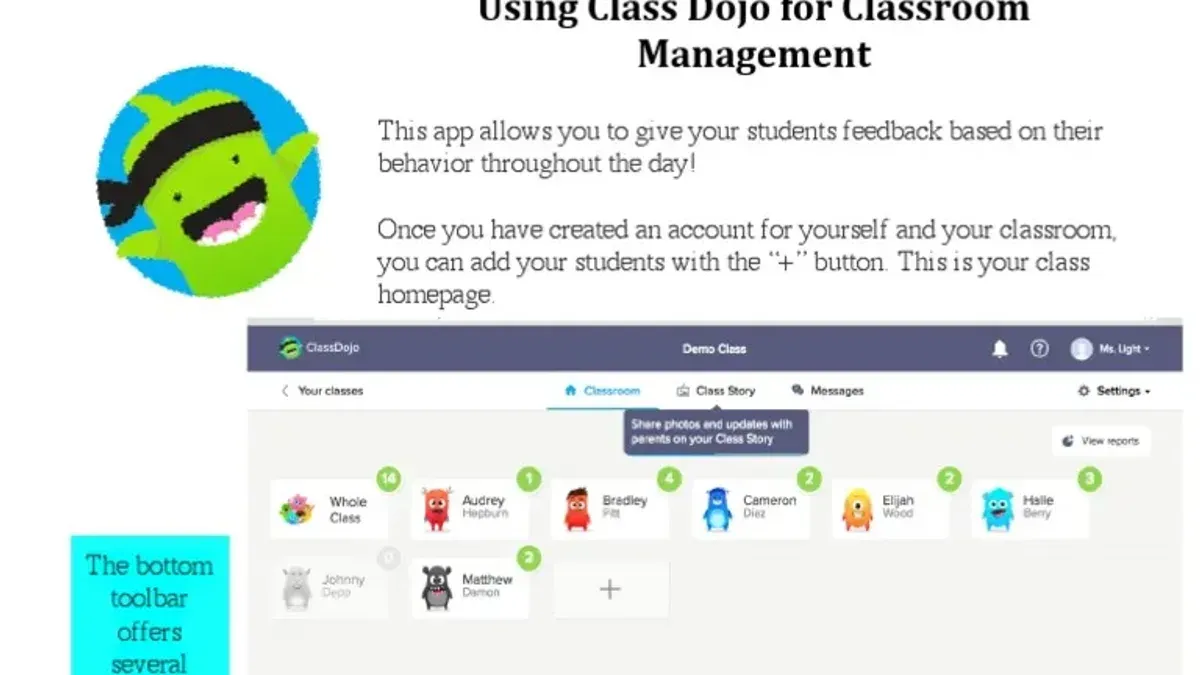
Short answer: Moving from Seesaw to ClassDojo requires a clear, step-by-step plan to preserve your student data, recreate activities, and maintain engagement. This moving from Seesaw to ClassDojo checklist walks you through managing your Seesaw classes, exporting key content, and setting up ClassDojo efficiently.
This guide covers understanding the main functional differences between Seesaw and ClassDojo, how to archive and export your existing work, and practical steps to launch your ClassDojo classroom without losing momentum. It highlights the critical settings and features you need to configure, advises on adding students and teachers, and details common pitfalls to avoid so your transition is seamless and your classroom stays organized and engaging.
Understand the core differences between Seesaw and ClassDojo
Seesaw primarily serves as a student-driven portfolio and activity creation platform. It enables students to document learning with photos, videos, drawings, and text, which teachers can review and assess. The platform’s activity library and creation tools are designed to foster student engagement through creative assignments and personalized feedback.
ClassDojo, by contrast, centers on behavior tracking and parent communication. Its core features include customizable behavior points, class story updates, and direct messaging with families. While ClassDojo allows some activity sharing, it does not replicate Seesaw’s extensive portfolio or assignment creation capabilities.
| Feature | Seesaw | ClassDojo |
|---|---|---|
| Student Portfolios | Robust, student-driven, multimedia submissions | Minimal, focused on behavior evidence |
| Activity Creation | Extensive library and custom assignments | Limited activity sharing, no creation tools |
| Behavior Tracking | Basic, less emphasized | Core feature with points and reports |
| Parent Communication | Class and individual sharing | Direct messaging and class story feed |
| User Roles | Teachers, students, families with portfolio access | Teachers, students, families focused on communication |
These differences shape classroom workflows. For example, in Seesaw, a teacher might assign a drawing activity, then students submit work directly to their portfolios for peer and teacher feedback. In ClassDojo, the teacher would instead focus on recording behaviors during class and sharing class updates with parents, with less emphasis on individual student work submissions.
Understand that some Seesaw features, like the detailed activity builder or the comprehensive student portfolio, don’t have direct counterparts in ClassDojo. This means you’ll need to adjust your approach, for instance, by using ClassDojo’s messaging and class story features to share work or updates rather than relying on a portfolio.
How to archive, unarchive, and manage classes in Seesaw before switching
Properly managing your Seesaw classes before transitioning is crucial to avoid losing student data. Archiving a class removes it from your active dashboard but preserves all student work and activities for future access.
Archiving a class
- Log in to your Seesaw teacher account.
- From the dashboard, locate the class you want to archive.
- Click on the three-dot menu (•••) on the class card.
- Select Archive Class from the dropdown options.
- Confirm the action when prompted.
Archiving is useful when a class has ended, but you want to maintain access to portfolios and activities without cluttering your dashboard.
Unarchiving a class
- Scroll to the bottom of your dashboard and click Archived Classes.
- Find the class you need to restore.
- Click the three-dot menu on the archived class card.
- Select Unarchive Class.
- The class will return to your active dashboard.
If you need to revisit or export student work after archiving, unarchiving makes the class easily accessible again.
Backing up student work and activities
Before switching platforms, create a backup of essential student portfolios and activities:
- Go into each active or archived class.
- Open the Journal to review student posts.
- Use the Export option in the class settings to download student work as PDFs or CSVs.
- For activities, manually save or screenshot templates you want to recreate in ClassDojo.
For example, if you have a class called "Mrs. Taylor's 4th Grade" that you are archiving after the school year, export all student journals and activity templates first. Then archive the class. Later, if you realize you need a specific student’s work, you can unarchive the class to retrieve it.
- Archive classes after the school year ends to keep your dashboard organized.
- Unarchive only if you need to access or export data later.
- Export student portfolios and activities before archiving to ensure no data is lost.
- Keep backups in multiple formats for flexibility during migration.
- Regularly check archived classes to confirm all necessary data is intact.
How to get class codes and add students or teachers in Seesaw
To manage class access smoothly before switching to ClassDojo, you first need to locate your Seesaw class code, which allows students to join independently. From your Seesaw home screen, select your class, then click on the green + Add Student button. Choose Invite Students to view the unique class code prominently displayed. Share this code with students or parents so they can join via the Seesaw app or website.
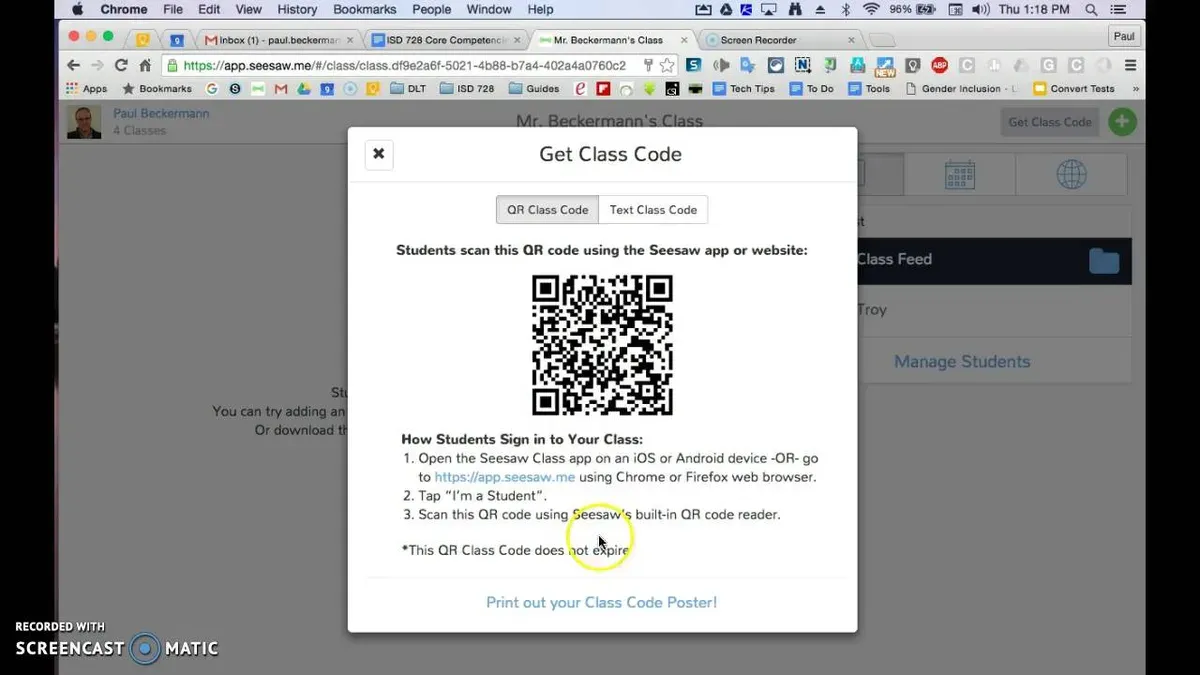
If you prefer adding students manually, select Manually Add Students under the same menu. Enter each student’s name and assign a password or let Seesaw generate one automatically. This method is useful for younger grades or when parents prefer direct teacher management of accounts.
Adding co-teachers or assistants is essential for shared classroom management. To do this, go to the Settings gear icon in your class, then click Manage Teachers. Click Add Teacher and enter their email address. They will receive an invitation to join the class with full or limited permissions depending on your selection.
For example, if you want to add Ms. Lopez as a co-teacher, open Manage Teachers, enter [email protected], and send the invite. She can then access the class alongside you, helping with student activities and communication.
- Locate class code under + Add Student > Invite Students
- Share code with students/parents for easy joining
- Manually add students via + Add Student > Manually Add Students
- Add co-teachers via Settings > Manage Teachers > Add Teacher
How to create and export activities in Seesaw for use in ClassDojo
In Seesaw, activities are structured lesson prompts or assignments that include instructions, templates, and space for student responses. To preserve your instructional content, first review your existing activities under the "Activities" tab in Seesaw’s dashboard. Identify those you want to keep and export before transitioning.
Seesaw allows exporting student work related to activities, but it does not support direct export of activity templates in a format that imports into ClassDojo. You can download student responses as PDFs or JPGs by clicking on each submission and choosing the "Download" option. For bulk exports, use the "Download All" feature in the student work section, which compiles submissions into a ZIP file containing PDFs, ensuring you retain evidence of student learning.
To recreate activities in ClassDojo, focus on ClassDojo’s "Classwork" feature, which supports assignments with instructions, attachments, and due dates. While ClassDojo does not allow importing Seesaw activity templates directly, you can manually recreate them by copying instructions and attaching relevant files saved from Seesaw. For example, if you have a Seesaw activity prompting students to draw a habitat and record a voice note, replicate this in ClassDojo by creating a Classwork assignment with text instructions and attaching an image file or rubric.
Side by side, Seesaw’s activities emphasize interactive, multimedia student responses within the platform, while ClassDojo’s assignments focus more on task completion linked to behavior and engagement tracking. Understanding these differences helps you prioritize which content to export as student work and which to manually rebuild for ongoing instruction.
- Review and select key activities in Seesaw you want to preserve.
- Download student submissions individually or in bulk as PDFs or JPGs.
- Save any templates or instructional materials used in Seesaw activities.
- Use ClassDojo's "Classwork" to manually recreate activities with copied instructions and attachments.
- Adjust activity formats to align with ClassDojo’s focus on assignments rather than interactive portfolios.
How to set up your ClassDojo classroom for a smooth start
Begin by creating a new class in ClassDojo. From your dashboard, click "Add a Class", enter your class name, grade level, and select your school. This basic setup mirrors the structure you used in Seesaw, helping maintain continuity.
Next, invite students by generating a unique class code. Navigate to "Students" > "Invite Students" and share this code with your learners. This step replaces Seesaw’s class codes and ensures students join your new ClassDojo environment effortlessly.
Customize behavior points to reflect what mattered most in Seesaw. Go to "Settings" > "Behavior" and edit or add behaviors that align with your classroom goals. For example, if you tracked "Participation" in Seesaw, create a similar positive behavior in ClassDojo with a clear description so students understand expectations.
Adjust communication settings under "Settings" > "Parent Communication". Enable or disable messaging features based on your preferences and school policies. ClassDojo’s messaging can replace some of Seesaw’s parent communication tools, so set permissions carefully.
Add co-teachers by selecting "Manage Teachers" and sending invitations via email. This keeps your team aligned and allows seamless collaboration within ClassDojo’s interface.
Finally, connect with parents by inviting them through the "Invite Parents" option. Share a simple message such as:
"Welcome to our new ClassDojo classroom! Please join using the code provided to stay updated on your child’s progress and classroom activities. Contact me if you need help joining."
Following these steps creates a ClassDojo classroom environment that reflects your familiar Seesaw setup, minimizing disruption and supporting a smooth transition.
- Create a new class with accurate name and grade level
- Invite students using the provided class code
- Customize behavior points to match your classroom values
- Set communication preferences to align with your workflow
- Add co-teachers via email for collaborative management
- Invite parents with a clear, welcoming message
How to use ClassDojo in the classroom effectively after switching
ClassDojo centers on behavior tracking and communication, giving you tools to recognize positive student actions instantly and keep parents informed. Use the Points tab to award behavior points in real time—this encourages desired behaviors like participation and collaboration. For example, when a student raises their hand, award a "Respect" point immediately to reinforce that habit.

Leverage the Messaging feature to maintain parent engagement. Send regular updates or quick notes about student progress directly through ClassDojo’s message center, which supports text, images, and attachments. This keeps parents connected and informed during the transition.
Incorporate ClassDojo’s Activities and Student Portfolios to showcase student work. Upload photos, videos, and assignments to portfolios so students can reflect on their own progress and parents can view classroom happenings. For instance, after a science project, upload photos and encourage students to add reflections, maintaining a sense of continuity from Seesaw’s portfolio approach.
To keep student engagement high, try setting behavior goals visible to the class on the Class Story. Celebrate milestones like "100 Respect Points" collectively, which motivates students through shared success.
Teachers transitioning to ClassDojo report smoother behavior management and improved parent communication when they consistently use the points system and messaging tools daily. One teacher observed fewer disruptions simply by acknowledging positive behavior immediately via ClassDojo.
- Use the Points tab during lessons to award behavior points live
- Send weekly parent updates through the Messaging feature
- Upload student work regularly to Portfolios for reflection and parent viewing
- Set class-wide behavior goals on Class Story to boost engagement
- Encourage student self-reflection by adding comments to their portfolios
Common mistakes to avoid when moving from Seesaw to ClassDojo
One frequent mistake is not backing up your Seesaw data before archiving classes. Without a complete backup, you risk losing valuable student work and records. For example, a teacher who archived her class and assumed the data was safely stored later found that some student portfolios were inaccessible, causing delays in parent updates and report preparation.
Another pitfall is assuming all Seesaw features have direct equivalents in ClassDojo. ClassDojo focuses more on behavior tracking and communication, so interactive activity types and portfolio layouts from Seesaw may not transfer seamlessly. Teachers who try to replicate Seesaw’s activity complexity in ClassDojo without adaptation often encounter frustration and reduced student engagement.
Delaying parent communication about the platform change can also disrupt the transition. If parents are not informed early, they may miss important messages or feel disconnected, undermining the benefits of ClassDojo’s improved communication tools. One teacher experienced confusion and increased emails when parents were unaware of the switch until after it happened.
Finally, ignoring student training on ClassDojo can lead to a slow and rocky start. Students unfamiliar with behavior points, portfolios, and messaging features need guidance to participate confidently. Without this, teachers reported a drop in participation and more questions during class time.
- Back up all Seesaw data before archiving classes.
- Review ClassDojo features and adjust expectations; don’t expect a one-to-one match.
- Notify parents about the platform switch well in advance.
- Provide students with clear instructions and practice time using ClassDojo.
Read next
- Seesaw Rollout Plan for Substitute Teachers: A Clear Guide
- Switching from Remind to ClassDojo: A Practical Guide for Educators
- Switching from ClassDojo to Seesaw: A Practical Guide for Teachers
- ClassDojo Rollout Plan for Substitute Teachers: A Practical Guide
Frequently asked questions
How to unarchive a class on seesaw?
To unarchive a class on Seesaw, log into your teacher account and go to the Classes page. Click the "Archived Classes" tab to locate your archived classes. Select the class you want to restore, then click the "Unarchive" button at the top right. The class will return to your active classes list, allowing you to manage it again.
How to get class code on seesaw?
To get the class code in Seesaw, open your active class and go to the "Class Settings" menu. Under the "Students" section, you will see the unique class code prominently displayed. Share this code with students or parents to enable them to join the class quickly.
How to add students to seesaw?
Adding students in Seesaw is done through the class dashboard. Click "Add Students," then choose whether to invite them with a class code, email invitation, or individual QR codes. You can also manually add student names for roster creation if preferred.
How to archive a class on seesaw?
To archive a class, navigate to the Classes page and select the class you want to archive. Open the "Class Settings" menu, scroll down, and click the "Archive Class" option. Archiving removes the class from your active list but preserves all student work and data for future access.
How to find archived classes on seesaw?
Archived classes are found on the Classes page under the "Archived Classes" tab. Simply click this tab to view all your archived classes. From there, you can unarchive or review student work as needed.
Quick checklist
- Review Seesaw classes: archive or unarchive to organize before switching
- Export student work and activities manually from Seesaw via the Activities tab
- Gather class codes and confirm student and teacher rosters in Seesaw
- Set up ClassDojo classes using the same student names and details for consistency
- Recreate key activities in ClassDojo’s Activities section based on your exported content
- Enable parent communication and behavior tracking features in ClassDojo early
- Test ClassDojo’s student engagement tools before full classroom implementation
- Watch for common errors like duplicating students or missing activity setups
What this advice does not cover
This guide does not cover data migration tools or automated transfer of student work between Seesaw and ClassDojo, as no official integration exists; teachers must manually export and recreate content. For schools requiring bulk data transfer or automated syncing, consulting your district’s IT department or vendor support is recommended.
To get started confidently, export your most used Seesaw activities now, then immediately begin building those same activities in ClassDojo. This hands-on step ensures you identify any gaps early and helps your classroom transition feel seamless rather than rushed.



