How to Open.cr3 Files on Mac: Complete Step-by-Step Guide
Discover effective ways to open.cr3 files on Mac using native apps, Adobe software, and third-party tools for seamless editing.
You’ve just transferred your Canon camera’s photos to your Mac, only to find the.cr3 files won’t open as easily as JPEGs. This newer Canon RAW format isn’t supported by every app, which can interrupt your editing workflow.
This guide explains how to open.cr3 file on Mac effectively, covering native options like Apple Photos and Preview as well as professional tools such as Adobe Photoshop and Lightroom. You’ll also learn about third-party software choices, cross-platform considerations with Windows, and practical conversion methods for broader compatibility. Troubleshooting tips and a brief overview of the.cr3 format versus older.cr2 files are included to help you confidently manage these files in your photography workflow.
Key takeaways
- Apple Photos and Preview support.cr3 files starting with macOS Catalina or later.
- Adobe Lightroom Classic and Photoshop require the latest Camera Raw updates to open.cr3 files.
- Third-party apps like Affinity Photo and Capture One offer strong.cr3 compatibility with different workflow features.
- Windows users need compatible codecs or software like Adobe products to open.cr3 files.
- Converting.cr3 files to DNG or TIFF can increase compatibility but may increase file size.
Before you start: What you need to open.cr3 files on Mac
CR3 files are Canon's proprietary raw image format introduced to replace CR2, offering improved compression and metadata handling. Unlike JPEGs, raw files like CR3 store unprocessed sensor data, giving you greater editing flexibility but requiring compatible software to interpret them correctly.
Your Mac must run macOS Mojave (10.14) or later to support CR3 files natively in Apple apps like Photos and Preview. Older systems may not recognize CR3 without updates or third-party software. Hardware-wise, any Mac capable of running these macOS versions should handle CR3 files, though faster processors and ample RAM improve editing performance.
Recommended software for opening and editing CR3 files ranges from free tools like Apple Photos and Preview to paid options such as Adobe Photoshop and Lightroom. Some alternative third-party apps also support CR3, offering different features or workflows. Selecting software depends on your editing needs and budget.
To obtain CR3 files legitimately, transfer images directly from your Canon camera to your Mac using a USB cable or a card reader. Avoid downloading CR3 files from unverified sources to prevent corruption or compatibility issues.
| Software | macOS Requirement | CR3 Support | Price |
|---|---|---|---|
| Apple Photos | macOS Mojave 10.14+ | Yes, native | Free |
| Preview | macOS Mojave 10.14+ | Yes, native | Free |
| Adobe Lightroom | macOS Mojave 10.14+ | Yes | Subscription |
| Adobe Photoshop | macOS Mojave 10.14+ | Yes | Subscription |
| Capture One | macOS High Sierra 10.13+ | Yes | Paid |
| Affinity Photo | macOS Sierra 10.12+ | Partial support | One-time purchase |
How to open a cr3 file on Mac using Apple Photos and Preview
You can open CR3 files on your Mac using native apps like Apple Photos and Preview without installing extra software. These tools provide quick access to your raw images but offer limited editing capabilities.
Importing CR3 files into Apple Photos
- Connect your camera or memory card to your Mac. The Photos app should open automatically; if not, launch it from the Applications folder.
- In Photos, click File > Import.
- Navigate to the folder containing your CR3 files, select the photos you want, then click Review for Import.
- Click Import All New Photos or select specific ones and click Import Selected. You will see the files appear in the Imports album.
- Double-click any imported photo to view it. The image opens with basic adjustment options available in the Edit mode, but these do not include advanced raw processing controls.
Viewing CR3 files with Preview
- Locate the CR3 file in Finder.
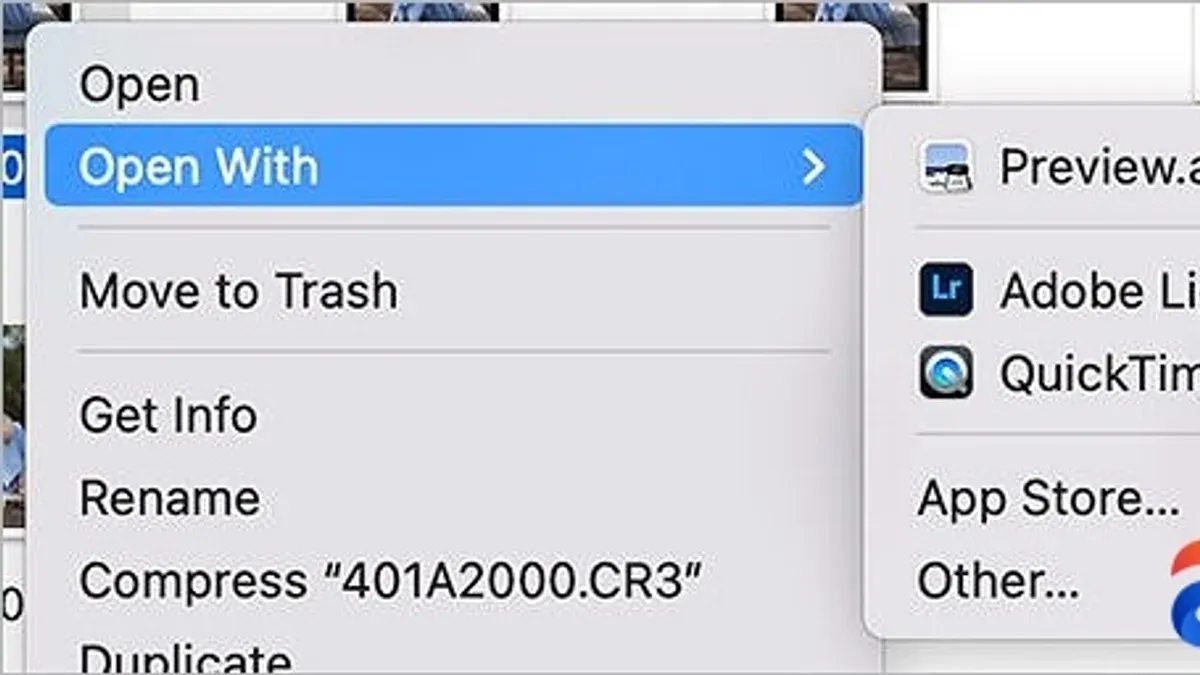
- Right-click the file and select Open With > Preview.
- The raw image will open for quick viewing and basic zooming or rotation.
While Apple Photos and Preview handle CR3 files natively, note that Apple Photos offers only basic editing tools, lacking the depth of dedicated raw editors. Preview does not provide editing capabilities beyond simple image viewing. For advanced raw adjustments, consider specialized software.
How to open.cr3 files on Mac with Adobe Photoshop and Lightroom
Adobe Photoshop and Lightroom are widely used professional tools that handle Canon CR3 raw files with robust support, enabling advanced editing and cataloging workflows. Photoshop opens CR3 files through the Adobe Camera Raw (ACR) plugin, which offers precise control over raw adjustments before the image loads into the main editing interface.
- Open Photoshop and select File > Open.
- Navigate to your CR3 file and select it. Photoshop will launch Adobe Camera Raw automatically.
- Use the sliders and tools in Camera Raw to adjust exposure, white balance, and detail.
- Click Open Image at the bottom right to bring the processed raw file into Photoshop for further editing.
Lightroom streamlines raw photo management by importing CR3 files into a catalog, allowing you to organize, edit non-destructively, and export images efficiently. Lightroom’s Develop module provides a wide range of controls optimized for raw processing.
- Launch Lightroom and click File > Import Photos and Video.
- Select your CR3 files and import them into your catalog.
- Navigate to the Develop module to apply edits like tone curve adjustments, color grading, and noise reduction.
Adobe’s support for CR3 files is generally available in recent versions of Photoshop and Lightroom as part of the Adobe Creative Cloud subscription. Older versions may lack compatibility or require Camera Raw updates. Compared to the older CR2 raw format, CR3 benefits from improved compression and metadata handling, but editing results in both applications follow the same Adobe raw processing engine, ensuring consistent output quality across Photoshop and Lightroom. Lightroom excels in workflow efficiency and batch processing, while Photoshop offers pixel-level editing flexibility beyond raw adjustments.
How to open.cr3 files on Mac using alternative third-party software
Beyond native and Adobe apps, several third-party programs offer reliable CR3 support with varied features and usability. Free options like RawTherapee and Darktable provide robust raw processing capabilities, supporting CR3 files without cost. These open-source tools offer extensive color correction and noise reduction controls but have steeper learning curves and less polished interfaces.
Paid alternatives such as Capture One and Luminar present more user-friendly experiences. Capture One excels in tethered shooting, color grading precision, and cataloging, favored by many professionals for its performance and image quality. Luminar offers AI-enhanced editing tools and an intuitive interface, suitable for photographers seeking quick yet sophisticated adjustments.
| Software | Cost | Ease of Use | Key Features | Performance |
|---|---|---|---|---|
| RawTherapee | Free | Moderate | Advanced color correction, noise reduction | Good for single shots, slower batch processing |
| Darktable | Free | Moderate | Non-destructive editing, tethered shooting | Efficient with large libraries |
| Capture One | Paid | High | Professional color grading, tethered capture | Fast and stable |
| Luminar | Paid | High | AI tools, presets, layered editing | Responsive for most edits |
To open CR3 files in these apps, typically you:
- Download and install the chosen software from its official site.
- Launch the app and create or open an existing catalog or project.
- Import your CR3 files via the File > Import menu or drag-and-drop.
- Once imported, select a file to view and begin editing using the software’s available tools.
While free tools provide powerful raw processing, they may require more time to master. Paid solutions offer smoother workflows and additional features but involve ongoing costs. Choose based on your editing needs, budget, and desired level of control.
How to open cr3 files on Windows: cross-platform considerations
If you work across Mac and Windows environments, understanding how to handle CR3 files on Windows is essential. Windows 10 and later provide native support for CR3 files in Photos and File Explorer after installing the appropriate Raw Image Extension from the Microsoft Store. This enables thumbnail previews, basic viewing, and importing without additional software.
For more advanced editing on Windows, third-party programs like Adobe Lightroom, Photoshop, RawTherapee, and Capture One support CR3 files similarly to their Mac counterparts. These apps offer consistent workflows across platforms, suitable for photographers needing detailed adjustments.
When transferring CR3 files from Mac to Windows, use external drives formatted as exFAT or network shares that both systems can read and write without file system conflicts. Avoid using formats like HFS+ that Windows cannot natively access. Also, ensure you transfer the original CR3 files rather than exported JPEGs or TIFFs to preserve full raw data.
- Connect your external drive formatted as exFAT to your Mac and copy the CR3 files from your Mac storage. You should see the files copied without errors.
- Eject the drive safely and connect it to your Windows PC. Open File Explorer and navigate to the drive; thumbnails of your CR3 files should appear.
- Open a CR3 file with Windows Photos or your chosen third-party editor. The image should load fully, allowing viewing or editing.
- If thumbnails do not appear, install the Microsoft Raw Image Extension from the Microsoft Store, then restart File Explorer to enable native support.
This cross-platform workflow lets you maintain original raw files and switch between Mac and Windows tools without quality loss or compatibility issues.
How to convert.cr3 files for broader compatibility
Converting CR3 files to other formats can increase compatibility with software that doesn't natively support Canon's latest raw format. Adobe DNG Converter is a widely used free tool to convert CR3 files into DNG (Digital Negative) format, which maintains raw image data while broadening software support.
- Download and install Adobe DNG Converter from Adobe's official website. After installation, launch the program.
- Click "Select Folder" and choose the folder containing your CR3 files. The selected files will appear in the conversion list.
- Specify the destination folder for the converted DNG files by clicking "Change Destination Folder."
- Optionally, adjust compatibility settings under "Select Compatibility" by choosing an older DNG version for wider software support.
- Click "Convert" to start the process. A progress bar will indicate completion, and converted files will appear in your chosen destination.
Converting to DNG preserves raw image quality almost identically to native CR3 files, providing nearly lossless results. However, converting adds an extra workflow step and slightly increases file size. Editing native CR3 files in supported software avoids conversion but may limit software options.
Alternative converters include third-party raw processors like Capture One or Luminar, which offer export options to formats like TIFF or PSD. These exports, however, are no longer raw and may lose some editing flexibility.
Before committing to conversion, compare image quality by opening original CR3 and converted DNG files side by side in your editing software. Differences are generally minimal, but subtle metadata or compression changes may occur depending on settings.
Troubleshooting common issues opening.cr3 files on Mac
If your Mac or software does not recognize CR3 files, check for error messages like "Unsupported file format" or "File cannot be opened." These typically indicate outdated software or missing codec support.
- Update macOS to the latest version by going to System Preferences > Software Update. A successful update enables native CR3 support, visible when Preview opens the file.
- Ensure your editing software is current. In Adobe apps, check Help > Updates. After updating, the software should open CR3 files without error messages.
- If software crashes or slows when loading CR3 files, close other applications to free memory. Confirm your Mac meets recommended RAM and CPU specs for your photo editor. After this, performance should improve noticeably.
- For suspected file corruption or incomplete transfers, compare file size with the original source. If smaller, re-import the file using a reliable card reader or cable. Once intact, the file should open normally.
- Clear software caches or preferences if persistent errors occur. For example, in Lightroom, go to Preferences > Performance > Clear Cache. Restart the app to see if the issue resolves.
Common error messages include "Could not complete your request because the file is invalid," "The file format is not supported," and "Unexpected end of file." Following these steps generally resolves these problems.
Understanding what a.cr3 file is and how it differs from.cr2
The.cr3 file format is Canon’s newer raw image format, introduced to replace the older.cr2 format. Unlike.cr2, which is based on TIFF structure,.cr3 uses a more efficient compression method known as C-RAW (Compressed RAW). This compression reduces file sizes significantly—typically by 30-40% compared to.cr2—while maintaining high image quality suitable for professional editing.
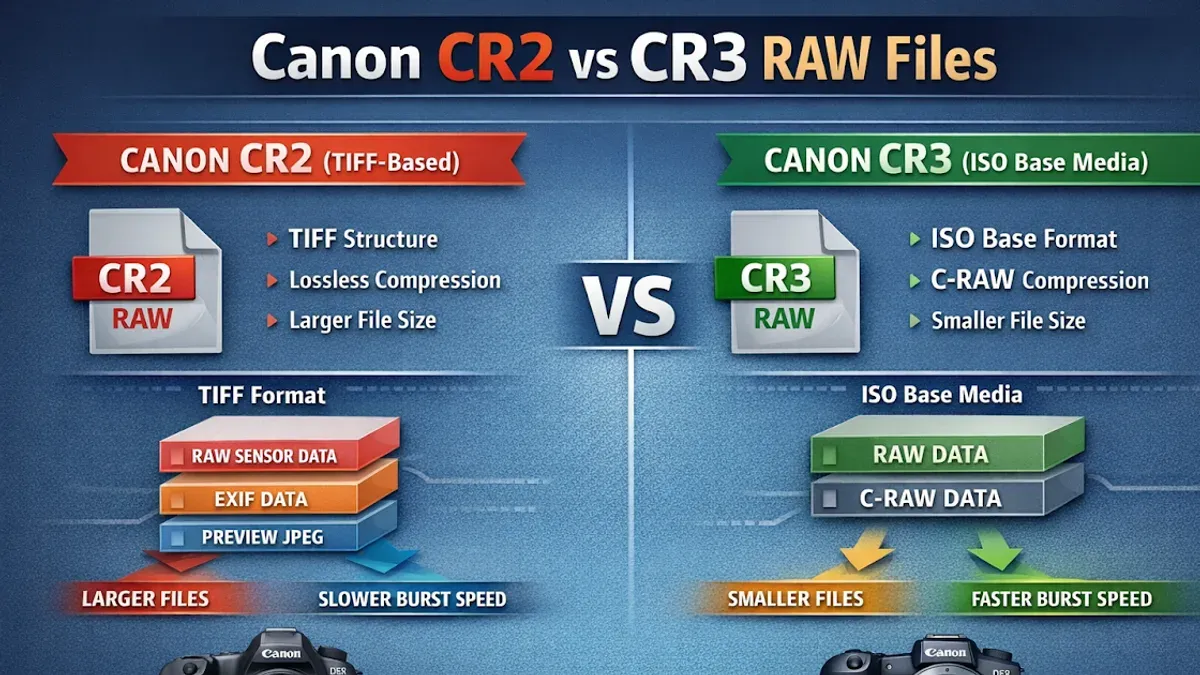
Metadata handling in.cr3 files also differs..cr3 supports extended metadata options through the use of Canon’s Camera Settings Database, allowing for more detailed camera information, lens corrections, and in-camera edits to be embedded. For example, a typical.cr2 file might range from 25-30 MB for a 20MP sensor image, whereas the corresponding.cr3 file could be around 18-22 MB, with metadata showing enhanced fields related to autofocus and lens aberrations.
Despite these advantages, some software—especially older programs or those without recent updates—struggle with.cr3 compatibility. This is because.cr3 uses the ISO Base Media File Format container, which differs from the simpler TIFF-based.cr2. Software must specifically support this container and Canon’s compression scheme to decode.cr3 files properly. As a result, legacy applications may open.cr2 files without issue but fail or display errors with.cr3 files, requiring updates or alternative software choices.
- How to Open.heic Files on Mac: Clear Step-by-Step Methods
- How to Open.webp Files on Mac: Practical Step-by-Step Methods
Frequently asked questions
How to open cr3 file in photoshop?
To open a.cr3 file in Photoshop, first ensure you have the Adobe Camera Raw plugin updated to the latest version. Open Photoshop, go to File > Open, and select your.cr3 file. If Camera Raw launches automatically, you can adjust settings before opening the file in Photoshop. If not, update Camera Raw via the Creative Cloud app to ensure compatibility with the latest Canon raw formats.
How to open.cr file?
The.cr file extension is uncommon and may refer to different file types depending on context. If you mean Canon raw files, the correct extension is usually.cr2 or.cr3. For other.cr files, identify the originating software to find the appropriate app. Without specific context, general image viewers or specialized software might not recognize.cr files.
How to view cr3 files on windows?
On Windows, viewing.cr3 files requires compatible software such as Adobe Lightroom, Photoshop with an updated Camera Raw plugin, or Canon’s Digital Photo Professional (DPP). Alternatively, Microsoft’s Raw Image Extension available from the Microsoft Store can add native viewing support in File Explorer and the Photos app. Without these, Windows won’t display thumbnails or previews correctly.
How to view cr3 files?
You can view.cr3 files using several applications on Mac and Windows. On Mac, Apple Photos and Preview support.cr3 files natively, while Adobe Lightroom and Photoshop offer advanced viewing and editing. For cross-platform use, Canon’s Digital Photo Professional and third-party apps like Capture One also support.cr3 files. Ensure your software is updated to handle the latest raw formats.
What is a.cr3 file?
A.cr3 file is a raw image format used by Canon cameras, representing minimally processed sensor data. It is the successor to the older.cr2 format, featuring enhanced compression and metadata capabilities. Raw files like.cr3 preserve maximum image detail for post-processing but require compatible software to open and edit.
What this advice does not cover and who should look elsewhere
This article does not cover in-depth professional raw editing techniques or color grading workflows beyond opening and basic editing. If you require advanced color correction or detailed raw processing, dedicated software tutorials or specialized courses will be more appropriate. Users with very old Mac hardware or outdated operating systems may not be able to open CR3 files without upgrading their software or hardware, as native support depends on macOS versions starting from Mojave and newer. Additionally, converting CR3 files to other formats like DNG or TIFF can sometimes reduce the flexibility that native raw editing provides, so use conversion judiciously.
The single most useful next step is to ensure your Mac’s operating system and editing software are fully updated, as native support for CR3 files is closely tied to system and app versions. Once updated, try opening your CR3 files with Apple Photos or Preview to quickly assess file integrity before moving on to more advanced editing tools. This approach helps you avoid compatibility issues and streamlines your workflow from the start.