
How to Open.dng Files on Mac: Step-by-Step Guide
Discover easy methods to open.dng files on Mac using built-in apps, professional software, and online tools without confusion or errors.
You have a.dng file on your Mac, but double-clicking it doesn't open your photo as expected. Maybe you downloaded it from a camera app or received it from a photographer, and now you wonder how to open.dng file on Mac without hassle.
This guide walks you through practical methods to view and edit.dng files using built-in Mac apps like Preview and Photos, professional editing software, and convenient online tools. It also helps you avoid confusion with similarly named file types like.dgn and.dmg, and provides troubleshooting tips for common issues you might encounter.
Key takeaways
- Preview and Photos apps support basic viewing of.dng files on Mac without extra software.
- Professional editors like Adobe Lightroom offer advanced.dng editing but may require subscriptions.
- Free online converters and viewers can open.dng files without installing apps.
- .dgn and.dmg files are entirely different formats; recognizing them prevents file-opening errors.
- Updating macOS and software often resolves compatibility issues with.dng files.
Before you start: what you need to open.dng files on Mac
A.dng file is a Digital Negative, which is a type of raw image format used by many cameras to store uncompressed and minimally processed photo data. This means.dng files are typically larger than standard JPEG images — for example, a typical.dng file might be around 25 MB, whereas a comparable JPEG could be 5 MB. Because of this, you need compatible software to view or edit.dng files properly on your Mac.
Not all Mac applications support.dng files by default. You'll need either built-in apps like Preview or Photos (with certain version requirements) or third-party software designed for raw image processing. Make sure your Mac's operating system is up to date enough to support these apps with.dng compatibility.
Also, be aware of common file extension confusions:.dng is a raw image format, but.dgn files relate to CAD software and.dmg files are disk image files on Mac. Opening these with photo apps won’t work and could cause confusion.
| App | Minimum macOS Version for.dng Support |
|---|---|
| Preview | macOS Sierra (10.12) and later |
| Photos | macOS Sierra (10.12) and later |
| Adobe Lightroom | macOS Mojave (10.14) and later |
| Affinity Photo | macOS High Sierra (10.13) and later |
- Check your macOS version by clicking the Apple menu and selecting "About This Mac". You should see your version number (e.g., macOS Monterey 12.0 or later). This ensures compatibility with popular photo apps.
- Locate your.dng file in Finder. Confirm it has the.dng extension, not.dgn or.dmg, to avoid confusion.
- Decide on the software you want to use based on your needs—Preview or Photos for quick viewing, or professional apps like Adobe Lightroom for editing.
How to open.dng files on Mac using Preview and Photos apps
You can open.dng files natively on your Mac using Preview and Photos, two built-in applications that provide quick access without needing third-party software.
Opening.dng files with Preview
- Right-click the.dng file and select Open With > Preview. Preview will display the image immediately in a new window.
- Use the sidebar or the arrow keys to navigate if the.dng file contains multiple images. You should see a clear, high-resolution preview of the raw image data.
- Note that Preview is read-only for.dng files, so you cannot apply edits or adjustments directly. It is best for quick viewing or simple exporting to other formats via File > Export.
Importing.dng files into Photos
- Open the Photos app and choose File > Import.
- Select the desired.dng files and click Review for Import. Confirm by clicking Import All New Photos to add them to your library.
- Once imported, you can organize.dng photos into albums and perform basic edits like cropping, adjusting exposure, and applying filters using Photos’ editing tools.
Using Photos allows you to manage and lightly edit.dng files without third-party software, but it lacks advanced raw processing features found in dedicated apps.
| Feature | Preview | Photos |
|---|---|---|
| View.dng files | Yes | Yes |
| Edit.dng files | No (read-only) | Basic adjustments only |
| Organize photos | No | Yes (albums, tags) |
| Batch import | No | Yes |
| Export to other formats | Yes | Yes |
In summary, Preview is suitable for quick, read-only viewing of.dng files, while Photos offers basic editing and organization. Both apps provide convenient native options without installing additional software, though their editing capabilities remain limited compared to specialized photo editors.
How to open.dng files on Mac with professional photo editing software
For advanced editing and detailed control over.dng files on Mac, professional photo editing software is the preferred choice. Adobe Lightroom Classic and Adobe Photoshop are industry standards, offering extensive tools for RAW processing and image refinement.
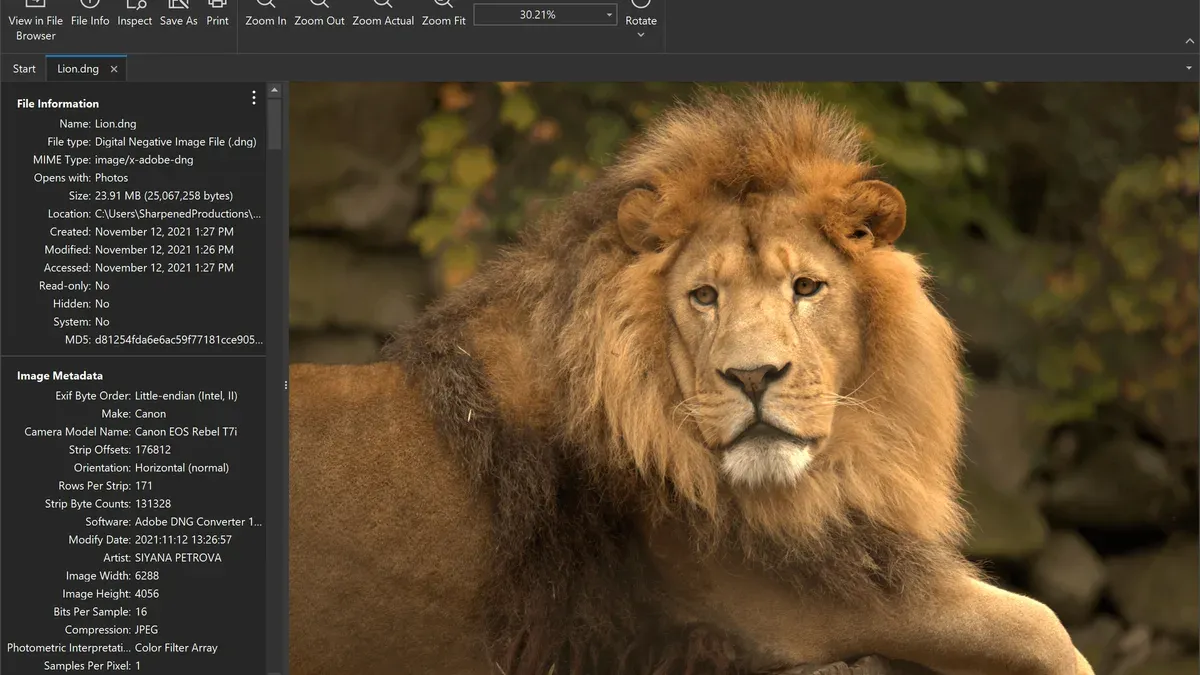
Using Adobe Lightroom Classic and Adobe Photoshop
- Open Adobe Lightroom Classic and import your.dng file using File > Import Photos and Video. You should see the file appear in the Library module.
- Switch to the Develop module to access powerful RAW editing tools such as exposure, contrast, color grading, and noise reduction.
- For pixel-level editing, open the.dng in Adobe Photoshop by right-clicking the image in Lightroom and selecting Edit In > Adobe Photoshop. Photoshop provides layers, masks, and retouching tools.
Both apps require a subscription but are widely supported and regularly updated for macOS compatibility.
Free alternatives: Darktable and RawTherapee
- Download Darktable from its official website and install it on your Mac.
- Launch Darktable and import your.dng file via the Import button. The image will appear in the lighttable view.
- Use the Darkroom module for non-destructive editing options like tone mapping, color correction, and sharpening.
- For RawTherapee, download and install it, then open your.dng file through File > Open.
- Navigate through RawTherapee's tabs to adjust exposure, detail, color, and more with a focus on fine-tuning RAW data.
These free tools are feature-rich but have steeper learning curves and less polished interfaces compared to Adobe products.
| Feature | Adobe Lightroom Classic | Darktable | RawTherapee |
|---|---|---|---|
| RAW Editing | Extensive and intuitive | Advanced but less user-friendly | Comprehensive but complex |
| Ease of Use | Beginner to pro friendly | Intermediate with learning curve | Intermediate to advanced users |
| Cost | Subscription required | Free and open-source | Free and open-source |
| System Requirements | Recent macOS version, moderate RAM | macOS 10.12 or newer, moderate RAM | macOS 10.12 or newer, moderate RAM |
How to open.dng files on Mac using online tools
If you prefer not to install software, several reliable web-based tools allow you to view and convert.dng files directly in your browser. These tools are convenient for quick access but may have file size limits and privacy considerations.
Popular online viewers and converters supporting.dng include Photopea, Convertio, and Online-Convert. Photopea is a free browser-based editor that opens.dng files for viewing and basic editing. Convertio and Online-Convert offer direct.dng to JPEG or PNG conversion without requiring an account.
To open and convert a.dng file online, follow these steps:
- Go to a website like Photopea.
- Click on File > Open and select your.dng file from your Mac. Once uploaded, the image will display in the editor window.
- To convert the.dng to JPEG, go to File > Export As > JPEG. Adjust quality settings if desired, then click Save.
- Download the converted JPEG file to your Mac.
During an example upload of a 25MB.dng file, the image appeared within seconds in Photopea's interface. Exporting to JPEG took a few moments, and the file downloaded successfully. Screenshots would show the initial upload dialog, the.dng file loaded in the editor, and the export options.
Keep in mind, most online tools have maximum file size limits, often around 50MB. Avoid uploading sensitive images since they are processed on external servers. For large or confidential files, local software is safer. However, online tools provide quick, installation-free access to open and convert.dng files on Mac.
How to open.dng files on Windows and why it differs from Mac
Windows does not natively support.dng files as extensively as macOS. While Mac users can open.dng files directly with Preview or Photos, Windows users often need additional software to view or edit these files.
To open.dng files on Windows, you can use professional software like Adobe Lightroom and Photoshop, which provide full compatibility and editing features. For free options, IrfanView combined with the appropriate RAW plugins allows basic viewing. Another alternative is FastStone Image Viewer, which supports.dng files with some limitations.
| Feature | Mac | Windows |
|---|---|---|
| Native.dng support | Yes, via Preview and Photos | Limited, requires additional software |
| Free viewing options | Preview, Photos | IrfanView with plugins, FastStone Image Viewer |
| Professional editing | Adobe Lightroom, Photoshop, Darktable, RawTherapee | Adobe Lightroom, Photoshop, Darktable, RawTherapee |
Key differences in file handling include the integration level and ease of use. On Mac,.dng files can be previewed and organized without extra installations, while Windows requires installing compatible apps or plugins. Windows users may also encounter more frequent compatibility issues with default photo apps, necessitating third-party tools.
How to identify and avoid confusion with.dgn and.dmg files
Sometimes, you might encounter file extensions that look similar but serve very different purposes. Understanding the differences between.dng,.dgn, and.dmg files helps avoid errors when trying to open them.
What is a.dgn file?
A .dgn file is a CAD (Computer-Aided Design) format primarily used by MicroStation software for architectural and engineering drawings. Unlike.dng files, which are image files containing raw photo data,.dgn files hold vector-based design information. Opening a.dgn file with photo software will result in errors or unreadable content. The typical icon for a.dgn file often resembles a blueprint or a CAD-related logo, distinct from camera or image icons.
What is a.dmg file and how to open it on Mac?
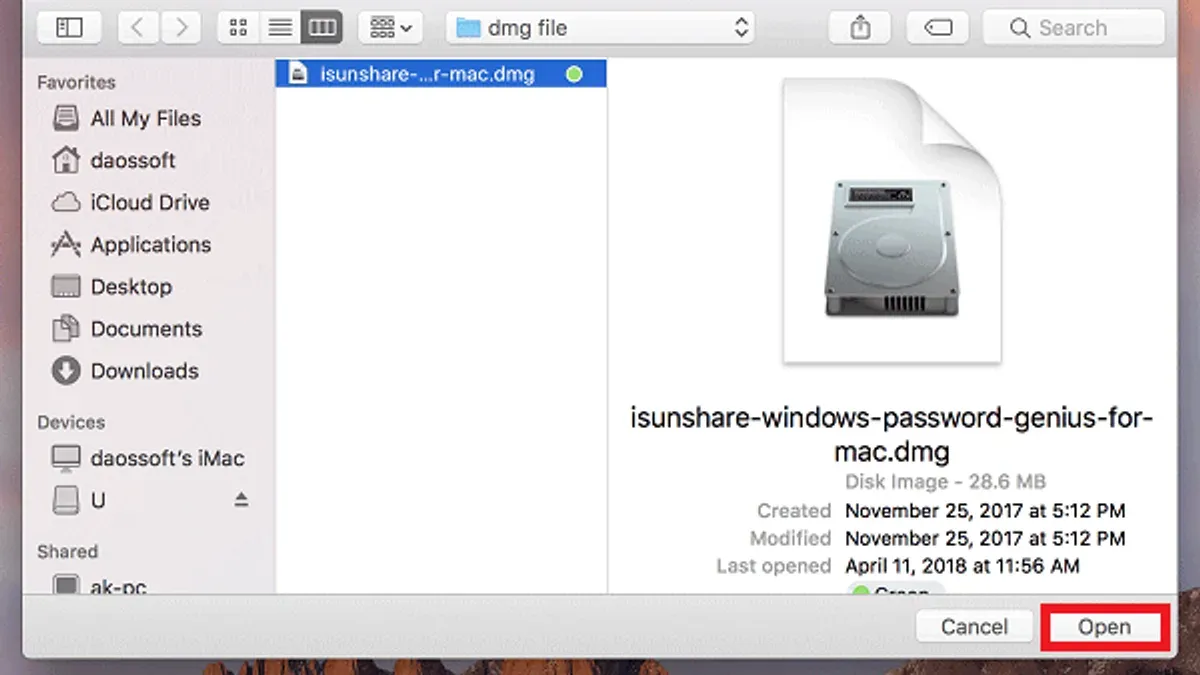
A .dmg file is a disk image commonly used on Macs to distribute software and files. It acts like a virtual drive that mounts when opened. To access a.dmg file, double-click it in Finder, and it will appear as a new drive icon on your desktop or sidebar. This is very different from a.dng file, which is an image file you open in photo viewers or editors.
Why confusing these with.dng can cause errors
Trying to open a.dgn or.dmg file as a.dng image can cause your Mac to display error messages such as “Unable to open file” or “Unsupported file format.” For example, double-clicking a.dmg file in an image app will not mount the disk image, and opening a.dgn in photo software won’t show the expected image. Recognizing the correct icon and file type helps you choose the appropriate app:
- Look at the file icon:.dng files usually show a camera or image preview;.dgn files have CAD or blueprint-like icons;.dmg files show a hard drive or disk image icon.
- Check the file extension carefully in Finder. If extensions are hidden, enable them via Finder Preferences > Advanced > “Show all filename extensions.”
- Open.dmg files by double-clicking in Finder to mount them; open.dgn files with CAD software like MicroStation; open.dng files with photo apps or editors.
Troubleshooting common issues when opening.dng files on Mac
If you encounter errors or.dng files fail to open, start by verifying the file's integrity. Incomplete downloads or corrupted files often cause loading failures or error messages like “Cannot open file” or “Unsupported format.”

- Check the file size and source. A.dng file unusually small or from an unreliable source might be incomplete. When you open a valid.dng in Preview, you should see the image preview without errors.
- Try opening the file with another compatible app such as Photos or Adobe Lightroom. Success here indicates the issue may be app-specific. If the file opens in one app but not another, update or reinstall the problematic software.
- Ensure your macOS and photo software are updated to their latest versions. Outdated software may lack compatibility with newer.dng variations. When updated, apps should open.dng files smoothly without format errors.
- Use a.dng file converter to transform the file into a more widely supported format like TIFF or JPEG if you continue to have problems. Online converters like CloudConvert or desktop utilities can assist. A successful conversion will produce a new file that opens without error.
- If the file remains inaccessible, try re-downloading it from the original source or restoring it from a backup. Partial or corrupted files cannot be reliably fixed by software.
Following these steps usually resolves common.dng file issues on Mac, enabling you to view or edit your images without further errors.
- How to Open.ARW Files on Mac: Clear Step-by-Step Guide
- How to Open and View.NEF Files on Mac and Windows
- How to Open.cr3 Files on Mac: Complete Step-by-Step Guide
Frequently asked questions
How to open dng files on windows?
On Windows, you can open.dng files using built-in apps like the Photos app or third-party software such as Adobe Lightroom, Adobe Photoshop, or free tools like IrfanView with the appropriate plugins. You may need to install codecs or updates to ensure compatibility. Some online converters also allow viewing or converting.dng files without installing software.
What program will open a dng file?
Several programs open.dng files, including Apple’s Preview and Photos apps on Mac, Adobe Lightroom and Photoshop across platforms, and free alternatives like RawTherapee or Darktable. The choice depends on whether you want simple viewing or advanced editing features.
How to view dng file?
To view a.dng file, you can use basic photo viewers like Preview on Mac by double-clicking the file. For more detailed viewing or adjustments, import it into photo management or editing apps such as Photos or Lightroom. Online tools also allow you to upload and view.dng files directly in your browser.
How to read dng files?
Reading a.dng file involves using software that understands the Digital Negative format, which stores raw image data. Applications like Adobe Lightroom or RawTherapee interpret the data to display and edit the image. On Mac, Preview provides a straightforward way to access the file’s visual content without advanced editing.
What is a.dng file?
A.dng file is a Digital Negative file, an open raw image format created by Adobe. It stores unprocessed image data from digital cameras, allowing for flexible editing without losing quality. Many photographers prefer.dng for its compatibility and archival stability compared to proprietary raw formats.
Limits of this guide and when to seek advanced tools
This article does not cover advanced professional raw processing workflows or camera manufacturer proprietary raw formats that may require specialized software, such as Adobe Camera Raw for certain Canon CR3 files or Nikon's NX Studio. If you need precise color grading, batch processing, or tethered shooting support, consider dedicated raw converters like Capture One, Lightroom Classic, or manufacturer-specific applications.
For most users wanting to open and view.dng files quickly on Mac, the built-in Preview or Photos apps suffice. If you want to edit or convert.dng files without installing software, online tools provide convenient options but may have file size limits and privacy considerations.
To proceed confidently, start by opening your.dng files with the Preview app: simply right-click the file, choose Open With > Preview. This step confirms your files are intact and accessible before exploring editing or conversion tools tailored to your needs.



