How to Open.mdf Files on Mac: Step-by-Step Guide
Discover simple methods to open.mdf files on Mac, whether they are disk images or SQL Server database files.
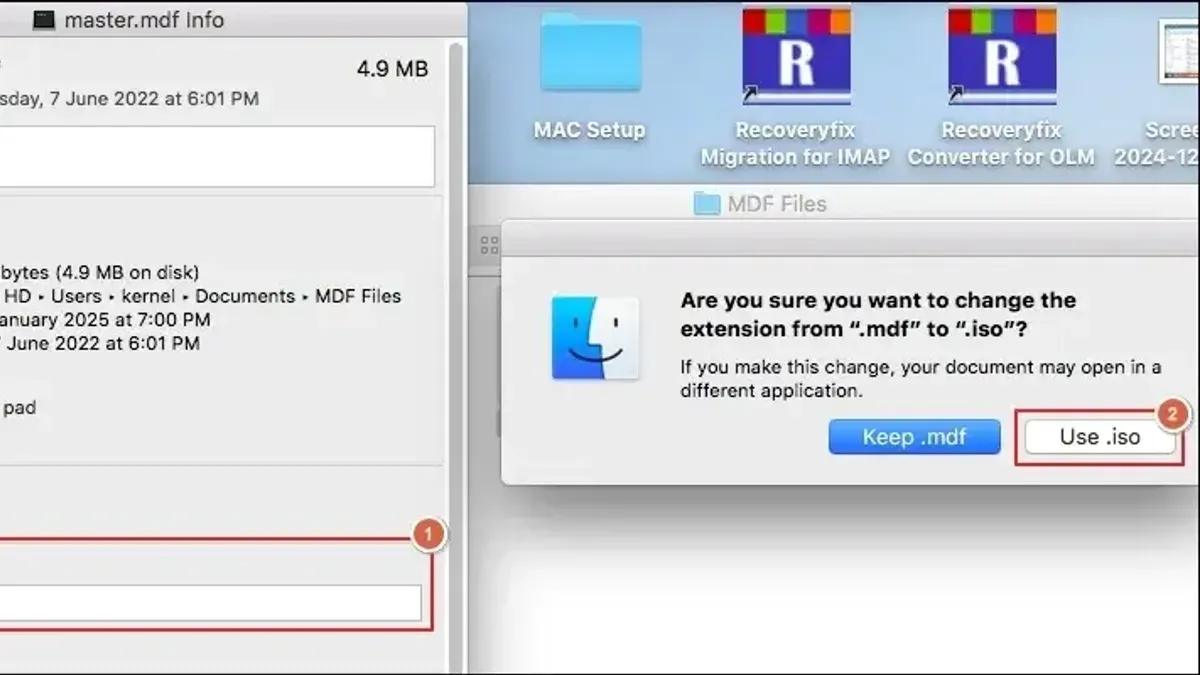
You have a file with the extension.mdf, and you need to open it on your Mac. Whether it arrived as part of a disk image, a database backup, or software development project, you might be unsure about the best way to access its contents. This guide will explain how to open.mdf file on Mac using various tools and methods suited to different use cases.
You will learn how to work with.mdf files as disk images, connect to Microsoft SQL Server databases, leverage Linux utilities compatible with Mac environments, and use Python libraries to read or manipulate.mdf data. Additionally, the guide clarifies the difference between.mdf and.md files on Mac, helping you avoid confusion when handling these similar extensions.
Key takeaways
- .mdf files can be disk images or Microsoft SQL Server database files, requiring different approaches to open them on Mac.
- Mounting tools like HFSExplorer or third-party apps can open.mdf disk images but may have format limitations.
- Accessing SQL Server.mdf files often requires connecting to a remote Windows server or using Linux-based tools through virtualization.
- Python offers libraries like pymssql or SQLAlchemy that help interact with database files when connected to the right environment.
Before you start: Understand what a.mdf file is and what you need
A file with the .mdf extension can refer to two fundamentally different types of data on Mac systems. Most commonly, it is associated with Microsoft SQL Server database files, known as primary database files. These contain structured data and require database tools to access. Alternatively, .mdf may denote disk image files, typically paired with .mds files, used for mounting virtual drives.
It is important to distinguish .mdf files from .md files, which are simple plain-text Markdown documents frequently used on Mac. Confusing these can lead to attempts to open a database or disk image file with a text editor, which won’t work. The following table highlights their key differences:
| File Type | Extension | Typical Use | File Size |
|---|---|---|---|
| Microsoft SQL Server database | .mdf | Stores database data | From several MB to multiple GB |
| Disk image file | .mdf (with.mds) | Virtual disk mounting | Usually hundreds of MB or more |
| Markdown document | .md | Plain text formatting | Usually under 1 MB |
When working with SQL Server .mdf files, you might also receive .ldf (log) files, which are essential for proper database recovery and integrity. For disk images, .mds files often accompany the .mdf to provide metadata. Knowing what you have will guide your choice of software or method.
On Mac, tools for accessing .mdf files vary: SQL Server database files require database management environments such as Azure Data Studio or Docker containers running SQL Server; disk images need mounting utilities like Daemon Tools or PowerISO for Mac; and for programmatic access, Python libraries such as pymssql or pyodbc can be employed.
How to open a.mdf file on Mac using disk image mounting tools
If your.mdf file is a disk image, you can mount it on your Mac using third-party tools that support the.mdf format, such as PowerISO or Daemon Tools for Mac. These tools create a virtual drive that allows you to access the contents of the disk image as if it were a physical disk.
Before mounting, verify the integrity of your.mdf file by checking its size and, if possible, using checksum tools to ensure it is not corrupted. Mounting a damaged file may lead to errors or incomplete access.
- Download and install a disk image mounting tool like PowerISO or Daemon Tools for Mac from their official websites.
- Open the installed application and locate the option to mount or open disk images.
- Navigate to your.mdf file and select it for mounting.
- The tool will create a virtual drive on your Mac; open Finder and look for the newly mounted drive under Locations.
- Click the virtual drive to browse the files stored inside the.mdf disk image.
Note that these mounting tools only work for.mdf files that are disk images. They cannot open.mdf files that are Microsoft SQL Server database files. If you try to mount a database.mdf file, the tool may fail or show an empty or unreadable drive.
For example, mounting an.mdf disk image with PowerISO will display the image’s folder and file structure in Finder, allowing you to copy or open files as needed.
How to open a.mdf file on Mac by accessing Microsoft SQL Server databases
Microsoft SQL Server does not run natively on Mac, so to open and work with.mdf database files, you need to use workarounds such as Docker containers or remote Windows servers. Docker allows you to run SQL Server instances in isolated Linux containers on your Mac.
- Install Docker Desktop on your Mac from the official Docker website and launch it. You should see the Docker whale icon in your menu bar.
- Pull the official Microsoft SQL Server Linux image by running in Terminal: docker pull mcr.microsoft.com/mssql/server. This downloads the latest SQL Server container image.
- Run a new SQL Server container with: docker run -e "ACCEPT_EULA=Y" -e "SA_PASSWORD=YourStrong!Passw0rd" -p 1433:1433 --name sqlserver -d mcr.microsoft.com/mssql/server. Replace the password with a strong one you choose. This starts SQL Server accessible on localhost port 1433.
- Copy your.mdf file into the container using: docker cp /path/to/your/file.mdf sqlserver:/var/opt/mssql/data/. This places the database file where SQL Server expects data files.
- Attach the.mdf file to the SQL Server instance by connecting via Azure Data Studio (available on Mac) or any SQL client supporting SQL Server. In a new query window, run:
CREATE DATABASE YourDBName ON (FILENAME = '/var/opt/mssql/data/file.mdf') FOR ATTACH; You should see a confirmation that the database is attached. - Query and export your data by running standard SQL queries like SELECT * FROM YourTable; in Azure Data Studio. You can export results as CSV or JSON directly from the query results pane.
Alternatively, if you have a remote Windows machine or VM with SQL Server installed, you can copy the.mdf file there, attach it using SQL Server Management Studio, and connect from your Mac using Azure Data Studio or other clients for querying and exporting.
How to open.mdf files in Linux and use that knowledge on Mac
Linux offers several reliable tools for working with.mdf files, whether they are disk images or SQL Server database files. For disk images, utilities like mount combined with fuseiso or AcetoneISO allow you to mount.mdf files directly. For example, the command sudo mount -o loop file.mdf /mnt mounts the image to the /mnt directory, giving access to its contents.
For SQL Server database.mdf files, Linux users often utilize sqlcmd and Microsoft’s official mssql-tools to connect to SQL Server instances. SQL Server can run natively on Linux distributions, enabling direct attachment and querying of.mdf files with commands like CREATE DATABASE [dbName] ON (FILENAME = '/path/to/file.mdf') FOR ATTACH.
Mac users can leverage this Linux functionality by running virtual machines with Linux installed, or by using compatibility layers such as Homebrew to install Linux tools where possible. Docker containers running Linux SQL Server images are another option, allowing you to attach and query.mdf files similarly to a native Linux environment.
Cross-platform file conversion tools like qemu-img or dd can facilitate transforming.mdf disk images into formats more compatible with macOS disk utilities. This approach helps when direct mounting fails.
- Install a Linux VM or Docker on your Mac and set up an environment with mssql-tools.
You should be able to run SQL Server commands within the Linux environment. - Place your.mdf file in an accessible directory inside the VM or container.
The file should be visible and readable from the Linux shell. - Use the SQL Server command line to attach the.mdf file:
CREATE DATABASE [YourDB] ON (FILENAME = '/path/to/file.mdf') FOR ATTACH;
If successful, you can query the database. - For disk images, attempt mounting with sudo mount -o loop file.mdf /mnt in Linux.
If mounted, the contents are accessible under /mnt. - Transfer results or extracted files back to macOS.
You can now use or convert these files with Mac-native tools.
This Linux approach provides Mac users with flexible options beyond native macOS tools, especially when dealing with complex.mdf file types.
How to open and manipulate.mdf files using Python on Mac
To work with SQL Server.mdf files programmatically on Mac, Python offers several libraries, though direct reading of.mdf files is limited due to their proprietary format. Instead, you generally connect to an instance of SQL Server or use auxiliary tools to extract data.
One approach involves using pyodbc to connect to a SQL Server database if you have the.mdf file attached to a running server (local via Docker or remote). For disk image.mdf files, Python libraries like pycdlib can help read ISO files but are not designed for.mdf disk images specifically.
- Install pyodbc via
pip install pyodbc. You need an ODBC driver compatible with your SQL Server version. - Connect to SQL Server using Python:
| Code snippet | Expected output |
|---|---|
import pyodbc
conn = pyodbc.connect('DRIVER={ODBC Driver 17 for SQL Server};SERVER=localhost;DATABASE=your_db;UID=user;PWD=password')
cursor = conn.cursor()
cursor.execute('SELECT TOP 5 * FROM your_table')
rows = cursor.fetchall()
for row in rows:
print(row) | Five rows from the specified table printed as tuples |
Performance depends on network latency and database size; local Docker instances usually provide better speed.
For parsing.mdf disk images, Python lacks native support, so you must convert or mount the image externally before processing its contents with Python file I/O.
Python can also automate interactions with Linux-based tools (like mdf2iso conversion utilities) via subprocess calls, integrating these workflows on Mac.
Limitations include no pure Python library to parse.mdf SQL Server files directly. You must rely on SQL Server engines or third-party tools to access data.
Combining Python with Docker or Linux-based utilities broadens possibilities but requires setup beyond Python alone.
How to open.mdf files without accompanying.ldf files
The.ldf file is the transaction log that SQL Server uses to track database modifications and maintain data integrity. When an.ldf file is missing, attaching the.mdf file directly can cause errors or risk data corruption if done improperly.
However, you can attach an.mdf file without its.ldf by instructing SQL Server to rebuild the log file. This method is useful when the log file is lost but the primary data file remains intact.
- Open Azure Data Studio or connect to your SQL Server instance via a terminal with SQLCMD.
- Run the following SQL command to attach the database and recreate the log file:
CREATE DATABASE [YourDatabaseName] ON (FILENAME = 'path_to_your_mdf_file') FOR ATTACH_REBUILD_LOG;
Replace YourDatabaseName and path_to_your_mdf_file with your actual database name and file path. - If the command succeeds, you will see a confirmation message indicating the database is attached and the log file has been rebuilt.
- Verify database integrity by running:
DBCC CHECKDB('YourDatabaseName');
This checks for consistency errors. - Query some tables to confirm data accessibility.
Note that this approach ignores the original transaction log, which can lead to potential data loss or uncommitted transactions. It is recommended only when the log file is irretrievable. Regular backups and log shipping help mitigate such risks.
How to open.mdf and.mds files together on Mac
.mds files are metadata sidecar files that accompany.mdf disk image files, containing information about the disk structure and layout. When you have both.mdf and.mds files, they form a disk image set that should be mounted together to ensure full functionality and data integrity.

To mount both files simultaneously on Mac, use tools that explicitly support.mdf/.mds pairs, such as PowerISO for Mac or Daemon Tools for Mac. These applications recognize the relationship between the two files and mount the disk image as a complete volume.
- Download and install PowerISO for Mac or Daemon Tools for Mac from their official websites.
- Open the mounting application and choose the option to mount a disk image.
- Navigate to the folder containing both the.mdf and.mds files and select the.mds file specifically—this ensures the tool loads the associated.mdf file correctly.
- Confirm mounting; you should see the disk image appear as a mounted drive on your desktop or Finder sidebar.
If you try mounting the.mdf file alone without its.mds counterpart, you may encounter error messages such as "Failed to mount image" or "Disk image is corrupt or unreadable." To fix this, always mount the.mds file or ensure the.mdf and.mds files are in the same directory and share the same base filename.
Should mounting fail despite correct pairing, verify file integrity and consider re-downloading the image set. Some tools may not fully support certain.mds formats, so trying an alternative mounting application can resolve compatibility issues.
Troubleshooting common issues when opening.mdf files on Mac
When opening.mdf files on Mac, you may encounter various errors related to file corruption, permissions, or compatibility. Identifying these issues early can save time and data.
File corruption detection
Common error messages such as "Cannot attach the database because it is corrupt" or "File is not a valid database file" indicate potential corruption. To confirm, try opening the.mdf file on a Windows machine with SQL Server Management Studio or use forensic tools to check file integrity. If corruption is confirmed, restoring from a backup is recommended.
Permission and compatibility errors
Errors like "Access denied" or "Permission denied" often result from insufficient file permissions. To fix this, adjust the file and folder permissions via Finder's Get Info panel or use the chmod command in Terminal to grant read/write access. Compatibility issues, such as "Unsupported file format," may occur if the.mdf file originates from a newer SQL Server version than your tools support. Ensure your SQL Server or Docker container matches or exceeds the database version.
Incorrect file association confusion
Mac users sometimes mistake.md files (Markdown text files) for.mdf files (database or disk image files). If a file opens as plain text unexpectedly, verify the file extension and use the appropriate application. Renaming.md files to.mdf will not convert their format and can cause errors.
When to seek professional tools or services
If these steps fail, or if the.mdf file is critical and possibly corrupted, consider professional recovery tools specialized in SQL Server databases or consult a data recovery service. Attempting aggressive repairs without expertise can worsen data loss.
- Check the exact error message when attempting to open the.mdf file; it guides the troubleshooting path.
- Verify file permissions in Finder by right-clicking the file, selecting "Get Info," and adjusting Sharing & Permissions to allow your user read/write access.
- Confirm the.mdf file format by checking its origin and ensure your SQL Server environment or mounting tool supports that format version.
- Test opening the.mdf on a Windows system with SQL Server Management Studio to isolate if the issue is macOS-specific.
- If file corruption is suspected, use specialized SQL Server recovery software or restore from backups before further attempts.
- Do not confuse.mdf with.md files; verify extensions before proceeding to avoid format errors.
- How to Open.db Files on Mac: Step-by-Step Guide for Any Type
- How to Open and Run.sql Files on Mac: A Step-by-Step Guide
- How to Open.dat Files on Mac: Step-by-Step Guidance
Frequently asked questions
How to open mdf file in linux?
To open an.mdf file in Linux, you typically use database tools like FreeTDS or SQL Server utilities compatible with Linux, such as sqlcmd or mssql-cli. Alternatively, mounting the.mdf file as a disk image is possible if it represents a disk, using tools like FUSE. Accessing the.mdf file usually requires converting or attaching it to a SQL Server instance configured on Linux.
How to open mdf file online?
Opening an.mdf file directly online is uncommon because.mdf files are database or disk image files requiring specific software. However, some cloud database services allow you to upload and attach.mdf files to SQL Server instances. For disk images, online mounting is generally not supported; you must use local software to access the contents.
How to run.mdf file?
Running an.mdf file means attaching it to a SQL Server database engine if it contains database data. You do this via SQL Server Management Studio or command-line tools by attaching the database file. For disk image.mdf files, you mount them with disk mounting software to access their contents, but they are not executable files.
How to open mdf file in python?
You can open.mdf database files in Python by using libraries like pyodbc or pymssql to connect to a running SQL Server instance where the.mdf file is attached. Directly reading.mdf files without SQL Server is complex and not natively supported. For disk image.mdf files, Python libraries such as pycdlib can help read the image contents if the.mdf represents a disk.
How to use mdf file?
Using an.mdf file depends on its type; if it is a SQL Server database file, you attach it to a SQL Server instance to access and manage the database. If it is a disk image file, you use disk mounting tools to open and view its contents. Understanding the file's purpose guides the appropriate software and method for use.
What this guide does not cover and when to seek professional help
This guide does not cover full database recovery, repair, or editing of corrupted.mdf files. Handling corrupted or severely damaged.mdf files typically requires specialized database recovery software or professional database administrators. Additionally, if you need to perform complex SQL Server database management or restore from backup files, using native Windows tools or dedicated SQL Server environments is recommended.
For users working with mission-critical databases, or requiring guaranteed data integrity and recovery options, consulting database professionals or using official Microsoft SQL Server tools on supported platforms is advisable. This guide focuses on basic access, mounting, and reading options suitable for Mac users without access to Windows environments.
The most straightforward next step is to identify the nature of your.mdf file—whether it is a disk image or a SQL Server database file—and choose the appropriate method outlined here. If your file is a disk image, mounting it with tools like HFSExplorer or Fuse for macOS is often the easiest approach. For database files, consider options like using Docker-based SQL Server instances or Python libraries for read-only access. Start by confirming your file type, as mistaking.mdf for.md files or other formats is a common error that leads to ineffective attempts to open them.