How to Open.ost File on Mac: Step-by-Step Practical Guide
Discover practical methods to open or convert OST files on your Mac and access your Outlook mailbox data smoothly.
You receive an OST file from a colleague or need to access an archived mailbox on your Mac, but the file won’t open with your default apps. You might wonder how to open.ost file on Mac, given that these files are native to Microsoft Outlook for Windows and not directly supported on macOS.
This article guides you through practical step-by-step methods to open or convert OST files on your Mac. It explains the structure of OST files, the limitations you face on Mac, and the pros and cons of using Microsoft Outlook for Mac, third-party converters, online tools, and manual access techniques. By understanding these options, you can decide the best approach tailored to your situation.
Key takeaways
- OST files are offline Outlook Data Files created by Microsoft Outlook for Windows and require conversion to be used on Mac.
- Using Microsoft Outlook for Mac is limited as it does not natively open OST files but can access Exchange accounts directly.
- Third-party conversion software can convert OST to compatible formats like PST or MBOX for easier access on Mac.
- Online OST file converters offer a quick solution but may pose privacy risks and file size limits.
- Manual extraction of OST contents requires technical tools and is recommended only if other methods fail.
Before you start: What you need to open an OST file on Mac
An OST file is an offline Outlook data file used primarily by Microsoft Outlook on Windows to store emails, calendar events, contacts, and other mailbox data locally. This allows users to access their information without a direct connection to the mail server.
Mac versions of Outlook do not natively support opening OST files because they use a different database system for offline storage, typically the Outlook Profile database rather than OST files. As a result, you cannot simply double-click an OST file on Mac to open it.
OST files are closely tied to the specific email account and Outlook profile that created them. This means the file cannot be opened independently without the associated account credentials and environment.
Typical OST file sizes vary widely depending on mailbox content but often range from a few hundred megabytes to multiple gigabytes.
To access OST file contents on a Mac, you need to use specialized third-party software to convert the OST file into a compatible format such as PST or MBOX, or rely on indirect methods like importing data through an Exchange or IMAP account configured in Outlook for Mac.
Windows Outlook fully supports creating and using OST files for offline access, whereas Mac Outlook has limited or no direct OST support, making conversion or workarounds necessary.
How to open OST file on Mac using Microsoft Outlook for Mac
Microsoft Outlook for Mac does not support opening OST files directly, as it uses OLM files for local data storage. To access OST data on a Mac, you must first convert the OST file into a compatible format such as PST (used by Windows Outlook) or OLM.
The typical process involves exporting the OST data on a Windows PC running Outlook, then importing the converted file into Outlook for Mac. Here is a worked example showing how to export OST data to PST on Windows and then import it into Outlook for Mac.
- On your Windows PC, open Microsoft Outlook linked to the OST file you want to access.
You should see your mailbox and folders load normally. - Go to File > Open & Export > Import/Export.
- Select Export to a file and click Next.
- Choose Outlook Data File (.pst) and click Next.
- Select the mailbox folders you want to export (for example, Inbox, Sent Items), and ensure Include subfolders is checked.
This ensures all nested folders are exported. - Choose a location to save the PST file and set options for duplicate handling, then click Finish.
The export process may take several minutes depending on data size. - Transfer the PST file to your Mac using a USB drive, network transfer, or cloud service.
- On your Mac, open Microsoft Outlook for Mac.
- Navigate to File > Import and select Outlook for Windows archive file (.pst), then click Continue.
- Locate and select the transferred PST file, then click Import.
The imported data will appear under a new folder in Outlook for Mac.
This indirect method requires access to a Windows machine with Outlook to perform the export. While it is a multi-step process, it preserves your mailbox structure and allows you to work with your OST data effectively on Mac.
How to open OST file on Mac using third-party conversion software
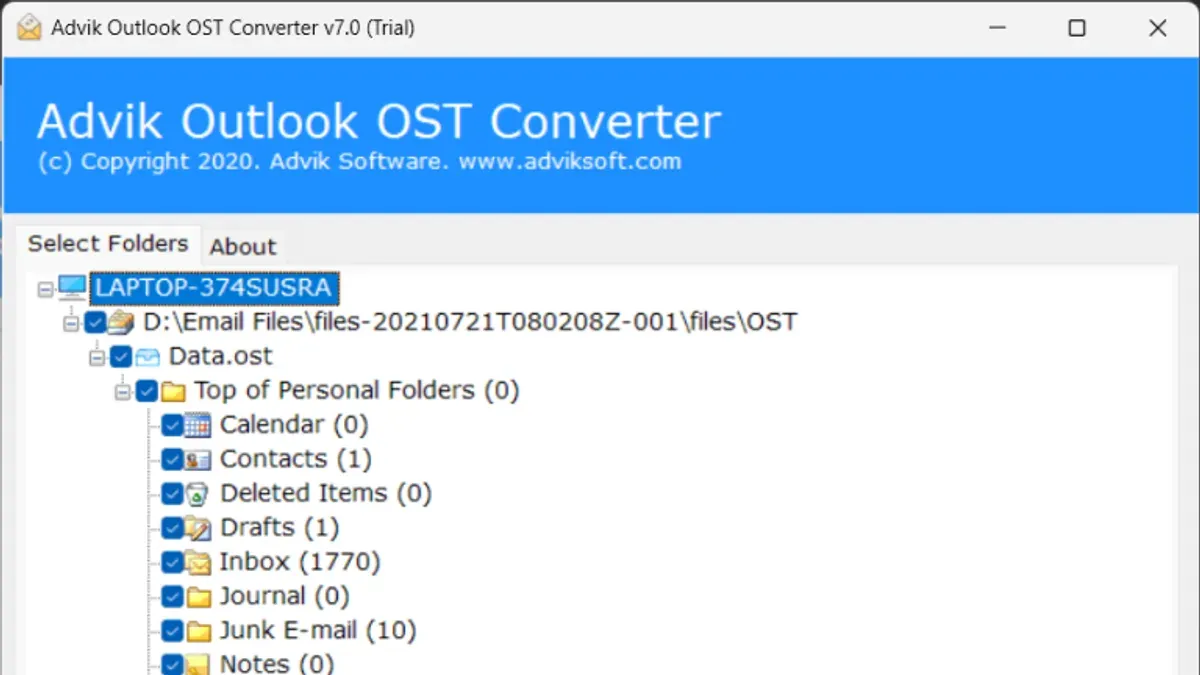
Several third-party OST converters are compatible with Mac, enabling you to convert OST files into formats like MBOX or PST, which Mac mail clients can import. Popular options include "Stellar Converter for OST," "SysTools OST to PST Converter," and "KDETools OST Converter." When choosing software, prioritize security features such as data encryption, positive user reviews, regular updates, and compatibility with your macOS version.
| Converter | Price | Key Features | User Rating |
|---|---|---|---|
| Stellar Converter for OST | Moderate | Converts OST to PST/MBOX, supports batch conversion, preview emails | High |
| SysTools OST to PST Converter | Moderate | Supports OST to PST, MBOX, and EML, filters by date and folder | High |
| KDETools OST Converter | Affordable | Converts OST to multiple formats, simple interface | Moderate |
Step-by-step to convert OST files using third-party software:
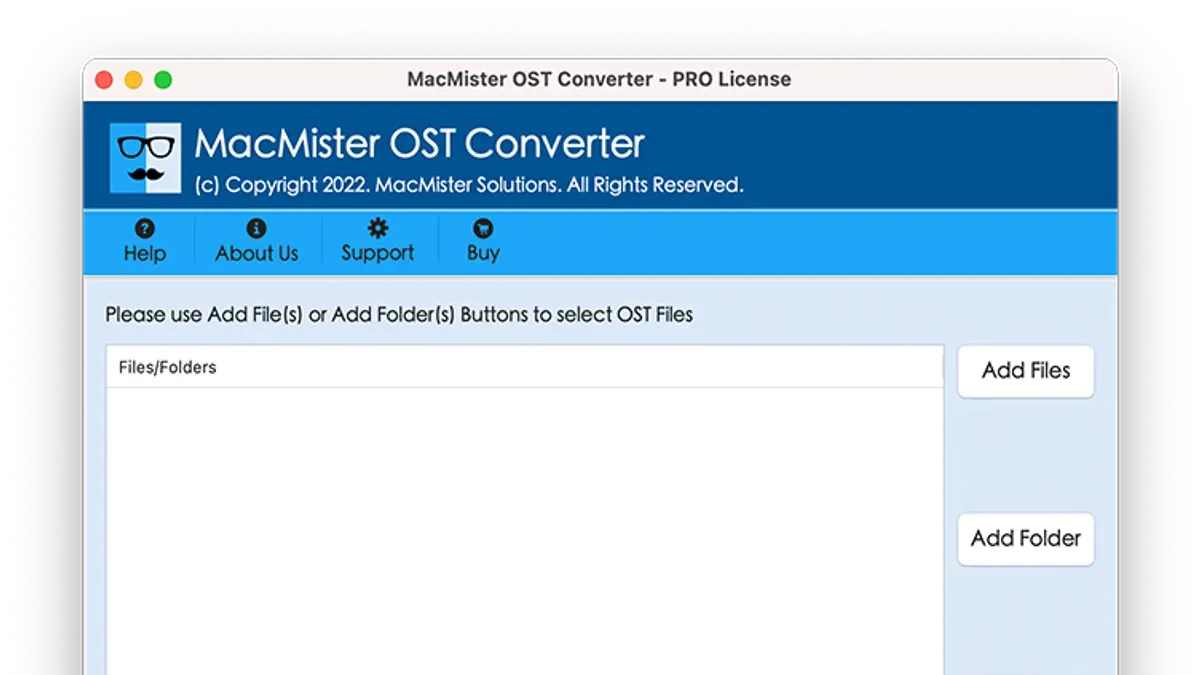
- Download and install your chosen OST converter from the official website; upon opening, you should see an option to select the OST file.
- Click "Add File" or "Select OST" and browse to the location of your OST file; once loaded, the software typically shows a preview of mailbox contents.
- Choose the output format, preferably MBOX for Mac Mail or PST for Outlook; select any additional filters or options as needed.
- Start the conversion process by clicking "Convert" or "Export"; you will see a progress bar and a notification when conversion completes.
- Locate the converted file in the designated output folder; open your Mac mail client and import the file via File > Import Mailboxes (for MBOX) or Outlook’s import feature (for PST).
Using third-party converters provides a direct method to access OST data on Mac, though it often requires purchasing licensed software and trusting the app’s security. Ensure you back up your OST file before conversion to prevent data loss.
How to open OST file on Mac without Outlook using online tools
Online OST viewers and converters provide a convenient way to access OST file contents without installing software. These web-based services usually work by uploading your OST file, converting or displaying its data, then allowing you to download or view the extracted emails and attachments.
One popular option is the online OST Viewer at https://www.encryptomatic.com/ostviewer/. It supports OST files up to a certain size limit—often around 20 to 25 MB—so larger files may require splitting or desktop tools.
- Go to the website and locate the OST file upload button. You should see a prompt to select a file from your Mac.
- Choose your OST file. After uploading, wait as the service processes your data; a progress indicator usually appears.
- Once processed, the viewer displays your mailbox contents in a browser window organized by folders and messages.
- Use the available export options to download emails in formats like EML or PDF if needed.
Online tools are useful for quick access to small OST files or when you cannot install software. However, they pose privacy risks since your data passes through third-party servers. Avoid uploading sensitive information unless the service guarantees encryption and data deletion policies.
File size restrictions and slower upload speeds may make online tools impractical for large or complex OST files. In those cases, local conversion software offers more control and security.
How to access OST file contents manually on Mac
OST files are complex offline storage files used by Microsoft Outlook to store email data locally. Their structure combines multiple data streams, including headers, body content, and attachments, stored in a proprietary binary format. This complexity makes manual extraction challenging without specialized tools.
On Mac, you can use hex editors like Hex Fiend or dedicated OST file viewers such as "OST Viewer" available on the Mac App Store. These tools allow you to open the OST file and inspect its raw data or extract certain readable parts, but they do not fully convert the file into an importable format.
To extract basic readable data manually, follow these steps:
- Download and open a Mac-compatible OST viewer or a hex editor like Hex Fiend.
- Load your OST file into the viewer; you should see a raw binary or structured view of the file's contents.
- Use the viewer's search function to locate email headers by searching for common header fields such as "From:", "To:", or "Subject:".
- Highlight and copy the text snippets around these headers to extract basic email metadata.
- For bodies or attachments, look for recognizable MIME boundaries or encoded content blocks within the data stream.
For example, a free OST file viewer on Mac might display an email header like:
From: [email protected]
To: [email protected]
Subject: Meeting Reminder
Date: Mon, 12 Oct 2025 09:30:00 +0000
Keep in mind that manual extraction has significant limitations. You will not access a fully formatted mailbox or attachments easily, and the process is time-consuming and error-prone. Additionally, without proper knowledge, modifying the file risks corrupting it. This method is best suited for advanced users needing to retrieve minimal data quickly without full conversion.
How to create a.ost file and why you might need to
An OST (Offline Storage Table) file is automatically created by Microsoft Outlook when you configure an Exchange, Microsoft 365, or IMAP account on a Windows PC. Its primary purpose is to store a synchronized, offline copy of your mailbox data, allowing you to access emails, calendar entries, and contacts without a continuous internet connection. This offline access is especially useful in environments with intermittent connectivity.
On Windows Outlook, the OST file is generated when you set up the account for the first time or add a new Exchange/IMAP account. The file creation happens in the background, and you typically do not need to manually create it. However, to ensure an OST file is created, you can follow these steps:
- Open Outlook and go to File > Account Settings > Account Settings.
- Select your Exchange or IMAP account and click Change.
- Ensure the option Use Cached Exchange Mode is checked (for Exchange accounts). This enables offline storage and triggers the OST file creation.
- Click Next and then Finish. Outlook will start synchronizing your mailbox and create the OST file automatically.
On a Mac, Outlook does not use OST files. Instead, it stores mailbox data differently, typically in OLM or direct server sync models. Creating or using OST files natively on Mac is not supported. For offline access, Mac users rely on the built-in synchronization of Outlook for Mac with Microsoft 365 or Exchange servers.
If you need offline mail storage on Mac but cannot use OST files, consider exporting mailbox data to an OLM file or using third-party applications designed for Mac email archiving.
Where is my OST file located on Mac and how to find it
Outlook for Mac does not create or use OST files. Instead, it stores data in OLM files and other formats specific to macOS. Therefore, you will not find native OST files on your Mac unless they were manually transferred from a Windows system.
If you have an OST file copied from a Windows PC, it will reside wherever you placed it during transfer, such as the Downloads folder, Desktop, or an external drive. To locate any OST files or Outlook-related data on your Mac, you can use Finder or Terminal commands.
- Open Finder and use the search bar at the top right. Type ".ost" and press Enter. Ensure the search scope is set to "This Mac." You will see any OST files present on your system.
- If Finder doesn’t show results, open the Terminal app (found in Applications > Utilities).
- Type the command find ~ -name "*.ost" 2>/dev/null and press Enter. This searches your home directory for any OST files, ignoring permission errors.
- If Terminal returns file paths, note their locations. You can navigate to these folders in Finder to access the files.
- To check where Outlook for Mac stores its data, navigate in Finder to
~/Library/Group Containers/UBF8T346G9.Office/. Inside, you’ll find folders likeOutlookandOutlook 15 Profilescontaining OLM files and cache data.
Typical Outlook data folders on Mac look like:
~/Library/Group Containers/UBF8T346G9.Office/Outlook/Outlook 15 Profiles/Main Profile/Data~/Library/Group Containers/UBF8T346G9.Office/Outlook/Outlook 15 Profiles/Main Profile/MetaData
Screenshot examples of these folders show a structured hierarchy of data files, but no OST files will be present. Understanding these locations helps you manage Mac Outlook data and locate any manually transferred OST files.
Troubleshooting common issues when opening OST files on Mac
OST files may present challenges such as corruption, size limits, unsupported formats, or slow conversions on Mac. Recognizing typical errors helps you apply the right fix efficiently.
Dealing with corrupted or full OST files
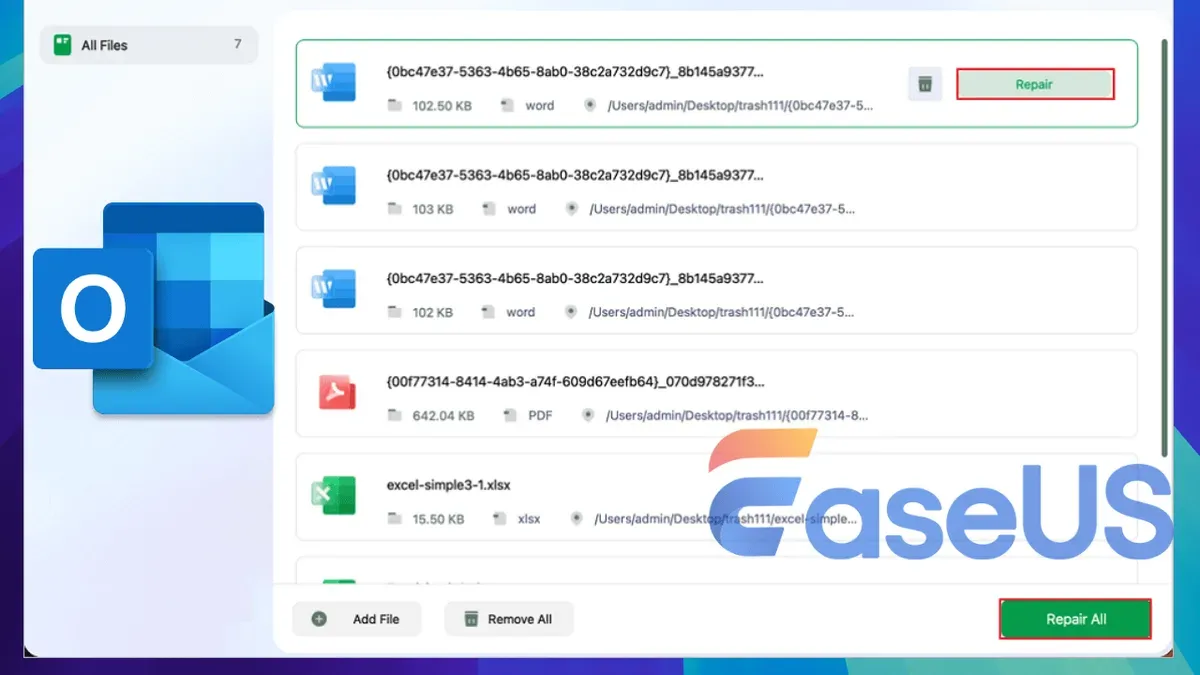
If you encounter errors like "OST file is corrupted" or "OST file is full," the file may be damaged or exceed size restrictions. Corruption often results from improper shutdowns or incomplete syncing.
To address this:
- Use a reputable OST repair tool compatible with Mac or convert the OST file to PST on Windows, then repair with Microsoft’s Inbox Repair Tool (scanpst.exe). Successful repair typically removes the corruption error and restores access.
- If the file is full, archive older emails or split the OST file using specialized tools before conversion. After this, the "file is full" error should no longer appear.
Handling unsupported file format errors
Mac applications may display "unsupported file format" when attempting to open OST files directly due to native incompatibility.
Resolution steps include:
- Convert the OST to a Mac-compatible format (MBOX, PST) with third-party software. After conversion, import the new file into your mail client without errors.
- Use online OST viewers for smaller files, ensuring the file size fits service limits to avoid failure.
Fixing slow or failed conversions
Conversion delays or failures can arise from large OST files, insufficient system resources, or software bugs.
- Close unnecessary applications on your Mac to free up RAM and CPU.
- Ensure the conversion tool is updated to the latest version for optimal performance.
- Try converting smaller OST file segments if supported, then combine results.
Backup and data safety tips
Before starting conversions or repairs, always create a backup copy of your original OST file. This prevents data loss if a process fails.
Keep backups on an external drive or cloud storage for added security.
Example: A user reported receiving "unsupported file format" when opening an OST file on Mac. After converting the OST to PST using a trusted converter and importing the PST into Outlook for Mac, the problem was resolved successfully.
Frequently asked questions
How to open.ost file?
To open a.ost file on a Mac, you typically need Microsoft Outlook configured with the same email account that created the OST file. Alternatively, you can use third-party conversion software to convert the OST file to a compatible format like PST or MBOX. Online tools also exist but may have file size limits and privacy considerations.
How to open music files on mac?
Mac supports common music file formats such as MP3, AAC, and WAV natively through apps like Music or QuickTime Player. To open a file, simply double-click it or right-click and choose Open With, selecting an appropriate app. For unsupported formats, you may need third-party players like VLC.
What is the.ost file?
A.ost file is an Offline Storage Table used by Microsoft Outlook to store a synchronized copy of mailbox data locally. It allows you to work offline and syncs changes when reconnected to the email server. OST files are typically associated with Exchange or Microsoft 365 accounts.
How to read an ost file?
Reading an OST file directly on a Mac outside Outlook is not straightforward because the file is in a proprietary format. You can use specialized conversion software to extract emails and other data into readable formats. Otherwise, accessing it through the Outlook account it belongs to is the most reliable method.
How to access music files on mac?
You can access music files using the Finder by navigating to their folder locations, commonly within the Music folder in your user directory. From there, open them with the Music app or other media players. You can also import files into the Music app library for easier management and playback.
What this advice does not cover and who should seek other solutions
This article does not cover recovering OST files from corrupted Exchange servers or deep forensic recovery scenarios. If your OST file is damaged due to server corruption or you require extensive data recovery beyond basic access, you should consider specialized professional tools or services. Additionally, this guide assumes you have legitimate access rights to the OST file; unauthorized attempts to open or convert files may violate privacy or licensing terms.
For most Mac users seeking to view or convert OST files, choosing between Microsoft Outlook for Mac, third-party conversion software, or online tools depends on your comfort with installing software, security preferences, and whether you have an active Exchange account linked to Outlook. Understanding these trade-offs will help you avoid common pitfalls like incomplete data extraction or unsupported file formats.
The single most useful next step is to identify whether you have Microsoft Outlook for Mac installed and properly configured with your Exchange account. If so, start by attempting to open the OST file through Outlook’s import or synchronization features, as this method preserves folder structures and metadata most reliably. If Outlook is not an option, then carefully select a trusted third-party converter that matches your security and budget preferences.