How to Insert a Blank Page into a PDF Using Preview on Mac
Discover practical steps to insert a blank page into a PDF using Preview on your Mac without needing third-party tools.
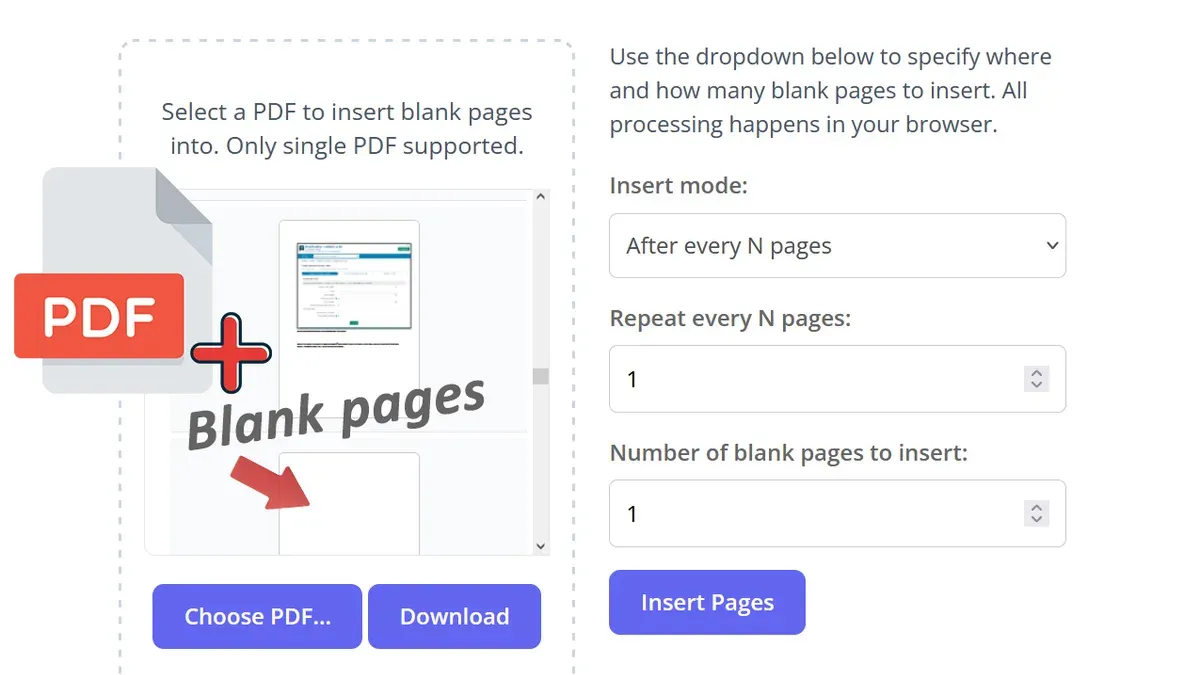
You are working on a PDF in Preview on your Mac and realize you need to add a blank page to insert notes or separate sections. Preview doesn’t offer a direct "Insert Blank Page" button, so you might wonder how to insert a blank page into PDF in Preview without switching to third-party software.
This article guides you through practical steps to create and insert blank pages using Preview’s native features. You’ll learn how to prepare a blank page file, add it to your PDF, duplicate blank pages within the document, and troubleshoot common issues. By the end, you’ll manage blank pages efficiently while staying within Preview’s environment.
Key takeaways
- Create a blank PDF page by exporting a blank document or using Preview’s annotation tools.
- Insert the blank page by combining PDFs via Preview’s sidebar drag-and-drop feature.
- Duplicate blank pages within a PDF using copy and paste in the Preview sidebar.
- Check PDF page thumbnails to confirm the blank page’s position before saving.
- Consider other PDF tools only if you need advanced page insertion options beyond Preview’s scope.
Before You Start: What You Need to Add a Blank Page in Preview
Before you begin inserting blank pages into a PDF using Preview, ensure your Mac has Preview installed. Preview is the default app for handling PDFs on macOS, so you likely already have it. However, it’s important to understand that Preview does not offer a direct feature to insert a blank page into an existing PDF.
To work around this limitation, you will need to prepare a blank page file separately. This can be a single-page PDF or a blank image file, such as a PNG or JPEG, which you will later insert into your PDF document. Having this ready beforehand streamlines the process when editing your PDF.
Also, make sure the PDF you want to edit is easily accessible on your Mac, ideally saved in a location like the Desktop or Documents folder, so you can open it quickly in Preview.
- Create a blank page file: Open an app like Pages or Keynote, create a blank document, then export it as a PDF with just one page. When done, locate the saved file; this will serve as your blank page.
- Alternatively, generate a blank image: Use Preview or another image editor to create a white canvas, then save it as a PNG or JPEG file. This can be converted into a PDF later if needed.
- Locate your target PDF file in Finder so you can open it in Preview and add your prepared blank page when ready.
Create a Blank Page File to Insert
Since Preview does not have a built-in option to add a blank page directly, you need to create a blank page file first. This file will serve as the page you insert into your PDF. You can create this blank page using Preview itself or other apps on your Mac.
- Open Preview and select File > New from Clipboard. First, copy a blank area from any document or take a blank screenshot (press Shift + Command + 4 and drag to select an empty part of your screen). After copying, choose this menu option to create a new document with the blank content.
- Once the new Preview window appears with your blank page, select File > Export as PDF. Name the file clearly, for example, BlankPage.pdf, and save it somewhere easy to find like your Desktop.
- If you prefer, you can create a blank page using a word processor like Pages or Microsoft Word by inserting a blank page, then exporting it as a PDF. This PDF can then be used in Preview.
- Another alternative is to take a blank screenshot on your Mac and save it as an image file (PNG or JPEG). You can insert this image into a PDF later if needed.
Having a clearly named blank PDF file ready makes inserting blank pages into your PDFs much simpler and keeps your workflow efficient.
Insert the Blank Page into Your PDF in Preview
To add your blank page into the target PDF using Preview, start by opening the PDF file. Make sure the sidebar is visible by selecting View > Thumbnails from the menu bar. This will display all existing pages as thumbnails along the side.
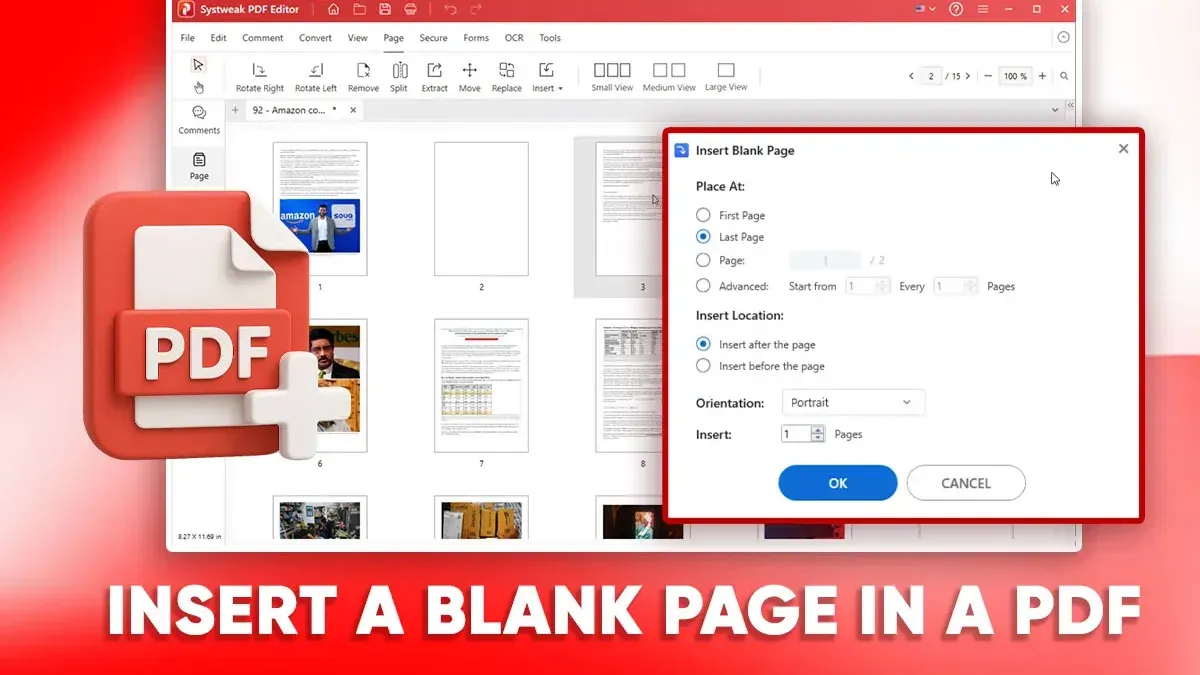
- Locate your blank page PDF file in Finder.
- Click and drag the blank page file directly into the thumbnail sidebar of your open PDF in Preview.
- Drop the blank page between pages 3 and 4, for example. You should see the thumbnail for the blank page appear in that exact position, shifting page 4 and subsequent pages right.
- If you want to reorder pages afterward, simply drag thumbnails up or down in the sidebar to the desired position.
- Once you have inserted and arranged the pages, go to File > Save or press Command + S to ensure your changes are saved properly.
After completing these steps, your PDF will include the inserted blank page in the exact spot you chose, visible both in the thumbnails and when scrolling through pages.
Use Copy-Paste to Duplicate a Blank Page Within a PDF
If you already have a blank page inside your PDF, you can quickly duplicate it using Preview’s copy and paste functions. This method saves time when you need several blank pages without creating and inserting multiple separate files.
- Open your PDF in Preview and locate the blank page in the sidebar thumbnails. You should see a page that appears completely blank or with minimal content.
- Click the blank page once to select it. The selected page will be highlighted in the sidebar.
- Press Command+C to copy the page. There will be no visible change yet, but the page is now copied to your clipboard.
- Click in the sidebar where you want to insert the duplicate blank page. For example, select the page after which the new blank page should appear.
- Press Command+V to paste the copied blank page. A duplicate blank page will appear immediately after the selected page, visible in the sidebar.
Repeat pasting as many times as needed to insert multiple blank pages quickly. This technique avoids switching between files and keeps your workflow inside Preview.
Be aware that copy-pasting pages can sometimes alter page order if you are not precise about where you click before pasting. Also, complex formatting or annotations on the original blank page may not always copy perfectly. For purely blank pages, however, this method is reliable and efficient.
Troubleshoot Common Issues When Adding Blank Pages in Preview
If the blank page doesn’t appear after dragging its file into the thumbnail sidebar, first check that you dropped it exactly between existing pages. If it snaps back or disappears, try closing and reopening Preview, then repeat the action. Sometimes, dragging must be done slowly and precisely to register the insertion.
When your PDF is locked or password protected, Preview restricts editing. You will see a lock icon in the toolbar or receive an "Editing not allowed" message. To resolve this, enter the correct password via File > Unlock, or use another app to remove restrictions before adding pages.
Save errors or changes not sticking often stem from file permissions or file format incompatibilities. Right-click the PDF in Finder, select "Get Info," and ensure you have "Read & Write" access. If permissions are limited, duplicate the file and try editing the copy. Also, re-save the PDF using Preview’s Export function as a PDF to refresh internal structures.
Preview struggles with very large PDFs or documents containing complex page layouts like forms or embedded media. In such cases, adding blank pages may fail silently or cause crashes. For these, consider splitting the PDF into smaller parts to edit or use a dedicated PDF editor designed to handle advanced features.
When Preview Isn’t Enough: When to Consider Other PDF Tools
While Preview allows basic manipulation of PDFs, it lacks native support to create blank pages or perform deep page content edits. If you need to insert multiple blank pages at once, adjust page layouts, or make detailed changes, dedicated PDF editors offer these features efficiently. Popular tools like Adobe Acrobat, PDF Expert, and Foxit PDF Editor provide built-in blank page insertion options, batch processing, and robust editing tools that Preview cannot match.
Here is a comparison summary of Preview versus other common PDF editors regarding blank page insertion:
| Feature | Preview | Adobe Acrobat | PDF Expert | Foxit PDF Editor |
|---|---|---|---|---|
| Native blank page insertion | No | Yes | Yes | Yes |
| Batch blank page insertion | No | Yes | Yes | Yes |
| Advanced page layout editing | Limited | Extensive | Extensive | Extensive |
| Cost | Free (built-in) | Paid | Paid | Paid |
| Privacy considerations | Local only | Local/cloud options | Local only | Local/cloud options |
Before switching, consider that many third-party apps require payment or subscriptions and may involve uploading documents to cloud services, which could raise privacy concerns. Evaluate your needs carefully and choose a tool that balances functionality with your comfort regarding cost and data security.
Frequently asked questions
Can I insert a completely blank page directly in Preview without creating a separate file?
No, Preview does not have a built-in feature to insert a completely blank page directly. You need to create a blank page as a separate PDF or image file first, then insert it into your document. This workaround is necessary because Preview's native tools focus on annotation and rearrangement rather than page creation.
How do I reorder pages after inserting a blank page in Preview?
To reorder pages, open the sidebar with thumbnails by clicking the Sidebar button or choosing View > Thumbnails. Then, click and drag the page you want to move to a new position within the sidebar. Release the mouse button when the page is in the desired spot, and Preview will reorder the pages accordingly.
What file formats can I use for my blank page to insert into a PDF?
Preview accepts PDF files most reliably for inserting pages. However, you can also use common image formats like PNG or JPEG by first converting them to PDF using Preview or another app. Ensuring the blank page is saved as a single-page PDF file simplifies the insertion process and maintains formatting.
Why can’t I save my PDF after adding a blank page in Preview?
Saving issues may occur if the PDF is locked or has restricted permissions. Check for any security settings by selecting File > Get Info and ensuring the document is not locked. Also, confirm you have write access to the file location and try using File > Export as PDF if standard saving is unresponsive.
Understanding Preview’s Limitations
Preview does not have a built-in feature to insert blank pages directly into PDFs. The methods described here rely on creating and inserting a separate blank PDF file or duplicating pages via copy-paste, which may feel cumbersome for frequent or complex editing tasks. If you need to add multiple blank pages with precise formatting, headers, footers, or interactive elements, or require advanced rearranging and editing capabilities, Preview’s workarounds might not meet your needs.
For those workflows, dedicated PDF editors like Adobe Acrobat, PDF Expert, or other professional tools offer more streamlined and flexible blank page insertion and management options. These applications also provide direct page insertion, batch processing, and rich annotation features that Preview lacks.
For now, the most practical next step within Preview is to create a single blank page PDF using Preview’s built-in tools or another simple app, then insert that page where needed using the sidebar thumbnail view. This approach allows you to maintain your PDF editing without switching software, balancing convenience with Preview’s current capabilities.
See also: How to Rotate PDF Pages in Preview: Step-by-Step for Individual and All Pages · How to Extract Pages from a PDF in Preview: Step-by-Step Guide · How to Highlight Text in a PDF in Preview: Step-by-Step Guide · How to Annotate a PDF in Preview: A Clear Step-by-Step Guide