How to Use Mac Force Quit to Fix Unresponsive Apps Quickly
Discover how to use mac force quit to quickly close unresponsive apps and prevent frustration while maintaining your workflow.
You’re working on an important document or browsing the web when suddenly an app stops responding. It freezes, and clicking or closing it doesn’t work. In these moments, knowing how to use mac force quit can save you time and prevent frustration.
This article explains what force quit means on a Mac, how it works behind the scenes, and step-by-step instructions to use it safely. You’ll also learn alternative methods when force quit isn’t enough and common mistakes to avoid, so you can keep your Mac running smoothly.
Key takeaways
- Force Quit immediately closes unresponsive apps without saving changes.
- Use Command + Option + Escape to open the Force Quit Applications window quickly.
- Activity Monitor and Terminal offer alternative ways to force quit stubborn apps.
- If apps like Chrome keep freezing, steps like clearing cache or reinstalling may help.
- Force quitting too often can cause data loss; try restarting your Mac if problems persist.
What is force quit on Mac and why does it matter
Force Quit on a Mac is a method to close an application that is not responding to normal commands. Unlike simply closing an app by clicking its red close button or choosing Quit from the menu, Force Quit immediately terminates the app’s process. This is useful when an app freezes, stops responding, or behaves erratically, preventing you from continuing your work.
Applications may become unresponsive for several reasons: they might be overwhelmed by heavy tasks, encounter software bugs, or experience conflicts with other programs. When this happens, the app may stop reacting to clicks, keyboard input, or menu selections, leaving you stuck. Using Force Quit helps you regain control of your Mac by shutting down the problematic app quickly, avoiding the need to restart your entire system.
For example, imagine you are working on a document in a word processor that suddenly freezes and won’t let you type or save changes. Waiting for it to respond might take an indefinite time, but Force Quit allows you to close that app so you can reopen it and continue your work. However, it’s important to understand that Force Quit forcibly closes the app without saving any unsaved data, so you may lose recent changes.
Many Mac users encounter app freezes occasionally, especially when running multiple applications or resource-heavy software. Knowing how and when to use Force Quit can reduce frustration and help maintain your workflow. It also serves as a practical tool for troubleshooting when apps crash or hang, enabling you to keep your system running smoothly.
What does Mac Force Quit do behind the scenes
When you choose Force Quit on a Mac app, macOS sends a termination signal called SIGKILL to the application’s process. This signal immediately instructs the app to stop running without allowing it to perform any cleanup tasks. Unlike the standard Quit command, which sends a gentler SIGTERM signal requesting the app to close gracefully, Force Quit bypasses the app’s normal shutdown procedures.
To picture this, imagine you are talking to a person (the app) and ask them to leave the room politely (Quit). They can save their belongings and say goodbye. Force Quit is like abruptly turning off the lights, forcing them to leave without warning. This means unsaved work may be lost, but the app will close quickly.
After Force Quit sends SIGKILL, macOS immediately reclaims system resources the app was using—such as memory and CPU power—making them available for other processes. This rapid release helps your Mac recover responsiveness quickly. However, some apps resist Force Quit because they might be stuck in system-level tasks or waiting for hardware responses, causing a delay before the process actually ends.
For example, if Safari is unresponsive due to a frozen plugin, Force Quit will kill the Safari process and free up memory, but the plugin’s system-level hang might cause a brief delay before everything clears. This explains why sometimes apps take longer to close even after you initiate a Force Quit.
How to open Mac Force Quit and use the shortcut
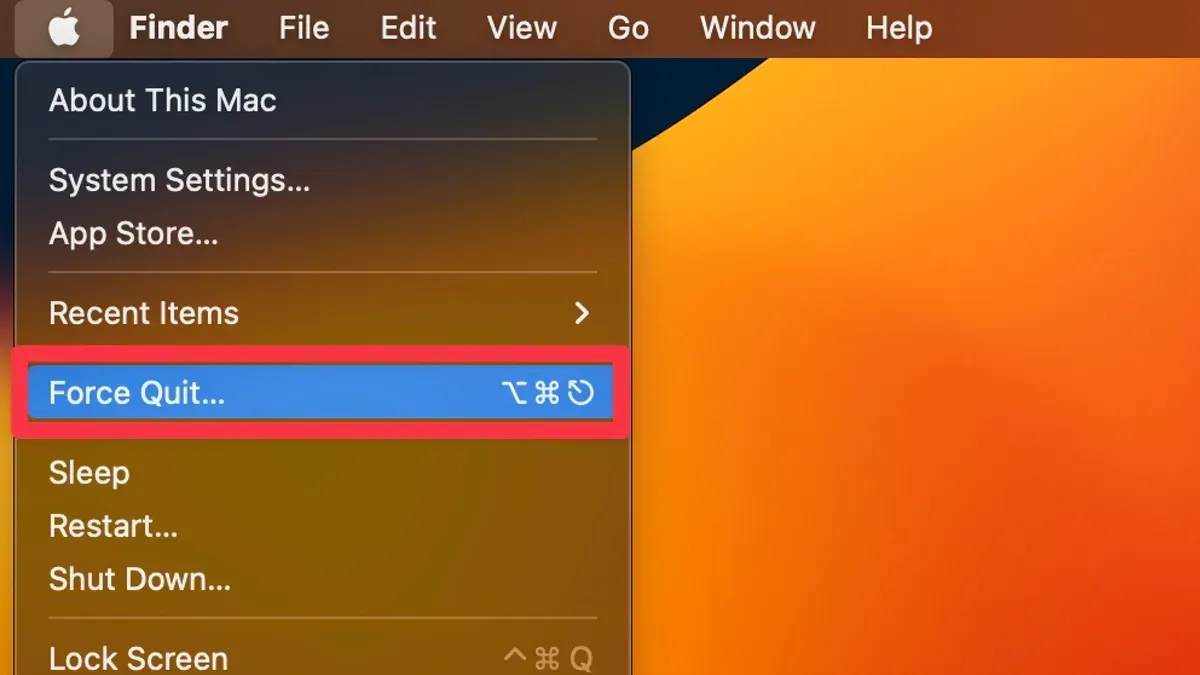
When an app on your Mac freezes, the quickest way to regain control is by opening the Force Quit window. You can do this by clicking the Apple menu icon in the top-left corner of your screen and selecting Force Quit... from the dropdown list. This action opens a window listing all currently running applications, allowing you to select the one causing trouble.
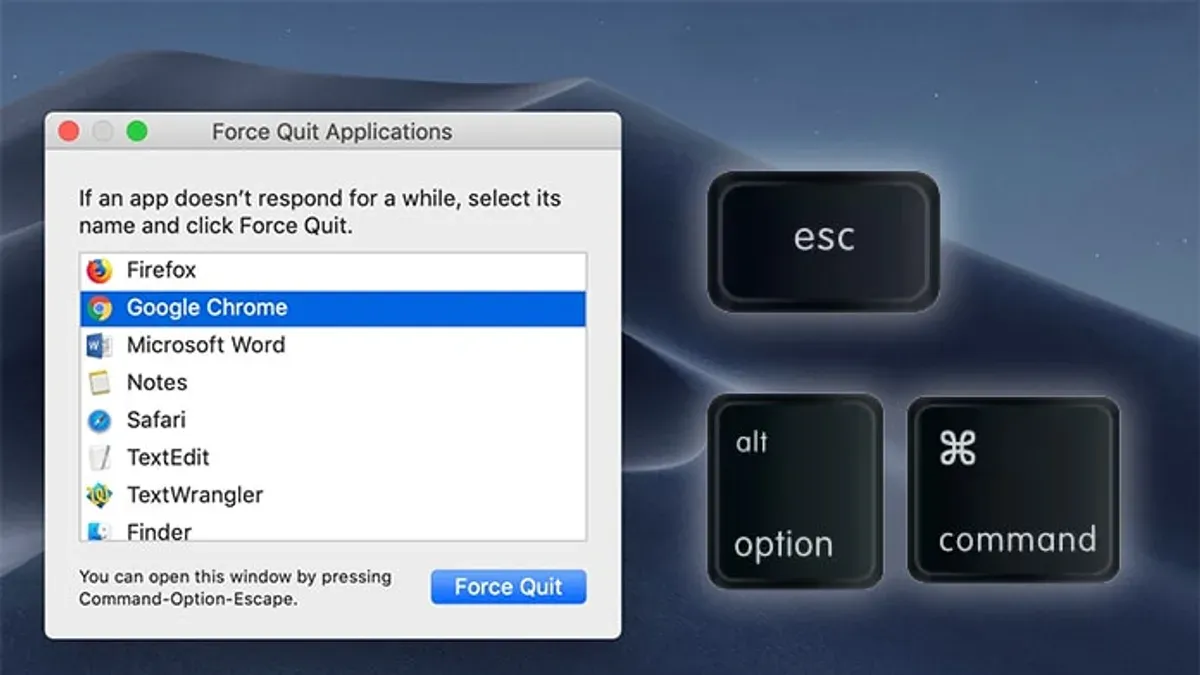
Alternatively, you can use the keyboard shortcut Command + Option + Escape to open the Force Quit window instantly. This shortcut is designed for accessibility and speed, so it’s often the fastest way to bring up the Force Quit options without navigating menus. Many users find this shortcut easier to remember and use when their mouse or trackpad is unresponsive.
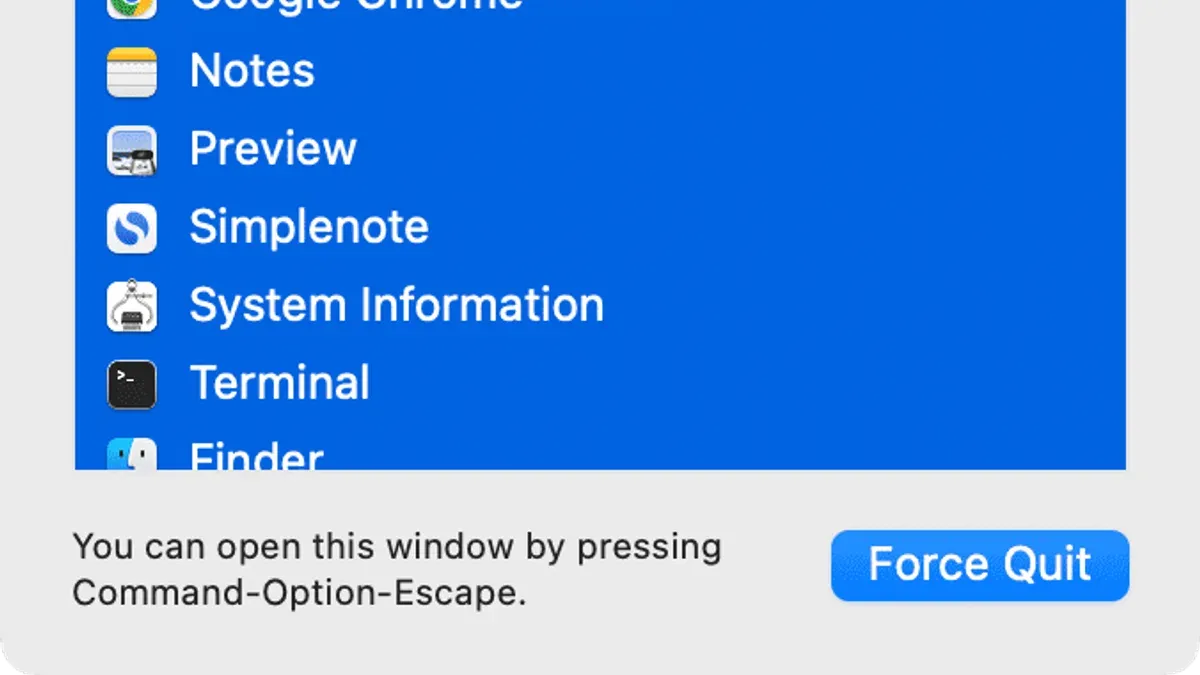
Once the Force Quit window appears, you’ll see a list of open apps with their names and icons. If multiple apps are running, identify the unresponsive one by looking for the app name with “(Not Responding)” next to it or by recalling which app you were using before the freeze. Select that app, then click the Force Quit button at the bottom right of the window.
For example, if Google Chrome becomes unresponsive, you might see “Google Chrome (Not Responding)” in the list. Selecting it and clicking Force Quit will immediately terminate the app. Afterward, you can reopen it normally, hopefully without the freezing issue.
How to make Mac force quit using Activity Monitor and Terminal
When the usual Force Quit window doesn’t respond or you want more control over the process, Activity Monitor and Terminal offer powerful alternatives. Activity Monitor gives you a visual map of running apps and processes, allowing you to identify and quit problematic ones precisely. Open Activity Monitor from Applications > Utilities, then locate the unresponsive app by name or CPU usage. Select it, then click the Stop button (a hexagon with an “X”) in the toolbar. You’ll be prompted to Quit or Force Quit the process; choose Force Quit to terminate it immediately.
Terminal commands provide even finer control, especially for power users comfortable with command line. Open Terminal from Applications > Utilities, then use the kill or killall commands. For example, if Safari is unresponsive, first find its process ID (PID) by typing ps aux | grep Safari. Then, force quit with kill -9 PID, replacing PID with the actual number. Alternatively, killall -9 Safari targets all Safari processes directly. The -9 flag sends a strong termination signal, similar to Force Quit but often more effective on stubborn processes.
These methods excel when the Force Quit window fails or when apps run multiple background processes. Terminal commands can close hidden or system-level processes that Activity Monitor might not reveal easily. However, use Terminal carefully: terminating critical system processes can destabilize your Mac. Always verify the process name and PID before executing commands. Compared to the Force Quit window, Activity Monitor and Terminal generally have higher success rates in closing problematic apps, especially those running background tasks or services.
For example, if Chrome keeps freezing and won’t close through Force Quit, using Terminal’s killall -9 Google Chrome often resolves the issue by forcefully terminating all associated processes. This step-by-step approach ensures you regain control without unnecessary restarts.
Why does Chrome keep force quitting on Mac and how to fix it
Chrome may repeatedly force quit on your Mac due to several common issues. Extensions can cause conflicts or excessive resource use, outdated Chrome versions may have unresolved bugs, and insufficient memory can lead to crashes. For example, a user might open multiple tabs with heavy content while running several extensions, leading to memory overload and Chrome freezing.
To properly force quit Chrome when it becomes unresponsive, use the Command + Option + Escape shortcut to open the Force Quit window, select Google Chrome, and click "Force Quit." This ensures Chrome fully closes before troubleshooting.
Begin troubleshooting by disabling extensions: open Chrome, navigate to Window > Extensions, and toggle off all extensions. Then, clear your browsing data by going to Chrome menu > Clear Browsing Data, selecting "Cached images and files," and clicking "Clear data." If crashes stop, re-enable extensions one by one to identify the culprit.
Next, ensure Chrome is updated by clicking the three-dot menu > Help > About Google Chrome, which triggers an automatic update check. If problems persist, consider resetting Chrome settings by going to Settings > Advanced > Reset and clean up > Restore settings to their original defaults. This action removes custom configurations but keeps bookmarks and passwords.
When all else fails, fully uninstall Chrome by dragging it to the Trash and deleting related files in ~/Library/Application Support/Google/Chrome, then reinstall the latest version from Google's official site. This often resolves persistent crashes caused by corrupted files.
How to restart Mac force quit and what to do if apps won't close
If force quitting an app does not work, restarting your Mac is often the next best step. To restart normally, click the Apple menu in the top-left corner and select Restart…. Confirm when prompted, and your Mac will close all apps and reboot safely. This method gives apps a chance to save data properly before shutting down.
You can also use the keyboard shortcut by pressing Control + Command + Eject (or Control + Command + Power button on Macs without an Eject key) to restart instantly. This is quicker but does not prompt apps to save data, so use it only when necessary.
When apps remain frozen and your Mac does not respond to normal restarts, Safe Mode can help diagnose the issue. To enter Safe Mode, turn off your Mac, then turn it on while holding the Shift key until you see the login window. Safe Mode loads only essential system software, disabling third-party extensions that might cause force quit problems. For example, users have resolved persistent app freezes this way by identifying problematic login items.
As a last resort, perform a hard shutdown by holding the power button until the Mac powers off. This method risks data loss because it forces all apps to quit without saving. Before restarting, if your Mac is frozen, try to back up important files using an external drive or Time Machine to avoid losing unsaved work.
| Restart Method | How to Use | Pros | Cons |
|---|---|---|---|
| Normal Restart | Apple menu > Restart… | Saves data properly, safe | Slower if Mac is unresponsive |
| Keyboard Shortcut | Control + Command + Eject/Power | Quick, no menu needed | No save prompts, potential data loss |
| Safe Mode | Restart holding Shift key | Diagnoses software conflicts | Limited functionality, slower startup |
| Hard Shutdown | Hold power button until off | Forces shutdown when frozen | High risk of data loss |
Common mistakes to avoid when using Mac Force Quit
Force quitting apps is a helpful tool, but using it incorrectly can cause more harm than good. One common mistake is relying on Force Quit too frequently or as your first step when an app slows down. Instead, try closing the app normally or giving it a moment to respond. Excessive force quitting can lead to system instability and may mask underlying issues that need proper troubleshooting.
Another critical point is to always save your work before force quitting. Imagine you’re editing a document in Pages and suddenly it freezes. If you force quit without saving, all recent changes will be lost, causing frustration and wasted time. Users often share stories of losing hours of work simply because they skipped saving before Force Quit.
Misidentifying the app or process to quit is also a frequent error. For example, you might see a process named "Safari Web Content" in Activity Monitor and mistakenly force quit it without realizing it’s part of the browser’s functioning. This can cause Safari to crash unexpectedly or lose important browsing data. Take care to confirm the exact app or process causing problems before quitting.
Lastly, ignoring repeated freezes or crashes after using Force Quit can be risky. If an app repeatedly becomes unresponsive, this might indicate deeper software conflicts, corrupted files, or hardware issues. In such cases, continually force quitting only treats symptoms, not the cause. Consider checking for updates, reinstalling the app, or seeking technical support to prevent ongoing problems.
Frequently asked questions
What is macbook force quit?
MacBook Force Quit is a feature that allows you to close an application that has become unresponsive or frozen. It forcefully terminates the app without saving its current state, which can help you regain control of your Mac. This is especially useful when normal closing methods don’t work.
How mac force quit?
To force quit on a Mac, you can open the Force Quit Applications window by pressing Command + Option + Escape simultaneously. From there, select the unresponsive app and click "Force Quit." Alternatively, you can use Activity Monitor or Terminal commands to kill the process if the Force Quit window is unresponsive.
What is mac force quit?
Mac Force Quit is the process of ending an application forcibly when it stops responding or freezes. It bypasses the usual quit process to immediately close the app, helping you prevent system slowdowns or freezes caused by problematic software. It’s a helpful tool but should be used carefully to avoid data loss.
What is the mac force quit shortcut?
The Mac Force Quit shortcut is Command + Option + Escape. Pressing these keys together opens the Force Quit Applications window, where you can select and force quit any running app that’s not responding.
What is MacBook force quit?
MacBook Force Quit refers to the same force quit function available on all Macs, including MacBooks. It lets you stop unresponsive programs quickly by using the Force Quit Applications window or alternative methods like Activity Monitor or Terminal commands.
Limits of Force Quit and When to Seek Help
Force quitting an app on your Mac can help you quickly close unresponsive software, but it has important limitations. This method forcibly stops the app, which may cause you to lose any unsaved work. Force quit also does not address deeper issues like persistent software bugs, corrupted files, or hardware malfunctions that might be causing apps to freeze. If your Mac frequently becomes unstable or critical programs refuse to close properly, it is best to contact Apple Support or a qualified technician to investigate further.
For users who rely on apps for important, unsaved data, force quitting should be a last resort. Instead, try to save your work regularly and use less drastic troubleshooting steps first.
One useful next step after learning to use Mac Force Quit effectively is to familiarize yourself with the Activity Monitor. This built-in tool provides detailed insight into what processes are running and how your system resources are being used, helping you identify issues before apps become unresponsive and giving you more control over managing your Mac's performance.
See also: What OS Does Mac Use? A Clear Guide to macOS and Its Features · Why Mac Is Better Than Windows: A Clear Guide for Thoughtful Buyers · Fix Mail Repeatedly Asking for Password on Mac: Step-by-Step Guide