How to Copy Edits to Multiple Photos in Photos App: Step-by-Step Guide
Discover step-by-step methods to copy edits to multiple photos in Photos app on your iPhone, iPad, or Mac for efficient photo editing.
You’ve just finished editing a photo on your iPhone or Mac and want to apply the same adjustments to several other images. Doing each one individually can be tedious, but the Photos app offers ways to copy edits efficiently. If you’re wondering how to copy edits to multiple photos in Photos app, this guide will walk you through practical, step-by-step methods.
Whether you’re working on your iPhone, iPad, or Mac, you’ll learn how to use built-in features that streamline this process, including some lesser-known tips. You’ll also find advice on common pitfalls to avoid and what to do when copying edits isn’t the best option for your workflow.
Key takeaways
- You can copy and paste edits between photos directly on iPhone and iPad using the Edit menu.
- On Mac, batch editing is simplified by copying adjustments from one photo and applying them to many others at once.
- Third-party shortcuts and apps can help copy edits in bulk but may require extra setup.
- Watch out for edits that depend on photo-specific details, like cropping, which don’t always transfer well.
- Sometimes re-editing individually produces better results than copying adjustments blindly.
Before You Start: What You Need to Copy Edits
To copy edits efficiently in the Photos app, first ensure you have the latest version installed on your iPhone, iPad, or Mac. Editing features and the ability to copy and paste adjustments improve with updates, so check for software updates in the App Store or System Preferences.
Next, confirm that your photos are accessible locally on your device or synced via iCloud Photos. Edits can only be copied between photos that are stored where the app can fully access them—photos stored solely in external cloud services may not support this function.
Understand which types of edits you can copy: filters, light and color adjustments, cropping, and rotation are supported. However, some edits like markup or third-party app filters might not transfer.
Finally, identify if you are using an iPhone, iPad, or Mac. While the core functionality is similar, the steps to copy and paste edits differ slightly between these platforms, and some features are exclusive to Mac.
| Feature | iPhone | iPad | Mac |
|---|---|---|---|
| Copy/Paste Filters | Yes | Yes | Yes |
| Copy/Paste Adjustments (Light, Color) | Yes | Yes | Yes |
| Copy/Paste Crop and Rotation | Yes | Yes | Yes |
| Copy/Paste Markup | No | No | No |
| Bulk Paste to Multiple Photos | No | No | Yes |
Copy Edits to Another Photo on iPhone or iPad
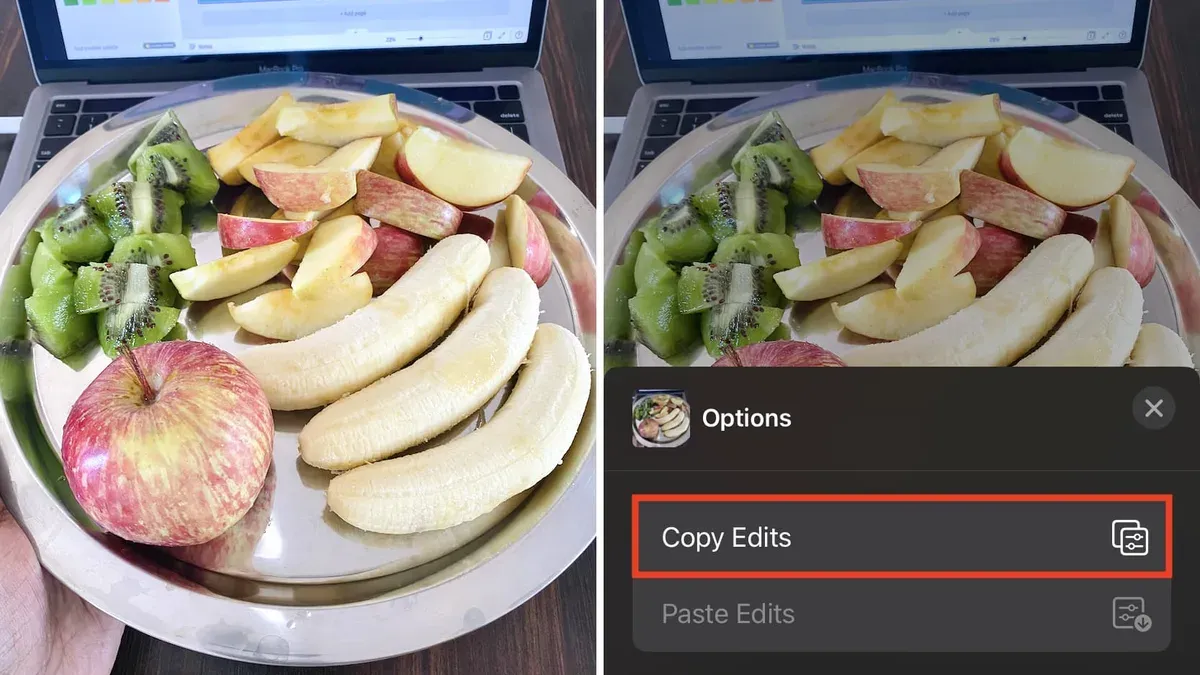
To copy edits from one photo to another on your iPhone or iPad, start by opening the edited photo in the Photos app. Tap Edit in the top right corner to enter the edit mode. Once inside, tap the three-dot menu icon (•••) near the top right and select Copy Edits from the dropdown menu. This copies all the adjustments you've made, such as lighting, color, and filters.
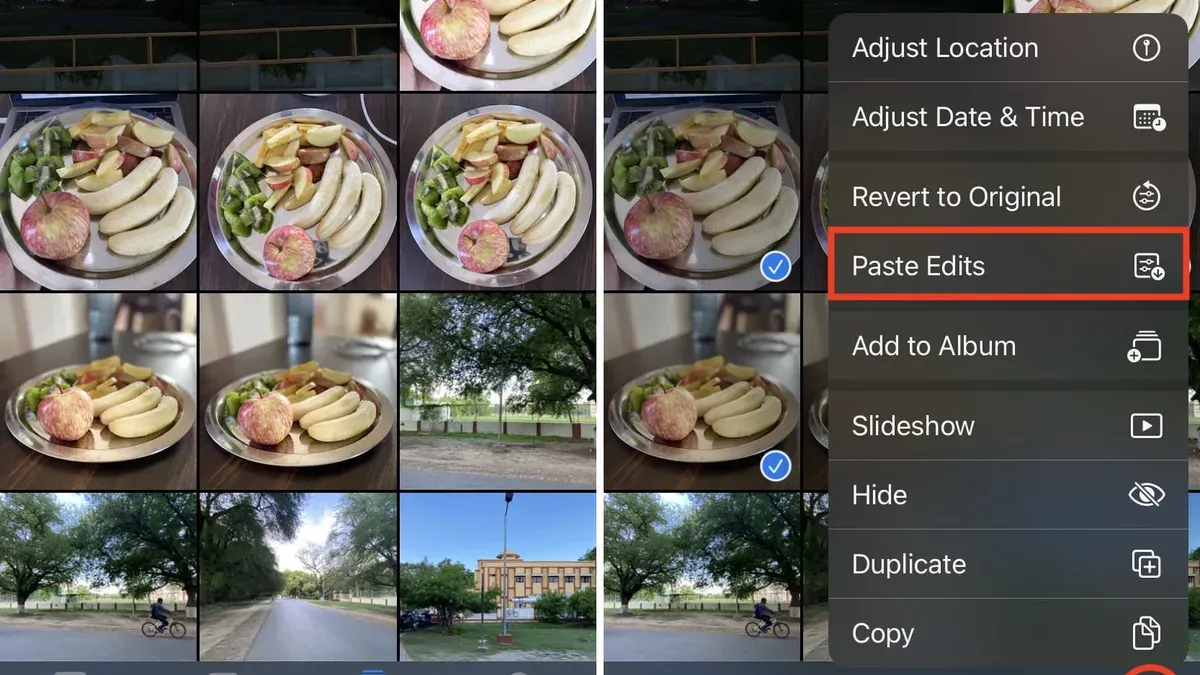
Next, navigate back to your photo library and select the photo or photos you want to apply these edits to. Open one of the target photos, tap Edit again, then tap the three-dot menu and choose Paste Edits. The saved edits will apply instantly, letting you see the changes right away.
If you want to apply the same edits to multiple photos, repeat the paste process on each photo individually. While there isn't a native batch paste, using the Copy Edits and Paste Edits options reduces the time compared to manually adjusting each photo. This method is especially useful when you want consistent edits across similar shots.
Remember that the Copy Edits and Paste Edits options appear only in the Edit mode's three-dot menu, a common step many users overlook. Screenshots usually show the three-dot icon in the top right corner after entering Edit mode, confirming you are in the right place.
Copy Edits to Multiple Photos on Mac
On Mac, copying edits from one photo to multiple images is straightforward but has some limitations you should know. First, you need to copy the adjustments from a single edited photo, then paste them onto each target photo one by one or in a batch. The Photos app allows pasting edits onto multiple photos simultaneously, but the copied adjustments must be compatible with all selected images to apply correctly.
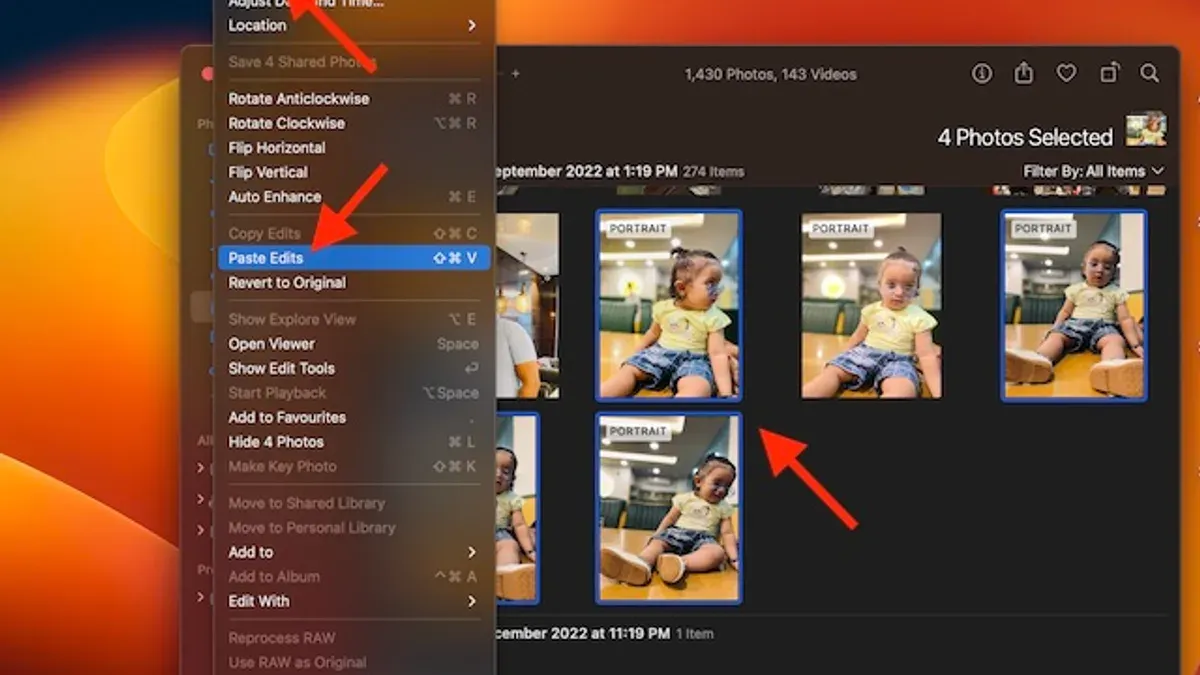
- Select the photo with the edits you want to copy. You should see the photo highlighted.
- Go to the menu bar and choose Edit > Copy Adjustments, or simply press Command-C. This copies all the applied edits.
- Next, select multiple photos you want to apply these edits to by holding the Command key and clicking each photo in the grid. The selected photos will be highlighted.
- With the target photos selected, go to Edit > Paste Adjustments or press Command-Shift-V. The edits will be applied to all selected photos simultaneously.
- Check each photo briefly to confirm the edits look consistent. Some filters or adjustments may not transfer perfectly if the photos differ significantly in lighting or composition.
For example, if you have 10 photos taken in similar lighting and apply a contrast boost and color correction to one, copying and pasting these edits to the other nine saves you from editing each individually. The before-and-after comparison reveals a consistent style across all images, streamlining your workflow.
Keep in mind batch editing this way does not allow selective adjustment per photo during the paste step, so minor manual tweaks may still be needed. Using keyboard shortcuts Command-C and Command-Shift-V speeds up the process significantly compared to menu navigation.
Using Third-Party Tools or Shortcuts to Copy Edits in Bulk
When the native Photos app limits your ability to copy edits to many photos at once, third-party tools and iOS Shortcuts offer practical alternatives. Popular photo editors like Adobe Lightroom, Pixelmator Photo, and Affinity Photo integrate with the Photos app, allowing you to export photos, apply batch edits, and then reimport them. These apps often provide more advanced editing controls and bulk processing features, but they usually require exporting your images and sometimes involve a learning curve or subscription costs.
iOS Shortcuts can automate repetitive editing tasks by applying preset filters or adjustments to multiple photos. You can create or download shortcuts that adjust exposure, contrast, or apply a style across a selection of images. This method is free and keeps everything on your device, but it may not replicate complex manual edits perfectly.
| Method | Ease of Use | Cost | Functionality |
|---|---|---|---|
| Adobe Lightroom | Moderate | Subscription-based | Advanced batch editing with presets |
| Pixelmator Photo | Moderate | One-time purchase | Powerful editing with batch options |
| Affinity Photo | Advanced | One-time purchase | Professional-level batch editing |
| iOS Shortcuts | Easy to moderate | Free | Automated application of simple edits |
Consider exporting photos when you need consistent, complex edits across large batches that the Photos app can't handle natively. Third-party apps excel here but require moving outside the Photos ecosystem. For lightweight, repeatable adjustments, iOS Shortcuts offer a convenient, cost-free option without leaving your device.
Troubleshooting Common Issues When Copying Edits
If you don’t see the Copy Edits or Paste Edits options, first check whether you are in Edit mode. These options only appear when editing a photo. Additionally, ensure the photo format supports edits; for example, HEIC and JPEG work well, but some RAW formats might limit features.
Some edits like Markup, Live Text adjustments, or certain third-party filters won’t transfer when copying edits. These are applied differently in Photos and must be redone manually on each photo. If edits seem missing after pasting, review which adjustments were supported.
Photos stored in iCloud but not downloaded locally can cause incomplete edit transfers. To fix this, download the full-resolution version by tapping the photo to force a download before copying edits. Without a local copy, the app cannot apply or copy edits properly.
Inconsistent results across devices often arise due to different Photos app versions or hardware capabilities. For example, older iPhones or Macs might not support all editing features, leading to partial or failed pastes. Keeping your devices updated helps reduce such issues.
- Enter Edit mode on the photo you want to copy edits from; the Copy Edits option should appear in the three-dot menu if available.
- Confirm that the photo is fully downloaded locally by checking for a cloud icon; tap to download if needed.
- Paste edits onto the target photo using the Paste Edits option in Edit mode’s menu; the changes should apply immediately.
- If edits don’t appear, verify that unsupported adjustments like Markup are not expected to transfer.
- Update your Photos app and device OS to the latest version to ensure maximum compatibility.
When Copying Edits Isn’t the Best Choice
Copying edits can save time, but it isn’t always the best approach. Photos with unique lighting, color tones, or subjects often require manual tweaking to achieve the best result. For example, a bright outdoor photo and a dim indoor shot may need different exposure and contrast adjustments that copying cannot accommodate properly.
The Photos app offers essential editing tools but lacks the advanced controls found in professional software like Adobe Lightroom or Capture One. If you are a professional photographer or frequently perform heavy editing, dedicated tools provide greater precision and customizability, which copying edits cannot replicate.
Additionally, copying edits can affect the originality of your photos by applying the same look uniformly, which may reduce the uniqueness of individual images. Although edits are non-destructive, relying heavily on copying can limit creative exploration for each photo, especially with diverse subjects or lighting conditions.
In summary, use copy edits for batches of similar photos but switch to manual editing for images that differ significantly or require a more refined touch.
Frequently asked questions
Can I copy edits from a Live Photo to a still photo?
Yes, you can copy edits from a Live Photo to a still photo using the Photos app’s copy and paste adjustments feature. However, Live Photos include motion and sound, which are not transferred—only the visual edits like exposure, filters, and color adjustments are copied. Keep in mind that edits specific to the Live Photo’s motion aspect won’t apply to a still image.
Will copying edits also copy crop and rotation changes?
Copying edits in the Photos app generally includes cropping and rotation adjustments along with color and filter edits. When you use the Copy Edits and Paste Edits commands, the crop, rotation, and straightening changes are part of the copied adjustments. If you notice these are not applying, double-check that you’re using the full Edit menu options for copying and pasting.
Can I copy edits across devices using iCloud Photos?
Edits synced through iCloud Photos appear on all your devices, but the Photos app does not support copying and pasting edits directly across devices. To apply the same adjustments on another device, you need to either wait for iCloud to sync the edited photo or manually copy and paste edits within the same device. For bulk editing across devices, consider using shared albums or third-party tools with cross-device support.
Why do some filters not copy when I paste edits?
Some filters or adjustments may not copy properly if they rely on features unavailable on the target device or photo type. For example, filters exclusive to the iPhone’s camera or adjustments applied to HEIC files might not transfer to JPEGs or on Macs with different software versions. Ensure both photos are compatible and that you’re using the latest Photos app version to reduce this issue.
What This Guide Doesn’t Cover
This guide focuses specifically on copying edits within the Apple Photos app on iPhone, iPad, and Mac. It does not cover how to copy edits in third-party photo editing apps outside of the Apple Photos ecosystem, which often have their own unique workflows and features. If you rely heavily on professional editing software like Adobe Lightroom or Capture One, or if you frequently use apps that apply filters and edits differently, you might find those apps’ bulk editing tools more suited to your needs.
Additionally, this article doesn’t dive into automating edits through complex scripting or advanced shortcut setups beyond basic suggestions. For users seeking fully automated batch processing or integration with other software, exploring dedicated photo management or editing solutions is recommended.
To get the most out of copying edits in the Photos app, start by practicing the manual copy-paste method on a few photos to understand how adjustments translate. Once comfortable, try the Mac’s multi-photo editing to save time. This step-by-step approach will ensure you maintain control over your edits without accidentally overwriting important details.
See also: How to Name Faces in People Album in Photos App: Step-by-Step Guide · How to Create a Shared Album in Photos App: Step-by-Step Guide · How to Hide Photos in the Photos App: A Step-by-Step Guide · How to Remove Duplicate Photos in Photos App: Step-by-Step Guide