How to Turn Off FaceTime on Mac: Complete Step-by-Step Guide
This guide shows how to turn off FaceTime on Mac with step-by-step methods including signing out, disabling notifications, and using Screen Time restrictions.
You might find yourself needing to pause FaceTime calls during work hours or when focusing on a project. Maybe you want to prevent unexpected interruptions without deleting your Apple ID, or you're troubleshooting call issues and want a temporary fix.
This article guides you through how to turn off FaceTime on Mac in FaceTime on Mac with clear, step-by-step methods tailored to different needs. You'll learn multiple ways to disable FaceTime, from signing out of your Apple ID to adjusting notifications and using Screen Time restrictions, along with the pros and cons of each approach.
Key takeaways
- Signing out of your Apple ID completely disables FaceTime but stops all related services.
- Disabling FaceTime notifications reduces interruptions without blocking calls.
- Do Not Disturb or Focus modes offer temporary silencing of FaceTime alerts.
- Screen Time restrictions can block FaceTime use while preserving your Apple ID.
- Knowing the trade-offs helps you choose the method that fits your privacy and convenience needs.
Before You Start: What You Need to Know
Before disabling FaceTime on your Mac, it’s essential to verify your macOS version because available FaceTime settings may vary. For example, macOS Ventura and later provide more granular controls for notifications and account management compared to earlier versions. Knowing your Apple ID and the associated FaceTime account details will help you sign out properly if you choose that method. This is important because signing out of FaceTime also affects other Apple services linked to your Apple ID, such as Messages and iCloud.
Understanding the difference between disabling notifications, signing out, and fully turning off FaceTime helps you pick the best approach. Disabling notifications silences alerts but keeps FaceTime active in the background. Signing out or turning off FaceTime disables the service entirely, which may impact call reception and linked apps.
Here is a quick compatibility overview for FaceTime settings:
| macOS Version | Notification Controls | Sign Out Option | Screen Time Restrictions |
|---|---|---|---|
| macOS Ventura and later | Yes, detailed options | Yes, in FaceTime preferences | Yes, via Screen Time |
| macOS Monterey and Big Sur | Basic notification settings | Yes, in FaceTime preferences | Limited or no support |
| macOS Catalina and earlier | Minimal or no notification options | Yes, sign out available | Rarely supported |
- Click the Apple menu in the top-left corner of your screen. You should see a dropdown menu with system options.
- Select "About This Mac." This opens a window showing your macOS version near the top.
- Note the macOS version number (e.g., 13.0 or 12.6). Use this information to determine which FaceTime settings are available to you.
- Open the FaceTime app and click "FaceTime" in the menu bar, then select "Preferences." Here, you can verify the Apple ID used for FaceTime. Confirm you know the password for this account if you plan to sign out.
- Consider which level of FaceTime disabling suits your needs: muting notifications, signing out, or using Screen Time restrictions. This will guide your next steps.
Turn Off FaceTime by Signing Out of Your Apple ID
Signing out of FaceTime is a straightforward way to disable it completely on your Mac. When you sign out, your Mac stops receiving and making FaceTime calls because it disconnects from your Apple ID. This method is effective if you want to ensure FaceTime is fully off without leaving it running in the background.
Follow these steps to sign out of FaceTime:
- Open the FaceTime app on your Mac. You should see your recent calls or the FaceTime main screen.
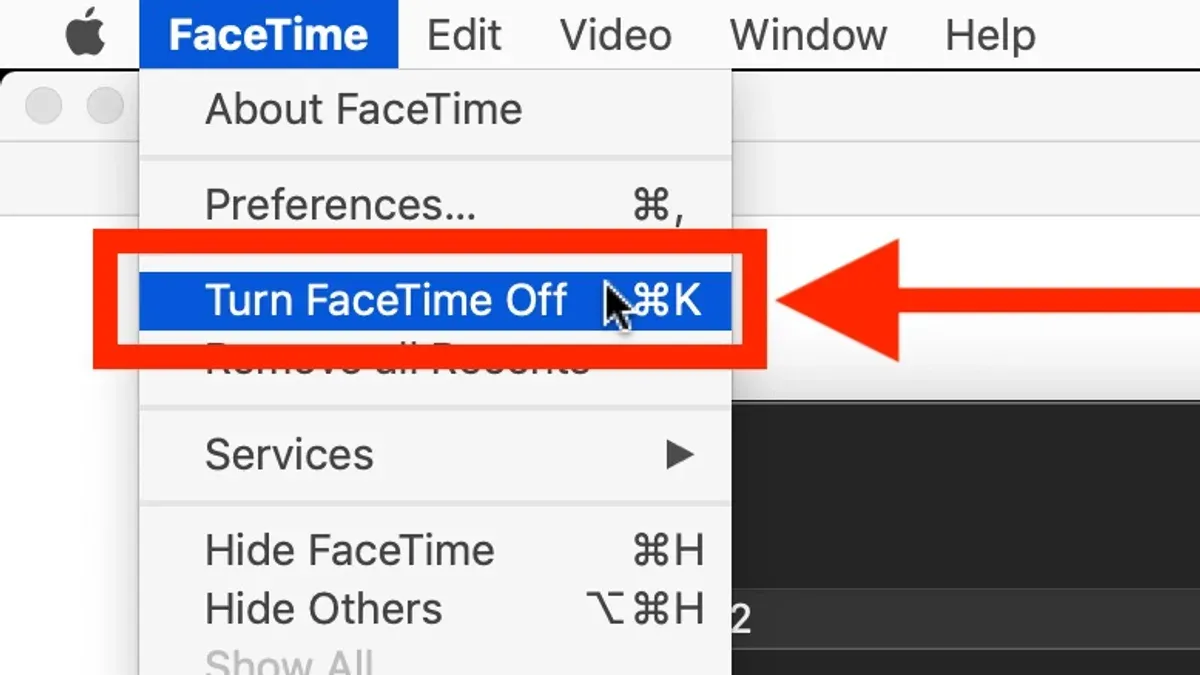
- In the menu bar at the top of your screen, click FaceTime and then select Preferences from the dropdown menu. A preferences window will appear.
- In the Preferences window, locate your Apple ID at the top. Click the Sign Out button next to it.
- A confirmation prompt will appear. Confirm that you want to sign out. After signing out, the FaceTime window will show a sign-in option, and you will no longer receive or place FaceTime calls.
If you want to use FaceTime again later, simply reopen the FaceTime preferences and sign back in with your Apple ID. This action restores your ability to make and receive FaceTime calls.
Disable FaceTime Notifications to Minimize Interruptions
If you want to keep using FaceTime but avoid constant call alerts, adjusting notification settings is an effective choice. This approach allows you to receive FaceTime calls silently or with minimal disturbance without fully signing out or disabling the app.
- Open System Settings from the Apple menu. You should see the main settings window.
- Click on Notifications in the sidebar. The list of apps with notification settings appears.
- Scroll down and select FaceTime. You will see all notification options available for FaceTime.
- To mute notifications, toggle off Allow Notifications. This stops alerts but FaceTime remains active for calls.
- If you prefer some alerts, choose Alerts style but uncheck Sounds and Badges. This suppresses noise and icon badges but keeps visual alerts on screen.
- Close System Settings. Your changes save automatically.
This method is preferable when you want to receive calls but avoid distractions from sounds or banners. Unlike signing out, it preserves your connection and call history without interruption.
| Notification Setting | Effect |
|---|---|
| Allow Notifications Off | No alerts, no banners, no sounds; FaceTime still receives calls silently |
| Alerts On + Sounds Off + Badges Off | Visual banners only; no sound or badge icons, less intrusive |
| Alerts On + Sounds On + Badges On | Full notifications with sound, banners, and app badges |
Turn Off FaceTime Temporarily by Using Do Not Disturb or Focus Modes
You can temporarily disable FaceTime calls without changing any app-specific settings by using the built-in Do Not Disturb or other Focus modes on your Mac. These modes silence incoming calls and notifications, including FaceTime, allowing you to concentrate without interruptions. To activate Do Not Disturb quickly, click the Control Center icon in the menu bar, then click "Do Not Disturb" to turn it on. You should see the moon icon appear, indicating the mode is active.
If you want to customize which notifications are silenced, including FaceTime, you can create a custom Focus mode. Go to System Settings > Focus, then click the plus (+) button to add a new Focus. Name it (for example, "Work"), and under "Allowed Notifications," remove FaceTime from the apps allowed to notify you. This way, only the apps you permit will send notifications during that Focus.
Focus modes are especially useful if you want to schedule FaceTime silencing during specific times, like meetings or work hours. To automate this, select your Focus mode and set a schedule or location trigger. For example, you could have a "Work" Focus turn on automatically on weekdays from 9 AM to 5 PM, silencing FaceTime calls only during that window.
- Open Control Center by clicking its icon in the menu bar; click "Do Not Disturb" to enable it temporarily. You will see a moon icon in the menu bar indicating it’s on.
- To create a custom Focus, open System Settings > Focus, then click the plus (+) to add one. Name your Focus and set allowed notifications.
- Remove FaceTime from "Allowed Notifications" in your custom Focus to silence FaceTime calls when active.
- Set a schedule or automation for your Focus mode to activate automatically during desired times or locations.
Using Focus modes gives you flexible control over when FaceTime calls can reach you, without signing out or disabling the app. This method is ideal for temporary silencing, such as during focused work sessions or personal time.
Disable FaceTime Using Screen Time Restrictions
If you want to block FaceTime access completely or limit how much time you can spend on it, Screen Time offers a robust solution. This is especially useful for parental controls or for self-discipline, providing a more restrictive option than simply signing out or muting notifications. Instead of just silencing calls or logging out, Screen Time can prevent the FaceTime app from launching altogether or enforce daily usage limits.
Follow these steps to set up Screen Time restrictions for FaceTime on your Mac:
- Open System Settings from the Apple menu. You should see a list of system preferences.
- Click Screen Time in the sidebar. The Screen Time dashboard will appear, showing usage statistics and controls.
- Select App Limits from the options. This lets you set daily time limits on app categories or specific apps.
- Click the + button to add a new limit. In the list, find and select FaceTime under the Communication or Social category.
- Set the daily time limit to your desired value, or set it to zero hours and zero minutes to effectively disable FaceTime. Confirm by clicking Done.
- Back in the Screen Time main panel, ensure that Use Screen Time Passcode is enabled to prevent changes without authorization.
Once set, FaceTime will be blocked or limited according to your preferences. Attempting to open FaceTime beyond the limit will display a Screen Time notification indicating the app is restricted. This method differs from signing out or muting notifications by fully controlling access to the app itself, not just incoming calls or alerts.
Use Screen Time restrictions when you want a clear boundary on FaceTime usage, such as enforcing rules for children or managing your own habits without disabling the entire Apple ID or losing notifications.
Troubleshoot Common Issues When Turning Off FaceTime
If FaceTime continues to ring after you have signed out, the issue might be due to Apple ID syncing across your devices. FaceTime calls can still come through on other Apple devices using the same Apple ID. To fix this, sign out of FaceTime on all devices or adjust FaceTime settings individually on each device.
If FaceTime notifications persist despite disabling them, double-check your System Settings. Go to System Settings > Notifications > FaceTime, and confirm that notifications are turned off or set to deliver quietly. Sometimes, Focus modes or Do Not Disturb settings can override notification preferences, so review those as well.
When you cannot sign out or disable FaceTime, check for pending software updates by navigating to System Settings > General > Software Update. Outdated software may cause bugs preventing FaceTime from disabling properly. Also, verify that no Screen Time restrictions or configuration profiles are blocking changes to FaceTime settings.
Common error messages include "Unable to sign out" or "FaceTime activation failed." For these, restarting your Mac and ensuring a stable internet connection often resolves the problem. If errors persist, resetting your Apple ID password or contacting Apple Support may be necessary.
Frequently asked questions
Can I turn off FaceTime only for specific contacts on my Mac?
No, FaceTime does not offer a built-in feature to disable calls from specific contacts while keeping others active. However, you can block individual contacts by opening the FaceTime app, selecting the contact, clicking the Info button, and choosing Block this Caller. This blocks all FaceTime calls and messages from that contact rather than selectively turning off FaceTime for them.
Will turning off FaceTime on my Mac affect calls on my iPhone or iPad?
Turning off FaceTime on your Mac does not disable it on your iPhone or iPad. FaceTime settings are device-specific, so disabling FaceTime on your Mac only stops calls and notifications there. Your other Apple devices will continue to receive FaceTime calls unless you disable FaceTime on each device separately.
How do I completely uninstall FaceTime from my Mac?
FaceTime is a built-in app on macOS and cannot be fully uninstalled without complex system modifications, which are not recommended. Instead, you can disable it by signing out of your Apple ID in FaceTime or using Screen Time restrictions to prevent access. These methods effectively stop FaceTime from working without removing the app itself.
Is it possible to block FaceTime calls but still receive FaceTime messages?
FaceTime calls and FaceTime messages (via iMessage) use different apps—FaceTime and Messages respectively. You can block FaceTime calls by disabling FaceTime or blocking contacts in FaceTime, while still receiving messages through the Messages app. Blocking a contact in FaceTime does not automatically block their messages, allowing you to control calls and messages separately.
What This Guide Does Not Cover
This article does not cover uninstalling FaceTime as it is a built-in macOS app and cannot be removed without advanced system modifications that are not recommended for typical users. If you are looking to permanently remove FaceTime or alter system files, this is beyond the scope of standard user settings and may risk system stability. For enterprise environments or advanced users needing deeper control, consulting with IT professionals or using device management solutions might be more appropriate.
To manage FaceTime effectively based on your needs, the single most useful next step is to decide which method fits your situation best—signing out of your Apple ID for a full disable, or adjusting notifications and Focus modes for temporary control. Carefully review the trade-offs of each approach, such as losing FaceTime functionality entirely versus simply minimizing interruptions, to ensure your choice aligns with your privacy and usability preferences.
See also: How to Record a FaceTime Call on Mac: Step-by-Step Guide · How to FaceTime with Android Users on Your Mac: Step-by-Step Guide · How to Share Your Screen on FaceTime on Mac: Step-by-Step Guide · How to Use Reactions in FaceTime on Mac: A Step-by-Step Guide