How to Export Keynote to PowerPoint: Step-by-Step Guide
Step-by-step guide on how to export Keynote to PowerPoint ensuring your presentation remains editable and well formatted.
You have a Keynote presentation that you need to share with colleagues who use Microsoft PowerPoint, but you aren’t sure how to convert the file format correctly. Understanding how to export Keynote to PowerPoint in Keynote ensures your slides appear as intended and remain editable in PowerPoint.
This article guides you step-by-step through exporting your Keynote presentations on Mac and iPad devices. It also covers exporting presentations with audio, offers solutions if you don’t have access to Keynote, and addresses common export problems. By following these practical instructions, you’ll confidently prepare your presentation for seamless sharing and editing in Microsoft Office.
Key takeaways
- Use the File > Export To > PowerPoint option in Keynote on Mac for straightforward conversion.
- On iPad, tap the Share button, then Export, and choose PowerPoint to save your presentation.
- Audio embedded in Keynote may not export directly; consider exporting audio separately for best results.
- If you don’t have Keynote, use iCloud’s web-based Keynote to export presentations to PowerPoint format.
- Check slide formatting and fonts after export to fix any compatibility issues early.
Before you start: What you need to export Keynote to PowerPoint
To export your Keynote presentation to PowerPoint format smoothly, you first need to ensure you have the right tools and preparations in place. Confirm that Keynote is installed and up to date on your Mac or iPad, and that you can open the exact presentation file you want to convert. You should also have Microsoft PowerPoint or a compatible app like Google Slides or LibreOffice available to open and verify the exported file.
Backing up your Keynote file before exporting is essential. This protects your original work in case something goes wrong during the export or the converted file loses some elements. Remember that not all Keynote animations, transitions, or custom fonts will convert perfectly. For example, Magic Move animations and some embedded fonts may not appear correctly in PowerPoint.
- Check that Keynote is installed on your device and open your presentation file. You should see your slides displayed correctly.
- Ensure you have Microsoft PowerPoint or another compatible app installed for testing. Opening a sample.pptx file should work without errors.
- Create a backup of your Keynote file by duplicating it in Finder or the Files app. The duplicate should open independently from the original.
- Review your presentation for complex animations or fonts that might not convert, such as Magic Move or custom typography. Make a note of these to check after export.
How to export Keynote to PowerPoint on Mac
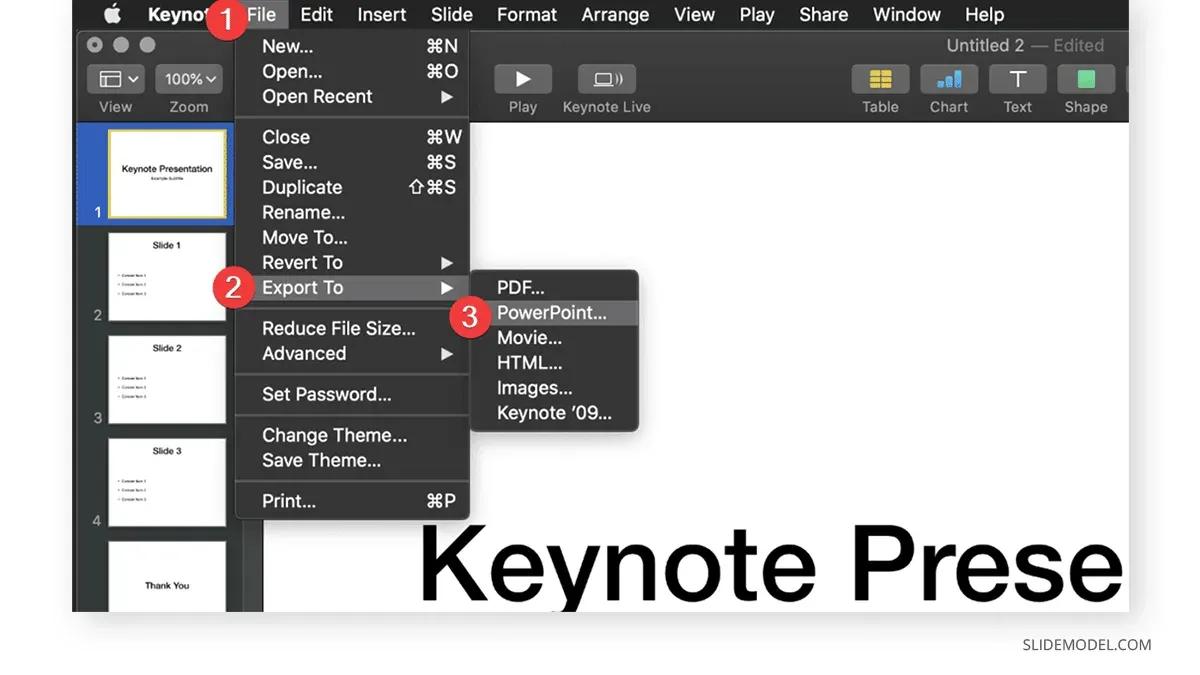
Start by opening your Keynote presentation on your Mac. Once the file is ready, go to the menu bar at the top of your screen and click File. From the dropdown, hover over Export To and select PowerPoint... to open the export dialog.
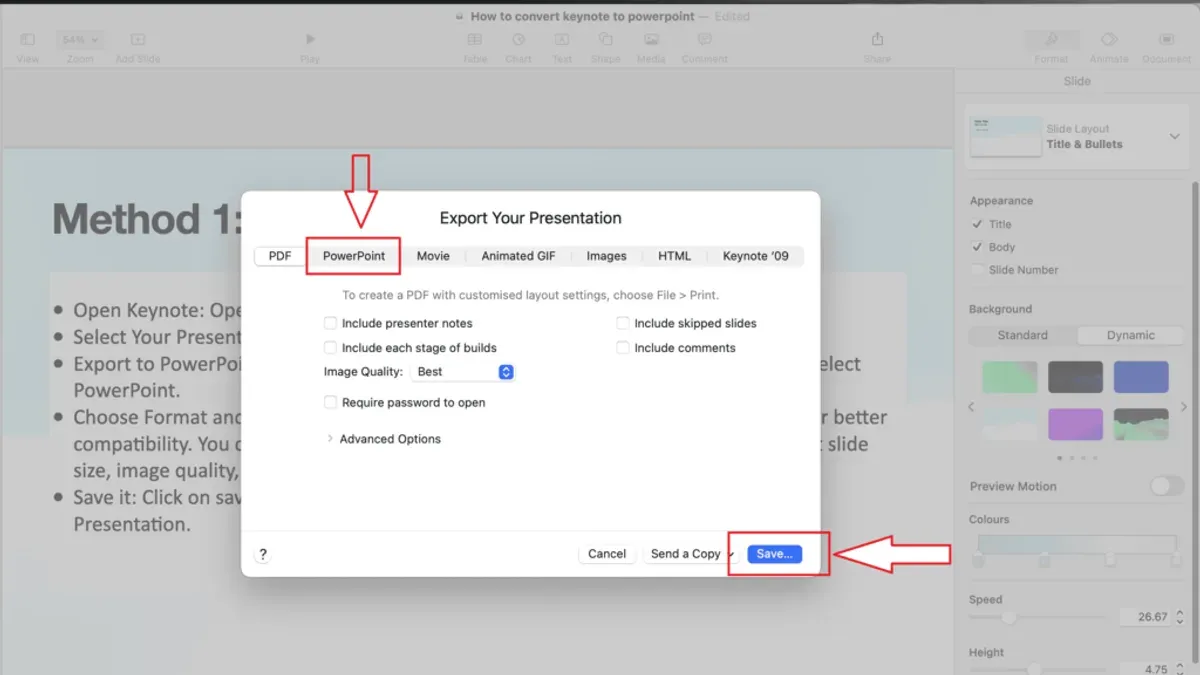
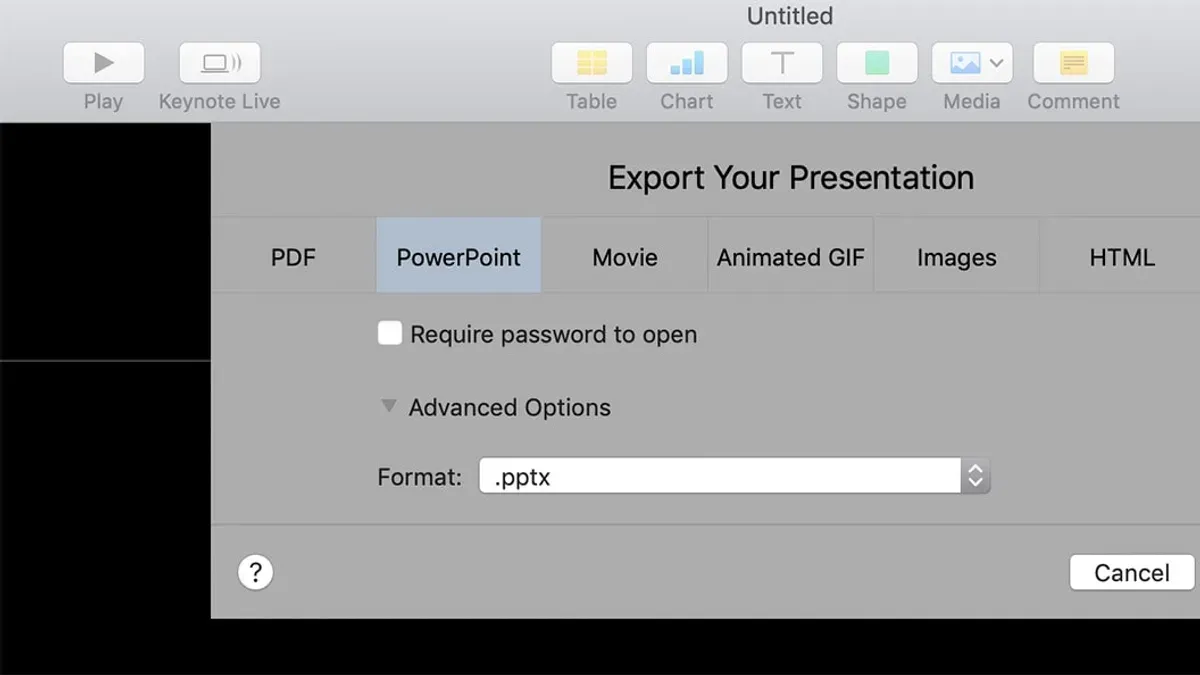
In the export window, you may see options to include a password or adjust export settings. If you want to protect your presentation, enter a password here. Otherwise, review the settings and proceed by clicking Next.
Next, choose the destination folder where you want to save your PowerPoint file. The file will be saved with a .pptx extension. After naming your file and selecting the folder, click Export. You should see a progress bar briefly indicating the export process.
Finally, locate the exported.pptx file in Finder and open it in Microsoft PowerPoint. Check that slides appear as expected, including text, images, and basic formatting. Some animations or fonts may look different, so verify key slides to ensure everything converted properly.
- Open your Keynote presentation on Mac. The presentation appears on your screen.
- Click File > Export To > PowerPoint... The export dialog opens.
- Adjust password or export settings if needed, then click Next. The save dialog appears.
- Choose a folder and name for your file, then click Export. Export begins and completes quickly.
- Open the saved.pptx file in PowerPoint. Slides display for review.
How to export Keynote to PowerPoint on iPad
- Open the Keynote app on your iPad and load the presentation you want to export. You should see your slides displayed on the screen, ready for editing or exporting.
- Tap the More button, represented by three dots in the upper-right corner of the screen. This action opens a menu with additional options related to your presentation.
- From the menu, select Export. A new window will appear showing available export formats.
- Choose PowerPoint as your export format. This converts your Keynote file into a.pptx file compatible with Microsoft PowerPoint.
- Next, decide where to save or share the exported file. You can save it to the Files app on your iPad, send it via email, or upload it to cloud storage services like iCloud Drive or Dropbox. Select the desired location or app and confirm.
- After exporting, open the PowerPoint file on a device with Microsoft PowerPoint installed to verify that the slides, text, and formatting appear correctly. Note that some animations or fonts may look different due to platform differences.
The iPad interface differs from the Mac in that exporting is done through the touch-friendly More menu rather than a File menu, and the options for saving or sharing are integrated with iOS’s system dialogs. This approach keeps the process streamlined but requires familiarity with iPad’s multitasking and app-switching behaviors.
How to export Keynote to PowerPoint with audio
When you export a Keynote presentation to PowerPoint, embedded audio often does not carry over automatically. PowerPoint has limited support for Keynote’s audio formats and embedding methods, so you will usually need to add audio files manually after exporting.
To preserve audio, first export your audio separately from Keynote. You can do this by selecting the audio clips in your presentation and exporting them as standalone files, typically in formats like.m4a or.mp3. Then, after exporting your presentation to PowerPoint, open the.pptx file and insert the audio files directly onto the relevant slides using PowerPoint’s Insert > Audio > Audio on My PC option.
If audio is critical to your presentation and you want to avoid manual re-insertion, consider exporting your Keynote file as a video instead. Exporting to video preserves all audio and animations exactly as in Keynote, though it does not allow further editing like a PowerPoint file does.
- Open your Keynote presentation and select the audio clip you want to export. You should see audio controls or an export option for audio files. Save the audio file to your device.
- Export your Keynote presentation as a PowerPoint file (.pptx) using the standard export method. You will see a.pptx file created without embedded audio.
- Open the exported.pptx file in PowerPoint and navigate to the slide where the audio should play.
- Use Insert > Audio > Audio on My PC to add the previously exported audio file to the slide. Confirm the audio icon appears and test playback.
- Repeat for each audio clip as needed. Save your PowerPoint file after adding all audio manually.
How to convert Keynote to PowerPoint without Keynote
If you don’t have Keynote installed, you can still convert Keynote presentations to PowerPoint format by using iCloud’s web-based Keynote app or third-party file converters. iCloud provides a reliable, privacy-conscious way to handle your files without needing the desktop software.
- Go to iCloud.com and sign in with your Apple ID. Once logged in, open the Keynote app in the web dashboard. You should see a blank presentation or your existing files.
- Upload your Keynote (.key) file by clicking the upload icon or dragging the file into the Keynote window. When the upload completes, your presentation will appear in the iCloud Keynote interface.
- Open the uploaded Keynote file in iCloud Keynote. Then click the wrench icon (Settings) in the top toolbar and select Download a Copy.
- Choose PowerPoint as the format. The file will then convert and download as a.pptx file. You can open this file in Microsoft PowerPoint or compatible software.
Third-party online converters offer a faster route but often come with formatting issues and privacy risks, as your presentation content is uploaded to external servers. These tools may mishandle fonts, animations, or embedded media, and you should avoid sensitive or confidential presentations when using them.
Using iCloud Keynote is generally the safest and most accurate method without the native app, although some advanced formatting may still require manual adjustment after export. This approach balances convenience with control over your data.
Troubleshooting common issues when exporting Keynote to PowerPoint
If you notice slides appear distorted or fonts are missing after export, first verify that the fonts used in your Keynote presentation are compatible with PowerPoint. Some fonts may not be supported or embedded automatically. When possible, embed fonts in your Keynote file before exporting or replace unsupported fonts with standard ones like Arial or Calibri to avoid display issues.
Animations and transitions often do not transfer correctly because PowerPoint and Keynote use different rendering engines. PowerPoint may show static slides where Keynote had movement. To address this, consider simplifying animations before export or exporting your presentation as a video if animation preservation is critical.
If the export process fails or freezes, check that both Keynote and PowerPoint are updated to their latest versions. Restart your device to clear temporary issues and verify the file size isn’t excessively large, as very large presentations can cause timeouts. Common error messages include "Export failed" or "Operation timed out," which often resolve after these steps.
For audio that does not play in PowerPoint, recall that audio does not export directly with Keynote slides. You need to export audio separately and manually insert it into PowerPoint or export the entire presentation as a video to preserve sound. Refer back to the audio export section for detailed instructions.
Frequently asked questions
How to export keynote to powerpoint
To export a Keynote presentation to PowerPoint, open your presentation in Keynote on your Mac or iPad. Go to the File menu, select Export To, then choose PowerPoint. Adjust any export settings if needed, then save the file. This creates a.pptx file compatible with Microsoft PowerPoint.
How to convert keynote to powerpoint without keynote
If you don’t have Keynote installed, you can use iCloud.com by signing in with your Apple ID. Upload your Keynote file to iCloud’s Keynote web app, open it there, then use the export option to download it as a PowerPoint file. This requires a stable internet connection and an Apple ID.
How to export keynote to powerpoint with audio
Keynote exports the presentation as a PowerPoint file but does not embed audio files directly in the exported.pptx. To preserve audio, you can export your presentation as a video (File > Export To > Movie) with sound included, or share the Keynote file itself. Alternatively, after exporting to PowerPoint, manually add audio files within PowerPoint if needed.
How to export keynote to powerpoint on ipad
On your iPad, open the Keynote app and your presentation. Tap the More button (three dots), select Export, then tap PowerPoint. Choose your export options, then save or share the PowerPoint file via your preferred method, such as email or cloud storage.
What This Guide Does Not Cover
This guide does not cover advanced PowerPoint editing or the recovery of complex Keynote-only features such as certain animations, live charts, or interactive elements after export. If your presentation relies heavily on these advanced features, you may need to recreate them manually in PowerPoint or use specialized software designed for complex conversion. Additionally, this article does not address collaborative editing workflows or cloud-based conversions beyond the basic export functions described.
The most useful next step is to open your exported PowerPoint file immediately after export to review how your slides transferred. Check for any formatting inconsistencies, missing media, or altered animations. This quick review helps you identify and fix issues early, saving time and ensuring your presentation looks professional when shared or presented in Microsoft Office environments.
See also: How to Use Pages Templates in Pages: A Step-by-Step Guide · How to Export to PDF in Pages: Step-by-Step Guide for Mac and iOS