How to Use Pages Templates in Pages: A Step-by-Step Guide
Discover how to efficiently create and apply templates in Pages to streamline your document creation process.
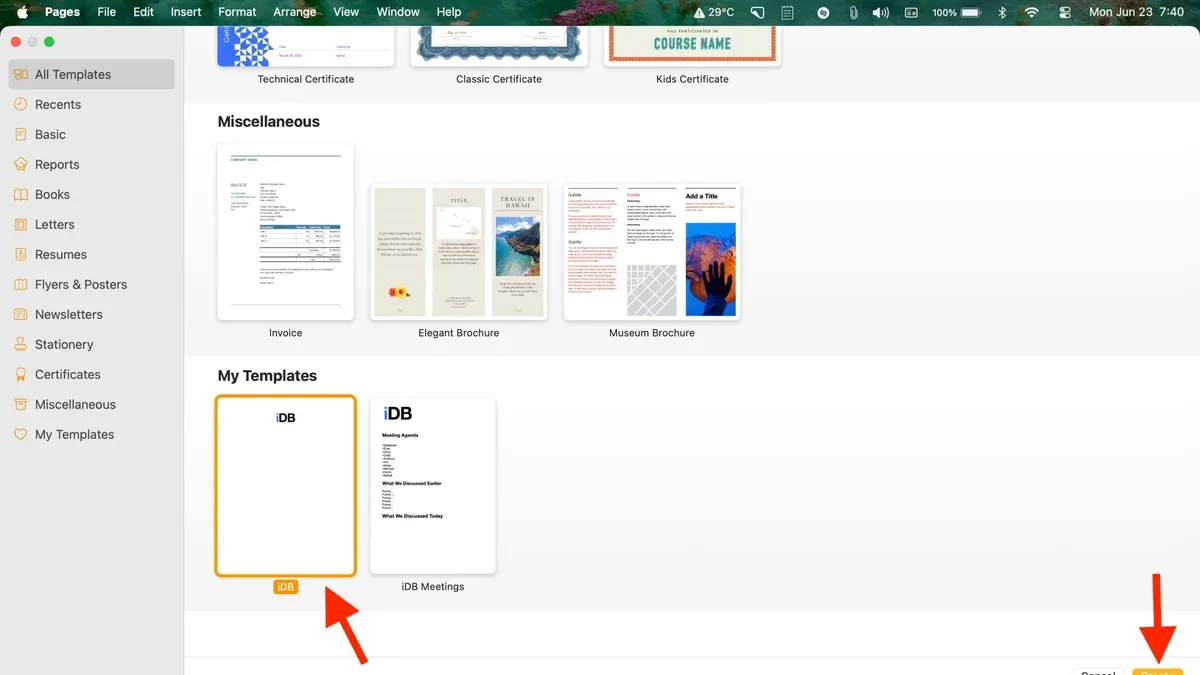
You want to quickly create a professional-looking report or newsletter on your Mac, but you don't want to start from scratch each time. Using templates in Pages can save you time and ensure consistency across your documents. This guide explains how to use Pages templates in Pages effectively, walking you through creating, saving, and applying templates with clear, practical steps.
Additionally, you’ll learn how templates in Pages differ from those in platforms like WordPress and SharePoint. Understanding these differences helps you decide if Pages templates meet your needs or if you need to explore other tools. By the end, you'll have a solid grasp of working with templates to streamline your document creation process.
Key takeaways
- Create a custom template by designing your document and choosing File > Save as Template.
- Access built-in templates via the Pages app start screen for quick project setup.
- Apply saved templates by selecting File > New from Template Chooser and picking your template.
- Templates in Pages focus on document layout, unlike WordPress or SharePoint templates designed for website structure.
- Organizing templates in a dedicated folder makes reuse and sharing easier for teams.
Before you start: What you need to use Pages templates effectively
To use Pages templates effectively, you first need access to an Apple device such as a Mac, iPad, or iPhone with the latest version of the Pages app installed. This ensures compatibility and access to all template features. Familiarity with the basic Pages interface—knowing how to create, save, and open documents—will make the process smoother and help you avoid common pitfalls like accidentally overwriting templates.
It’s important to understand that Pages templates are designed for document creation within Apple's ecosystem, which differs from templates used in website platforms like WordPress or SharePoint. Website templates often involve coding and layout structures for web pages, whereas Pages templates focus on reusable document layouts. Clarifying your goal—whether you want to create reusable documents such as reports and newsletters or build website pages—is key to choosing the right tool.
Here’s a simple setup checklist for beginners to get started:
- Confirm your device runs a supported version of macOS, iPadOS, or iOS and that the Pages app is installed from the App Store. When successful, you should see Pages listed among your installed apps.
- Open Pages and create a new blank document to familiarize yourself with the interface. You should see the document editing toolbar and sidebar options.
- Review existing templates in the Templates chooser (File > New). The template gallery should appear, displaying Apple’s built-in document templates.
- Decide on your document’s purpose—whether it's for personal use, professional reports, or newsletters—to guide your template customization later. Having this clear will help avoid confusion when selecting or creating templates.
Common beginner pitfalls include confusing Pages document templates with website page templates and not backing up custom templates, which can lead to loss if your device is reset. Preparing adequately with this checklist ensures you will be ready to create and reuse templates efficiently in Pages.
Create a custom template in Pages
To create a custom template in Pages, start with a new blank document or open an existing document that you want to reuse as a template. Customize the styles, layout, and add content placeholders where you expect to replace information later. For example, adjust fonts, add headers or footers, insert tables, or place text boxes with placeholder text like “Insert title here.”
Once your document looks the way you want your future documents to start, save it as a template. Click on File in the menu bar, then select Save as Template. Pages will prompt you to name your template and choose whether to add it to the template chooser for easy access.
After saving, you can create new documents based on your custom template by opening Pages, selecting New Document, and then choosing your template from the My Templates section. Using templates can significantly reduce setup time for recurring document types since your styles and layout are already in place.
- Open a new or existing Pages document you want as a template. You should see your content or blank layout ready for customization.
- Modify styles, layout, and add placeholders for text or images. These changes will appear in every new document created from this template.
- Go to the menu and select File > Save as Template. A dialog appears prompting you to name the template.
- Enter a clear template name and choose Add to Template Chooser, then click Save. Your template is now saved and accessible.
- To use the template later, open Pages, click New Document, and select your template under My Templates. A new document opens with your custom layout ready to edit.
Use built-in Pages templates to jumpstart your projects
When you open Pages, the template chooser displays a variety of pre-designed templates organized by categories such as Reports, Newsletters, Resumes, and more. These templates provide a solid foundation, saving you time by including formatted text, placeholder images, and layouts tailored to common document types. To start, simply select a category that fits your project to browse its available templates.
- Open Pages and click "New Document" to access the template chooser. You should see categories like "Basic," "Reports," "Newsletters," and "Resumes" on the left side.
- Click on a category, for example, "Newsletters." A selection of newsletter templates will appear, each with a thumbnail preview.
- Choose a template by clicking it, then press "Create." A new document opens using that template's layout and style.
- Modify the template by replacing placeholder text and images with your own content. For instance, change the newsletter headline, update article text, and swap sample photos with relevant images.
- Save your document regularly. If you want to reuse this modified layout, consider saving it as a custom template (covered earlier).
While built-in templates are convenient, they have limitations. They follow fixed designs that may not perfectly match your brand or unique project needs. Modifying a template can help, but extensive changes might be easier with a custom template you create from scratch. For example, if you need a newsletter with a very specific color scheme and column layout not offered by built-in templates, building your own template ensures consistent reuse.
How to apply a saved template to a new Pages document
Starting a new document from a saved template in Pages is straightforward and helps you maintain consistent design across projects. When you open Pages, the first screen you see is the Template Chooser, where you can select from both built-in and custom templates. Using your saved template as a starting point ensures your new document inherits the structure, styles, and formatting without altering the original template.
- Open the Pages app on your Mac. The Template Chooser window will appear automatically. If it doesn’t, click File in the menu bar, then select New to open it.
- At the top of the Template Chooser, click the My Templates tab to view your saved custom templates. You can also browse built-in templates under the Basic or other category tabs.
- Scroll through and click on the template you want to use. A preview of the template appears on the right side, allowing you to confirm your choice.
- Click the Choose button at the bottom right. A new document based on this template opens, ready for you to customize.
- Edit your new document as needed. Remember, changes you make here will not affect the original template file, so your template remains unchanged for future use.
This workflow lets you efficiently create new documents that follow your preferred layouts while keeping the original templates intact for repeated use.
Why use a template in Pages and beyond
Using templates in Pages helps you save significant time by eliminating the need to start each document from scratch. When you repeatedly create documents like reports, newsletters, or invoices, templates ensure consistent formatting and style, maintaining a professional look across all your work. This consistency also supports branding efforts, as templates can embed specific fonts, colors, and logos, making it easier to produce documents that align with your or your organization's identity.
Templates reduce errors by standardizing layouts; for example, fixed header placements and predefined text styles prevent accidental formatting changes. This reliability is valuable when multiple people contribute to documents, as it keeps outputs uniform and easy to follow.
Templates in Pages differ from website templates used on platforms like WordPress or SharePoint. Pages templates focus on document design—such as text formatting and page layout—while website templates control visual appearance, navigation, and interactive elements of a website. Here's a comparison to clarify:
| Feature | Pages Templates | WordPress Page Templates |
|---|---|---|
| Purpose | Document layout and style | Website page layout and functionality |
| Customization | Text styles, images, page setup | PHP, HTML, CSS, dynamic content |
| Use case | Reports, letters, flyers | Landing pages, blog posts, product pages |
| Reusability | Reusable within Pages app | Reusable across a website or multisite |
Understanding these differences helps you decide whether Pages templates meet your needs or if website platform templates are necessary for your projects.
How to use templates in website platforms like WordPress and SharePoint: A brief overview
In WordPress, a page template is a PHP file that controls the layout and structure of a specific page or group of pages. It allows you to customize how content appears beyond the default theme settings. For example, you might have a "Full Width" template that removes sidebars or a "Landing Page" template designed for marketing campaigns. WordPress users select these templates from the "Page Attributes" section in the editor, affecting the page’s appearance without altering the content itself.
SharePoint uses page templates to streamline the creation of intranet site pages. These templates come with predefined web parts and layouts that make it easier to maintain consistency across organizational sites. When you create a new SharePoint page, you can choose from templates like "Blank", "Basic text", or "Visual" to quickly set up the page framework. This approach helps teams publish content faster while adhering to corporate design standards.
The main difference between document templates in Pages and website page templates lies in their purpose and control scope. Pages templates focus on document design and content reuse, while WordPress and SharePoint templates dictate the layout and components of webpages. You may need to use website templates if your goal involves controlling user experience, navigation, or interactive elements on a site, which document templates do not handle.
Troubleshoot common issues when working with Pages templates
If your template does not appear in the Template Chooser, first confirm that it was saved correctly. Pages requires custom templates to be saved in the "My Templates" section. To check this, open Pages, click "File" > "Open Template Chooser," and ensure your template is listed under "My Templates." If it’s missing, try saving the template again by choosing "File" > "Save as Template" and selecting "Add to Template Chooser."
Sometimes, changes made to a document unintentionally affect the original template. This usually happens when you edit a document created from a template and save it directly, rather than saving it as a new file. Always use "File" > "Duplicate" or "Save As" to preserve the template's integrity. If the template gets altered, you may need to recreate it from a clean document.
Formatting issues often occur when sharing templates across different devices. Differences in font availability or Pages versions can cause text reflow or layout shifts. To minimize this, use standard system fonts and keep Pages updated on all devices. Exporting the template as a PDF for sharing can preserve layout but removes editability.
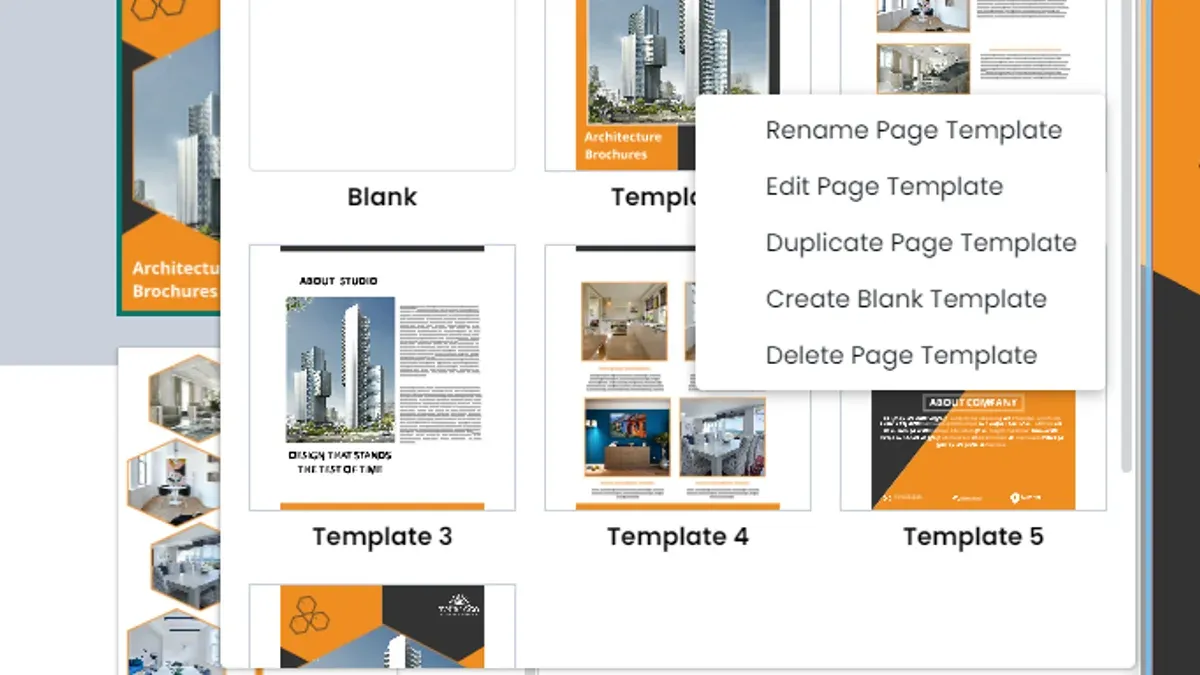
If you suspect your template is corrupted, resetting it can help. Delete the template from "My Templates" by right-clicking and selecting "Delete." Then, recreate it from the original document by saving it again as a template. In persistent cases, restarting Pages or your device can resolve temporary glitches.
Advanced tips: Organize and share your Pages templates for team use
To collaborate efficiently using Pages templates, saving them in a shared location like iCloud Drive or a company-shared folder is essential. This allows all team members to access the latest templates without duplicating files locally. When you save your template, navigate to File > Save as Template and choose Add to Template Chooser or specify a shared folder within iCloud Drive. Team members should then open templates directly from this shared location to ensure consistency.
Establish clear naming conventions to help identify templates quickly. For example, include the department name, document type, and version number, like Marketing_Report_v2.pages. This reduces confusion and helps track template updates over time.
When updating templates, avoid overwriting the original file directly. Instead, create a new version with an incremented version number and notify your team about the update. This practice prevents workflow disruptions, allowing users to finish in-progress documents using the previous version if needed.
Keep in mind that Pages templates have limitations in multi-user environments. Unlike website template systems in platforms like WordPress or SharePoint that support simultaneous editing and version control, Pages lacks built-in collaboration features for templates. Teams may need to use external tools like shared drives or project management software to coordinate template updates and usage.
For example, a marketing team might save all their templates in a dedicated iCloud folder named “Team Templates.” They apply a consistent naming system and communicate changes through team chat or email. This setup streamlines document creation while avoiding conflicts common in cross-platform or multi-user template environments.
Frequently asked questions
How to create a template in pages?
To create a template in Pages, start by opening a new or existing document and customize it with your preferred styles, text, and layout. Then, go to the File menu and select Save as Template. Choose whether to add it to the My Templates section or save it as a custom template file for sharing. This saves your setup for easy reuse whenever you start a new document.
Is page template wordpress?
In WordPress, a page template is a PHP file that defines the layout and structure for a specific page or group of pages. It controls how content appears visually and can be selected or assigned within the WordPress editor. This differs from Pages templates, which are document templates for Apple’s Pages app, focused on text and graphics rather than website structure.
What is page template in power pages?
Power Pages, part of Microsoft Power Platform, uses page templates as pre-designed layouts to build web pages without coding. These templates provide a structured starting point for content and design, helping users quickly create consistent pages within a site. They are distinct from document templates and tailored specifically for web content management.
How to use sharepoint page template?
In SharePoint, you can use page templates by selecting New > Page and then choosing from saved templates or default layouts. After selecting a template, you can customize web parts and content on the page before publishing. Templates speed up creating consistent pages across your SharePoint site.
How to add page template in wordpress?
To add a page template in WordPress, you typically upload a PHP template file to your theme's folder via FTP or the theme editor. Once added, the template appears in the Page Attributes section when editing a page in the WordPress dashboard. Selecting it changes the page’s design and layout according to the template’s code.
What This Guide Does Not Cover
This guide focuses on using document templates within the Pages app and how these compare to template concepts in platforms like WordPress and SharePoint. It does not cover in-depth website template development, coding, or advanced web design techniques. If you need to create or customize website templates extensively, consulting official resources or specialized tutorials for WordPress, SharePoint, or other web platforms is recommended. Similarly, for complex automation or scripting within Pages, exploring AppleScript or Shortcuts documentation will be more helpful.
To get the most out of your Pages templates, the single best next step is to create a custom template tailored to your frequent document needs. Open Pages, design your document with your preferred styles, layouts, and placeholders, then save it as a template via File > Save as Template. This practice ensures consistency and saves time whenever you start new projects aligned with your workflow.
See also: How to Add a Cover Page in Pages: A Step-by-Step Guide · How to Use Paragraph Styles in Pages: A Step-by-Step Guide · How to Add Page Numbers in Pages: Step-by-Step for Mac, iPad, and iPhone · How to Add a Table of Contents in Pages: A Complete Step-by-Step Guide