How to Pin a Tab in Safari: Step-by-Step Guide for Mac, iPhone, and iPad
Discover how to pin a tab in Safari on Mac, iPhone, and iPad to keep your favorite websites easily accessible and organized.
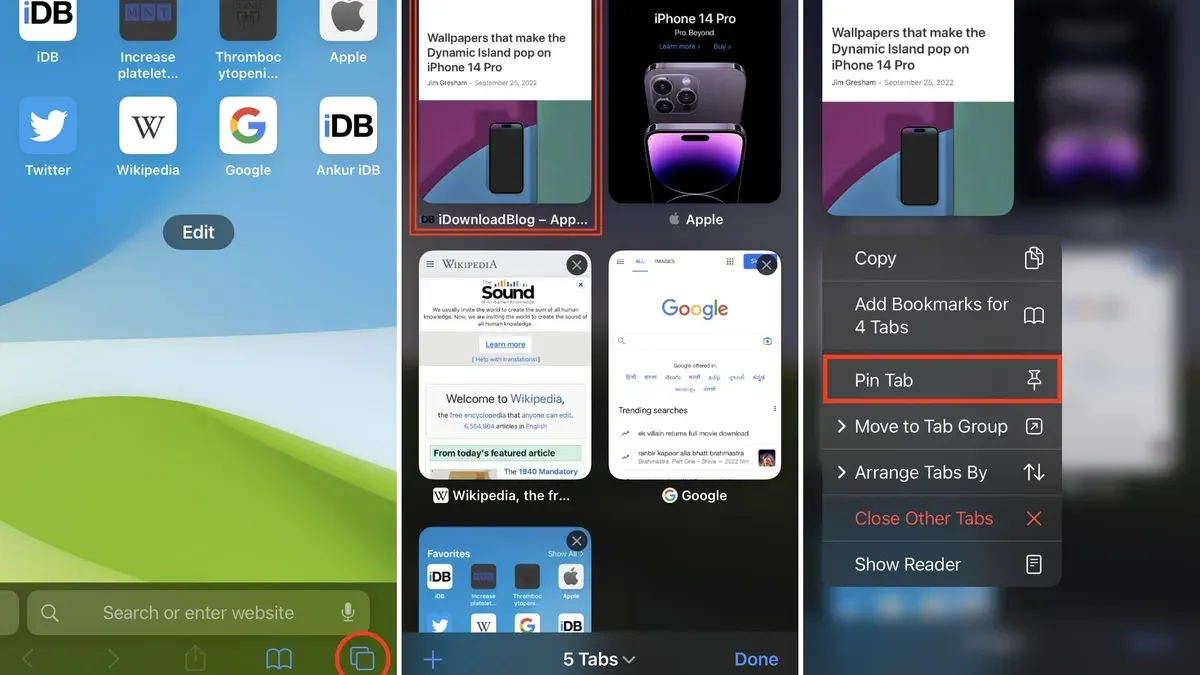
You often have several Safari tabs open while working or browsing, making it easy to lose track of important pages. Pinning tabs keeps your key websites readily accessible and organized without cluttering your tab bar.
This article explains how to pin a tab in Safari across Mac, iPhone, and iPad, guiding you through the simple steps for each device. You’ll also learn how to manage pinned tabs, open new ones, and unpin them when needed, improving your browsing efficiency and navigation.
Key takeaways
- Pin tabs on Mac by right-clicking a tab and selecting "Pin Tab" for quick access.
- On iPhone and iPad, use Safari’s tab groups to organize and mimic pinned tabs.
- Unpin tabs by right-clicking on Mac or managing tab groups on iOS devices.
- Access pinned tabs easily from the Safari tab bar or tab overview on mobile.
- Pinning tabs helps keep frequently used sites open without cluttering your browser.
Before you start: What you need to pin a tab in Safari
Pinning tabs in Safari helps you keep your favorite or frequently visited websites easily accessible and organized. However, before you begin, it’s important to ensure your device and software support this feature. Pinning works slightly differently between Mac computers and iOS or iPadOS devices, so knowing your platform’s capabilities will make the process smoother.
First, you need a Mac running macOS Big Sur or later with Safari 14 or newer to pin tabs directly in Safari. Most Macs released within the last several years support these versions. On iPhone and iPad, pinning tabs is supported starting with iOS 15 and iPadOS 15 respectively. Devices compatible with these operating systems include iPhone 8 or later and iPad models from the 5th generation onward.
Remember, on Mac, pinned tabs appear as small, fixed tabs at the start of your tab bar, staying visible even when you open many other tabs. On iPhone and iPad, pinning tabs works within the tab overview and offers quick access without cluttering your screen. Understanding this distinction will help you use pinning effectively.
- Check your device’s operating system version: On Mac, go to the Apple menu > About This Mac. On iPhone or iPad, open Settings > General > About > Software Version. You should see at least macOS Big Sur, iOS 15, or iPadOS 15.
- Verify your Safari version: On Mac, Safari updates with macOS updates; on iPhone or iPad, Safari updates with iOS/iPadOS. If your OS is up to date, Safari will support pinning.
- Confirm your device model supports the needed OS version: iPhone 8 or newer, iPad 5th generation or newer, or a Mac capable of running Big Sur or later.
Once you meet these requirements, you’re ready to start pinning tabs in Safari on your device.
How to pin a tab in Safari on Mac
Pinning a tab in Safari on your Mac helps keep important websites readily accessible and organized. The pinned tab shrinks and locks to the left side of the tab bar, making it easy to find and preventing accidental closing. These pinned tabs remain in place even after you close and reopen Safari, preserving your workflow across sessions.
- Open Safari on your Mac and navigate to the website you want to pin. You should see the tab displayed at the top of the window in the tab bar.
- Right-click the tab you want to pin. If you don’t have a right-click enabled, hold the Control key and click the tab to open the context menu. The menu will display several options related to tab management.
- Select the Pin Tab option from the context menu. Once selected, the tab will shrink in size and move to the left side of the tab bar, showing only the website’s icon (favicon) instead of the full title.
- Verify that the pinned tab stays visible and remains on the left side of the tab bar. It should stay in place even if you close other tabs or restart Safari.
Before pinning, tabs look like standard tabs with their full titles visible. After pinning, tabs become compact icons that take up less space. This visual difference helps you quickly distinguish pinned tabs from regular ones. Remember, pinned tabs automatically reopen when you launch Safari again, so your frequently used sites are always ready.
How to pin a tab in Safari on iPhone and iPad
Unlike Safari on Mac, Safari on iPhone and iPad does not support traditional pinned tabs that stay fixed in the tab bar. Instead, you can create quick access shortcuts by adding a webpage directly to your Home Screen. This method places an icon on your device’s Home Screen, allowing you to open the site quickly without reopening Safari or searching through tabs.
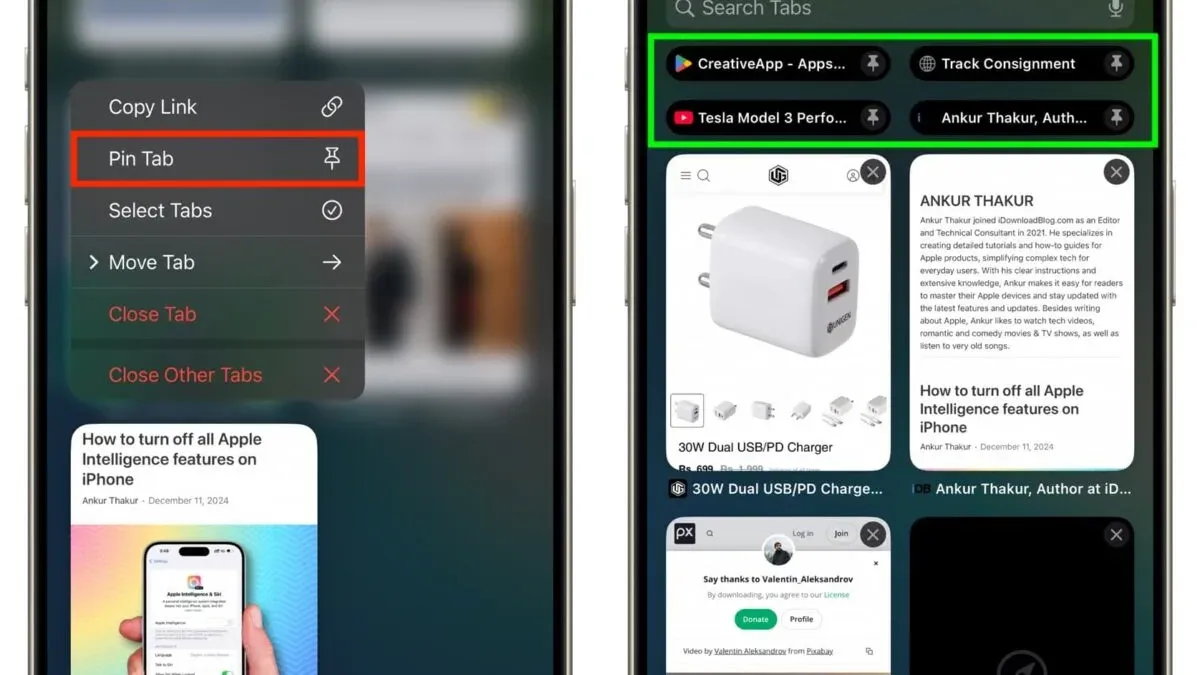
To add a tab to your Home Screen on iPhone or iPad, follow these steps:
- Open Safari and navigate to the webpage you want to save. You should see the site fully loaded.
- Tap the Share button, which looks like a square with an arrow pointing upward, located at the bottom (iPhone) or top (iPad) of the screen.
- In the Share Sheet that appears, scroll down and tap Add to Home Screen. A dialog will open showing the page name and icon.
- Optionally, edit the name of the shortcut to something concise and recognizable.
- Tap Add in the upper-right corner. You will now see the site’s icon on your Home Screen, which you can tap to open the page directly in Safari.
Besides Home Screen shortcuts, Safari on iOS and iPadOS offers tab groups and the tabs button to help organize your browsing. Tap the tabs button (two overlapping squares) to view all open tabs. You can create and switch between tab groups to group related tabs together, improving navigation and reducing clutter.
While these options differ from the pinned tabs on Mac, they provide practical ways to keep important sites accessible and your browsing organized on mobile devices.
How to open a tab in Safari
Opening a new tab in Safari varies slightly depending on whether you're using a Mac, iPhone, or iPad. On a Mac, you can quickly open a new tab by clicking the + button located at the right end of the tab bar. This action opens a blank tab ready for you to enter a new URL or search query.
Alternatively, keyboard shortcuts speed up this process. Press Command + T on your Mac keyboard to open a new tab instantly. If you prefer using a trackpad, a three-finger swipe up will show your open tabs, allowing you to tap the + button to add another tab.
On iPhone and iPad, opening a new tab starts by tapping the tabs icon (two overlapping squares) at the bottom or top of the Safari screen. Then, tap the + button to open a new tab. You can also press and hold a link in any tab and select Open in New Tab to open links without leaving your current page.
Safari also offers settings that influence tab behavior. For example, under Safari Settings > Tabs on iOS devices, you can choose how new tabs open and whether Safari shows your start page when opening a new tab. On Mac, Safari can be set to reopen tabs from your last browsing session automatically, which helps maintain continuity if you close and reopen the browser unexpectedly.
These methods together provide flexible ways to open tabs efficiently across your Apple devices, adapting to your preferred workflow whether you favor clicks, keyboard shortcuts, or gestures.
How to unpin a tab in Safari
On a Mac, unpinning a tab in Safari is simple and quick. When you want to remove a pinned tab, you’ll need to right-click on the tab itself. This action opens a context menu where you’ll find the option to unpin the tab. Selecting Unpin Tab immediately restores the tab to its regular size and position among open tabs.
- Right-click the pinned tab you want to unpin. A menu will appear.
- Click Unpin Tab from the menu. The tab will expand and move out of the pinned section, becoming a standard tab.
- Confirm the tab is no longer pinned, appearing like your other open tabs.
On iPhone and iPad, Safari does not support pinned tabs like on Mac. Instead, users often add websites to the Home Screen or organize tabs into groups. To remove a shortcut added to the Home Screen, press and hold the website icon until a menu appears. Select Remove Bookmark or Delete Bookmark, depending on your device, to delete it from the Home Screen.
Managing tab groups on iOS and iPadOS can help keep tabs organized without pinning. To edit or delete a tab group, tap the Tabs button, open Tab Groups, then swipe left on the group name to reveal the Delete option or tap Edit to rearrange or rename groups. This keeps your browsing organized, substituting for pinned tabs.
How to pin Safari to the taskbar on Mac
Pinning a tab in Safari means keeping a specific webpage readily accessible within the browser, but pinning the Safari app itself to the Dock (Mac’s taskbar equivalent) allows you to launch Safari quickly at any time. These two are different functions: one organizes your browsing inside Safari, and the other provides easy access to the app on your Mac.
To pin Safari to the Dock for fast launching, follow these steps:
- Open the Safari app by clicking its icon in the Applications folder or using Spotlight search. Once Safari is open, its icon will appear temporarily in the Dock.
- Right-click (or Control-click) the Safari icon in the Dock. A context menu will appear.
- From the menu, choose Options, then select Keep in Dock. This action pins Safari permanently to your Dock, even after you close the app.
- Confirm that the Safari icon remains visible in the Dock after closing the app, indicating it is successfully pinned.
With Safari pinned to the Dock, you can launch the browser quickly without searching for it each time. This method complements pinning tabs because it focuses on app accessibility rather than webpage organization. Managing Dock icons effectively by keeping frequently used apps like Safari pinned can improve your overall productivity and streamline your workflow.
How to open a private tab in Safari
Private browsing in Safari allows you to surf the web without saving your browsing history, search history, or autofill information. This feature works slightly differently across your Apple devices but is easy to access on each.
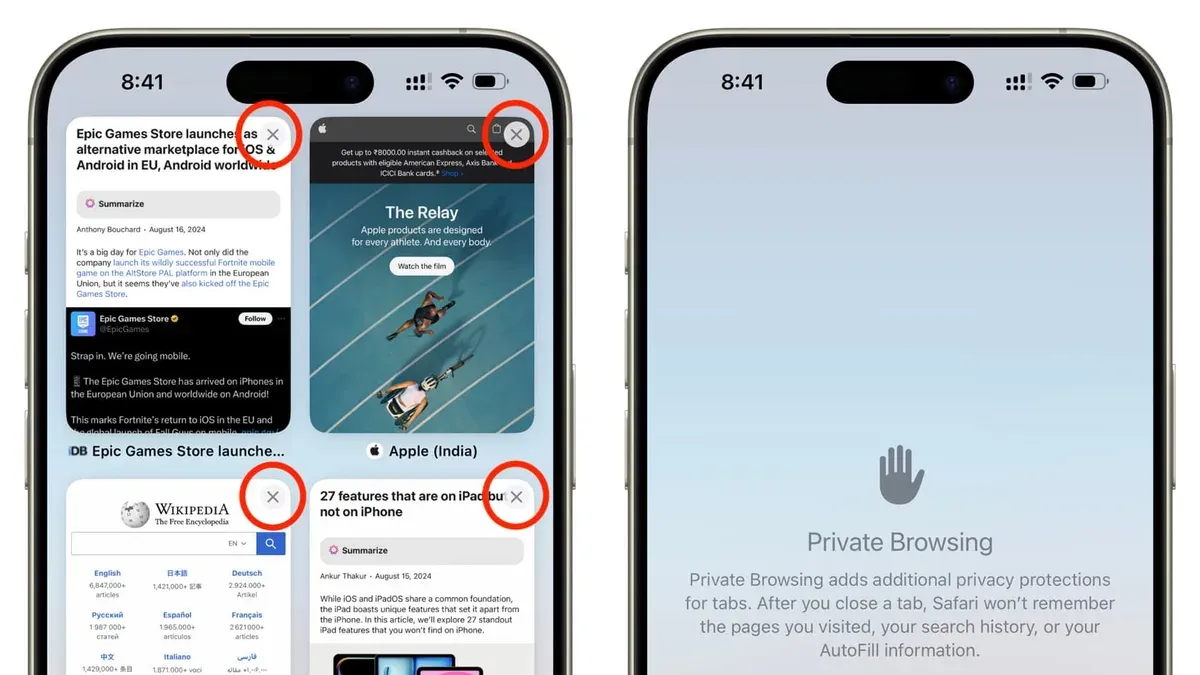
Opening a private tab on Mac
- Click the File menu in the top menu bar of Safari.
When done correctly, you will see a dropdown menu. - Select New Private Window from the dropdown.
A new window with a dark smart search field appears, indicating private browsing mode. - Alternatively, press Shift + Command + N on your keyboard.
This keyboard shortcut opens a private window instantly.
In private mode on Mac, any tabs you open stay within this private window, and once you close it, Safari deletes your browsing data from that session.
Opening a private tab on iPhone and iPad
- Tap the Tabs button (usually looks like two overlapping squares) at the bottom or top of Safari.
The tab overview screen opens. - Tap Private in the tab view options at the bottom (iPhone) or top left (iPad).
The interface switches to private browsing mode and usually darkens. - Tap the + button to open a new private tab.
The new tab will not save your browsing history or autofill data.
Unlike Mac, private tabs on iPhone and iPad are part of the private browsing mode grouped in the tab overview. Closing all private tabs or switching back to the regular tab view ends private browsing.
Use private tabs when you want to prevent Safari from saving your browsing history, cookies, and other website data. This is useful for sensitive searches or when using a shared device.
Troubleshooting common issues with Safari tabs and pinning
If your pinned tabs disappear after closing Safari on Mac, it's often due to session restore settings. Ensure that Safari is set to reopen windows from your last session. To check this, go to Safari > Preferences > General, then set "Safari opens with" to "All windows from last session." When this is active, your pinned tabs should reappear when you relaunch Safari.
Sometimes tabs open automatically or unexpectedly. This usually happens if Safari’s preferences are set to open specific pages at startup. Navigate to Safari > Preferences > General and review the "New windows open with" and "New tabs open with" options. Adjust these to "Empty Page" or "Favorites page" to prevent unwanted tabs from appearing.
On iPhone and iPad, if you don’t see the tabs icon in Safari, it might be because the toolbar is hidden or you are in full-screen mode. Tap the top of the screen or swipe down slightly to reveal the toolbar. The tabs button appears as two overlapping squares. If it still doesn’t show, try closing and reopening Safari.
Remember, Safari on mobile devices does not support pinned tabs like Mac. Instead, use Home Screen shortcuts and tab groups to organize sites. This is a limitation of mobile Safari’s design, so rely on these alternatives for efficient tab management.
Frequently asked questions
How to add a tab in safari?
To add a new tab in Safari on a Mac, click the plus (+) button located at the right end of the tab bar. On iPhone or iPad, tap the tabs button (two overlapping squares) and then tap the plus (+) icon. This opens a fresh tab where you can enter a new web address or search.
How to pin safari on iphone?
Safari does not support pinning tabs on iPhone as it does on Mac. However, you can add frequently visited websites to your Home Screen for quick access. To do this, open the site in Safari, tap the Share button, and select "Add to Home Screen."
How to open private tab in safari?
On a Mac, click the File menu and select "New Private Window" to open a private tab. On iPhone or iPad, tap the tabs button, then tap "Private" in the lower-left corner, followed by the plus (+) icon to open a new private tab. Private tabs do not save your browsing history.
How to pin safari tab to home screen?
While you cannot pin a Safari tab directly to the Home Screen, you can create a shortcut. Open the desired website, tap the Share button, then choose "Add to Home Screen." This creates an app-like icon that opens the page directly from your Home Screen.
What is the tabs button in safari?
The tabs button in Safari, shown as two overlapping squares, lets you view and manage all your open tabs. On iPhone and iPad, it appears at the bottom or top of the screen and helps you switch between tabs, open new ones, or close existing tabs efficiently.
What This Guide Does Not Cover
Safari on iPhone and iPad does not support traditional pinned tabs like the Mac version. Instead, you will need to use alternatives such as adding frequently visited websites to your Home Screen or organizing tabs with Safari’s Tab Groups feature. If you require the exact functionality of pinned tabs on mobile devices, consider using these alternatives or syncing your browsing between devices with iCloud to access pinned tabs from your Mac.
Additionally, this guide focuses on Safari’s built-in tab management features and does not cover third-party browser extensions or apps that might offer similar functionality. Users seeking advanced tab management or automation should explore those options separately.
To keep your Safari experience efficient, the most useful next step is to explore and set up Tab Groups on your devices. Tab Groups let you organize your tabs by topic or project and sync seamlessly across your Mac, iPhone, and iPad. This approach offers a flexible way to manage multiple browsing contexts without traditional pinning on mobile devices.
See also: Change Download Location in Safari: A Complete Step-by-Step Guide · How to Pin a Note in the Notes App: Step-by-Step Guide · How to Use Mac Terminal: A Step-by-Step Guide for Beginners