How to Change Your Default Calendar in Calendar Apps on iPhone and Android
Step-by-step guide to change your default calendar in Calendar apps on iPhone and Android for better event management.
You've added an event on your phone, but it doesn’t appear where you expect. Or maybe invitations go to the wrong calendar, creating confusion. These are common issues that happen when the default calendar in your calendar app isn’t set to the one you use most.
This article guides you through how to change default calendar in Calendar app settings on both iPhone and Android devices. You’ll find step-by-step instructions for Apple Calendar, Google Calendar, and Outlook apps on iPhone, plus how to adjust default calendars on Samsung phones. We also cover how to switch your default calendar app on iPhone and troubleshoot typical problems you might encounter while making these changes.
Key takeaways
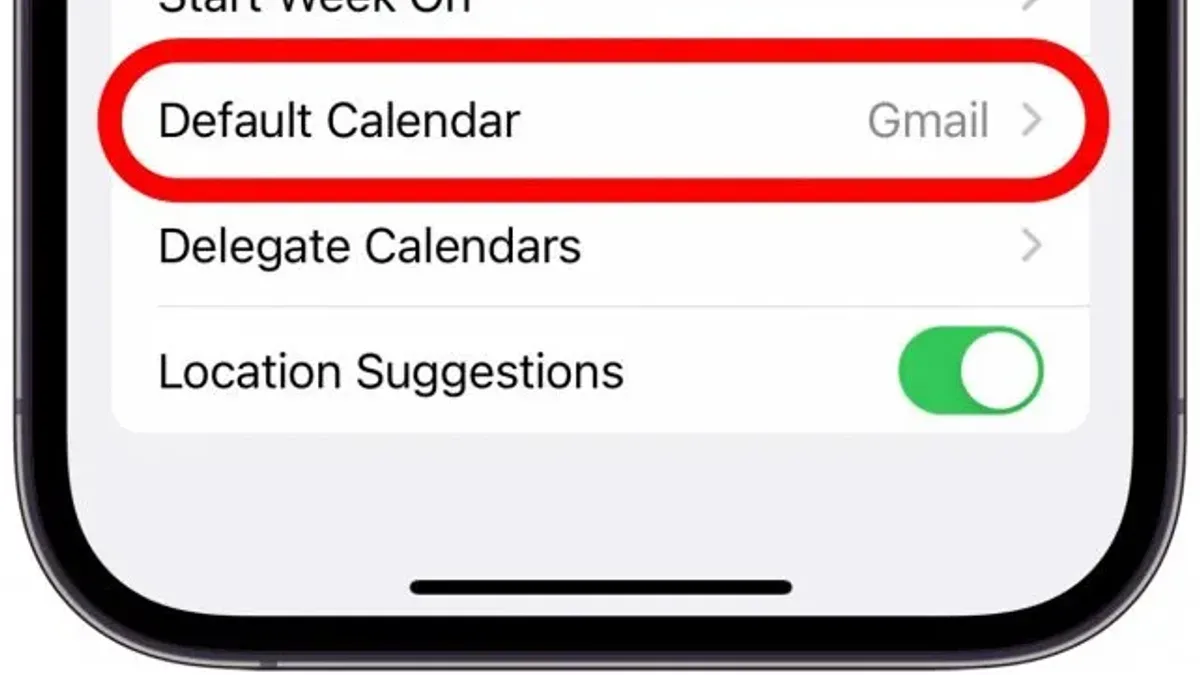
- Set your default calendar in iPhone’s Settings under Calendar > Default Calendar for Apple Calendar.
- Change default calendar in Google Calendar app via Settings > General > Default calendar.
- In Outlook app on iPhone, pick a default calendar when creating events by selecting the calendar at the top of the event screen.
- Samsung’s default calendar changes in the Samsung Calendar app settings under Manage calendars.
- Switch between calendar apps on iPhone via Settings > Calendar > Default Calendar App.
Before you start: What you need to know and prepare
A default calendar is the calendar your device automatically uses when you create new events. It matters because if you have multiple calendars synced to your phone—like work, personal, or shared calendars—the default calendar determines where new entries are saved unless you specify otherwise. Setting the right default helps you avoid confusion and keeps your events organized efficiently.
This guide covers changing default calendars in the Apple Calendar app, Google Calendar app, and Outlook app on iPhone, as well as the Samsung Calendar app on Android devices. Each app handles calendar management differently in 2026, reflecting updates in iOS and Android operating systems and app versions.
Before you begin, make sure all your calendars and accounts are added and synced on your device. For example, your Google account calendars should be visible and up to date in the Google Calendar app, and your work or personal calendars should appear in the Apple Calendar app if you want to select one of them as default. Without syncing, the calendar won’t be available to set as default or to save new events.
On iPhone, calendar management is centralized through the Settings app and the Calendar app itself, while Android devices like Samsung phones often use both system-level settings and individual app preferences. Understanding this difference will help when following instructions for each platform.
- Open your device’s calendar apps and verify that all the calendars you want to use appear and are updated. You should see events from each synced account without errors.
- Check your device settings to confirm accounts are signed in and calendar sync is enabled. On iPhone, go to Settings > Calendar > Accounts; on Samsung, go to Settings > Accounts and backup > Manage accounts.
- Ensure your device is running the latest iOS or Android version to avoid compatibility issues when changing default calendars.
How to set default calendar in Apple Calendar app on iPhone
Changing your default calendar on the iPhone ensures that new events you create in the Calendar app or other apps using Apple’s calendar framework automatically go to the calendar you prefer. This can help you stay organized and avoid adding events to the wrong calendar.
- Open the Settings app on your iPhone. This is where you manage system-level preferences and app settings.
- Scroll down and tap Calendar. This section controls all settings related to the built-in Calendar app.
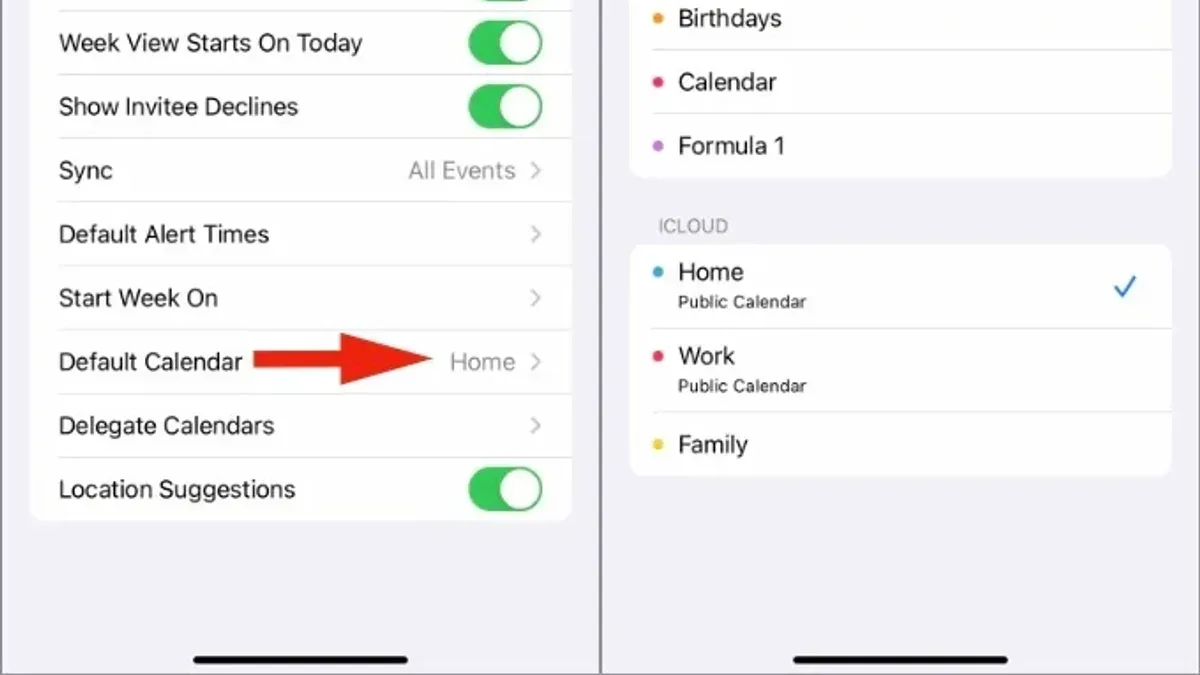
- Tap Default Calendar. Here, you will see a list of all the calendars currently synced to your device, including iCloud, Gmail, Exchange, or any other calendar accounts.
- From the list, select the calendar you want to set as your default. A checkmark will appear next to your selection.
- Exit Settings. Moving forward, any new events you create in the Calendar app or apps that use Apple’s calendar framework will automatically be assigned to your chosen default calendar unless you manually change it for individual events.
In iOS 17.1, the Default Calendar setting remains in the same location and visually resembles previous versions but with slightly refined fonts and spacing for better readability. The list of calendars clearly shows account names and calendar colors, helping you easily identify the correct one.
Before changing the default calendar, new events typically went to the last-used calendar or the first calendar in your list. After setting a default, the new event creation process is streamlined, reducing the chance of accidentally creating events in a calendar you rarely use.
If you use multiple calendar accounts, setting the right default calendar can simplify event management and make your schedule clearer across apps that integrate with Apple’s calendar system.
How to change default calendar in Google Calendar app on iPhone
Changing your default calendar within the Google Calendar app on your iPhone helps ensure that new events are saved to the correct calendar tied to your Google account, rather than the iPhone’s native Calendar app. The Google Calendar app manages its own default calendar settings independently from the iOS system settings, so adjusting it here affects only events created inside the Google Calendar app.
- Open the Google Calendar app on your iPhone. You should see your calendar view with existing events displayed.
- Tap the menu icon (three horizontal lines) in the top-left corner to open the side menu.
- Scroll down and select Settings near the bottom.
- Under Settings, tap your Google account email address to access account-specific calendar options.
- Look for the Default calendar option. If you do not see it explicitly, tap Events from Gmail or similar event-related settings to find calendar selection options.
- Choose the calendar you want to set as default for new events created in the Google Calendar app. This might be your primary Google calendar or any other calendar synced to your account.
- Exit settings and create a new event to confirm the default calendar appears as selected automatically.
Keep in mind, the Google Calendar app’s default calendar setting only applies to events created within the app itself. If you create events using the Apple Calendar app or other iOS features, those will follow the iOS default calendar setting you set in your iPhone’s system settings.
To keep both apps synchronized, you can enable calendar syncing between Google Calendar and Apple Calendar in your iPhone settings under Passwords & Accounts or Mail. This sync allows you to view Google events in Apple Calendar and vice versa, but it does not unify default calendar settings. You must adjust defaults separately in each app.
By understanding these distinctions and following the steps above, you can confidently manage where your new events go when using Google Calendar on your iPhone in 2026.
How to change default calendar in Outlook app on iPhone
To set or change the default calendar in the Microsoft Outlook app on your iPhone, you will need to navigate through the app’s settings. Unlike the Apple Calendar or Google Calendar apps, Outlook’s default calendar setting is specific to the app and impacts how new events are created and managed within your Microsoft 365 or Exchange accounts. Adjusting this setting ensures your event invitations and schedules sync correctly across your Outlook environment.
- Open the Outlook app on your iPhone. You should see your mailbox with the regular email interface.
- Tap your profile icon or the gear icon typically located in the top left or bottom right corner to open the Settings menu. You should see a list of account and app settings.
- Scroll down and select Calendar. This opens calendar-specific settings related to event creation and management within Outlook.
- Find and tap the Default Calendar option. Here, you will see a list of calendars linked to your Outlook account, including Microsoft 365 calendars, personal calendars, and any shared calendars.
- Select the calendar you want to use as your default for new events. After selection, the app will save your preference and use this calendar for all newly created events by default.
When you create a new event in Outlook after changing this setting, the event will automatically be assigned to the calendar you selected. This is different from Apple Calendar, which uses the iOS system setting, and Google Calendar, which sets the default within its own app environment. Outlook’s default calendar setting specifically affects events created or accepted within its app and ensures proper syncing with your Microsoft 365 account or Exchange server.
If you work with multiple calendars or shared calendars in Outlook, choosing the correct default calendar helps avoid confusion when sending or receiving event invitations. For example, if you select a shared team calendar as default, new events will be visible to all team members without additional steps.
Note that screenshots from the 2026 version of the Outlook app show the Calendar settings screen clearly listing the Default Calendar option, with each calendar’s name and associated account displayed. This visual confirmation helps you select the right calendar confidently.
How do I change the default calendar on my Samsung phone?
On Samsung phones running One UI 6 in 2026, changing the default calendar in the native Samsung Calendar app is straightforward. This setting ensures that any new events you create are automatically added to your preferred calendar, helping you stay organized across multiple accounts. Keep in mind that if you have both Google and Samsung accounts synced, your default calendar choice will affect which account’s calendar new events are saved to.
- Open the Samsung Calendar app from your home screen or app drawer. Once the app loads, you will see your calendar view with scheduled events.
- Tap the three horizontal lines (menu icon) in the top-left corner to open the side menu. Here you’ll find options including your calendars and settings.
- Scroll down in the side menu and select Settings. You should see various configuration options related to calendars and events.
- Look for the Default calendar option within the Settings menu. Tap it to display a list of all calendars synced to your device, including Google calendars and Samsung calendars linked to your accounts.
- Choose the calendar you want as your default by tapping it. When selected, this calendar will be used automatically for all new events created in the Samsung Calendar app.
- Exit the Settings menu and try creating a new event by tapping the + button. Check that the calendar shown for the event matches the one you set as default.
Note that on some Samsung phones or earlier versions of One UI, the exact path to the Default calendar setting may vary slightly. However, in One UI 6, these steps reflect the typical navigation. Changing the default calendar here does not alter default calendars in other calendar apps on your phone; each app manages its own settings.
How to change default calendar app on iPhone
As of 2026, iOS does not allow you to set a third-party calendar app as the system-wide default calendar app in the same way you can with email or browser apps. This means that when you tap on calendar links or create events from system features, Apple’s built-in Calendar app will usually open by default. Understanding this limitation helps you manage expectations about how calendar apps behave on your iPhone.
However, some workarounds and app-specific settings can help direct calendar-related actions to your preferred app. For example, certain third-party calendar apps can register to open calendar invitation links if they support URL schemes, but this depends on the app’s design and is not controlled by iOS settings.
To influence which calendar app opens links or handles invites, check the settings within the third-party app itself. Some apps can prompt you to set them as the default for calendar invitations or allow you to manually open calendar events inside the app. Still, this is not a system-wide default and may require you to open the app manually for some tasks.
It’s also helpful to differentiate between changing the default calendar app and changing the default calendar inside an app. The default calendar app is the application iOS uses to open calendar links system-wide. The default calendar inside an app determines which calendar new events are saved to within that app.
In summary, while you cannot change the system default calendar app on iPhone, you can manage app-specific settings and use manual methods to work primarily in your preferred calendar application.
Troubleshooting common issues when changing default calendar
Sometimes, after changing your default calendar, you might notice that some calendars don’t appear in the selection list or that new events keep saving to your old default calendar. These issues are often caused by syncing problems, account conflicts, or app glitches. To fix this, start by making sure all your calendar accounts are fully synced in your device’s settings or within each calendar app.
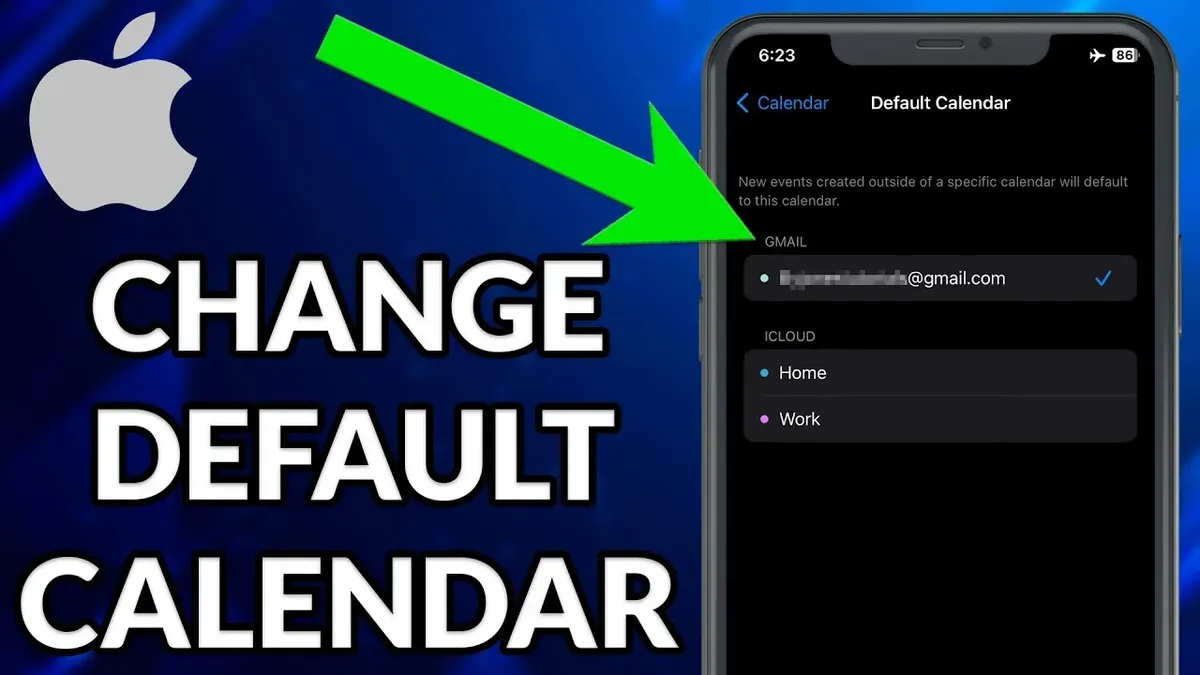
If your preferred calendar is missing from the list, check the account settings in the app to verify that the calendar is enabled and visible. In some cases, calendars from certain accounts (like work or school) may be hidden by default. Enabling these calendars often resolves the issue.
When events continue to save to the old default calendar despite changes, it’s usually a syncing delay or a setting override by another app. Restart your device and reopen the calendar app to refresh the sync. Also, verify that no other calendar apps or device profiles are forcing a different default calendar.
Conflicts can arise if you use multiple calendar apps or accounts that don’t sync seamlessly. To minimize conflicts, choose one primary calendar app for creating events and check that all connected accounts are properly authorized. Regularly updating your apps and device software helps prevent bugs that affect calendar behavior.
If problems persist, consider resetting calendar settings or reinstalling the app. For resetting, go to your device settings, find the calendar app, and clear its cache or data if available. Reinstalling the app often resolves corrupted files or stuck settings. After reinstalling, sign back into your accounts and reconfigure your default calendar preferences.
Frequently asked questions
How to change default calendar in calendar app iPhone?
To change the default calendar on your iPhone, open the Settings app and scroll down to Calendar. Tap on Default Calendar, then select the calendar you want to set as default from the list of available calendars linked to your accounts. This ensures all new events you create in the Apple Calendar app are added to your chosen calendar automatically.
How to set default calendar in apple calendar app?
In the Apple Calendar app, you set the default calendar through the iPhone’s Settings, not directly within the app. Go to Settings > Calendar > Default Calendar, then choose the calendar you prefer. This setting applies to all new events created on your device unless you specify otherwise when adding an event.
How to change default calendar in google calendar app?
Within the Google Calendar app on iPhone, there isn’t a direct default calendar setting. Instead, when creating a new event, tap the calendar name at the top to select which calendar to use for that event. To streamline this, consider managing your primary calendars in your Google account settings online, as the app defaults to your primary calendar linked to your Google account.
How to change default calendar in outlook app on iPhone?
In the Outlook app on iPhone, tap your profile icon or the calendar icon, then open Settings by tapping the gear icon. Under Calendar, find Default Calendar and select the calendar you want new events to be added to automatically. Keep in mind this setting only affects events created within Outlook, not other calendar apps on your device.
What This Advice Does Not Cover
This article does not cover changing default calendars on desktop calendar applications or web interfaces, which often have different settings and processes. If you mainly use calendar services on a computer or through a web browser, you should check the support resources specific to those platforms. Additionally, some third-party calendar apps may not support changing default calendars or may behave differently depending on app updates or your device’s operating system version. For those using less common or specialized calendar apps, it’s best to consult the app’s help documentation.
To move forward confidently, the single most useful next step is to open your chosen calendar app settings right now and verify which calendar is currently set as default. This check helps avoid confusion when adding new events and ensures your schedule stays organized exactly how you want it in 2026.
See also: How to Delete Spam Calendar Invites in Apple Calendar App · How to Share a Calendar in the Calendar App on iPhone and Mac