How to Delete Spam Calendar Invites in Apple Calendar App
Step-by-step guide to delete calendar spam invites in Apple Calendar app on iPhone and Mac, plus tips to prevent future spam in 2026.
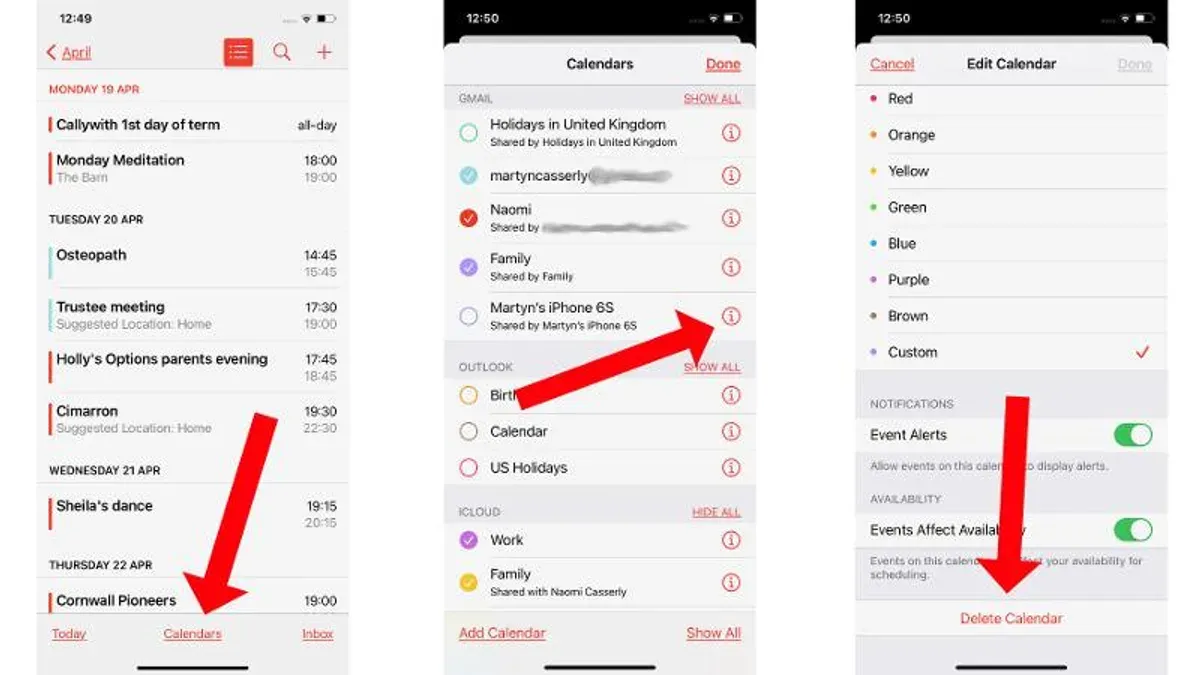
You open your Apple Calendar only to find numerous unexpected event invitations cluttering your schedule. These spam invites often come from unknown senders and can be tricky to remove or block permanently.
This article guides you step-by-step on how to delete calendar spam invites in Calendar app on your iPhone and Mac. You'll learn both immediate removal techniques and how to prevent future spam using the latest 2026 Apple Calendar features and settings across your devices.
Key takeaways
- Delete spam invites by declining them directly in the Apple Calendar app.
- Use the "Calendar Alerts" setting to reduce notification spam.
- Adjust invitation settings in iCloud to prevent automatic calendar additions.
- Manage spam filtering across all Apple devices via consistent iCloud account settings.
- Regularly check and remove unknown calendars added to your account to keep spam at bay.
Before you start: What you need to know about calendar spam in 2026
Calendar spam refers to unsolicited event invitations that appear in your Apple Calendar, often from unknown senders. Unlike email spam, these invites can automatically show up as events, cluttering your calendar and sometimes containing links or attachments that could be malicious. In 2026, Apple Calendar distinguishes invitations coming from people outside your contacts or iCloud account, displaying them differently to help you identify potential spam.
Apple's latest updates to iOS and macOS in 2026 have enhanced how calendar invitations are filtered and handled. By default, invitations from unknown senders are sent to a separate “Invitations” section without automatically adding events to your calendar. This reduces accidental clutter but does not fully eliminate spam invites.
Before you begin deleting spam invites, ensure you have access to your Apple ID settings and Calendar preferences on your iPhone or Mac. You will need to review notification permissions and the “Allow Invitations” setting under Calendar preferences to effectively manage and prevent future spam. Having these ready will make the removal process smoother and help you control unwanted invites across your Apple devices.
How to delete spam calendar invites on Apple Calendar
Start by opening the Calendar app on your iPhone or Mac. On iPhone, tap the Calendar icon from your Home screen. On Mac, launch Calendar from the Dock or Applications folder. Once inside, look carefully for invites that appear unsolicited—these often come from unknown senders and may have vague or suspicious titles like "Exclusive Offer" or "Event Invitation" without personal details.
To delete a spam invite individually, tap or click on the event, then select Decline. This action removes it from your calendar and signals to Apple that you do not wish to receive updates for this invite. You will see the invite disappear immediately after declining.
- Open the Calendar app on your iPhone or Mac.
- Locate the spam invite by checking for unknown senders or unusual event titles.
- Tap or click the invite to view details.
- Select Decline to remove the invite and prevent it from reappearing.
To delete multiple spam invites at once on Mac, hold down the Command key and click each unwanted invite, then right-click and choose Delete. Confirm deletion to clear them out quickly. This bulk action is not available on iPhone but helps keep your calendar clean on Mac.
After deleting or declining spam invites, monitor your calendar to ensure legitimate events remain unaffected. Spam invites typically lack personalized details and often originate from email addresses you do not recognize, making them easier to spot accurately.
How do I delete unwanted calendar invitations permanently?
To ensure spam invites don’t return, you need to remove them from all your synced Apple devices and iCloud, delete any suspicious calendar subscriptions, and clear related notifications. This process helps stop repeated spam from cluttering your calendar.
- Open the Calendar app on your iPhone and Mac. On each device, locate and delete the unwanted spam invitations by declining or removing them. When done, these invites should disappear from the calendar view.
- Go to Settings > Calendar > Accounts on your iPhone and check each account syncing calendars. On your Mac, open System Settings > Internet Accounts. Remove any unknown or suspicious calendar accounts, as these often cause recurring spam invites. After removal, these spam invites should no longer appear.
- On your iPhone, open Settings > Calendar > Accounts > Subscribed Calendars and delete any unfamiliar subscriptions. On your Mac, open Calendar, then select File > Subscriptions, and remove suspicious subscriptions. This stops spam sent through calendar subscriptions.
- Clear notifications related to calendar invites: on iPhone, swipe away calendar notifications from the Notification Center; on Mac, click the Notification Center icon and clear calendar alerts. This prevents persistent invite alerts.
- If spam invitations persist, reset your calendar sync by toggling off Calendar in Settings > Apple ID > iCloud on your iPhone and Mac, then turning it back on. This refreshes your calendar data and removes cached spam invites.
After completing these steps, check all devices to confirm the spam invites have not reappeared. The synchronization process should keep your calendars clean across the Apple ecosystem.
How to stop spam calendar invitations on iPhone
To prevent future spam calendar invitations on your iPhone, you need to adjust several settings that control how invites are added and filtered. Apple’s built-in spam filters work best when combined with manual controls like blocking suspicious senders. These steps guide you through effective ways to reduce unwanted calendar clutter in 2026.
- Turn off “Add Invitations to Calendar” from Mail: Go to Settings > Calendar > Accounts > Siri & Search or directly to Settings > Calendar > Default Calendar and find Add Invitations to Calendar. Set it to Never. This stops invitations from automatically appearing in your calendar, letting you control which ones get added. You’ll only see invites you manually accept.
- Enable “Filter Unknown Senders” for Calendar: Open Settings > Calendar and turn on Filter Unknown Senders. This setting separates invites from people not in your contacts, placing them in a separate list where you can review them safely without cluttering your main calendar view.
- Use the “Report Junk” feature: When you receive a spam calendar invite, open it in the Calendar app and tap Report Junk. This sends the spam data to Apple and removes the invite. Over time, this helps improve Apple’s spam detection system and reduces similar invites.
- Block or filter suspicious email addresses in Mail: In the Mail app, tap the sender’s email, then choose Block this Contact or create a rule to filter their emails. Since many spam invites come via email, blocking these sources reduces the chance of new spam calendar invitations arriving.
After applying these settings, many users notice a significant drop in unwanted invites, as Apple’s filters work alongside your manual controls. Apple Support documentation in 2026 highlights these combined approaches as the best practice for managing calendar spam on iPhone.
How do I stop spam calendar invites across all my Apple devices?
To keep spam calendar invites from cluttering your Apple ecosystem, it’s essential to synchronize your settings across iPhone, iPad, and Mac. iCloud Calendar syncs all your calendar data, including invites, so any change you make on one device affects the others. Ensuring consistent settings helps prevent spam from spreading through your devices.
- Open Settings on your iPhone or iPad, then tap your name at the top and select iCloud. Confirm that Calendars is toggled on. Repeat this on your Mac by going to System Settings > Apple ID > iCloud and ensuring Calendars is checked. When enabled, your calendar data syncs seamlessly.
- On each device, navigate to Settings > Calendar > Accounts (or System Settings > Internet Accounts on Mac) to review your calendar accounts. Make sure unwanted or suspicious calendar accounts are removed or disabled. This prevents spam invites originating from linked accounts.
- Use Screen Time on all devices by going to Settings > Screen Time > Content & Privacy Restrictions > Allowed Apps. Disable apps or features that might be a source of spam invites. For example, restrict third-party calendar apps that you do not fully trust.
- Review shared calendars and subscriptions on each device under the Calendars app’s Calendars list. Remove any shared calendars you don’t recognize or need, as these can be vectors for spam. Also, unsubscribe from unwanted calendar feeds in Settings > Calendar > Accounts > Subscribed Calendars.
By following these steps, you ensure that your anti-spam settings are uniformly applied, reducing the chance that spam invites will appear on any Apple device linked to your iCloud account.
Troubleshooting common issues when deleting spam calendar invites
If spam calendar invites keep reappearing after you delete them, this is often due to syncing issues across your devices. To resolve this, sign out of iCloud on your device, then sign back in to refresh calendar data. You should see the unwanted invites removed and not reappear afterward.
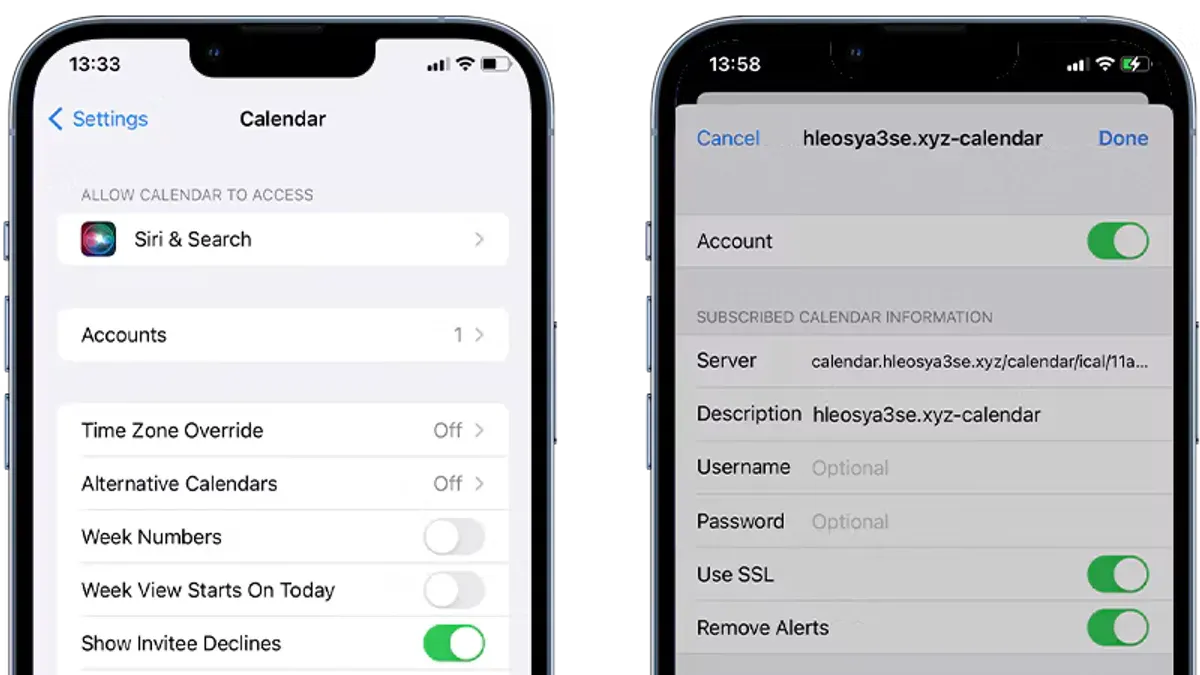
Sometimes, you may be unable to delete spam invites because they originate from suspicious or unknown sources. In this case, check the calendar subscription list under Settings > Calendar > Accounts > Subscribed Calendars and remove any unfamiliar subscriptions. Once removed, these invites should no longer appear.
If the Calendar app crashes or slows down after receiving many spam invites, try force-quitting the app and restarting your device. Clearing old invites and subscriptions can also improve performance. After restarting, open Calendar and verify it is responsive and free of spam events.
If problems persist despite these steps, or you encounter persistent error messages like “Unable to Delete Event” or continuous crashing, consider contacting Apple Support for personalized assistance. Alternatively, some reputable third-party calendar management tools offer additional spam filtering features compatible with Apple Calendar.
Frequently asked questions
How to remove spam calendar invites from apple calendar?
Open the Calendar app and locate the unwanted invite. Tap on the event, then select "Report Junk" or "Delete Event" to remove it. If you don’t see "Report Junk," simply delete the invite, and it will be removed from your calendar. This action helps Apple identify spam and reduces similar future invites.
How to stop invites on my calendar?
To stop unwanted invites, go to the Settings app, tap "Calendar," then "Accounts," and select your email account. Disable "Calendar" syncing for accounts that frequently send spam. Additionally, under "Settings" > "Calendar" > "Blocked," you can add email addresses or domains to block invites from those senders.
how to remove spam calendar invites from apple calendar
Delete spam invites by opening the event and choosing "Delete Event." For persistent spam, use the "Report Junk" feature if available. You can also adjust your invitation settings under "Calendar" > "Accounts" to limit calendar syncing from suspicious accounts.
how to stop invites on my calendar
Prevent unwanted invites by enabling "Mail" filtering for junk emails, since many spam invites come via email. In the Calendar settings, turn off "Events Found in Mail" to stop automatic adding of events from email content. Also, adjust your invitation alerts to "Email to Notification Center" to avoid automatic calendar additions.
how do i stop spam calendar invites
Stop spam invites by blocking senders in the Mail app and turning off "Events Found in Mail" in Calendar settings. Use the "Report Junk" option on suspicious invites to notify Apple. Regularly review and adjust your calendar account settings to ensure only trusted accounts sync events.
What This Advice Does Not Cover
This advice focuses on spam invites within Apple’s Calendar ecosystem in 2026 and may not fully address spam from third-party calendar apps or non-Apple services. If you use calendars linked through Google, Microsoft, or other providers, you might need to adjust settings directly in those accounts or apps. Additionally, this guide does not cover spam delivered through email or messaging apps that might appear as calendar invites. For persistent or sophisticated spam issues beyond Apple Calendar’s controls, contacting Apple Support or your email provider can provide further assistance.
To keep your calendar clean and avoid future spam, the single most effective step is to enable the “Filter Unknown Senders” feature in your iPhone’s Settings under Calendar. This blocks invites from people not in your contacts and reduces clutter across all your Apple devices synced with iCloud. Regularly reviewing and updating your contact list and privacy settings also helps maintain a spam-free calendar experience.
See also: How to Share a Calendar in the Calendar App on iPhone and Mac · How to Add Google Calendar to the Apple Calendar App in 2026