
How to Stop Your MacBook Pro M1 Pro from Randomly Restarting
Discover practical solutions to stop your MacBook Pro M1 Pro from randomly restarting and protect your workflow and data.
Your MacBook Pro M1 Pro unexpectedly restarts in the middle of important work, leaving you unsure why it happened or how to stop it. Such random restarts can disrupt your workflow and raise concerns about hardware or software issues.
This article explains common causes behind MacBook Pro M1 Pro random restarts, focusing on unique factors related to the M1 Pro chip’s architecture. You will learn how to identify subtle software conflicts and hardware triggers, plus follow clear, practical troubleshooting steps to resolve the issue without risking data loss or unnecessary repairs.
Key takeaways
- Random restarts often stem from software conflicts or power management glitches specific to the M1 Pro.
- Checking for macOS updates and incompatible apps can prevent many restart problems.
- Inspecting connected peripherals and hardware status helps rule out external causes.
- Stepwise troubleshooting minimizes data loss and avoids unnecessary hardware replacements.
- Regular monitoring and maintenance support long-term stability of your MacBook Pro M1 Pro.
Understand Why Random Restarts Matter
Random restarts occur when your MacBook Pro M1 Pro unexpectedly powers itself off and then boots up again without warning. This differs from a regular shutdown, where you intentionally turn off the device, or sleep mode, where the system conserves energy but remains in a low-power state. These abrupt restarts interrupt your workflow, often causing you to lose unsaved documents or progress in applications.
Beyond lost work, frequent random restarts can signal underlying system instability, potentially affecting your MacBook’s reliability over time. While all computers can restart unexpectedly, M1 Pro models have a unique architecture that manages power and processes differently compared to Intel-based Macs or other Apple silicon. This can sometimes lead to restart patterns that may seem more frequent or harder to diagnose.
Imagine you’re writing an important report in Pages and haven’t saved in several minutes. A random restart suddenly closes the app, and your unsaved changes vanish. This disruption not only wastes time but may also damage open files or cause software conflicts. Reports from users suggest that M1 Pro devices occasionally experience these restarts more noticeably than other models, making it crucial to identify and address the root causes promptly.
Explore How the M1 Pro Architecture Handles Power and Processes
The M1 Pro chip integrates CPU, GPU, memory, and other components into a single system-on-chip (SoC), featuring unified memory that allows faster data access and reduces power consumption. It includes high-performance cores for demanding tasks and efficiency cores optimized for lighter workloads, helping balance speed and energy use. macOS dynamically manages these cores to optimize performance and battery life, switching tasks between them based on demand.
Power management on the M1 Pro adapts to workload intensity and thermal conditions, using internal sensors to monitor temperature and adjust clock speeds or core activity. If heat builds up, the system may throttle performance or engage fans. This careful balance aims to prevent hardware stress but can be disrupted by unexpected software behavior or heavy multitasking.
For example, running multiple professional video editing apps simultaneously while exporting a large file can push the M1 Pro’s CPU and GPU cores near their limits. If thermal thresholds are crossed or a software bug causes resource conflicts, the system may restart to protect itself. Understanding this interaction between hardware design and macOS resource scheduling helps you identify when restarts stem from genuine hardware stress versus other causes.
Check for Software Conflicts and System Updates
Random restarts on your MacBook Pro M1 Pro can often stem from third-party software interfering with kernel extensions or essential system processes. To pinpoint these conflicts, start by booting your Mac into Safe Mode. Restart your Mac and immediately hold down the Shift key until the login screen appears; Safe Mode disables non-essential software and runs system checks, helping isolate problematic apps.
Next, examine diagnostic reports through Console.app by navigating to Reports > System Reports > Kernel Panics. Look for recurring references to specific apps or drivers. For example, if a recent update of a video editing tool coincides with restart logs showing its kernel extension, that app may be the culprit.
Keep your macOS and installed applications updated via System Preferences > Software Update and the App Store. Updates often include stability patches that address known bugs causing restarts. Users have noticed a marked decrease in restart frequency after applying macOS updates that fix underlying kernel issues.
If a particular app is suspected, temporarily uninstall or disable it and observe whether restarts persist. This stepwise elimination helps you avoid unnecessary repairs and data loss by confirming software is the trigger before considering hardware diagnostics.
Inspect Hardware Conditions and External Devices
Overheating is a common hardware trigger for random restarts on the MacBook Pro M1 Pro. The system is designed to operate safely up to around 100°C internally, but sustained temperatures above 95°C can cause the MacBook to shut down to protect its components. You can monitor your Mac’s temperature using apps like iStat Menus or the built-in Activity Monitor’s CPU usage tab combined with thermal sensors. If you notice temperatures consistently nearing or exceeding this range, consider improving airflow or reducing intensive tasks.
Batteries with degraded health can also cause unexpected restarts. Check your battery status by going to System Settings > Battery > Battery Health. If it shows “Service Recommended” or a significantly reduced maximum capacity, the battery might be a restart culprit.
External devices and cables can introduce power irregularities leading to restarts. Faulty USB-C hubs, chargers, or peripherals can cause power surges or drops. To isolate this, disconnect all external devices and use your MacBook Pro on battery power alone. If random restarts stop, reconnect peripherals one by one, observing if the issue reappears.
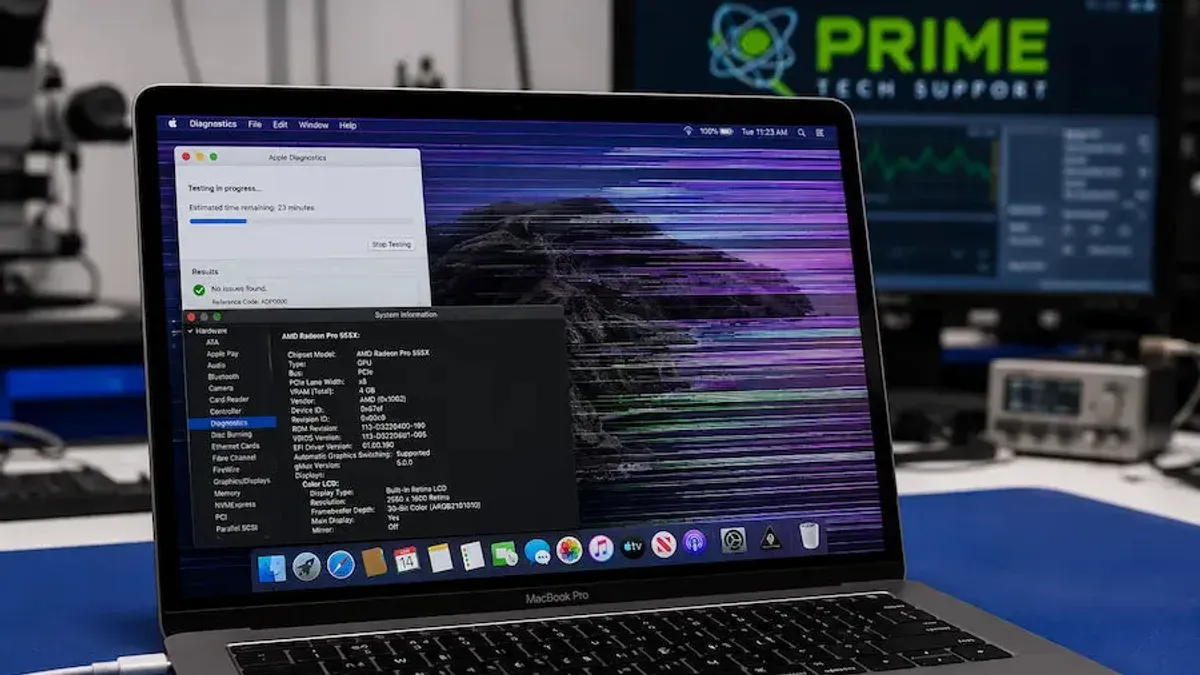
Running Apple Diagnostics can help identify hardware faults. Restart your Mac while holding the D key until the diagnostics screen appears, then follow on-screen instructions. Note down any error codes for further support.
For example, a user repeatedly experiencing restarts found that a third-party USB-C hub was causing power instability. Disconnecting it stopped the restarts immediately, confirming the hardware trigger.
Apply Practical Fixes Step-by-Step
Start by resetting the system management functions on your MacBook Pro M1 Pro. Unlike Intel models, the M1 Pro integrates these controls in the chip itself, so a traditional SMC reset isn’t possible. Instead, simply shut down your Mac completely, wait 30 seconds, and then power it on. This process refreshes the system management controller functions. Next, reset NVRAM by turning off your Mac, then holding the power button until you see “Loading startup options.” Select your startup disk, then press and hold Command+Option+P+R for about 20 seconds; this clears cached settings that might cause instability.
Afterward, manage startup items and background processes that could be overloading the system. Go to System Settings > General > Login Items, and disable unnecessary apps that launch at startup. You can also use Activity Monitor to identify apps consuming excessive CPU or memory and quit them. For example, if you notice a third-party backup app running continuously, disabling it temporarily may stop random restarts caused by resource conflicts.
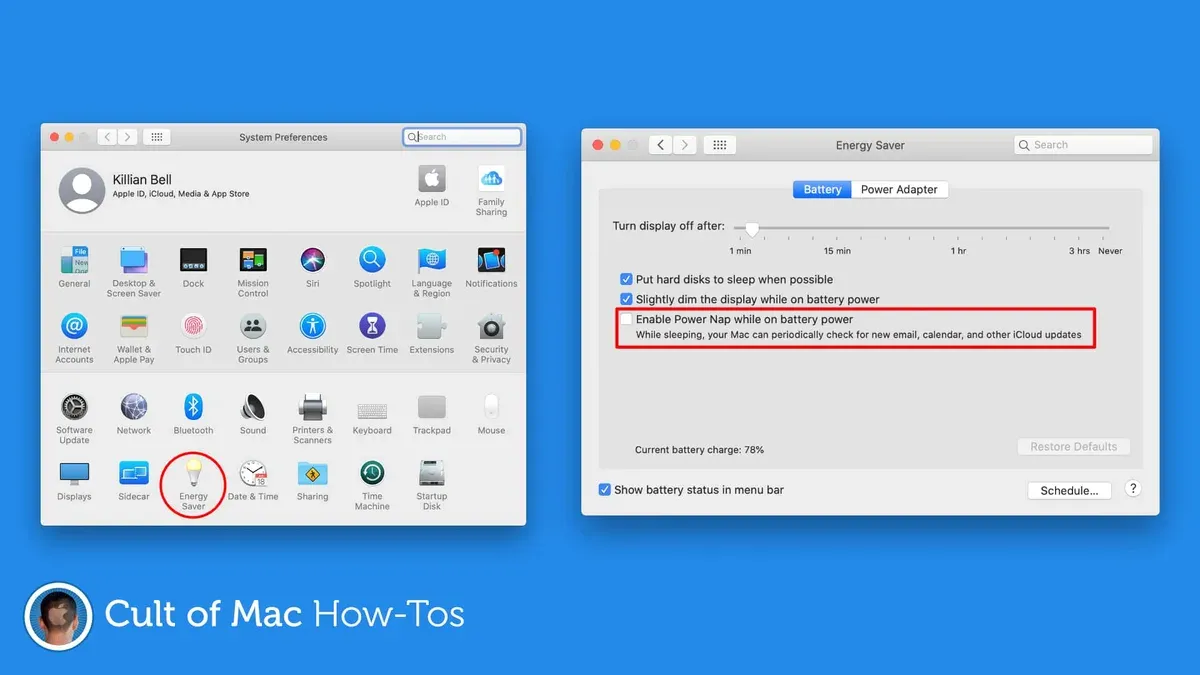
Finally, calibrate battery health and control thermal settings. Check battery condition under System Settings > Battery > Battery Health; if it shows “Service Recommended,” consider battery maintenance. Enable “Low Power Mode” under Battery settings to reduce heat and power draw during intensive tasks. Monitoring these settings before and after these steps often shows improved system stability and fewer unexpected restarts, helping you avoid unnecessary repairs or data loss.
Avoid Common Mistakes That Can Worsen the Problem
When your MacBook Pro M1 Pro restarts randomly, it’s tempting to jump straight to drastic solutions like factory resets or reinstalling macOS. However, these should be last resorts because they erase your data and may not address the underlying issue. For example, a user on a popular forum shared how a factory reset didn’t stop their restarts, but led to hours of lost work and complicated data recovery.
Another common error is using unverified third-party repair tools or software claiming to fix system crashes. These can sometimes introduce malware or cause hardware conflicts. Apple Support advises caution: only download apps from the Mac App Store or trusted developers, and avoid utilities promising quick fixes for system instability without clear evidence.
Knowing when to seek professional help is key. If basic troubleshooting steps don’t resolve the issue, or if you’re uncomfortable with advanced resets, contact Apple Support or an authorized service provider. This approach prevents accidental damage and ensures your MacBook Pro gets the correct diagnosis and repair.
Monitor and Maintain Your MacBook Pro to Prevent Future Restarts
To keep your MacBook Pro M1 Pro running smoothly, regularly monitor its performance using built-in tools like Activity Monitor and Console. In Activity Monitor, check the CPU tab for processes that consistently use more than 80% CPU or cause spikes above 90%, which can indicate runaway apps stressing the system. In contrast, healthy readings show most processes below 10% CPU usage with occasional short bursts. Console helps you spot recurring error messages or kernel panics signaling deeper issues before they cause restarts.

Scheduling regular software updates through System Preferences > Software Update ensures your macOS and apps benefit from stability improvements and security patches. Additionally, plan periodic hardware checkups with Apple Diagnostics or authorized service providers to assess battery health and internal components.
Optimizing your workspace by placing your MacBook on hard, flat surfaces and keeping vents unobstructed helps prevent overheating. For example, avoid using the laptop on soft bedding or laps for extended periods, as this can trap heat and trigger thermal shutdowns. Combining these habits with monitoring creates a proactive routine that reduces unexpected restarts and extends your MacBook’s longevity.
Frequently asked questions
What causes a MacBook Pro M1 Pro to restart randomly?
Random restarts on the M1 Pro can stem from a variety of software glitches, such as incompatible apps or outdated macOS versions, as well as hardware issues like faulty RAM or overheating. Unique to the M1 Pro architecture, power management conflicts and resource-intensive processes may also trigger unexpected shutdowns. Identifying the specific cause often requires a process of elimination, focusing first on software and then hardware.
How can I check if my MacBook Pro’s hardware is causing restarts?
You can start by running Apple Diagnostics: restart your Mac and hold the D key until the diagnostics screen appears. This test scans your hardware for issues, including memory and logic board problems. Additionally, disconnect all external devices to rule out peripheral faults, and monitor if restarts persist under minimal hardware conditions.
Is resetting the system management controller (SMC) necessary for M1 Pro models?
Unlike Intel-based Macs, M1 Pro models do not have a separate SMC to reset. Instead, power and hardware management functions are integrated into the M1 chip. If you need to reset hardware management, simply restart your Mac normally, as this clears temporary states effectively.
When should I contact Apple Support about random restarts?
If your MacBook Pro continues to restart despite following troubleshooting steps such as updating software, removing problematic apps, and running diagnostics, it’s time to contact Apple Support. Also reach out if diagnostics report hardware errors or if the restarts happen during system firmware updates or critical tasks, as these can indicate deeper hardware faults requiring professional service.
Know When to Seek Professional Help
This guide focuses on common causes and fixes for random restarts but does not cover rare hardware failures or warranty repair processes, which require professional diagnostics. If your MacBook Pro M1 Pro continues to restart unexpectedly after thorough software troubleshooting and basic hardware checks, it may indicate underlying hardware issues such as logic board faults or battery problems. In such cases, visiting an Apple Store or an authorized service provider is the safest route to avoid data loss or further damage.
The single most useful next step you can take right now is to create a complete backup using Time Machine or another reliable method. This ensures your data is safe before attempting deeper troubleshooting or firmware updates. Backups protect you from unexpected data loss and give you confidence to proceed with fixes or professional diagnostics.
See also: How to Diagnose and Fix MacBook Pro M1 Pro Black Screen Issues · How to Fix Your MacBook Pro M1 Pro Stuck on Apple Logo: A Step-by-Step Guide · How to Restart Your MacBook Pro M1 Pro: Clear Steps & Insights



