
How to Fix Error 102 on Install on Mac: A Clear Step-by-Step Guide
Learn how to fix error 102 on install on Mac with a clear, step-by-step guide to troubleshoot and resolve installation problems confidently.
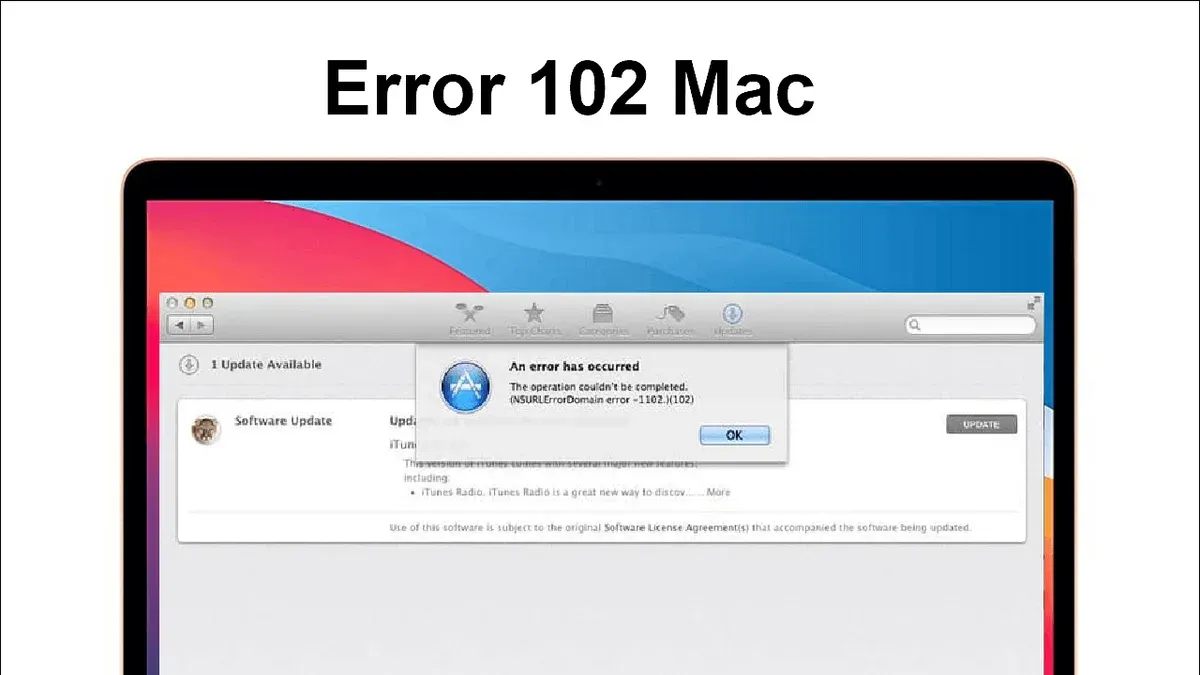
You're trying to install software or an update on your Mac when suddenly you encounter Error 102. This frustrating interruption stalls the process and leaves you wondering how to move forward without drastic measures like reinstalling macOS.
This guide walks you through a clear, step-by-step approach to error 102 on install on Mac fix. You'll learn how to check both software and hardware factors, understand each step's purpose, and confidently troubleshoot the issue yourself before considering professional help.
Key takeaways
- Verify sufficient storage space and run Disk Utility’s First Aid to check disk health.
- Temporarily disable antivirus or firewall software that might block the installer.
- Clear the installer cache and remove temporary files to avoid corrupted data.
- Use Safe Mode to isolate third-party conflicts during installation.
- Reset NVRAM and SMC to resolve hardware or firmware glitches affecting installation.
Before You Start: What You’ll Need
To effectively troubleshoot Error 102 on your Mac, certain preparations will ensure a smoother process. First, you must have access to an administrator account. This allows you to make necessary system-level changes during the fix. Without this access, you may encounter permission issues that block progress.
Next, a stable internet connection is essential. Many solutions involve downloading software components or updates, and an unstable connection can cause interruptions that worsen the error. Additionally, you should be comfortable navigating Mac system preferences and Finder, as these skills help you follow instructions precisely and locate relevant files or settings.
Lastly, have a reliable backup solution ready, such as Time Machine or a trusted cloud backup service. Backups are crucial because if troubleshooting requires data restoration, having a recent backup significantly increases your chances of recovery. Many successful installations and fixes rely on prior backups to avoid data loss during the process.
- Confirm you can log into an administrator account by clicking the Apple menu > System Settings > Users & Groups. You should see your account listed with “Admin” under your name.
- Check your internet by opening Safari and loading a webpage quickly without errors or delays. This confirms connectivity.
- Open Finder and navigate to Documents or Downloads to verify you can browse files easily.
- Ensure your backup is up to date by opening Time Machine preferences or your chosen backup app. You should see the date of the last successful backup.
Check Your Mac’s Storage and Disk Health
Insufficient disk space is a common cause of Error 102 during installation. When your Mac runs low on storage, the installer cannot write necessary files, interrupting the process. To avoid this, first check how much free space you have available.
- Click the Apple menu and select About This Mac.
- Go to the Storage tab to see your available disk space. Ideally, you want at least 10 GB free for most installations to proceed smoothly.
- Next, open Disk Utility by searching for it in Spotlight or via Applications > Utilities.
- In Disk Utility, select your startup disk (usually named “Macintosh HD”) from the sidebar.
- Click First Aid and then Run to check and repair disk permissions or file system errors. When successful, you’ll see a message stating “The volume appears to be OK.”
- After running First Aid, return to the Storage tab to confirm if free space has increased, perhaps by clearing temporary files or repairing disk errors.
For example, before running First Aid, a Mac might show 8 GB free, which is below the safe threshold. After repairing disk errors, it could increase to 12 GB free, providing enough room for the installer to operate without triggering Error 102.
Disable Security Software and Third-Party Extensions Temporarily
Security software such as antivirus programs and firewalls can interfere with the installation process by blocking the system changes required to complete it. To determine if these tools are causing Error 102, you should temporarily disable them. This step helps isolate the problem without permanently compromising your Mac’s protection during the troubleshooting period.
- Open your antivirus or security software through the menu bar or Applications folder.
- Look for an option labeled "Real-Time Protection," "Active Scanning," or similar, and turn it off. When successful, the software interface usually indicates protection is paused or inactive.
- Similarly, if you have a firewall enabled outside of macOS’s built-in firewall, disable it temporarily through the software’s settings. You should see a status change confirming it is off.
- Next, identify third-party kernel extensions (kexts) or launch agents that might interfere. Open Terminal and run kextstat | grep -v com.apple to list non-Apple extensions.
- For each suspicious third-party extension, note its identifier and locate its associated software to disable or uninstall it temporarily. You might also check System Preferences > Users & Groups > Login Items for any launch agents to remove.
- After disabling these security elements, attempt the installation again. Success rates often improve when these protective layers are temporarily removed.
If the installation completes without Error 102, you have identified the security software or extensions as the cause. Be sure to re-enable your antivirus and firewall immediately after to maintain protection.
Reset the Mac Installer Cache and Clear Temporary Files
The installer cache stores temporary data that helps speed up software installations. However, if these cached files become corrupted, they can trigger Error 102 by causing conflicts during the installation process. Clearing this cache removes any problematic data and allows the installer to rebuild fresh files, often resolving the error.
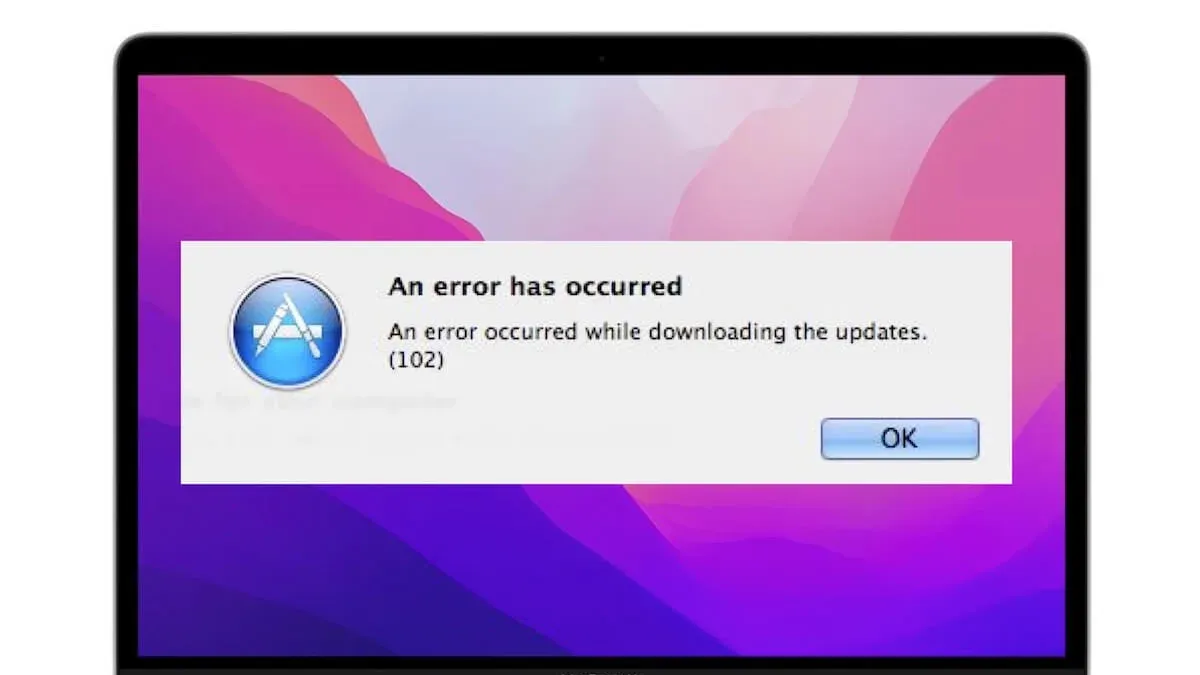
- Open the Terminal app from Applications > Utilities. When it opens, you should see a prompt ending with a dollar sign ($).
- Type
sudo rm -rf /Library/Updates/*and press Enter. This command deletes the installer cache files stored in the system updates folder. You will be prompted to enter your administrator password; type it carefully (no characters will appear) and press Enter. - Next, clear temporary installation files by typing
rm -rf ~/Library/Caches/com.apple.pkgand pressing Enter. This removes user-specific cached package files. - To confirm the cache is cleared, check the folder size before and after running these commands by typing
du -sh /Library/Updatesanddu -sh ~/Library/Caches/com.apple.pkg. Before clearing, you might see sizes ranging from several megabytes to over 100 MB; after clearing, these should show as 0 or a very small size. - Close Terminal and try running the installer again. Clearing these caches eliminates corrupted data that can block installation, reducing the chance of encountering Error 102.
Run the Installation in Safe Mode
Safe Mode limits your Mac to essential system processes and disables third-party extensions, which can prevent conflicts causing Error 102 during installation. By booting into Safe Mode, you reduce the chance that background software or drivers interfere with the installer, creating a cleaner environment to complete the process successfully.
To enter Safe Mode, the method varies by Mac model:
- Intel-based Macs: Shut down your Mac, then press the power button and immediately hold the Shift key. Release the Shift key when the login window appears. You should see “Safe Boot” in the menu bar on the login screen.
- Apple silicon Macs: Shut down your Mac, press and hold the power button until startup options appear, select your startup disk, then press and hold Shift and click “Continue in Safe Mode.” Release Shift when you see the login window with “Safe Boot” in the menu bar.
Once in Safe Mode, run the installer again. This environment often leads to higher installation success rates by minimizing system interference. If the installation completes without Error 102, it indicates that non-essential processes or extensions were likely causing the original problem.
Check for Corrupted Installation Files and Re-download
Error 102 often occurs when the installation files are corrupted or incomplete. To avoid this, verifying the integrity of your installer is essential before proceeding. One reliable way to check is by comparing the file’s checksum or digital signature against the official value provided by the software vendor.
- Locate the installer file in Finder and select it.
- Open Terminal (found in Applications > Utilities).
- Type shasum -a 256 followed by a space, then drag the installer file into the Terminal window to insert its path, and press Enter. You should see a long string of characters — this is the file’s SHA-256 checksum.
- Compare this string to the official checksum listed on the vendor’s website or download page. If they match, the file is intact; if not, the file is corrupted or incomplete.
- If corruption is detected, delete the installer by moving it to Trash and emptying it.
- Re-download the installer from the official source. Before opening, check the new file’s size and checksum again to confirm it matches the expected values.
For example, if the original checksum is 3a7d3e5b9f4c2e07c8b9f7a1d8e3f9b6a4d5c2b0e7f9c8a1b2d3e4f5a6b7c8d9 and your Terminal output matches exactly, you have a good copy. If the file size is significantly smaller than expected, the download likely failed partway. Ensuring you use a verified, complete installer prevents Error 102 caused by damaged installation data.
Reset NVRAM and SMC to Clear Hardware and Firmware Glitches
NVRAM (Non-Volatile Random-Access Memory) stores system settings like sound volume, display resolution, and startup disk preferences, while the SMC (System Management Controller) manages hardware functions such as power, battery charging, and thermal management. Issues with either can cause unexplained errors, including Error 102 during installation.
Resetting NVRAM
- Shut down your Mac completely.
- Press the power button, then immediately press and hold Option (⌥) + Command (⌘) + P + R keys simultaneously.
- Keep holding these keys for about 20 seconds; the Mac may restart and you will hear the startup chime once or twice.
- Release the keys and let the Mac boot normally. You should see your preferred startup disk and settings reset to defaults.
Resetting SMC
The method varies by Mac model:
- For MacBooks with T2 chip: Shut down, then press and hold Control + Option (⌥) + Shift on the left side and the power button for 10 seconds. Release all, wait a few seconds, then press the power button again to start.
- For MacBooks without T2 chip: Shut down, unplug the power adapter if connected, press and hold Shift + Control + Option (⌥) on the left side and the power button for 10 seconds. Release, plug in power, and turn on the Mac.
- For desktop Macs: Shut down, unplug the power cord, wait 15 seconds, plug it back in, wait 5 seconds, then press the power button.
After resetting the SMC, your Mac’s hardware management resets, which can resolve firmware-related glitches causing installation problems.
Users often notice improved system responsiveness and error logs showing fewer hardware-related faults after these resets. If Error 102 was due to firmware or hardware state corruption, these resets typically clear that up, allowing installations to proceed without the error.
Troubleshoot Common Failure Points and When to Seek Expert Help
If Error 102 persists after following all previous steps, the issue may stem from deeper hardware faults or system corruption. For instance, failing RAM or a malfunctioning SSD can disrupt installations unpredictably. System-level corruption beyond installer cache or temporary files, such as damaged system libraries or kernel extensions, can also cause repeated failures.
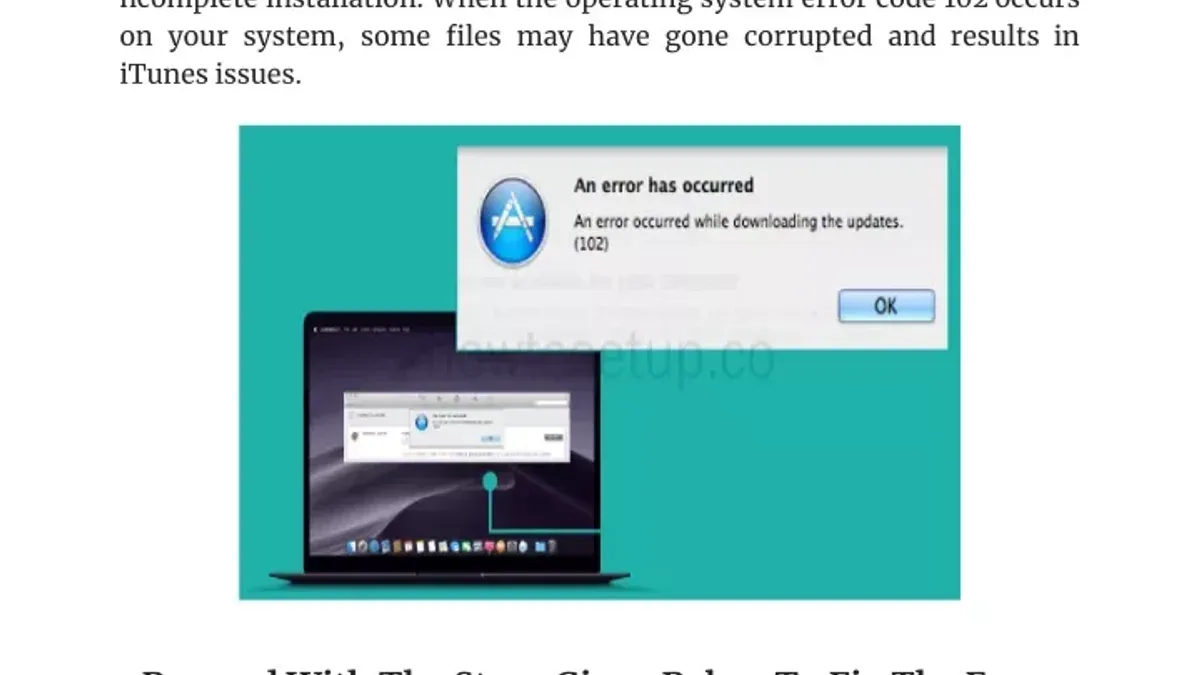
To communicate effectively with support, gather detailed logs by opening Console.app and filtering for errors during the installation attempt. Look for messages like "Installer: Error 102 - Operation failed" or "disk0s2 I/O error". Save these logs and note any patterns such as repeated kernel panics or freezes.
Consider reinstalling macOS or visiting an Apple Store if you observe any of these indicators:
- Repeated installation failures despite clean installer files: The installer repeatedly stops at the same point with Error 102. This suggests a hardware or deep system issue.
- Frequent kernel panics or system freezes: If your Mac crashes or freezes frequently outside of installation attempts, hardware diagnostics or professional repair may be necessary.
- Disk Utility reports hardware faults: Persistent disk verification failures or SMART status warnings indicate potential drive failure.
- Unable to reset NVRAM or SMC properly: Failed resets suggest firmware or board-level problems requiring expert attention.
By collecting logs and noting these signs, you can provide precise information to Apple Support or a certified technician, speeding up diagnosis and repair.
Frequently asked questions
What exactly causes Error 102 during installation on a Mac?
Error 102 typically occurs due to issues like corrupted installation files, insufficient storage space, or conflicts with security software and system extensions. It can also arise from hardware glitches, such as problems with the Mac’s firmware or NVRAM settings. Identifying the specific cause often requires checking both software integrity and hardware health.
Can I fix Error 102 without erasing my Mac or losing data?
Yes, many solutions for Error 102 focus on troubleshooting without wiping your Mac. Steps like clearing temporary files, resetting installer caches, running the installer in Safe Mode, or disabling third-party security software temporarily can resolve the issue. Only if these methods fail should more drastic measures like reinstalling macOS be considered.
How do I know if the installer file is corrupted?
You can suspect corruption if the installer repeatedly fails at the same point or triggers Error 102 despite other fixes. Checking the file size against the official download source and verifying checksums, if available, helps confirm integrity. Redownloading the installer from the official website or App Store ensures you have an uncorrupted copy.
When should I stop troubleshooting and get professional help?
If you have gone through all basic steps—like clearing caches, running in Safe Mode, and resetting hardware settings—and the error persists, it’s time to consult an expert. Also, if you suspect hardware issues beyond firmware glitches or feel uncomfortable performing firmware resets, professional assistance can prevent further complications.
When This Guide Isn’t Enough
This guide does not cover fixes for installation errors caused by rare hardware failures or damaged logic boards. If you suspect hardware issues—such as persistent startup failures, unusual noises, or overheating—it's best to consult an authorized Apple technician or visit an Apple Store. Attempting complex hardware repairs without proper tools and expertise can lead to further damage. Additionally, if your Mac’s warranty or AppleCare coverage is active, professional diagnosis ensures your rights and options remain intact.
For most software-related causes of Error 102, the steps here empower you to troubleshoot effectively. The single most useful next step is to run the installation in Safe Mode. This temporarily disables non-essential software and extensions that often interfere with the process. To enter Safe Mode, restart your Mac and hold the Shift key until the login screen appears, then try the installation again. This approach frequently resolves issues overlooked by standard troubleshooting.
See also: Fix Error Code -43 on Mac: Clear Step-by-Step Solutions · How to Fix ‘Operation Can’t Be Completed Error -36’ on Mac: Step-by-Step · Fix USB Accessories Disabled on Mac: Step-by-Step Solutions



