How to Recover Deleted Notes in the Notes App: Step-by-Step Guide
Discover easy, device-specific methods to recover deleted notes in the Notes app and restore your important information quickly and confidently.
You just realized that some important notes have disappeared from your phone or computer, and you need them back fast. Whether you use the Notes app on an iPhone, an Android device, or a Windows laptop, knowing exactly how to recover deleted notes in Notes app can save you time and frustration.
This article walks you through practical, device-specific recovery methods. Step by step, you will learn how to locate recently deleted notes, use built-in recovery folders, and try alternative solutions when standard recovery options don’t work. By following this guide, you will confidently decide which recovery method fits your device and situation best.
Key takeaways
- Check the “Recently Deleted” folder first on iPhone and Android for quick recovery.
- Use iCloud or Google account backups if notes are missing from your device.
- On Windows and laptops, explore OneDrive or third-party recovery tools for deleted notes.
- Understand the time limits for automatic deletion from recovery folders.
- Follow device-specific steps carefully to avoid overwriting recoverable data.
Before you start: What you need to recover deleted notes
Before attempting to recover deleted notes, ensure you have access to the device where the notes were originally stored. This could be your iPhone, Android phone, Windows PC, or laptop. Access is crucial because many recovery methods require interacting directly with the device or its connected cloud services.
Next, check that you have a stable Internet connection if cloud recovery is involved. For example, recovering notes via iCloud on an iPhone or Google Drive on Android depends on syncing with these services. Without Internet, your device may not show the latest backup or deleted items available for recovery.
Confirm whether you have backups available. On iPhones, iCloud backups or sync must be enabled under Settings > [your name] > iCloud > Notes. Many users enable this by default, but if it’s off, notes won’t be backed up in iCloud. Android users often rely on Google Drive backups, which can be found under Settings > Google > Backup. Check your backup status here to know if recovery is possible.
Understanding how recently you deleted the notes is important. Some recovery options only work within a certain time frame, such as the 'Recently Deleted' folder which typically retains notes for 30 days. If the notes were deleted longer ago, you may need to try advanced recovery or backups.
Finally, verify your Notes app version and device operating system version. Recovery features and menu options can vary with updates, so having your software up to date increases the chance of a smooth recovery process.
- Locate and unlock the device where the notes were deleted. You should see the home screen or main interface.
- Connect the device to a stable Wi-Fi or cellular network. Confirm the connection by opening a web page or app that requires Internet.
- Check your backup settings: on iPhone, open Settings > [your name] > iCloud > Notes to see if Notes sync is on; on Android, go to Settings > Google > Backup to verify backup status.
- Note the date when the notes were deleted to choose the correct recovery method later. You can do this by recalling your recent activity or checking the 'Recently Deleted' folder if available.
- Confirm your Notes app version and device OS version by visiting Settings > General > About on iPhone or the equivalent on your device. Updating is recommended if versions are outdated.
How to find deleted notes in Notes app on iPhone
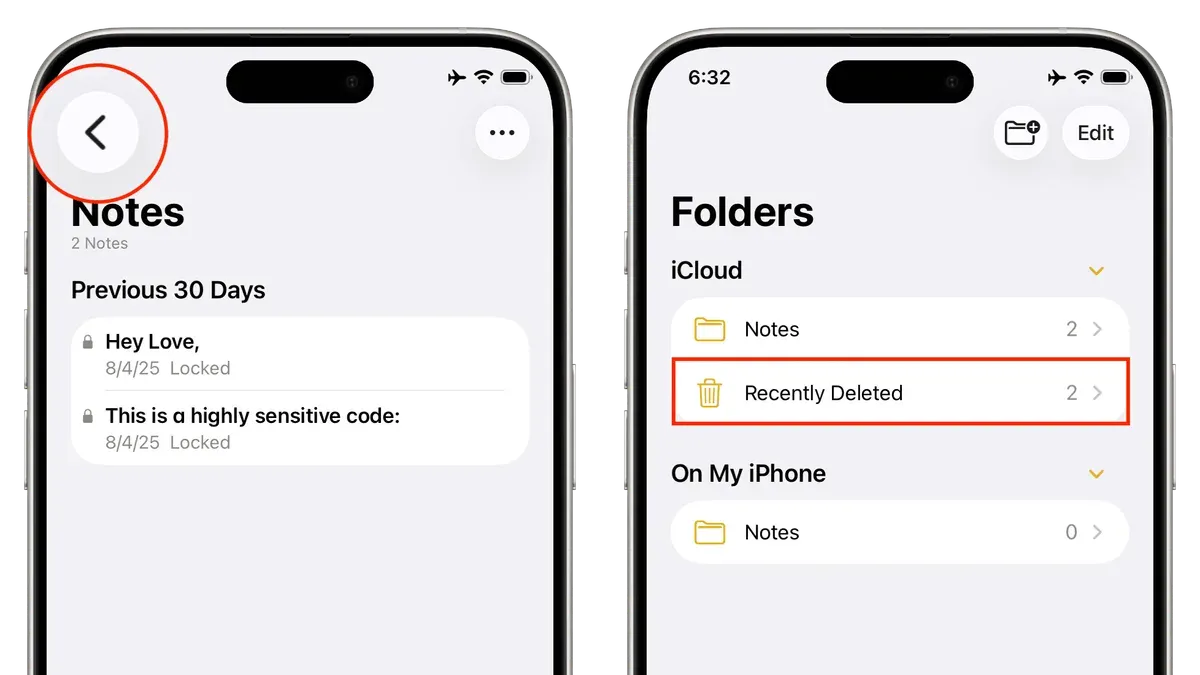
When you delete a note on your iPhone, it doesn't disappear immediately. Instead, it moves to the Recently Deleted folder, where it stays for up to 30 days before permanent removal. This folder is your first place to check if you want to recover a note deleted recently, such as one deleted two days ago.
- Open the Notes app on your iPhone. You should see your list of folders.
- Scroll down the folder list and tap on Recently Deleted. If you don't see this folder, your deleted notes may have already been permanently removed, and you will need to try other methods.
- Browse the notes in the Recently Deleted folder and find the note you want to recover. For example, a note deleted two days ago should still be there.
- Tap Edit in the upper right corner, then select the note(s) you want to recover.
- Tap Move To... at the bottom of the screen, then choose the folder where you want to restore the note, such as your main Notes folder.
- Return to the chosen folder to confirm your note has been restored and is accessible again.
If your note is not found in Recently Deleted, the next step is to check iCloud backups. On your iPhone, go to Settings > [your name] > iCloud > Manage Storage > Backups to see if a recent backup exists that might contain the deleted note. Restoring an iCloud backup will replace your current data with the backup contents, so weigh this carefully.
Alternatively, if you have backups on your computer, connect your iPhone and open Finder (on macOS Catalina or later) or iTunes (on earlier macOS or Windows). Navigate to the device summary and choose to restore from a recent backup that includes your note. Remember, restoring from a backup will overwrite current data on your device.
As a last resort, third-party recovery software can scan your device or backups for deleted notes. Use reputable software and understand that success rates vary, and some tools may require payment.
How to recover deleted notes on Android
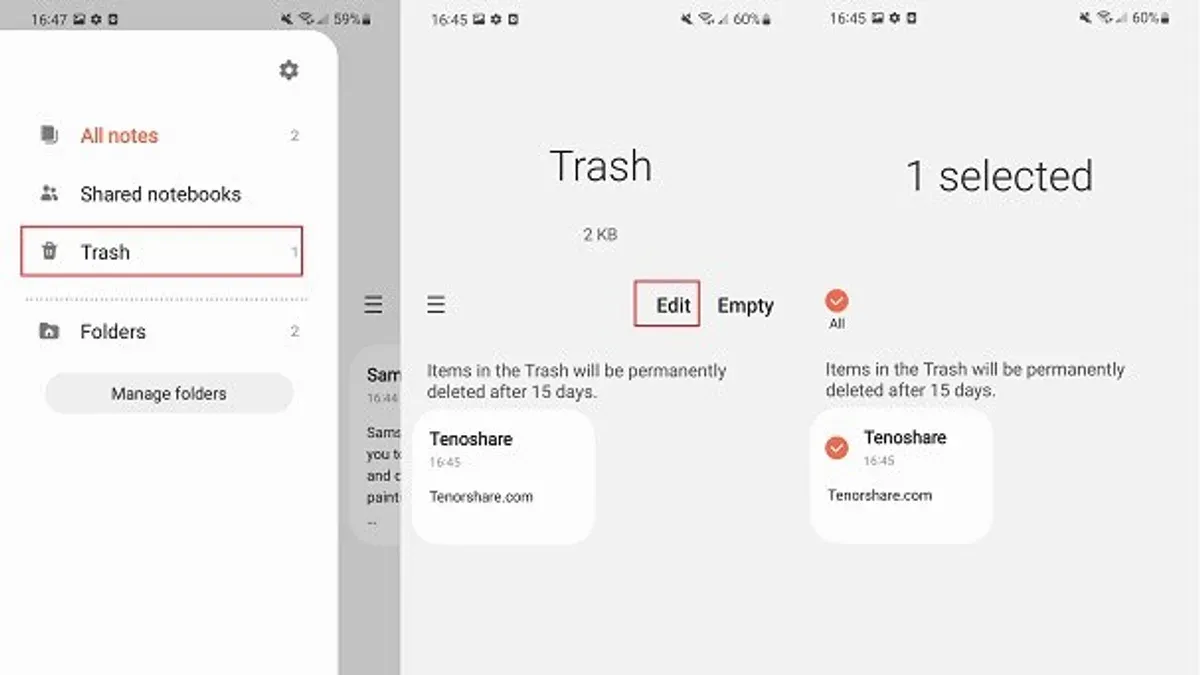
If you accidentally deleted notes on your Android device, start by checking the trash or deleted folder within the notes app you used. Many popular apps like Google Keep and Samsung Notes keep deleted notes in a Trash folder for up to 30 days, giving you a straightforward way to restore them.
- Open the notes app where your note was stored, such as Google Keep or Samsung Notes.
- Look for a menu option named Trash, Deleted, or Bin. For example, in Google Keep, tap the hamburger menu icon and select Trash.
- Browse the deleted notes list and select the note you want to recover.
- Tap the restore or move option, often a Restore button or an icon resembling a clock or arrow. You should see the note reappear in your main notes list.
If the note is not in the app’s trash, check if your notes app syncs with a cloud service like Google Drive. Sometimes deleted notes can be restored from backups stored there. Visit drive.google.com or use the Google Drive app to search for backup files related to your notes app.
When cloud recovery isn’t possible, consider using file recovery apps or software that scan your device’s local storage. Apps like DiskDigger or Dr.Fone can sometimes recover deleted files if they haven't been overwritten. Keep in mind success rates vary and these tools often require root access or computer connection.
Some manufacturers offer their own recovery tools—for example, Samsung’s Smart Switch includes options to backup and restore notes. Check your device manufacturer’s support pages for specific recovery options tailored to your phone model.
In general, restoring from the notes app’s trash folder is the most reliable and user-friendly method. Third-party recovery tools can be helpful but usually have lower success rates and more complexity.
How to recover deleted notes on Windows and laptops
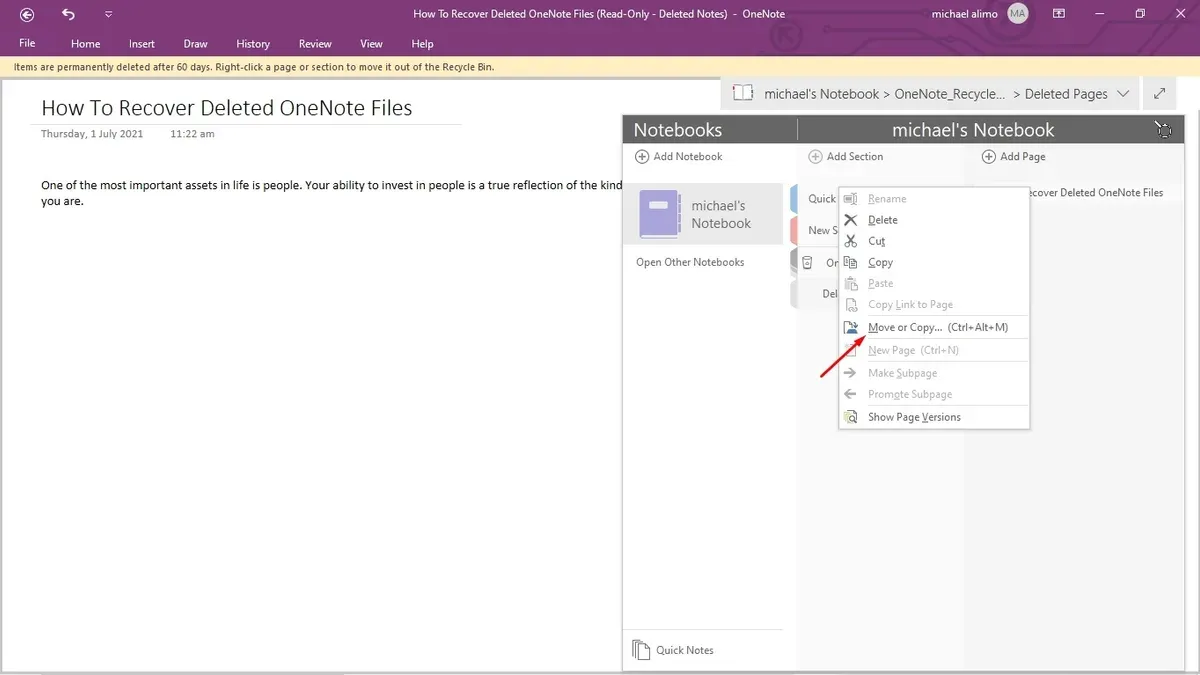
If you accidentally deleted notes saved as files on your Windows PC or laptop, such as Notepad (.txt) files, your first step should be checking the Recycle Bin. Deleted files often remain there until you empty it. If the file is still in the Recycle Bin, you can restore it quickly without additional tools.
- Open the Recycle Bin icon on your desktop. You should see a list of recently deleted files.
- Look for your deleted note file, for example, a Notepad.txt file deleted one day ago. When you find it, right-click the file and select Restore. The file will return to its original folder.
If you do not find your note in the Recycle Bin, use Windows’ File History or Previous Versions feature to restore earlier versions of the folder where the note was stored.
- Navigate to the folder where your note was saved before deletion.
- Right-click the folder and select Properties.
- Go to the Previous Versions tab. Here you will see snapshots of the folder from different times if File History or System Restore is enabled.
- Select a snapshot dated before your note was deleted and click Restore. Your note file should reappear in the folder.
If no local backups are available, check your cloud storage if you use services like OneDrive or Google Drive. These often keep file versions and deleted files temporarily.
- Log into your cloud storage account via the website or app.
- Go to the Recycle Bin or Trash folder on the cloud platform.
- Find your deleted note file and use the Restore option.
When all else fails, third-party file recovery software can scan your hard drive for deleted files that have not yet been overwritten. Use reputable tools such as Recuva or EaseUS Data Recovery Wizard and follow their instructions carefully.
For example, if you deleted a Notepad file yesterday and it is not in the Recycle Bin or backups, a recovery tool can often locate and restore it by scanning your disk sectors. However, avoid saving new files to the drive until recovery is complete to prevent overwriting.
How to recover recently deleted notes
When you delete notes, many devices and apps temporarily hold them in a "Recently Deleted" or "Trash" folder. This feature provides a limited time window—often 30 days or less—during which you can recover your notes before they are permanently erased. Acting quickly is crucial because deleted data can become unrecoverable as new data overwrites it on your device's storage.
To recover recently deleted notes across devices, follow these steps carefully. First, open your Notes app or the equivalent on your device. Look for a folder named "Recently Deleted," "Trash," or something similar. This folder stores your deleted notes for a short period.
- Open the Notes app or the app where you normally save your notes.
- Navigate to the folder labeled "Recently Deleted" or "Trash." You should see a list of notes deleted recently.
- Select the note or notes you want to recover.
- Tap or click the "Restore" or "Move to" option to return the notes to your main folder. You should see the notes reappear in your regular notes list.
- Check your synced cloud service (like iCloud, Google Drive, or OneDrive) immediately after recovery to ensure the restored notes are backed up across your devices.
Avoid adding new notes or files until you finish recovering deleted notes because new data can overwrite the storage space of your deleted files, reducing the chance of successful recovery. Always check the recovery folder first; it’s the fastest and most reliable method to get your notes back.
How to retrieve deleted notes when standard recovery fails
If the usual recovery methods don’t bring back your deleted notes, there are still advanced options you can try. Specialized data recovery tools designed for phones and computers can scan deeper into your device’s storage to locate lost files. These tools vary in effectiveness, cost, and ease of use, so choosing one that fits your device and budget is key.
- Identify your device type and choose a compatible data recovery tool. For iPhone, tools like Dr.Fone or PhoneRescue are popular; for Android, DiskDigger or EaseUS MobiSaver are common; for Windows or laptops, Recuva and Stellar Data Recovery are widely used. After installation, launch the software and connect your device if needed. Successful connection typically shows your device or drive in the software interface.
- Run a deep scan on the device or storage location where your notes were saved. Select the appropriate file types (such as documents or notes) if the software allows filtering. A successful scan results in a list of recoverable files or notes fragments.
- Preview the found notes where possible to confirm they are the correct files. Then choose the notes you want to recover and save them to a safe location on your computer or device, avoiding the original drive to prevent overwriting data.
- If recovery tools don’t locate your notes, consider consulting professional data recovery services. These specialists use advanced hardware and software to recover data but can be expensive and require sending your device to their facility.
- As a last resort, restore older backups or check synced accounts beyond the most recent ones. Sometimes notes are saved in previous iCloud, Google, or OneDrive backups that you may have overlooked. Restoring these backups can recover notes lost after the latest backup was made.
Keep in mind that continuing to use your device after deletion can overwrite the deleted notes, reducing recovery chances. Minimize new data writing until you attempt recovery.
Troubleshoot common issues when recovering deleted notes
Sometimes, you may not see your deleted notes where you expect them. If the Recently Deleted folder is empty, it might mean the notes were deleted too long ago and have been permanently erased. Double-check the folder by opening the Notes app, tapping Folders in the upper left, then selecting Recently Deleted. If it’s empty, recovery from this folder isn’t possible.
If you rely on backups but can’t find them or they appear corrupted, verify you are signed into the correct account. For iCloud, visit Settings > [your name] > iCloud > Notes to confirm syncing is on. For Android or Windows, check your cloud storage app to ensure notes syncing is active. Corruption often happens if backups were interrupted or storage space was insufficient.
Recovery may fail due to app updates or device incompatibility. For example, if you updated the Notes app before attempting recovery, some files might not be accessible. In such cases, try updating your device’s operating system or the Notes app itself to the latest version. If your device is very old, some newer recovery features may not be supported.
Overwriting deleted notes is a common problem. When you continue using your device after deletion, new data can replace the space where deleted notes were stored. To avoid this, stop creating or saving new notes before attempting recovery. If you suspect overwriting, professional recovery software or services may be your only option.
- Check the Recently Deleted folder: Open Notes > Folders > Recently Deleted. If notes appear, select them and tap Recover. You should see the notes return to your main folder.
- Verify backup accounts and syncing: For iCloud, go to Settings > your name > iCloud > Notes and ensure syncing is enabled. On Android or Windows, open your cloud storage app and confirm notes syncing is active. Successful syncing means your notes should be backed up.
- Update apps and system: Go to your device’s app store and check for Notes app updates. Then check your device’s system updates under Settings > General > Software Update (iOS) or System > Updates (Android/Windows). After updating, retry recovery steps; any new features or bug fixes may resolve issues.
- Limit device use after deletion: Avoid creating new notes or files. This reduces the chance of overwriting. If recovery fails, consider running a professional data recovery tool that can scan deeper into device storage for lost notes.
Frequently asked questions
How to recover deleted files from notes?
To recover deleted files from notes, first check the "Recently Deleted" folder in your Notes app if available. This folder stores deleted notes and files for a limited time, usually 30 days. If the files are not there, consider restoring from a backup linked to your device, such as iCloud, Google Drive, or Windows File History, depending on your device. If those options are unavailable, third-party recovery tools may help but use them cautiously.
How to recover deleted notes in notes app on iphone?
On your iPhone, open the Notes app and go to the "Folders" view. Locate and tap the "Recently Deleted" folder to see notes deleted within the last 30 days. Select the notes you want to recover, then tap "Move" and choose a different folder to restore them. If the notes are not there, try restoring from an iCloud or iTunes backup that includes the deleted notes.
How to recover deleted notes on phone?
Recovery steps depend on your phone’s operating system. On iPhones, use the "Recently Deleted" folder in the Notes app or restore from iCloud. On Android devices, check if your notes app has a trash or archive feature. If not, restoring deleted notes may require backup recovery or specialized recovery apps. Always stop using the device immediately to avoid overwriting deleted data.
How to recover deleted files from Notes?
Recover deleted files from Notes by opening your Notes app’s "Recently Deleted" folder and restoring the files within the retention period. If the files are absent there, check for backups in cloud services linked to your device like iCloud or Google Drive. For Windows or laptops, file recovery software or system restore points can assist if the files were saved externally.
How to recover deleted notes on laptop?
On a laptop, start by checking the Recycle Bin or Trash folder for deleted note files. If you use a dedicated Notes app, look for an in-app trash or recently deleted section. You can also restore from system backups such as File History on Windows or Time Machine on Mac if available. Lastly, data recovery software may help retrieve permanently deleted notes.
What This Guide Does Not Cover
This guide focuses on recovering deleted notes using built-in app features, backups, and common recovery methods available on iPhone, Android, Windows, and laptops. It does not cover recovery of notes deleted without any backup or beyond the retention periods set by the Notes app or operating system. If your notes were deleted a long time ago, overwritten by new data, or your device storage has been reformatted, the chances of recovery are very slim. In such cases, professional data recovery services or specialized software might be necessary, but these come with no guarantees and often require additional cost and expertise.
For users dealing with highly sensitive or critical data loss, contacting a professional data recovery expert or the device manufacturer’s support is recommended rather than relying solely on the steps listed here.
Next Step: Regularly Back Up Your Notes
To avoid the stress of lost notes in the future, set up regular backups now. On iPhone, enable iCloud Backup for Notes in Settings > [your name] > iCloud > Notes. On Android, check if your note app supports syncing with Google Drive or another cloud service. On Windows and laptops, use File History, OneDrive, or another backup solution to keep your files and notes safe. Having a reliable backup routine ensures that if you accidentally delete notes, you’ll have a secure copy ready to restore quickly and easily.
See also: How to Sync Messages on Mac: A Step-by-Step Guide for Apple Users · How to Use Mac Force Quit to Fix Unresponsive Apps Quickly · How to Use Mac Terminal: A Step-by-Step Guide for Beginners