How to Remove Background Items and Images on Your Mac
This guide explains how to remove background items and images on your Mac to streamline your system and enhance photo editing.
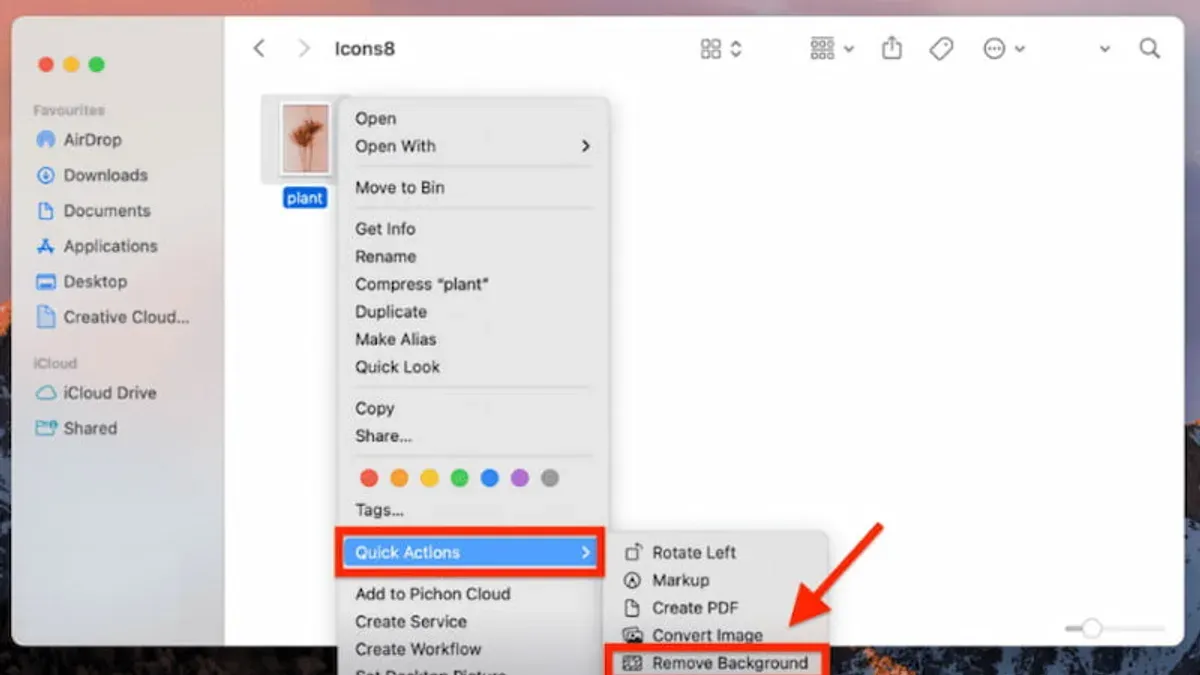
You open your Mac to find your desktop cluttered with unwanted login items and persistent notifications, while your photo editing tasks are slowed down by distracting backgrounds. Managing both system background items and image backgrounds can be confusing without clear guidance.
This article explains how to remove background items on Mac, covering two key areas: editing out unwanted backgrounds from your photos and clearing background login items and notifications to streamline your system. You'll find step-by-step instructions using built-in macOS tools and third-party apps, helping you optimize both your images and your Mac's performance.
Key takeaways
- Use Preview or Photos to quickly remove basic backgrounds from images without extra software.
- Check System Settings > Users & Groups > Login Items to manage apps launching at startup.
- Disable or customize notifications in System Settings > Notifications to reduce distractions.
- Identify unknown background items via Activity Monitor and remove them cautiously.
- Removing desktop icons involves simple drag-and-drop or hiding features in Finder preferences.
Before you start: tools and preparations needed
To effectively remove backgrounds from images or manage background items on your Mac, you need to understand the available tools and system features. macOS includes built-in applications such as Preview and Photos that offer basic image editing capabilities, including simple background removal using selection and masking tools. System Preferences lets you manage background login items and notifications to optimize system performance and startup behavior.
For more advanced image background removal, consider third-party apps. Popular free options include GIMP, an open-source editor with a steeper learning curve, and remove.bg, a web-based tool with a macOS app that automates background removal. Paid apps like Adobe Photoshop and Pixelmator Pro provide professional-grade tools with extensive editing features. These apps typically require macOS versions compatible with Monterey or later for full functionality.
Before editing images or modifying system settings, always back up original photos and note your current login items. This prevents accidental data loss or system misconfiguration. You can back up images by duplicating files in Finder or using Time Machine for broader system backups.
- Open the Photos app and select an image you want to edit. You should see editing options like Markup and simple selection tools.
- Navigate to System Preferences > Users & Groups > Login Items to view your current background apps at startup.
- Make a copy of any image file you plan to edit by right-clicking it in Finder and selecting Duplicate. A copy will appear in the same folder.
How to remove background from image on Mac using built-in tools
macOS provides native tools for basic background removal or editing without needing additional software. The Preview app includes the Instant Alpha tool, which allows you to erase uniform or simple backgrounds. Meanwhile, the Photos app offers markup and selection features for simple edits, though these tools have their limitations with complex images.
Using Preview’s Instant Alpha tool
- Open the image in Preview by double-clicking it or right-clicking and selecting Open With > Preview. You should see the image displayed.
- Click on the Markup Toolbar button, which looks like a pencil tip, usually located near the top of the window. This reveals editing tools.
- Select the Instant Alpha tool (a magic wand icon) from the toolbar.
- Click and drag on the background area you want to remove. As you drag, similar colors will highlight. Adjust the drag distance to select more or less of the background. When you release, the selected area will appear highlighted.
- Press the Delete key to remove the selected background area. The erased section will become transparent if the image supports it (such as PNG). If it doesn’t, Preview will warn you to convert the file format.
- Repeat the process if needed to remove additional background sections. Save the edited image with File > Save or Export to preserve transparency.
Using Photos app markup and selection features
- Open the Photos app and select the image you want to edit.
- Click Edit in the top right, then select the Extensions button (three dots) and choose Markup.
- Use the Selection or Brush tools to cover or highlight parts of the background you want to modify. Note that Photos does not support transparent background removal, so you can only cover or blur backgrounds.
- Tap Done to apply changes and save the edited photo.
Limitations: The Instant Alpha tool works best with simple, uniform backgrounds. Complex images with multiple colors or intricate edges may not erase cleanly, and the Photos app does not support full background removal or transparency. For detailed edits, third-party apps are usually necessary.
How to remove background from image on Mac with free and paid apps
If you need more advanced background removal than macOS’s built-in tools offer, several third-party apps provide powerful solutions. Free options like remove.bg and GIMP allow quick background extraction with varying levels of manual control. Paid apps such as Adobe Photoshop and Pixelmator Pro deliver professional-grade precision and extensive editing features.
Popular free apps
remove.bg is a web-based tool that automatically removes backgrounds with one click, ideal for simple images. You upload your photo, and it returns a transparent background file. Accuracy depends on image complexity, but it works well for portraits and objects with clear edges.
GIMP is a free, open-source image editor with manual background removal tools like the Fuzzy Select and Paths Tool. It requires more time and skill but offers detailed control over edges and transparency.
Paid apps and their advantages
Adobe Photoshop offers advanced selection tools such as Select Subject and Refine Edge, which handle complex backgrounds and fine details. Its learning curve is steeper, and it requires a subscription, but it is widely used professionally.
Pixelmator Pro provides a user-friendly interface with machine learning-powered background removal. It balances ease of use and accuracy and is available for a one-time purchase, making it cost-effective for many users.
| App | Cost | Accuracy | Ease of use | Best for |
|---|---|---|---|---|
| remove.bg | Free (limited), pay per image or subscription | Good for simple images | Very easy | Quick automatic removal |
| GIMP | Free | Good with manual effort | Moderate to difficult | Users wanting control without cost |
| Adobe Photoshop | Subscription | Excellent for complex images | Moderate to difficult | Professional editing |
| Pixelmator Pro | One-time purchase | Very good with ML tools | Easy to moderate | Users seeking balance of power and ease |
Steps to remove background using remove.bg:
- Open your browser and go to remove.bg.
- Click “Upload Image” and select your photo.
- Wait a few seconds for automatic background removal.
- Download the transparent background image if satisfied.
Steps to remove background using Pixelmator Pro:
- Open Pixelmator Pro and load your image.
- Choose the Magic Eraser tool from the sidebar.
- Click on the background area to remove it; adjust sensitivity if needed.
- Use Quick Selection for complex edges, then refine with Refine Edge.
- Save the image with transparency.
Choosing between these apps depends on your budget, image complexity, and desired control. Free tools are quick and easy for simple edits, while paid apps provide superior accuracy and features for professional results.
How to remove background login items on Mac
Background login items are apps and processes that launch automatically when you start your Mac. While some are essential, many can slow down startup or consume resources unnecessarily. Removing or disabling unwanted login items can improve your Mac's performance and reduce clutter.
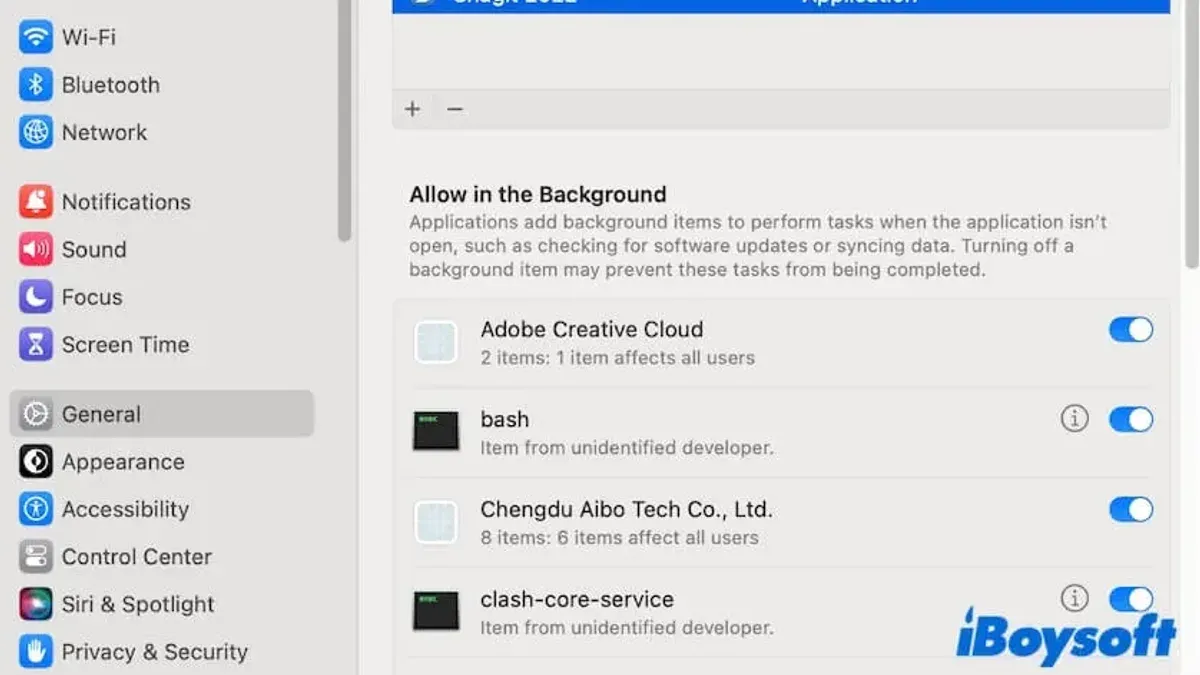
- Open System Preferences from the Apple menu. You should see a window with various settings.
- Click Users & Groups. This displays your user account details and related options.
- Select your user account from the list on the left if not already selected.
- Click the Login Items tab. You will see a list of apps set to open automatically upon login.
- Review the list for unnecessary or unfamiliar apps. Common items to consider removing include cloud storage apps, messaging clients, or utilities you don't need at startup.
- Select an item you want to remove, then click the minus (–) button below the list. The app will no longer launch automatically when you log in.
- Restart your Mac to confirm that the removed items no longer start in the background.
Some background processes do not appear in the Login Items list. To identify and manage these:
- Open Activity Monitor from the Utilities folder within Applications.
- In Activity Monitor, view the CPU and Memory tabs to see running processes.
- Look for unfamiliar or resource-heavy processes that could be launching at startup. Right-click a process and choose Quit or Force Quit to stop it temporarily.
- To prevent persistent background apps from launching, check app preferences or uninstall unwanted software.
Regularly reviewing login items and background processes helps keep your Mac startup swift and background clutter minimal.
How to remove background items added notifications on Mac
Notifications about background items being added usually appear when new apps or processes request permission to run in the background. These alerts can become persistent if permissions are granted inconsistently or if macOS detects potential security changes.
To stop these notifications, start by reviewing and adjusting permissions in Security & Privacy settings.
- Open System Settings and go to Privacy & Security.
- Select Background Items or Full Disk Access depending on your macOS version.
- Review the list of apps allowed to run in the background and revoke permissions for those you do not recognize or no longer use. Once revoked, you should see these apps removed from the list.
- Next, navigate to Notifications in System Settings.
- Find the apps generating background item notifications and turn off their notifications or customize them to minimize disruption. A successful change will stop new alerts from those apps.
- If notifications persist, reset privacy permissions by opening Terminal and entering the command tccutil reset All. This resets all app permissions, so you will need to reauthorize apps carefully afterward.
After resetting, monitor for notifications; the reset typically clears stuck permission alerts but requires re-approval of legitimate background tasks.
How to get rid of background items added on Mac that you don’t recognize
Unknown background items can affect your Mac’s performance and security. To identify these, start by opening Activity Monitor from Applications > Utilities. Look for processes consuming significant CPU or memory that you do not recognize. If a process name is unfamiliar, select it and click the “i” icon to view more details.
Next, consult System Information (Apple menu > About This Mac > System Report) and navigate to Software > Installations or Extensions to spot recently added software or kernel extensions that may correspond to unknown processes.
To safely remove suspicious items, first search online for the process or software name to confirm if it is safe or malicious. If malicious or unwanted, quit the process in Activity Monitor, then delete the associated app or files from the Applications folder or LaunchAgents and LaunchDaemons folders in your Library directories.
If you suspect malware, run a reputable Mac malware removal tool like Malwarebytes. These tools scan deeply and quarantine threats that manual methods might miss.
When uncertain about removing an item, or if problems persist after removal attempts, consult Apple Support or a certified professional to avoid damaging system files or losing data.
- Open Activity Monitor via Applications > Utilities. You should see a list of running processes with CPU and memory usage.
- Identify unknown processes consuming resources. Select one and click the “i” button to view details.
- Open System Information from the Apple menu > About This Mac > System Report. Check Software > Installations or Extensions for recent or suspicious entries.
- Search online for process or software names to determine safety. If confirmed unwanted, quit the process in Activity Monitor.
- Delete related apps or files from Applications or Library folders. You should no longer see the process running after a restart.
- Run a malware removal tool if you suspect infection. The tool should detect and quarantine threats.
- If unsure or problems continue, contact Apple Support or a professional technician for help.
How to remove something from the home screen on Mac
To clear unwanted files, folders, or app icons from your Mac’s desktop, you can either delete or relocate them. Removing clutter can improve your workflow and help your Mac look organized.
- Click the desktop item (file or folder) you want to remove.
- Press Command + Delete to move it to the Trash, or drag it to another folder in Finder to relocate it. The item will disappear from the desktop once moved or deleted.
- To remove an app shortcut or widget, hover over the icon or widget until a small “x” appears (for widgets in Notification Center, click the Edit Widgets button and then the minus symbol). Click the “x” or minus to remove it from the home screen or widget area.
- Adjust desktop view settings by right-clicking the desktop and selecting Show View Options. Here, you can change icon size, grid spacing, and label position to reduce visual clutter.
- Organize your desktop by creating folders to group related files and dragging items into them. This reduces scattered icons and keeps the desktop tidy.
After cleanup, your desktop should display only essential items, making it easier to locate files and improving overall system appearance.
Troubleshooting common issues when removing backgrounds or background items
Background removal tools like Instant Alpha may fail or leave visible artifacts when the image has complex or similarly colored edges. Try zooming in and adjusting the selection tolerance carefully; if artifacts remain, use manual retouching tools or switch to advanced apps with AI-based background removal.

If login items reappear after removal, check for profiles or third-party utilities that automatically restore them. Go to System Preferences > Users & Groups > Login Items and remove duplicates. Also, review "LaunchAgents" and "LaunchDaemons" folders in your Library directories for persistent background items.
Permissions or security settings can block changes to background items. Error messages like "You do not have permission to make changes" indicate this. To fix, open System Preferences > Security & Privacy > Privacy tab, unlock the pane, and grant Full Disk Access or Files and Folders permissions to relevant apps. Restart your Mac for changes to take effect.
Some apps leave background processes even after uninstallation. Use Activity Monitor to identify such processes by name. Force quit them, then delete leftover support files in ~/Library/Application Support/ and ~/Library/LaunchAgents/. If issues persist, consider using a reputable app uninstaller to remove all related files.
- How to Remove Recent Apps from Dock on Mac: A Clear Step-by-Step Guide
- How to Add Widgets to Your Mac Desktop: A Step-by-Step Guide
Frequently asked questions
How to delete background from picture mac?
You can delete the background from a picture on your Mac using the Preview app's Instant Alpha tool or by using third-party apps like Photoshop or Pixelmator. In Preview, open the image, click the Markup toolbar, select Instant Alpha, then drag over the background to select and delete it. More precise removal may require dedicated photo editing software.
How to remove background on macbook?
Removing a background on a MacBook follows the same process as any Mac. Use built-in apps like Preview for simple tasks or install free or paid apps such as Remove.bg or Affinity Photo for more complex edits. The key is choosing a tool that suits the detail level you need.
How to delete background items on mac?
To delete background items on your Mac, open System Settings, go to General, then Login Items. Select items you want to remove and click the minus button to prevent them from launching automatically. This can help speed up startup and reduce unnecessary background processes.
How to remove background on mac?
Removing background on Mac can refer to either editing images or managing system processes. For images, use editing tools to erase or replace backgrounds. For system backgrounds, such as login or running background items, manage them in System Settings under Login Items or Notifications to streamline your Mac experience.
How to remove allow in background items mac?
To remove 'Allow in Background' permissions for apps on Mac, open System Settings and navigate to Privacy & Security. Look for Background App Refresh or similar options, then disable permissions for apps you do not want running in the background. This helps maintain control over what runs silently on your Mac.
What this advice does not cover and who should look elsewhere
This article does not cover advanced professional photo editing techniques requiring specialized software beyond typical user needs. If you need precise control over image layers, masks, or color grading, consider dedicated applications like Adobe Photoshop or Affinity Photo.
Some background items or login processes may be essential system functions and should not be removed without understanding their role. Removing critical system processes can affect your Mac's stability and security.
Third-party background removal apps may require internet access or subscription fees, which might not suit all users. Evaluate privacy policies and costs before proceeding with these tools.
The single most useful next step is to regularly review your Login Items found under System Settings > Users & Groups > Login Items. Keeping this list lean helps your Mac start faster and reduces unnecessary background activity, improving overall performance.