How to Remove Recent Apps from Dock on Mac: A Clear Step-by-Step Guide
Discover how to quickly remove recent apps from your Mac Dock for a cleaner, more organized workspace.
You open your Mac and notice several recent apps cluttering your Dock, making it harder to find the ones you use daily. Sometimes you want to temporarily hide these recent apps, while other times you prefer to remove app icons permanently for a cleaner look.
This article explains how to remove recent apps from Dock on Mac, clarifying the difference between recent items and pinned app icons. You’ll find step-by-step instructions to manage recent apps, unpin apps, and control Dock behavior through system settings. Whether you want to clear recent apps quickly or customize your Dock for long-term organization, this guide covers it all.
Key takeaways
- Recent apps appear automatically if "Show recent applications in Dock" is enabled in System Settings > Dock & Menu Bar.
- You can remove recent apps temporarily by right-clicking and choosing "Remove from Dock" or disable them system-wide in Dock preferences.
- To permanently remove an app icon, drag it out of the Dock until you see "Remove" and release it.
- Running apps show a dot beneath their icon and cannot be removed until closed or quit.
- Understanding the difference between recent apps and pinned apps helps maintain a customized Dock that suits your workflow.
Before you start: What you need to know about the Dock and recent apps
The Dock on your Mac displays two types of app icons: pinned apps and recent apps. Pinned apps are those you have manually added for quick access, and they remain in the Dock until you remove them. Recent apps, on the other hand, appear automatically based on your usage when the relevant system setting is enabled.
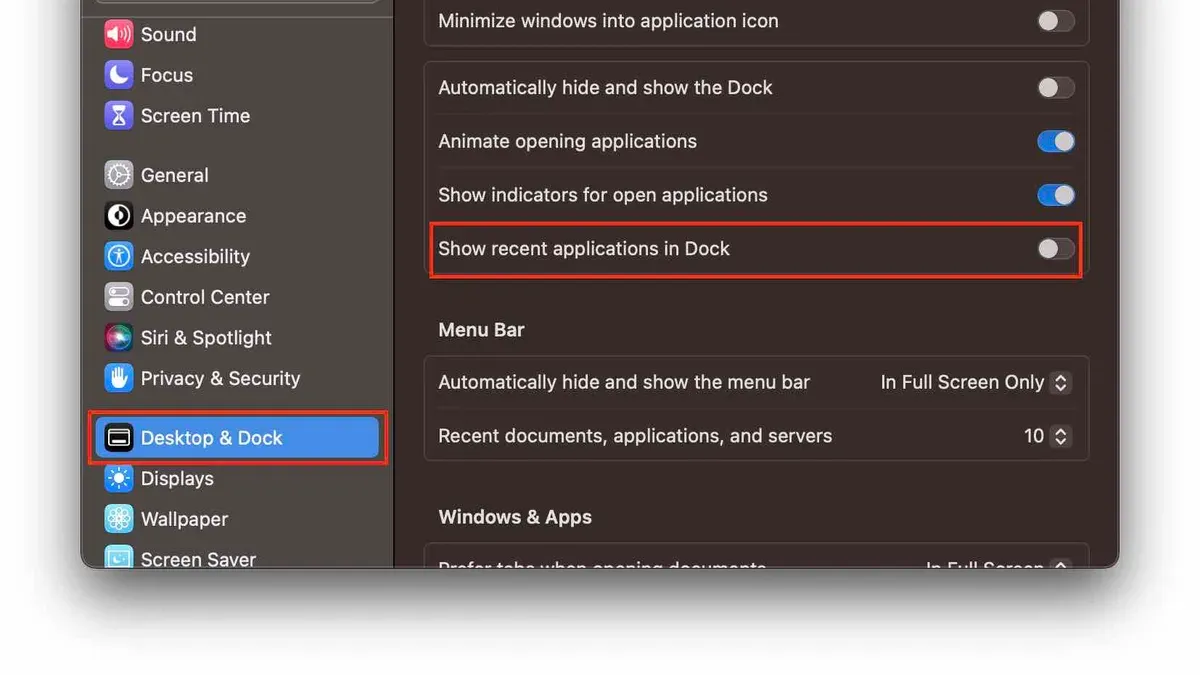
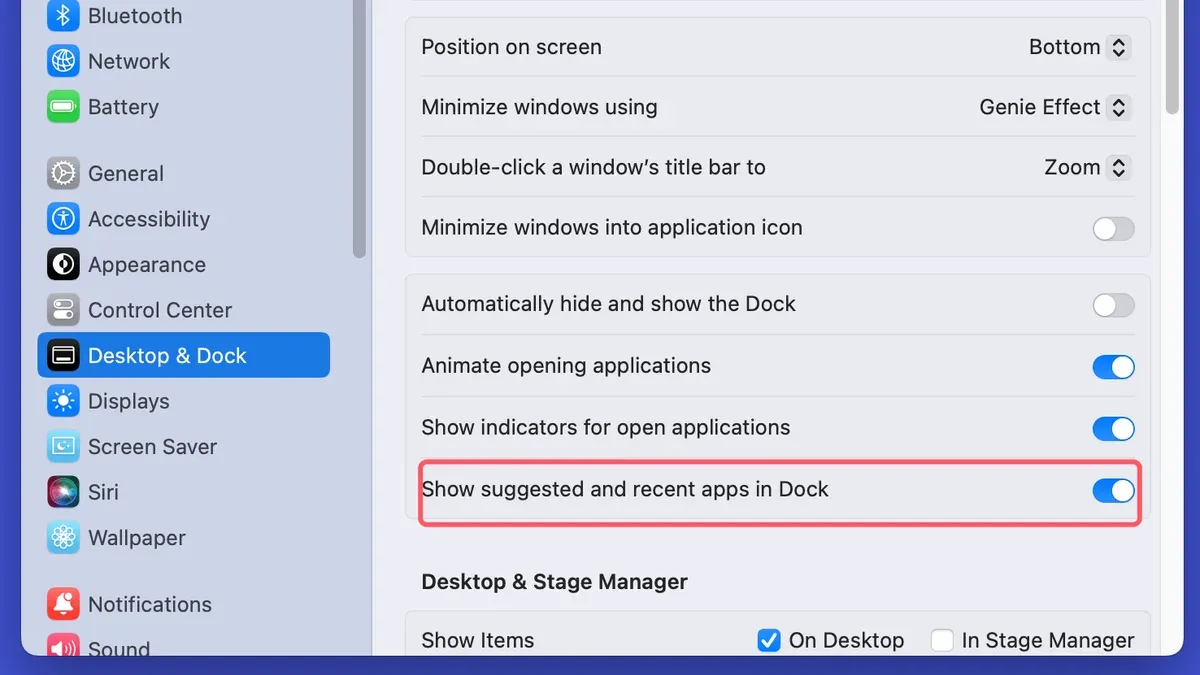
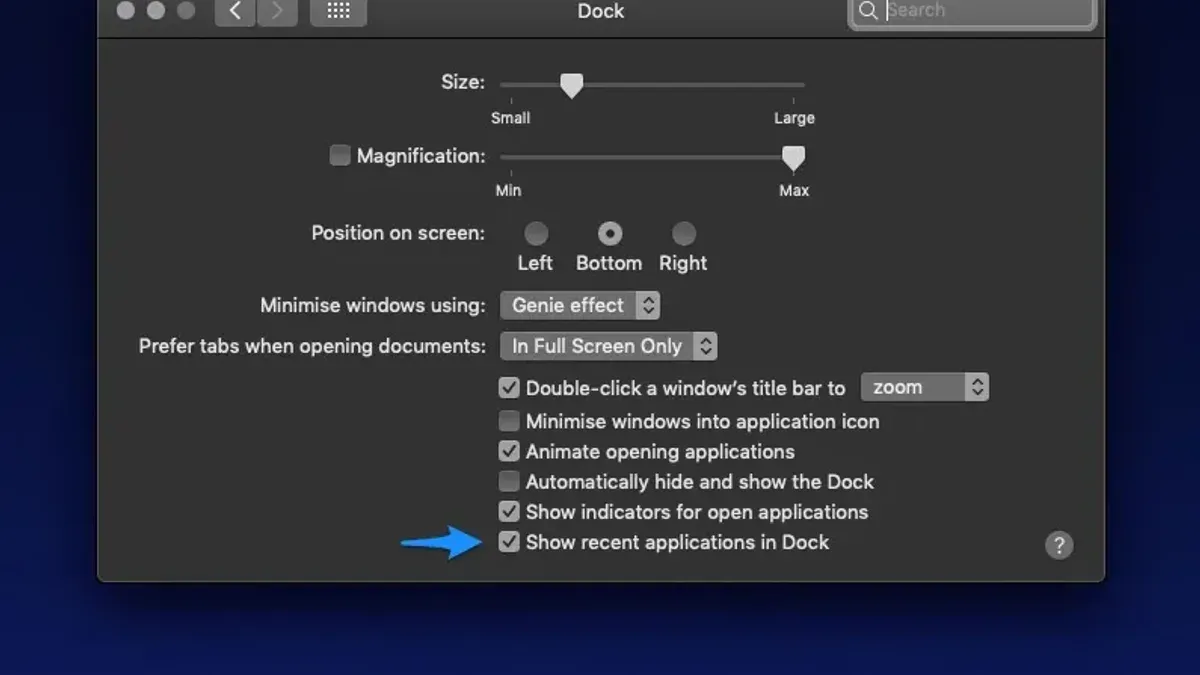
macOS has a specific setting titled Show recent applications in Dock found in System Preferences under Dock & Menu Bar. When this toggle is on, recently used apps that are not pinned will appear at the right side of the Dock, separated by a small divider. If the toggle is off, recent apps will not appear automatically, and only pinned apps will be visible.
Keep in mind that certain system apps or running apps cannot be permanently removed from the Dock without first quitting them or disabling recent apps. For example, you cannot remove the Finder icon as it is always present. Also, recent apps will reappear unless you disable the recent applications setting.
To check or change this setting:
- Click the Apple menu and select System Preferences.
- Choose Dock & Menu Bar.
- Look for the option labeled Show recent applications in Dock and toggle it on or off.
- When enabled, you will see recent apps appear at the right side of the Dock separated by a divider. Disabling it will remove these recent apps automatically.
Understanding this distinction clarifies why some apps appear temporarily in the Dock and how to control their visibility through system settings rather than manual removal.
How to remove recent items from Dock on Mac
If you want to stop recent apps from appearing automatically in your Dock, you can disable this feature through System Settings. This action prevents new recent apps from showing but does not affect any apps you have pinned manually.
- Open System Settings from the Apple menu or your Dock. You will see a list of system preferences.
- Scroll down and select Dock & Menu Bar. This opens options related to Dock behavior and appearance.
- Find the setting labeled Show recent applications in Dock. It is usually a toggle switch near the bottom of the Dock preferences.
- Toggle off Show recent applications in Dock. When disabled, recent apps will no longer appear automatically in the Dock.
- Check your Dock to confirm that the recent apps have disappeared. Only the apps you have pinned will remain visible.
After turning off this option, macOS will stop adding recent apps to your Dock, helping you maintain a cleaner and more consistent app lineup. Keep in mind that this does not remove apps you have manually added to the Dock; it only controls the automatic display of recent items.
Visual confirmation with screenshots is helpful: one showing the toggle in System Settings before being switched off, and another showing the Dock before and after the change, where recent apps vanish.
How to remove apps from Dock on Mac permanently
To unpin an app that you have manually added or that is already pinned to the Dock, you need to remove its icon directly from the Dock. This action only affects the Dock icon and does not delete the app from your Mac.
- Right-click or Control-click the app icon in the Dock. A context menu will appear showing various options related to the app.
- Hover over Options in the menu. A submenu will expand with more choices.
- Select Remove from Dock. The app icon will disappear from the Dock immediately.
- Verify that the app icon is no longer visible in the Dock. This confirms that the app has been unpinned successfully.
Removing an app this way only affects the Dock’s appearance and does not uninstall or delete the application from your Mac’s storage. You can still find and open the app via Launchpad or Finder.
Note that this method only removes apps you have pinned manually. It does not affect recent apps that macOS adds automatically when the “Show recent applications in Dock” option is enabled. To manage recent apps, you need to adjust that setting separately.
Screen captures of the right-click context menu and before-and-after views of the Dock clarify these steps visually and help ensure you can follow the process confidently.
How to remove app icon from Dock on Mac when it’s a running app
Running apps always display their icons in the Dock by default, regardless of whether they are pinned. This means you cannot simply remove an app’s icon from the Dock while it is open. To remove the icon, you need to quit the app first.
If you want the app icon to disappear after quitting, ensure it is not pinned to the Dock. Pinned apps remain visible even when not running.
- Quit the running app: Right-click (or Control-click) the app icon in the Dock and select Quit. The icon will disappear if the app is not pinned.
- Force quit if the app is unresponsive: Press Command + Option + Escape to open the Force Quit Applications window. Select the problematic app and click Force Quit. This closes the app and removes its icon if unpinned.
- Remove pinned status if needed: Right-click the app icon in the Dock, select Options, then click Remove from Dock. This prevents the app icon from staying after you quit it.
In summary, running apps always appear in the Dock. Quitting removes their icon only if they are not pinned. The Force Quit dialog provides a way to close unresponsive apps when normal quitting fails. Managing pinned status controls whether an app stays visible after quitting.
How to add apps to Mac Dock for easy access
Adding apps to your Dock allows quick access without searching through folders or Launchpad. You can drag apps directly or use the Dock's context menu to keep them pinned permanently.
- Open Finder or Launchpad and locate the app you want to add to the Dock.
What you see: The app icon clearly visible in Finder’s Applications folder or Launchpad grid. - Click and hold the app icon, then drag it down to the Dock. Position it where you want it to appear.
What you see: Other icons in the Dock shift to make space, and a space opens for the new app icon. - Release the mouse button to drop the app icon into the Dock.
What you see: The app icon stays in the Dock, ready for quick launch. - Right-click (or Control-click) the app icon in the Dock, then hover over Options and select Keep in Dock.
What you see: The app icon remains in the Dock even after you quit the app, ensuring permanent placement.
Once added, apps stay in the Dock until you manually remove them. This customization complements removing recent or pinned apps, giving you control over your workspace.
Note: Screenshots typically show the dragging action from Finder or Launchpad to the Dock and the Options menu with Keep in Dock selected, illustrating these steps visually.
How to manage recent apps on iPad Dock compared to Mac
The iPad Dock displays recent apps differently than the Mac Dock. Instead of a fixed section for recent apps, the iPad Dock dynamically shows recently used apps on the right side, alongside your pinned apps on the left. This design helps with quick multitasking but offers less customization than the Mac Dock.
To remove a recent app from the iPad Dock, you can swipe up on its icon. This gesture temporarily hides the app from the recent list but does not remove the app itself from the device or affect pinned apps.
- Locate the recent app icon on the right side of the iPad Dock.
- Swipe up on the app icon with your finger.
- Observe that the app icon disappears from the recent section of the Dock.
This action only removes the app from the recent apps list temporarily; if you open it again, it will reappear.
Unlike the Mac Dock, the iPad Dock does not have a system setting to disable recent apps altogether. Its recent apps section adapts automatically based on usage and cannot be pinned or unpinned manually. This limits the ability to customize the iPad Dock compared to the Mac, where you can disable recent apps or permanently remove app icons.
Because of this dynamic behavior, managing recent apps on iPad requires gestures rather than system preferences. The iPad Dock is optimized for quick task switching but offers less control than the Mac Dock.
Troubleshooting: Dock missing on Mac or apps not removable
If your Dock disappears or you cannot remove apps as expected, there are several steps you can take to restore normal function. These methods include restarting the Dock process, resetting Dock settings, and checking app restrictions.
Restart the Dock process
- Open Terminal from Applications > Utilities.
- Type
killall Dockand press Enter. - The Dock will disappear briefly and then reappear, refreshed.
This command forces the Dock to restart and often resolves display glitches or freezing.
Reset Dock to default settings
- Open Terminal.
- Enter
defaults delete com.apple.dock; killall Dockand press Enter. - The Dock will reset to its default appearance and behavior.
After resetting, the Dock returns to its original state, removing any customizations that might cause issues. You will see the Dock icons revert to the defaults, and recent apps settings will reset.
Check app removability and permissions
Some apps, especially system apps like Finder or System Preferences, cannot be removed from the Dock. Attempting to remove these will have no effect.
If you cannot remove other apps, verify your user account permissions. Standard user accounts with restrictions or managed profiles may limit Dock modifications. Check System Settings under Users & Groups for account type and parental controls.
Also, ensure macOS permissions are not preventing changes. Resetting permissions via Disk Utility’s First Aid or running software updates may help.
Frequently asked questions
How to remove recent apps from dock macbook?
To remove recent apps from the Dock on your MacBook, open System Settings, go to Desktop & Dock, then scroll to find the “Show recent applications in Dock” option. Toggle this option off to stop recent apps from appearing automatically in the Dock. This change affects the Dock behavior system-wide and prevents recent apps from showing up temporarily.
How to remove apps from mac dock?
To remove an app from the Mac Dock, right-click (or control-click) the app icon, then choose Options and select “Remove from Dock.” This removes the app icon permanently until you add it back. If the app is currently running, you can also drag its icon away from the Dock until you see a “Remove” animation, then release.
How to remove app from dock mac?
Removing an app from the Dock on a Mac involves either right-clicking the icon and selecting “Remove from Dock” under Options or dragging the icon off the Dock. If the app is running, it will remain open until you quit it, but its icon will no longer stay in the Dock after closing.
How to remove applications from mac dock?
Applications can be removed from the Dock by right-clicking the app icon, choosing Options, and clicking “Remove from Dock.” Alternatively, drag the app icon out of the Dock until it disappears. This does not uninstall the app; it only removes the shortcut from the Dock.
How to remove apps from ipad dock?
To remove apps from the iPad Dock, tap and hold the app icon until a menu appears or the icons start jiggling. Then drag the app icon off the Dock area and onto the Home screen. This removes the app from the Dock but keeps it installed on the iPad.
What this advice does not cover and special considerations
This article focuses solely on managing app visibility in the Dock and does not cover permanently uninstalling or deleting apps from your Mac. Removing an app from the Dock only hides its icon; the app remains installed and accessible through Finder or Launchpad. Some system apps or active running apps may always appear in the Dock due to macOS design constraints, and you cannot remove them without quitting the app or disabling related system features. Additionally, steps may vary slightly depending on your macOS version or interface updates, so some menu names or settings locations could differ.
To further customize your Dock experience, the most useful next step is to explore the System Settings > Desktop & Dock pane. Here, you can fine-tune options such as showing recent applications, adjusting icon size, and enabling or disabling magnification. This central control panel helps you balance Dock visibility with your workflow preferences effectively.