How to Reset the Login Keychain in Keychain Access: Step-by-Step Guide
This guide explains how to reset the login keychain in Keychain Access to resolve password prompts and recover stored credentials safely.
You might have noticed your Mac repeatedly asking for your login password, or seen errors related to the login keychain when trying to access certain apps or services. These prompts can become frustrating, especially if you’re unsure why they happen or how to fix them.
This article explains how to reset the login keychain in Keychain Access, helping you understand what the login keychain is, when resetting it is necessary, and how to do so safely. You'll also learn ways to recover or rebuild your stored passwords and certificates, so you can maintain smooth access without losing important data.
Key takeaways
- The login keychain securely stores your passwords and certificates linked to your macOS user account.
- Resetting the login keychain can resolve repeated password prompts but may cause loss of saved passwords unless you restore them.
- You can reset the login keychain through Keychain Access preferences or by manually renaming the keychain file.
- After resetting, you should rebuild your keychain items by re-entering passwords or restoring from backups.
- Understanding the trade-offs helps you decide if resetting the login keychain is the right step for your situation.
Before You Start: Understand What the Login Keychain Is and What You Need
Your login keychain is a secure storage system on your Mac that holds sensitive information such as passwords, certificates, and secure notes. It enables apps and services to access these credentials seamlessly without prompting you repeatedly. Because it contains critical data, any changes to your login keychain can affect your access to saved accounts and services.
Resetting the login keychain means creating a new, empty keychain and discarding the old one, which results in the loss of all saved passwords and certificates stored within it. This step is usually taken when your keychain is corrupted or inaccessible, causing repeated password prompts or app failures to retrieve stored credentials.
Before you proceed, ensure you know your macOS user account password, as you will need it to reset the keychain. It is highly recommended to back up your data first—either by exporting important passwords from Keychain Access or by confirming that your passwords are synced with iCloud Keychain. Avoid resetting if you are uncertain or if you have critical passwords that are not backed up, as this process cannot be undone.
Common signs you might need to reset your login keychain include frequent requests to enter your password when launching apps or accessing websites, or errors indicating your keychain cannot be unlocked. Recognizing these symptoms helps you decide if resetting is the right step.
Locate and Access the Login Keychain in Keychain Access
To reset your login keychain safely, you first need to find and open it within the Keychain Access app. This ensures you are working with the correct keychain and not altering others that store different credentials.
- Open Keychain Access: Click the magnifying glass icon in the top-right corner of your screen to open Spotlight Search. Type Keychain Access and press Enter. Alternatively, open Finder, go to Applications > Utilities, and double-click Keychain Access.
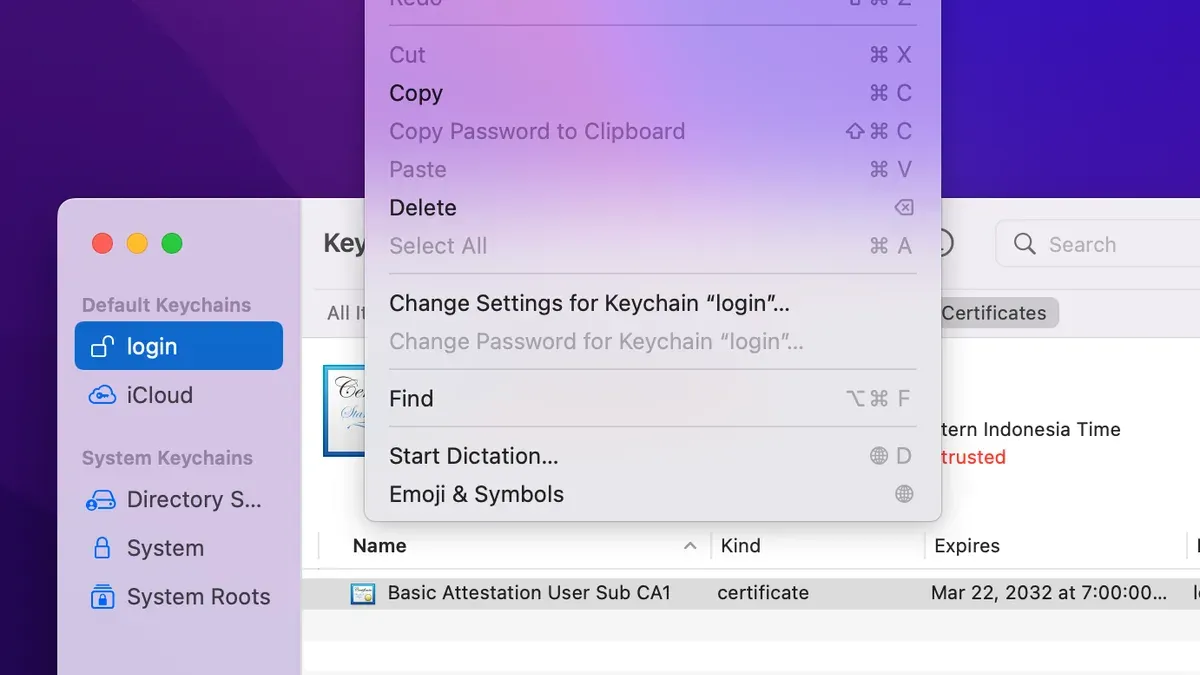
- Locate the sidebar: Once Keychain Access opens, look to the left sidebar. This sidebar lists all your keychains, including login, iCloud, and System.
- Find the login keychain: Click login in the sidebar. This keychain stores your personal passwords and certificates linked to your user account.
- Check the status: Notice if the login keychain lock icon is locked or unlocked. If locked, you’ll see a small lock symbol next to it, and you may be prompted for your password when accessing items inside.
- Understand keychain differences: The login keychain is specific to your user account’s password and credentials, while other keychains like System or iCloud serve broader or cloud-synced purposes. Resetting the login keychain does not affect these other keychains.
By following these steps, you confirm you are targeting the right keychain before proceeding with any reset actions.
Reset the Login Keychain Using Keychain Access Preferences
Resetting your login keychain through Keychain Access preferences is the official and safest method to start fresh without losing system stability. This process creates a new, empty login keychain linked to your current macOS user password, allowing you to regain smooth access to apps and services that rely on saved credentials.
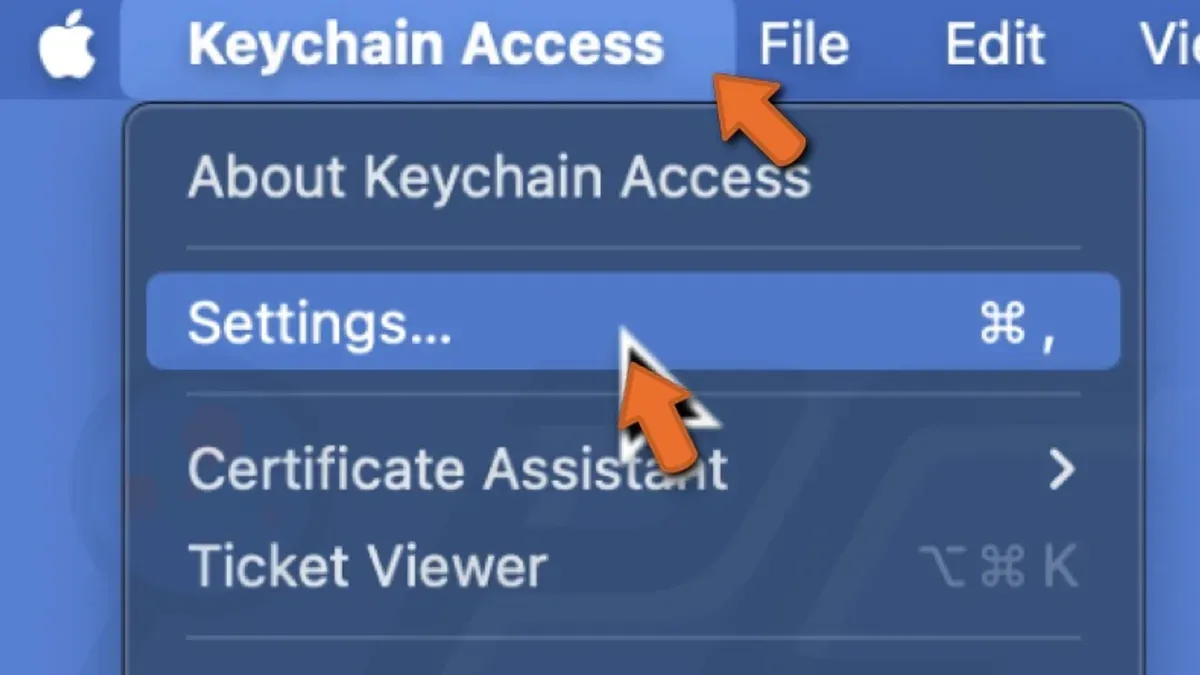
- Open the Keychain Access app from the Utilities folder within the Applications folder. Once open, go to the menu bar and select Keychain Access > Preferences. You should see the preferences window appear.
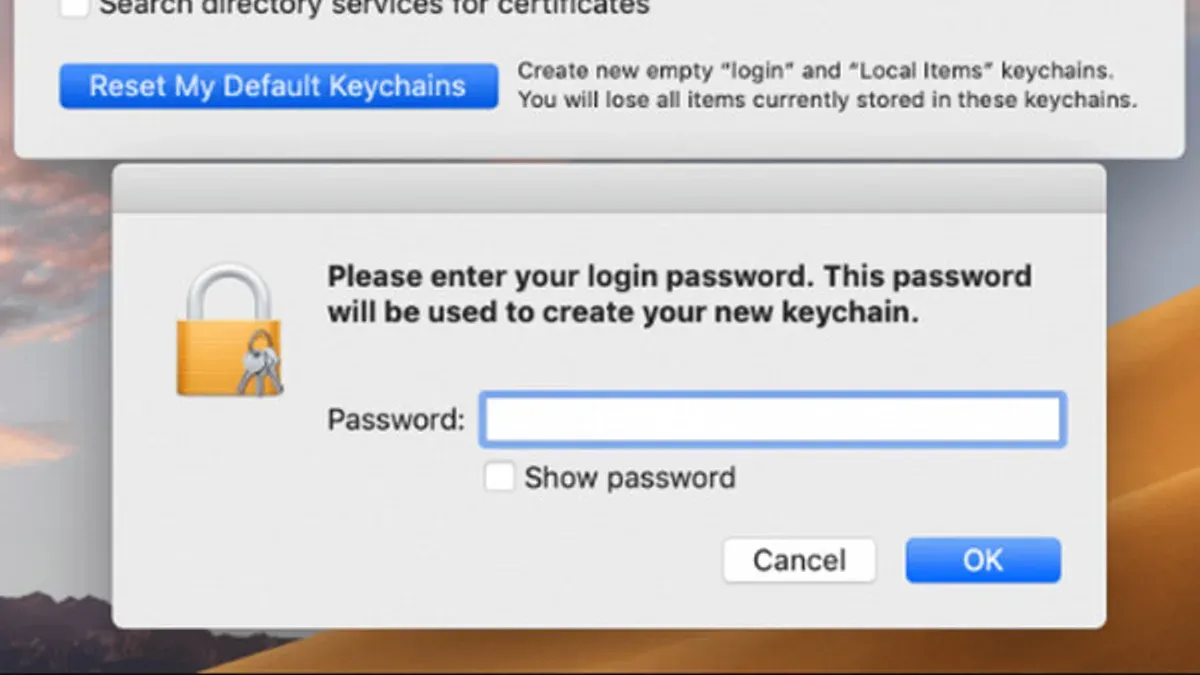
- In the preferences window, click the Reset My Default Keychain button. A prompt will request your current macOS user password to authorize the reset.
- Enter your password and confirm. Keychain Access will then create a new empty login keychain linked to this password. The old keychain file remains on your disk but is no longer used or updated.
- After the reset completes, close the preferences window. You may notice apps asking for passwords again as your new keychain starts fresh without stored credentials.
This method preserves your original keychain as a backup, giving you the option to manually retrieve any needed passwords later if necessary. It also ensures your new login keychain matches your macOS password, preventing future mismatches and repeated password prompts.
Manually Reset the Login Keychain by Deleting or Renaming the Keychain File
If the standard reset via Keychain Access preferences doesn’t work or you want to troubleshoot deeper issues, you can manually reset your login keychain by renaming or deleting its file. This method forces macOS to create a new, empty login keychain the next time you log in.
- Open Finder, then press Shift + Command + G to open the Go to Folder dialog.
- Type ~/Library/Keychains/ and press Enter. This opens the folder containing your keychain files.
- Locate the file named login.keychain-db or sometimes just login.keychain. This is your current login keychain file.
- Rename this file to something like login.keychain-db.old or move it to a different folder for backup. This prevents macOS from accessing your existing keychain.
- Restart your Mac. When you log in, macOS will detect the missing login keychain file and create a new, empty one automatically.
- After logging in, open Keychain Access to confirm a new login keychain has been generated. The folder ~/Library/Keychains/ should now contain a fresh login.keychain-db file.
This method is more intrusive and risks losing all stored passwords in the old keychain if you don’t have a backup. Use it only if the preference reset fails or if you want to start completely fresh. Always keep a copy of the original keychain file before renaming or deleting it.
Restore or Rebuild Your Keychain Items After Resetting
After resetting your login keychain, you’ll need to recover or rebuild your saved passwords and credentials to minimize disruptions. Many apps and services will prompt you to re-enter passwords when they detect the absence of keychain credentials. For example, reconnecting to a Wi-Fi network will require entering its password again, and your email client might request your account password to resume syncing.
If you use iCloud Keychain, it can automatically sync and restore many saved passwords across your Apple devices. To benefit from this, ensure iCloud Keychain is enabled in System Preferences under Apple ID > iCloud > Keychain. This can significantly speed up recovery after a reset.
Before resetting, exporting important passwords as a backup is a wise precaution. You can export passwords from Keychain Access by selecting items, choosing File > Export Items, and saving them securely. After reset, you can manually import these items back.
To manually add passwords or certificates into your new keychain, open Keychain Access, click the “+” button or choose File > New Password Item, and enter the relevant details. This is especially useful for restoring less common credentials not synced via iCloud.
- Connect to a previously saved Wi-Fi network. When prompted, enter the Wi-Fi password. Successful connection confirms the password is stored in the new keychain.
- Open your email application. When asked, enter your email account password. Once your email syncs, the password is saved in the new keychain.
- Verify iCloud Keychain is enabled in System Preferences under Apple ID > iCloud > Keychain. If it’s active, wait a few minutes for passwords to sync and appear in your keychain.
- To add a password manually, open Keychain Access, choose File > New Password Item, and fill in the service name, account name, and password. Click Add, then confirm the new item appears in the login keychain.
Troubleshoot Common Issues When Resetting the Login Keychain
If you continue to receive password prompts after resetting your login keychain, the issue may be that some apps or services still reference the old keychain. Try logging out and back into your Mac or restarting it to ensure all processes recognize the new keychain. Additionally, verify that your user account password matches the new keychain password.
Permissions problems can prevent access to your keychain. If you see error messages like “You do not have permission to access this item” or “Operation not permitted,” check the keychain file’s permissions in Finder by selecting the file, choosing File > Get Info, and reviewing Sharing & Permissions. You may need to grant your user Read & Write access and apply changes to enclosed items.
Keeping macOS updated can resolve underlying bugs affecting Keychain Access. Open System Settings > General > Software Update to check for and install any available updates. Many keychain-related errors have been addressed in recent macOS releases.
If problems persist despite these steps, consider running Disk Utility’s First Aid on your startup disk to fix file system issues. For complex or persistent errors, contacting Apple Support or visiting an Apple Store may be necessary for deeper diagnostics and repair.
Frequently asked questions
What happens to my saved passwords when I reset the login keychain?
Resetting the login keychain deletes the current keychain file, including all stored passwords, certificates, and secure notes. After the reset, you start with a new, empty login keychain. This means you will lose access to all previously saved passwords unless you restore them from a backup or iCloud Keychain.
Can I recover data from my old keychain after resetting?
Recovering data from the old keychain is possible only if you have a backup of the keychain file or if the keychain was synced with iCloud. You can manually import keychain items by opening the old keychain file in Keychain Access if it wasn't deleted. Without a backup or sync, the data cannot be recovered once the keychain is reset.
Why am I repeatedly asked for my keychain password?
Repeated password prompts usually indicate that your login keychain password is out of sync with your user account password. This can happen after changing your account password outside of the usual system methods or due to corruption in the keychain. Resetting or updating the keychain password to match your login password typically resolves this issue.
Is it safe to reset my login keychain if I use iCloud Keychain?
Resetting your login keychain is generally safe when using iCloud Keychain because iCloud can restore many of your passwords and credentials automatically. However, some local items or non-synced passwords might be lost. Before resetting, ensure iCloud Keychain is enabled and fully synced to minimize data loss.
What This Guide Does Not Cover
Resetting the login keychain removes all saved passwords, certificates, and other credentials stored in that keychain. This process cannot recover those items once deleted, so make sure you have backup copies or can re-enter important passwords. If you need to recover lost keychain data due to corruption or accidental deletion, this guide does not cover advanced forensic methods or data recovery tools. For complex keychain issues involving critical data recovery, consider consulting a professional Apple technician or specialized data recovery service.
If you use multiple keychains or have corporate-managed devices with custom security policies, resetting your login keychain might affect access to network resources or company services. Always check with your IT department before proceeding in such environments.
Once you’ve reset the login keychain, the single most useful next step is to methodically rebuild your saved credentials. Start by opening each app or service you use regularly and re-enter your passwords or authentication details as prompted. This proactive approach ensures your keychain stays secure and up to date, minimizing future login issues.
See also: How to Delete a Keychain Entry in Keychain Access: Step-by-Step Guide