How to Share Passwords with Family in the Passwords App
Discover practical methods to share passwords securely with your family using the Passwords app and Apple's ecosystem features.
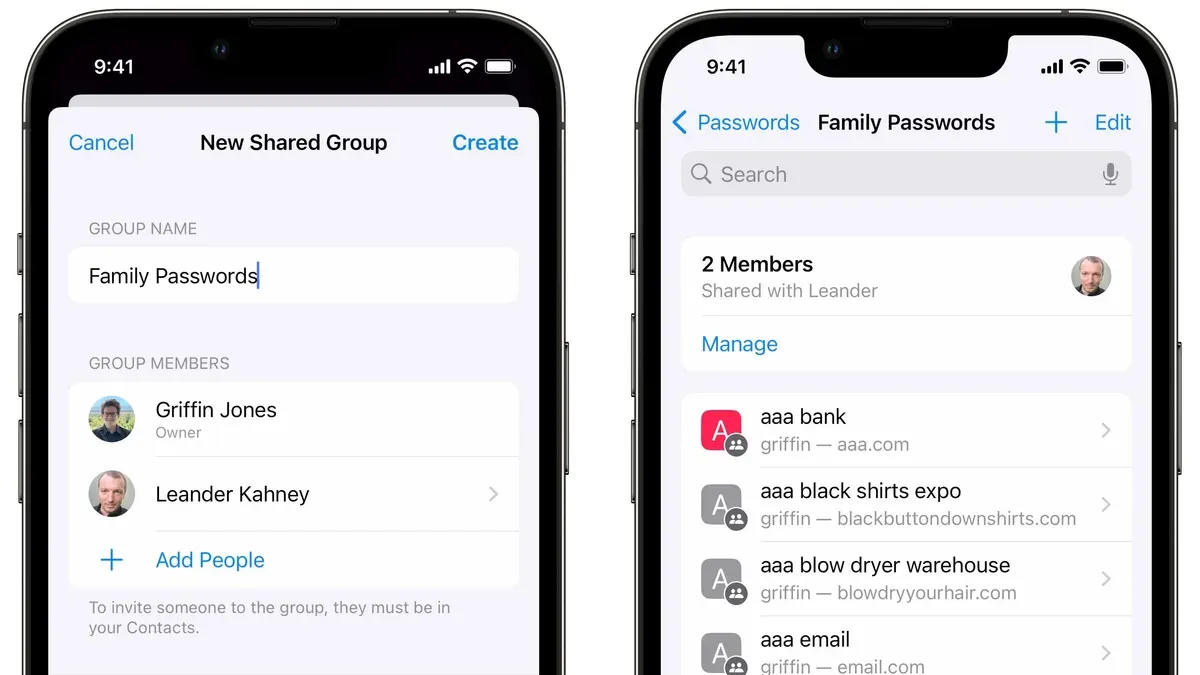
Sharing passwords within a family can be tricky when you want to keep things both convenient and secure. You might have found yourself wondering how to share passwords with family in Passwords app without exposing sensitive information or using complicated workarounds.
This article guides you through practical methods to share passwords securely using Apple's ecosystem. You'll learn how to leverage iCloud Keychain and Family Sharing, manage credentials safely in the Passwords app, and explore alternatives for sharing passwords outside the app. Each step is explained clearly to help you decide the best approach for your family's needs.
Key takeaways
- Use iCloud Keychain with Family Sharing to share passwords seamlessly among Apple devices.
- The Passwords app itself doesn’t support direct password sharing but helps you manage and autofill credentials securely.
- Consider secure messaging or encrypted notes for sharing passwords outside the app.
- Always verify devices and accounts involved to maintain security when sharing passwords.
- Address common issues like missing shared passwords by checking iCloud and Family Sharing settings.
Before you start: What you need to share passwords with family
To share passwords securely with your family using Apple's ecosystem, each family member must have an Apple ID and have iCloud Keychain enabled on their device. This ensures passwords and other sensitive data stay synchronized and protected across devices. Compatible devices include iPhones, iPads, and Macs running iOS 15 or later, iPadOS 15 or later, or macOS Monterey or later, as these versions support the Passwords app and its related features.
It’s important to understand that the Passwords app itself does not offer a direct password sharing feature. Instead, sharing within a family relies on iCloud Keychain combined with Family Sharing settings. For cases where direct sharing is needed, consider secure alternatives like the Notes app with password protection or trusted third-party password managers that support sharing.
Before proceeding, confirm all devices are updated to the appropriate operating system versions and that iCloud Keychain is active. Official Apple documentation on setting up iCloud Keychain and Family Sharing can provide visuals and detailed guidance. Taking these preparatory steps helps ensure a smooth and secure password sharing experience.
- Check that each family member has a valid Apple ID: open Settings > tap your name at the top to verify.
You should see the Apple ID email address. - Enable iCloud Keychain: go to Settings > [your name] > iCloud > Passwords and Keychain, then toggle on iCloud Keychain.
A confirmation screen or toggle should show it’s active. - Verify device software version: open Settings > General > About > Software Version.
The version number should be iOS 15/iPadOS 15/macOS Monterey or later. - Review Family Sharing setup: in Settings, tap your name > Family Sharing to confirm all family members are listed.
You should see family members’ names and sharing options. - Consider alternative secure sharing tools if needed, such as creating password-protected Notes: open Notes > create note > tap share icon > lock note.
Only those with the password can access the note.
How to share passwords with family Apple using iCloud Keychain and Family Sharing
Apple's Family Sharing lets you share purchases, subscriptions, and some types of data among family members, but it does not share your passwords directly through iCloud Keychain. iCloud Keychain syncs passwords only across your personal devices signed in with the same Apple ID, keeping each user's credentials private. To share passwords within a family group, you need to use workarounds that maintain security while providing access.
One effective method is creating a shared Notes folder encrypted with end-to-end encryption. You can safely store and update login credentials there, allowing family members to access them with their own Apple IDs. Alternatively, secure messaging apps with encryption can be used to send passwords individually.
To set up Family Sharing and enable shared Notes for password sharing, follow these steps:
- Go to Settings on your iPhone or iPad, tap your name, then tap "Family Sharing." You should see a screen offering to set up your family group. When completed, you'll see a list of family members linked by their Apple IDs.
- In the Notes app, create a new folder and tap the folder's share icon. Choose "Add People," then select your family members from the list or enter their Apple IDs.
- Ensure the folder permissions are set to "Can make changes" so members can add or edit notes containing shared passwords. When successful, the folder will appear under "Shared" in the Notes app for each member.
- Use this shared folder to store and update login credentials. Any changes sync securely across all shared devices, protected by Apple's encryption.
Here is a quick comparison table of what Family Sharing shares versus what iCloud Keychain shares:
| Feature | Family Sharing | iCloud Keychain |
|---|---|---|
| App and media purchases | Shared | Not shared |
| Subscriptions (Apple Music, etc.) | Shared | Not shared |
| Passwords and credentials | Not shared directly | Synced only within one Apple ID |
| Shared Notes folder | Can be enabled for sharing | Not applicable |
By using Family Sharing combined with a shared Notes folder, you create a secure, manageable way to share passwords with your family. Always remind everyone to keep their devices secure and to update shared passwords responsibly.
How to use the Passwords app to securely manage and share credentials indirectly
The Passwords app in Apple devices is designed to store and autofill your credentials securely, but it doesn’t provide a direct way to share passwords. Instead, you can safely copy individual passwords when needed and share them using encrypted methods. This approach helps you avoid unsafe practices like sending passwords through plain text messages or unprotected emails.
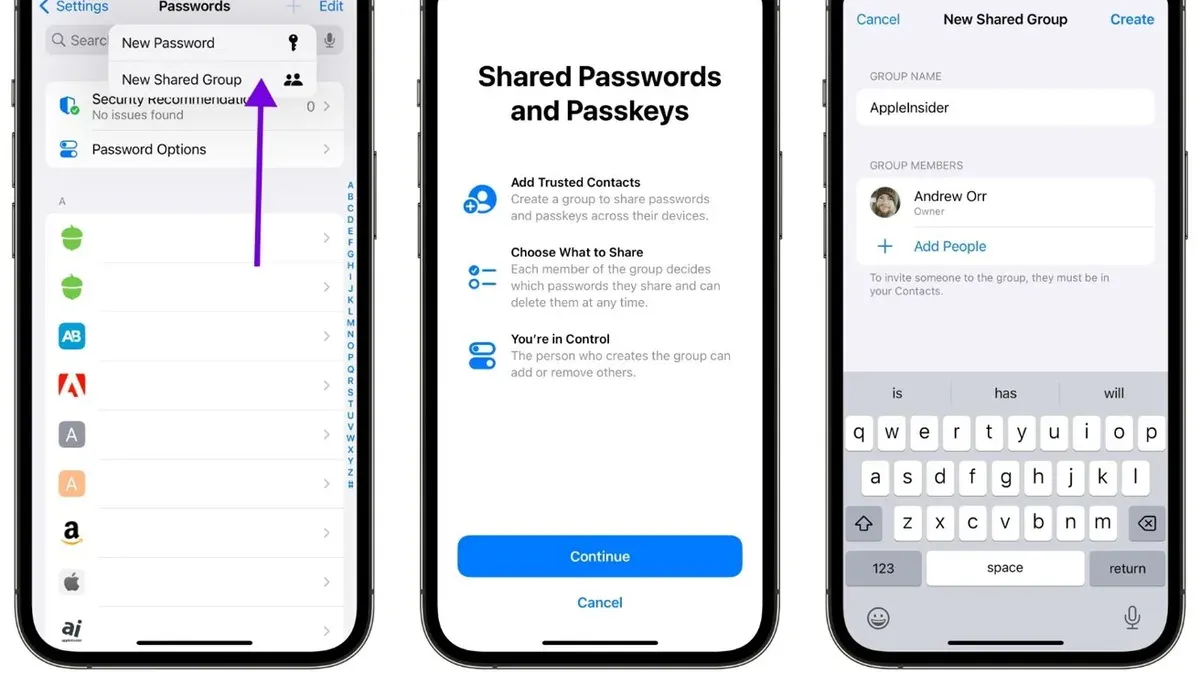
- Open the Passwords app on your device and authenticate using Face ID, Touch ID, or your passcode. You should see a list of saved accounts.
- Find the account whose password you want to share. Tap it to view details, then tap the password field. It will be hidden by default.
- Tap the “Copy” button next to the password. You’ll see a brief notification that the password is copied to your clipboard.
- Open a secure messaging app that supports end-to-end encryption, such as iMessage or Signal. Paste the password into the message field and send it securely to your family member.
- Advise the recipient to delete the message after use, reducing the chance of unauthorized access later.
Alternatively, consider creating shared accounts with temporary or rotated passwords when possible. This way, you can update the password regularly and share changes securely without exposing permanent credentials.
For more seamless sharing, some third-party password managers integrate well with Apple devices and offer native sharing features. These apps allow you to share specific login credentials securely within a trusted group, often with access controls and audit logs. Examples include 1Password and Dashlane, which support family plans designed for this purpose.
By managing passwords this way—copying only when necessary and using encrypted communication or specialized tools—you maintain control and privacy while sharing credentials with your family.
How to share passwords safely outside the Passwords app
When you want to share passwords beyond the Passwords app, using encrypted messaging apps or dedicated password managers with shared vault features provides strong security. Apps like Signal or WhatsApp offer end-to-end encryption, allowing you to send passwords securely. However, for ongoing password sharing, password managers with shared vaults are more practical and safer.
Popular password managers such as 1Password, LastPass, and Dashlane support shared vaults that let family members access selected passwords. Setting up a shared vault usually involves creating a family or team plan, inviting members, and assigning permissions. These vaults encrypt data both in transit and at rest, with many undergoing independent security audits to verify their protections.
Another alternative is using password-protected Notes or encrypted files stored in iCloud Drive. You can create a password-protected note in the Notes app by selecting the share icon and choosing "Lock Note." This keeps your passwords secure while allowing you to share them with family who have your Apple ID access or shared device access.
Best practices include regularly updating shared passwords and promptly revoking access when a family member no longer needs it or leaves the group. This limits potential exposure and keeps your accounts secure.
| Password Manager | Shared Vault Features | Security Notes |
|---|---|---|
| 1Password Families | Shared vaults with granular permissions, activity logs | Undergoes regular third-party security audits |
| LastPass Family | Shared folders, emergency access options | Uses AES-256 encryption; audited by independent firms |
| Dashlane Family | Shared spaces with password health monitoring | Zero-knowledge architecture; external security reviews |
Troubleshooting common issues when sharing passwords with family
When sharing passwords within Apple's ecosystem, some common issues can arise. For instance, passwords won’t sync between devices using different Apple IDs despite Family Sharing because iCloud Keychain data is linked to individual Apple IDs, not shared accounts. If you see an error like “Password not found” when trying to autofill, check that the password is saved under your Apple ID’s Keychain and not just locally on another device.
Issues with Notes syncing or access permissions often stem from incorrect Family Sharing settings or off iCloud Drive options. If family members report they can’t see shared Notes, verify that Settings > [your name] > Family Sharing > Shared Features includes Notes, and that Settings > [your name] > iCloud > Notes is enabled on all devices. The Notes app should also be updated to the latest version.
When copied passwords don’t autofill correctly, it usually means the Password AutoFill setting is off. Go to Settings > Passwords > AutoFill Passwords and ensure it’s enabled, with iCloud Keychain selected as a source. Restarting the device can also resolve temporary glitches.
- Open Settings > Passwords and tap AutoFill Passwords. You should see a toggle turned on for AutoFill and iCloud Keychain checked. If not, enable them. You should now see website logins autofill when you tap password fields.
- Check Family Sharing settings by going to Settings > [your name] > Family Sharing > Shared Features. Confirm Notes is listed and enabled. If it’s not, add it. Your family members should now access shared Notes without issues.
- In Settings > iCloud, verify that Notes and Keychain toggles are on for all family members. If not, enable them. This ensures syncing across devices.
- If a family member cannot access a shared Note, ask them to open the Notes app, tap Folders, then Accounts, and confirm the shared folder appears. If not, sign out and back into iCloud to refresh sync settings.
Addressing these common pitfalls by verifying settings and toggles often clears syncing and access issues. If error messages persist, checking for device software updates and restarting devices can help resolve underlying bugs.
Frequently asked questions
What is the best way to share passwords?
The best way to share passwords is by using Apple's iCloud Keychain combined with Family Sharing. This setup allows secure, encrypted syncing of passwords among family members without exposing them in plain text. It balances convenience and security by keeping credentials updated automatically across devices.
What is the best way to share passwords securely with family?
To share passwords securely with family, enable iCloud Keychain and set up Family Sharing on your Apple devices. This method ensures that passwords are protected with end-to-end encryption and shared only with approved family members. Avoid sending passwords through unencrypted channels like standard Messages or email.
Can I share passwords directly through the Passwords app?
The Passwords app itself does not support direct password sharing. Instead, it manages your saved credentials securely on your device. To share passwords, you must rely on iCloud Keychain syncing or share credentials manually through secure, approved methods outside the app.
How do I prevent unauthorized access when sharing passwords?
Prevent unauthorized access by using strong device passcodes, enabling two-factor authentication on your Apple ID, and carefully managing your Family Sharing group. Always verify the identity of family members before adding them and review shared accounts periodically. Avoid sharing passwords over unsecured or public networks.
Is it safe to share passwords using Notes or Messages on Apple devices?
Notes and Messages on Apple devices can be secure if you use the built-in encryption features correctly, such as locking Notes with a password or using iMessage with end-to-end encryption. However, these methods are less ideal than iCloud Keychain for password sharing because they require manual handling and risk exposure if devices are compromised. Use them cautiously and only with trusted recipients.
What This Advice Does Not Cover
This article focuses on sharing passwords within Apple's ecosystem using iCloud Keychain and Family Sharing features. It does not cover sharing passwords outside Apple devices or using third-party password managers extensively. If you need to share passwords across different platforms such as Windows, Android, or Linux, consider dedicated cross-platform password managers like 1Password or LastPass, which offer built-in sharing features tailored for mixed environments.

Also, the Passwords app itself does not support direct password sharing between different Apple IDs. This means you must rely on indirect methods like Family Sharing or manual secure communication. If you require more seamless sharing between separate Apple IDs, you might need to explore alternative solutions or wait for Apple to enhance this functionality in future updates.
Your Next Step
To get started, ensure that iCloud Keychain and Family Sharing are set up correctly on all family members’ devices. Check that everyone is signed in with their Apple ID and has iCloud Keychain enabled under Settings > [your name] > iCloud > Keychain. This foundation lets you securely share passwords stored in Safari and apps, balancing convenience and security without complicated workarounds.
See also: How to Find Weak Passwords in the Passwords App: Step-by-Step Guide · How to Import Passwords from Chrome to Apple Passwords App