How to Speed Up Photoshop Performance on Mac: Step-by-Step Guide
Learn practical steps to speed up Photoshop performance on your Mac and keep your creative workflow smooth and efficient.
You open Photoshop on your Mac, ready to work, but the app feels sluggish and unresponsive. Layers take longer to load, brushes lag, and exporting files drags on, interrupting your creative flow. Understanding how to speed up performance in Photoshop on Mac can help you avoid unnecessary hardware upgrades or time-consuming reinstalls.
This guide walks you through practical, Mac-specific adjustments—from optimizing Photoshop’s performance settings to fine-tuning macOS preferences and managing your workflow efficiently. It also covers which hardware upgrades truly impact Photoshop performance, helping you make informed decisions rather than guessing. Finally, common troubleshooting tips address frequent performance bottlenecks so you can get back to work faster.
Key takeaways
- Adjust Photoshop’s Memory Usage and Cache Levels under Preferences > Performance for smoother operation.
- Optimize Mac system settings like Spotlight indexing and Energy Saver to reduce background load.
- Keep Photoshop files organized and minimize open documents to reduce RAM strain.
- Upgrade to faster SSD storage or increase RAM to see noticeable speed improvements on Mac.
- Clear Photoshop’s scratch disks and reset preferences when encountering persistent slowdowns.
Before you start: What you need to check
Before optimizing Photoshop’s performance on your Mac, gather key information about your system and current setup. Knowing your Mac model and hardware specs helps determine which optimizations will have the greatest impact. For example, MacBook Air models with limited RAM and SSD storage benefit differently than MacBook Pro models with higher specs.
- Check your Mac model and hardware specs: Click the Apple menu, select About This Mac, and note the processor type, RAM size, and storage type. You should see details like “Apple M1 chip,” “16 GB RAM,” and “SSD” if applicable. This confirms your system capabilities.
- Confirm your Photoshop version: Open Photoshop, then go to Photoshop menu > About Photoshop. Verify you are running a recent version, as older versions may lack performance improvements.
- Check your macOS version: Click the Apple menu, select About This Mac, and ensure your macOS version is up to date enough to support Photoshop optimizations effectively.
- Close unnecessary applications: Use Activity Monitor (found in Applications > Utilities) to identify and quit apps consuming significant CPU or memory. This frees up resources for Photoshop to run more smoothly.
- Backup Photoshop projects and preferences: Use Time Machine or manual copying to back up current projects and export preferences from Edit > Preferences > General. This protects your work before making changes.
Adjust Photoshop’s performance preferences
Photoshop's built-in performance settings significantly influence how smoothly it runs on your Mac. Adjusting these can improve responsiveness without extra hardware.
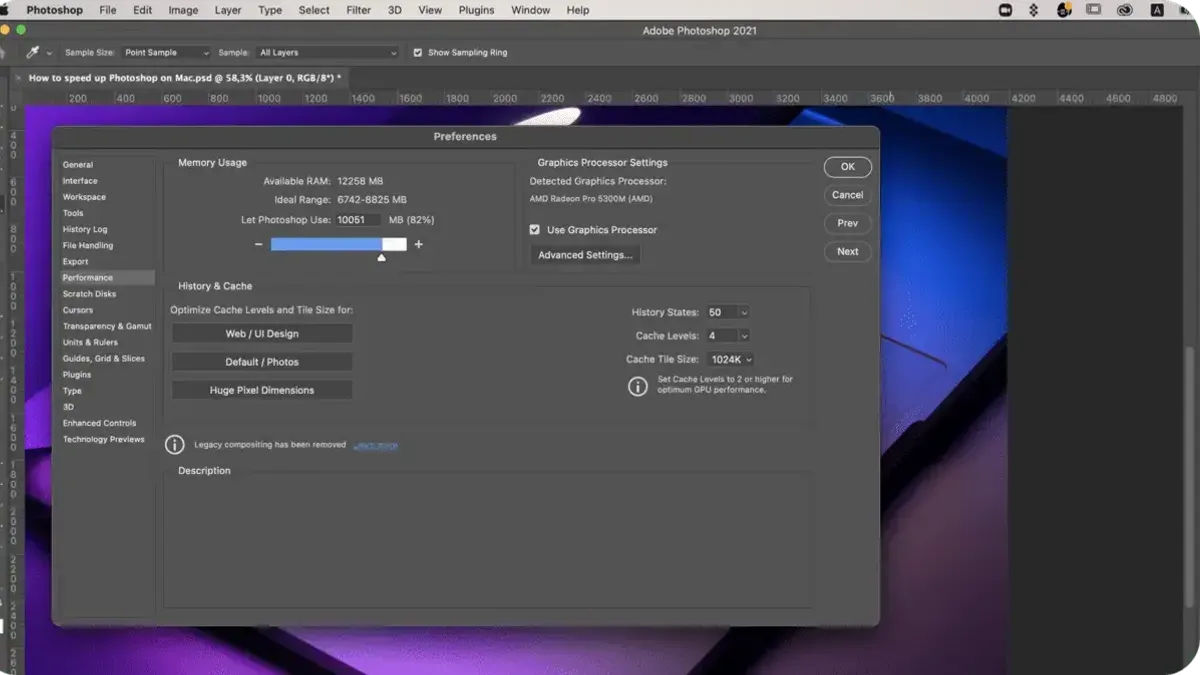
- Open Photoshop and go to Photoshop > Preferences > Performance. Here, you'll find the RAM usage slider. Allocate around 70-85% of your available RAM to Photoshop. After adjusting, Photoshop should feel more responsive, especially when working with large files.
- Set the Cache Levels to 4 or 6, depending on your typical file size. Higher cache levels speed up image redraws but use more memory. After applying, you should notice smoother zooming and panning in complex projects.
- Adjust the Cache Tile Size to 1024K for detailed editing or 512K for simpler tasks. Larger tile sizes improve performance with large documents but may slow down smaller files.
- Limit History States to 20-30 to balance undo capability and memory consumption. A higher number lets you undo more steps but uses more RAM, which can slow Photoshop on Macs with limited memory.
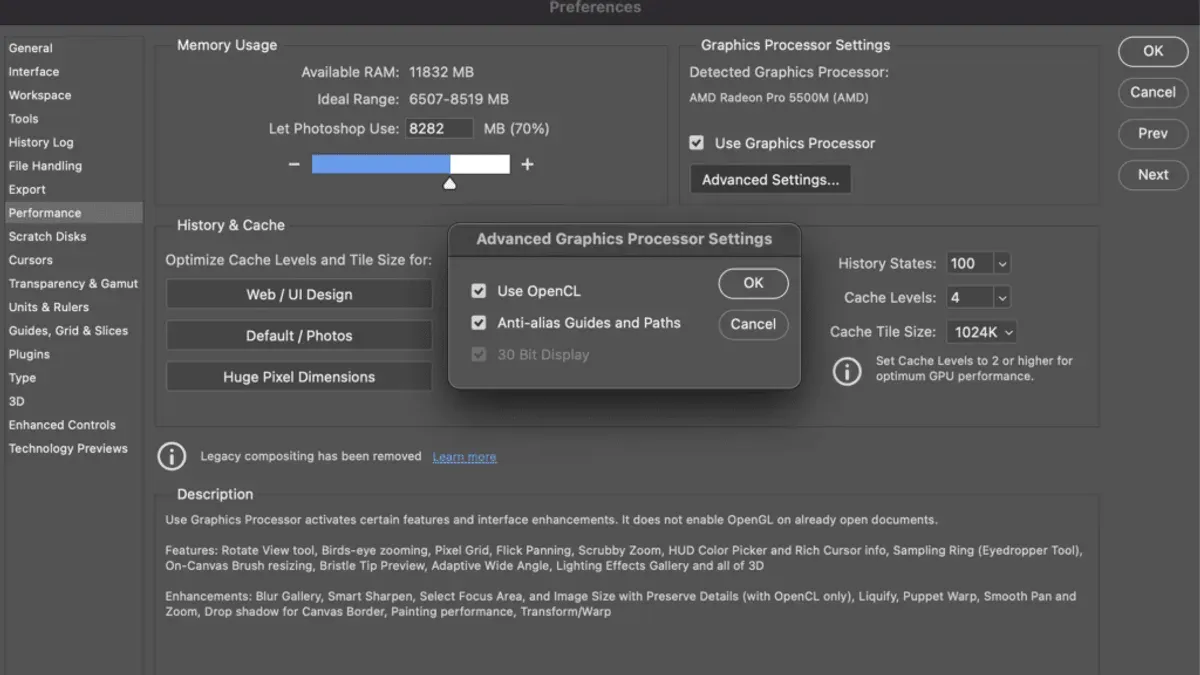
- Under Graphics Processor Settings, ensure Use Graphics Processor is enabled to leverage your Mac’s GPU for faster rendering. If you experience glitches or crashes, try disabling this setting to see if stability improves.
Users typically see faster redraw times and less lag after these adjustments. For example, increasing RAM allocation and cache levels often reduces delays when applying filters or switching tools.
Optimize Mac system settings for better Photoshop performance
Adjusting macOS system settings can significantly enhance Photoshop's speed by reducing unnecessary CPU load and ensuring adequate resources.
- Disable unnecessary startup items: Go to System Settings > General > Login Items. Remove apps that do not need to launch at startup. This reduces background processes that compete with Photoshop for CPU and memory. You should see faster system responsiveness after a reboot.
- Adjust Energy Saver settings: Navigate to System Settings > Battery > Energy Mode. Select "High Performance" to prevent CPU throttling during intensive Photoshop tasks. Before this, CPU usage may spike while Photoshop lags; after, CPU maintains higher sustained speeds, improving responsiveness.
- Manage virtual memory and free up disk space: Check storage availability in About This Mac > Storage. Ensure at least 15-20% free space on your startup and Photoshop scratch disk drives. Low disk space forces excessive virtual memory swapping, slowing Photoshop. Deleting large unused files or moving them to external drives can help.
- Use Activity Monitor to identify resource-hogging processes: Open Activity Monitor and sort by CPU and Memory usage. Quit or reduce the impact of nonessential processes consuming high resources. This frees up capacity for Photoshop to run smoothly.
Manage your Photoshop files and workspace efficiently
- Use linked smart objects instead of embedded ones by selecting Layer > Smart Objects > Convert to Linked. This reduces file size and speeds up load and save times, as linked objects reference external files rather than embedding all data.
- Organize layers into groups and merge non-essential layers via Layer > Merge Layers when possible. This reduces file complexity, which decreases lag during editing and improves responsiveness.
- Limit the number of open documents to essential ones only. Close unused panels by navigating to Window and deselecting panels not in use. This frees system resources, reducing slowdowns caused by excessive open files and UI elements.
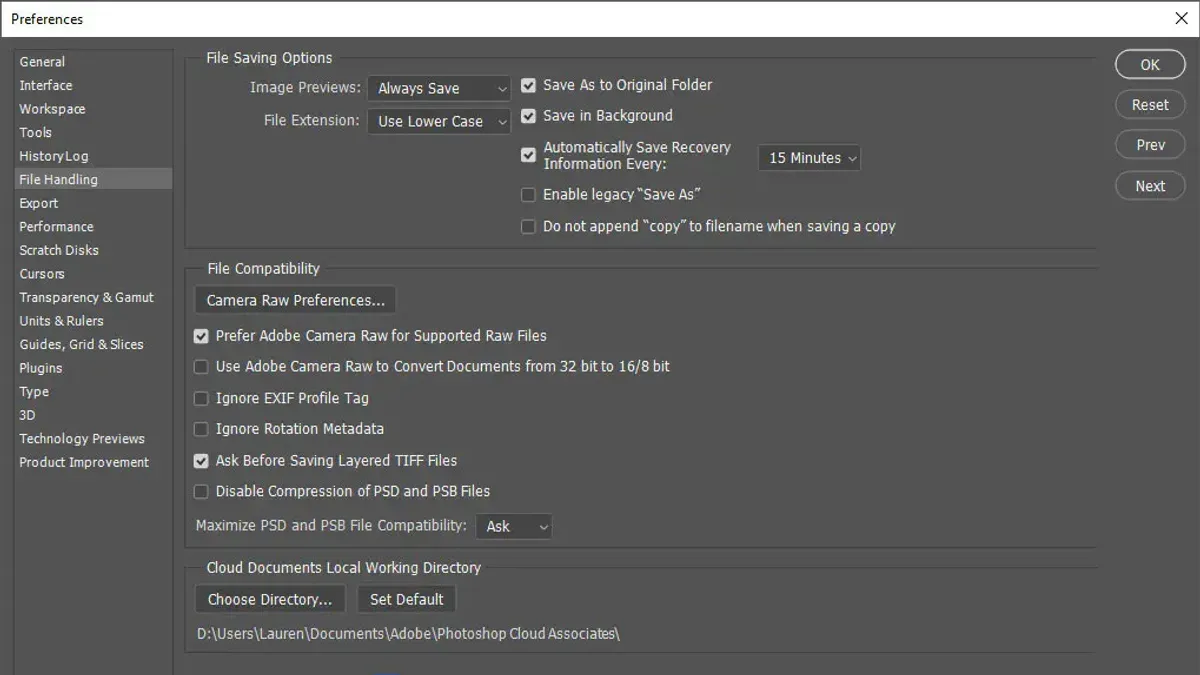
- Save your Photoshop files on your Mac’s internal SSD rather than external drives. Internal SSDs offer faster read/write speeds, significantly improving file load and save performance compared to many external storage options.
Following these steps helps reduce lag by minimizing file size and complexity, optimizing workspace layout, and leveraging faster storage hardware for smoother Photoshop use on Mac.
Upgrade hardware components that matter on Mac
When considering hardware upgrades to speed up Photoshop on your Mac, focus first on RAM and SSD storage. Increasing RAM allows Photoshop to handle larger files and more layers smoothly; benchmarks show that moving from 8GB to 16GB RAM generally reduces lag during complex editing. Upgrading to a faster SSD or ensuring you have ample free SSD space improves file load and save times significantly, often more noticeably than a RAM increase alone.
Using an external GPU (eGPU) can boost Photoshop’s GPU-accelerated features if your Mac supports Thunderbolt 3 or later. This upgrade benefits tasks like 3D rendering and filters but offers limited improvement for general image editing.
CPU upgrades on Macs are rarely feasible as most models have soldered processors. If Photoshop performance bottlenecks are CPU-related and upgrades are impossible, investing in a newer Mac with a faster multi-core processor may be justified.
Keep in mind many Macs, especially recent MacBooks and iMacs, have non-upgradable RAM and storage. In these cases, hardware upgrades are limited to external devices like eGPUs or replacing the entire machine.
Troubleshooting common Photoshop performance issues on Mac
When Photoshop freezes or crashes during heavy tasks, first check Activity Monitor to see if CPU or memory usage spikes unusually. Close any unnecessary processes consuming excessive resources. Photoshop logs, found via Help > System Info, can reveal errors related to plugins or GPU issues.
Scratch disk errors may persist even with free space available. Verify that Photoshop’s scratch disk preferences point to a fast internal SSD with at least 20% free space. If errors continue, reset Photoshop preferences by holding Command+Option+Shift at launch until prompted.
Slow brush responsiveness and lag often stem from high brush smoothing or complex brush presets. Lower the smoothing percentage or switch to simpler brushes. Also, disable any third-party brush plugins to test if they cause delays.
Third-party plugins or extensions can conflict with Photoshop and degrade performance. Disable plugins one by one via Window > Extensions or by moving plugin files from the /Applications/Adobe Photoshop/Plug-ins folder. After disabling, restart Photoshop and monitor responsiveness.
- Open Activity Monitor and observe CPU and memory usage during Photoshop tasks. High resource usage indicates potential bottlenecks.
- Check Photoshop’s scratch disk setting in Preferences > Scratch Disks, ensuring it points to a fast drive with ample free space. Correct if needed.
- Reset Photoshop preferences by launching with Command+Option+Shift held down. Confirm reset when prompted to clear corrupted settings.
- Test brush lag by reducing smoothing in Brush Settings and disabling third-party brushes.
- Disable third-party plugins individually by removing them from the Plug-ins folder or via Extensions, then restart Photoshop to check performance improvements.
Frequently asked questions
Why is Photoshop slow on my Mac even though I have enough RAM?
Photoshop performance depends on more than just RAM. Slowdowns can occur if the scratch disk is full or located on a slow drive, or if the GPU acceleration is not properly enabled. Also, background processes or insufficient GPU resources can bottleneck performance despite ample RAM.
How do I know if my Mac’s GPU is helping Photoshop performance?
Check Photoshop’s Preferences under Performance to see if Graphics Processor Settings are enabled. You can also go to Help > System Info in Photoshop to view GPU details and status. If GPU acceleration is active, Photoshop will use it for rendering and some filters, improving speed.
Can clearing Photoshop cache improve speed and how do I do it?
Yes, clearing the cache can free up storage and remove temporary data that slows Photoshop. Go to Edit > Purge > All to clear caches. Keep in mind this action cannot be undone and will delete undo states and clipboard contents.
Is upgrading to the latest macOS version beneficial for Photoshop performance?
Updating macOS can improve compatibility and performance with Photoshop, especially if it includes GPU driver updates or system optimizations. However, new OS versions may introduce bugs or compatibility issues, so review Adobe’s support notes before upgrading.
What this guide does not cover
This guide does not cover advanced scripting or automation to speed up workflows, nor does it address Photoshop alternatives or non-Mac hardware solutions. If your workflow demands highly specialized automation or if you are considering switching to different software or platforms, this guide may not provide the detailed steps you need. Additionally, performance issues caused by third-party plugins or corrupted Photoshop installations require targeted troubleshooting beyond what is discussed here.
The single most effective next step is to carefully adjust Photoshop’s memory usage settings under Preferences > Performance. Allocating around 70-85% of your Mac’s RAM to Photoshop often improves responsiveness without starving the system or other apps. This adjustment is a simple, reversible change that frequently yields noticeable speed improvements without hardware upgrades or complex tweaks.