Switching from Google Drive to OneDrive: A Practical Guide
Discover practical steps and key tips for switching from Google Drive to OneDrive without losing file integrity or workflow efficiency.
You rely on Google Drive for storing documents, collaborating with colleagues, and managing projects. Yet, you find yourself considering switching from Google Drive to OneDrive to better integrate with Microsoft Office and your existing workflow.
This article guides you through why you might make the switch, how to transfer your files without losing integrity, and what differences to expect between the two cloud storage platforms. It also covers syncing options, common transfer mistakes to avoid, and specific steps for business users.
Key takeaways
- Export Google Drive files using Google Takeout or direct download before importing to OneDrive.
- Maintain file integrity by preserving folder structures and compatible file formats during transfer.
- Google Drive and OneDrive differ in collaboration tools, integration, and storage plans; choose based on your workflow needs.
- OneDrive syncs with Microsoft 365 apps, while Google Drive integrates smoothly with Google Workspace.
- Business migrations require additional steps like using Microsoft Migration Manager or third-party tools.
Understanding why you might switch from Google Drive to OneDrive
Switching cloud storage providers often hinges on how well the service integrates with the tools you use daily. OneDrive is deeply embedded in the Microsoft 365 ecosystem, offering seamless access to apps like Word, Excel, and Teams. If your workflow relies heavily on these applications, OneDrive can streamline file sharing and real-time collaboration more naturally than Google Drive, which aligns with Google Workspace tools such as Docs and Sheets.
Storage pricing and plans also influence the decision. OneDrive typically includes 1 TB of storage with many Microsoft 365 subscriptions, while Google Drive provides 15 GB for free and various paid tiers. Consider your storage needs against your existing subscriptions to evaluate cost-effectiveness.
Security and compliance are critical for professionals and small businesses. OneDrive offers comprehensive compliance certifications and integrates with Microsoft’s security frameworks, which might better meet certain regulatory requirements compared to Google Drive.
The user interface differs notably. OneDrive’s file explorer integration on Windows allows direct file access without a browser, while Google Drive relies more on web-based interaction. For example, if you frequently open and save documents via File Explorer, OneDrive offers a more native experience.
| Service | Free Storage | Included with Subscription | Primary Ecosystem |
|---|---|---|---|
| Google Drive | 15 GB | Google Workspace plans (various tiers) | Google Workspace (Docs, Sheets) |
| OneDrive | 5 GB | Microsoft 365 (1 TB with most plans) | Microsoft 365 (Word, Excel, Teams) |
Ultimately, the motivation to switch depends on which ecosystem supports your productivity tools better, your storage cost considerations, the security features required, and how you prefer to interact with your files. For instance, a small business using Microsoft Teams and Outlook extensively may find OneDrive’s integration streamlines collaboration and reduces friction.
How to move Google Drive to OneDrive step-by-step
Begin by organizing your Google Drive files—remove duplicates, delete unnecessary files, and arrange folders logically. This preparation reduces clutter and speeds up transfer.
For small data volumes, manually download files from Google Drive by selecting them, clicking the settings gear, and choosing 'Download.' These files save as a ZIP archive if multiple are selected. Then, unzip and upload them to OneDrive using the web interface or OneDrive app by dragging files into the desired folder.
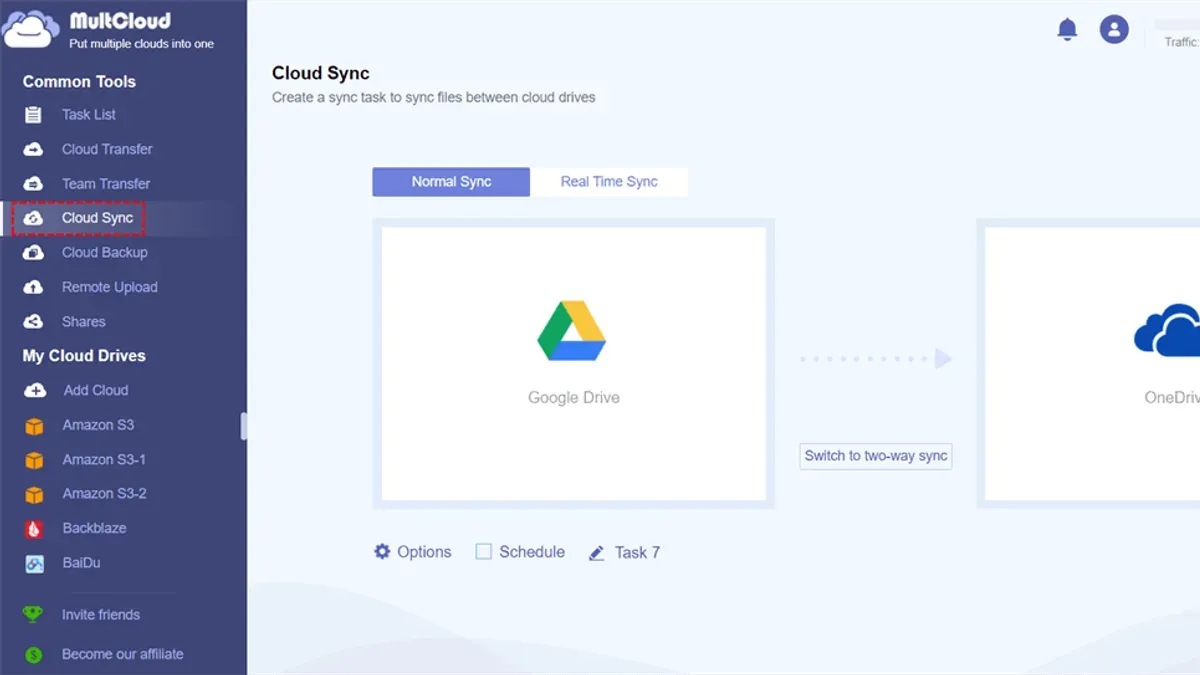
For larger data sets, consider third-party migration tools like MultCloud or CloudFuze. These services automate transfer directly between cloud accounts, saving time but may have limits on free tiers or require subscriptions. They handle folder structures well but watch for potential syncing delays or permission mismatches.
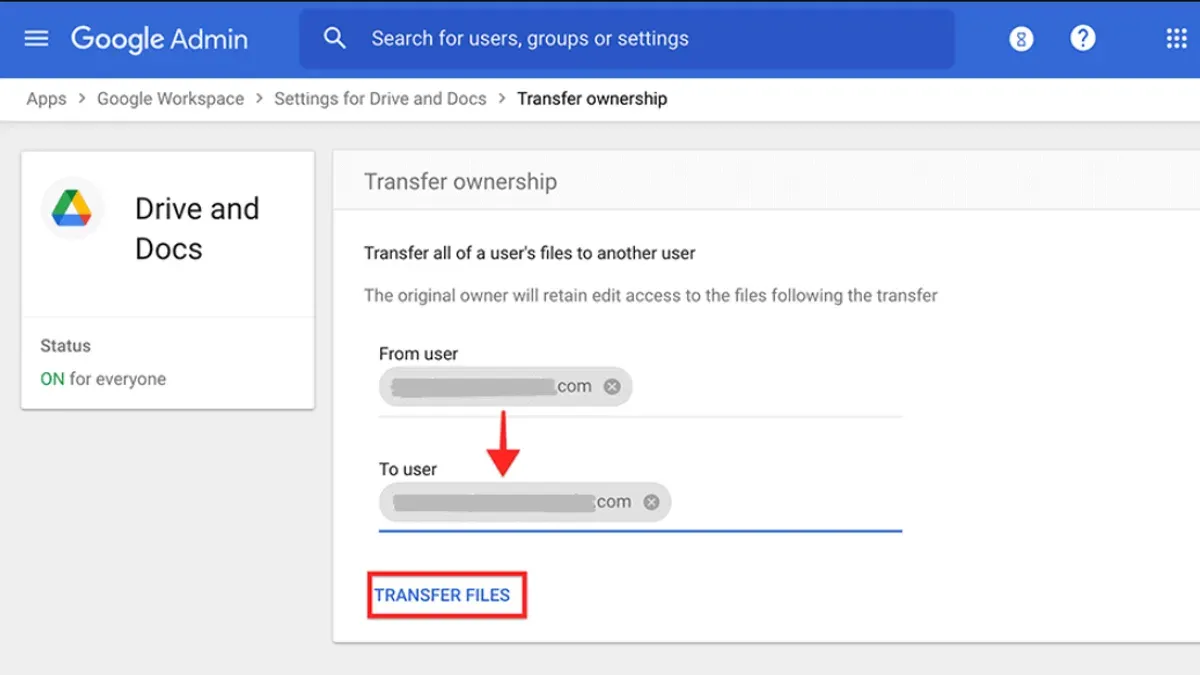
Microsoft’s Migration Manager offers batch migration options, especially for enterprise users moving Google Drive to OneDrive for Business. This tool supports migrating large volumes with preserved metadata and permissions but requires admin setup and may take several hours to days depending on data size.
Handling shared files requires extra attention: permissions do not transfer automatically. You must re-share files or folders in OneDrive after migration, manually setting access levels to collaborators.
As an example, a user transferring 20 GB of mixed documents might spend 30 minutes organizing, 1 hour manually uploading, or 15 minutes setting up a third-party tool, which then runs in the background. Always verify file integrity and permissions post-transfer to ensure no data loss.
How to transfer Google Drive data to OneDrive without losing file integrity
Maintaining file integrity during your transfer means preserving file formats, metadata such as timestamps and version history, and folder structures. Google Drive and OneDrive support many of the same file types like DOCX, XLSX, and PDF, but Google-specific formats like Google Docs, Sheets, and Slides convert to Microsoft Office formats during transfer, potentially altering formatting or losing comments.
To minimize issues, export Google Docs files as Microsoft Office formats (e.g., DOCX for documents) before uploading to OneDrive. This can be done via Google Drive's download option: select the file, then choose File > Download > Microsoft Word (.docx). This conversion preserves most formatting but may not retain version history or comments.
Preserving timestamps requires careful handling. Downloaded files often lose original 'modified' and 'created' timestamps. Use third-party migration tools that support metadata preservation or upload files via OneDrive’s desktop sync client, which can retain timestamps better than manual upload.
Version history is another challenge. Google Drive’s version history does not transfer automatically. If version history is critical, consider using specialized migration services that support this feature or manually archiving older versions before transfer.
Folder structure preservation depends on your method. Manual downloads can flatten folder hierarchies if not careful. Use the Google Drive web interface or sync client to download entire folders, then upload them to OneDrive maintaining the same folder tree.
After transfer, validate success with a checklist: verify file count matches original, open a sample of files to check formatting, confirm folder structure, and spot-check timestamps. For example, after moving your quarterly financial reports, open several spreadsheets to ensure formulas and graphs remain intact and check their modified dates via file properties.
Can you sync Google Drive with OneDrive? What you need to know
There is no native option to directly sync Google Drive and OneDrive. Both services operate within their own ecosystems, and Microsoft or Google do not provide built-in tools to bridge their cloud storage in real time.
Third-party synchronization tools like MultCloud, CloudHQ, or Otixo offer ways to connect Google Drive and OneDrive accounts for syncing files. However, user feedback suggests these tools can be unreliable, with occasional sync failures, delays, or file conflicts—especially when syncing large volumes or frequently edited files. For example, syncing a shared project folder between Google Drive and OneDrive might result in duplicated files or missing updates if conflict resolution settings aren’t carefully managed.
Syncing can be helpful if you want to maintain access to files stored on both platforms without manual transfers. But it is less practical for workflows requiring real-time collaboration or strict file version control, since syncing delays or mismatches may disrupt work.
As an alternative, consider using shared links or cloud storage migration tools for one-way transfers. You might also adopt a hybrid workflow where you store active files on one platform and archive copies on the other, avoiding the complexity of two-way syncing.
Is OneDrive better than Google Drive for your needs?
Choosing between OneDrive and Google Drive depends largely on your workflow priorities and ecosystem preferences. Performance tests often show OneDrive delivers faster upload speeds, particularly with large files, thanks to its block-level file transfer technology. For example, syncing a 1GB folder with many small files typically completes quicker on OneDrive’s desktop client compared to Google Drive’s Backup and Sync.
Collaboration is a strong suit for both. Google Drive excels with seamless real-time editing in Google Docs, Sheets, and Slides, favored by teams working entirely in browser environments. OneDrive integrates tightly with Microsoft 365 apps like Word, Excel, and PowerPoint, offering equally robust co-authoring but often preferred by users already invested in Microsoft Office.
Integration is a key differentiator. OneDrive connects natively with Windows File Explorer and Microsoft Teams, while Google Drive offers smooth access through Chrome and Google Workspace apps. Mobile apps on both platforms support offline access, but OneDrive’s Files On-Demand feature allows selective syncing to save device space.
Security features include encryption at rest and in transit on both services, but OneDrive offers additional controls like ransomware detection and recovery within the Personal Vault. Google Drive’s privacy settings give granular sharing options but depend heavily on Google account security practices.
Picture a small business professional who frequently edits Excel spreadsheets, uses Windows 11, and collaborates via Microsoft Teams. OneDrive’s native integrations and faster file sync could streamline their workflow more effectively than Google Drive. Conversely, a team using Google Workspace apps for document creation might benefit more from Google Drive’s seamless real-time collaboration.
Common mistakes to avoid when transferring from Google Drive to OneDrive
Before starting your migration, always create a complete backup of your Google Drive data. Users in forums have reported total data loss after interrupted transfers when no backup was available. This precaution safeguards against accidental deletions or corrupted files during migration.
Shared file permissions often get overlooked. When moving shared files, you must manually reassign access rights in OneDrive by selecting files or folders, clicking "Share," and adding collaborators. Failing to do this can lock out team members who previously had access on Google Drive.
Be mindful of file size and storage quota limits. OneDrive imposes a maximum file upload limit, typically around 250 GB per file, and your account’s available storage may be less than your Google Drive allotment. Uploading oversized files or exceeding your quota will cause errors and delays.
Communicate the migration timeline and changes to collaborators beforehand. If colleagues continue working in Google Drive unaware of the move, you risk version conflicts and duplicated work. Setting clear expectations prevents confusion.
Rushing the migration without testing a small batch first is a common pitfall. Transfer a representative folder, verify that files retain metadata and permissions, and confirm accessibility in OneDrive. This trial run helps identify issues early and avoids large-scale disruptions.
How to migrate from Google Drive to OneDrive for Business
When migrating from Google Drive to OneDrive for Business, enterprise users must address compliance and security requirements unique to their organizations. Microsoft provides tools like the SharePoint Migration Tool (SPMT) and Mover.io, which help facilitate bulk transfers while preserving permissions and metadata.
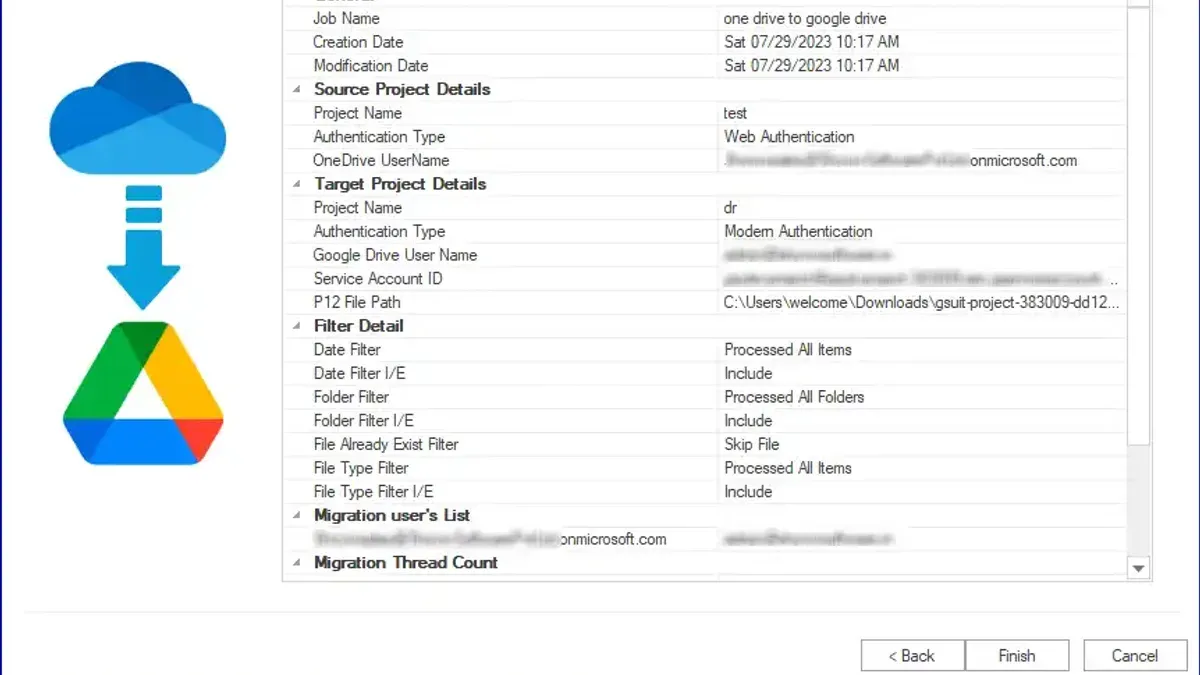
For example, a mid-size marketing agency moved over 10 TB of data across 150 users by coordinating with their IT team to schedule phased migrations during off-peak hours. They used Mover.io to automate file transfers and retained access controls by mapping Google Drive permissions to Azure Active Directory groups.
Handling large data volumes requires careful bandwidth management and staging. Microsoft’s documentation emphasizes planning user communication and training sessions to familiarize staff with OneDrive’s interface and collaboration features.
Post-migration support is critical. The agency set up a helpdesk to troubleshoot sync issues and resolve permission discrepancies promptly. Microsoft’s enterprise support resources and community forums also provide guidance for common challenges.
Ultimately, successful migration depends on combining Microsoft’s enterprise tools with proactive coordination between IT and end users, ensuring data security, minimal disruption, and smooth adoption.
Switching back: when and how to move from OneDrive to Google Drive
Some users find that after moving to OneDrive, Google Drive’s collaboration features or preferred app integrations better suit their workflow. For instance, if you rely heavily on Google Workspace apps like Google Sheets or Google Forms, switching back might improve your productivity.
The process to migrate from OneDrive to Google Drive involves manually downloading your files from OneDrive and uploading them to Google Drive. Using the OneDrive web interface, you can select files or folders and choose “Download” to save them locally. Then, in Google Drive, use the “New” button and select “File upload” or “Folder upload” to move your data. For large volumes, third-party migration tools like MultCloud can automate this.
Challenges unique to this reverse migration include potential file format incompatibilities, especially with Microsoft Office files that may not convert seamlessly to Google Docs formats. Folder structures may require manual reorganization. Additionally, syncing settings differ; unlike OneDrive’s tight Windows integration, Google Drive requires separate apps for desktop sync.
Before switching back, evaluate if your ongoing needs align better with Google Drive’s ecosystem despite the migration effort. For example, a small business owner who initially switched for Microsoft 365 integration but now prioritizes real-time collaboration might benefit from moving back.
User testimonials highlight that switching directions demands careful planning to avoid downtime and data confusion. Each platform’s unique strengths and limitations mean the decision should reflect your evolving workflow, not just initial impressions.
Frequently asked questions
How to transfer google drive to onedrive?
To transfer Google Drive files to OneDrive, start by downloading your files from Google Drive to your local device. Then, upload these files to OneDrive via the web interface or OneDrive desktop app. Alternatively, use third-party migration tools that automate the process and maintain folder structures, but verify their reliability before use.
How to convert onedrive to google drive?
Converting OneDrive files to Google Drive involves downloading files from OneDrive to your computer and then uploading them to Google Drive. There is no direct conversion tool between the two, so this manual method is the most straightforward. For Office files, Google Drive can open and convert them to Google Docs, Sheets, or Slides formats if needed.
Can i sync google drive with onedrive?
Google Drive and OneDrive do not offer native synchronization between their cloud storage services. You can sync both services independently on your computer using their respective desktop apps, but files won’t automatically sync between them. To keep files consistent, manual transfer or third-party sync tools are necessary, though these may have limitations or cost.
Is onedrive connected to google drive?
No, OneDrive is not directly connected to Google Drive. They are separate cloud storage platforms operated by different companies with no built-in integration. To move or sync files between them, you need to use manual download/upload or third-party tools designed for cross-platform transfers.
How to migrate google drive to onedrive?
Migrating Google Drive to OneDrive generally requires downloading your data from Google Drive and then uploading it to OneDrive. For business users, Microsoft offers migration tools like the SharePoint Migration Tool that can facilitate this process. Always verify file integrity after migration and be aware of any differences in sharing permissions or metadata.
What this guide does not cover and who should look elsewhere
This guide does not cover migrating Google Workspace email or calendar data, which require separate tools and processes like Google Workspace Migration or third-party services specialized in those data types.
If you manage extremely large or highly complex shared file structures, especially with granular permissions and nested folders, professional migration services may be necessary to ensure data integrity and access continuity. These scenarios often involve custom scripts or enterprise tools beyond the scope of this article.
For most professionals and small business users, the single most useful next step is to prepare a detailed inventory of your current Google Drive files and folders, noting shared files and permission settings. This inventory helps you plan the migration more effectively and avoid surprises. Then, start by exporting a manageable batch of files using Google Drive's download feature and upload them to OneDrive via the web interface or OneDrive sync client. This hands-on trial run reveals the nuances of the transfer process and lets you adjust settings like folder organization and sharing permissions early on.