
Switching from Moodle to Brightspace: Your Expert Transition Guide
Learn how switching from Moodle to Brightspace can simplify course management and enhance learner engagement with this expert guide.

Short answer: Switching from Moodle to Brightspace involves moving to a platform designed for intuitive navigation, streamlined course management, and enhanced learner engagement. Brightspace offers a more modern interface and integrated tools that can simplify your workflows and improve teaching outcomes.
This guide covers the practical realities of switching from Moodle to Brightspace, focusing on user experience shifts and how to leverage Brightspace’s unique features effectively. You’ll learn how to log in, activate classes, manage enrollments, and avoid common pitfalls to ensure a smooth transition that benefits both instructors and students.
Understanding Brightspace and Why It Matters Compared to Moodle
Brightspace is a cloud-based learning management system (LMS) designed for scalability and continuous updates, while Moodle operates as an open-source platform requiring self-hosting or a third-party provider. This difference means Brightspace offers seamless maintenance and automatic feature enhancements, reducing IT overhead for your institution.
One key advantage of Brightspace is its integrated analytics dashboard, which provides detailed insights into student engagement, such as login frequency, time spent on activities, and assignment submission patterns. For example, you can quickly identify students who haven't accessed the course materials in over a week via the 'Class Progress' tool, enabling timely interventions—something less intuitive in Moodle’s reporting.
Regarding usability, Brightspace features a modern, streamlined interface with clear navigation menus like 'Course Admin' and 'Grades,' making it easier for both instructors and students to find essential tools. Moodle’s interface can feel more fragmented due to its modular design, requiring more clicks to perform common tasks.
Support-wise, Brightspace offers dedicated client services with 24/7 technical support and regular training webinars, which contributes to higher user satisfaction and platform reliability. Moodle, being open-source, depends heavily on community forums and the quality of hosting providers for support.
| Feature | Brightspace | Moodle |
|---|---|---|
| Platform Type | Cloud-based SaaS | Open-source, self-hosted |
| Analytics | Integrated, detailed dashboards | Basic reports, add-ons needed |
| User Interface | Modern, streamlined | Modular, less consistent |
| Support | 24/7 professional support | Community-based, variable |
| User Satisfaction | Generally rated higher for usability and support | Appreciated for flexibility and customization |
How to Log in to Brightspace and Access Your Classes
To begin using Brightspace, open your institution’s Brightspace URL, often formatted like https://[institution].brightspace.com. Enter your username and password—these typically match your institution’s single sign-on credentials. For two-factor authentication, follow the prompt to verify your identity via your preferred method, such as a mobile authenticator app or SMS code.
Once logged in, you will land on the Brightspace dashboard, which organizes your learning environment. Look for the "My Courses" or "Course Selector" widget, usually positioned centrally or in a sidebar. Here, your active courses are listed. Brightspace refers to these as "courses" rather than Moodle’s "modules" or "classes," though the functions are similar.
For example, if you teach Introduction to Biology, you will see it listed under your courses. Clicking the course name opens the course homepage, where you can access content, assignments, and communication tools.
Commonly missed steps include ensuring you select the correct academic term from a dropdown menu above the course list and refreshing the page if your courses don’t appear immediately after login.
- Navigate to your institution’s Brightspace URL
- Enter your single sign-on username and password
- Complete any two-factor authentication steps
- Locate "My Courses" or "Course Selector" on your dashboard
- Select the correct academic term if needed
- Click the course name to open it
How to Activate and Open a Brightspace Class to Students
To make your Brightspace course accessible to students, you first need to activate it. Navigate to your course homepage, then click on the "Course Admin" link in the navbar. From there, select "Properties." Under the "Course Offering Status" section, change the status from "Inactive" to "Active." This simple switch makes your course visible and accessible on student dashboards.
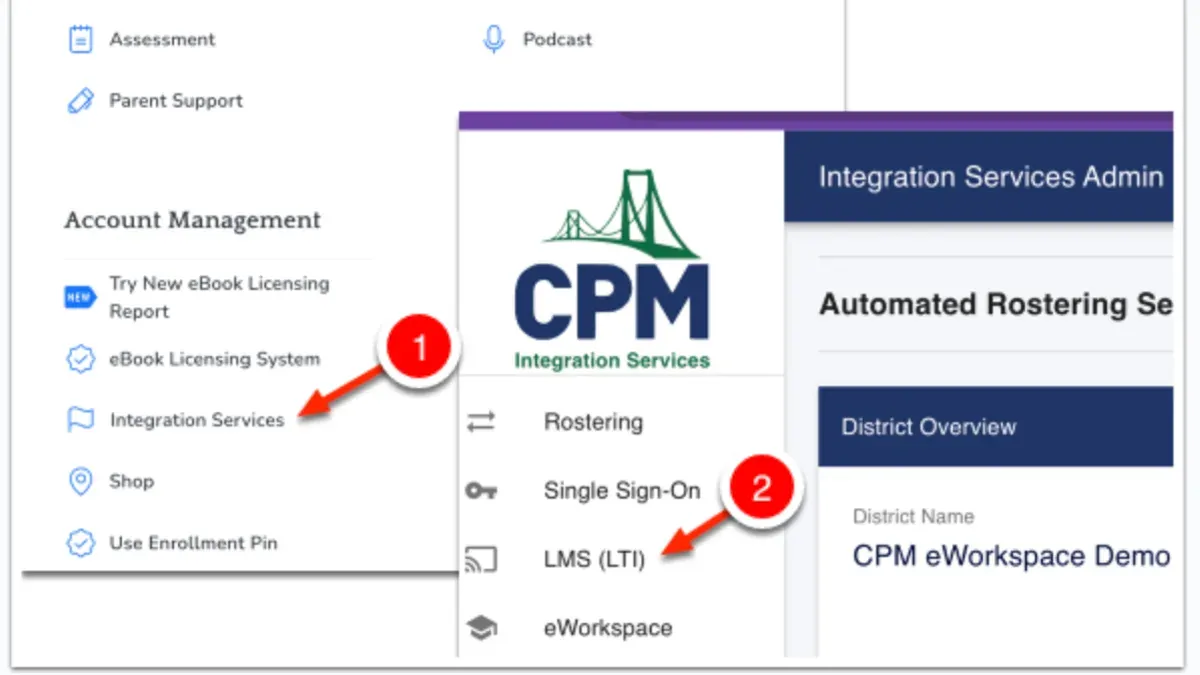
Next, manage availability by selecting "Course Offering Dates." Here you can set the start and end dates for when students can access the course. For example, setting the start date to October 1 and the end date to December 15 restricts access outside this window, helping you control the learning period precisely.
Check the "Visibility" setting to ensure the course is set to "Visible to Users." If the course remains hidden, students will not see it even if it’s active. After applying these changes, it’s wise to preview your course as a student to confirm materials and activities are accessible without error.
- Go to "Course Admin" > "Properties"
- Set "Course Offering Status" to "Active"
- Adjust "Course Offering Dates" for access windows
- Ensure "Visibility" is set to "Visible to Users"
- Preview course as student to verify access
How to Add Students to Brightspace and Manage Enrollment
Adding students to Brightspace can be done manually or through your institution's integration with student information systems (SIS). To add students manually, navigate to the course Admin Tools menu, select Classlist, then click Add Participants. Enter the students' email addresses or usernames, assign roles, and send invitations.
For automated enrollment, many institutions use SIS integration, which syncs student data regularly, reducing manual work and errors. This process often updates enrollments overnight, offering faster turnaround compared to Moodle’s batch upload, which can take longer and require manual CSV file management.
To manage enrollment, go to Classlist where you can update roles, remove students, or resend invitations. If a student is not appearing after enrollment, check the Enrollment Status and ensure sync processes have completed. A common oversight is forgetting to set course availability dates after enrolling students.
For example, if you manually add a student by entering their email, assign the role as Student, then click Enroll. To remove a student, select them in the Classlist and choose Remove from Class.
- Go to Admin Tools > Classlist > Add Participants to add students manually
- Use institutional SIS integration for automated sync of enrollments
- Manage enrollments in Classlist by updating roles or removing users
- Check Enrollment Status if students don’t appear or can’t access the course
- Remember to set course availability dates after enrollment
How to Leave a Module on Brightspace and Manage Course Participation
When you need to leave a module in Brightspace, either as a student or instructor, the process is straightforward but governed by your institution's policies. Students typically cannot leave a course directly via Brightspace; instead, they must request withdrawal through administrative channels or student services. Once officially withdrawn, the instructor or registrar updates the enrollment status in the Classlist tool, which automatically restricts access to the module content.
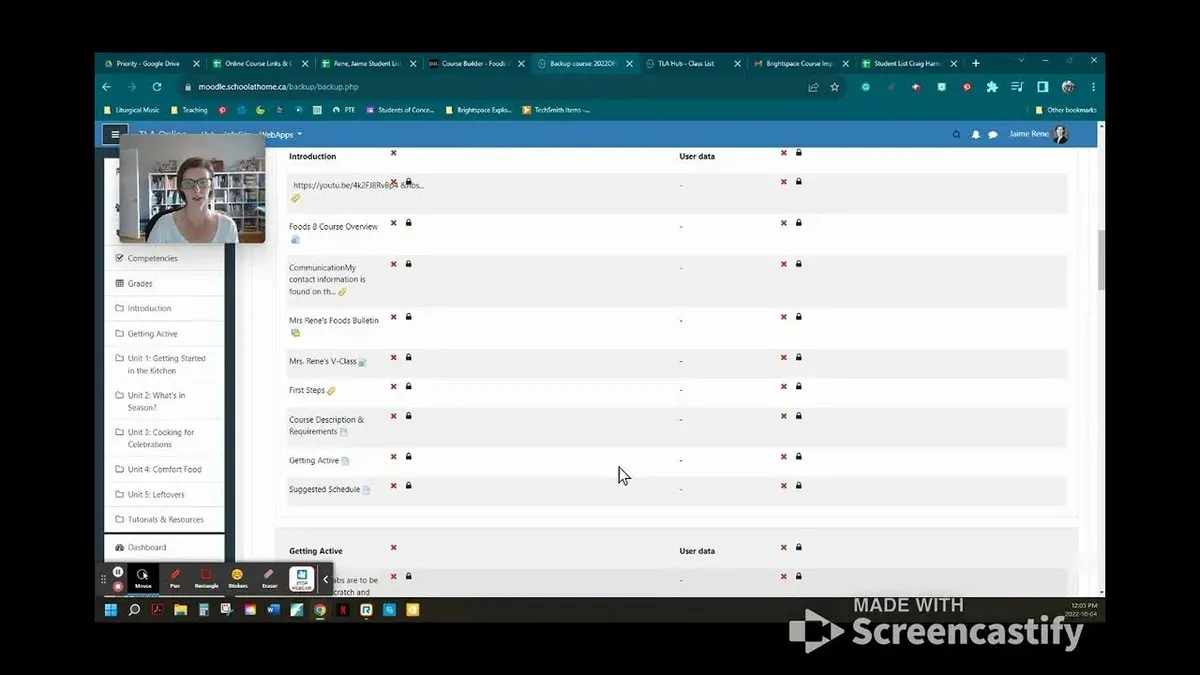
Instructors manage course participation by navigating to Course Admin > Classlist. Here, you can change a participant’s status to “Removed” or “Inactive,” which revokes their access while preserving their activity records for institutional review. For example, if a student requests to leave a module mid-semester, you would locate their name in the Classlist, select the drop-down next to it, and choose Remove from Course. This action disables their login to that module but retains their past submissions and grades within the system.
Remember, leaving a module means losing access to assignments, discussions, and course materials immediately after status change. If your institution allows late withdrawal, check for formal deadlines and ensure records are updated promptly to reflect changes.
Checklist:
- Student submits official withdrawal request to administration.
- Instructor accesses Course Admin > Classlist to find the student.
- Change student status to Removed or Inactive.
- Confirm student access is revoked and records are retained.
- Verify withdrawal deadlines and update institutional records accordingly.
How to Use Brightspace as a Student: Tips for a Smooth Experience
Brightspace’s student dashboard offers a clear, organized view of your courses, upcoming assignments, and recent announcements. When you log in, you’ll see a calendar widget and a To Do list that highlights pending tasks—this helps you prioritize work effectively.
Submitting assignments is straightforward: navigate to the course, select "Assignments" from the navbar, then click the specific task. Upload your file or enter text directly, then hit "Submit." After submission, you can monitor your grades under "Grades" on the course menu, which updates as instructors provide feedback.
Communication tools like Announcements and Discussions keep you connected. Announcements appear prominently on your homepage, ensuring you don’t miss updates, while Discussions let you engage with peers and instructors in threaded conversations. For example, if a peer asks a question about a lecture topic, you can reply directly within the discussion board, keeping all responses organized.
Users transitioning from Moodle often note Brightspace’s intuitive layout reduces confusion, especially around assignment deadlines and grade visibility.
- Regularly check the To Do widget on your dashboard
- Submit assignments via the "Assignments" link, confirming submission status
- Review grades promptly under the "Grades" section
- Stay engaged with Announcements and Discussion boards to track course updates and participate
Avoiding Common Mistakes When Switching from Moodle to Brightspace
One frequent pitfall is insufficient training on Brightspace’s interface and workflows. For example, an institution that migrated without dedicated workshops found instructors struggling with the Class Progress tool, leading to delays in tracking student engagement.
Another common error is failing to align course structures and content during migration. Simply importing Moodle courses without reconfiguring modules in Brightspace can cause broken links and inconsistent navigation, frustrating students and instructors alike.
Many overlook Brightspace-specific features such as Intelligent Agents or the Video Note tool, missing opportunities to enhance teaching and engagement.
Underestimating technical support needs during rollout often results in slow issue resolution and reduced user confidence. A successful transition involved a phased rollout with on-demand support, ensuring problems were resolved promptly and users felt supported.
By proactively training users, restructuring courses thoughtfully, leveraging Brightspace’s unique tools, and planning robust support, you can avoid these common setbacks and ensure a smooth transition.
- Schedule targeted training sessions on key Brightspace tools.
- Review and reorganize course content post-migration.
- Explore and integrate Brightspace-exclusive features.
- Plan for accessible technical support throughout rollout.
Read next
- Switching from Moodle to Blackboard: Your Expert Transition Guide
- Brightspace Implementation Timeline: Your Expert Step-by-Step Guide
- Brightspace Rollout Plan for Teachers with Low Tech Confidence
- Switching from Canvas to Brightspace: Your Complete Expert Guide
Frequently asked questions
How to activate class in brightspace?
To activate a class in Brightspace, navigate to the Course Admin tool within your course. Locate the "Course Offering Information" section, then find the "Course Status" option and change it from "Inactive" to "Active." Remember to save your changes to ensure the class is activated and available for further setup.
How to open brightspace class to students?
Opening your Brightspace class to students requires setting the course status to "Active" and adjusting enrollment dates if necessary. After activating the class, check the "Enrollment" settings under Course Admin to confirm that the start and end dates allow student access. This ensures students can log in and view course materials as intended.
How to access brightspace?
You can access Brightspace by visiting your institution’s designated Brightspace URL and logging in with your provided credentials, usually your institutional email and password. If you encounter login issues, verify your credentials with your IT department or reset your password using the platform’s recovery options.
How to activate class in Brightspace
This is done through the Course Admin menu by changing the course status from "Inactive" to "Active." Confirm the status update by saving and checking that the course appears as available in your course list. Activating the class is essential before enrolling students or publishing content.
How to add students to Brightspace
Adding students typically involves syncing your Brightspace course with your institution’s student information system (SIS). Alternatively, you can manually add users by going to Course Admin > Classlist > Add Participants, then entering student emails or usernames. Ensure enrollment dates match the course availability to avoid access problems.
What this guide does not cover
This guide does not cover the technical aspects of data migration from Moodle to Brightspace, which typically requires institutional IT support or third-party services. If you need to transfer large volumes of course content, grades, or user data, coordinate with your IT department or vendors specialized in LMS migration to ensure data integrity and compliance. Also, this guide assumes you have administrative access or instructor privileges in Brightspace; if you are a student or a non-privileged user, consult your institution's Brightspace support team for assistance.
Quick checklist
- Understand Brightspace’s interface differences compared to Moodle to set realistic expectations.
- Log in through your institution’s Brightspace portal using your official credentials.
- Activate your courses under Course Offering Management before inviting students.
- Add students via the Enrollment menu or sync with institutional SIS if available.
- Manage course participation by setting release conditions and monitoring activity through Class Progress.
- Explore Brightspace’s personalized learning features to enhance student engagement.
- Avoid common pitfalls such as neglecting to set course visibility or misunderstanding grade book settings.
To move forward confidently, start by activating one course and adding a small group of students to test Brightspace’s workflow firsthand. This hands-on approach helps you identify adjustments needed before fully transitioning all your courses, smoothing the path for both instructors and students.



