
How to Fix Microsoft Teams Crashing on Mac: A Clear Troubleshooting Guide
Learn how to fix Microsoft Teams crashing on Mac by clearing cache and addressing common issues for a stable app experience.

Mac users often encounter abrupt Microsoft Teams crashes that disrupt meetings and workflow. When Teams keeps crashing on Mac, finding the right fix quickly is essential to avoid repeated interruptions and data loss. A common cause stems from macOS compatibility: Teams supports only the three most recent macOS versions, so running it on older releases can trigger crashes right at launch.
Another frequent culprit is corrupted local cache data. Clearing this cache requires deleting two specific folders from the Library directory, which removes stored app data that may cause instability. Without addressing these underlying issues, simple reinstallations or generic fixes rarely resolve persistent Teams crashes.
It highlights key pitfalls users often overlook, ensuring a more reliable Teams experience across different Mac environments.
Settings, menu paths and limits here were checked against Microsoft, IT Cares, WPS (full list at the end) in November 2026.
Clear the Microsoft Teams Cache on Mac to Resolve Crashes
When these cache files become corrupted, they can trigger frequent crashes or prevent the app from launching properly.
This means right-clicking the Teams icon in the Dock and choosing Quit, ensuring no background processes remain.
To clear the cache, open the Terminal app and run two commands that delete specific folders containing the cache data. These folders are ~/Library/Group Containers/UBF8T346G9.com.microsoft.teams and ~/Library/Containers/com.microsoft.teams2. Removing these folders forces Teams to rebuild fresh cache files on the next launch, eliminating corrupted entries that cause crashes.
It is important to note that simply reinstalling Teams without clearing these cache folders often fails to fix crashes caused by corrupted cache or unsupported macOS versions. Cache clearing is effective only for the desktop app on Mac and will not address cloud or web-based issues.
The exact commands to run in Terminal are:
Caution: This command deletes data and there is no undo: nothing goes to the Trash. Check the path or disk name character by character, and make sure a backup exists before pressing Return.
rm -rf ~/Library/Group Containers/UBF8T346G9.com.microsoft.teamsrm -rf ~/Library/Containers/com.microsoft.teams2
After running these commands and restarting Teams, a successful fix is indicated by the app launching without error and stable operation during typical use. If crashes continue, subsequent troubleshooting steps should be followed.
- Quit Microsoft Teams completely using the Dock icon.
- Open Terminal and run the two cache deletion commands.
- Restart Microsoft Teams and verify stability.
Upgrade macOS to a Supported Version to Prevent Launch Crashes
Compatibility issues stem from the operating system itself, so a fresh install of Teams will not bypass these limitations. The recommended approach is to upgrade the Mac's operating system to a supported version like Ventura or Sonoma, provided the hardware supports it.
To check for an available macOS upgrade, use the Apple menu to open System Settings (or System Preferences), then navigate to General > Software Update. If a newer macOS version appears, select Upgrade Now to begin the installation process. After the upgrade completes, launching Teams should no longer result in immediate crashes, confirming the fix.
This advice only applies when the Mac can run one of the supported versions. Older Macs that cannot upgrade beyond unsupported macOS versions may not benefit from this method and should consider alternative workflows or hardware updates.
- Open System Settings via the Apple menu
- Navigate to General > Software Update
- Select Upgrade Now if a newer macOS version is available
Update Graphics Drivers and Disable Video Effects to Fix Crashes During Calls
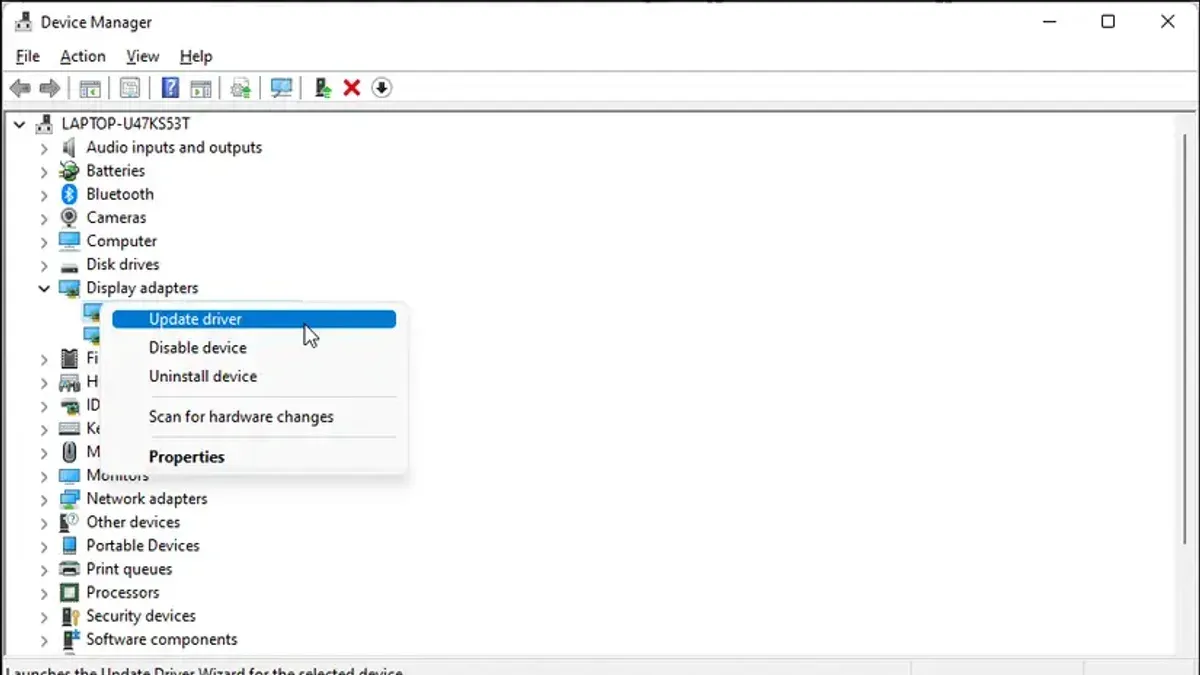
Crashes that occur specifically during Microsoft Teams calls or screen sharing often stem from outdated or faulty graphics drivers, microphones, or cameras. These hardware or driver issues cause instability that is separate from problems related to Teams cache or macOS version compatibility. On a Mac, updating graphics drivers is less straightforward than on other platforms, since most graphics hardware drivers are integrated into macOS updates. However, checking for the latest macOS updates can help ensure the drivers are current.
These effects sometimes trigger crashes due to driver or hardware incompatibility.
When crashes persist only during calls or screen sharing, updating drivers and disabling video effects is the recommended course of action.
- Check for and install any available macOS updates via System Settings to update integrated graphics drivers.
- In Microsoft Teams, open the profile picture menu at the top right, go to Settings > Devices, and disable video background effects or filters.
- If using external cameras or microphones, visit the manufacturer’s website to download the latest drivers and install them following their instructions.
If crashes continue, the issue may lie elsewhere, such as with Teams cache or macOS version support.
- Update macOS to ensure graphics drivers are current
- Disable all video effects and background filters in Teams during calls
- Update drivers for any external camera or microphone hardware used with the Mac
Manually Check for Microsoft Teams Updates to Ensure Latest Stable Version
However, automatic updates can sometimes be delayed or interrupted.
To check for updates within Teams, click the profile picture in the top-right corner of the app window. From the menu, select Check for updates. Teams will then search for available updates and install them if any are found. This process does not require closing the app and usually completes quickly.
For comprehensive updates across all Microsoft 365 apps installed on the Mac, use the Microsoft AutoUpdate tool. Launch this tool from the Applications folder or by searching with Spotlight. It scans all Microsoft apps, including Teams, and updates them to the latest stable versions. Keeping all apps updated can improve overall stability and compatibility.
Note that updating Teams alone does not address issues caused by incompatible macOS versions or corrupted cache data. This step complements other troubleshooting measures such as cache clearing and macOS upgrades but does not replace them. Confirming an update worked is straightforward: after the update process completes, reopening Teams should show no prompt for further updates and crash symptoms related to outdated app versions should lessen or stop.
- Open Microsoft Teams on Mac.
- Click the profile picture in the top-right corner.
- Select Check for updates and wait for the process to finish.
- Optionally, open Microsoft AutoUpdate to update all Microsoft 365 apps.
- Restart Teams after updates complete and observe if crashes persist.
Avoid Common Mistakes That Cause or Prolong Teams Crashes on Mac
Cache folders must be deleted to remove underlying issues; otherwise, reinstalling simply replaces the app while preserving the problematic cache. Similarly, closing the Teams window without fully quitting the app leaves its processes running. This prevents proper cache clearance and allows issues to persist unseen in the background.
Conflicts with non-Microsoft antivirus or data loss prevention (DLP) software can block Teams processes, triggering unexpected crashes. These third-party protections may interfere with Teams’ normal operation, so verifying and adjusting their settings or temporarily disabling them during troubleshooting is essential. Outdated graphics drivers are another frequent cause of crashes or freezes during calls and screen sharing. Without updating these drivers properly, crashes will continue despite other fixes.
Before troubleshooting, always quit Teams completely. Partial closures allow processes to linger and obstruct fixes. To quit, right-click the Teams icon in the Dock and select Quit or use the app menu’s Quit option. After quitting, verify no Teams processes remain in the Activity Monitor. This step ensures cache clearing and updates take full effect.
When reinstalling Teams to fix crashes, apply these steps:
- Quit Microsoft Teams fully and confirm no processes remain.
- Delete the cache folders named UBF8T346G9.com.microsoft.teams and com.microsoft.teams2 from the user Library.
- Check for macOS updates to confirm the system is supported by Teams.
- Reinstall the latest Teams version from the official source.
- Launch Teams and monitor if crashes persist.
When Persistent Crashes Affect Multiple Users, Involve Your Organization’s Global Admin
When Microsoft Teams crashes are widespread within an organization and affect multiple users across different platforms, local troubleshooting steps may no longer suffice. At this point, the organization’s Global Admin must take action by submitting a Microsoft 365 service request for advanced technical support. This approach is necessary because only a Global Admin has the privileges to create such requests, which allow access to specialized Microsoft assistance tailored to complex or systemic issues.
Before initiating the request, it is critical to document the exact symptoms and error messages experienced by users. Clear documentation helps Microsoft support diagnose the problem more effectively and accelerates resolution.
The process to engage Microsoft support through a service request involves the following steps:
- Confirm that multiple users across platforms are experiencing persistent Teams crashes that cannot be resolved by routine local fixes.
- Have the Global Admin collect detailed crash information and user reports to provide a comprehensive overview.
- Access the Microsoft 365 admin center, navigate to the support section, and submit a service request specifically detailing the Teams crashing issues.
- Work closely with Microsoft support as they investigate and provide targeted solutions or patches.
This process differs from individual troubleshooting by addressing underlying service or deployment issues that affect the entire organization.
Decide the Best Fix: A Matrix for Different Teams Crash Scenarios on Mac
Microsoft Teams crashes on Mac can stem from distinct causes that require targeted fixes. Identifying the exact symptom and environment simplifies choosing the right solution quickly. The following decision matrix maps common crash scenarios to their appropriate fixes and explains the rationale behind each choice.

| Symptom / Situation | Cause | Recommended Fix | Key Fact |
|---|---|---|---|
| Teams crashes immediately on launch | macOS version is older than the three most recent supported releases | Upgrade macOS to a supported version | Teams supports only the three latest macOS versions |
| Teams crashes during calls or screen sharing | Outdated graphics drivers or video effects instability | Update graphics drivers and disable video effects | Video-related crashes linked to graphics driver state |
| Reinstalling Teams did not stop crashes | Corrupted Teams cache persists despite reinstall | Clear the Teams cache folders manually before reinstalling | Cache clearing resolves crashes caused by local data corruption |
| Multiple users in the organization experience Teams crashes | Potential backend or service-wide issue | Have the Global Admin submit a Microsoft 365 service request | Global Admin is required for advanced Microsoft support |
| None of the above apply | Possible outdated app version or other factors | Manually check for Teams updates via the profile picture menu | Update check ensures the latest stable version is installed |
Each fix applies under specific conditions. For example, upgrading macOS is necessary only if the Mac runs a version older than the three most recent releases. The update steps for macOS involve downloading the latest supported version from the Mac App Store and completing the installation, which will stop launch crashes caused by incompatibility.
If crashes occur during calls or screen sharing, updating graphics drivers and disabling video effects improves stability. This involves visiting the Mac manufacturer’s support page or using macOS updates to refresh drivers, then turning off visual enhancements in Teams settings.
When reinstalling Teams fails to fix the crash, clearing the cache folders UBF8T346G9.com.microsoft.teams and com.microsoft.teams2 in the user Library directory before reinstalling is crucial. This removes corrupted local data causing persistent failures. Teams should launch normally afterward.
Persistent crashes affecting multiple users indicate organizational-level issues requiring escalation.
If none of these situations match, manually checking for app updates through the Teams profile picture menu ensures the latest stable version is installed. This maintains compatibility and fixes bugs but does not replace the other targeted fixes.
- Determine the exact crash symptom and macOS version
- Apply the fix matching the identified scenario from the matrix
- Confirm the fix worked by verifying Teams stability in the affected context
What to Do After Fixing Teams Crashes on Mac to Maintain Stability
After applying fixes to resolve Microsoft Teams crashes on Mac, it is essential to monitor the app's stability to confirm the issue is fully addressed. Observe Teams over the next few days during typical use, including launching the app, joining calls, and sharing screens. If crashes do not recur, the fix was successful. If intermittent crashes arise again, clearing the Teams cache folders manually may be necessary since corrupted local data often causes repeated failures.
Maintaining stability requires keeping both macOS and Teams up to date. Microsoft Teams for macOS supports only the three most recent macOS versions, so regularly updating the operating system ensures compatibility and prevents launch crashes. Similarly, check for Teams updates via the profile picture menu in the app to install the latest stable client version. These updates include important bug fixes and performance improvements that reduce crash risks.
If new issues start after updates or applying fixes, it is possible to revert changes by restoring backups or reinstalling previous versions cautiously. However, reverting should be done only if stability clearly decreases and with caution to avoid introducing security vulnerabilities. Persistent crashes despite all recommended fixes and maintenance steps may require contacting Microsoft support through your organization’s Global Admin for advanced assistance.
Frequently asked questions
How to repair teams on mac?
Repairing Microsoft Teams on a Mac primarily involves clearing the app’s cache by deleting two Library folders: UBF8T346G9.com.microsoft.teams and com.microsoft.teams2. This action resolves many crash symptoms related to corrupted or outdated cache files. After clearing these folders, quitting and restarting Teams is necessary for the changes to take effect.
How to repair teams on mac os?
This process is the same for macOS: clear the Microsoft Teams cache by removing the UBF8T346G9.com.microsoft.teams and com.microsoft.teams2 folders within the Library directory. Additionally, ensuring that macOS is updated to one of the three most recent supported versions can prevent launch crashes. Updating Teams itself through the profile menu also helps maintain app stability.
Why does microsoft teams keep crashing?
Frequent crashes of Microsoft Teams on Mac often result from corrupted cache data, running on unsupported macOS versions, or graphics driver issues during calls. Using video effects can also trigger crashes if graphics drivers are outdated or incompatible. Persistent crashes affecting multiple users may require intervention by the organization’s Global Admin to escalate the issue via a Microsoft 365 service request.
Avoid Common Mistakes That Cause or Prolong Teams Crashes on Mac
- Ignoring macOS Version Compatibility: Microsoft Teams supports only the three most recent macOS versions. Running Teams on an older macOS can cause crashes. Ensure macOS is updated within this range before troubleshooting further.
- Skipping Cache Clearing: Many users overlook deleting the specific cache folders UBF8T346G9.com.microsoft.teams and com.microsoft.teams2 in the Library. Skipping this step often leaves corrupted data that causes crashes unresolved.
- Using Automatic Update Checks Only: Relying solely on automatic updates can miss critical fixes. Manually check for Teams updates through the profile picture menu at the top right to confirm the latest stable version is installed.
- Not Disabling Video Effects When Experiencing Call Crashes: Graphics driver issues or video effects can trigger crashes during calls. Disabling video effects or updating graphics drivers is a necessary step often missed.
- Attempting Advanced Fixes Without Admin Support: When multiple users experience persistent crashes, only a Global Admin can create a Microsoft 365 service request. Trying complex fixes without this support can delay resolution.
Sources checked
- My Microsoft Teams crashing on Mac - Microsoft Q&A — Microsoft
- Microsoft Teams Keeps Crashing or Freezing: 2026 Fix Guide — IT Cares
- How to Fix Microsoft 365 Word, Excel, and Teams Crashing on macOS — WPS
- Effective Solutions for Teams Crashing: Fix Microsoft Teams App Instability – Mirko Peters — M365.FM
- Microsoft Teams keeps crashing on Macbook Pro (running Tahoe 26.2) - Microsoft Q&A — Microsoft
See also: How to Fix Android File Transfer Not Working on Mac · Fix Zoom Black Screen When Sharing on Mac: Step-by-Step Guide · How to Fix the Spinning Beach Ball on Mac: Clear Steps to Stop It · How to Fix photoanalysisd High CPU Usage on Mac


