
How to Fix Android File Transfer Not Working on Mac
Learn how to fix Android File Transfer not working on Mac by enabling file transfer mode and checking USB cable and port compatibility.
The common message "No device found" or a simple charging notification instead of a file transfer prompt often appears, leaving users unsure how to proceed.
Each step clarifies what to check and how to adjust settings or hardware to enable smooth file transfer between the devices.
Understanding this helps focus troubleshooting on the correct app and connection settings rather than relying on unsupported alternatives.
Check and Enable File Transfer Mode on Android
When an Android device connects to a Mac, it often defaults to "Charging only" mode, which prevents the Mac from recognizing the device for file transfer. This setting is typically found in the USB connection options available after connecting the device.
To enable file transfer mode, follow these steps:
- Connect the Android device to the Mac using a USB cable.
- Unlock the Android device and pull down the notification shade.
- Look for a notification that says something like "USB charging this device" or "USB for charging" and tap it.
- Select "File Transfer," "Transfer files," or "MTP" from the list of USB options.
- Wait a moment for the Mac to recognize the device as a storage device.
Tip: On some devices, the USB connection mode menu appears only when the device is unlocked and connected to the Mac.
| Symptom | Cause | Fix |
|---|---|---|
| Mac does not recognize Android device | Android device set to "Charging only" mode | Change USB connection mode to "File Transfer" or "MTP" via notification shade |
| No USB connection options visible on Android | Possible cable or driver issue | Check cable and ports; see next sections for fixes |
Verify USB Cable and Port Compatibility
Using a charging-only cable prevents the Mac from recognizing the Android device for file transfer, even if it charges properly. Identifying the correct cable type is essential to resolving connection issues related to hardware.
To verify compatibility, try a different USB cable known to support data transfer, such as a cable that came with another Android device or a new certified cable. Additionally, test multiple USB ports on the Mac, as some ports may have hardware faults or limited functionality.
Directly connecting the cable to the Mac’s native USB port reduces potential complications from third-party accessories.
- Disconnect the Android device and cable from the Mac.
- Replace the cable with a known data-capable USB cable.
- Connect the cable directly to a native USB port on the Mac, avoiding hubs or docks.
- Reconnect the Android device and check if it is recognized for file transfer.
If problems persist, consider testing another Mac or cable to isolate the cause.
Tip: A cable with thicker connectors or marked with a USB logo usually supports data transfer, while very thin or inexpensive cables often do not.
Install or Update Android File Transfer App on Mac
It can be downloaded directly from android.com/filetransfer. Installing the latest version ensures compatibility and resolves issues caused by corrupted or outdated software.
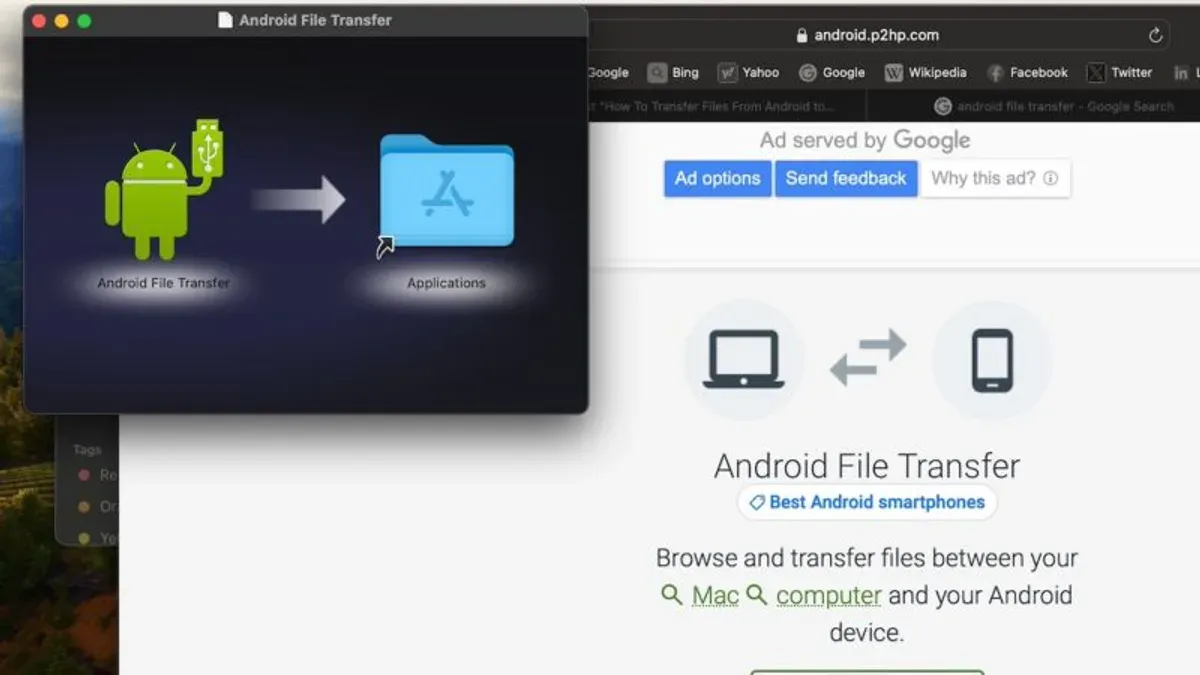
To install or reinstall the app, first uninstall any existing Android File Transfer application by moving it to the Trash. Then, download the latest installer from the official website and follow the on-screen instructions to complete the installation. After installing, launch the app once to allow macOS to recognize it properly.
If the app fails to open, check the Security & Privacy pane under System Preferences for a prompt to allow the app. Approving this prompt enables the app to run. If the app still does not start, restarting the Mac might help apply permission changes.
A successful installation is indicated when the Android File Transfer window opens automatically after connecting the device in File Transfer mode.
Tip: Avoid downloading the app from unofficial sources to prevent security risks and compatibility problems.
Allow Android Device to Trust the Mac Computer
This prompt is crucial as it authorizes the Mac to communicate and transfer files. If this request is missed or declined, the Mac may not recognize the device properly, and file transfer will not work.
If the prompt does not appear, enabling Developer Options and USB debugging on the Android device may be necessary. This is done by opening the device's Settings, selecting "About Phone," tapping the "Build Number" seven times to unlock Developer Options, then navigating back to Settings > Developer Options to enable "USB debugging."
To allow file transfer, accept the trust prompt when it appears after plugging in the device. The prompt usually states something like "Allow USB debugging?" followed by the Mac's RSA key fingerprint. Confirming this ensures the Mac can access the device’s storage.
- Connect the Android device to the Mac using a compatible USB cable.
- Watch for the prompt asking to allow USB debugging or trust the computer.
- If the prompt is missing, enable Developer Options and turn on USB debugging on the Android device.
- Accept the prompt to allow the Mac access.
- Check if the device appears in Android File Transfer or the Finder.
Once the trust is established, the device should be recognized correctly on subsequent connections.
Tip: If the prompt is not showing and Developer Options are already enabled, try unplugging and reconnecting the USB cable to trigger it.
Reset Mac USB and Android Connection Settings
To resolve these, begin by disconnecting the Android device from the Mac. Then, restart the Mac to clear any cached USB connection information that macOS retains, which can interfere with recognition and transfer.
Next, restart the Android device to reset its USB hardware state. After rebooting, reset the Android’s USB preferences by navigating to Settings > Apps > Show system apps (if needed) > USB Settings or USB Preferences, then clear defaults or reset preferences. This step ensures the device prompts again for connection mode selection rather than defaulting to charging.
If issues persist, reset the Android File Transfer app preferences on the Mac by deleting its preference files or uninstalling and reinstalling the app. This helps if the app’s cached data or permissions are causing failures. Follow this order strictly: disconnect devices, restart both, reset Android USB preferences, then adjust or reinstall the app. Changing this sequence may prevent clearing the problem properly.
Successful reset is indicated by the Mac recognizing the Android device in File Transfer mode without error messages or connection drops.
Tip: Avoid resetting settings while the device is connected; always disconnect to ensure a clean state.
Check for Conflicting Software or macOS Restrictions
Several types of software on the Mac can interfere with Android File Transfer by blocking its connection or access to the Android device. Antivirus programs such as Norton or Avast, firewall utilities, and security-focused apps may block USB connections or restrict network activity, preventing the official app from communicating properly with the Android device. Temporarily disabling these programs or adjusting their settings can help determine if they cause the issue.
macOS includes privacy and security preferences that may restrict apps from accessing USB devices or external drives. In System Preferences under Privacy & Security, check the sections for Files and Folders, and Full Disk Access to ensure Android File Transfer has the necessary permissions. Also, confirm there are no security prompts waiting for approval that block USB or app activity.
Some third-party file transfer applications can conflict with the official Android File Transfer app by accessing the device simultaneously or blocking its function. When such conflicts are suspected, fully quit or uninstall those apps before using Android File Transfer.
When this applies: If the device connects but never shows files or the app fails to open properly, this step is worth trying.
- Temporarily disable antivirus, firewall, or security software on the Mac.
- Open System Preferences > Privacy & Security, then check and allow Android File Transfer permissions under Files and Folders and Full Disk Access.
- Quit or uninstall any third-party file transfer tools that might conflict with Android File Transfer.
- Reconnect the Android device and launch Android File Transfer to see if the issue is resolved.
The fix is confirmed when Android File Transfer recognizes the device and allows browsing and transferring files without interruption.
Tip: Always re-enable security software after testing to keep the Mac protected.
Use Alternative File Transfer Methods if Android File Transfer Fails
When the Android File Transfer app or USB connection cannot be restored, wireless file transfer apps provide practical alternatives. Tools like AirDroid, Pushbullet, and Google Drive enable moving files without cables by connecting devices over the same Wi-Fi network or through cloud storage. To use these, install the app on both the Mac and Android device, sign in with the same account, and follow the app’s instructions to share files.
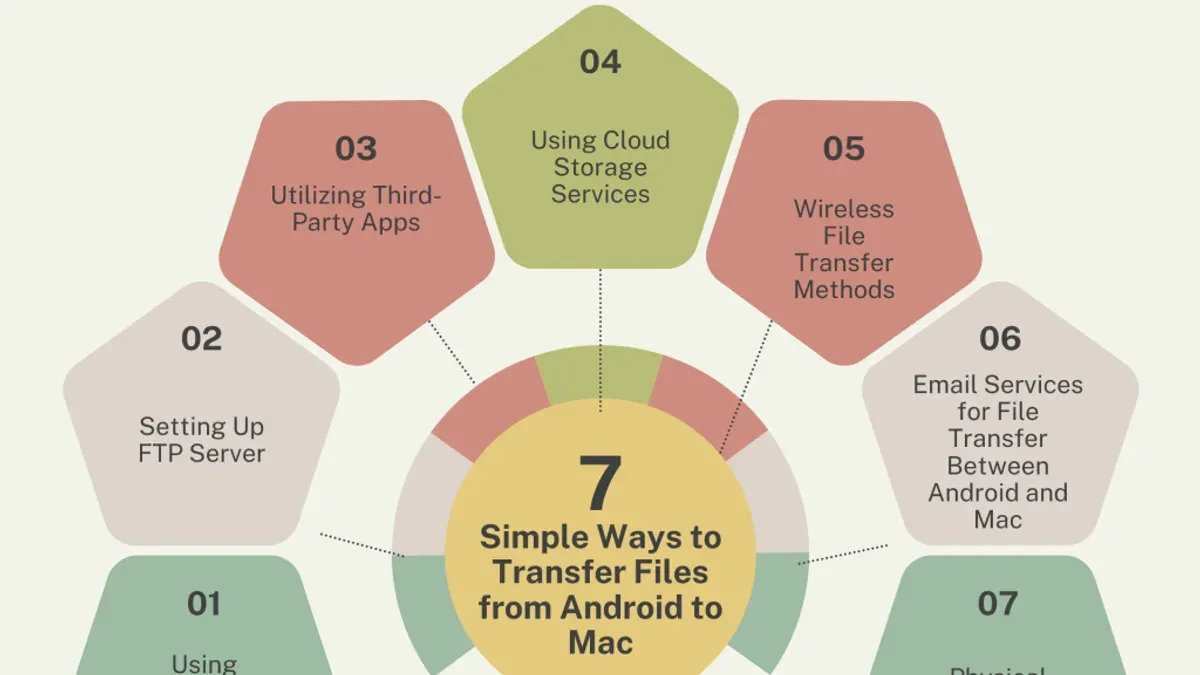
Android’s built-in Nearby Share feature allows quick wireless transfers between compatible devices. To initiate, open the file on Android, select the Share option, choose Nearby Share, and pick the Mac if it supports the protocol. Confirming the transfer on both devices completes it. This method bypasses USB issues but typically requires proximity and enabled Bluetooth and Wi-Fi.
Tip: These wireless alternatives often have slower transfer speeds or file size limits compared to USB transfers, so large batches of files may take longer to move.
- Choose and install a wireless transfer app or enable Nearby Share on Android.
- Connect both devices to the same Wi-Fi network or ensure Bluetooth is active.
- Initiate the file transfer using the app or Android’s sharing interface.
- Confirm and accept the transfer on the receiving device.
A successful transfer is indicated by the arrival of files on the Mac in the designated folder or app interface.
Step-by-Step Actions to Resolve Android File Transfer Issues on Mac
Confirming that file transfer works involves connecting the Android device via USB and observing whether the Mac recognizes it as a storage device, allowing browsing and file copying. The Android device should show the USB connection as "File Transfer" or "MTP" mode rather than just charging. If the connection is successful, the Android File Transfer app window typically opens automatically, displaying folders and files.
If these steps do not resolve the problem, revisit the checklist to ensure each action was followed precisely, particularly verifying USB cable compatibility and the device’s USB mode. Persistent issues might require checking for software conflicts or exploring alternative file transfer tools such as third-party applications or wireless transfer options. Maintaining the correct sequence of resetting connections is vital; skipping device restarts before reinstalling apps can prevent proper recognition.
Each troubleshooting step targets specific symptoms, so matching the observed issue to the appropriate action increases the chance of restoring seamless file transfer between the Android device and Mac.
See also: How to Fix SD Card Not Showing on Mac: Step-by-Step Guide · How to Fix AirDrop Not Showing Devices on Mac · How to Fix Software Update Not Showing on Mac · How to Fix Your Mac Not Connecting to a Hotspot


