How to Use Presenter View in PowerPoint on Mac: Step-by-Step Guide
Discover how to enable and customize Presenter View in PowerPoint on Mac to keep your notes visible while presenting.
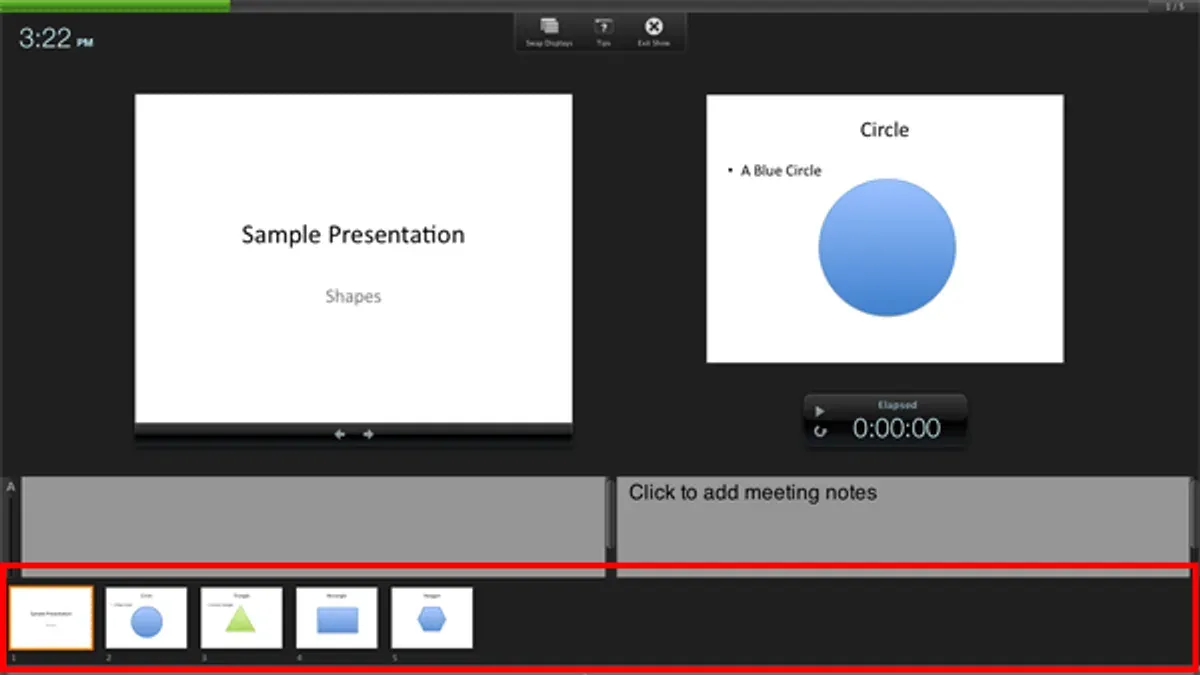
You’re preparing to deliver a presentation using PowerPoint on your Mac, and you want to keep your notes and upcoming slides visible without showing them to your audience. Presenter View is designed precisely for this, offering a professional way to manage your slides and speaker notes on one screen while the audience sees only the current slide.
This article explains how to use Presenter View in PowerPoint on Mac, guiding you through enabling, customizing, and disabling this feature. You’ll also learn how to use Presenter View effectively during Zoom meetings and how to troubleshoot common issues that might arise.
Key takeaways
- Enable Presenter View in PowerPoint from the Slide Show tab by checking "Use Presenter View".
- Switch between Presenter View and Slide Show view with the toolbar or keyboard shortcuts during your presentation.
- Customize what appears in Presenter View, including notes, next slide preview, and timer, via PowerPoint preferences.
- Use Presenter View in Zoom by sharing the correct screen and keeping notes visible only to you.
- Resolve common issues like Presenter View not showing by verifying display arrangements in Mac System Preferences.
Before you start: What you need to use Presenter View on Mac
To use Presenter View in PowerPoint on your Mac, you need to prepare both your hardware and software properly. First, confirm that you have a Mac compatible with this feature. Most Mac models running macOS Catalina (10.15) or later support Presenter View effectively. Common compatible Macs include MacBook Pro, MacBook Air, iMac, and Mac mini from recent years. Also, ensure you have Microsoft PowerPoint installed as part of Office 365 or a later standalone version; older versions may lack full Presenter View functionality.
Next, you must have at least two displays connected. This can be your Mac's built-in screen plus an external monitor, projector, or TV. Presenter View requires an extended desktop setup, so your Mac must not be mirroring the same image on both screens. Instead, the external display should act as a separate workspace. You can check and adjust this in your Mac's System Settings under Displays, selecting "Use as Separate Display" or ensuring "Mirror Displays" is unchecked.
Finally, have your presentation file ready and tested on your Mac. Open it in PowerPoint and verify all slides appear correctly, animations run as expected, and media files play without issues. This preparation helps prevent unexpected problems when you switch to Presenter View during your presentation.
- Open System Settings on your Mac and go to Displays.
When this works, you see settings for each connected screen separately. - Ensure "Mirror Displays" is unchecked, so your Mac extends the desktop.
You should now be able to move your cursor between screens. - Open your PowerPoint presentation to confirm it loads fully and all content displays correctly.
Your presentation appears on your main screen without errors.
How to open Presenter View in PowerPoint on Mac
- Open your PowerPoint presentation on your Mac. You should see your slides ready to edit or review.
- Connect your external display to your Mac and verify that your Mac's display settings are set to extended desktop mode, not mirroring. This ensures Presenter View can show different content on each screen.
- Click the Slide Show tab at the top of the PowerPoint window. This tab contains settings related to presenting your slides.
- Look for the Use Presenter View checkbox in the Slide Show tab options. Make sure this box is checked to enable Presenter View.
- Start your presentation by clicking the Slide Show button in the ribbon or by pressing the keyboard shortcut Shift + Command + Return. This launches the slide show mode.
- Confirm that Presenter View appears on your Mac screen, showing your notes, upcoming slides, and timer, while the slides themselves display on your external monitor. This dual-screen behavior verifies Presenter View is active and working correctly.
How to switch to Presenter View in PowerPoint on Mac during a presentation
During your presentation, you can toggle Presenter View on or off to control what you and your audience see. This flexibility helps you adapt if you want to see your notes or just show the slides clearly to your viewers.
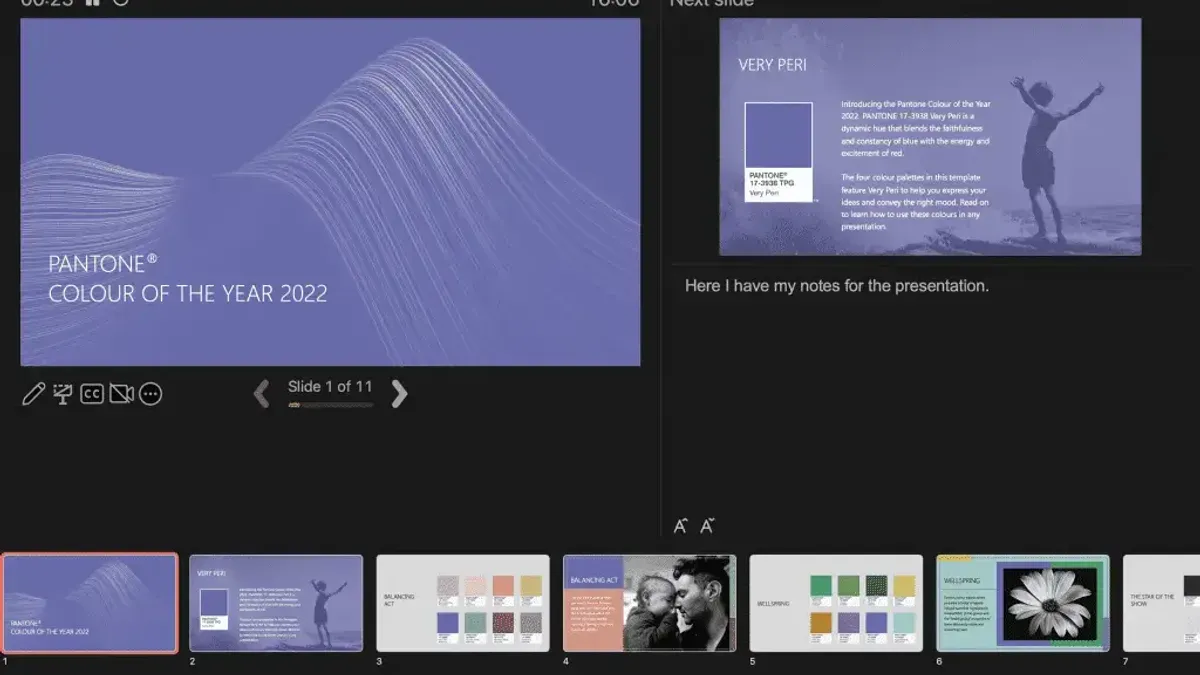
- Move your mouse to the top of the screen to reveal the PowerPoint menu bar while the slide show is running.
- Click on Slide Show in the menu bar.
- Select Use Presenter View to toggle it on or off. When turned on, your Mac will display your notes and upcoming slides on your screen, while the audience sees only the current slide.
- You can also use the keyboard shortcut Option + Command + Return to switch Presenter View on or off quickly during your presentation.
- If Presenter View does not appear automatically when you connect a second screen, go to the Slide Show menu, then select Set Up Slide Show. In the dialog box, manually assign which display should show the Presenter View by choosing your primary monitor for Presenter View and your secondary for the audience.
- Once set, return to your presentation, and Presenter View should appear on the assigned screen.
For example, if you start presenting without Presenter View and realize you need it, use the keyboard shortcut or menu option to turn it on, and your notes and upcoming slides will immediately appear on your screen without interrupting the presentation flow.
Using either the Slide Show menu or the shortcut key provides quick control, but the menu allows visual confirmation of Presenter View’s status. The keyboard shortcut offers speed when you want to switch views discreetly.
How to stop or remove Presenter View in PowerPoint on Mac
If you prefer not to use Presenter View because you want the same content on all your screens or find Presenter View distracting, you can easily disable it. One straightforward way is to uncheck the Use Presenter View option in PowerPoint before you start your slide show. This will prevent PowerPoint from automatically opening Presenter View when presenting.
- Open your presentation in PowerPoint on your Mac.
- Go to the Slide Show tab in the menu bar.
- Find the checkbox labeled Use Presenter View and make sure it is unchecked. You should see it become empty.
- Start your slide show as usual. Both your Mac’s built-in screen and the external display should now mirror the same slides, showing identical content rather than separate Presenter View details.
Another way to avoid Presenter View is by changing your Mac’s display settings to mirror your displays instead of extending them. Mirroring forces both screens to show the same image, which disables Presenter View functionality.
- Click the Apple menu and select System Settings (or System Preferences depending on your macOS version).
- Navigate to Displays settings.
- Look for the option Mirror Displays and enable it by checking the box or toggling the switch.
- Close the settings. Now, when you start your presentation, both displays will show the same slide content without Presenter View.
During a presentation, if Presenter View has started and you want to exit it immediately, simply exit Slide Show mode. You can do this by pressing the Esc key, which will close Presenter View and return you to the editing or normal view of your presentation.
Sometimes, Presenter View might enable automatically if PowerPoint detects an extended desktop setup. Overriding this requires either unchecking the Use Presenter View box before starting or switching to mirrored displays in your Mac settings as described. This approach ensures that Presenter View does not appear unexpectedly.
| Before Disabling Presenter View | After Disabling Presenter View |
|---|---|
| Second display shows Presenter View with notes and timer. | Both displays show identical slides without notes or timer. |
| Extended desktop mode active. | Mirrored display mode active. |
How to minimize or hide Presenter View windows on Mac
Presenter View on Mac offers flexibility to help you focus during your presentation. If you want to reduce distractions, you can minimize the Presenter View window using macOS controls. Click the yellow minimize button in the top-left corner of the Presenter View window. This moves the window to the Dock, keeping your screen less cluttered while your slides continue to show on the external display.
You can also hide specific elements within Presenter View, such as your speaker notes or the upcoming slide preview. To do this, look for the icons at the bottom right of the Presenter View screen. Clicking the notes icon will toggle the visibility of your notes. Similarly, the next slide preview can be hidden or shown by clicking its respective icon. This customization lets you tailor the interface to your comfort and presentation style.
Keep in mind that minimizing the Presenter View window does not close it entirely; it remains active and cannot be fully closed without exiting the Slide Show mode. This limitation means you cannot completely remove the Presenter View interface while presenting, but minimizing or hiding parts of it can help you manage your workspace effectively.
For example, you might minimize Presenter View on your MacBook while using an external display to keep your desktop tidy, or hide notes if you prefer to focus solely on the slides. Experiment with these options to find what suits your presentation environment best.
How to change Presenter View settings in PowerPoint on Mac
Customizing Presenter View helps you tailor your presentation experience to your needs. You can adjust settings such as the font size of your speaker notes, visibility of the timer and slide number, and which display shows Presenter View when multiple monitors are connected. These changes improve readability and control over your presentation flow.
- Click the Slide Show tab in PowerPoint's top menu. This opens the presentation controls and options.
- Locate and click Set Up Slide Show. A dialog box will appear with Presenter View settings.
- Under the Show Presenter View section, you can check or uncheck options to show or hide the timer and slide number. Toggling these will update what appears in your Presenter View during the slideshow.
- To change the font size of your speaker notes, find the Notes font size control. Adjust the size by selecting a value such as 12, 14, or 16 points. Increasing the font size makes your notes easier to read. For example, changing from 12 to 16 points will noticeably enlarge the text in the notes pane.
- If you have multiple displays, use the dropdown menu labeled Display slide show on to select which monitor should show Presenter View. This allows you to control where your notes and controls appear versus what the audience sees.
- Click OK to save your changes. These settings will apply to the current presentation and be remembered for future sessions unless you change them again.
Before adjusting font size, notes might appear too small, making it hard to glance quickly during your talk. After increasing font size, the notes become clearly readable at a distance without straining your eyes. Similarly, toggling timer and slide number visibility gives you the choice to track your pacing or keep the interface simpler.
Using these settings thoughtfully helps you maintain smooth delivery and stay organized while presenting.
How to use PowerPoint Presenter View on Zoom Mac
To use Presenter View effectively during a Zoom meeting on your Mac, start by setting up your Mac with extended displays and enabling Presenter View in PowerPoint before launching Zoom. This setup ensures that your notes and upcoming slides appear only on your Mac's Presenter View screen, while your audience sees only the slide content.
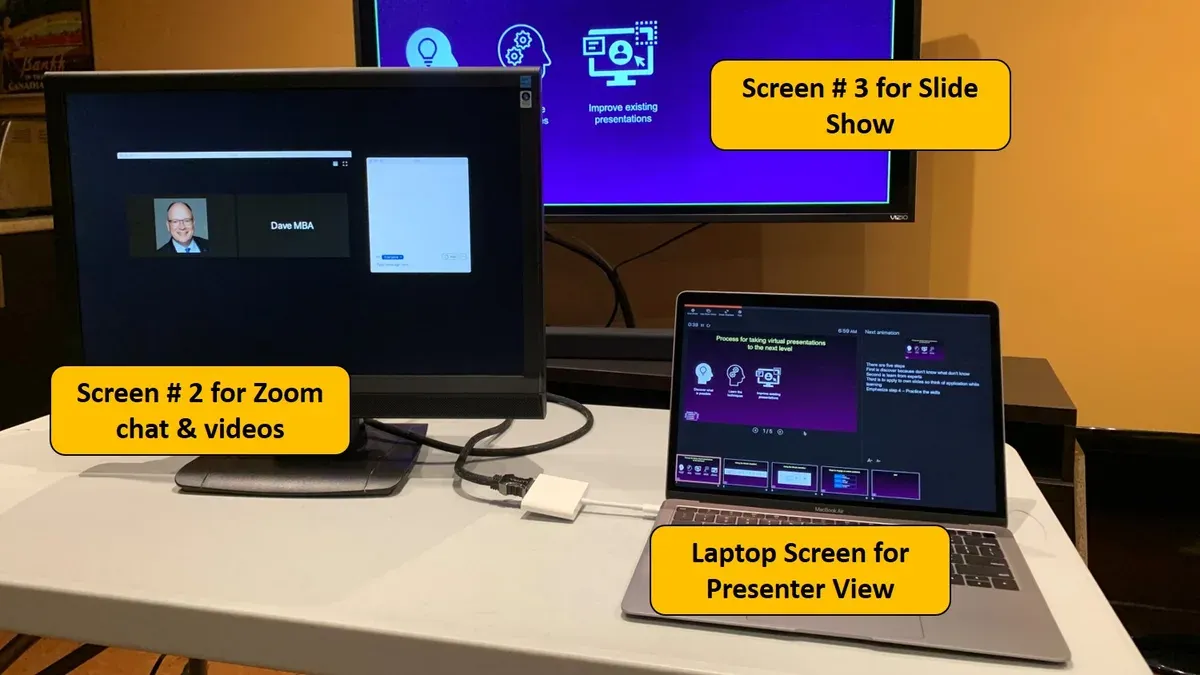
- Open your PowerPoint presentation and activate Presenter View using your extended display setup. You should see your notes and slide preview on one screen and the full slide on the other.
- Start your Zoom meeting and click Share Screen. In the sharing window, select the screen that displays just the slide show (not the Presenter View window). This prevents your notes from being visible to participants.
- For better control, click Advanced in the Zoom share window and choose Portion of Screen sharing. Adjust the green frame to capture only the slide show area, avoiding accidental sharing of notes or other windows.
- During your presentation, monitor the Zoom preview to confirm that only the slide content is visible to attendees, protecting your Presenter View content from exposure.
- If you only have one display, consider using the Slide Show mode without Presenter View and rely on printed notes or memorized cues, as sharing Presenter View directly with notes is not feasible on a single screen.
This method lets you present confidently on Zoom by sharing clean slides while keeping notes private, avoiding common pitfalls like sharing the wrong screen or exposing confidential information.
Troubleshooting common Presenter View issues on Mac
Presenter View problems on Mac often stem from display configuration or software glitches. A frequent issue users report is Presenter View not appearing or slides showing on the wrong screen. This usually means PowerPoint is not properly recognizing your multiple displays or the extended desktop mode is not active.
If Presenter View buttons or notes are missing, it can indicate a display assignment error or that the Presenter View window was accidentally minimized. Performance issues or lag during presentations may occur if your Mac or PowerPoint is outdated or under heavy load.
- Check that your Mac is set to extended desktop mode in System Preferences > Displays > Arrangement tab. You should see your displays arranged side by side, not mirrored.
- In PowerPoint, go to Slide Show > Set Up Slide Show and confirm “Presenter View” is checked and the correct monitor is selected under “Multiple monitors”.
- If Presenter View elements are missing, click the green maximize button in the Presenter View window or drag it if it is off-screen.
- To resolve lag, close unnecessary apps and check Activity Monitor for resource-heavy processes to free up memory and CPU.
- Ensure your PowerPoint is up to date by opening Help > Check for Updates in PowerPoint. Also, update your macOS via System Preferences > Software Update to maintain compatibility.
Following these steps usually resolves the majority of common Presenter View issues on Mac, ensuring a smooth and professional presentation experience.
Frequently asked questions
How to not use presenter view in powerpoint mac?
To avoid using Presenter View on your Mac, open PowerPoint and go to the Slide Show tab. Uncheck the box labeled "Use Presenter View." This disables the feature, so your presentation will display in full screen without the additional Presenter View tools.
How to use presenter view in powerpoint?
Start by connecting your Mac to a second display or projector. In PowerPoint, enable Presenter View by going to Slide Show > Use Presenter View. When you begin your slideshow, your Mac will show the Presenter View with notes and controls, while your audience sees only the slides.
How to stop presenter view in powerpoint on mac?
To stop Presenter View during a presentation, press the Escape key to end the slideshow or go back to the Slide Show tab and uncheck "Use Presenter View." This will return PowerPoint to standard slideshow mode on your main screen.
How to hide presenter view in powerpoint on mac?
If you want to hide the Presenter View window temporarily, you can minimize it by clicking the yellow minimize button in the top-left corner of the Presenter View window. This keeps the slideshow running on the external screen while you hide your Presenter tools.
How to remove presenter view in powerpoint on mac?
Removing Presenter View means disabling it altogether. Open PowerPoint preferences or the Slide Show tab and uncheck "Use Presenter View." This setting ensures the presentation displays only on the main screen without the Presenter View interface.
What This Guide Does Not Cover
This guide assumes you have access to at least two displays; Presenter View is not fully functional on a single display setup without workarounds. If you are using an older version of PowerPoint or macOS, some Presenter View features may be limited or behave differently. Additionally, this article does not cover Presenter View functionality on Windows or PowerPoint web versions, which have distinct interfaces and options.
For users with a single display setup or those working on Windows or web platforms, specialized resources or official Microsoft support may provide more tailored assistance.
To get the most out of Presenter View on your Mac, the next best step is to practice using Presenter View in a low-stakes environment. Open a presentation, connect your second display or projector, and experiment with toggling Presenter View on and off while customizing the notes and slide previews. This hands-on approach will help you become comfortable with the controls and layout, ensuring smoother delivery during actual presentations or Zoom meetings.
See also: How to Record Voiceover in PowerPoint on Mac: Step-by-Step Guide · How to Embed Fonts in PowerPoint on Mac: A Clear Step-by-Step Guide