How to Block Spam Calls on T-Mobile: Step-by-Step Guide
This guide shows how to block spam calls on T-Mobile using phone and network tools to minimize unwanted calls efficiently.
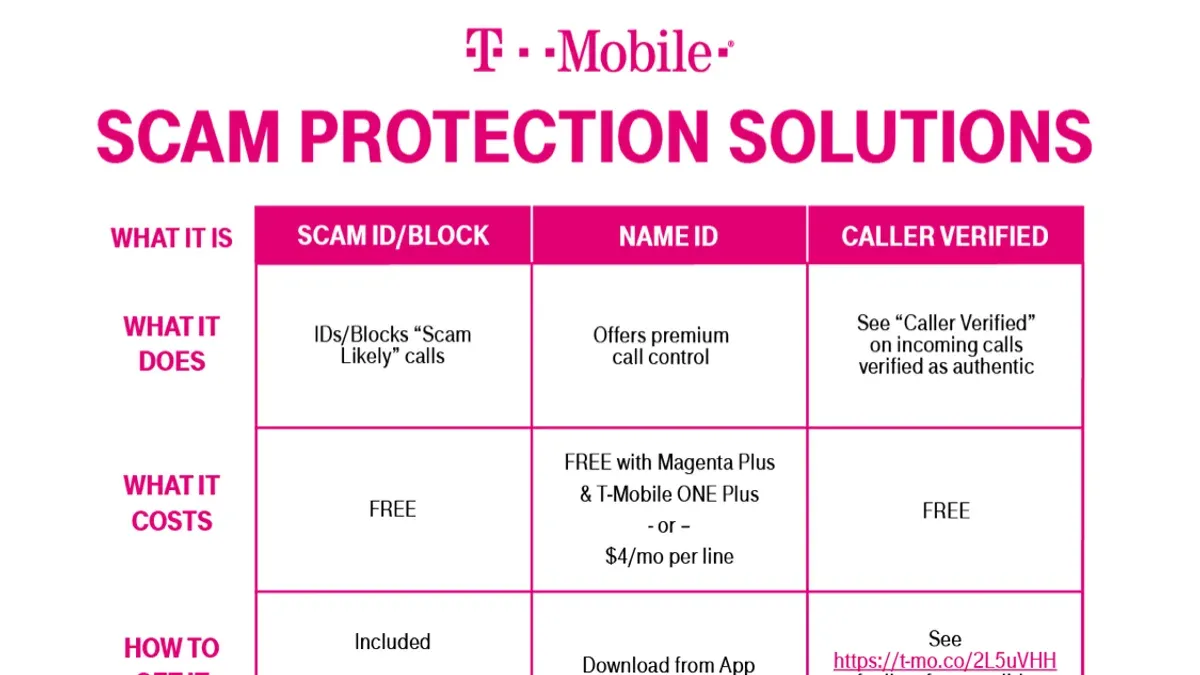
This article explains how to block spam calls on T-Mobile using both device-level settings and T-Mobile’s network tools. Spam calls can be persistent and disruptive, but a combination of phone features and carrier services can help reduce their frequency.
For iPhone and Android users, specific settings within the phone’s operating system allow blocking or filtering of unwanted calls. T-Mobile also offers network-level solutions such as Scam ID, Scam Block, and the T-Mobile Scam Shield app to strengthen protection.
Understanding the limitations of each method is important, as no solution completely eliminates spam calls. This guide covers practical steps, including manual blocking and troubleshooting to help manage and minimize spam calls effectively.
Before you start: what is needed to block spam calls on T-Mobile
Blocking spam calls on T-Mobile requires an active service account and a compatible smartphone. Supported devices include iPhones running iOS 13 or later and Android phones with Android 8.0 (Oreo) or newer, as these operating systems offer necessary call-blocking features integrated with carrier services.
Access to phone settings is essential to enable native spam-blocking options. Additionally, the T-Mobile app or website is needed to manage network-level spam controls and access features like Scam Shield. A basic understanding of the phone interface, including how to navigate settings menus and grant permissions, helps ensure proper configuration.
Some users may opt for third-party spam-blocking apps for enhanced filtering. These apps often require permissions to access contacts and call information and work alongside built-in and carrier-provided tools. Examples include Hiya and RoboKiller, which are compatible with many T-Mobile devices.
- Verify active T-Mobile service by checking for signal bars and the carrier name on the device’s status bar; successful verification shows "T-Mobile" or "T-Mobile US."
- Confirm the smartphone’s operating system version by navigating to Settings > General > About on iPhone, or Settings > About Phone > Software Information on Android; the version should meet or exceed iOS 13 or Android 8.0.
- Install or update the T-Mobile app from the Apple App Store or Google Play Store; opening the app should display account information and spam-blocking options.
- Review phone permissions for call management and notifications under Settings > Privacy > Call Blocking & Identification on iPhone or Settings > Apps > T-Mobile > Permissions on Android; permissions must be granted to enable blocking features.
- Optionally, download a trusted third-party spam-blocking app if additional filtering is desired; successful installation allows configuration within the app’s settings.
Tip: Ensuring the phone’s software and the T-Mobile app are up to date improves compatibility with spam-blocking features.
How to block spam calls on T-Mobile iPhone
iPhone users on T-Mobile can reduce spam calls by using both built-in device features and T-Mobile’s network services. Combining these options provides a stronger filter against unwanted calls.
Use Silence Unknown Callers
- Open the Settings app and scroll down to Phone.
- Tap Silence Unknown Callers.
- Toggle the switch on. Calls from numbers not in contacts, recent outgoing calls, or Siri Suggestions will be silenced and sent to voicemail.
- The screen will show the switch turned green, indicating the feature is active.
Tip: This setting may cause some legitimate calls from new numbers to go directly to voicemail.
Enable T-Mobile Scam ID and Scam Block
- Download and open the T-Mobile app.
- Sign in with the T-Mobile account credentials.
- Navigate to Profile & Preferences > Call Settings.
- Turn on Scam ID to see warnings on suspected spam calls and Scam Block to automatically block them.
- Confirm the toggles turn green, indicating activation.
Set up T-Mobile Name ID app for enhanced spam detection
- Download the T-Mobile Name ID app from the App Store.
- Open the app and sign in with the T-Mobile account.
- Follow the on-screen instructions to enable call identification and blocking features in Settings > Phone > Call Blocking & Identification.
- Verify that T-Mobile Name ID appears enabled in the list of apps allowed to block calls.
Manually block specific numbers on iPhone
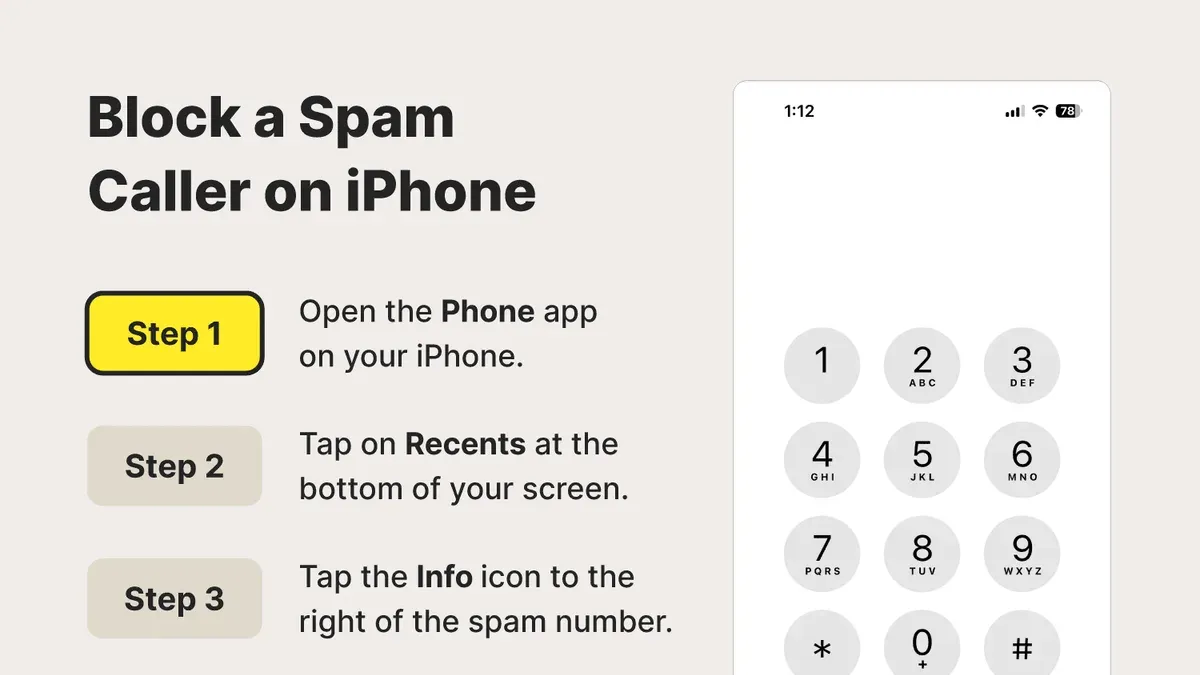
- Open the Phone app and tap Recents.
- Find the number to block and tap the info icon (small “i” in a circle) next to it.
- Scroll down and tap Block this Caller.
- Confirm by tapping Block Contact. The number will no longer be able to call, message, or FaceTime.
Utilizing these iPhone-specific options alongside T-Mobile’s network tools provides a layered approach to reducing spam calls. However, some spam calls may still get through due to caller ID spoofing and evolving spam tactics.
How to block spam calls on T-Mobile Android phone
Android users on T-Mobile have several options to reduce spam calls through both device settings and T-Mobile services.
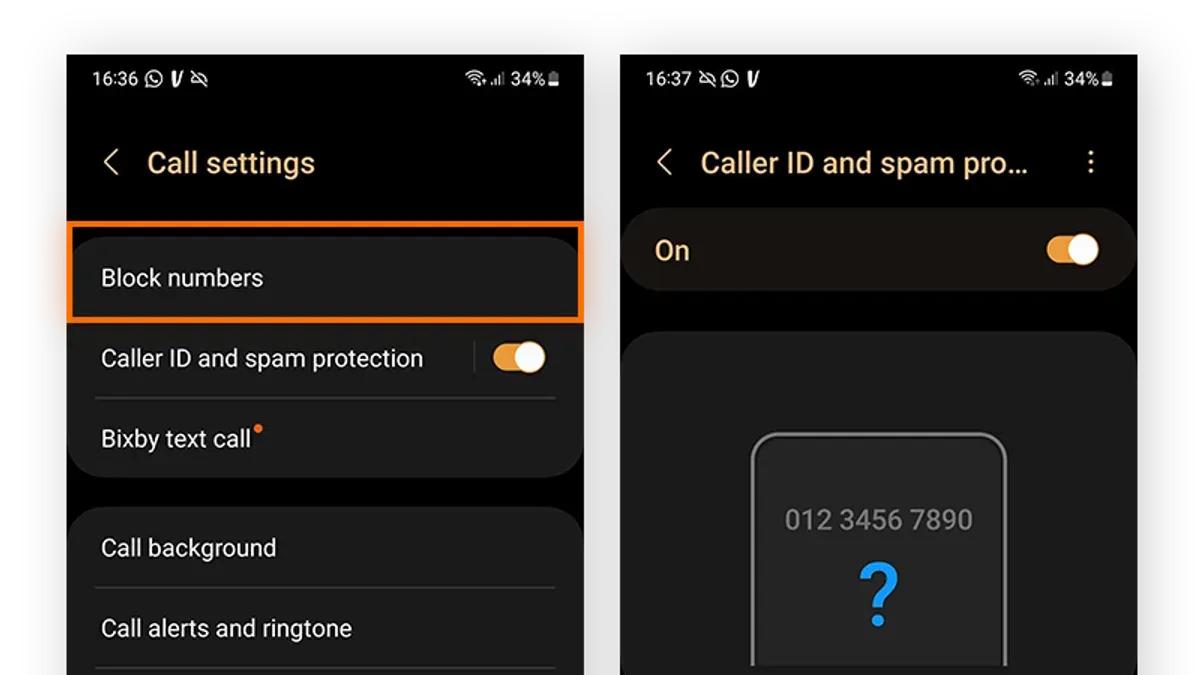
Use Android’s native caller ID and spam protection
- Open the Phone app and tap the three-dot menu icon in the upper-right corner.
- Select Settings, then tap Caller ID & spam.
- Toggle on Filter spam calls or See caller ID & spam ID. This lets Android warn or block suspected spam calls automatically.
- When enabled, calls identified as potential spam show a warning or are sent to voicemail, depending on settings.
Activate T-Mobile Scam Shield features
- Download and open the T-Mobile Scam Shield app from the Play Store.
- Sign in with the T-Mobile account credentials.
- Enable Scam ID to display warnings for suspected spam calls.
- Turn on Scam Block to automatically block calls flagged as spam by T-Mobile’s network.
- Verify that the app’s permissions allow it to monitor calls and contacts for effective operation.
Install and configure the T-Mobile Name ID app
- Download the T-Mobile Name ID app from the Play Store.
- Open the app and sign in with the T-Mobile account.
- Grant necessary permissions for caller ID and call blocking.
- Adjust settings to block spam calls, telemarketers, and robocalls based on the app’s categories.
- The app updates regularly to identify new spam numbers.
Manually block numbers on Android phones
Different Android brands have varied methods to block specific numbers:
- Samsung: In the Phone app, tap Recent, select the number, tap Details, then Block number.
- Google Pixel: Open the Phone app, tap the number or contact, then tap Block/report spam.
- Other brands: Usually involve tapping the number in call history, selecting options or info, then choosing Block.
Tip: Manually blocking numbers helps but can be time-consuming; combine this with network-level blocking for better results.
Using device settings along with T-Mobile’s Scam Shield and Name ID apps provides a layered approach to reducing spam calls on Android phones.
How to block spam calls on T-Mobile network
T-Mobile offers network-level spam call blocking primarily through its Scam Shield service, designed to identify and stop spam calls before they reach a subscriber's device. Scam Shield includes features such as Scam ID, which labels suspected spam calls, and Scam Block, which automatically blocks calls flagged as fraudulent by T-Mobile’s network intelligence.
The network identifies spam calls by analyzing call patterns, reports from customers, and global spam call databases. This proactive approach helps reduce the number of unwanted calls that ring through, enhancing the user's phone experience.
To enable or disable network-level blocking:
- Download and open the Scam Shield app from the app store or log into your T-Mobile account online.
- Navigate to the Scam Shield settings section.
- Toggle the Scam Block feature on to automatically block spam calls at the network level; toggling it off disables this feature.
- Verify activation by ensuring Scam Block status shows as "Active" in the app or online portal.
Tip: Scam ID can remain active even if Scam Block is disabled, allowing identification without automatic blocking.
While effective, network-level blocking may not catch all spam calls, as some callers use frequently changing numbers or spoof legitimate numbers to bypass filters. User reports indicate a significant reduction in spam calls when Scam Block is active, but some unwanted calls may still reach the phone.
How to block spam calls on T-Mobile app
The T-Mobile app provides direct access to key spam call blocking features such as Scam Shield and Name ID, allowing users to configure blocking preferences, screen calls, and report unwanted numbers efficiently.
- Download and install the T-Mobile app from the Apple App Store or Google Play Store. After launching, log in with the T-Mobile account credentials. Successful login will display the main dashboard showing account information.
- Tap the menu icon or swipe to access the side menu, then select "Scam Shield" or "Name ID" depending on the available options. The selected feature's main screen will appear, showing current protection status and options.
- Within Scam Shield or Name ID, locate the settings or preferences section. Here, enable or adjust options such as "Block Scam Calls," "Warn About Spam," or "Call Screening." Changes take effect immediately and are reflected in the app interface.
- To report a spam number, navigate to the "Report Spam" or "Spam Numbers" section. Enter the phone number or select from recent calls, then submit the report. Confirmation will appear indicating the number has been added to the spam database.
- Review blocked calls by accessing the "Blocked Calls" or "Call History" tab within the Scam Shield or Name ID sections. This helps monitor which calls have been intercepted and blocked by the service.
Tip: Regularly updating the T-Mobile app ensures access to the latest spam protection features and improved user interface.
How to stop spam calls on T-Mobile phone with codes and manual blocking
T-Mobile offers several star codes and short codes that can help manage spam calls through carrier-level controls. One commonly used code is *77, which users can dial to activate T-Mobile's Caller ID and Scam Block feature directly from the phone. When successful, callers identified as spam are automatically blocked or flagged.
To manually block a specific number on most smartphones, access the call log or recent calls list, select the unwanted number, and choose the option to block or report it. This prevents that number from contacting the phone again but must be done for each number individually.
Additional dialer tricks include using #662# (or #SPAM#) to enable or disable T-Mobile’s spam blocking features on some phones. These codes provide quick toggling without needing to navigate phone or app menus. However, availability and function may vary by device or software version.
- Dial *77 on the T-Mobile phone keypad and press call. A voice confirmation or message should indicate that Scam Block is activated.
- Open the recent calls list, tap the unwanted number, and select "Block number" or "Add to block list." The phone will confirm the number is blocked.
- Dial #662# or #SPAM# to enable or disable spam blocking features. Listen for confirmation tones or messages to verify the change.
Pros: Manual blocking and codes provide immediate control without third-party apps and can target specific numbers effectively.
Cons: This approach requires ongoing maintenance, as new spam numbers appear frequently. It lacks the broad, automated filtering provided by network or app solutions and may not catch unknown or spoofed numbers.
Tip: Combining manual blocking with T-Mobile’s automated services offers the best balance of coverage and control against spam calls.
Troubleshooting common issues blocking spam calls on T-Mobile
Spam calls may still get through despite blocking settings due to the evolving tactics of spammers and limitations of current filtering technologies. Some calls originate from numbers that are not yet identified as spam, or they use caller ID spoofing that bypasses blocking measures.
Conflicts can occur between phone-level settings and T-Mobile’s network features. For example, enabling multiple spam protection services simultaneously, such as both the phone’s native spam filter and T-Mobile’s Scam Shield, may cause inconsistent behavior or missed blocks.
Ensuring apps like Scam Shield and Name ID, along with the phone’s operating system, are up to date can improve spam detection accuracy and fix bugs that interfere with call blocking.
- Verify that all spam-blocking apps and phone software are updated to the latest version. Upon success, the apps should show the latest update date in their settings or app store page.
- Review spam protection settings for overlaps. Disable duplicate spam filters either on the device or within the T-Mobile app to reduce conflicts. When done correctly, spam calls should be more consistently identified or blocked.
- Test blocking by manually adding a known spam number to the block list. The phone should reject calls from this number without ringing.
- If spam calls persist, restart the device and check if the issue continues. A successful restart often resolves temporary glitches affecting blocking features.
- Contact T-Mobile customer support if spam calls remain frequent despite these steps. Support can check the account for network-level blocks and provide further troubleshooting. Successful support intervention usually coincides with a noticeable drop in spam calls.
Tip: Regularly reviewing and adjusting spam settings can help maintain effective protection as spammers change tactics.
Further reading
- How to Block Spam Calls on AT&T Devices and Landlines
- Understanding and Managing AT&T Port Out Protection
Frequently asked questions
How to block spam calls on t mobile?
Blocking spam calls on T-Mobile involves a combination of device settings, T-Mobile network features, and apps. Customers can enable features like Scam Shield, use built-in phone blocking tools, and add numbers to their block lists. Combining these methods improves effectiveness but does not guarantee all spam calls will be stopped.
How to block spam calls on t mobile iphone?
On an iPhone with T-Mobile service, spam calls can be blocked by enabling Silence Unknown Callers in Settings > Phone and turning on T-Mobile Scam Shield’s Caller ID and Scam Block features. Adding spam numbers to the Blocked Contacts list in the Phone app also helps. Third-party apps from the App Store can provide additional filtering.
How to block spam calls on t mobile android?
Android users on T-Mobile can block spam by activating Scam ID and Scam Block within the T-Mobile Scam Shield app. Device-level options include blocking unknown callers or adding numbers to the blocked list in the Phone app settings. Some Android models offer built-in spam protection in the dialer or phone app settings.
How to block spam calls on t mobile network?
T-Mobile provides network-level spam protection through Scam Shield, which includes Scam ID to label suspicious callers and Scam Block to stop them before the phone rings. These features can be enabled via the Scam Shield app or the T-Mobile website. While effective at reducing spam, some legitimate calls may occasionally be blocked or labeled incorrectly.
How to block spam calls on t mobile android phone?
To block spam calls on a T-Mobile Android phone, enable Scam Shield features and use the phone’s native blocking tools by going to the Phone app settings and selecting Block numbers or Spam protection. Users can also report spam numbers through the Scam Shield app to improve detection. Combining these methods provides better control over unwanted calls.
Limits of spam call blocking methods
No spam blocking method is 100% effective; some unwanted calls may still get through despite all available measures. Manual blocking only works for numbers already identified as spam and can be time-consuming if callers frequently change their numbers. Network-level blocking relies on carrier databases that may not immediately detect new or evolving spam techniques. Additionally, third-party apps might require extensive permissions that could affect privacy and battery life.
For individuals experiencing persistent or highly sophisticated spam calls, consulting with T-Mobile customer support or exploring specialized third-party services designed for advanced call filtering may be necessary.
The single most useful next step is to activate T-Mobile’s Scam Shield service, which combines network-level protections with customizable settings on the phone and app, providing a balanced approach to reducing spam calls effectively.