How to Use GitHub Copilot in VS Code on Mac: A 2026 Step-by-Step Guide
Discover how to use Copilot in VS Code on Mac with step-by-step setup, customization, and troubleshooting to enhance your coding workflow.
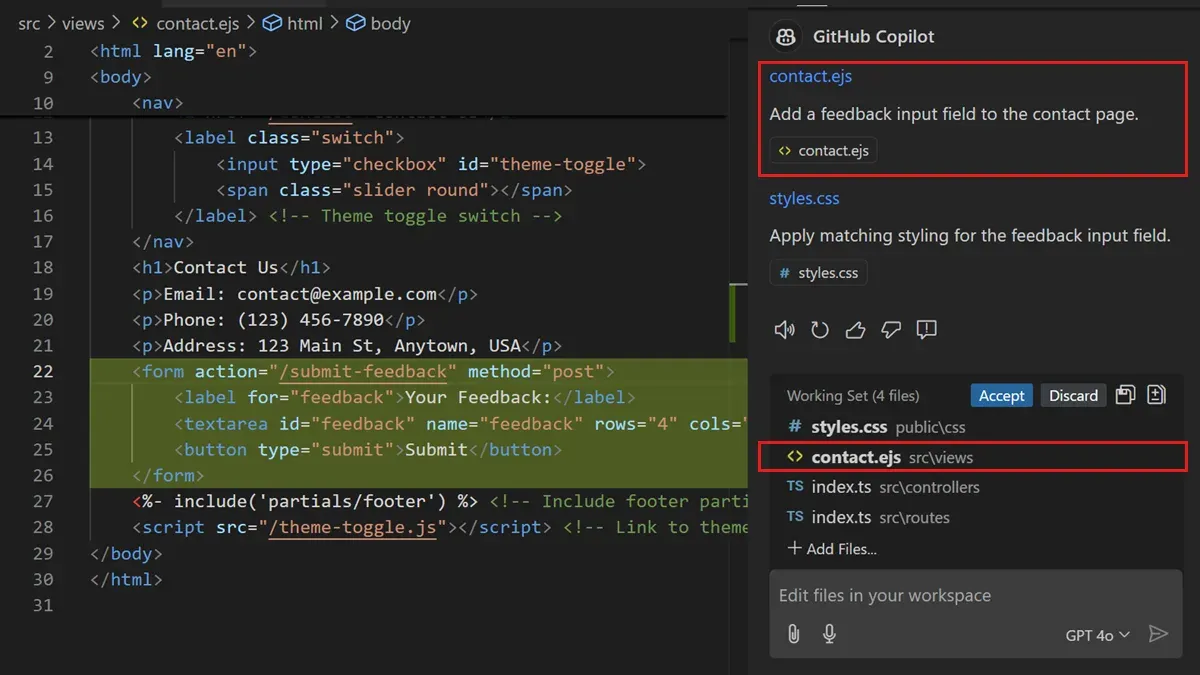
You’re working on a Mac, coding in Visual Studio Code, and want to speed up your workflow without leaving your editor. GitHub Copilot can suggest code snippets, complete lines, and even entire functions as you type, but setting it up and using it effectively on macOS in 2026 requires some specific steps.
This article explains how to use Copilot in VS Code on Mac, focusing on installation, activation, navigation, language-specific tips, customization, and troubleshooting. You’ll get clear guidance on integrating Copilot into your development routine to enhance efficiency and code navigation without unnecessary complexity.
Key takeaways
- You need a GitHub Copilot subscription and VS Code version 1.80 or later installed on your Mac.
- Add Copilot via the Extensions pane by searching for "GitHub Copilot" and signing in with your GitHub account.
- Use the Command Palette (Shift+Command+P) to toggle Copilot suggestions and accept completions with Tab.
- Customize Copilot settings under Preferences > Settings > Extensions > GitHub Copilot for language-specific behavior and suggestion frequency.
- Common issues include authentication errors and network restrictions, resolved through re-login and adjusting VS Code proxy settings.
Before you start: What you need to use Copilot in VS Code on Mac
To use GitHub Copilot in Visual Studio Code on your Mac, ensure your system meets the necessary technical and account requirements.
- Verify your Mac runs at least macOS Ventura (version 13) or later. Copilot and the latest VS Code versions require this for optimal compatibility.
- Confirm you have Visual Studio Code version 1.80 or newer installed. This version supports the GitHub Copilot extension effectively. You can check by selecting Code > About Visual Studio Code in the menu.
- Create or sign in to a GitHub account that has access to GitHub Copilot. As of 2026, Copilot requires an active subscription or a trial period, available through your GitHub account settings and billing page.
- Ensure you have a stable internet connection during installation and while using Copilot, as AI code suggestions require online access to GitHub servers.
- Familiarize yourself with the VS Code interface basics, including the Extensions sidebar (View > Extensions) and command palette (View > Command Palette). This knowledge will help you manage Copilot and troubleshoot if needed.
Meeting these prerequisites will prepare you for a smooth GitHub Copilot setup and efficient use in your Mac development workflow.
How to add Copilot to VS Code on Mac
Follow these steps to install GitHub Copilot in VS Code on your Mac.
- Open VS Code on your Mac. You should see the main interface with a sidebar on the left.
- Click the Extensions icon in the sidebar (it looks like four squares arranged in a grid). This opens the Extensions panel.
- In the Extensions search bar at the top, type GitHub Copilot and press Enter.
- Locate the official GitHub Copilot extension by GitHub in the search results. It usually appears first and includes the GitHub logo.
- Click the Install button on the extension’s page. A progress indicator will show as the extension downloads and installs.
- Once installed, VS Code may prompt you to sign in to your GitHub account. Click Sign In to proceed.
- A new window will open for GitHub authentication. Complete the sign-in process using your GitHub credentials associated with your Copilot subscription or trial.
- After successful sign-in, you will see a confirmation message in VS Code indicating Copilot is enabled and ready to use.
- Check the bottom status bar of VS Code for the Copilot icon, which confirms the extension is active.
If you do not see the sign-in prompt immediately, try restarting VS Code. Ensuring your GitHub account is linked is essential for Copilot to function.
Visual confirmation during these steps includes the Install button changing to a gear icon after installation and the sign-in confirmation pop-up or message banner within VS Code.
How to open and run Copilot in VS Code on Mac
- Open a code file in VS Code on your Mac. You should see your code displayed normally in the editor.
- Start typing code in the file. GitHub Copilot will automatically generate inline suggestions as gray text directly after your cursor. For example, if you start typing function greet(name), Copilot might suggest completing the function body.
- To accept a suggestion inline, press Tab. This inserts the suggested code snippet into your file.
- If suggestions don’t appear automatically, manually trigger them by pressing Cmd + Enter. This opens the Copilot panel where you can view multiple suggestions for your current line or block of code.
- Use Ctrl + Enter to open the Copilot panel as an alternative shortcut. The panel shows up on the right side of VS Code, listing several code completions you can browse through and insert.
- To toggle GitHub Copilot on or off for a specific file or project, click the Copilot icon in the VS Code status bar at the bottom. You can enable or disable suggestions per workspace or file type.
- Example snippet: typing const add = (a, b) triggers Copilot to suggest { return a + b; } as a completion, which you accept with Tab.
How to navigate code efficiently in VS Code using Copilot
- Start typing a function or code snippet where you want assistance. Copilot will automatically suggest completions that can range from single lines to entire functions. When a suggestion appears, use the Tab key to accept it, or the Right Arrow key to cycle through alternative completions.
- Use Ctrl + [ and Ctrl + ] (or Cmd + [ and Cmd + ] on Mac) to navigate between multiple Copilot suggestions if available. This allows you to compare different generated code options side-by-side and select the most appropriate.
- Leverage Copilot’s ability to generate comments and documentation by typing a comment prompt above your code. For example, typing "// Calculate factorial of a number" will prompt Copilot to suggest corresponding code. This improves code readability and understanding.
- Combine Copilot with VS Code’s built-in navigation features like Go to Definition (F12) and Peek Definition (Option + F12) to quickly explore related functions and variables. Copilot-generated code integrates seamlessly with these tools, making it easier to jump between your codebase and suggestions.
- After accepting a Copilot suggestion, carefully review the generated code for correctness and style. Use VS Code’s inline editing to tweak variable names or logic. For example, Copilot might suggest generic variable names—rename them to fit your project’s conventions for clarity.
For example, before Copilot, you might write a loop manually; after accepting a Copilot suggestion, the loop appears fully formed with appropriate variable names and comments, reducing navigation time by avoiding manual lookups. Using arrow keys to cycle suggestions lets you select the cleanest version without leaving the editor.
How to use GitHub Copilot in VS Code on Mac for different programming languages
GitHub Copilot supports a wide range of popular programming languages in 2026, including JavaScript, Python, Swift, and Go. Each language benefits from tailored code completions and suggestions, though performance and accuracy can vary depending on language complexity and library support.
- Open VS Code on your Mac and navigate to the Extensions view.
- Click on the gear icon of the GitHub Copilot extension and select Extension Settings.
- Under Languages, enable or disable Copilot for specific languages by toggling options such as JavaScript, Python, Swift, or Go. When enabled, you should see Copilot suggestions appear while coding in those languages.
- Start writing code in your preferred language. For example, in JavaScript, typing
function fetchData()will prompt Copilot to suggest asynchronous data fetching snippets. - In Swift, Copilot often generates idiomatic code for iOS development, such as UIKit or SwiftUI views, reflecting macOS-native conventions.
- For Go, Copilot provides useful boilerplate for error handling and concurrency patterns, though complex package-specific suggestions may be limited.
- For multi-language projects, Copilot automatically adjusts suggestions based on the active file’s language mode in VS Code. Switching between files in different languages will update Copilot’s context accordingly.
Note that while JavaScript and Python generally receive the most accurate and context-aware completions, Swift and Go support has improved but may occasionally require manual edits. User feedback highlights that Copilot’s suggestions are faster and more relevant in languages with larger open-source ecosystems.
To optimize your experience, customize language-specific settings in the Copilot extension preferences and combine Copilot with VS Code’s language-specific linters and formatters for best results.
How to customize GitHub Copilot settings in VS Code on Mac
To tailor GitHub Copilot to your workflow in VS Code on Mac, start by accessing its settings via Code > Preferences > Settings or by pressing Cmd + ,. In the search bar, type Copilot to filter relevant options.
- Adjust suggestion frequency and inline display: Locate GitHub Copilot: Suggestion Delay to set how quickly suggestions appear after you pause typing. The default is usually 200 ms; increasing it reduces distractions but may slow suggestions. Use GitHub Copilot: Enable Inline Suggestion to toggle whether suggestions appear inline or as ghost text.
- Manage privacy and telemetry: Find GitHub Copilot: Telemetry Enabled to decide if usage data is sent to GitHub. Disabling this improves privacy but may limit personalized improvements.
- Enable or disable Copilot per workspace or globally: Use the GitHub Copilot: Enable setting to toggle Copilot either globally or on a per-workspace basis, useful if you want it for some projects but not others.
- Integrate Copilot with other extensions: In the Extensions view, check compatibility settings with tools like Prettier or ESLint. Adjust Copilot’s settings to avoid conflicts, such as disabling inline suggestions if another formatter triggers on save.
Customizing these settings can significantly impact your coding flow. For example, increasing suggestion delay and disabling inline ghost text can reduce interruption in complex editing, while enabling Copilot only in specific workspaces keeps resources focused. The settings UI clearly marks which options are active, helping you compare default versus customized behavior visually.
Troubleshooting common issues with Copilot in VS Code on Mac
If GitHub Copilot suggestions are not showing or appear delayed, first check your internet connection and ensure VS Code is online. Copilot relies on live servers, so offline use will block suggestions. If you see an error like "Failed to fetch suggestions", restart VS Code and verify your GitHub authentication is active.
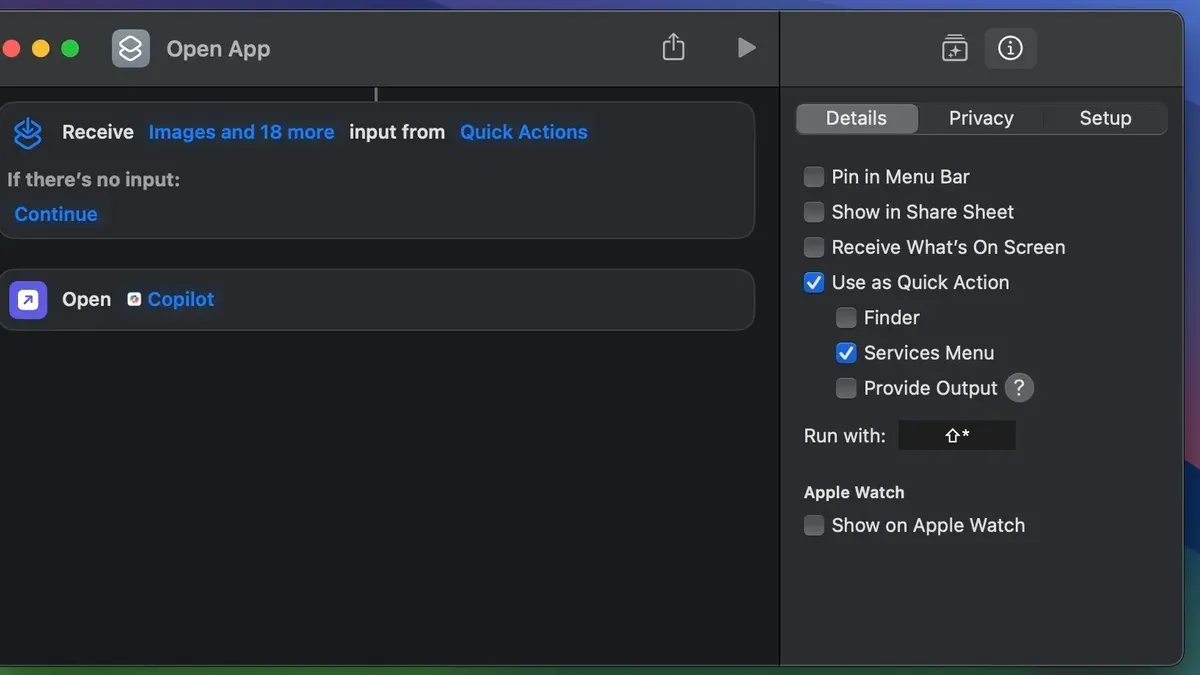
Authentication or sign-in errors such as "Sign-in failed: Unauthorized" often result from expired tokens or incorrect account permissions. To fix this, open VS Code Command Palette (⇧⌘P), run GitHub: Sign out, then sign back in with your GitHub credentials. Confirm your Copilot subscription is active on your GitHub account.
Performance issues or unusually high CPU usage may occur if Copilot extensions conflict with others or if excessive suggestions are generated. Disable other AI or autocomplete extensions temporarily via VS Code Extensions pane to isolate the problem. Lowering suggestion frequency under Settings > Extensions > GitHub Copilot > Suggestion Delay can also help.
Network or firewall restrictions can block Copilot’s connection. If you encounter "Network request failed" errors, verify your Mac’s firewall or corporate network allows outbound access to GitHub domains such as api.github.com. You may need to whitelist these URLs or use a VPN.
Conflicts with other VS Code extensions sometimes cause erratic Copilot behavior. Disable extensions related to code completion one by one to identify the culprit. After disabling, restart VS Code and check if Copilot suggestions normalize.
- Check your internet connection and confirm VS Code is online. You should see suggestions appearing as you type.
- Sign out and back into GitHub from VS Code’s Command Palette. Successful sign-in resolves authentication errors.
- Temporarily disable other autocomplete or AI extensions via Extensions pane. Performance should improve after restart.
- Verify network settings and firewall rules to allow access to GitHub APIs. Fixing this removes "Network request failed" messages.
- Disable conflicting extensions one at a time, restarting VS Code each time. Copilot suggestions should return to normal when conflicts are resolved.
How to decide if GitHub Copilot is right for your Mac coding workflow
GitHub Copilot can boost productivity by suggesting code snippets, reducing boilerplate writing, and speeding up debugging. Many developers in 2026 report time savings, especially in repetitive tasks or when working in familiar languages like JavaScript and Python. However, the benefit varies with project complexity and individual coding style.
Consider the subscription cost against your coding volume. Copilot’s monthly fee is comparable to other developer tools but adds up if you code sporadically. A cost-benefit table comparing monthly subscription fees versus estimated hours saved can help clarify value.
| Subscription Plan | Monthly Cost | Typical Use Case |
|---|---|---|
| Individual | $10 | Regular coding tasks, small to medium projects |
| Business | $19/user | Team collaboration, larger projects |
Privacy is also a factor. Copilot sends code snippets to GitHub servers to generate suggestions, which may raise concerns about sensitive or proprietary code exposure. Reviewing GitHub’s 2026 privacy policy shows data is encrypted and anonymized, but compliance with your organization’s policies is essential.
Copilot suits developers from intermediate to advanced levels. Beginners might find suggestions overwhelming or occasionally misleading. For projects requiring strict code style or security standards, manual review remains critical.
Alternatives include open-source AI coding assistants or built-in VS Code IntelliSense features. These may lack Copilot’s breadth but offer offline use and greater control over data privacy. Consider these if subscription fees or privacy concerns outweigh productivity gains.
- Assess your coding frequency and typical project types. If you write code daily or handle multiple languages, Copilot’s suggestions are more valuable. You should notice faster code completion and fewer repetitive tasks.
- Calculate potential subscription cost vs. time saved. Use estimated hourly savings multiplied by your hourly rate compared to the monthly fee to see if it fits your budget.
- Review your organization’s privacy requirements against GitHub’s 2026 privacy policy, accessible via VS Code extension settings under “GitHub Copilot > Privacy.” Confirm compliance before enabling.
- Try Copilot with a free trial if available. Observe whether the suggestions improve your workflow without adding confusion or extra correction time.
- Evaluate alternatives like Tabnine or built-in VS Code features if Copilot’s cost or privacy doesn’t align with your needs. Compare their performance on your typical projects.
- How to Change Font Size in VS Code on Mac: A 2026 Step-by-Step Guide
- How to Set Up Python in VS Code on Mac: A 2026 Step-by-Step Guide
Frequently asked questions
How to use copilot on vs code?
To use GitHub Copilot in VS Code, ensure the extension is installed and you are signed into your GitHub account. Start typing code in a supported file, and Copilot will automatically suggest completions and snippets inline. Press Tab to accept suggestions or Esc to dismiss them. You can also trigger suggestions manually with Ctrl+Space (or Cmd+Space on Mac).
How to use copilot on mac?
On a Mac, use VS Code with the GitHub Copilot extension installed from the VS Code Marketplace. Sign in with your GitHub credentials to activate Copilot. While coding, Copilot will provide AI-driven code suggestions based on your context. Use keyboard shortcuts like Cmd+Enter to open Copilot’s suggestion panel, and accept completions with Tab.
How to open copilot vs code?
In VS Code, GitHub Copilot activates automatically once installed and signed in. To open the Copilot suggestion interface explicitly, press Cmd+Enter on Mac or use the View menu, then select Command Palette and type Copilot to access commands like “GitHub Copilot: Open.” Copilot suggestions also appear inline as you code.
How to open copilot on vs code?
Open GitHub Copilot in VS Code by launching the editor and ensuring the Copilot extension is enabled. Use the keyboard shortcut Cmd+Enter to open the Copilot pane or suggestion window. You can also access Copilot commands via the Command Palette (Shift+Cmd+P) by typing “Copilot” and selecting the desired option.
How to navigate code in vscode?
Efficient navigation in VS Code includes using Cmd+P to quickly open files by name and Cmd+Shift+O to jump to symbols within a file. Use F12 or Cmd+Click on functions or variables to go to definitions. The built-in minimap and breadcrumbs help maintain context, and GitHub Copilot’s inline suggestions speed up code writing and exploration.
What this guide does not cover and who should look elsewhere
This guide focuses exclusively on using GitHub Copilot within Visual Studio Code on Mac in 2026. It does not cover Copilot's use on other editors, platforms, or within IDEs beyond VS Code. Additionally, GitHub Copilot requires an active subscription or trial, which may not fit all budgets or usage patterns. You should carefully review all Copilot suggestions, as they can occasionally generate incorrect or insecure code that needs manual vetting. Performance and feature availability may vary depending on the programming language and the complexity of your project, so your experience might differ across different development scenarios.
The most practical next step is to install the GitHub Copilot extension from the VS Code Marketplace on your Mac, then sign into your GitHub account to activate it. Start integrating Copilot into your daily coding by testing it in a small project to gauge how its suggestions complement your workflow and identify any necessary customization in the settings panel under Preferences > Settings > Extensions > GitHub Copilot. This hands-on approach will give you a clear sense of how Copilot fits your Mac development environment.