How to Change Your Default Search Engine in Safari on Mac and iPhone
This guide shows how to change your default search engine in Safari on Mac and iPhone to enhance privacy and browsing experience.
Changing your default search engine in Safari can enhance your browsing experience on Mac and iPhone. This guide details why it matters, how to switch your search engine, and how to choose the best option based on privacy and speed.
Why Change Your Default Search Engine in Safari?
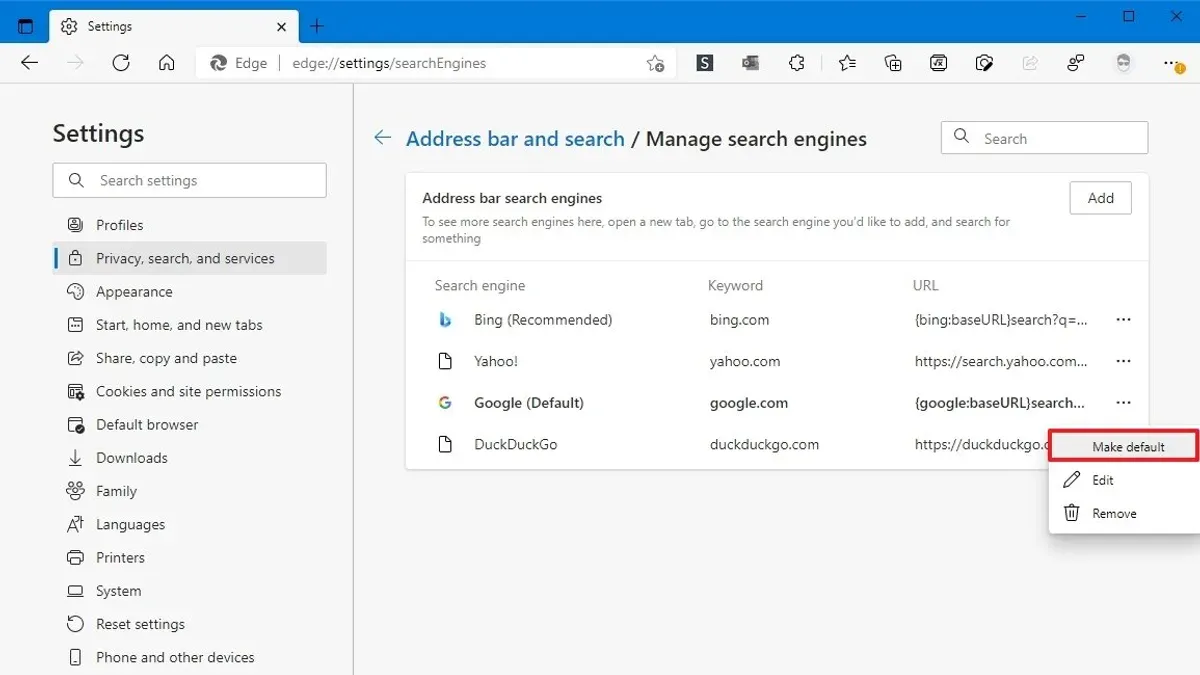
Safari uses Google as its default search engine, but alternatives include Bing, DuckDuckGo, Yahoo, and Ecosia. Your choice affects privacy, search result personalization, and browsing speed.
Google provides highly personalized results but collects substantial user data. DuckDuckGo prioritizes privacy by not tracking searches, which limits personalization but improves anonymity. Bing and Yahoo offer different search indexes and features, while Ecosia uses ad revenue to plant trees, appealing to eco-conscious users.
Privacy policies vary: DuckDuckGo enforces a strict no-tracking policy, contrasting with Google’s data-driven approach. Speed differences depend on how each engine processes queries and delivers results; some users notice faster load times or more relevant results based on location and search habits.
Step-by-Step Guide to Changing Your Default Search Engine on Mac
- Open Safari on your Mac.
- Click Safari in the menu bar, then select Preferences.
- In the Preferences window, click the Search tab.
- From the Search engine dropdown menu, select your preferred option: Google, Yahoo, Bing, DuckDuckGo, or Ecosia.
- Close the Preferences window.
- Test the new default by entering a search term in Safari’s address bar and reviewing the results.
If changes don’t apply immediately, restarting Safari or your Mac often resolves the issue. Additionally, clearing Safari’s cache via Safari > Preferences > Privacy > Manage Website Data can help if older settings persist.
Step-by-Step Guide to Changing Your Default Search Engine on iPhone and iPad
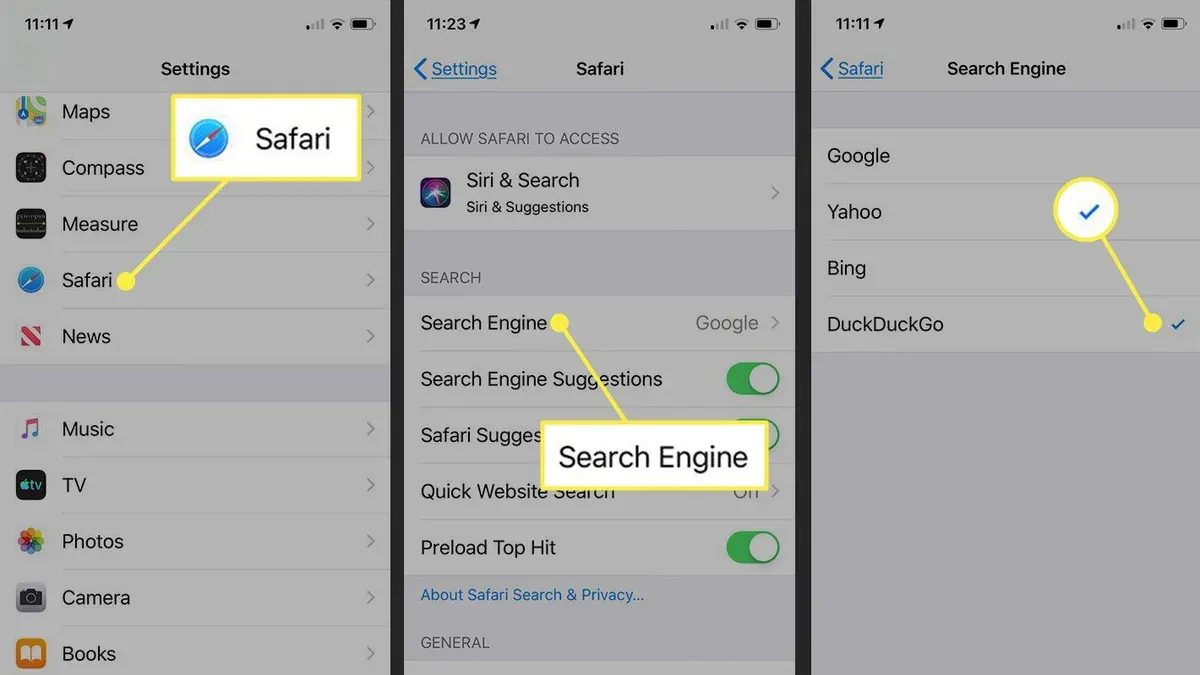
- Open the Settings app.
- Scroll down and tap Safari.
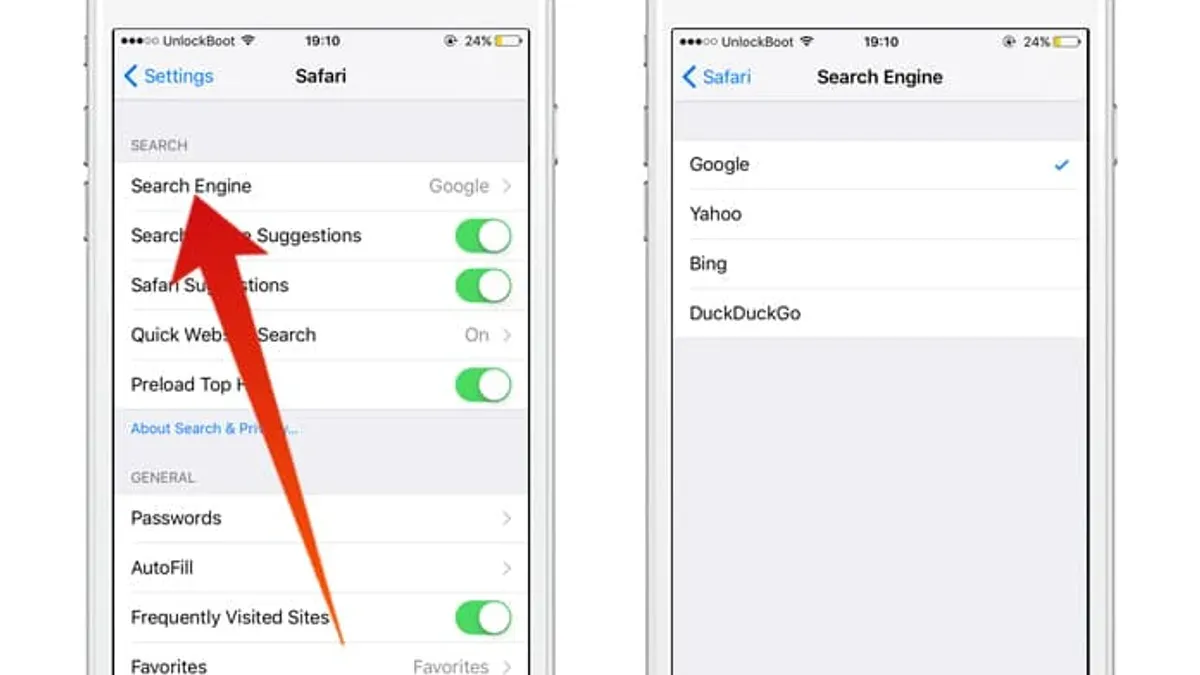
- Tap Search Engine near the top of Safari settings.
- Select your preferred search engine from Google, Yahoo, Bing, DuckDuckGo, or Ecosia.
- Exit Settings and open Safari to test a search from the address bar.
Changes sync across devices using the same Apple ID and iCloud if Safari syncing is enabled. Note that syncing may take a few moments to update all devices.
How to Test and Choose the Best Search Engine for You
Use Safari’s Private Browsing mode to avoid personalized results and cookies affecting tests. Open a private window and run the same search query across different engines. Compare result relevance and page load speed.
Timing results can be done with simple tools or a stopwatch. Consider ecosystem integrations: Google pairs well with Google Maps and Gmail; Bing integrates with Microsoft services; DuckDuckGo offers strong privacy but fewer integrated features; Ecosia supports environmental causes.
Example checklist for testing:
- Open Private Browsing mode in Safari (File > New Private Window on Mac, or tap the tabs icon then Private on iOS).
- Search the same phrase (e.g., "best hiking trails near me") on each engine.
- Compare top results for relevance and freshness.
- Note how quickly results appear.
- Observe additional features like images or maps displayed directly.
- Review privacy policies if desired.
What Changing Your Default Search Engine Won’t Affect
Changing your default search engine in Safari applies only within Safari. It does not affect other browsers or apps. Safari’s privacy features, like Intelligent Tracking Prevention, remain active regardless of the search engine.
Some features, such as Safari Suggestions, may still send queries to Apple’s servers independently of your chosen search engine. Therefore, full search privacy depends on multiple factors beyond the default search engine setting.
Additional Notes and Caveats
This guide does not cover changing search engines in third-party browsers or apps. Some Safari search-related features rely on Apple’s services regardless of your selection. Adjusting your default search engine optimizes your Safari experience but does not control all data flows or integrations on your device.
Frequently asked questions
Can I add a custom search engine not listed in Safari’s settings?
Safari does not currently support adding custom search engines beyond the predefined list. You must select from the available options.
Will changing the default search engine affect my saved bookmarks or history?
No. Your bookmarks and browsing history remain unchanged when you switch search engines.
Does Safari sync my search engine choice across all my Apple devices?
Yes, if you use the same Apple ID and have Safari syncing enabled in iCloud, your chosen search engine will update across your devices. Syncing may take a few moments.
How can I switch back to Google if I don’t like the new search engine?
Follow the same steps in Safari settings and select Google from the search engine list.
Related reading
- How to Reopen Closed Tabs in Safari on Mac and iPhoneDiscover easy methods to reopen closed tabs in Safari on Mac and iPhone to quickly recover lost pages and maintain your workflow.
- How to Allow Pop-Ups for One Website in SafariThis guide shows how to allow pop-ups for one website in Safari to balance usability and security effectively.
- How to Block Pop-Ups in Safari on macOS Ventura and LaterThis guide shows how to block pop-ups in Safari on macOS Ventura and later, using built-in tools and trusted extensions for safer browsing.