How to Change Siri Voice on Mac: A Step-by-Step Guide
Discover how to change Siri voice on Mac, customize voice options, and fix common issues in a few easy steps.
You ask Siri a question on your MacBook Air, but the voice sounds different from what you expected. Or perhaps you want Siri to have a male voice instead of the default female one. Changing Siri's voice on your Mac is straightforward but involves a few specific steps depending on your device.
This guide explains how to change Siri voice on Mac, covering MacBook Pro, MacBook Air, and other Mac models. It also clarifies how this differs from iPhone settings and includes instructions on enabling different voice genders and command voices. Additionally, you'll find tips on turning Siri's voice on or off and troubleshooting common issues.
Key takeaways
- Access Siri voice options via System Settings > Siri & Spotlight on Mac.
- Voice selections on Mac differ from those on iPhone and require separate adjustment.
- You can choose from multiple Siri voice genders and accents on Mac.
- Turning Siri voice off mutes spoken responses but keeps text replies active.
- Common issues include voice download errors and settings not saving, which have straightforward fixes.
Before you start: What you need to change Siri voice on Mac
To change Siri's voice on your Mac, you first need to ensure your device is running a compatible version of macOS. Siri voice customization features are available on macOS versions starting from macOS Catalina (10.15) and later. If your Mac uses an earlier operating system, you will need to update it to access voice options.
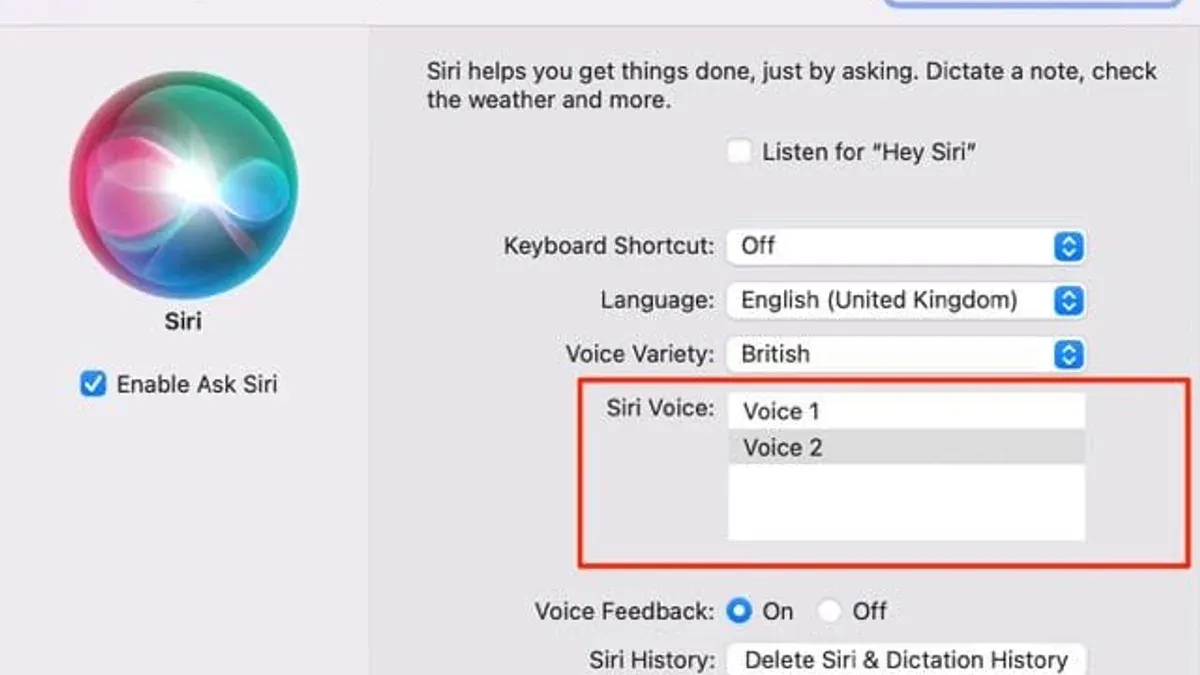
Next, confirm that Siri is enabled on your Mac. You can do this by opening System Preferences, selecting Siri, and checking that the "Enable Ask Siri" option is turned on. Without this enabled, voice settings cannot be adjusted.
Be aware that changing Siri's voice on your Mac is independent of your iPhone's Siri voice settings. Each device maintains its own preferences, so a change on one does not automatically apply to the other.
Additionally, an active internet connection is required to download new Siri voices that are not already installed on your Mac. These voices can vary by language and region; for example, some languages offer multiple voice options including gender variations, while others have limited choices.
Before proceeding, review the following steps to prepare:
- Check your macOS version by clicking the Apple menu and selecting "About This Mac". You should see macOS Catalina (10.15) or higher. If not, update your system via Software Update.
- Open System Preferences and click on "Siri". Verify that "Enable Ask Siri" is selected, confirming Siri is active. You should see options for voice customization become accessible.
- Ensure your Mac is connected to the internet. When selecting new voices, your Mac will prompt you to download any necessary voice files.
- Consider your preferred language and region settings. Siri voice options vary; for example, English (United States) offers more voice choices than some other languages.
Following these prerequisites will prepare your Mac for a smooth Siri voice customization experience.
How to change Siri voice on MacBook Pro, MacBook Air, and other Macs
- Open System Settings by clicking the Apple menu in the top-left corner of your screen and selecting "System Settings." You should see a sidebar with various categories.
- Scroll down and click Siri & Spotlight. This opens Siri preferences where voice options are located.
- Locate the Voice Variety or Siri Voice dropdown menu. It typically displays the currently selected voice with its gender and accent.
- Click the dropdown to see available voice options, which often include gender variations and regional accents such as American, Australian, British, Irish, or South African English. Select the voice you prefer.
- If the voice you want is not pre-installed, a download icon will appear next to it. Click the download button to begin downloading the voice. You may need to connect to the internet and wait a few moments for the download to complete.
- After selecting or downloading your preferred voice, test it by clicking the Play button near the voice selection menu. You will hear a sample of the chosen Siri voice.
- Close System Settings. Your Mac will now use the new Siri voice for all voice interactions.
These steps work consistently across MacBook Pro, MacBook Air, and other Mac models, as the voice options are managed centrally through System Settings. Keep in mind that changing the Siri voice here does not affect Siri on your iPhone or other Apple devices.
Note: Some voices may require more storage space and a stable internet connection for downloading. If you experience delays, check your network connection or try again later.
How to change Siri voice on iPhone and why it differs from Mac
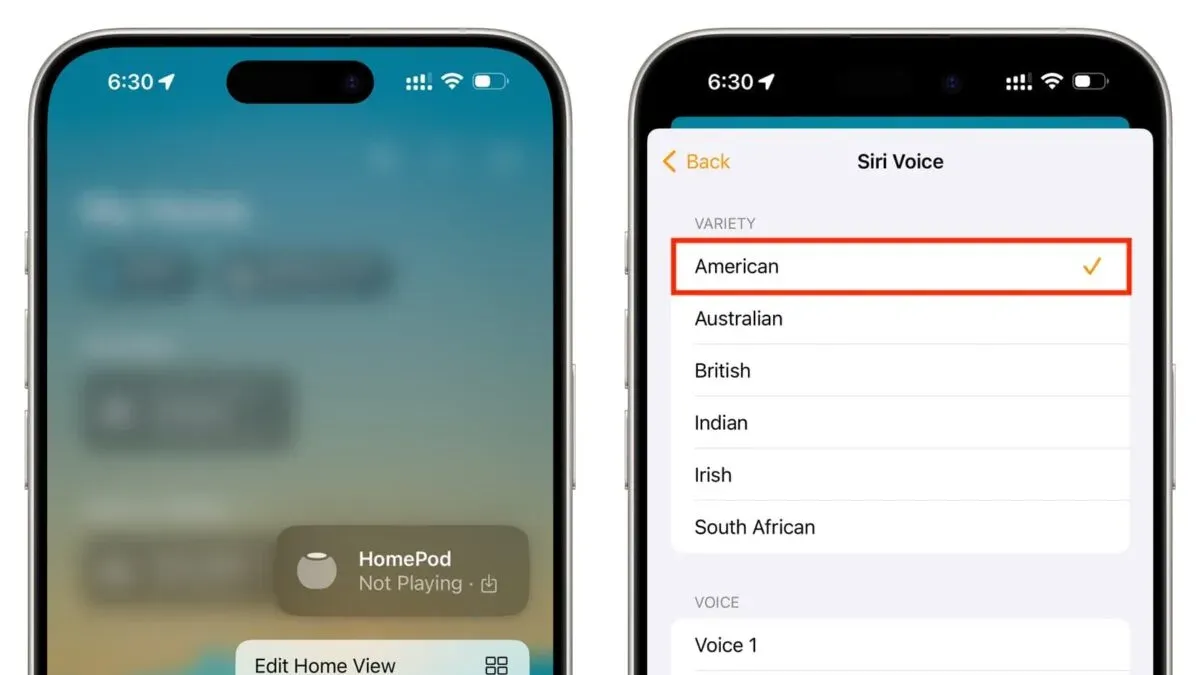
Changing Siri's voice on your iPhone involves a different process than on your Mac, and the settings operate independently. To change the voice on your iPhone, follow these steps:
- Open the Settings app. The main settings menu will appear.
- Scroll down and tap Siri & Search. You'll see Siri-related options.
- Tap Siri Voice. This will open the voice selection screen.
- Choose your preferred voice variety and gender from the list. The voices may appear with labels such as Voice 1, Voice 2, etc., along with accent options.
- Wait for the voice to download if prompted. A progress bar or indicator will show when the voice is ready.
- Once downloaded, the new voice will be active for Siri responses on your iPhone.
It’s important to understand that changing Siri’s voice on your iPhone does not affect the voice setting on your Mac, and vice versa. Apple currently does not sync Siri voice preferences across devices. Each device retains its own voice settings, which can lead to confusion for users expecting uniformity.
For example, you might prefer a male voice on your iPhone but a female voice on your MacBook Air. This separation allows customization per device but requires manual adjustment for each.
| Setting | iPhone | Mac (macOS) |
|---|---|---|
| Location of Siri voice settings | Settings > Siri & Search > Siri Voice | System Settings > Siri & Spotlight > Voice |
| Voice options | Multiple accents and genders available, sometimes more frequent updates | Similar voice options, but downloads are managed separately |
| Sync between devices | No | No |
| Effect of changing voice | Only affects iPhone | Only affects Mac |
This independence means if you want the same Siri voice across your Apple devices, you must manually set the voice on each device. Being aware of this separation helps avoid confusion and ensures your desired Siri experience on both Mac and iPhone.
How to turn Siri voice on and off on your Mac
You can control when Siri provides voice feedback through the Siri preferences on your Mac. This lets you decide if Siri always speaks, only responds vocally when you use hands-free commands, or remains silent. Adjusting these settings helps manage privacy or maintain quiet in work environments without turning Siri off completely.
- Open System Settings on your Mac.
- Click on Siri & Spotlight in the sidebar to access Siri preferences.
- Look for the Voice Feedback section within the Siri settings.
- Choose one of the available options:
- Always On: Siri speaks responses aloud regardless of input method.
- Hands-Free Only: Siri speaks only when activated by voice commands like “Hey Siri.”
- Control with Ring Switch or Never: Siri remains silent, providing text responses without voice.
- If you want to mute Siri voice without disabling Siri entirely, select the silent option. Siri will still respond visually on screen.
- Close System Settings to save your preferences automatically.
For example, in a quiet office, setting Siri to “Hands-Free Only” ensures voice feedback only activates when you speak to Siri, avoiding unexpected sounds. Alternatively, choosing “Never” mutes Siri’s voice completely, useful for privacy or when you want silent assistance.
These settings offer flexible control over Siri’s voice responses to fit different environments and user needs.
How to change Siri command voice and what that means
The term “Siri command voice” usually refers to the voice you hear when Siri responds to your requests or commands. On Mac, this voice is controlled entirely by the Siri voice setting found in System Settings under Siri & Spotlight. Changing the Siri voice here affects both how Siri speaks and how it responds to your commands.
Currently, there is no separate setting to customize a distinct voice exclusively for Siri commands versus its other spoken responses. The voice you select applies universally across all interactions with Siri on your Mac.
Apple’s official documentation confirms that Siri’s voice options are unified and any alterations will affect all audio output from Siri. User testing and support forums also show there are no built-in or third-party solutions that allow different voices for command recognition or command feedback specifically on Mac.
This means that if you want to change how Siri sounds when it replies to commands, you simply need to adjust the main Siri voice setting. No additional steps or apps can create a separate command voice experience at this time.
- Open System Settings on your Mac and select Siri & Spotlight. You should see a Voice dropdown menu.
- Click the dropdown and choose your preferred Siri voice. If needed, download the voice by following the on-screen prompts.
- Test the new voice by activating Siri and issuing a command. You should hear the selected voice respond to your request.
This single voice setting governs all spoken Siri feedback, including commands and responses, ensuring a consistent experience.
How to change Siri to a male voice on Mac
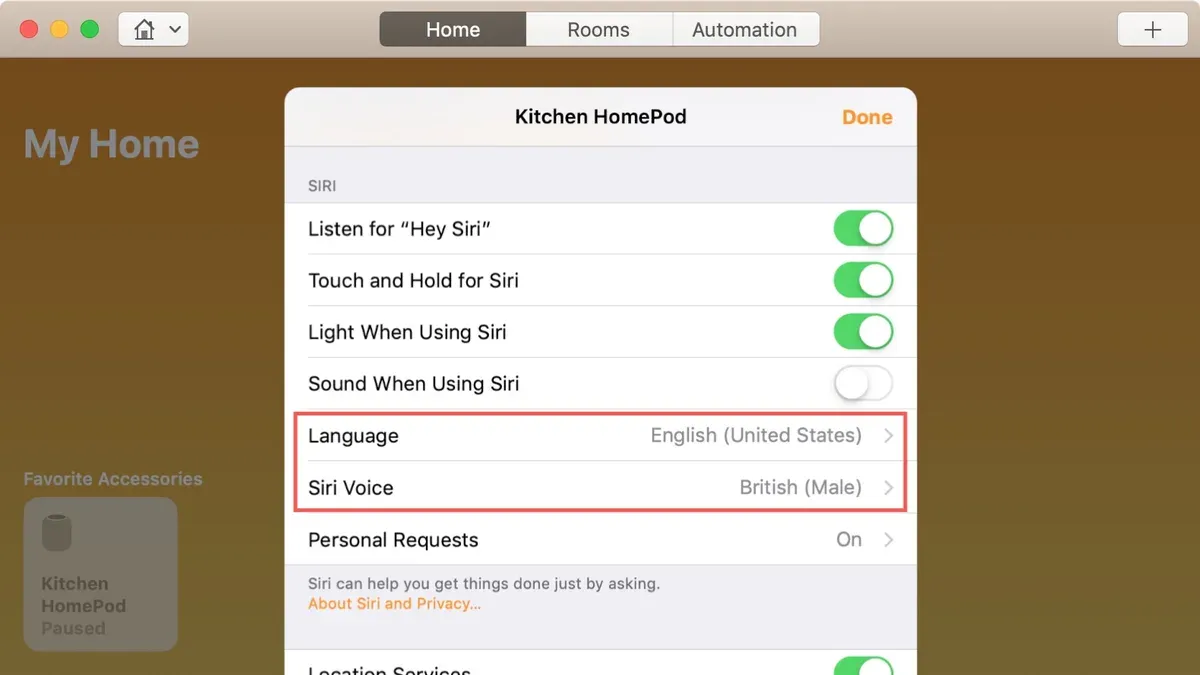
To switch Siri to a male voice on your Mac, you need to select one of the available male voice options in the Siri settings. These voices vary by language and may offer different accents and tonal qualities.
- Open System Settings on your Mac.
- Go to the Siri & Spotlight section.
- Click on the Voice dropdown menu to view available Siri voices.
- Look for male voice options, usually labeled with a voice name and a gender indicator or by their deeper tone.
- If the male voice you want is not downloaded, select it; your Mac will prompt you to download the voice file. Download sizes typically range from 100 to 400 MB depending on the voice quality and language.
- Wait for the download to complete; you can monitor progress in the voice menu.
- Once downloaded, select the male voice to set it as your Siri voice.
- Test the voice by clicking the play button next to the voice name to hear a sample.
Some languages provide more male voice options than others, with variations in accent and clarity. For example, English typically has several male voices differing in regional accents, while other languages might have fewer choices. Keep in mind that higher quality voices usually require larger downloads but offer more natural-sounding speech.
Troubleshooting common issues when changing Siri voice on Mac
If the Siri voice change does not apply or reverts after restarting your Mac, start by ensuring your internet connection is stable, as voice downloads and settings synchronization require it. A common error message like "Download Failed" indicates connectivity or server issues.
- Check your Wi-Fi or Ethernet connection is active and stable. You should see normal internet access in your browser or other apps.
- Restart Siri by opening System Settings > Siri & Spotlight, toggling Siri off, then on again. This should reset voice preferences and apply new settings.
- If voice options are missing or cannot download, update macOS to the latest version via System Settings > General > Software Update. Updates often fix bugs affecting Siri voices.
- After updating, revisit the Siri & Spotlight settings, attempt to download the desired voice again, and confirm it appears in the voice list.
- If Siri does not respond or voice feedback is silent, verify the output device settings in System Settings > Sound > Output. Select the correct speakers or headphones and test sound playback.
- Restart your Mac to clear temporary glitches that might block Siri voice changes.
If these steps fail, note error messages such as "Voice download interrupted" or "Siri not responding" and contact Apple Support for deeper diagnostics. Persistent problems could indicate hardware issues with your microphone or speakers, which Apple technicians can help verify.
- How to Turn Off Siri Suggestions on Mac: A Clear Step-by-Step Guide
- How to Turn Off App Notifications on Mac: A Clear Step-by-Step Guide
Frequently asked questions
How to change the voice on siri?
To change Siri's voice, open System Settings on your Mac, go to Siri & Spotlight, then select Voice. From there, you can choose from available voice options, which may include different accents and genders. The new voice downloads automatically if needed and applies immediately.
How to change voice on siri?
Changing Siri’s voice involves accessing the Siri settings on your device. On a Mac, go to System Settings > Siri & Spotlight > Voice. On an iPhone, open Settings > Siri & Search > Siri Voice. Select the voice you prefer, and the system will update it after downloading the necessary files.
How to change siri's voice on mac?
On your Mac, open System Settings, then click Siri & Spotlight. Choose the Voice section, where you can pick from several voice options including different accents and genders. Changing this setting customizes Siri’s voice specifically on your Mac without affecting other Apple devices.
How do i change siri to a male voice?
To change Siri to a male voice on your Mac, navigate to System Settings > Siri & Spotlight > Voice, then select a male voice from the available options. If you’re on an iPhone, go to Settings > Siri & Search > Siri Voice and pick a male voice there. The selection varies by region, so some voices might not be available everywhere.
how to change siri voice on iphone
Open the Settings app on your iPhone, then go to Siri & Search > Siri Voice. Here, you can choose the voice variety and gender you want for Siri. The device will download any selected voice files before applying the change, so ensure you have an internet connection during this process.
What this guide does not cover and limitations
This guide does not cover changing Siri voices on non-Apple devices or third-party voice assistants. Additionally, some Siri voice options may not be available in all languages or regions, which can limit your customization choices. Changing Siri’s voice does not affect its language recognition or understanding capabilities, so if you encounter issues with Siri comprehending your commands, adjusting the voice alone may not resolve them.
The most useful next step is to explore your Mac’s System Settings > Siri & Spotlight > Siri Voice menu to preview and select the available voices. This hands-on approach helps you find the Siri voice that best suits your preferences and confirms which voice options your Mac supports based on your system language and region.