How to Turn Off Siri Suggestions on Mac: A Clear Step-by-Step Guide
This guide shows you how to turn off Siri suggestions on Mac with simple steps to improve privacy and minimize distractions.
You’ve noticed Siri suggestions popping up in unexpected places while working on your Mac or using your iPhone. Sometimes these suggestions feel helpful, but other times they can be distracting or raise privacy concerns.
This article explains how to turn off Siri suggestions on Mac and iPhone, highlighting the differences in settings between the two devices. You'll find clear, step-by-step instructions on disabling Siri suggestions, turning off Siri entirely on your Mac if desired, and managing suggestions on your iPhone lock screen. The article also discusses the trade-offs involved, such as losing predictive shortcuts and personalized recommendations.
Key takeaways
- To disable Siri suggestions on Mac, go to System Settings > Siri & Spotlight and toggle off "Suggestions in Spotlight" and related options.
- Turning off Siri suggestions on iPhone involves Settings > Siri & Search, where you can disable "Suggestions in Search," "Suggestions on Lock Screen," and "Suggestions in Look Up."
- Completely turning off Siri on Mac requires disabling "Enable Ask Siri" in System Settings > Siri & Spotlight.
- Disabling suggestions may reduce convenience features like app shortcuts but can improve privacy and reduce distractions.
- If Siri suggestions don’t turn off, restarting your device or checking screen time restrictions can help resolve issues.
Before you start: what you need to know about Siri suggestions
Siri suggestions are proactive recommendations generated by Apple's Siri intelligence to help you complete tasks faster. On your Mac, they typically appear in places like Spotlight search results, the Dock, Safari’s Smart Search field, and the Notification Center. These suggestions might include app shortcuts, contacts, nearby locations, or documents Siri predicts you may want to access.
On your iPhone, Siri suggestions show up on the lock screen, in the search screen accessed by swiping down on the Home or lock screen, within the app switcher, and as suggested apps or shortcuts on the Home Screen. These are based on your usage patterns, locations, and time of day.
Many users choose to turn off Siri suggestions due to concerns about privacy or to reduce distractions. Some prefer not to have predictive content displayed automatically. However, turning off Siri suggestions only disables these proactive recommendations. It does not turn off Siri’s voice assistant or prevent you from using Siri manually.
By default, Siri suggestions are enabled on both Mac and iPhone to provide helpful shortcuts and reduce effort. User feedback sometimes highlights privacy concerns, as suggestions rely on analyzing your app usage and habits. Understanding where and how these suggestions appear will help you decide if disabling them fits your preferences.
How to turn off Siri suggestions on your Mac
- Open System Settings by clicking the Apple menu in the top-left corner and selecting System Settings. You should see a sidebar with various categories.
- Scroll down and click Siri & Spotlight. This section controls Siri and Spotlight-related preferences.
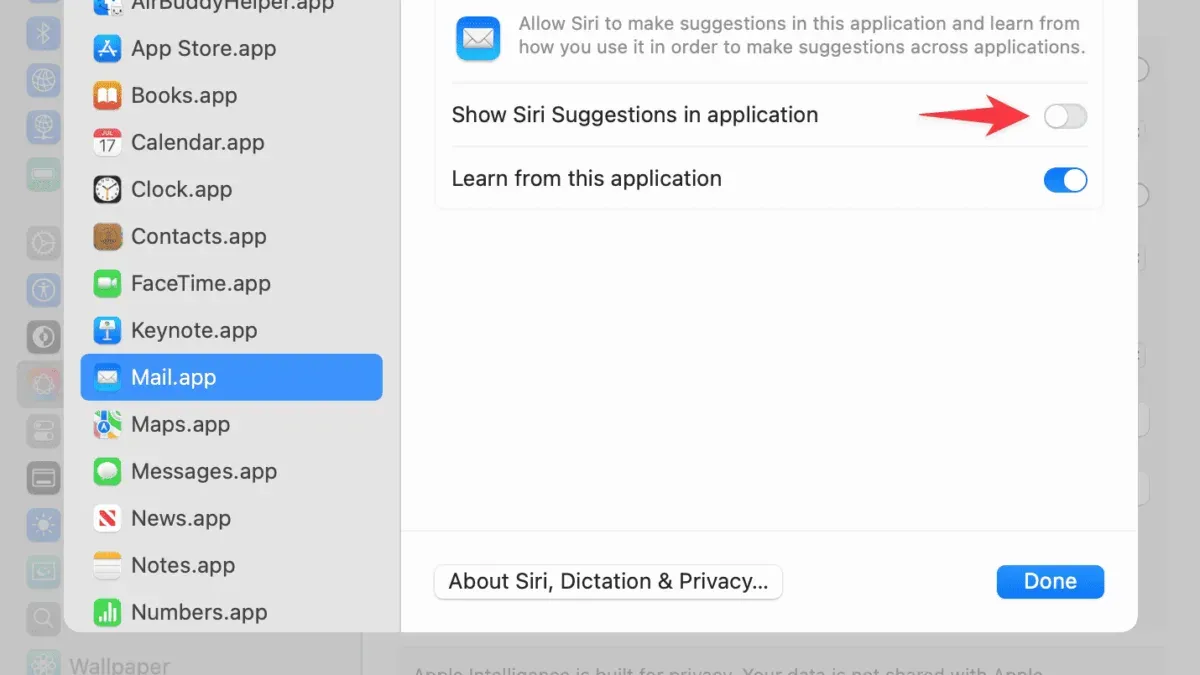
- To disable Siri Suggestions globally, locate the Siri Suggestions & Privacy section and click the Manage button next to it. Here, you will see a list of apps with toggles for allowing Siri Suggestions.
- Turn off the toggles for the apps where you want to stop seeing Siri Suggestions. For a full disable, switch off all app toggles. This prevents Siri from learning and suggesting content from those apps.
- Return to the main Siri & Spotlight page. Under Spotlight Results, uncheck options like Spotlight Suggestions and Look Up & Data Detectors to prevent Siri suggestions from showing in Spotlight searches and Look Up feature.
- Next, scroll to Suggestions in Search and disable options such as Show Siri Suggestions in the Dock and Show Siri Suggestions in Notification Center. This stops suggestions from appearing in those areas.
- Close System Settings. To verify the changes, click the Spotlight icon (magnifying glass) in the menu bar or press Command + Space. You should no longer see Siri Suggestions mixed with your search results in Spotlight.
- Also check your Dock and Notification Center for the absence of Siri Suggestions widgets or shortcut recommendations, confirming the settings took effect.
Disabling Siri Suggestions this way limits proactive recommendations but does not turn off Siri itself. You can selectively control which apps contribute data for suggestions, balancing privacy and convenience.
How to turn off Siri on Mac completely
If you want to disable the entire Siri assistant on your Mac, not just the suggestions, you can do so through System Settings. This action stops Siri from listening for voice commands and removes the Siri icon from the menu bar and Dock.
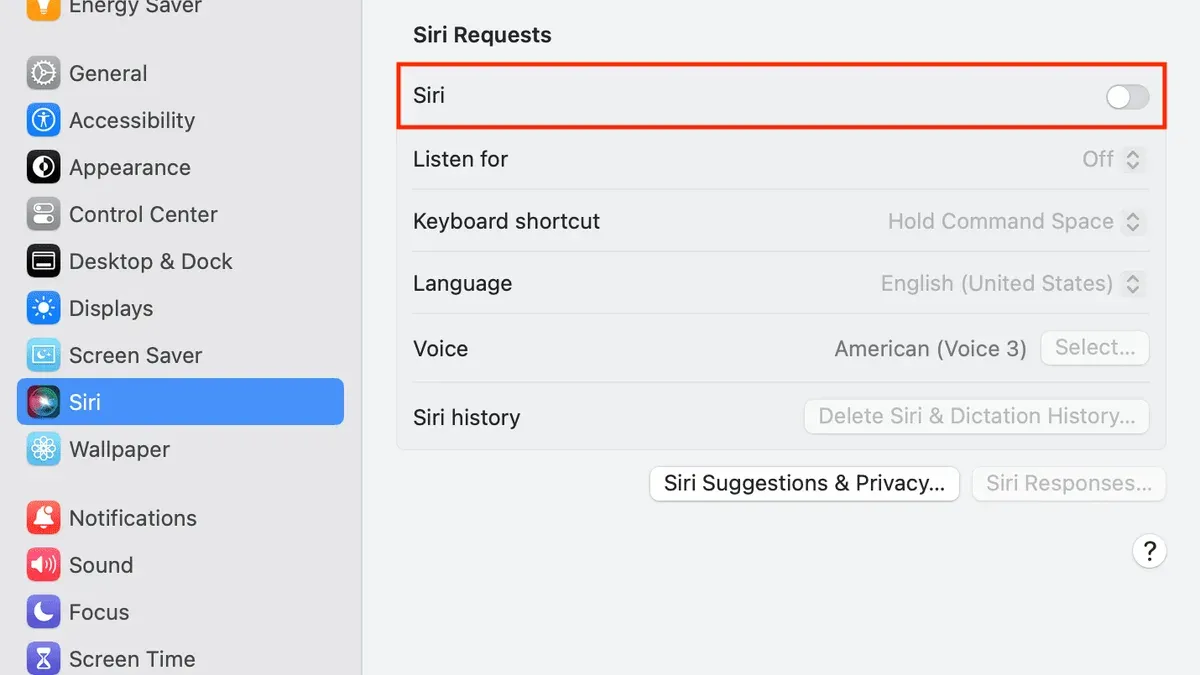
- Open System Settings from the Apple menu. You should see a window with various options.
- Click on Privacy & Security in the sidebar to access security-related settings.
- Scroll down and select Siri & Dictation. This section controls all Siri-related features.
- Toggle off Enable Ask Siri. When switched off, the Siri icon disappears, and voice activation is disabled.
- Confirm any prompts asking you to disable Siri completely.
After turning off Siri, voice commands like “Hey Siri” or keyboard shortcuts for activating Siri will no longer work. Additionally, dictation features that rely on Siri’s processing may be affected, so you might need to enable separate dictation settings if you still want to use voice-to-text functionality.
For example, if you try to say “Hey Siri, what’s the weather?” after disabling Siri, your Mac will not respond, showing the difference between turning off suggestions and fully disabling the assistant.
Disabling Siri is a stronger privacy and distraction control step than just turning off suggestions, but it also removes some convenience features that use voice interaction.
How to disable Siri suggestions on iPhone
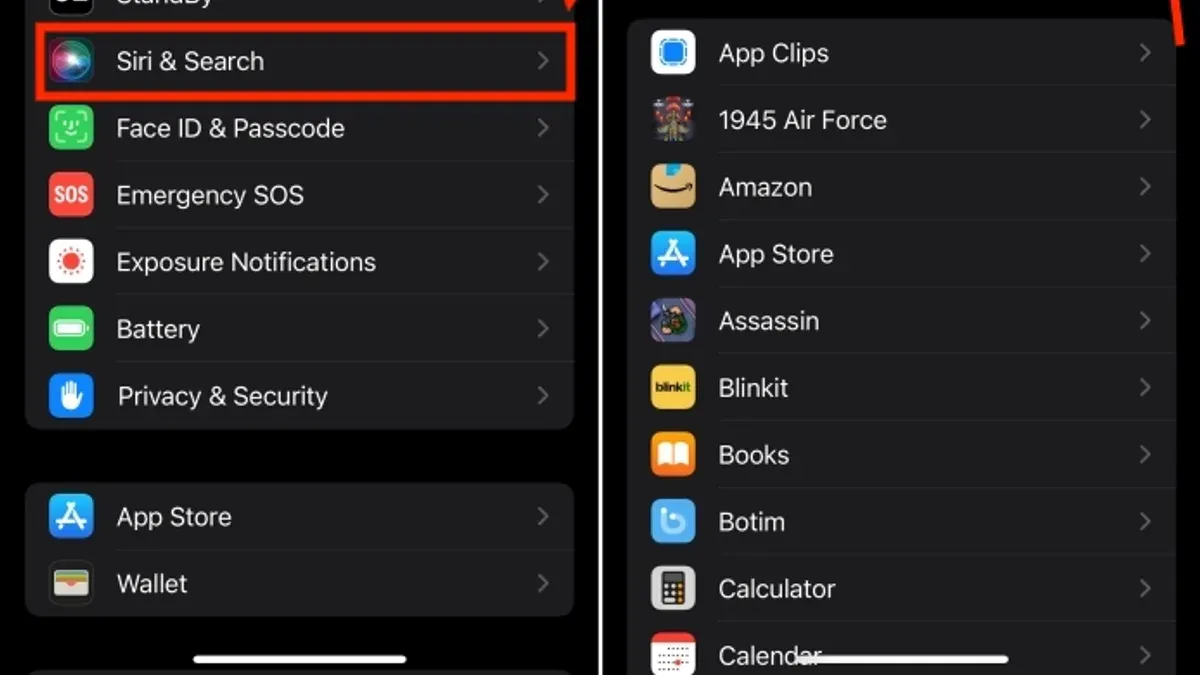
To turn off Siri suggestions on your iPhone, you will adjust settings within the Siri & Search menu. This controls suggestions in Search, Look Up, and on the Lock Screen, as well as for individual apps.
- Open the Settings app and tap Siri & Search. You will see sections for Suggestions and app-specific settings.
- Under Siri Suggestions, toggle off Suggestions in Search. This stops Siri from showing suggestions when you swipe down to search your device.
- Toggle off Suggestions in Look Up to prevent Siri from offering suggestions when you use the Look Up feature in apps like Safari or Notes.
- Toggle off Suggestions on Lock Screen to remove Siri suggestions that appear below the clock or on the lock screen’s Today View. When successful, these suggestions no longer show on your locked iPhone.
- Scroll down to the App-Specific Settings list. Tap each app you want to adjust, then toggle off Show Siri Suggestions to disable suggestions for that app.
Turning off Siri suggestions differs from disabling Siri entirely. The latter disables voice assistant functionality, while turning off suggestions only removes predictive content and shortcuts. You can keep Siri active while limiting where and when suggestions appear.
Before turning off suggestions on the Lock Screen, consider that you will lose shortcuts that might speed up common tasks. If you change your mind, re-enabling these toggles restores suggestions instantly.
How to stop Siri suggestions from appearing on your iPhone lock screen
Siri suggestions can appear on your iPhone lock screen to provide quick access to apps and shortcuts. If you prefer to keep your lock screen clear of these suggestions to protect your privacy or reduce distractions, you can disable them without affecting Siri’s other functionalities.
- Open the Settings app on your iPhone.
- Scroll down and tap Siri & Search.
- Find and select Suggestions on Lock Screen.
- Toggle off the switch next to Show Suggestions on Lock Screen. When disabled, the switch will no longer be green.
After completing these steps, you will no longer see Siri suggestions such as app shortcuts or predictive actions on your lock screen. For example, before disabling this setting, your lock screen might display a suggested messaging app based on your recent contacts. Afterwards, the lock screen will remain free of these prompts, showing only notifications and the time.
This setting improves privacy by preventing potentially sensitive app usage information from appearing on your locked device, visible to anyone who picks it up. It also limits distractions by removing dynamic suggestions that may not always be relevant.
Many users have noted that turning off lock screen suggestions helps maintain a cleaner, more private lock screen experience without disabling Siri completely or losing suggestions within apps and search.
Troubleshooting when Siri suggestions don’t turn off
If you have followed the steps to disable Siri suggestions but still see them appearing, several factors might be causing the issue. Commonly reported problems include settings not syncing properly across devices, software glitches, or incomplete application of changes.
- Check for software updates: Go to System Settings > Software Update on your Mac and Settings > General > Software Update on your iPhone. Installing the latest updates can resolve bugs that prevent settings from applying correctly. When your device is up to date, you should see a message confirming this.
- Restart your device: Restarting your Mac and iPhone often completes the application of new settings. After reboot, revisit the relevant Siri & Search settings to confirm your changes persist and that suggestions no longer appear.
- Verify settings on all linked devices: If your Mac and iPhone are linked via iCloud, Siri suggestions can sometimes re-enable due to sync conflicts. Check System Settings > Apple ID > iCloud on Mac and Settings > [your name] > iCloud on iPhone to ensure Siri & Search settings are consistent and toggled off where intended.
- Reset Siri & Search settings: If toggles seem unresponsive, reset them by going to Settings > Siri & Search on your iPhone, then toggle off all Siri suggestions options, restart, and toggle them off again if necessary. On Mac, toggle off suggestions in System Settings > Siri & Spotlight, restart, and verify again.
These steps address most issues reported in user forums, where restarts and software updates frequently resolve persistent Siri suggestion appearances. If problems continue, consider contacting Apple Support as there may be device-specific bugs or profile restrictions involved.
What turning off Siri suggestions does not cover
Disabling Siri suggestions limits only the proactive shortcut prompts and recommendations across your Mac and iPhone. However, the Siri voice assistant itself remains fully functional unless you explicitly turn it off in the settings. This means you can still use voice commands and ask Siri questions as usual.
System-wide search features like Spotlight on Mac and Search on iPhone continue to operate normally but without personalized suggestions from Siri. You will still see results from apps, files, and web searches, but Siri will not offer predictive shortcuts or contextual tips.
Many app-specific notifications, predictive text, and autocorrect features are handled independently of Siri suggestions. Turning off Siri suggestions does not affect these, so you may still receive alerts or text input predictions based on your usage.
Turning off Siri suggestions does not provide a noticeable improvement in battery life or device performance. Apple’s technical guidance indicates that these suggestions require minimal processing power and are optimized to run efficiently in the background.
In summary, disabling Siri suggestions addresses privacy and distraction concerns related to proactive prompts but does not disable Siri’s core functionality, search capabilities, or unrelated predictive features.
- How to Turn Off App Notifications on Mac: A Clear Step-by-Step Guide
- How to Schedule Do Not Disturb on Mac: A Complete 2026 Guide
- How to Customize Control Center on Mac: A Complete Step-by-Step Guide
- How to Create and Use Focus Mode for Work on Mac
Frequently asked questions
How to stop siri suggestions on iphone?
To stop Siri suggestions on your iPhone, go to Settings > Siri & Search. Scroll down to the list of apps and toggle off "Show Siri Suggestions" for each app you want to exclude. You can also disable "Suggestions on Lock Screen" and "Suggestions in Search" from the same menu to limit where suggestions appear.
How to shut off siri suggestions?
Shutting off Siri suggestions involves turning off the specific settings that control them. On a Mac, open System Preferences > Siri & Spotlight, then uncheck "Suggestions in Look Up," "Suggestions in Spotlight," and "Show Siri Suggestions in App." On iPhone, adjust these in Settings > Siri & Search by disabling suggestions per app or globally.
How to take off siri suggestions?
To take off Siri suggestions, you need to disable them in your device settings. On your iPhone, go to Settings > Siri & Search and turn off "Suggestions in Search," "Suggestions on Lock Screen," and "Suggestions on Home Screen" if available. On Mac, use System Preferences > Siri & Spotlight to uncheck relevant suggestion options.
How to remove siri suggestions?
Removing Siri suggestions means turning off all relevant toggles in your device’s settings. For iPhone, go to Settings > Siri & Search and disable suggestions globally or per app. On Mac, open System Preferences > Siri & Spotlight and deselect options like "Show Siri Suggestions" and "Suggestions in Spotlight."
How to delete siri suggestions on iphone?
Siri suggestions on iPhone cannot be deleted individually as they are dynamically generated. Instead, you can disable them by going to Settings > Siri & Search and turning off "Suggestions in Search," "Suggestions on Lock Screen," and "Suggestions on Home Screen." This stops new suggestions from appearing but does not erase past data stored by Siri.
What turning off Siri suggestions does not cover
This advice does not cover disabling Siri on older macOS or iOS versions where the locations of settings differ significantly. If you are running versions prior to macOS Catalina or iOS 13, the menus and options described may not be available or may be found in different places.
Additionally, turning off Siri suggestions does not disable all Siri functionality. Siri voice activation, dictation, and system-wide voice commands may still operate unless you disable Siri completely in System Preferences on Mac or Settings on iPhone.
If privacy concerns extend beyond Siri suggestions—such as preventing all data sharing with Apple—you may want to review your broader privacy settings or consider disabling Siri entirely.
For users who need to minimize distractions but still want quick access to Siri features, selectively disabling suggestions in notification center or lock screen may be a better approach than turning off all suggestions.
The most useful next step is to review the specific Siri & Search settings on both your Mac and iPhone to tailor suggestions and access to your preferences, ensuring a balance between convenience and privacy that works for you.