How to Customize Control Center on Mac: A Complete Step-by-Step Guide
Discover how to tailor Control Center on Mac for faster access to key settings like Wi-Fi, Bluetooth, and screen brightness.
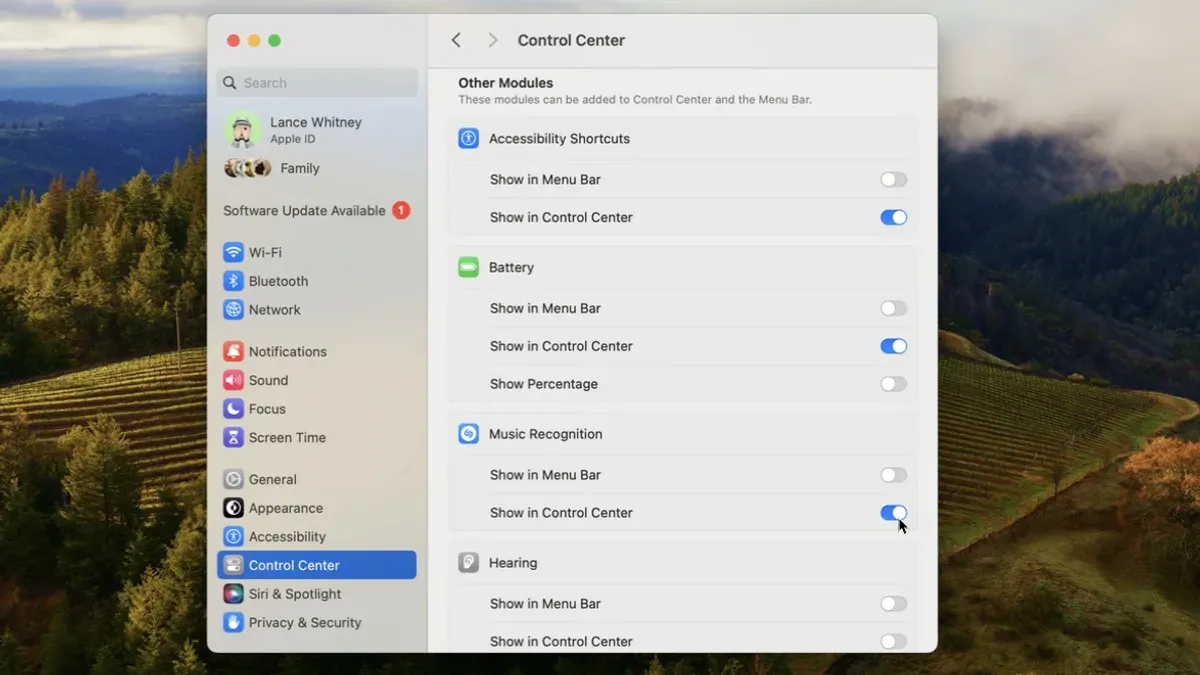
You open your Mac and want quick access to Wi-Fi, Bluetooth, or screen brightness without digging through System Preferences. The Control Center is designed for this, but its layout might not suit your workflow right away.
This article explains how to customize Control Center on Mac, guiding you through adjusting its contents, icon behavior, and comparing its features with those on iPhone and iPad. You’ll learn practical steps to tailor Control Center for faster settings access and understand the limits of automation and troubleshooting tips if things don’t work as expected.
Key takeaways
- You can add or remove Control Center modules via System Preferences > Dock & Menu Bar.
- Control Center icons can be shown or hidden in the menu bar for quicker access.
- Customization options differ from iPhone and iPad, reflecting macOS’s desktop environment.
- Automation of Control Center functions is limited, with no native scripting support.
- Common issues include missing icons, fixable by restarting SystemUIServer or adjusting preferences.
Before you start: What you need to customize Control Center on Mac
The Control Center feature on Mac is available starting with macOS Big Sur and all later versions. To customize it, ensure your Mac is running macOS 11 (Big Sur) or newer, including macOS Monterey, Ventura, or later updates.
You will need access to System Settings to make changes. Familiarity with navigating the Settings app and locating Control Center options under the sidebar is helpful. Note that some Control Center modules, such as Wi-Fi, Bluetooth, and Sound, are fixed in place and cannot be removed or relocated, while others like Do Not Disturb and Screen Mirroring allow some customization.
Currently, macOS does not support adding third-party modules to Control Center, so customization is limited to built-in controls.
To verify your macOS version and access Control Center customization:
- Click the Apple menu in the top-left corner of your screen and select About This Mac. A window will appear showing your macOS version at the top.
- Open System Settings by clicking the Apple menu and selecting System Settings. The sidebar will show various categories.
- Scroll down and click Control Center in the sidebar. Here you will see a list of modules you can customize, with toggle switches and options to show or hide items in the menu bar.
Recognizing which modules are customizable and the limitation on third-party additions will help set realistic expectations before you begin personalizing your Control Center.
How to open Control Center on Mac
The Control Center on Mac is typically accessed via its icon in the menu bar. This icon looks like two stacked sliders or toggles and is usually located near the top-right corner of your screen, close to the clock and Wi-Fi indicators.
- Locate the Control Center icon in the menu bar. When you click it, a dropdown panel with various controls and settings will appear.
- If you do not see the Control Center icon, open System Settings, then go to Control Center. Ensure that the option "Show in Menu Bar" is enabled for the modules you want quick access to, which can make the Control Center icon appear.
- On Mac models with a Touch Bar, such as certain MacBook Pro versions, you can access Control Center by customizing the Touch Bar to include the Control Strip. Tap the Control Center icon on the Touch Bar to open it.
- Some macOS versions support keyboard shortcuts or trackpad gestures for Control Center access. For example, pressing Fn + C may open Control Center if configured. Check your keyboard shortcuts in System Settings > Keyboard > Shortcuts to see if a shortcut is available or assign one yourself.
- If you prefer using gestures, swiping down with two fingers from the top-right corner of the trackpad can reveal Control Center on some MacBook models if enabled in settings.
When the Control Center opens successfully, you will see modules such as Wi-Fi, Bluetooth, Sound, Display brightness, and more, depending on your configuration. If the icon remains missing after enabling relevant settings, restarting your Mac can sometimes resolve display issues.
How to customize Control Center on MacBook and other Macs
To personalize your Mac's Control Center, start by opening System Settings from the Apple menu. Then navigate to the Control Center section to view available modules.
- Open System Settings and select Control Center. You will see a list of modules, such as Wi-Fi, Bluetooth, Sound, Display, and others.
- Locate the module you want to add to or remove from the Control Center. Use the toggle switches to enable or disable modules. When enabled, the module appears in the Control Center; when disabled, it is removed.
- To rearrange modules, click and drag the module names vertically within the list. The order here determines their priority and arrangement in the Control Center interface.
- Note that some system modules have limited customization options or fixed positions, especially core functions like Wi-Fi and Sound, which cannot be removed but can be repositioned in certain cases.
- After making changes, open the Control Center (via menu bar icon) to see the updated layout. Compare it to the previous arrangement to confirm your preferred setup is active.
Keep in mind that only built-in modules are customizable; third-party additions are not supported. Screenshots illustrating these steps typically show the toggles in System Settings and before-and-after views of the Control Center layout, highlighting added or removed modules and their new order.
Control Center icon on Mac: how to customize its appearance and behavior
You can choose to show or hide the Control Center icon in your Mac’s menu bar via System Settings. Navigate to System Settings > Control Center, then toggle the option labeled Show in Menu Bar for the Control Center module. When enabled, the icon appears as two stacked rectangles in the menu bar, providing quick access to your modules.
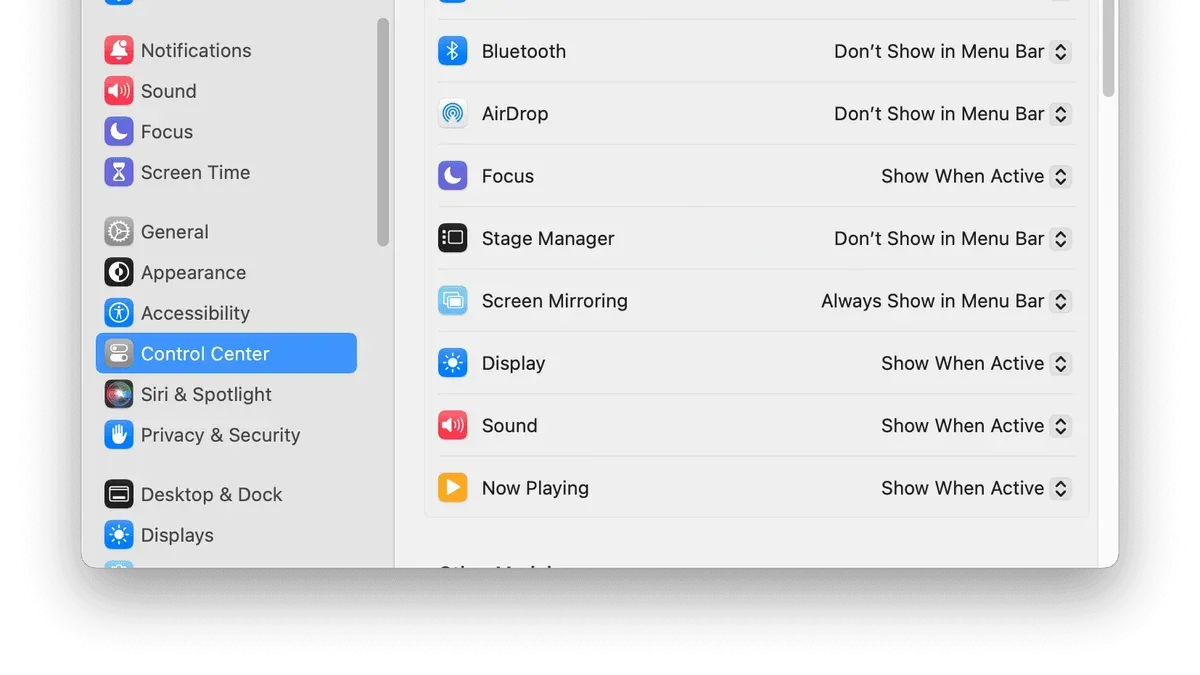
The icon’s behavior also adapts based on active modules. For example, if Do Not Disturb or Screen Mirroring is active, the icon changes to reflect this status, offering visual cues without opening the panel. When no modules are active, the icon remains static, serving as a simple launcher.
Some users explore third-party menu bar utilities like Bartender or Vanilla to manage the Control Center icon’s placement or visibility more granularly. These tools let you hide or rearrange menu bar icons beyond native options, but they cannot alter Control Center’s core behavior or add new modules. Automation options for the icon itself are limited, as macOS restricts programmatic control over system menu bar items.
- Open System Settings and select Control Center. You should see a list of modules with toggles.
- Locate the Show in Menu Bar toggle next to the Control Center entry; switch it on or off. When on, the icon appears immediately in your menu bar.
- If desired, install a third-party menu bar app like Bartender. Use it to hide or rearrange the Control Center icon. Confirm changes by checking the menu bar layout.
For example, a minimalist setup might hide the Control Center icon using Bartender and access it only via keyboard shortcuts, while a more visible setup keeps the icon always present for quick clicks. Native controls offer straightforward visibility toggling but lack advanced placement or automation, which third-party apps partially address within macOS limits.
How to customize your Mac settings using Control Center effectively
Control Center on Mac centralizes key system settings, allowing you to adjust them quickly without opening System Preferences. By using its modules, you can efficiently manage volume, brightness, Focus modes, and network connections.
- Click the Control Center icon in the menu bar to reveal available modules. You should see sliders and toggles for essential settings.
- Adjust the volume using the Sound module slider. The audio output changes immediately, saving you from navigating to Sound preferences.
- Modify screen brightness via the Display module slider. The screen responds instantly, avoiding extra steps in Display settings.
- Toggle Focus modes like Do Not Disturb directly from the Focus module. Activating it here applies the mode system-wide without opening Notifications preferences.
- Manage Wi-Fi and Bluetooth by clicking their respective modules to connect or disconnect devices. This is faster than opening Network preferences.
- Combine these quick adjustments with System Preferences for deeper customization, such as setting specific Focus schedules or advanced network options, ensuring a smoother workflow.
Using Control Center reduces the time spent navigating through multiple preference panes. For example, changing volume or brightness takes seconds instead of navigating through System Preferences menus, streamlining daily tasks.
How to customize Control Center on iPhone and iPad compared to Mac
Control Center customization on iPhone and iPad offers more extensive options than on Mac, allowing you to add, remove, and rearrange a wider range of modules. On iOS and iPadOS, you access these settings via Settings > Control Center, where you can tap the green plus or red minus buttons to add or remove controls and drag controls to reorder them. This level of customization helps tailor quick access to functions like Low Power Mode, Alarm, and Screen Recording, which are not available as modules on Mac.
In contrast, Mac’s Control Center customization is limited to enabling, disabling, and rearranging a set of built-in modules within System Settings, with no support for third-party modules or adding new types of controls. For example, Mac’s Control Center includes modules such as Wi-Fi, Bluetooth, and Sound but lacks the extensive utility options found on iPhones and iPads.
| Control Center Modules | Mac | iPhone/iPad |
|---|---|---|
| Wi-Fi | Yes | Yes |
| Bluetooth | Yes | Yes |
| Screen Mirroring | Yes | Yes |
| Low Power Mode | No | Yes |
| Alarm | No | Yes |
| Screen Recording | No | Yes |
| Sound | Yes | Yes |
| Brightness | Yes | Yes |
Understanding these differences helps you set realistic expectations when customizing Control Center on Mac. The Mac offers a streamlined, consistent set of controls aligned with desktop workflows, while iPhone and iPad provide more granular and diverse options to suit mobile needs.
To customize Control Center on iPhone or iPad:
- Open the Settings app; you should see the main settings list.
- Tap Control Center; the Control Center customization screen appears.
- To add a control, tap the green plus button beside a feature under "More Controls"; the control moves to the "Included Controls" list.
- To remove a control, tap the red minus button beside a feature under "Included Controls" and then tap "Remove"; it moves back to "More Controls."
- Drag controls up or down within "Included Controls" to reorder them; changes reflect immediately in Control Center.
Screenshots from iOS/iPadOS Control Center settings visually show these buttons and lists, reinforcing the straightforward interaction model. This contrasts with Mac’s simpler interface that restricts customization to toggling and rearranging predefined modules.
Automating Control Center on macOS: what’s possible and what’s not
Currently, macOS does not offer official support for automating Control Center modules directly. The system security architecture limits background scripts or apps from changing Control Center settings without user interaction.
However, some users employ workarounds using AppleScript, the Shortcuts app, or third-party utilities. For example, AppleScript can toggle certain system settings like Wi-Fi or Do Not Disturb by controlling System Preferences panes, but it cannot manipulate the Control Center interface itself.
The Shortcuts app on macOS allows automation of some actions related to system settings, but it is similarly restricted from directly modifying Control Center modules or their arrangement.
Third-party utilities may offer more extensive automation capabilities, such as toggling specific features or running scripts on schedule, but they often require elevated permissions and might conflict with macOS security policies.
Attempting to automate Control Center customization can lead to unpredictable behavior, including temporary failures or the need for manual overrides. Users should weigh the convenience of automation against potential security risks and system instability.
Example AppleScript to toggle Wi-Fi:
- Open Script Editor and enter:
tell application "System Events" to tell process "SystemUIServer" to click menu bar item 1 of menu bar 1
When run, this attempts to open the Wi-Fi menu from the menu bar. - Follow with commands to toggle Wi-Fi in the menu.
This requires scripting the menu structure, which can vary and is fragile. - Save and run the script.
If successful, Wi-Fi toggles without manual Control Center use.
Due to these limitations, automation remains partial and indirect, focusing on system settings rather than Control Center customization itself.
Troubleshooting common issues with Control Center customization on Mac
If the Control Center icon is missing or disappears from the menu bar, first verify its visibility in System Settings > Control Center. Ensure the option to show the icon is enabled. If it remains absent, restarting the SystemUIServer process can help: open Terminal and enter killall SystemUIServer. The icon should reappear shortly after.
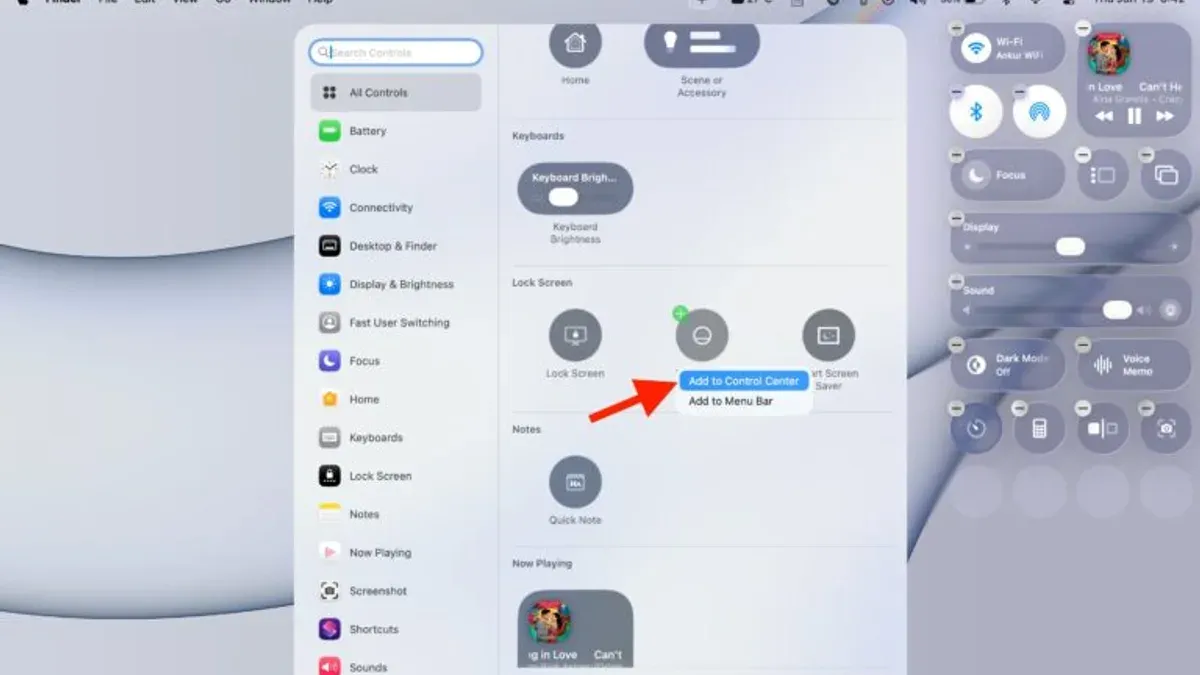
When modules in Control Center do not respond or fail to update, restarting your Mac often resolves temporary glitches. If the issue persists, check for macOS updates via System Settings > General > Software Update as Apple periodically releases fixes affecting Control Center functionality.
If changes you make in Control Center settings do not save, confirm you have the necessary permissions by logging in with an administrator account. Corrupted preference files can also cause this; resetting them requires deleting com.apple.controlcenter.plist from your user Library’s Preferences folder and then restarting your Mac.
Performance issues linked to Control Center, such as slow responsiveness or menu lag, may result from background processes or memory constraints. Closing unused apps and monitoring Activity Monitor for resource-heavy processes can improve performance. If problems continue, booting into Safe Mode can help isolate if third-party software conflicts affect Control Center.
Official Apple Support articles recommend these steps for common Control Center problems and suggest contacting Apple Support if issues remain unresolved after troubleshooting.
- How to Turn Off App Notifications on Mac: A Clear Step-by-Step Guide
- How to Add a Spacer to the Dock on Mac: Step-by-Step Guide
- How to Change Dock Icon Size on Mac: A Step-by-Step Guide
Frequently asked questions
How to customize mac settings?
You can customize Mac settings primarily through the System Settings app, accessed from the Apple menu. For quick adjustments, Control Center allows you to add, remove, and rearrange controls such as Wi-Fi, Bluetooth, and Display Brightness. To make these changes, open System Settings > Control Center, then use the toggles to show or hide specific controls and drag them to reorder as preferred.
What is mac control center?
Mac Control Center is a centralized panel that provides quick access to essential system controls and settings like Wi-Fi, Bluetooth, Sound, and Screen Brightness. It mirrors the concept familiar from iPhone and iPad but is tailored for the macOS environment. Control Center consolidates these shortcuts to streamline your workflow without opening full System Settings.
Where is control center on macbook pro?
On a MacBook Pro, Control Center is located in the menu bar at the top-right corner of the screen. The icon looks like two stacked toggles. Clicking this icon opens the Control Center panel, where you can manage various settings quickly.
How do i customize control center?
To customize Control Center, open System Settings and select Control Center from the sidebar. Here, you can enable or disable specific controls by toggling their visibility and drag items to rearrange their order in the menu bar or Control Center panel. Note that some controls, like Wi-Fi and Bluetooth, must remain accessible but can be repositioned.
What is Mac Control Center?
Mac Control Center is a feature in macOS that provides a unified interface for accessing commonly used settings. It is designed to improve convenience by grouping controls such as sound, display, connectivity, and accessibility options. While similar to iOS and iPadOS Control Centers, the Mac version reflects macOS’s unique environment and multitasking needs.
Limits of Control Center customization and automation on Mac
Control Center customization on Mac is limited to the built-in modules provided by macOS. You cannot add third-party modules or deeply modify existing ones beyond rearranging or showing/hiding them in the menu bar. Additionally, automation of Control Center functions remains constrained due to macOS security protocols and system design, preventing scripting or shortcuts from directly manipulating Control Center toggles.
If you need more advanced customization or integration with third-party apps, consider using dedicated utilities like BetterTouchTool or Keyboard Maestro, which provide broader control over your Mac’s interface and automation capabilities.
To continue refining your workflow, explore the System Settings > Control Center panel regularly. Adjust what appears in your menu bar for quick access, and remember that toggling visibility can streamline your workspace without clutter. This small step often makes the biggest difference in daily efficiency.