How to Create and Use Focus Mode for Work on Mac
Discover how to set up and customize Focus mode on your Mac to minimize distractions and stay productive during work hours.
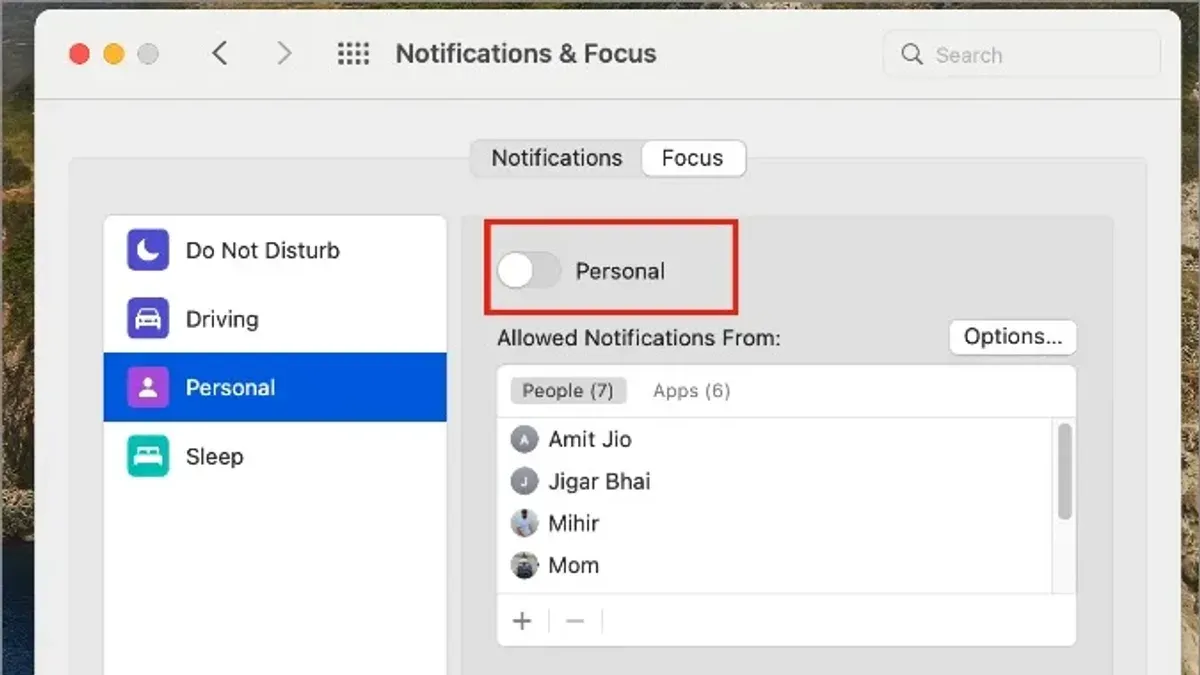
You open your Mac to start the workday, only to be distracted by constant notifications and unrelated app alerts. Focusing on your tasks becomes a challenge when interruptions from messages and social apps keep pulling your attention away.
This article explains how to create a Focus mode for work on Mac that helps you minimize distractions and streamline your productivity. You'll learn how to set up and customize Focus mode specifically for work, understand how it integrates seamlessly with your iPhone’s Focus settings, and explore practical ways to use this ecosystem synergy to maintain concentration across all your Apple devices.
Key takeaways
- Enable Focus mode via System Settings > Focus and customize Work Focus to filter notifications.
- Link your Mac’s Focus mode with your iPhone to sync work-related distractions across devices.
- Create allowed apps and people lists to receive only essential notifications during work hours.
- Use Control Center for quick Focus mode activation and deactivation.
- Troubleshoot by checking Focus status visibility and notification settings if Focus mode doesn’t behave as expected.
Before you start: what you need to use Focus mode on Mac
Focus mode is available on Macs running macOS Monterey or later. To access and customize Focus, ensure your Mac is updated to at least this version by going to Apple menu > System Preferences > Software Update.
You must be signed in with your Apple ID to sync Focus settings across devices. This synchronization allows your Focus mode on Mac to correspond with your iPhone, iPad, and other Apple devices.
Enable the necessary system permissions for notifications and Focus by confirming that notifications are allowed for the apps you want to control and that Focus is active in System Preferences > Notifications & Focus.
Focus mode is an evolution of Do Not Disturb (DND). While both limit interruptions, Focus lets you customize which people and apps can notify you during specific activities, like work. The table below highlights key differences:
| Feature | Focus Mode | Do Not Disturb |
|---|---|---|
| Customization | Customizable by activity and app | Simple on/off with scheduled times |
| Device syncing | Syncs across Apple devices | Limited or no syncing |
| Allowed notifications | Specific people and apps allowed | Blocks all notifications except calls if set |
| Automation | Supports location, time, and app triggers | Not supported |
How to enable Focus mode on your Mac
Activating Focus mode on your Mac is straightforward and can be done quickly through the Control Center or more thoroughly via System Settings.
- Click the Control Center icon located in the menu bar at the top right of your screen. This reveals a panel with various toggles.
- Look for the "Focus" section in Control Center and click it. You will see a list of existing Focus modes such as Do Not Disturb, Work, and Personal.
- Click on a Focus mode like "Work" to enable it immediately. When enabled, the Control Center icon changes to reflect the active Focus, confirming it is on.
- To customize or create new Focus modes, open System Settings by clicking the Apple menu, then selecting "System Settings."
- In System Settings, navigate to "Focus" in the sidebar. Here, you can enable Focus modes by toggling them on and off.
- Within this panel, you can also customize settings like allowed notifications, schedules, and automation rules to tailor Focus to your workflow.
- For quick access, you can add the Focus toggle to your menu bar by enabling the option within System Settings > Focus. This provides one-click control of Focus modes without opening Control Center.
Using these options lets you activate Focus mode with minimal interruption and adjust settings as needed for your work routine.
How to create and customize a Focus mode for work on Mac
Creating a dedicated Work Focus mode helps you minimize distractions and streamline your productivity. Follow these steps to set one up tailored to your work needs.
- Open System Settings and select "Focus" from the sidebar. You should see existing Focus modes and a plus sign (+) to add a new one.
- Click the plus sign (+) and choose "Custom" to create a new Focus mode. Name it "Work" and select an icon that represents your work environment. When done, the new Focus mode will appear in the list.
- Under "Allowed Notifications," select "People" to choose contacts whose notifications you want to receive during work hours. For example, add your manager and close colleagues. You will see the contact list update accordingly.
- Next, go to "Allowed Apps" and add only essential work-related apps such as Mail, Calendar, Slack, or Microsoft Teams. This limits notifications to apps critical for your tasks.
- Customize options for your Home Screen and Lock Screen if you use Focus syncing with your iPhone. Although Mac doesn't have Home Screens, this setting will sync with your iPhone preferences, showing relevant pages or dimming the Lock Screen notifications.
- Set a schedule by selecting "Add Schedule" or "Automation." You can configure Work Focus to activate on specific days, times, or locations, such as your office. Once configured, your Work Focus will turn on automatically according to these rules.
This setup ensures you receive only pertinent notifications and apps during work, reducing interruptions and allowing better concentration.
How does Focus mode work across Mac and iPhone?
Focus mode syncs seamlessly across your Apple devices using iCloud and your Apple ID. When you enable a Focus mode on your Mac, the same mode automatically activates on your iPhone, iPad, and even Apple Watch, minimizing distractions consistently throughout your ecosystem.
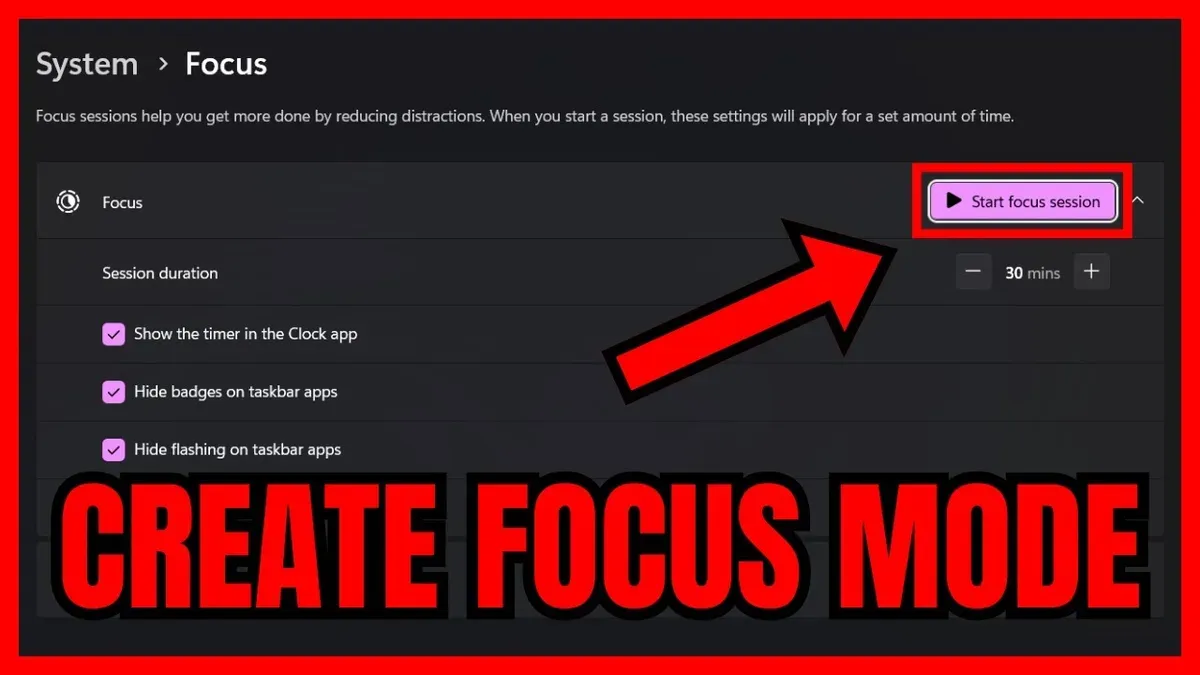
This synchronization ensures that notifications are filtered uniformly. For example, if you start a Work Focus on your Mac, your iPhone will silence work-excluded notifications and display only those allowed in that Focus, helping you maintain concentration whether you switch devices or use them concurrently.
| Feature | Mac | iPhone |
|---|---|---|
| Focus Sync via iCloud | Yes, syncs automatically when signed in with Apple ID | Yes, syncs automatically when signed in with Apple ID |
| Customizing Allowed Notifications | Manage allowed people and apps; fewer automation options | Manage allowed people and apps; supports automation like location and app usage |
| Scheduling Focus | Supports time-based scheduling | Supports time, location, and app-based triggers |
| Control Center Access | Quick toggle available | Quick toggle available with additional widget options |
From a user’s perspective, imagine you start a Work Focus on your Mac at 9 AM. Your iPhone will automatically enter that Focus, silencing personal notifications and calls not allowed in this mode. If you leave your desk and pick up your iPhone, the Focus remains active without manual adjustment, helping maintain your workflow.
How to use Focus mode on iPhone alongside Mac for work
To maintain a distraction-free workflow across your Mac and iPhone, you can set up a matching Work Focus mode on iPhone and synchronize its schedule and filters with your Mac. This ensures notifications and apps are consistently managed, no matter which device you're using.
- Open the Settings app on your iPhone and tap Focus. You should see your existing Focus modes, including the Work Focus if you've already created it on Mac synced via iCloud.
- Select the Work Focus to customize it. Here, you can add Allowed Notifications for people and apps, similar to your Mac settings. When done, you’ll see these preferences reflected in the summary under each category.
- Tap Focus Filters to limit apps and accounts. For example, you can filter your Mail app to show only your work email account or Messages to show only specific contacts. Successfully applied filters will display under the Focus Filters section.
- Go to Schedule or Smart Activation to synchronize when your Work Focus turns on, matching your Mac’s schedule. When set, a schedule summary appears below the activation toggle.
- To activate Work Focus manually, swipe down from the top-right corner to access Control Center, tap Focus, and select Work. You’ll see a confirmation that Work Focus is active on both iPhone and Mac if syncing is working.
Switching between devices is seamless because the Focus status syncs via iCloud. For example, if you begin work on your Mac and activate Work Focus, your iPhone will automatically enter Work Focus mode, minimizing distractions on both devices. Pausing or ending Focus mode on one device also updates the other, preserving your workflow without interruption.
How to turn on and get into Focus mode quickly
Activating Focus mode swiftly helps you block distractions without interrupting your workflow. Here are the main ways to turn it on immediately on your Mac and iPhone.
Using Control Center on Mac and iPhone
- Click the Control Center icon in the menu bar on your Mac, typically at the top-right corner. A panel appears showing various controls.
- Click the Focus section within Control Center. You will see your available Focus modes listed, including Work.
- Click the Work Focus to activate it immediately. When activated, the icon changes color and notifications will be filtered accordingly.
- On your iPhone, swipe down from the top-right corner to open Control Center, tap the Focus icon, then select your Work Focus to enable it.
Keyboard shortcuts and Siri commands
- Press Control + Option + Command + F on your Mac to toggle the last used Focus mode quickly. You should see a brief notification confirming activation.
- Alternatively, activate Siri by saying "Hey Siri, turn on Work Focus". Siri will respond confirming the mode is enabled.
Using automation and widgets for faster access
You can create a shortcut in the Shortcuts app to enable your Work Focus with a single click or tap. Add this shortcut to your Dock, menu bar, or Home Screen on iPhone for immediate access.
Widgets on both Mac (in Notification Center) and iPhone can also provide tap-to-activate buttons for your favorite Focus modes. Adding a Focus widget lets you switch modes without opening menus.
Troubleshooting common Focus mode issues on Mac
If Focus mode is not syncing between your Mac and other Apple devices, first ensure all devices are signed in with the same Apple ID and have iCloud Drive enabled. Also, check that Focus syncing is turned on in System Settings > Focus > Focus Sync. If syncing fails, toggling this setting off and on can often restore the connection.
When notifications still come through despite Focus mode being active, verify that specific apps or contacts are not allowed exceptions in your Focus settings. Go to System Settings > Focus > Work (or your custom Focus), then review Allowed Notifications to remove any unintended exceptions. Additionally, check that apps are not set to override Focus under System Settings > Notifications.
If Focus mode does not activate according to its schedule, confirm your Mac’s date, time, and time zone are correct in System Settings > General > Date & Time. Also, verify the schedule within the Focus settings matches your intended times and days. Restarting your Mac can help if schedules fail to trigger.
Users often confuse Do Not Disturb with Focus mode. Do Not Disturb is now integrated within Focus but has simpler controls and fewer customization options. Focus allows multiple profiles with tailored settings. To avoid confusion, use descriptive Focus names and review each Focus's settings carefully in System Settings > Focus.
Addressing these common issues involves systematic checks of Apple ID syncing, notification exceptions, scheduling accuracy, and understanding the distinction between Do Not Disturb and Focus modes.
How to disable or temporarily turn off Focus mode on Mac
You can manually disable Focus mode or pause scheduled Focus modes without losing your customized settings. This lets you regain full notification access temporarily while keeping your preferences intact for later use.
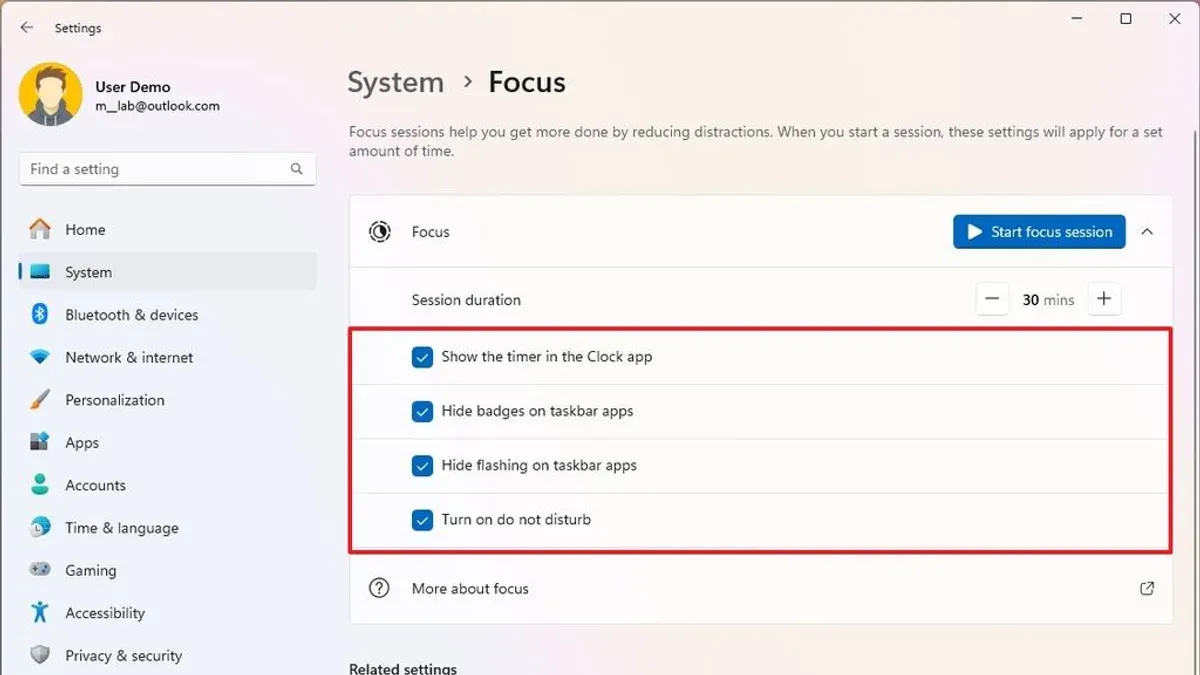
- Open Control Center by clicking its icon in the menu bar at the top right of your screen. You will see the Focus section showing the current active mode.
- Click on the active Focus mode name. This will open a dropdown menu displaying all your Focus modes and the option to turn off Focus.
- Select Turn Off to immediately disable the active Focus mode. The menu bar icon will change to indicate you are no longer in Focus mode, and all notifications will resume as usual.
- If you have scheduled Focus modes and want to pause them temporarily, open System Settings and go to Focus. Locate the scheduled Focus you want to pause and toggle off its schedule without deleting the entire Focus mode.
- Pausing schedules stops automatic activation but retains your configured settings, allowing you to reactivate the schedule later without rebuilding your Focus mode.
Important: Deleting a Focus mode permanently removes its settings, schedules, and customizations. Only delete a Focus mode if you no longer plan to use it, as this action cannot be undone.
Frequently asked questions
How to get into focus mode?
To get into Focus mode on your Mac, click the Control Center icon in the menu bar, then select Focus. Choose a preset Focus like Work or create a custom one to activate it. You can also set schedules or automate activation based on app usage or location.
How to turn on focus mode?
Turn on Focus mode by opening Control Center from the menu bar and clicking the Focus section. Select the Focus mode you want to enable, such as Work or Do Not Disturb. Alternatively, you can set up keyboard shortcuts or use Siri commands like "Turn on Work Focus."
What is focus on mac?
Focus on Mac is a feature that helps reduce distractions by filtering notifications based on your current activity. It allows you to customize which people and apps can notify you during specific Focus modes. Focus also syncs across Apple devices when enabled, keeping your workflow consistent.
How to set focus mode on iphone?
On your iPhone, go to Settings and tap Focus. Choose an existing Focus like Work or create a new one by tapping the plus sign. Customize allowed notifications, Home Screen pages, and automation options, then save your settings to activate the Focus mode.
How to enable focus mode on iphone?
Enable Focus mode on iPhone by swiping down from the top-right corner to open Control Center, then tapping Focus. Select the Focus mode you want to turn on, such as Work or Personal. You can also schedule or automate activation through the Settings app under Focus.
What Focus mode does not cover and who should look elsewhere
Focus mode helps reduce digital distractions on your Mac and Apple ecosystem devices, but it does not block physical interruptions like colleagues stopping by or phone calls from non-Apple devices. It won’t filter notifications from apps outside the Apple ecosystem if those apps do not integrate with Focus status. This guide does not cover advanced third-party distraction blockers or enterprise-level device management setups that some workplaces may require. Additionally, if your Mac runs an older version of macOS that predates Focus mode, these features will not be available.
The most practical next step is to explore the Focus settings in System Settings under Notifications & Focus > Focus. Start by customizing your Work Focus to allow notifications only from essential apps and contacts. This hands-on adjustment helps you tailor interruptions and sync your work hours across your devices, creating a smoother, distraction-reduced workflow.