How to Check Which Mac Games Are Compatible on Steam
Discover how to find and verify Mac compatible games on Steam using filters, system requirements, and third-party resources for smooth gameplay.
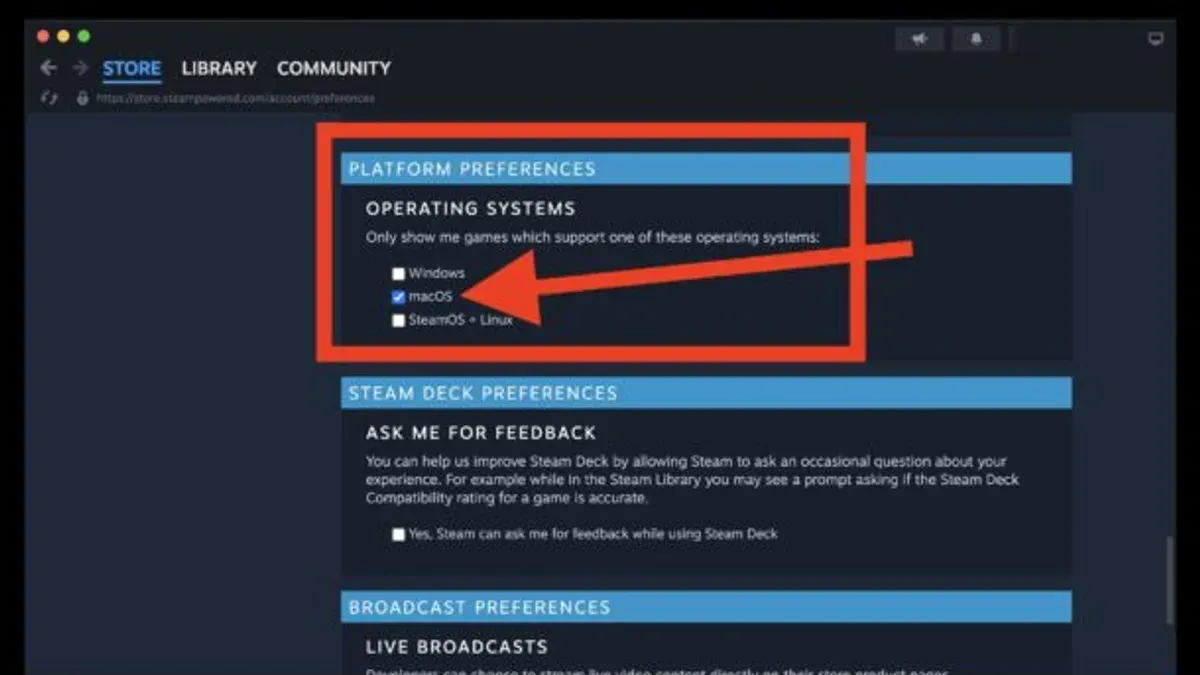
You want to buy a game on Steam but aren’t sure if it will run smoothly on your Mac. Steam’s interface can be overwhelming, and many games don’t clearly state Mac compatibility upfront. This article covers how to check Mac compatible games in Steam on Mac using Steam’s built-in filters, game properties, and external resources to avoid wasted purchases.
By following these steps, you’ll learn to navigate Steam’s Store filters, inspect system requirements within your Library, and verify compatibility using third-party databases. You’ll also discover how to test games safely with demos and understand refund policy details specific to Mac users.
Key takeaways
- Use Steam’s Store filters under "Narrow by OS" to find Mac-compatible games quickly.
- Check game Properties > Compatibility in your Steam Library for Mac support details.
- Consult third-party sites like ProtonDB or Mac gaming forums for real-world Mac compatibility reports.
- Try free demos or early access versions before purchase when available.
- Understand Steam’s refund policy terms related to Mac game performance issues.
Before you start: What you need to check Mac game compatibility
To verify which Steam games will run on your Mac, you must first gather essential system information and prepare your Steam client. This groundwork ensures accurate compatibility checks and avoids confusion.
- Find your Mac’s hardware and macOS version: Click the Apple menu () in the top-left corner, then select About This Mac. A window will display your macOS version (e.g., Ventura 13.4) and hardware details like processor type and memory. Note these details for later comparison with game requirements.
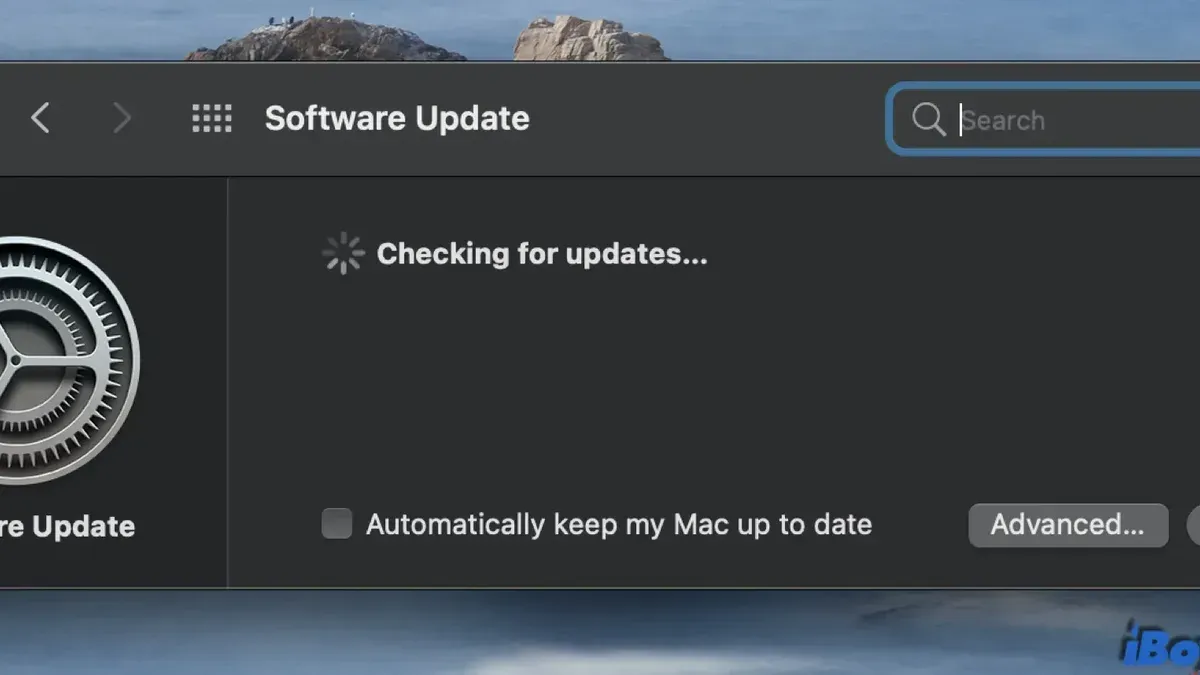
- Ensure Steam is installed and updated: Open Steam and select Steam from the menu bar, then Check for Steam Client Updates. The latest client version guarantees access to current store filters and compatibility data.
- Confirm your Steam account credentials: You will need to log in to view your library and access purchase options. Make sure you know your username and password, and that you can sign in without issues.
- Understand native Mac games versus compatibility layers: Some games are built specifically for macOS and run natively. Others require workarounds like Proton or Wine, which may not offer full performance or stability. Knowing this distinction helps set realistic expectations before buying.
Use Steam’s Store Filters and System Requirements to find Mac-compatible games
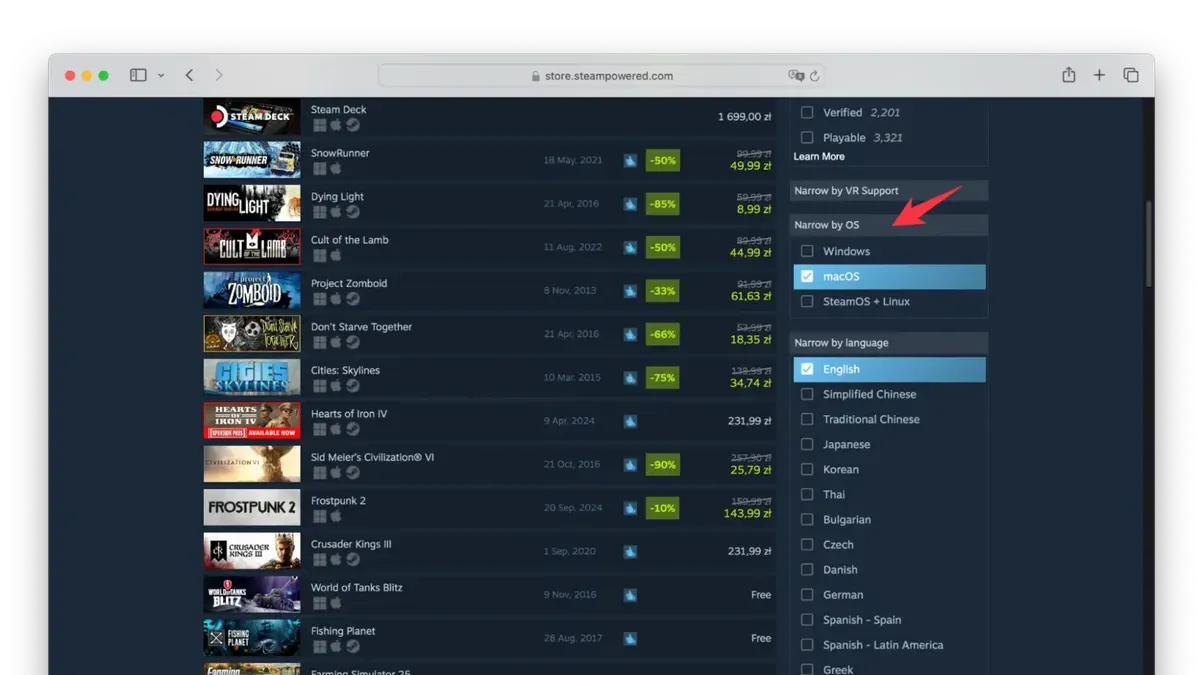
- Open the Steam client or visit the Steam Store website and navigate to the main Store page. You should see the game categories and filter options on the left sidebar.
- Locate the 'Narrow by OS' section and select the Mac OS icon. This filter will update the game list to show only titles officially supporting Mac.
- Browse the filtered results, then click on a game to open its store page. Scroll down to the System Requirements section.
- In the System Requirements, look for the Mac-specific details such as supported macOS versions, minimum CPU, RAM, and GPU requirements. This indicates native Mac support and helps confirm if your Mac meets the specs.
- Be cautious of vague or incomplete Mac compatibility notes. Some games may list Mac support but only via unofficial methods like Wine or Proton, which are not guaranteed to work well on all Macs.
- Check the 'About This Game' or 'Additional Notes' sections for any disclaimers about Mac support, such as "Mac version coming soon" or "Mac support via third-party tools." These may signal unofficial or partial compatibility.
Applying the Mac OS filter combined with careful reading of system requirements allows you to efficiently identify games designed for Mac, reducing the risk of buying incompatible titles.
Check the Steam Library and Game Properties for Mac support
To verify which games in your Steam library are compatible with your Mac, start by looking for platform icons next to each game title. A small Apple logo indicates native Mac support, while the Windows icon means the game is designed for Windows only. This quick visual check helps you identify Mac-ready games instantly.
- Open your Steam client and go to the Library tab. You should see a list of your games.
- Look for a small Apple logo under each game's title or in the details pane. If the icon is present, the game supports macOS natively.
- Right-click a game in your library and select Properties. In the Properties window, navigate to the Local Files tab to verify installation status and file integrity.
- Within Properties, check for any compatibility options under a Compatibility tab or section. Some games may offer options to run via Proton or other compatibility layers; however, native Mac support is preferable for performance and stability.
- Note any developer or community notes in the game's Steam page or forums linked from the Properties window about using Proton or other tools on Mac, as these can affect usability.
Example: In the Library view, Stardew Valley shows the Apple icon, confirming Mac compatibility, while Cyberpunk 2077 lacks it, indicating Windows-only support. Checking Properties confirms whether the game is installed correctly and if compatibility settings are available.
Use third-party websites and databases for additional Mac compatibility info
Beyond Steam’s official data, third-party websites and dedicated Mac gaming forums provide valuable insights into how well games actually run on Mac hardware. Trusted resources like ProtonDB and SteamDB compile user-submitted reports and technical details that reveal real-world performance and compatibility nuances.
- Visit ProtonDB and search for the game you’re interested in. You should see a compatibility rating ranging from "Platinum" (runs flawlessly) to "Borked" (does not run), along with user comments describing their Mac model, OS version, and any tweaks they applied.
- Check SteamDB to review detailed game metadata, including supported platforms and updates related to Mac support. Confirm that the game lists Mac as a supported platform and note any recent changes in compatibility.
- Explore Mac gaming forums such as MacRumors or dedicated Steam community hubs. Look for threads where users share their experiences, report bugs, or offer workarounds specific to Mac configurations.
- Cross-reference user reports from these sites with Steam’s official system requirements to identify discrepancies or additional requirements like specific macOS versions or hardware features.
For example, a ProtonDB report might show a game rated "Gold" with notes mentioning occasional frame drops on older MacBook Pros but overall playability on recent macOS versions. This direct feedback helps you set realistic expectations and avoid surprises after purchase.
Test Mac compatibility with free demos and Steam’s refund policy considerations
One practical way to verify if a Steam game will run well on your Mac is to try its free demo or free-to-play version, if available. This allows you to assess performance and identify any compatibility issues before making a purchase.
- Search the game on Steam and check for a “Free Demo” or “Free to Play” label on the store page. If present, click “Play Demo” or “Play Game” to download it. Successful download indicates the demo is available for Mac or your system.
- Launch the demo and observe initial load times, graphics rendering, and responsiveness. Look for error messages, crashes, or abnormal behavior indicating compatibility issues. Smooth gameplay generally signals good compatibility.
- If the demo runs well, you can be more confident in purchasing the full game. If problems arise, note error specifics to check with support or community forums.
Steam’s refund policy offers protection if a purchased game does not work on your Mac. You can request a refund within 14 days of purchase and with less than two hours of total playtime. This policy covers technical issues including incompatibility.
For example, if you buy a game and it fails to launch or runs poorly on your Mac, submit a refund request through Steam’s help site, explaining the compatibility problem. Approval is typical if you meet the time and date conditions.
Troubleshooting common issues when checking Mac compatibility on Steam
Steam’s platform filters sometimes show incorrect results or omit Mac icons, causing confusion. To fix this, restart Steam and clear the download cache via Steam > Settings > Downloads > Clear Download Cache. After relaunch, Mac icons should display correctly in your library and store pages.
Understanding the difference between Intel and Apple Silicon Macs is crucial. Many games run natively on Intel Macs but may require Rosetta 2 translation on Apple Silicon. Check the game’s system requirements or community discussions for explicit support. Below is a compatibility overview:
| Processor Type | Native Game Support | Rosetta 2 Required | Common Issues |
|---|---|---|---|
| Intel Mac | Most 64-bit games | Not applicable | Rare compatibility problems |
| Apple Silicon Mac | Some Universal or ARM-native titles | Many Intel-only games | Performance drops, occasional crashes |
macOS dropped 32-bit app support starting with Catalina. If a game is 32-bit, it won't run on recent macOS versions. Verify the game architecture via system info or Steam discussions before purchase.
When games require compatibility layers like Wine or Proton, Steam on Mac offers limited support compared to Windows or Linux. These layers are often unsupported officially and may cause errors such as "missing libraries" or "failed to launch." For such cases, consult community forums for patched versions or alternative methods but expect varying success.
- Restart Steam and clear the download cache.
Expected: Mac platform icons and filters refresh correctly. - Check your Mac’s processor type (Apple menu > About This Mac).
Expected: You know if your Mac is Intel or Apple Silicon. - Review the game’s system requirements explicitly for Intel or Apple Silicon support.
Expected: Clear indication if Rosetta 2 is needed. - Confirm the game is 64-bit if using macOS Catalina or later.
Expected: No compatibility issues due to unsupported 32-bit architecture. - If the game requires Wine or Proton, visit community forums for installation tips.
Expected: Awareness of potential instability or unsupported status.
Frequently asked questions
How can I tell if my Mac’s hardware meets a game’s requirements on Steam?
Check the game’s system requirements listed under the Steam Store page, usually found in the “System Requirements” section. Compare the listed CPU, GPU, RAM, and OS version with your Mac’s details, which you can find by clicking the Apple menu and selecting “About This Mac.” Pay attention to minimum versus recommended specs to gauge expected performance.
What does it mean if a game is listed as Mac compatible but won’t run on my Mac?
This can indicate several issues: your Mac’s hardware may fall below the minimum requirements, your OS version might be unsupported, or there could be compatibility problems with Apple Silicon versus Intel. Also, some games require additional software like specific frameworks or drivers. Reviewing the game’s community discussions or support pages can reveal known issues or workarounds.
Are all Mac-compatible games on Steam optimized for Apple Silicon Macs?
Not all Mac-compatible games have native Apple Silicon support. Many run via Rosetta 2 translation, which can impact performance. Developers are gradually updating games for native Apple Silicon compatibility, but you should verify this by checking the game’s store page, developer notes, or user reviews to confirm optimization status.
Can I play Windows-only Steam games on Mac without installing Windows?
Windows-only games generally require Windows to run, but some can work through compatibility layers like Proton or Wine, though these solutions are limited on Mac. Steam’s Proton support is primarily for Linux, so on Mac, options are more restricted. Without installing Windows or using virtualization software, playing Windows-only titles on Mac is often not feasible.
What this advice does not cover and who should look elsewhere
This article does not cover detailed instructions on running Windows-only games on Mac using emulation tools like Wine or virtualization software such as Parallels Desktop or Boot Camp. If you want to play Windows-exclusive Steam games on a Mac, you should consult guides specifically dedicated to setting up and optimizing these environments.
Additionally, this guide focuses on verifying native Mac compatibility and does not address performance optimization or graphics settings beyond the Steam system requirements and properties. For in-depth troubleshooting of game-specific issues or advanced hardware compatibility, specialized forums and developer support channels may be more helpful.
The single most practical next step is to open the Steam client on your Mac and apply the macOS filter under the Store's operating system options while browsing games. Combined with checking the detailed system requirements on each game's Store page, this ensures you consider only titles designed to run natively on your Mac before making any purchases or downloads.