How to Move Your Steam Library to an External Drive on Mac
Free up Mac storage by moving your Steam library to an external drive with clear, step-by-step instructions tailored for Mac users.
You’ve noticed your Mac’s internal storage filling up quickly, and your Steam game library is taking up a significant chunk of space. Moving your games to an external drive can free up storage without deleting your files, but the process requires careful handling to avoid data loss or launch issues.
This article explains how to move library to external drive in Steam on Mac, providing clear, step-by-step instructions tailored to Mac’s filesystem and Steam’s library management. Whether you want to create a new library folder on your external drive or transfer existing games, this guide covers practical methods and common pitfalls to help you manage your Steam games efficiently.
Key takeaways
- Create a new Steam library folder on your external drive via Steam settings under "Steam Library Folders".
- Use Steam's "Move Install Folder" option to transfer individual games safely without manual file manipulation.
- Manually moving files requires updating Steam’s library folders and verifying game files afterward.
- Performance may vary depending on your external drive’s connection type and speed.
- Common issues include missing game files or Steam failing to recognize the new library location—re-adding the folder in Steam usually resolves this.
Before you start: What you need to move your Steam library
To move your Steam library to an external drive on Mac, ensure the drive uses a Mac-compatible filesystem such as APFS or Mac OS Extended (Journaled). These formats support macOS file permissions and improve compatibility with Steam. Check that the external drive has enough free space to accommodate your games; since average game sizes vary widely, estimate based on your current library size plus some overhead for updates.
Backing up your Steam library before starting is strongly recommended to prevent data loss. This can be done by copying the entire SteamApps folder or using Time Machine. Steam manages game libraries through its Library Folders settings, allowing multiple locations for installations. Confirm your Steam client is up to date by selecting Steam > Check for Updates, and verify your macOS version supports the latest Steam features.
- Connect your external drive to your Mac and open Disk Utility. You should see the drive listed with its format displayed; if it is not APFS or Mac OS Extended (Journaled), reformat accordingly.
- Check available space on the external drive by selecting it in Finder and pressing Command + I; ensure free space exceeds your total Steam game size.
- Launch Steam and go to Steam > Check for Updates to confirm you have the latest client version.
- Navigate to Steam > Settings > Downloads > Steam Library Folders to familiarize yourself with current library paths.
- Create a backup of your SteamApps folder located in ~/Library/Application Support/Steam/SteamApps by copying it to a safe location.
Creating a new Steam library folder on your external drive
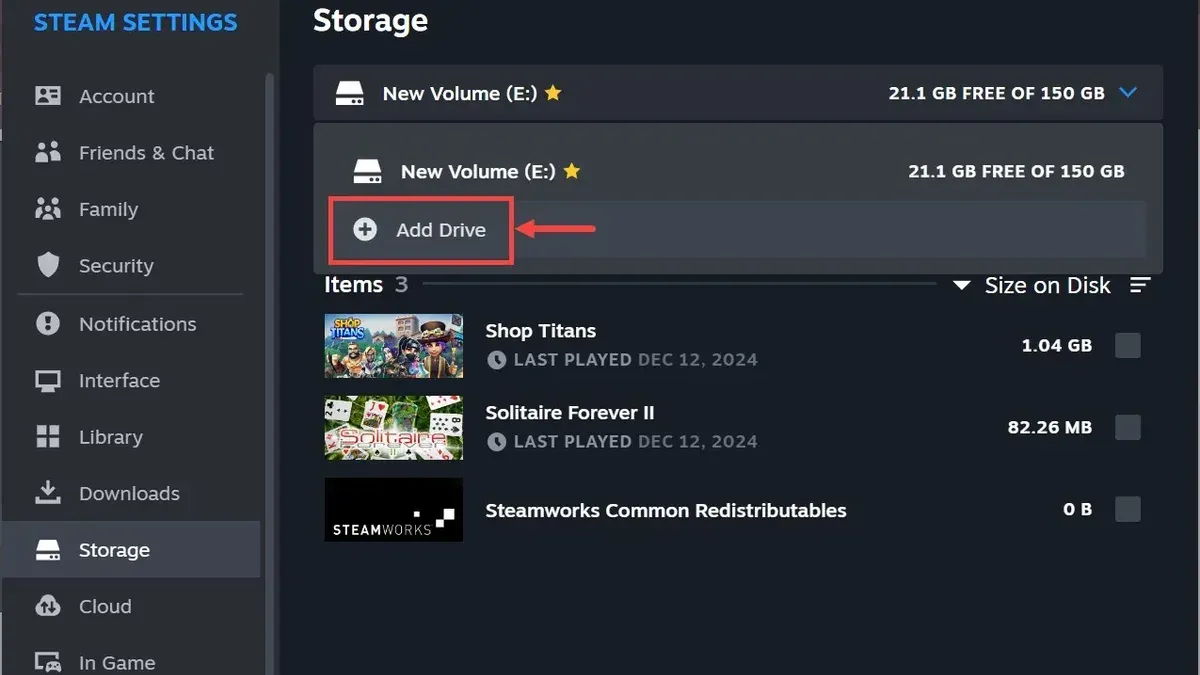
To move games to your external drive, first add it as a recognized Steam library location. This lets Steam install and manage games directly on the external storage.
- Open Steam and click on Steam in the top menu bar, then select Settings.
- In the Settings window, click on Downloads, then select Steam Library Folders.
- Click the + button to add a new library folder.
- In the folder selection dialog, navigate to your external drive, choose or create a folder (e.g., SteamLibrary), and confirm by clicking Select.
- Ensure the new folder appears in the list of Steam library folders with the correct path pointing to your external drive.
- Close the Settings window; Steam now recognizes the external drive as a valid library location.
For folder naming, use simple, clear names without spaces or special characters to avoid potential path issues. Organizing games within a dedicated folder (such as SteamLibrary) on the external drive helps maintain clarity and separation from other data.
After adding the folder, you can verify its status by checking the Steam Library Folders list, which shows available space and the drive letter or name, confirming Steam’s access.
Moving existing games to the external drive using Steam's built-in tools
Steam provides a straightforward way to relocate installed games to your external drive without manual file handling. This ensures the integrity of game files and prevents launch issues.
- Open Steam and go to your Library.
- Right-click the game you want to move and select Properties.
- In the Properties window, click the Local Files tab.
- Click Move Install Folder....
- From the dropdown menu, choose the external drive’s Steam library folder you previously created.
- Click Move Folder. Steam will begin transferring the game files.
During this process, expect noticeable disk activity and a progress bar indicating move status. Moving a large game (50GB or more) may take several minutes depending on drive speed and connection type. Steam handles all file paths and updates automatically, so the game remains playable from the new location after the move.
For batch moving multiple games, you need to repeat these steps for each title individually, as Steam does not currently support bulk moves through the interface.
Manually transferring Steam library files and updating Steam settings
If you prefer to move your entire Steam library folder manually, you can do so using Finder and terminal commands, but this method requires careful handling to avoid data loss or permission errors.
- Close Steam completely to ensure no files are in use. Open Finder, navigate to your current Steam library (usually under ~/Library/Application Support/Steam/steamapps), and copy the entire steamapps folder to your external drive’s Steam library folder. You should see the folder duplicated on the external drive.
- Open Steam, go to Steam > Settings > Downloads > Steam Library Folders, and add the external drive’s Steam library folder by clicking Add Library Folder. The new location should now appear in your library list.
- To ensure file permissions are correct, open Terminal and run
ls -l [path_to_external_drive]/steamappsto check ownership and access rights. Usechmod -R 755 [path_to_external_drive]/steamappsandchown -R $(whoami) [path_to_external_drive]/steamappsif permissions need fixing. This prevents Steam from encountering read/write errors. - Back in Steam, verify game file integrity by right-clicking a game in your library, selecting Properties > Local Files > Verify Integrity of Game Files. This confirms the manual transfer was successful.
Manual transfer offers full control but carries risks such as incomplete copies or permission issues that the built-in Move Install Folder tool automatically handles. Use this method only if you need to move multiple games simultaneously or encounter problems with Steam’s tool.
Running games from an external drive: Performance and limitations
When running Steam games from an external drive on Mac, performance depends significantly on the drive type and connection interface. USB 3.0 drives generally provide slower load times compared to internal SSDs, often resulting in noticeable delays during game startup and asset streaming. Thunderbolt 3 or 4 SSDs approach internal SSD speeds more closely, offering smoother gameplay and faster load times, though still slightly behind internal storage.
Users frequently report occasional issues launching games or applying updates when the external drive connection is unstable or slow. A disconnected or power-saving external drive may cause Steam to fail to recognize the library, forcing reinstallation or repair. Maintaining a stable and direct connection is essential to avoid interruptions.
External drives formatted with APFS or Mac OS Extended are preferred to ensure compatibility and reduce file system errors. However, running games off an external drive is not recommended if you rely on wireless connections, have frequent drive disconnections, or prioritize the fastest load times available.
In summary, while external drives offer flexible storage options, Thunderbolt SSDs deliver the best balance of speed and reliability, USB drives may suffice for less demanding titles, and unstable connections can cause operational issues.
Troubleshooting common problems when moving Steam library on Mac
If Steam does not recognize the external library folder, confirm the folder is added correctly under Steam > Settings > Downloads > Steam Library Folders. The folder path must match exactly, including case sensitivity. Restart Steam after adding the folder to refresh recognition.
Games failing to launch often stem from permission issues or incomplete transfers. Check that the external drive has read/write access for your user account by selecting the drive in Finder, pressing Command+I, and verifying under “Sharing & Permissions” that your user has “Read & Write” privileges.
Download or update errors related to the external drive typically indicate insufficient permissions or unstable connection. Ensure the drive is connected via a reliable port (prefer Thunderbolt or USB-C) and avoid hubs that may cause dropouts.
If you encounter Steam errors like “Disk write error” or “Failed to start game,” try verifying game files via Steam’s Properties > Local Files > Verify Integrity of Game Files.
To revert changes, move games back to the original internal Steam library folder using the Move Install Folder feature or manually transfer files back and reset Steam library paths accordingly. This restores original functionality and avoids corrupted configurations.
Frequently asked questions
Can I move my entire Steam library to an external drive at once?
Steam does not provide a built-in option to move the entire library at once. You need to move games individually or move entire library folders manually. Using Steam's "Move Install Folder" feature game-by-game helps avoid data loss and ensures proper configuration.
What is the best external drive format for Steam on Mac?
For optimal compatibility and performance, format your external drive as APFS or Mac OS Extended (Journaled). APFS offers better speed and reliability for newer macOS versions, while Mac OS Extended is compatible with older systems. Avoid formats like exFAT or NTFS, which may cause permission or file system issues.
Will moving games to an external drive affect game updates?
Game updates will continue to work if Steam recognizes the external library folder correctly. However, the external drive must be connected and mounted before launching Steam; otherwise, Steam may not detect the installed games and trigger reinstallation. Keep your external drive reliably connected during update processes.
How do I switch back to the internal drive if needed?
To switch back, use Steam's "Move Install Folder" option to transfer games from the external drive back to your internal storage. Alternatively, you can add or select the internal Steam library folder in Steam's Settings under Downloads > Steam Library Folders and install or move games there. Make sure to disconnect the external drive only after confirming the games run correctly from internal storage.
What this guide does not cover and who should look elsewhere
This guide does not cover moving Steam libraries on non-Mac platforms such as Windows or Linux, where filesystem types and Steam client behaviors differ considerably. It also excludes the use of network drives or NAS devices, which may introduce latency, connectivity, and permission challenges that require specialized setup beyond local external drives. If you rely on network storage or non-Mac environments, consult platform-specific resources or Steam community forums for tailored advice.
The most useful next step is to verify your external drive’s format and permissions before moving any games. Ensure it is formatted as APFS or Mac OS Extended (Journaled) to maintain compatibility with Steam and macOS. Double-check that you have full read/write access to the external drive to prevent interruptions. This preparation reduces the risk of errors during the move and smooths game launches from the new location.