How to Install Windows Only Steam Games on Mac: A Step-by-Step Guide
Discover practical methods to install and play Windows-only Steam games on your Mac using Boot Camp, virtualization, and compatibility layers.
You’ve found a Windows-only game on Steam that you’re eager to play, but you’re using a Mac. Many popular titles remain Windows-exclusive, which can be frustrating if you want to access them without switching devices. Understanding how to install Windows only games in Steam on Mac can help you expand your gaming options.
This article walks you through practical, tested methods for running Windows-only Steam games on your Mac. You’ll learn how to use Boot Camp for native performance, virtualization software for convenience, and compatibility layers for quick access. Each approach includes step-by-step instructions and notes on performance and limitations, helping you decide which method fits your needs.
Key takeaways
- Boot Camp offers the best performance by running Windows natively but requires restarting your Mac.
- Virtualization software like Parallels lets you run Windows games alongside macOS with moderate performance.
- Compatibility layers such as Wine or Proton are free options but may have limited game compatibility and performance.
- System requirements and available disk space are crucial before attempting installation.
- Common issues include graphics driver problems and input device configuration, which have known fixes.
Before you start: what you need to play Windows Steam games on Mac
Running Windows-only Steam games on a Mac involves understanding your hardware capabilities, choosing the right software method, and ensuring you have the proper licenses and peripherals. Mac hardware varies widely, so performance and compatibility depend on your specific model.
You will need a valid Steam account with the Windows-only game already purchased. The main approaches to run these games include dual booting with Boot Camp, using virtualization software like Parallels Desktop or VMware Fusion, or employing compatibility layers such as Wine or CrossOver.
Each method has different hardware demands and software requirements. Boot Camp requires an Intel-based Mac with sufficient free disk space for a Windows partition and a valid Windows license. Virtualization software needs a Mac with enough RAM and CPU power to run both macOS and Windows simultaneously. Compatibility layers demand less hardware overhead but may have limited game compatibility or performance.
Additional external peripherals such as a game controller or extra storage might be necessary depending on the game’s requirements. Ensure you have at least 50 GB of free storage space to accommodate Windows, the game, and updates.
| Method | Minimum RAM | Minimum Storage | Hardware Requirement | Software Needed |
|---|---|---|---|---|
| Boot Camp | 8 GB | 64 GB | Intel Mac with macOS supported by Boot Camp | Boot Camp Assistant, Windows ISO, Windows license |
| Virtualization | 16 GB | 50 GB | Intel or Apple Silicon Mac with virtualization support | Parallels Desktop or VMware Fusion, Windows ISO, Windows license |
| Compatibility Layers | 8 GB | 30 GB | Intel or Apple Silicon Mac | Wine or CrossOver |
- Verify your Mac model and hardware specs (Apple menu > About This Mac). You should see your processor type, RAM, and available storage.
- Confirm you have a valid Steam account and have purchased the Windows-only game. Open the Steam app to check your library.
- Choose your preferred method to run Windows games: Boot Camp for best performance on Intel Macs, virtualization for convenience, or compatibility layers for no Windows license.
- Download required software: Boot Camp Assistant is preinstalled on Intel Macs; virtualization tools like Parallels or VMware can be downloaded from their websites; Wine and CrossOver are available online.
- Prepare external peripherals if needed, such as USB controllers or external drives, to ensure smooth gameplay and enough storage.
How to install Windows-only Steam games on Mac using Boot Camp
Boot Camp allows you to run Windows natively on your Mac, offering the best compatibility and performance for Windows-only Steam games. This method requires partitioning your Mac’s drive and installing Windows alongside macOS.
- Back up your Mac: Use Time Machine or another backup method to secure your data. This step prevents data loss during partitioning.
- Download a Windows ISO: Get a Windows 10 or 11 ISO file from Microsoft's official website.
- Open Boot Camp Assistant: Find it in the Utilities folder inside Applications. Follow prompts to create a Windows partition. Allocate at least 64 GB for Windows to accommodate the OS and games; users typically see the partition size displayed before confirm.
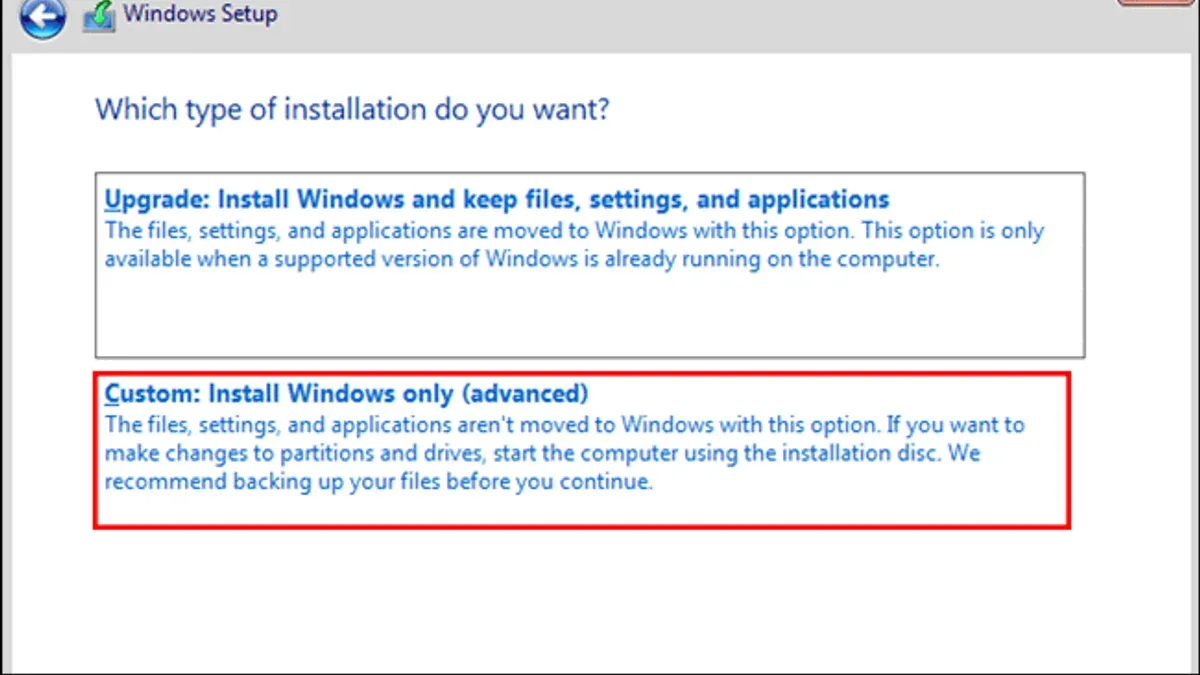
- Install Windows: Boot Camp Assistant will restart your Mac and boot into the Windows installer. The installation process usually takes 20-40 minutes depending on system speed. When complete, Windows will start and prompt you to install Boot Camp drivers.
- Install Boot Camp drivers: These drivers optimize hardware functionality in Windows. The installer launches automatically; after completion, reboot Windows.
- Install Steam on Windows: Download and install Steam from steampowered.com, then log in to your account.
- Download and play your Windows-only game: Install the game as usual. Running natively, performance closely matches that of a dedicated Windows PC, typically outperforming virtualization or compatibility layers.
- Switch between macOS and Windows: Restart your Mac and hold the Option key during boot to choose the operating system.
Boot Camp requires rebooting to switch OS, but it avoids the performance overhead seen in virtualization or compatibility layers. Ensure your Mac hardware supports Boot Camp, as newer Apple Silicon Macs do not support this method.
How to play Windows games on Mac on Steam using virtualization software
Virtualization software like Parallels Desktop or VMware Fusion lets you run Windows inside macOS without rebooting. This method offers convenience but generally comes with a performance cost compared to native Boot Camp installations.
- Download and install a virtualization app such as Parallels Desktop or VMware Fusion on your Mac. After installation, launch the app to start the setup process.
- Create a new virtual machine and install a licensed copy of Windows. Follow the on-screen prompts to complete the Windows installation. Once finished, Windows will run in a window or full-screen within macOS.
- Inside the Windows virtual machine, download and install the Steam client. Log into your account and find the Windows-only game you want to play.
- Install the game through Steam as you would on a Windows PC. After installation, launch the game from within the virtual machine.
- Adjust virtualization settings for better graphics and responsiveness. Allocate more CPU cores and RAM to the virtual machine through the app's configuration panel. Enable hardware acceleration or DirectX 11/12 support if available.
Virtualization allows quick switching between macOS and Windows games without restarting, but it usually results in lower frame rates and longer load times compared to Boot Camp. Graphics-intensive games may suffer from reduced performance and occasional input lag.
Optimizing resource allocation in the virtualization app can improve gameplay but cannot fully match native Windows performance. This approach suits casual gaming or titles with modest hardware demands, while Boot Camp remains preferable for demanding games.
How to install Windows-only Steam games on Mac using compatibility layers
Compatibility layers like Wine or CrossOver allow you to run Windows-only Steam games on your Mac without installing the full Windows operating system. This method avoids the need for a Windows license and rebooting, though it comes with some performance and compatibility trade-offs.
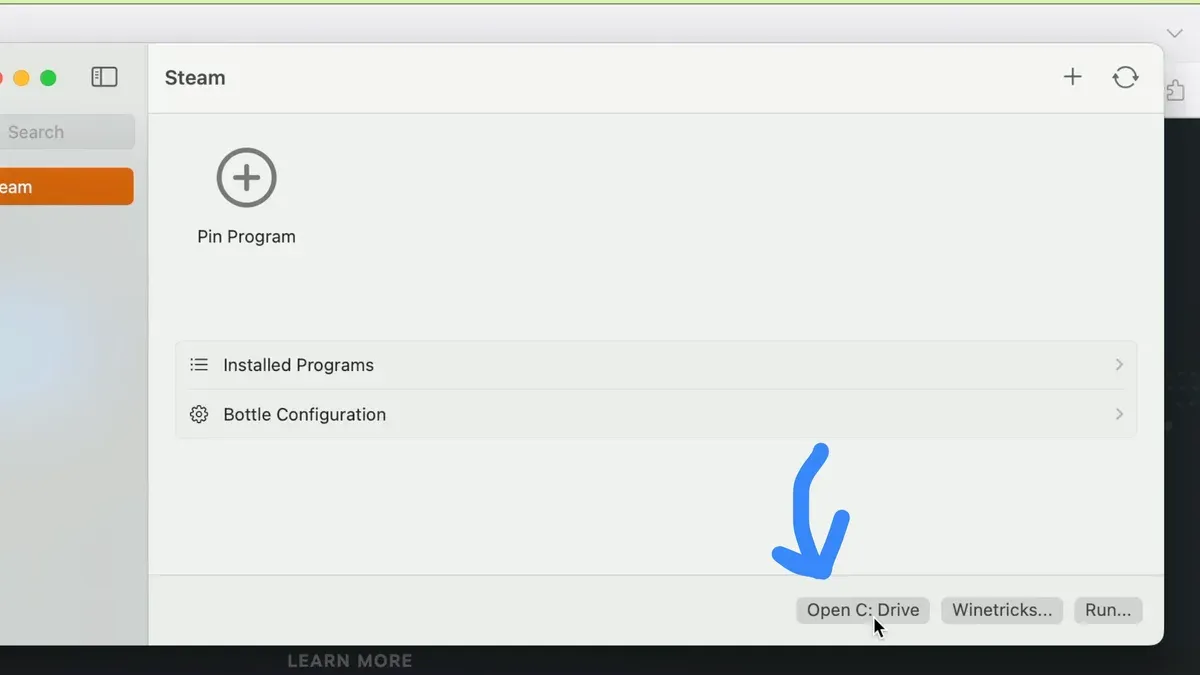
- Download and install Wine or CrossOver from their official websites. After installation, you should see the application launcher in your Applications folder.
- Launch Wine or CrossOver and use its interface to install the Windows version of Steam. Successful installation is indicated by Steam opening without errors within the compatibility layer.
- Sign into your Steam account and download the Windows-only game you want to play. The game should install as usual, visible in the Steam library inside the compatibility layer.
- Run the game through Wine or CrossOver. A working game will launch and be playable, though you may notice lower performance compared to native Windows or Boot Camp.
Many popular Windows-only games, such as Portal 2 and Half-Life 2, launch and run reasonably well using these layers, though graphics-intensive AAA titles may struggle or fail. Wine and CrossOver maintain compatibility databases that can help you check whether a specific game is supported.
Common issues include missing DirectX features, input lag, or crashes during startup. To troubleshoot, update Wine or CrossOver to the latest version, adjust graphics settings within the game, and consult the community forums for game-specific patches or tweaks.
Overall, compatibility layers provide a convenient way to run many Windows-only Steam games on Mac with moderate performance and without the overhead of a full Windows installation or rebooting.
Troubleshooting common issues when running Windows-only Steam games on Mac
Running Windows-only Steam games on Mac can present various challenges depending on the method used. Here are practical fixes for frequent problems.
Game crashes or failure to launch
- Verify game files in Steam by right-clicking the game in your library, selecting "Properties," then "Local Files," and clicking "Verify integrity of game files." A successful check means missing or corrupted files are repaired.
- Update your graphics drivers—on Boot Camp, use the latest Windows drivers from your GPU manufacturer’s website; on virtualization or compatibility layers, ensure your Mac’s drivers and software (like CrossOver) are up to date.
- Lower in-game graphics settings if crashes persist, as high settings can overload virtualized or compatibility environments.
Graphics or sound glitches
- Enable or disable Steam’s "Use the Big Picture Overlay when using a Steam Input enabled controller" setting under Steam > Settings > Controller, as this can resolve input and display issues.
- On virtualization software, increase video memory allocation in the VM settings to reduce graphic artifacts.
- For sound problems, check macOS System Preferences > Sound to confirm the correct output device is selected and not muted.
Input device recognition issues
- Reconnect or re-pair your input devices (controllers, keyboards) if they are not recognized. On Boot Camp, also check Windows Device Manager for driver issues.
- In Steam, go to Settings > Controller > General Controller Settings and enable the appropriate configuration support (e.g., Xbox, PlayStation) to ensure compatibility.
Performance bottlenecks and how to improve
- Close unnecessary Mac applications to free up CPU and memory resources.
- Adjust virtualization software to allocate more CPU cores and RAM to the Windows environment.
- On Boot Camp, switch your Mac’s power settings to "High Performance" in Windows Control Panel > Power Options.
Steam client errors specific to non-Windows environments
- If Steam fails to launch or update, clear the Steam download cache via Steam > Settings > Downloads > Clear Download Cache. Relaunch Steam afterward.
- Reinstall the Steam client within your Windows environment if persistent issues occur.
- Check firewall or antivirus settings on both macOS and Windows sides to ensure Steam is allowed network access.
Following these steps should resolve most common issues encountered when running Windows-only Steam games on Mac through Boot Camp, virtualization, or compatibility layers.
- How to Install Docker on Mac Using Colima Without Docker Desktop
- How to Run x86 Docker Images on Mac with Docker Desktop
- How to Log Out Remotely from WhatsApp Desktop on Mac
Frequently asked questions
How to install windows only steam games on mac?
You can install Windows-only Steam games on Mac by first setting up a Windows environment using Boot Camp, virtualization software like Parallels Desktop or VMware Fusion, or compatibility layers such as Wine or Proton. After installing Windows or the compatibility layer, download and install Steam within that environment, then proceed to install your games as usual.
Can you play windows steam games on mac?
Yes, you can play many Windows Steam games on Mac by using methods that create a Windows-compatible environment. However, native macOS versions are limited, so these methods involve running Windows either natively or virtually to access Windows-only titles.
Can you play Windows Steam games on Mac without installing Windows?
It is possible to play some Windows Steam games on Mac without installing Windows by using compatibility layers like Wine or Steam's Proton (via third-party tools). These tools translate Windows game calls to macOS but may have limitations in game compatibility and performance compared to running a full Windows installation.
Is it better to use Boot Camp or virtualization for Steam games on Mac?
Boot Camp offers better performance because it runs Windows natively on your Mac's hardware, making it ideal for resource-intensive games. Virtualization software provides convenience by allowing you to run Windows alongside macOS but often results in lower performance, which may affect gameplay quality.
Do all Windows-only Steam games work on Mac using these methods?
Not all Windows-only Steam games work perfectly on Mac using these methods. Compatibility depends on the game’s system requirements, graphics demands, and how well it runs under virtualization or compatibility layers. Checking community forums and compatibility databases can help determine if a specific game will run smoothly.
What this guide does not cover and when to consider other options
This guide does not cover running Windows games on Macs with Apple Silicon chips using native ARM versions of Windows, as official support is limited and performance varies widely. If you have an Apple Silicon Mac and require high-performance gaming, consider dedicated Windows gaming hardware or cloud gaming services instead. Additionally, some advanced configurations like dual-booting with third-party tools or deep system tweaks are beyond this scope and should be approached with caution.
The most practical next step is to choose the method that best fits your Mac model and gaming needs—whether that’s setting up Boot Camp on Intel Macs for maximum performance, using virtualization software for convenience, or trying compatibility layers for lighter games. Follow the detailed steps for your chosen approach, keeping in mind the trade-offs in ease, cost, and performance outlined earlier.