How to Log Out Remotely from WhatsApp Desktop on Mac
Secure your WhatsApp Desktop on Mac by learning how to log out remotely using your phone in a few simple steps.
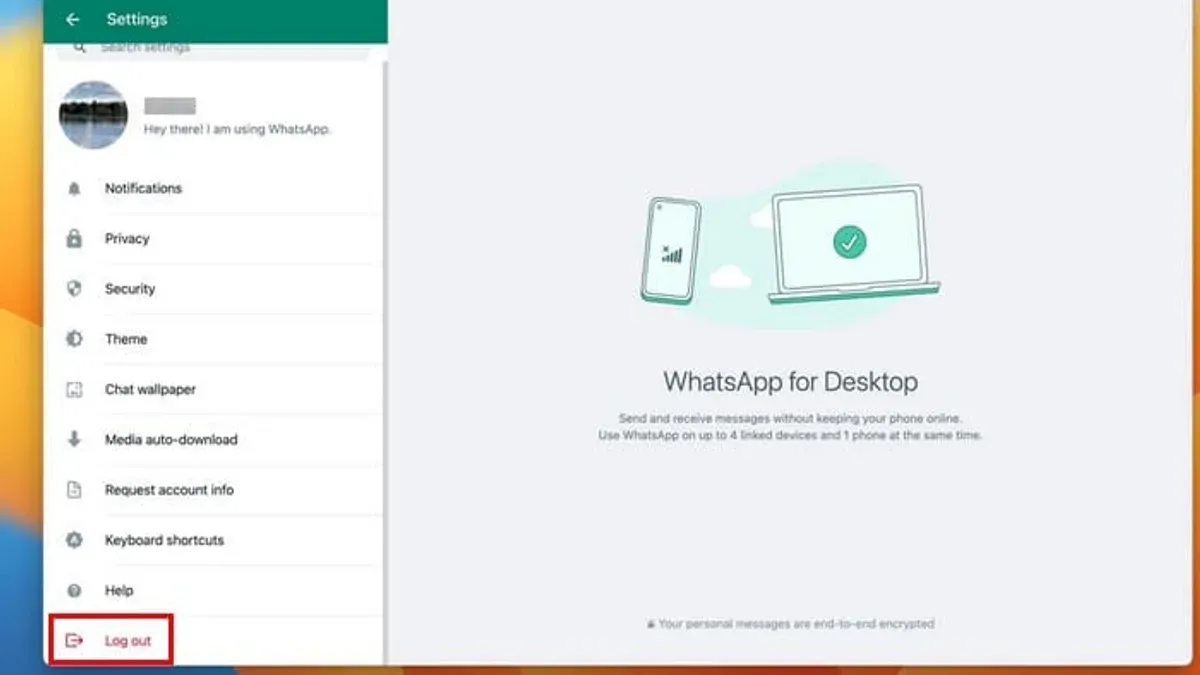
You might have left your Mac unattended or lost access to it, and now you want to ensure your WhatsApp Desktop session is securely logged out. Perhaps you're concerned about someone else accessing your messages or simply want to close sessions you no longer use. Knowing how to log out remotely in WhatsApp Desktop on Mac can give you peace of mind and help protect your privacy.
This article walks you through the entire remote logout process step-by-step, focusing on security and clarity. You will learn what you need before starting, how to check and log out from active sessions using your phone, and how to verify the logout. Common issues and the limitations of remote logout are also explained so you know exactly what this action covers and what it does not.
Key takeaways
- You need your phone with an active WhatsApp account to log out remotely from WhatsApp Desktop on Mac.
- Checking active sessions on your phone helps identify where your WhatsApp Desktop is logged in.
- Remote logout from your phone immediately ends the desktop session without needing access to the Mac.
- Verification on your phone confirms the session has ended successfully.
- Remote logout does not delete messages or log you out from WhatsApp on other devices like your phone.
Before You Start: What You Need to Log Out Remotely
To log out remotely from WhatsApp Desktop on your Mac, you must have access to your primary WhatsApp account on your phone, whether it’s an iPhone or an Android device. Your phone needs to be connected to the internet, as it sends the command to disconnect your desktop session. Without access to WhatsApp on your phone, you cannot perform a remote logout, so keep this in mind if your phone is lost or offline.
It is important to understand that remotely logging out will disconnect the WhatsApp Desktop session on your Mac but will not delete any chat history or account data from your phone. For example, if you lose your Mac but still have your phone, you can log out remotely to prevent anyone from accessing your messages on the lost device. However, if you lose both your Mac and your phone or cannot open WhatsApp on your phone, remote logout is not possible.
Before proceeding, ensure your phone is nearby and online, and you have your WhatsApp app unlocked and ready. These conditions are essential for the remote logout to work smoothly.
Check Your Active WhatsApp Desktop Sessions on Your Phone
Before you log out remotely from WhatsApp Desktop, it's crucial to review which sessions are currently active. This helps you spot any unfamiliar devices that might indicate unauthorized access. You can easily check this information directly from your phone.
- Open WhatsApp on your phone and tap Settings (on iPhone) or the three-dot menu followed by Settings (on Android).
- Select Linked Devices to see a list of all devices currently linked to your WhatsApp account.
- Look for entries labeled with device names like "MacBook Pro" or "WhatsApp Desktop" along with the last active time shown beneath each device.
- Identify any devices you do not recognize or that you suspect may have unauthorized access.
- Use this list to decide if you need to log out remotely from any suspicious sessions.
By reviewing your active sessions carefully, you gain control over your account's security and avoid logging out unnecessarily. The interface shows device details clearly, enabling you to make an informed choice about which sessions to end.
Example screenshot: The Linked Devices screen will display each session with the device name, operating system, and last active timestamp, making it straightforward to interpret.
Log Out Remotely from WhatsApp Desktop Using Your Phone
- Open WhatsApp on your connected phone and go to Settings (tap the gear icon on iPhone or the three dots menu on Android).
- Select Linked Devices to see a list of all active WhatsApp Desktop sessions.
- Find the specific session corresponding to your Mac. It usually shows the device name and last active time—make sure to pick the correct one to avoid logging out other devices unintentionally.
- Tap on the session name, then choose Log Out or Unlink Device. A confirmation prompt will appear to ensure you want to end this session.
- Confirm the action by tapping Log Out again. Immediately, your WhatsApp Desktop app on that Mac will close or display a message indicating you have been logged out.
- This process helps secure your account if your Mac is lost, stolen, or used by someone else without permission, by cutting off their access remotely.
For example, after confirming logout on your phone, you should see your WhatsApp Desktop window on the Mac either close automatically or show a screen prompting you to scan a QR code to log in again. This immediate response confirms the session has ended successfully, giving you peace of mind that no unauthorized use continues.
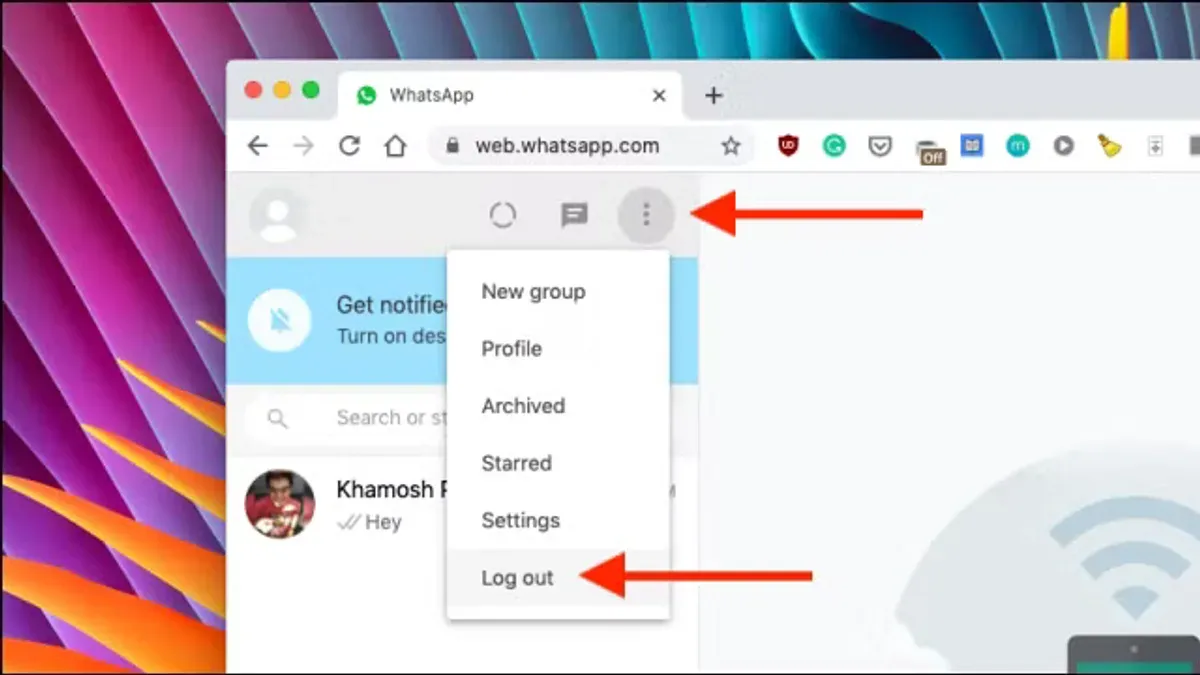
Verify That WhatsApp Desktop Is Successfully Logged Out
After you initiate a remote logout from WhatsApp Desktop on your Mac, you should see the app immediately return to the login screen. This indicates that the session was terminated and the desktop app no longer has access to your account. Sometimes, there can be a slight delay of a few seconds before the logout fully takes effect, especially if your Mac is offline or has network issues.
To be certain the remote logout succeeded, it’s best to recheck the Linked Devices list on your phone. Open WhatsApp on your phone, go to Settings > Linked Devices, and compare the current session list with what you saw before logging out. The desktop session corresponding to your Mac should no longer appear.
Verification is crucial because leaving a desktop session active can expose your messages and data to unauthorized users. By confirming that the session is removed, you ensure your account remains secure and that no one else can continue using WhatsApp on that Mac without signing in again.
- Open WhatsApp Desktop on your Mac and observe if it shows the login screen. This confirms the session has ended.
- On your phone, open WhatsApp and tap Settings > Linked Devices to view active sessions.
- Compare the list to your previous session list and confirm the Mac session is gone.
- If the session still appears, try refreshing the list by pulling down to refresh or closing and reopening WhatsApp on your phone.
- Wait a few moments and repeat these steps if the logout does not seem immediate.
Troubleshoot Common Issues When Logging Out Remotely
Sometimes, even after you log out remotely, the WhatsApp Desktop session might still appear active. This can happen if the desktop app hasn't refreshed its status. Try closing WhatsApp Desktop on your Mac manually and then reopening it to see if the logout has taken effect.
If your phone cannot connect to WhatsApp to send the logout command, check your phone’s internet connection first. Without an active connection, the logout request cannot be sent. Switching between Wi-Fi and cellular data or restarting your phone’s network settings often resolves this.
When the WhatsApp Desktop app freezes or does not respond to logout commands, force quit the app on your Mac. You can do this by pressing Command + Option + Escape, selecting WhatsApp Desktop, and clicking "Force Quit." After this, reopen the app to check if the session is ended.
If these steps don’t work, consider reinstalling WhatsApp Desktop. Uninstall the app, download the latest version from the official WhatsApp website, and install it again. Persistent problems may require contacting WhatsApp Support for further assistance.
Common error messages such as "Could not log out" or "Session not found" usually indicate connectivity issues or synchronization delays. Waiting a few minutes and retrying often solves these.
Understand the Limits of Remote Logout on WhatsApp Desktop
Remote logout on WhatsApp Desktop ends the active session on your Mac, but it does not delete any messages stored there or prevent the device from being used again if someone has physical access. This means that while the connection between your phone and the desktop app is severed, the Mac itself remains accessible unless you take additional security measures.

If someone has your Mac in hand, you should secure the macOS user account by enabling a strong password, activating FileVault encryption, and setting the screen to lock automatically after a short period of inactivity. These steps help protect your data beyond what remote logout can achieve.
Remember, remote logout requires your phone to be connected and accessible. If you lose your phone or it is stolen, you cannot perform a remote logout from another device. In such cases, consider using WhatsApp’s two-step verification to increase account security and consult recovery options.
Regular security hygiene—such as using a robust phone lock, enabling two-step verification in WhatsApp settings, and keeping your devices updated—complements remote logout. Remote logout alone is just one part of a broader security strategy to keep your WhatsApp account and messages safe.
Frequently asked questions
Can I log out remotely from WhatsApp Desktop without my phone?
No, you cannot log out remotely from WhatsApp Desktop without access to your phone. The remote logout feature requires you to use the WhatsApp mobile app, where you manage active sessions under Settings > Linked Devices. Without your phone, you won’t be able to initiate the remote logout process.
How long does it take for the remote logout to take effect on my Mac?
The remote logout usually takes effect within a few seconds to a couple of minutes after you confirm the logout on your phone. However, the exact timing depends on the Mac’s internet connection. If the Mac is offline, the logout will activate as soon as it reconnects to the internet.
What happens to my messages after I log out remotely from WhatsApp Desktop?
Logging out remotely from WhatsApp Desktop removes your access to that session, but your message history remains safe on your phone. Messages are not deleted from your phone or the WhatsApp cloud backup. However, the desktop app will no longer receive new messages until you log in again.
Can someone still access my WhatsApp account on the Mac after I log out remotely?
No, once you log out remotely, the WhatsApp Desktop session on that Mac is disconnected and cannot be accessed without scanning the QR code again. This prevents unauthorized use, but it does not affect other devices linked to your account.
Understand the Limits of Remote Logout on WhatsApp Desktop
This article assumes you have access to your primary WhatsApp phone account, as the remote logout feature on WhatsApp Desktop depends entirely on your phone’s connection and authentication. If your phone is lost or compromised, you cannot use the remote logout function to secure your desktop sessions. In such cases, you should prioritize securing your phone number through your mobile carrier and consider reinstalling WhatsApp with two-step verification enabled to regain control. Additionally, remote logout only ends the WhatsApp Desktop session and does not affect logged-in sessions on other devices or the phone itself.
Once you confirm that WhatsApp Desktop is logged out remotely, the best next step is to enable two-step verification within the WhatsApp app on your phone. This extra security layer requires a PIN when registering your number with WhatsApp again, helping prevent unauthorized access in the future. To do this, open WhatsApp on your phone, go to Settings > Account > Two-step verification, and follow the prompts to set it up. This proactive measure strengthens your account security beyond just managing desktop sessions.
See also: How to Link WhatsApp to Mac Using WhatsApp Desktop Step-by-Step · How to Set Up Automatic Media Downloads in WhatsApp Desktop on Mac · How to Fix WhatsApp Desktop Not Syncing on Mac: Step-by-Step · How to Make Video Calls in WhatsApp Desktop on Mac: Step-by-Step