How to Link WhatsApp to Mac Using WhatsApp Desktop Step-by-Step
Discover how to link WhatsApp to Mac in WhatsApp Desktop with a simple step-by-step guide for smooth messaging on your Mac.
You often find yourself typing on your Mac, but your WhatsApp messages keep interrupting on your phone. Switching between devices can be distracting and slow down your workflow. If you want to send and receive WhatsApp messages directly from your Mac, understanding how to link WhatsApp to Mac in WhatsApp Desktop on Mac is essential.
This guide walks you through the entire process step-by-step, starting with what you need before linking, how to scan the QR code to connect your phone and Mac, and how WhatsApp syncs messages in real time. We'll also cover managing linked devices and troubleshooting common issues that Mac users face, helping you maintain a smooth and reliable connection.
Key takeaways
- Ensure your phone and Mac have active internet connections before linking.
- Use the WhatsApp Desktop app from the Mac App Store to access the QR code.
- Scan the QR code via WhatsApp on your phone under Settings > Linked Devices.
- Messages sync instantly between your phone and Mac for seamless chatting.
- Log out from linked devices in WhatsApp settings to manage active sessions.
Before You Start: What You Need to Link WhatsApp Desktop on Mac
To link WhatsApp Desktop on your Mac successfully, you need to have a few essentials ready. First, ensure you have a smartphone with an active WhatsApp account. This can be either an Android device or an iPhone. Your phone must stay nearby and remain unlocked during the entire linking process to avoid interruptions.
Next, your Mac should have WhatsApp Desktop installed. You can download this app directly from the official WhatsApp website or the Mac App Store. Confirm that your Mac meets the minimum system requirements: it should be running macOS 10.13 (High Sierra) or later for optimal performance.
A stable internet connection is crucial on both your phone and Mac. This connection enables real-time syncing of messages between devices. Finally, before you start, check that your WhatsApp mobile app is updated to its latest version—generally, the most recent version available in the Google Play Store or Apple App Store ensures compatibility with WhatsApp Desktop.
- Verify your smartphone has an active WhatsApp account and is nearby and unlocked. You should be able to open WhatsApp on your phone without issues.
- Make sure WhatsApp Desktop is installed on your Mac from the official source. When opened, the app should display a QR code waiting to be scanned.
- Check that both your Mac and phone are connected to stable Wi-Fi or cellular data networks. You can test this by browsing websites or sending messages.
- Update WhatsApp on your phone to the latest version through the app store. Opening the app after the update should not prompt any further update notifications.
Open WhatsApp Desktop on Your Mac and Locate the QR Code
If you haven’t installed WhatsApp Desktop on your Mac yet, start by downloading it from the official WhatsApp website or the Mac App Store. The installation process is straightforward — just follow the on-screen instructions until the app is fully set up.
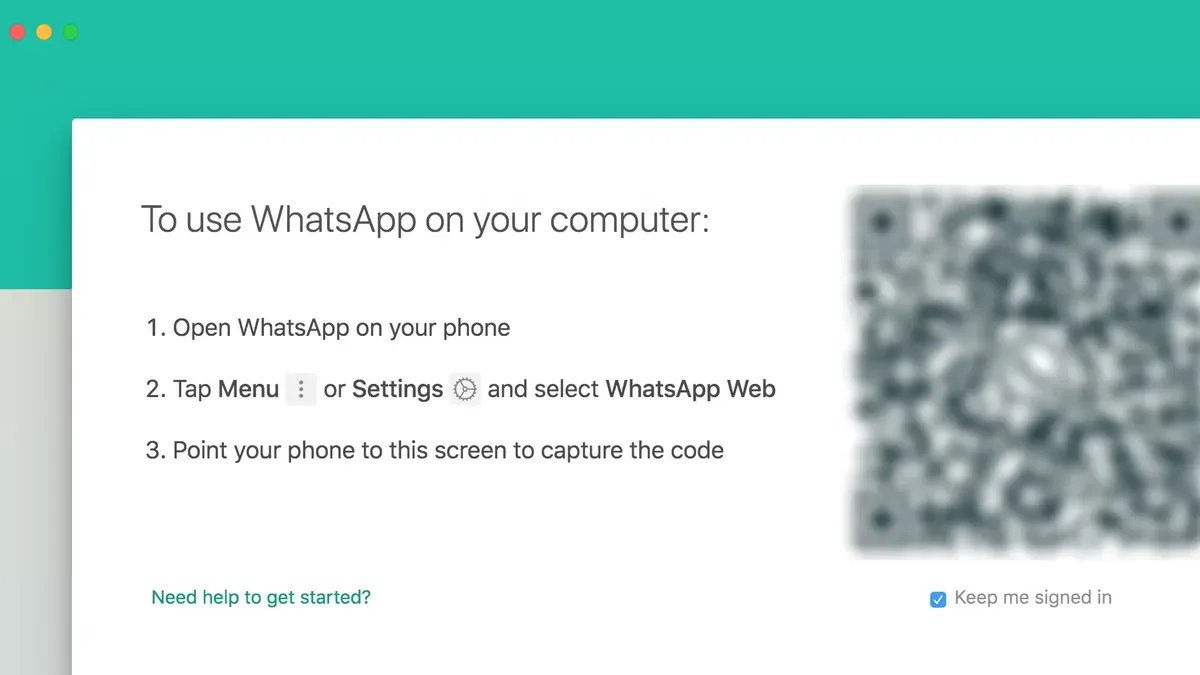
Once installed, launch WhatsApp Desktop by clicking its icon in the Applications folder or from your Dock if you added it there. On first launch, the app will open to a screen prominently displaying a QR code in the center. This code is a square matrix barcode made of black and white pixels.
The QR code is essential because it securely links your mobile WhatsApp account to the desktop app without sharing sensitive login details. Scanning this code with your phone confirms your identity and establishes a real-time connection between devices.
- Open the WhatsApp Desktop app on your Mac.
You should see a clean interface with a large QR code centered on the screen. - If the QR code does not appear, look for a button labeled “Log in” or “Link a Device” and click it.
The QR code screen will then appear. - Keep this screen visible while you prepare to scan the QR code using your phone’s WhatsApp app in the next step.
Screenshot example: The WhatsApp Desktop window showing a centered QR code with a caption below stating “Scan this code with WhatsApp on your phone to link your account.”
Use Your Phone to Scan the QR Code and Initiate Linking
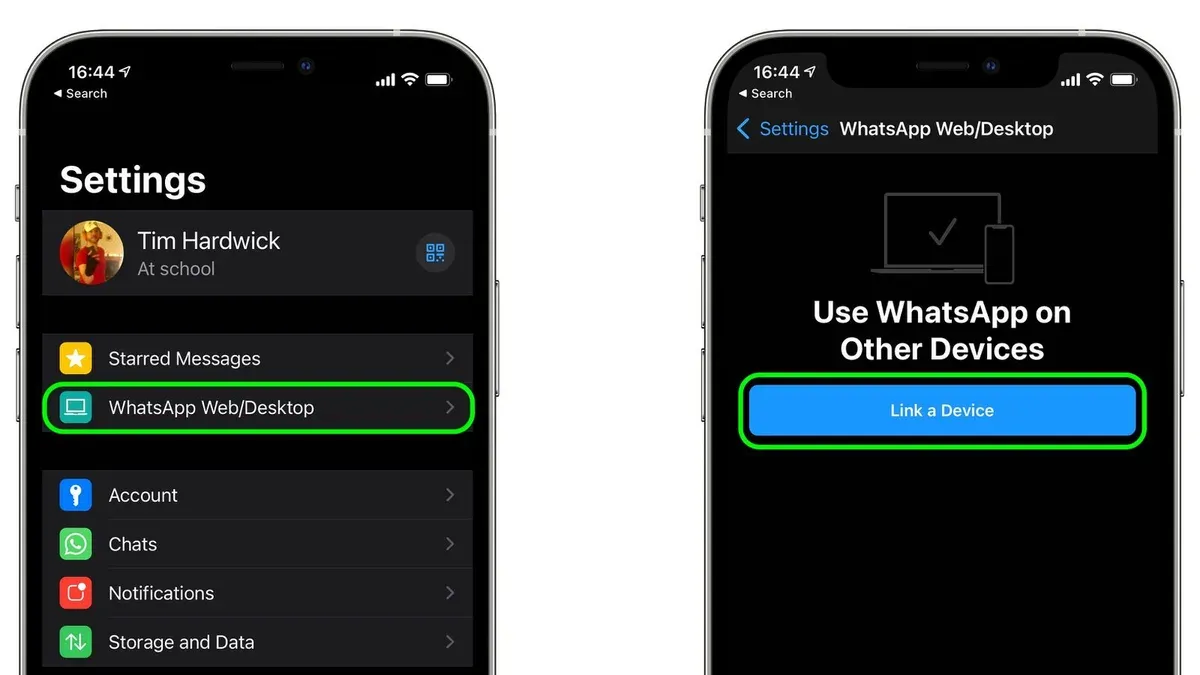
- Open WhatsApp on your phone and tap the Settings tab at the bottom right (iPhone) or the three-dot menu at the top right (Android). You should see a Linked Devices option; tap it to proceed.
- Tap Link a Device. If this is your first time linking, WhatsApp will request camera permission. Grant this permission so your phone can scan the QR code displayed on your Mac.
- Point your phone’s camera steadily at the QR code shown on your Mac screen within the WhatsApp Desktop app. Make sure the entire code fits within the scanning frame. Once recognized, the phone will confirm the link automatically.
- Immediately after scanning, your Mac app will begin syncing messages from your phone. This process typically takes a few seconds to a minute depending on your message history and network speed. You will see your chats populate on the Mac interface as they sync in real time.
- Once syncing completes, your phone will appear listed under Linked Devices, and you can begin sending and receiving messages seamlessly on your Mac through WhatsApp Desktop.
For example, scanning the QR code and linking usually finishes within 30 seconds on a stable Wi-Fi connection, with messages appearing almost instantly on the Mac app. If syncing takes longer, check your internet connection or restart WhatsApp on both devices.
Understand How WhatsApp Syncs Messages Between Phone and Mac
WhatsApp Desktop on your Mac is not a standalone app; it mirrors messages, media, and contacts from your phone. This means that your Mac app depends on your phone being connected to the internet to send and receive new messages. When both your phone and Mac are online, syncing happens in near real-time, allowing you to continue conversations seamlessly across devices.
However, if your phone is turned off or offline, WhatsApp Desktop cannot send or receive new messages. You will still see your chat history, but new incoming or outgoing messages won't update until your phone reconnects. This dependency is a key difference from some other messaging apps that offer fully independent desktop clients.
WhatsApp maintains end-to-end encryption throughout this syncing process. Your messages and media are encrypted on your phone before being mirrored to your Mac, and decryption happens only on your devices. This ensures your privacy is preserved even while syncing.
| Feature | WhatsApp Desktop on Mac | WhatsApp Web |
|---|---|---|
| Sync Type | Mirrors phone content in real-time | Mirrors phone content in real-time |
| Offline Use | No new messages without phone connection | No new messages without phone connection |
| Media Sync | Syncs photos, videos, and voice notes | Syncs photos, videos, and voice notes |
| Encryption | End-to-end encryption maintained | End-to-end encryption maintained |
| Notifications | Native Mac notifications | Browser notifications |
Manage Linked Devices and Log Out from WhatsApp Desktop
You can view and manage all devices linked to your WhatsApp account directly from your phone. This is crucial for keeping your account secure and for logging out of WhatsApp Desktop remotely if you no longer have access to your Mac. The linked devices list shows active sessions, including the device name, last active time, and location when available.
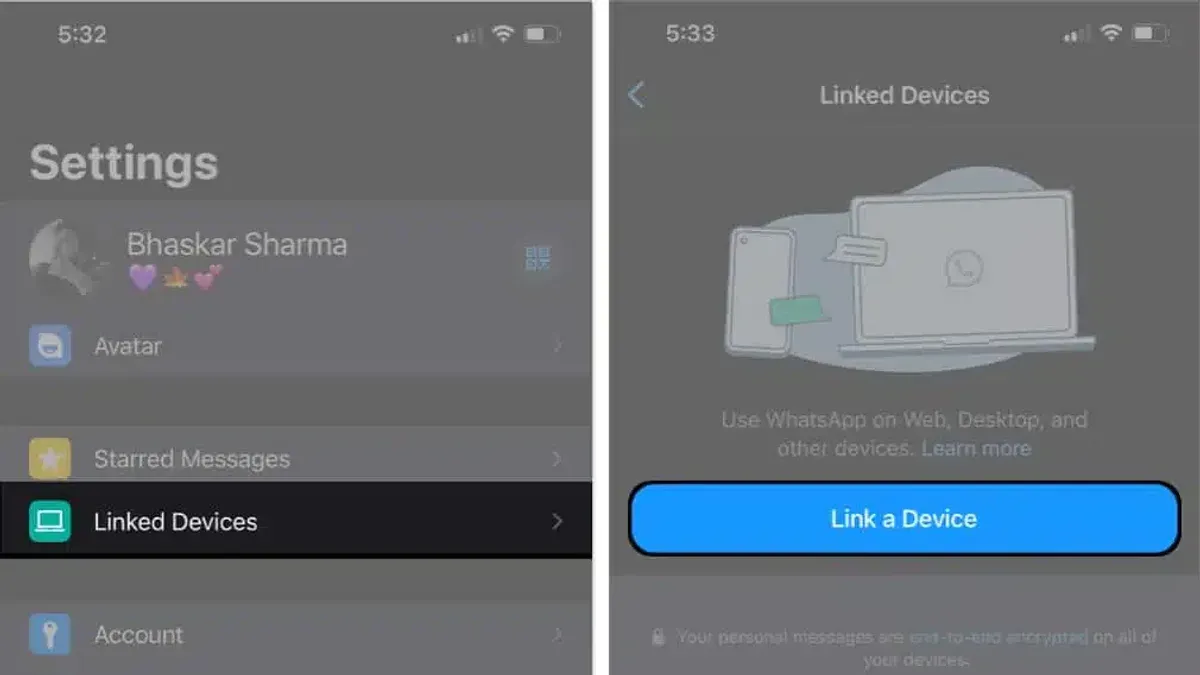
- Open WhatsApp on your phone and tap Settings (or Menu on Android).
- Select Linked Devices. You will see a list of all devices currently connected to your WhatsApp account, including your Mac's WhatsApp Desktop session. Each entry includes the device type and the last time it was active.
- To log out from WhatsApp Desktop on your Mac remotely, tap the session labeled for your Mac.
- Tap Log Out and confirm the action. This immediately terminates the session on your Mac, logging you out of WhatsApp Desktop.
After logging out, WhatsApp Desktop on your Mac will close the connection and display the QR code login screen, indicating the session ended. Your messages will no longer sync until you link the device again.
For security, regularly review your linked devices and log out from any sessions you do not recognize or no longer use. Avoid linking WhatsApp Desktop on public or shared Macs unless you plan to log out afterward.
| Example Linked Devices List |
|---|
| MacBook Pro — Last active 5 minutes ago |
| iPad — Last active 2 days ago |
| Chrome on Windows — Last active 1 hour ago |
After logging out, you will see a confirmation message on your phone, such as "You have logged out from MacBook Pro", ensuring the session ended securely.
Troubleshoot Common Linking Issues on Mac
Encountering problems while linking WhatsApp Desktop on your Mac can be frustrating, but many common issues have straightforward solutions. Start by checking if the QR code on your Mac screen scans properly. Ensure your phone’s camera has permission to access WhatsApp and that the lighting is sufficient for the QR code to be recognized. Poor lighting or camera restrictions often prevent successful scanning.
If WhatsApp Desktop does not display your messages after linking, verify that your phone has a stable internet connection and that both your phone’s WhatsApp app and the Desktop version are up to date. Outdated apps or connectivity problems frequently cause message syncing failures.
When you experience sync delays or failures, a simple restart of both your Mac and phone can refresh connections and resolve temporary glitches. Confirm that both devices maintain reliable internet access during this process.
For app crashes or freezing on your Mac, try uninstalling and reinstalling WhatsApp Desktop. Additionally, check that your Mac’s operating system meets WhatsApp Desktop’s compatibility requirements, as outdated macOS versions may cause instability.
If these steps do not resolve your issues, consider contacting WhatsApp support for further assistance. They can provide help tailored to your specific device and account situation.
- Check camera permissions for WhatsApp on your phone: Go to Settings > Privacy > Camera and ensure WhatsApp is enabled. On success, you should be able to scan the QR code without errors.
- Improve ambient lighting around your Mac screen: Better lighting helps the camera detect the QR code. Once sufficient, the QR code scanner on your phone should recognize the code quickly.
- Confirm both WhatsApp apps are updated: On your phone, open the app store and update WhatsApp; on your Mac, check for updates in the App Store. After updates, messages should sync properly.
- Restart your Mac and phone: Power off and on each device, then reopen WhatsApp Desktop and your phone’s WhatsApp app. Successful restart often resolves syncing delays or failures.
- Uninstall and reinstall WhatsApp Desktop: Drag the app to Trash and reinstall from the official website or App Store. After reinstalling, the app should run without crashing or freezing.
- Verify macOS compatibility: Open About This Mac > Overview and check your version against WhatsApp Desktop requirements. If incompatible, update macOS or use an alternative device.
Frequently asked questions
Can I use WhatsApp Desktop on Mac without my phone being connected?
You can use WhatsApp Desktop on your Mac without your phone being constantly connected to the internet, but your phone must link initially to set up the desktop app. Once linked, the desktop app syncs messages independently for a limited time, but your phone will need to reconnect occasionally to maintain full functionality and message updates.
How many devices can I link to my WhatsApp account simultaneously?
WhatsApp allows you to link up to four additional non-phone devices simultaneously, including your Mac with WhatsApp Desktop. This means you can have your WhatsApp account active on your phone and up to four other devices like computers or tablets at the same time, facilitating multi-device access.
Is WhatsApp Desktop on Mac secure and encrypted?
Yes, WhatsApp Desktop on Mac uses the same end-to-end encryption as the mobile app. This ensures that your messages and calls remain private and secure, with encryption keys stored only on your devices, preventing unauthorized access during syncing or transmission.
What should I do if the QR code expires before I scan it?
If the QR code on WhatsApp Desktop expires, simply refresh it by clicking the reload or refresh icon near the code. This generates a new QR code that you can scan with your phone’s WhatsApp app to complete the linking process without restarting the application.
What This Guide Does Not Cover
This guide focuses exclusively on linking your WhatsApp mobile account to the official WhatsApp Desktop app on your Mac. It does not cover using WhatsApp Web through a browser or any third-party applications that claim to offer WhatsApp access on Mac. If you are interested in those alternatives, you should consult resources specifically tailored to them, as this guide’s steps and troubleshooting tips apply only to the standalone WhatsApp Desktop app.
If you need to manage multiple accounts or use WhatsApp in environments without your phone nearby, consider exploring WhatsApp Web or other supported methods. This guide assumes you have a working WhatsApp mobile app already set up and are looking to connect it directly to the Mac desktop client for a seamless experience.
The best next step is to regularly check the Linked Devices section within your WhatsApp mobile app settings. This helps you monitor active connections, log out of any unfamiliar devices, and ensure your Mac remains securely linked. Staying proactive here prevents syncing issues and keeps your messages private and in sync across your devices.
See also: How to Share Your iPad Screen in Zoom Using a Mac · How to Fix Zoom No Audio on Mac: Step-by-Step Troubleshooting · How to Use Virtual Background in Zoom on Mac: Step-by-Step Guide · How to Clear Cache in Microsoft Teams on Mac: Step-by-Step Guide