How to Block Spam Calls on Verizon Phones: Practical Steps for Every Device
This guide shows practical steps to block spam calls on Verizon phones across all device types and services.

This article explains how to block spam calls on Verizon devices and services with clear, practical steps tailored to each device type and Verizon’s own tools. Verizon customers face persistent spam calls, and effective blocking requires approaches beyond basic phone settings.
Verizon offers the Call Filter app, network-level blocking features, and device-specific settings that can reduce unwanted calls. Whether using a smartphone, flip phone, or a home landline, this guide covers precise menus, options, and codes to help identify and block spam calls effectively.
Following these step-by-step instructions ensures users can choose the best blocking method for their Verizon device or service, balancing convenience, thoroughness, and any trade-offs like potential missed calls from unknown numbers.
Before you start: What is needed to block spam calls on Verizon
Blocking spam calls on Verizon requires an active Verizon wireless or home phone service with access to Verizon account management, either online or through the My Verizon app. Identifying the device type—smartphone (iPhone or Android), flip phone, or landline—is crucial because blocking methods vary by device capabilities.
Verizon offers the Call Filter app for smartphones, which provides spam detection and blocking features. This app is available for download on compatible iPhone and Android devices, and some features require a subscription. Not all devices support Call Filter; for example, many flip phones and certain older smartphones are incompatible.
Understanding the difference between blocking individual numbers and filtering suspected spam calls is important. Blocking prevents specific numbers from reaching the device, while filtering automatically identifies and manages suspected spam based on Verizon’s network data and user reports.
Before proceeding, ensure the device’s software is updated to the latest version and that Verizon network settings are current, as outdated software or settings can limit blocking effectiveness.
- Confirm active Verizon service and login credentials for Verizon account management. Successful login verifies account access.
- Identify the device type by checking the model or settings menu; this determines the appropriate blocking method.
- Check if the device supports the Call Filter app by searching for it in the Apple App Store or Google Play Store. Availability indicates compatibility.
- Update the device’s operating system via settings to the latest version; successful update ensures access to all blocking features.
- Verify Verizon network settings by checking carrier updates or contacting support; current settings optimize call blocking functionality.
Tip: Verizon reports millions of subscribers use Call Filter or similar services, reflecting broad support for network-level spam filtering alongside device-based blocking.
How to block spam calls on Verizon wireless smartphones using the Call Filter app
- Open the App Store (iPhone) or Google Play Store (Android) and search for "Verizon Call Filter." When the app appears, tap "Install" or "Get." A successful install will show the Call Filter icon on the home screen.
- Launch the Call Filter app. Sign in using the Verizon account credentials linked to the phone number. If prompted, subscribe to premium features to enable spam risk detection and automatic blocking.
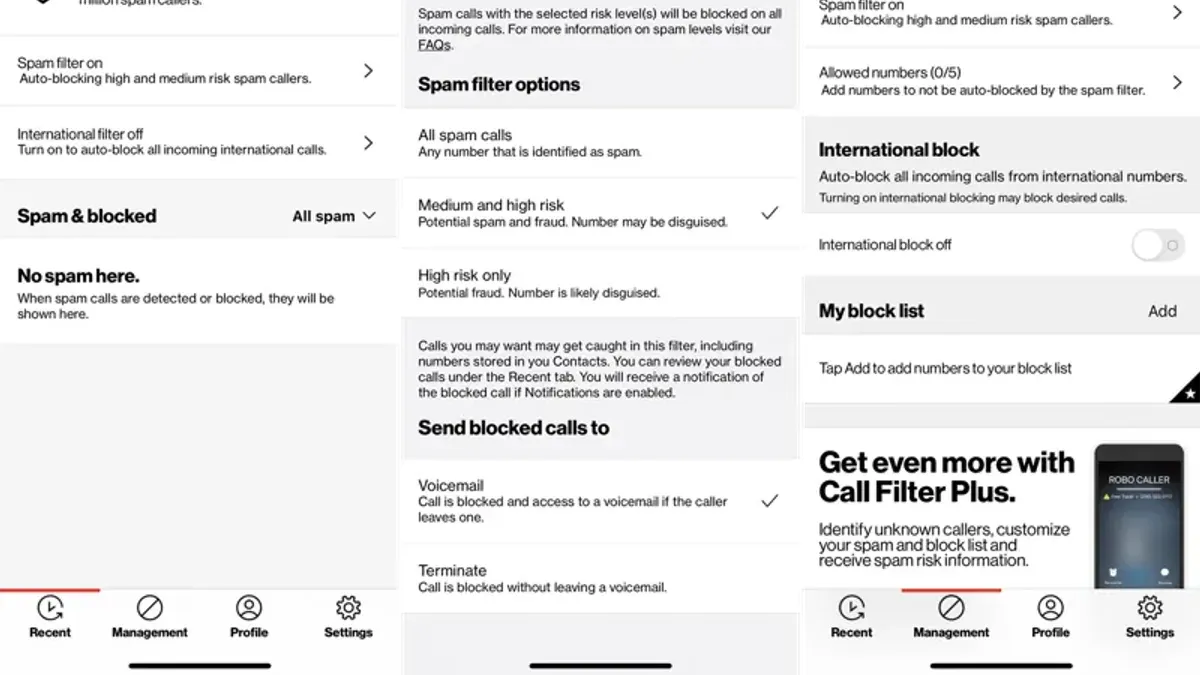
- In the app menu, navigate to "Settings" or "Call Blocking & Identification." Enable "Auto Block" or "Block Spam Calls" to let the app automatically block numbers flagged as potential spam callers. A confirmation message or toggle switch will indicate activation.
- To manually block a specific number, go to the "Blocked Numbers" list and tap "Add Number." Enter the phone number to block, then save. The number will appear in the blocked list, preventing future calls and messages.
- The app interface slightly differs between platforms: on iPhone, Call Filter integrates with iOS call blocking settings and can be enabled under Settings > Phone > Call Blocking & Identification; on Android, it works as a standalone app with push notifications for spam alerts and blocking options.
According to Verizon, Call Filter blocks a significant majority of spam calls before users can answer, enhancing call security. However, some spam calls may occasionally bypass the filter, requiring manual blocking or additional measures.
Tip: Regularly update the Call Filter app to access the latest spam detection algorithms and maintain optimal blocking performance.
How to block spam calls on Verizon iPhone without the Call Filter app
Verizon iPhone users who prefer not to use the Call Filter app can rely on built-in iOS features to reduce spam calls. While these methods offer practical alternatives, they may not be as comprehensive as Verizon's dedicated app.
- Open the Settings app and tap Phone. Here, select Blocked Contacts to add specific numbers manually. After tapping Add New, choose the contact to block; calls and messages from this number will no longer come through.
- Enable the Silence Unknown Callers feature by returning to Phone settings and toggling it on. This sends calls from numbers not in contacts, recent calls, or Siri Suggestions directly to voicemail. Independent reports indicate this feature can significantly reduce nuisance calls but may also block legitimate unknown callers.
- Use Do Not Disturb with customized exceptions by going to Settings > Focus > Do Not Disturb. Allow calls only from favorites or specific contact groups by adjusting Allowed Notifications. This method silences calls outside the whitelist but may cause missed calls from unknown contacts.
Limitations: These iOS tools lack Verizon-specific spam identification and reporting capabilities, which can limit their effectiveness compared to the Call Filter app’s automatic spam detection and user feedback features.
Tip: Regularly review blocked contacts and Do Not Disturb exceptions to balance blocking spam and receiving important calls.
How to block spam calls on Verizon Android phones without the Call Filter app
Verizon Android users who prefer not to use the Call Filter app can rely on native phone features and carrier-provided spam protection integrated within Android settings. These tools offer a way to block spam calls individually and reduce unwanted calls using Google's system and Verizon’s network resources.
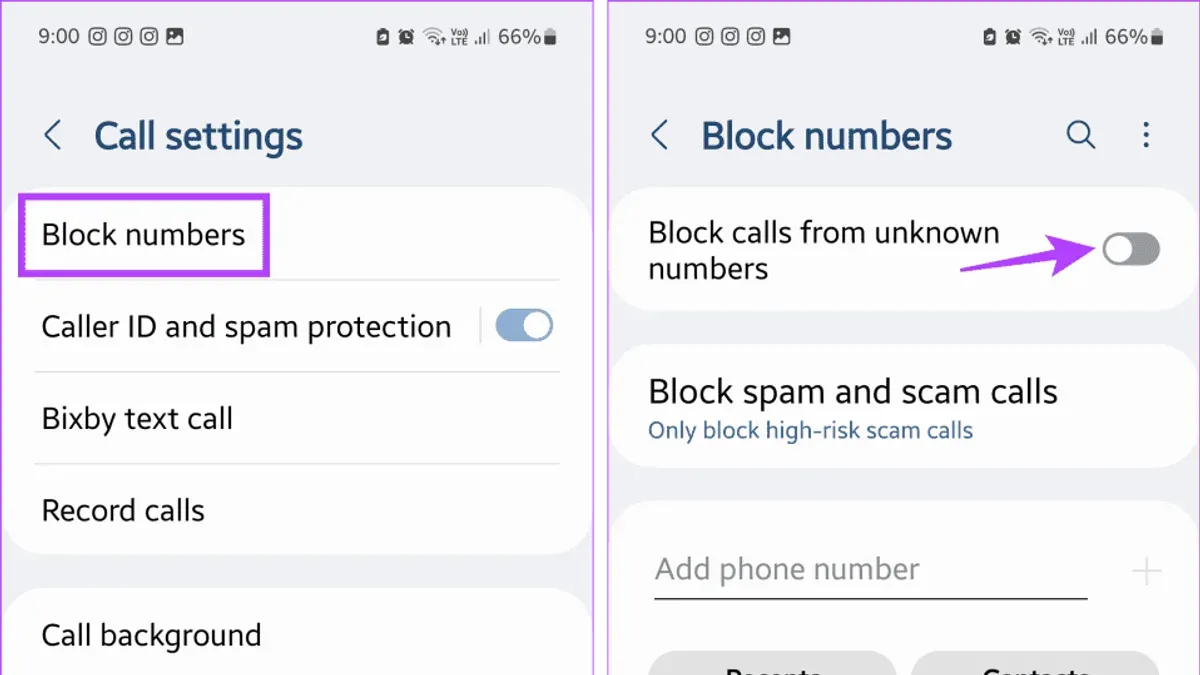
Blocking individual numbers using the Phone app
- Open the Phone app and go to the Recent calls list.
Expected result: A list of recent incoming and outgoing calls appears. - Tap the number or contact to block.
Expected result: The contact or number details open. - Tap the menu icon (three dots) in the upper right corner and select "Block number" or "Block contact".
Expected result: A confirmation message shows the number is blocked; calls from this number will no longer ring.
Activating Android’s carrier spam protection and Google Verified Calls
- Go to Settings > Apps & notifications > Default apps > Phone app > Caller ID & spam.
Expected result: Access to spam protection settings. - Toggle on "See caller ID & spam" or "Filter spam calls" depending on the Android version.
Expected result: The phone will warn or block suspected spam calls automatically. - If available, enable "Verified Calls" within the same menu.
Expected result: Verified businesses can display their caller identity, helping users decide whether to answer.
Tip: Google’s spam protection and Verified Calls depend on carrier support and Android version; some Verizon phones may have limited functionality.
Compared to Verizon’s Call Filter app, native Android spam protection tends to have less comprehensive spam detection and fewer blocking options. While it filters many known spam numbers, Verizon’s Call Filter maintains a larger and updated database, resulting in more effective spam call reduction. Users relying solely on Android features may still receive more spam calls than those using Verizon’s dedicated app.
How to block spam calls on Verizon flip phones
Verizon flip phone users face unique challenges in blocking spam calls due to limited device capabilities. Unlike smartphones, most flip phones lack built-in spam detection or blocking apps, making network-level solutions and call blocking codes essential.
- Use Verizon’s call blocking codes to manage unwanted calls. Dial *77 from the flip phone to activate call blocking services provided by Verizon. A confirmation message or tone usually indicates it is active.
- To deactivate call blocking, dial *87. This allows legitimate calls that were blocked to come through again.
- If receiving unwanted calls that appear to be blocked or intercepted, use *82 before dialing to unblock the call temporarily and place the call through. This is helpful when verifying if a call is incorrectly blocked.
- Access Verizon’s account management tools via the My Verizon website or app on another device. Within the call and message settings, users can add numbers to a blocked list or activate network-level spam call filtering services not available on the flip phone itself.
- Because device-based call blocking is limited, rely on Verizon’s network-level protections, which filter potential spam before the call reaches the phone. Enabling these features through the account portal helps reduce spam calls effectively.
Tip: If uncertain about the codes’ effects or to enable additional protections, Verizon’s official support pages provide detailed guidance specifically for flip phone users.
How to block spam calls on Verizon home phones and landlines
Verizon offers a Call Filter service designed for home phone users to reduce spam calls by identifying and blocking suspicious numbers before the phone rings. This service can significantly decrease unwanted calls, with many users reporting a noticeable drop in spam interruptions.
- Enroll in Verizon Call Filter for home phones via the My Verizon online portal or by calling customer support. Once activated, spam detection works at the network level, filtering out many known spam numbers automatically.
- Use compatible in-home call blocking devices, such as the CPR Call Blocker or Digitone Call Blocker, which connect directly to the landline. These devices allow programming of blacklists and whitelists, giving users control over which calls are blocked before answering.
- Program call blocking codes on the landline phone itself, such as *60 to activate Call Block on Verizon landlines, then follow voice prompts to add numbers to the block list. Successful activation is typically confirmed by a recorded message or a special dial tone.
Tip: Combining Verizon’s network-level Call Filter with an in-home blocking device can provide layered protection, reducing missed legitimate calls while cutting down spam.
Network-level blocking benefits landline users by screening calls before they reach the home, but it may not catch every spam call and lacks the granular control of hardware devices. Call blocking devices vary in capacity; some offer storage for dozens of blocked numbers, while more advanced models support hundreds and include features like call logs and customizable ring patterns.
How to stop spam calls on Verizon using account tools and codes
Verizon offers account-level tools and dialing codes that help manage and block spam calls across all Verizon devices linked to an account. These methods complement device-specific blocking by operating at the network level, providing broader coverage.
- Log in to the Verizon online account portal and navigate to the "My Verizon" section. Under "Call Filter" or "Block Numbers," users can add unwanted numbers to a block list that applies to all devices on the account. A confirmation message typically appears, such as "Number successfully added to block list."
- Enable spam alerts within the account settings to receive notifications about potential spam calls. This setting enhances awareness but does not automatically block calls. Look for a toggle labeled "Spam Alerts" or "Filter Spam Calls" and verify activation by the displayed status "On."
- Use Verizon’s network-level blocking codes for quick call blocking or unblocking. Dialing *77 activates call blocking for incoming calls, and the system responds with a message like "Call Block service activated." To deactivate, dial *87; the system confirms with "Call Block service deactivated."
- To block a specific number using a dialing code, Verizon customers can dial *60, then follow voice prompts to enter the number they wish to block. A confirmation such as "Number successfully blocked" indicates success.
- Regularly review and update both online block lists and device-level settings to ensure unwanted numbers remain blocked. Verizon recommends periodic checks to maintain effectiveness, especially after adding new contacts or changing devices.
Tip: Account-level blocking prevents spam calls from reaching any device on the Verizon account, making it particularly useful for households with multiple lines.
Troubleshooting when spam calls are not blocked effectively on Verizon
Spam calls can still get through despite blocking efforts due to spoofed or frequently changing caller numbers. Spoofing makes a spam call appear as a different phone number, bypassing simple number blocks. Verizon’s Call Filter app and network tools attempt to detect patterns, but no method can guarantee 100% blockage of such dynamic threats.
Sometimes the Call Filter app may not activate or sync properly, causing delays or failures in blocking. This can happen if app permissions are restricted, the app is not updated, or background data usage is limited. Device software conflicts or outdated system versions may also interfere with spam detection features.
Network delays or temporary Verizon system limitations can affect the real-time updating of spam call databases. Users have reported brief periods when new spam numbers were not immediately recognized. In such cases, blocking effectiveness improves once updates propagate.
When blocking issues persist, follow these steps:
- Ensure the Call Filter app is updated by visiting the App Store or Google Play Store; a successful update shows the latest version installed.
- Verify that the app has all necessary permissions enabled in device settings, including access to call logs and contacts; permissions granted appear as toggled on.
- Restart the device to clear temporary software conflicts; the device should power off and on without errors.
- Check for and install any available system software updates in Settings > General > Software Update (iPhone) or Settings > System > Advanced > System Update (Android); the device should report it is up to date.
- Review account-level blocking settings through the Verizon online portal or by dialing *77 to activate network blocking; confirmation messages indicate successful activation.
- If spoofed calls persist despite these actions, contact Verizon customer support to report ongoing issues; support may provide additional network-level interventions.
Tip: Temporarily enabling iPhone’s Silence Unknown Callers or Android’s Do Not Disturb with exceptions can reduce interruptions while troubleshooting.
Further reading
- How to Block Spam Calls on T-Mobile: Step-by-Step Guide
- How to Block Spam Calls on AT&T Devices and Landlines
- Understanding and Managing AT&T Port Out Protection
Frequently asked questions
How to block spam calls on Verizon wireless
Verizon wireless customers can block spam calls using the Call Filter app, which identifies and blocks suspected spam automatically. Alternatively, blocking can be done manually by adding numbers to the blocked list within the phone’s call settings or contacts. The Call Filter app offers additional features such as spam risk level indicators and personal block lists for more control.
How to block spam calls on Verizon landline
Blocking spam calls on Verizon landlines can be achieved by subscribing to Verizon Call Filter for home or using third-party call blocking devices that connect to the phone line. Additionally, customers can use Verizon’s *77 service to block the last call received or *78 to unblock. These options help reduce unwanted calls but may not catch all spam automatically.
How to block spam calls on Verizon app
The Verizon Call Filter app is the primary tool for blocking spam calls on Verizon devices. It provides automatic blocking of suspected spam, personal block and allow lists, and spam reporting features. The app is available for both Android and iOS devices and can be downloaded from the respective app stores.
Verizon block spam calls code
Verizon offers short codes like *77 to block the last incoming call and *78 to remove that block. These codes work primarily on landlines and some mobile devices but offer limited control compared to the Call Filter app or manual blocking within device settings. Using these codes is a quick way to react to specific unwanted calls.
Limits of spam call blocking on Verizon
Blocking spam calls can reduce nuisance calls but may not stop all spam due to caller ID spoofing and evolving spam techniques. Some blocking features require subscriptions or in-app purchases and may not work uniformly across all device types. Network-level blocking cannot filter calls completely if the caller frequently changes numbers or uses new tactics.
For users receiving persistent or sophisticated spam calls, additional measures such as reporting spam numbers to Verizon, using third-party security apps, or contacting Verizon customer support for advanced assistance can be necessary. Business users or those with specialized needs might consider professional call management services.
The single most useful next step is enabling Verizon’s Call Filter app or service, which offers real-time spam detection and blocking tailored to Verizon’s network. Activating this tool, available in the Verizon app store or through the Verizon website, provides a strong foundation for reducing unwanted calls across devices.