How to Fix WhatsApp Desktop Not Syncing on Mac: Step-by-Step
Discover step-by-step solutions to fix WhatsApp Desktop not syncing on Mac and get your messages updating smoothly again.

You open WhatsApp Desktop on your Mac expecting to see your latest messages, but the chat list is frozen or missing recent texts. Meanwhile, your phone shows new conversations, leaving you wondering why the desktop app isn’t updating as it should.
This guide explains how to fix WhatsApp Desktop not syncing on Mac by exploring the connection between your mobile device and desktop app. You will learn practical, step-by-step solutions addressing both app-specific and Mac system settings, so you can restore smooth syncing without data loss or repeated device linking.
Key takeaways
- Ensure both your iPhone or Android and Mac are connected to stable internet networks.
- Restart WhatsApp Desktop and your Mac to clear temporary glitches affecting syncing.
- Verify WhatsApp Desktop’s connection status and re-link your device if needed via the app’s Settings > Linked Devices.
- Check Mac settings like Firewall and VPN that can block WhatsApp syncing processes.
- Clear cache or reinstall WhatsApp Desktop if syncing issues persist despite other fixes.
Before You Start: What You Need to Check
To ensure WhatsApp Desktop syncs correctly on your Mac, start by confirming that both your Mac and mobile device have stable internet connections. A reliable Wi-Fi network with consistent speeds above 5 Mbps typically supports smooth syncing. Next, verify that WhatsApp is installed and logged in on both your mobile device and the desktop app. Remember, WhatsApp Desktop syncs through your phone, so your mobile device must be nearby and connected.
Check that both apps are updated to their latest versions. For instance, WhatsApp mobile versions 2.22.10 or higher and WhatsApp Desktop versions 2.2209.10 or later generally support stable syncing features. Finally, confirm your Mac’s system settings by going to System Preferences > Date & Time, ensuring the date, time, and region are set correctly and preferably set to update automatically. Incorrect time settings can cause syncing errors.
- Connect your Mac and mobile device to a stable Wi-Fi network. You should see consistent signal strength and no frequent disconnects.
- Open WhatsApp on your mobile and desktop, and ensure you are logged in on both. The desktop app should show your chats syncing or be ready for use.
- Check for updates in the App Store on Mac and the app store on your phone, then update if available. Updated apps will reflect the latest version numbers in their About or Settings pages.
- On your Mac, open System Preferences > Date & Time and confirm the settings are correct or set to update automatically. The time should match your current local time precisely.
Restart WhatsApp Desktop and Your Mac
Temporary glitches in WhatsApp Desktop or your Mac’s system can cause syncing failures. Restarting both the app and your Mac often resolves these issues by clearing cached errors and freeing up system resources. Many users report that simply restarting fixes syncing problems without further troubleshooting.
- Close WhatsApp Desktop completely by clicking WhatsApp in the menu bar and selecting Quit WhatsApp. If the app does not close, open Activity Monitor from Applications > Utilities, find WhatsApp in the list, select it, and click the Force Quit button. A properly closed app will no longer appear in your Dock or Activity Monitor.
- Restart your Mac by clicking the Apple menu in the top-left corner and selecting Restart. This clears system-level issues that may interfere with app syncing, such as network service glitches or background process conflicts.
- After your Mac restarts, open WhatsApp Desktop again from your Applications folder or Dock. Check if your messages and media begin syncing as expected. If syncing resumes, the restart has resolved the issue.
Check and Reset Your WhatsApp Desktop Connection
To ensure your WhatsApp Desktop app on Mac is properly linked and syncing with your phone, start by opening WhatsApp on your mobile device. Navigate to Settings > Linked Devices to see a list of all active sessions.
If your Mac’s desktop session is not listed or shows as inactive, it means the connection is broken. In this case, you need to log out of all linked devices to clear any stale or conflicting sessions.
- Tap Log out from all devices in the Linked Devices section on your phone. This action will disconnect all sessions, including your Mac.
- Open WhatsApp Desktop on your Mac, which will then prompt you with a QR code to scan.
- On your phone, go back to Linked Devices and tap Link a Device. Use your phone’s camera to scan the QR code displayed on your Mac screen.
- Once scanned, your Mac desktop session should appear as active in the Linked Devices list on your phone, and syncing should resume.
Before relinking, you might notice messages or media not updating on the Mac app. After completing these steps, new messages and media should sync promptly, confirming the connection is restored. This process re-establishes the secure communication channel between your phone and Mac, resolving common syncing interruptions.
Check Mac System Settings That Affect Syncing
System permissions and network settings on your Mac can sometimes block WhatsApp Desktop from syncing properly. To ensure smooth syncing, you need to verify that WhatsApp Desktop has the necessary permissions and that no network interference is occurring.
- Open System Preferences and navigate to Security & Privacy > Privacy. Check under Network, Files and Folders, and Accessibility that WhatsApp Desktop is listed and enabled. If not, click the lock icon to make changes and add or enable WhatsApp Desktop. When this works, WhatsApp will have access to the resources it needs to sync.
- Temporarily disable any VPN or proxy services you might be using. VPNs can alter network traffic and block the connection between WhatsApp Desktop and your phone. After turning off the VPN or proxy, test syncing again. Successful syncing here indicates the VPN or proxy was causing interference.
- Go to System Preferences > Security & Privacy > Firewall. If the firewall is on, click Firewall Options and ensure WhatsApp Desktop is allowed to accept incoming connections. Some security software or firewall configurations can block WhatsApp’s communication, so whitelist the app if needed. When the firewall permits WhatsApp connections, syncing should resume without network blockages.
By confirming these settings, you eliminate common system-level blocks that prevent WhatsApp Desktop from syncing correctly on your Mac.
Clear WhatsApp Desktop Cache and Data
Sometimes, corrupted cache files in WhatsApp Desktop can disrupt syncing between your Mac and mobile device. Clearing these temporary files can resolve such issues without affecting your chat history. WhatsApp stores cache files in the Library folder on your Mac, typically located at /Users/your-username/Library/Application Support/WhatsApp. Within this folder, the Cache subfolder contains temporary data safe to delete.
Follow these steps to clear WhatsApp Desktop cache safely:
- Close WhatsApp Desktop completely by quitting the app from the menu bar or using Command + Q. You should see no WhatsApp icon in the Dock or menu bar.
- Open Finder, then press Command + Shift + G to open the 'Go to Folder' dialog. Enter ~/Library/Application Support/WhatsApp/Cache and click Go. This opens the cache folder.
- Select all files inside the Cache folder and move them to Trash. These are temporary files and deleting them will not affect your chat backups or message history.
- Empty the Trash to permanently remove these files.
- Restart WhatsApp Desktop and observe if syncing improves. You may notice a smaller cache size when you check the folder again, indicating a successful cleanup.
Warning: Do not delete files outside the Cache folder, especially those in ~/Library/Application Support/WhatsApp that store your chat databases and settings. Removing these can cause data loss and require re-linking your devices.
Update or Reinstall WhatsApp Desktop
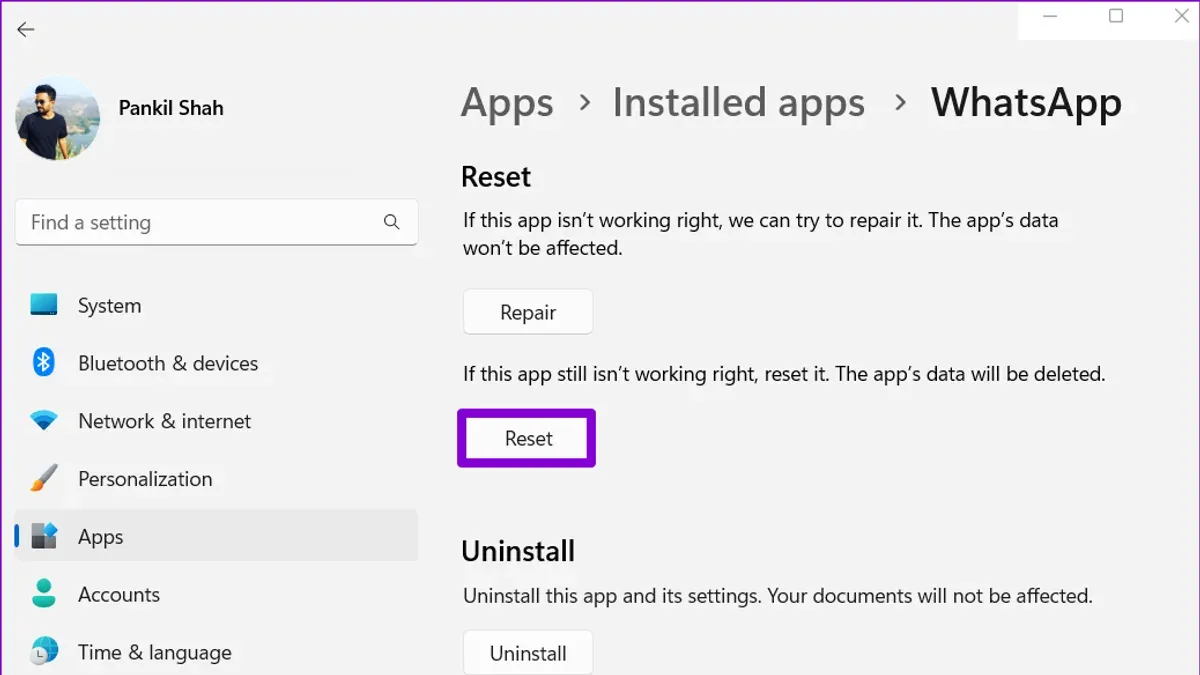
Outdated or corrupted installations of WhatsApp Desktop can cause syncing failures between your Mac and mobile device. To address this, start by checking for updates. Open the Mac App Store, go to the Updates tab, and see if WhatsApp Desktop has a newer version available. Alternatively, visit the official WhatsApp website to download the latest release. WhatsApp release notes often include bug fixes related to syncing issues, so keeping your app up to date is essential.
If updating does not resolve the problem, a clean reinstall may be necessary. This ensures any corrupted files or settings causing syncing conflicts are removed. Uninstall WhatsApp Desktop by dragging it from your Applications folder to the Trash, then empty the Trash. Next, download the most recent version from the official website or the Mac App Store and install it fresh.
After reinstalling, open WhatsApp Desktop and re-link your account by scanning the QR code with your phone’s WhatsApp app. Once linked, test syncing by sending messages or media on either device and confirming they appear promptly on the other. Many users report improved syncing stability after following this process.
- Open the Mac App Store or WhatsApp website to check for the latest WhatsApp Desktop update. You should see an Update button if a newer version is available.
- If problems continue, quit WhatsApp Desktop, then uninstall it by dragging it to the Trash and emptying the Trash. The app should be fully removed.
- Download and install the latest WhatsApp Desktop version from the official source. The installer should launch successfully, and the app icon should appear in your Applications folder.
- Launch WhatsApp Desktop and use your phone to scan the QR code, linking your account. The app should display your chats once connected.
- Send a test message or media on your phone or Mac and confirm it syncs across both devices promptly, indicating the fix worked.
Troubleshoot Common Syncing Failure Points
If messages aren’t appearing or media won’t download on WhatsApp Desktop, the issue often lies in background activity restrictions on your phone. First, check your phone’s battery optimization settings. On iOS, go to Settings > Battery > Low Power Mode and disable it if it’s on. On Android, navigate to Settings > Apps > WhatsApp > Battery > Battery optimization, then set WhatsApp to “Not optimized” or “Unrestricted.” When battery optimization is active, WhatsApp may limit background data syncing, causing delays or missing content.
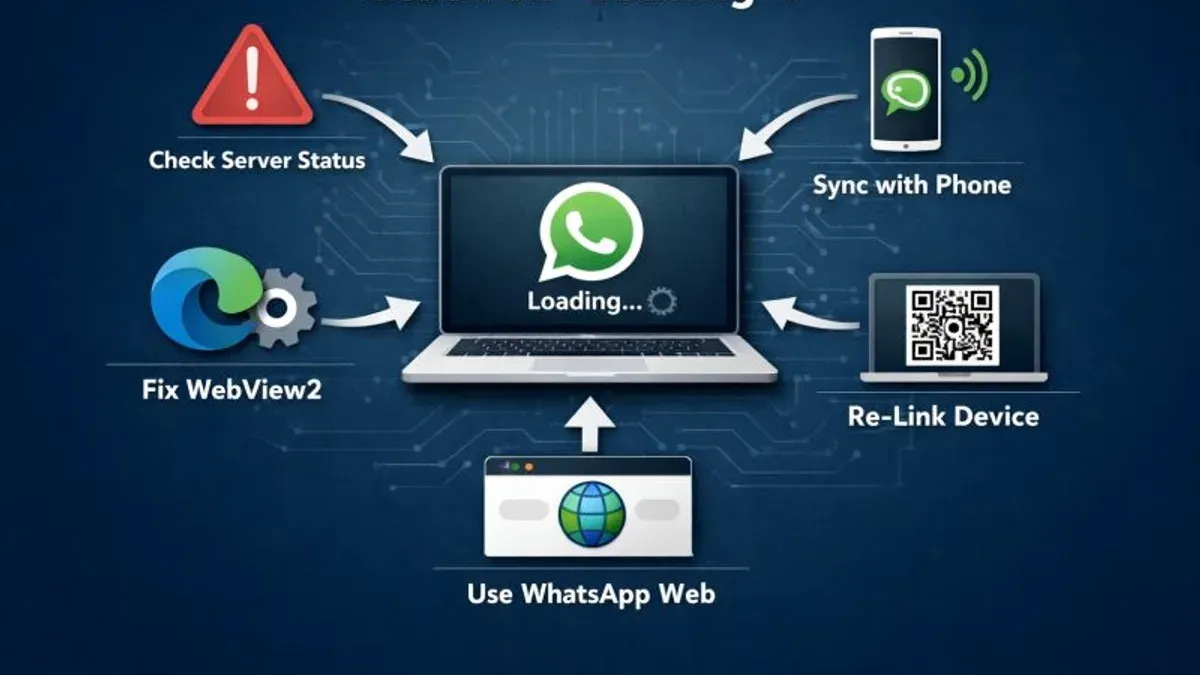
Next, verify that WhatsApp has permission to use background data. On Android, visit Settings > Apps > WhatsApp > Mobile data & Wi-Fi, and ensure “Background data” is enabled. Without this, WhatsApp cannot sync messages properly when running in the background.
Also, confirm whether you’re enrolled in the multi-device beta. While this feature allows WhatsApp Desktop to work independently from your phone, it may cause syncing inconsistencies if the feature is unstable or partially enabled. Check this in WhatsApp mobile under Settings > Linked Devices.
- Open WhatsApp on your phone and check for any syncing error messages like “Couldn’t sync messages” or “Connection lost.” When you see these, proceed to adjust battery and background data settings as described. Successfully fixed syncing should show no error messages and updates appearing promptly on both devices.
- Disable battery optimization for WhatsApp, then send a test message from your phone. If it appears instantly on WhatsApp Desktop, the problem is resolved.
- Confirm background data permission is active, then try downloading media on WhatsApp Desktop. It should download without delays or failure notifications.
- If using multi-device beta, leave the beta by tapping Settings > Linked Devices > Multi-device beta > Leave beta, then re-link your devices. Syncing should stabilize after this.
Frequently asked questions
Why is WhatsApp Desktop not syncing messages on my Mac?
WhatsApp Desktop may fail to sync messages if the connection between your phone and Mac is interrupted, either due to network issues, outdated app versions, or incorrect system settings on your Mac. Sometimes, background restrictions like Low Power Mode or firewall settings can block the app’s syncing process. Ensuring both devices are on the same network and checking app and system permissions usually resolves syncing problems.
How do I know if WhatsApp Desktop is properly linked to my phone?
You can verify the link status by opening WhatsApp Desktop and checking the linked devices section on your phone under Settings > Linked Devices. If your Mac appears in the list and shows an active session, it is linked correctly. Also, if messages and media update in real time on your Mac, that confirms a proper connection.
Can network issues cause WhatsApp Desktop syncing failures?
Yes, network issues are a common cause of syncing failures. If your Mac or phone has unstable or slow internet, or if they are connected to different networks, syncing can be disrupted. Make sure both devices are connected to a reliable Wi-Fi or cellular network and check for any VPN or firewall that might block WhatsApp’s connections.
What should I do if WhatsApp Desktop keeps disconnecting from my Mac?
If WhatsApp Desktop frequently disconnects, start by restarting both your Mac and phone to refresh connections. Check if your Mac’s firewall or security software is blocking WhatsApp, and ensure background app refresh is enabled on your phone. If problems persist, unlink and relink your Mac in WhatsApp’s linked devices settings to reset the connection.
What This Guide Does Not Cover
This guide focuses specifically on troubleshooting syncing issues between WhatsApp Desktop and your Mac at the app and system level. It does not address problems caused by WhatsApp server outages, account suspensions, or issues related to your mobile device’s cellular or Wi-Fi network outside of the local connection to your Mac. For server-side problems or account restrictions, you will need to contact WhatsApp Support directly, as these require intervention beyond your device settings.
If you experience persistent syncing failures despite following these steps, or if your account is locked or flagged, reaching out to official WhatsApp help channels is the recommended next step.
Next Step: Verify Your Internet Connection Stability
The most common overlooked cause of syncing problems is an unstable or restrictive internet connection on either your Mac or mobile device. Before attempting further troubleshooting, ensure both devices are reliably connected to the internet, ideally on the same Wi-Fi network without active VPNs or firewalls that could block WhatsApp’s communication ports. This simple verification often resolves temporary syncing delays and prevents unnecessary deeper fixes.
See also: How to Link WhatsApp to Mac Using WhatsApp Desktop Step-by-Step · How to Make Video Calls in WhatsApp Desktop on Mac: Step-by-Step