How to Make Video Calls in WhatsApp Desktop on Mac: Step-by-Step
This guide shows how to make video calls in WhatsApp Desktop on Mac, including setting permissions and avoiding common issues.
You’ve just installed WhatsApp Desktop on your Mac and want to connect with friends or colleagues through video calls. However, you’re unsure where to find the video call feature or how to handle the necessary Mac permissions without running into frustrating errors.
This guide walks you through how to make video calls in WhatsApp Desktop on Mac, covering every step from opening the app and locating the video call option to setting up camera and microphone permissions correctly. Along the way, you’ll learn about common pitfalls specific to Mac users, ensuring your video calls start smoothly and stay stable.
Key takeaways
- Access the video call button from a chat’s top-right corner in WhatsApp Desktop on Mac.
- Grant camera and microphone permissions via System Preferences > Security & Privacy > Privacy for WhatsApp Desktop.
- Restart WhatsApp Desktop after changing permissions to activate them properly.
- Check your Mac’s camera and microphone work in other apps to rule out hardware issues.
- Close other apps that might be using your camera or microphone to avoid conflicts during calls.
Before You Start: What You Need for WhatsApp Desktop Video Calls
To make video calls using WhatsApp Desktop on your Mac, you need to prepare several things to ensure a smooth experience. First, confirm that you have WhatsApp Desktop installed from the official WhatsApp website or the Mac App Store. The app requires macOS 10.13 (High Sierra) or later to run properly. Your Mac must have a functioning built-in or external camera and microphone, both enabled and accessible.
Next, a stable internet connection is crucial. For a clear video call without interruptions, aim for at least a moderate broadband speed—typically around 2 Mbps upload and download speeds or higher. Your WhatsApp account must be linked to your mobile device, which needs to be online as WhatsApp Desktop mirrors your phone’s connection.
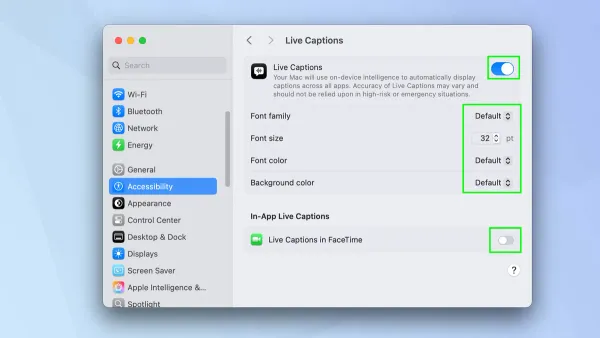
Lastly, WhatsApp Desktop needs specific permissions to access your camera and microphone through macOS System Preferences. Without these permissions, video calls won’t work. You can verify and adjust these settings under System Preferences > Security & Privacy > Privacy tab, then select Camera and Microphone, ensuring WhatsApp Desktop is checked.
- Download and install WhatsApp Desktop from the official source. Upon launch, you should see the QR code scanner window.
- Confirm your Mac’s camera and microphone are connected and working by testing them in another app like FaceTime or QuickTime.
- Check your internet speed using a reliable online speed test tool. You should see speeds around or above 2 Mbps for both upload and download.
- Link your WhatsApp account by scanning the QR code with WhatsApp on your phone. Once linked, your chats should sync and become visible on your Mac.
- Open System Preferences > Security & Privacy > Privacy tab, select Camera and Microphone sections, and ensure WhatsApp Desktop has permission. When done correctly, WhatsApp will appear checked in both lists.
Open WhatsApp Desktop and Locate the Video Call Option
- Launch the WhatsApp Desktop app from your Mac's Applications folder or Dock. If you are not signed in, you will see a QR code on the screen prompting you to scan it with the WhatsApp app on your phone. Once scanned, your chats will load, confirming you are signed in.
- In the left sidebar, scroll or search to find the chat with the person you want to video call. Click on that chat to open the conversation window on the right side.
- Look at the top right corner of the chat window. You will see several icons including a magnifying glass, an emoji icon, and two phone icons. The video call button is represented by a small video camera icon.
- Next to the video camera icon is the voice call button, which looks like a traditional telephone handset. The video call button initiates a video call, while the voice call button starts an audio-only call. Make sure you click the video camera icon to start a video call.
- If you do not see these call icons, ensure your WhatsApp Desktop app is up to date and that the chat is with an individual contact rather than a group, as video calls may not be available in group chats through the desktop app.
Start a Video Call on WhatsApp Desktop on Your Mac

- Open the chat with the contact you want to call. Locate the video call icon, a small video camera, in the upper right corner of the chat window. Click this icon to initiate the video call.
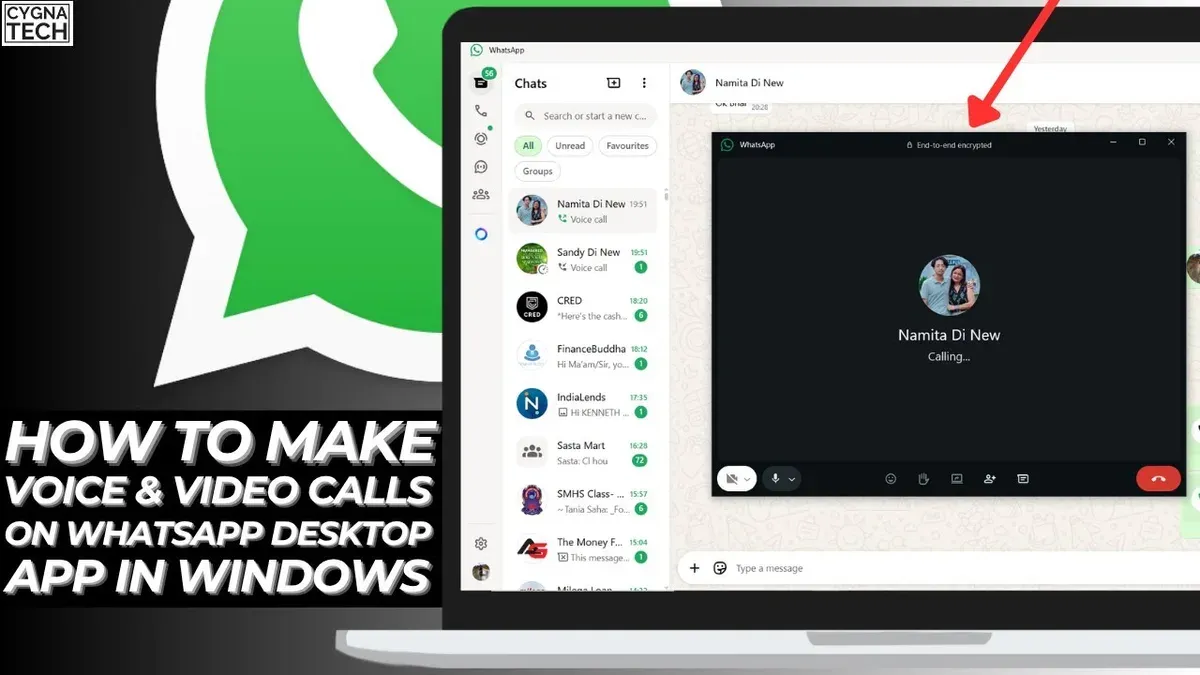
- After clicking, you will see a ringing screen indicating the call is connecting. This screen shows the contact's name and a cancel button if you want to stop the call before it connects. The time it takes to connect depends on your internet speed — faster connections typically ring and connect within a few seconds, while slower connections may take longer or occasionally fail.
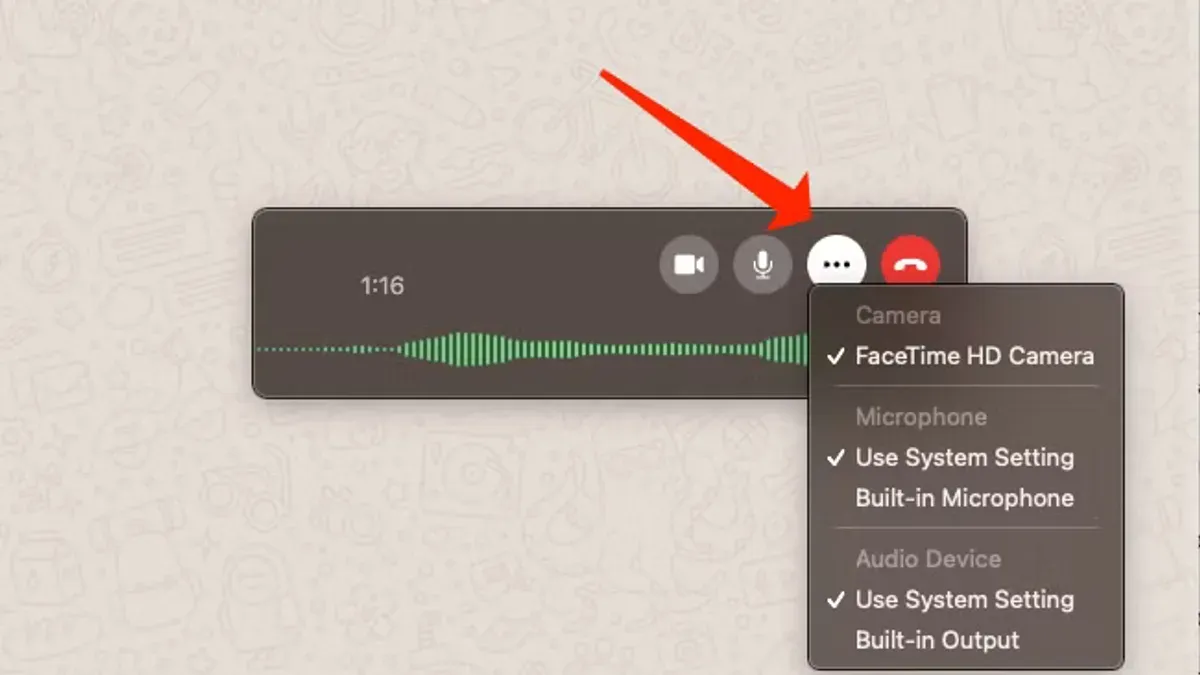
- Once the call connects, your Mac’s camera and microphone activate, and you will see the video feed of your contact if they have their camera on. Call controls appear at the bottom of the call window: a microphone icon to mute or unmute your audio, a camera icon to turn your video on or off, and a red phone icon to end the call.
- To mute yourself, click the microphone icon; it will display a line through it when muted. To disable your video, click the camera icon, which will change appearance to indicate your camera is off. Click the red phone icon to end the call when finished.
- For better video and audio quality, ensure you are connected to a stable Wi-Fi network rather than cellular data or spotty connections. Avoid background noise and position yourself in a well-lit area facing the camera. Closing unnecessary applications can also help reduce latency during the call.
Grant Camera and Microphone Permissions on Mac for WhatsApp Desktop
To make video calls on WhatsApp Desktop, you must allow the app to access your Mac's camera and microphone. Without these permissions, WhatsApp may display error messages like "Camera not accessible" or "Microphone permission denied," preventing successful calls.
- Open System Preferences from the Apple menu.
- Click Security & Privacy, then select the Privacy tab at the top.
- In the left sidebar, find and select Camera. On the right, locate WhatsApp Desktop and ensure its checkbox is enabled. If it’s unchecked, click the lock icon in the bottom-left corner, enter your Mac password, then check the box.
- Repeat step 3 for Microphone in the left sidebar, confirming WhatsApp Desktop has permission.
- If WhatsApp Desktop was open during these changes, close it completely and reopen it to apply the new permissions.
- If you never saw permission prompts or accidentally denied them earlier, these steps will let you manually grant access.
After granting permissions, try a video call again. If issues persist, restarting your Mac can help ensure the changes take effect system-wide.
Troubleshoot Common Issues Making WhatsApp Desktop Video Calls on Mac
If your video call shows a black screen or your camera isn’t detected, first verify that no other app is using the camera. macOS restricts simultaneous camera access, so close other apps like FaceTime or Zoom. If you see an error like "Camera not found," check System Preferences > Security & Privacy > Camera to confirm WhatsApp Desktop has permission.
For microphone problems such as no sound or echo, ensure WhatsApp Desktop has microphone access under Security & Privacy > Microphone. If you hear echoes, try using headphones or adjust the microphone input volume in System Preferences > Sound > Input.
Connection issues causing calls not to connect or dropping often relate to network instability. Switch to a wired Ethernet connection or a stable Wi-Fi network with good signal strength. If calls frequently drop, quitting and reopening WhatsApp Desktop or restarting your Mac can resolve temporary glitches.
Keeping WhatsApp Desktop and macOS updated is essential. Check the Mac App Store for WhatsApp updates and System Preferences > Software Update for macOS. Many users report that updating resolves compatibility issues affecting video call functionality.
- Close all apps using your camera, then reopen WhatsApp Desktop and start a video call. You should now see your video feed instead of a black screen.
- Go to System Preferences > Security & Privacy > Microphone and ensure WhatsApp Desktop is checked. Test the microphone in a call; you should hear your voice clearly.
- Switch to a stable network connection. If calls drop, restart WhatsApp Desktop and try again. You should experience fewer disconnections.
- Open the Mac App Store, check for WhatsApp Desktop updates, and install any available. Also, update macOS if prompted. After updating, video calls should perform more reliably.
- If issues persist, restart your Mac. A successful restart often clears system-level conflicts, improving video call stability.
Following these steps addresses the most common WhatsApp Desktop video call problems on Mac by targeting permission settings, network stability, and software versions.
Optimize Your WhatsApp Desktop Video Call Experience on Mac
Improving your video call quality goes beyond simply connecting the call. Start by using headphones or an external microphone to reduce background noise and echo, which leads to clearer audio for both you and the person on the other end. Many users notice a significant difference when switching from built-in Mac speakers to a quality headset.
Next, adjust your lighting and camera angle. Position yourself facing a natural or soft light source to avoid shadows, and angle your Mac’s camera so your face is centered and fully visible. This setup enhances video clarity, making conversations more engaging and professional-looking.
Close any bandwidth-heavy applications such as cloud backups, streaming services, or large downloads during your call. This helps prevent lag and freezes, ensuring smoother video and audio. WhatsApp Desktop performance improves noticeably when your Mac’s resources are focused on the call.
Finally, keep both WhatsApp Desktop and macOS updated. Updates often include bug fixes and performance enhancements that improve compatibility and call stability. Users frequently report fewer disconnects and better video quality after installing the latest updates.
Frequently asked questions
Can I make group video calls on WhatsApp Desktop for Mac?
Yes, you can make group video calls on WhatsApp Desktop for Mac, but the feature supports up to eight participants including yourself. To start a group video call, open a group chat and click the video call icon at the top right. If the icon is not visible, ensure your WhatsApp Desktop is updated to the latest version.
Why can’t I see the video call button in WhatsApp Desktop?
If the video call button is missing, it might be due to an outdated app version or unsupported chat type. Make sure you are in an individual or group chat, as video calls aren’t available in broadcast lists. Also, check that your WhatsApp Desktop app is updated and that your Mac has granted camera and microphone permissions.
How do I switch between front and back camera on Mac during a call?
Most Macs only have a built-in front camera, so switching to a back camera is not supported unless you use an external camera. If you have multiple cameras connected, click the video settings icon within the call window to select your preferred camera. Without external hardware, switching cameras during a call is not possible.
Does WhatsApp Desktop support video calls on all Mac models?
WhatsApp Desktop supports video calls on Macs running macOS Mojave (10.14) or later, but performance can vary depending on hardware capabilities. Older Macs without a built-in camera or with outdated system software may not support video calls fully. Confirm your Mac’s macOS version and hardware specs for optimal compatibility.
What This Guide Does Not Cover
WhatsApp Desktop video calling requires an active WhatsApp account linked to your mobile device; it cannot function independently without your phone being connected. If you have an older Mac model or are running an outdated version of macOS, you might experience compatibility issues or limited video call performance. Additionally, this guide does not address video calling via WhatsApp Web, as that feature is not currently supported.
For users needing advanced call management, group video calls, or troubleshooting complex network configurations, consulting WhatsApp’s official support or seeking professional technical assistance may be necessary.
Next Step to Get Started
To begin confidently making video calls on WhatsApp Desktop for Mac, verify that your Mac’s System Preferences under Security & Privacy > Privacy include WhatsApp Desktop with granted access to both Camera and Microphone. Without these permissions, video calls will not function correctly. After confirming permissions, open a chat, click the video call icon, and you are ready to connect visually with your contacts.
See also: How to Share Your iPad Screen in Zoom Using a Mac · How to Fix Zoom No Audio on Mac: Step-by-Step Troubleshooting · How to Use Virtual Background in Zoom on Mac: Step-by-Step Guide