How to Run x86 Docker Images on Mac with Docker Desktop
This guide explains how to run x86 Docker images on Mac with Docker Desktop, focusing on Apple Silicon compatibility and performance considerations.
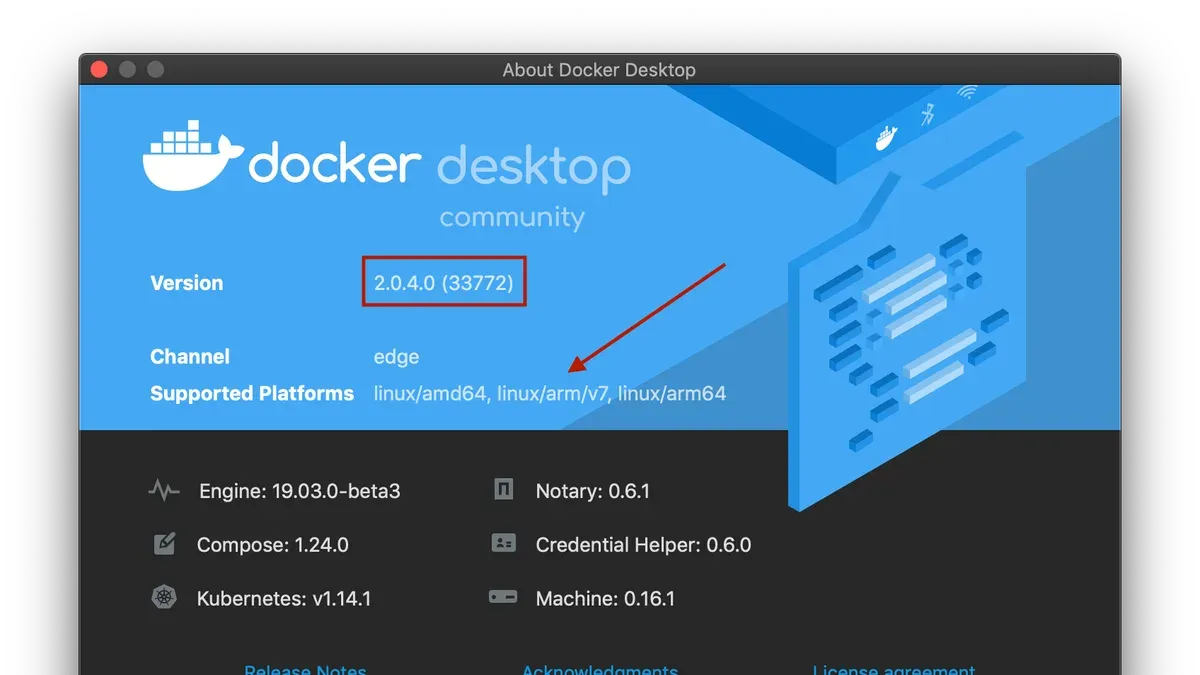
You have a Mac with Apple Silicon and need to run Docker containers built for x86 architecture. The challenge is that these containers are not natively compatible with ARM chips, which can cause confusion and performance concerns.
This article explains how to run x86 images in Docker Desktop on Mac, focusing on the practical steps and considerations for Apple Silicon users. You will learn about the architecture differences, how Docker Desktop uses emulation to bridge the gap, how to configure the settings properly, and what performance trade-offs to expect.
Key takeaways
- Docker Desktop uses QEMU-based emulation to run x86 images on ARM-based Macs.
- Enable "Use Rosetta for x86/amd64 emulation on Apple Silicon" in Docker Desktop's settings.
- Running x86 images involves a performance cost compared to native ARM images.
- Specifying the platform with the "--platform linux/amd64" flag helps ensure correct image execution.
- Resource allocation adjustments in Docker Desktop can improve emulation performance.
Before you start: What you need to run x86 images on Mac
To run x86 Docker images on a Mac, your machine must be either an Apple Silicon model (M1 or M2) or an Intel-based Mac. Apple Silicon Macs use ARM architecture, which differs from the x86 architecture most Docker images target.
You need the latest stable version of Docker Desktop installed, as it includes built-in support for cross-platform emulation using QEMU. Docker Desktop supports macOS Big Sur (11.0) and later on Apple Silicon, and macOS Catalina (10.15) or later on Intel Macs.
Familiarity with Docker concepts and basic terminal commands is essential. You should understand the difference between ARM and x86 images and be comfortable running commands like docker pull and docker run.
- Download and install Docker Desktop from official Docker documentation. After installation, launch Docker Desktop and ensure the whale icon appears in your menu bar.
- Open a terminal and run
docker version. You should see client and server versions without error messages, confirming Docker is running. - Verify your Mac model by clicking the Apple menu > About This Mac. Confirm it shows either Apple Silicon (M1/M2) or Intel processor to know your architecture.
- Check Docker Desktop’s settings under Preferences > Resources > Advanced to allocate sufficient CPU and memory for emulation workloads. Adjust as needed based on your system.
These prerequisites ensure your Mac is ready to handle x86 Docker images through emulation, setting realistic expectations on performance and compatibility.
Understanding architecture differences and emulation in Docker Desktop
Macs with Apple Silicon use the ARM64 architecture, while most traditional Docker images are built for x86_64 (Intel) processors. This architectural difference means x86 Docker images cannot run natively on ARM Macs without special handling.
Docker Desktop addresses this by integrating QEMU, an open-source emulator, to translate x86 instructions into ARM64 instructions in real time. This emulation allows you to run x86 images on ARM-based Macs but introduces a performance overhead compared to running native ARM images.
Benchmarks generally show that emulated x86 containers run slower and can consume more CPU resources than native ARM containers. For example, a CPU-bound task in an x86 container may take noticeably longer when emulated. Running docker run --rm --platform linux/amd64 alpine uname -m on an ARM Mac returns x86_64, confirming the platform override and emulation in effect.
Emulation is suitable for development, testing, and running software lacking ARM support. However, for performance-sensitive applications, native ARM images or multi-architecture builds are recommended to avoid the latency and resource cost of emulation.
Configuring Docker Desktop to enable x86 image support
To run x86 Docker images on your Mac using Docker Desktop, start by enabling Rosetta 2 if you have an Apple Silicon Mac. Rosetta 2 allows translation of x86 instructions to ARM, which is necessary for certain binaries.
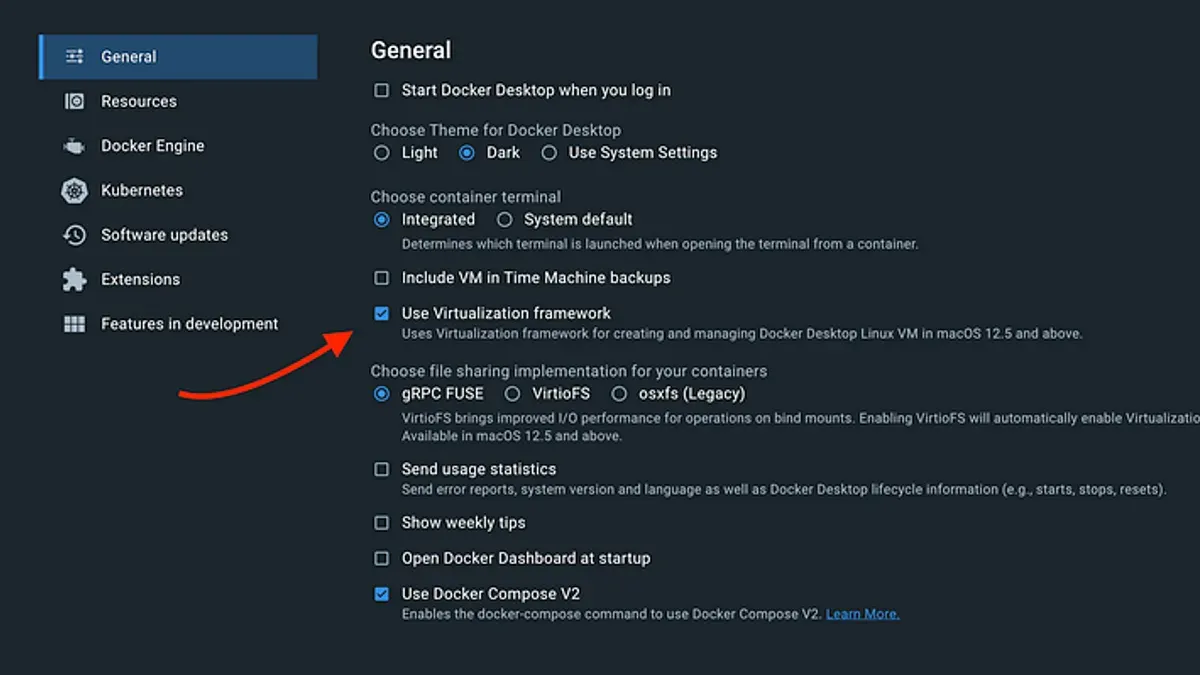
- Enable Rosetta 2: Open Terminal and run softwareupdate --install-rosetta. You should see a confirmation prompting installation. Once installed, x86 binaries can run via translation.
- Check Docker Desktop settings: Open Docker Desktop, go to Preferences > Experimental Features, and ensure Enable experimental features is checked. This setting supports cross-platform image handling.
- Use the
--platformflag when pulling or running images: For example, run docker pull --platform linux/amd64 nginx. The output will show downloading the amd64 variant, confirming the architecture selection. - Verify image architecture: Use docker manifest inspect nginx to see available platforms or docker inspect <image_id> to confirm the architecture of a pulled image.
Following these steps ensures Docker Desktop is configured to pull and run x86 images using emulation. Note that explicitly specifying --platform linux/amd64 is crucial to avoid defaulting to ARM images on Apple Silicon Macs.
Running x86 Docker images on Mac: Step-by-step commands
- Open your terminal and pull an x86 Docker image by specifying the platform explicitly. For example, run
docker pull --platform linux/amd64 alpine. You should see Docker downloading the alpine image layers for the amd64 architecture. - Run the container using the
--platform=x86_64flag to ensure Docker uses emulation for the x86 architecture. Example:docker run --rm --platform=x86_64 alpine uname -m. The output should showx86_64, confirming the container runs as an x86 image. - To run a more common service image, try
docker run --rm --platform=x86_64 nginx nginx -v. Docker will pull and run the x86 version of nginx, and the command will output the nginx version, verifying successful execution. - For interactive exploration, start an alpine shell with
docker run --rm -it --platform=x86_64 alpine sh, then inside the container rununame -m. The resultx86_64confirms the container architecture. - If you see errors about unsupported platform or image not found, double-check that you are using the
--platformflag correctly and that the image supports the amd64 architecture.
Optimizing performance and resource use when running x86 images
Running x86 images on ARM-based Macs involves emulation that can impact performance and resource consumption. To mitigate these effects, start by adjusting Docker Desktop’s CPU and memory allocations. Open Docker Desktop preferences, navigate to Resources > Advanced, and increase CPU cores to 4 or more and memory to at least 8 GB if possible. This allows the emulator more resources, improving speed but reducing availability to other applications.
Where possible, prefer multi-architecture (multi-arch) Docker images that include ARM-native variants. These run natively and deliver significantly better performance than emulated x86 images. If you find an ARM-native image that fits your workload, switching to it can reduce CPU usage and shorten container startup times.
To optimize caching, use Docker’s layer caching by structuring Dockerfiles to minimize rebuilds of unchanged layers. Also, pull updated images regularly to benefit from upstream optimizations and smaller image sizes.
Performance comparison charts generally show native ARM images running faster and with lower CPU load than emulated x86 ones. For example, switching from a standard x86 Ubuntu image to an ARM version can reduce container launch times by a noticeable margin and smooth CPU spikes.
- Open Docker Desktop and go to Preferences > Resources > Advanced.
You should see sliders for CPU and Memory allocation. - Increase CPU allocation to 4 cores or more.
The slider should move accordingly, and Docker will apply the new setting after restart. - Increase memory allocation to 8 GB or higher.
The slider update confirms the change. - Pull a multi-arch image using
docker pull --platform linux/arm64if available.
The image downloads for the ARM architecture. - Run the ARM-native image to compare performance.
Container startup should be faster compared to the x86 emulated version.
Common issues and how to troubleshoot x86 image runs on Mac
Running x86 Docker images on an ARM-based Mac can sometimes trigger platform mismatch errors like "exec format error" or messages indicating missing emulation support. These usually occur if the --platform linux/amd64 flag is omitted or if Rosetta 2 is not enabled.
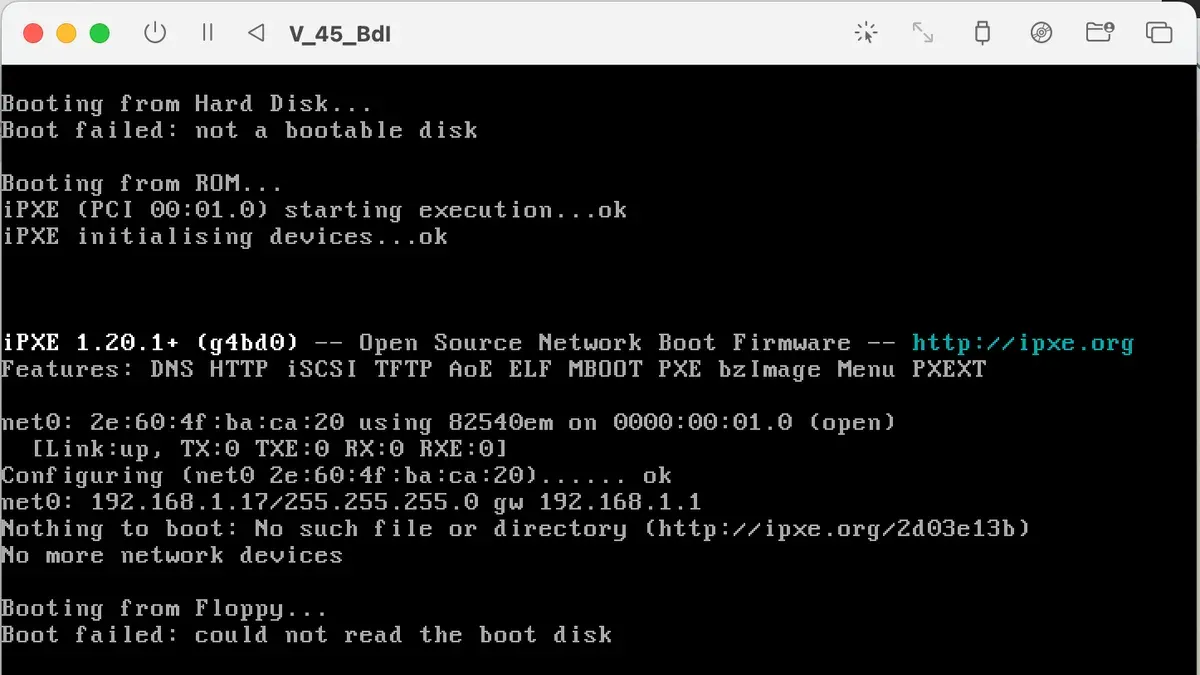
Container crashes or slow startups often stem from the emulation overhead inherent to QEMU. Reducing resource allocation conflicts in Docker Desktop’s Resources > CPU & Memory settings can help mitigate this. Also, be mindful that heavy disk I/O may slow volumes mounted inside x86 containers.
Network connectivity problems or volume mount failures may arise due to architecture differences affecting file system permissions or network interfaces. Ensure volume paths are correctly mapped and check that Docker Desktop has full disk access in System Preferences > Security & Privacy.
- Open Docker Desktop and navigate to Troubleshoot > Logs. Verify there are no QEMU or platform mismatch errors.
You should see log entries confirming successful image emulation. - Run docker run --rm --platform linux/amd64 hello-world.
The output should confirm the container runs without "exec format error". - If containers crash or hang, reduce allocated CPUs and memory in Settings > Resources.
After adjustment, container startup times should improve. - Check Docker Desktop diagnostic data via Troubleshoot > Get Support if issues persist.
This generates a diagnostic ID you can use when consulting official Docker troubleshooting documentation.
Frequently asked questions
Can I run x86 Docker images on any Mac?
You can run x86 Docker images on most Macs using Docker Desktop, but the experience differs between Intel-based Macs and Apple Silicon (M1/M2) Macs. Intel Macs run x86 images natively, while Apple Silicon Macs require emulation through Docker’s built-in QEMU support, which is enabled by default in Docker Desktop. Some very old Macs or unsupported macOS versions might not fully support the latest Docker Desktop features.
Why is running x86 images slower on Apple Silicon Macs?
Apple Silicon Macs use ARM architecture, so running x86 images requires emulation, which adds overhead and reduces performance compared to native execution. This emulation translates x86 instructions into ARM instructions in real time, causing slower startup times and increased CPU usage. The performance hit varies with the complexity of the image and workload but is generally noticeable for compute-intensive tasks.
How do I know if a Docker image supports ARM architecture?
Check the image’s manifest or documentation for multi-architecture support. On the command line, you can run docker manifest inspect <image-name> to see supported platforms listed under the "platforms" section. Popular images often support both amd64 (x86) and arm64 (ARM) architectures, allowing Docker Desktop to pull the matching image automatically on Apple Silicon Macs.
What are the alternatives if emulation does not meet my needs?
If emulation is too slow or incompatible, consider using multi-architecture images built for ARM or rebuilding your own images targeting ARM64. Another option is to run your containers on a remote x86 server or virtual machine, then connect from your Mac. For some workflows, using virtualization tools that support x86 VMs like UTM or Parallels Desktop can provide better performance for legacy x86 workloads.
Limits of this guide and when to seek alternatives
This guide does not cover running x86 Docker images on Mac models that lack Apple Silicon or Intel processors, such as older PowerPC Macs. It also does not address advanced custom QEMU configurations outside of Docker Desktop’s built-in virtualization. If you require highly optimized emulation or need to run complex multi-architecture setups beyond Docker Desktop’s capabilities, consider exploring dedicated virtualization tools or native x86 hardware.
For the most straightforward experience, ensure you use the latest Docker Desktop version with Rosetta 2 installed on your Apple Silicon Mac. The single most useful next step is to verify that Docker Desktop’s “Use Rosetta for x86/amd64 emulation on Apple Silicon” option is enabled in Settings > Experimental Features. This setting triggers the integrated QEMU emulation needed to run x86 images and avoids common runtime errors related to architecture incompatibility.