How to Reduce Memory Usage in Docker Desktop on Mac: Step-by-Step Guide
This guide shows how to reduce memory usage in Docker Desktop on Mac by adjusting settings, managing containers, and using Mac system tools effectively.
If you use Docker Desktop on your Mac, you may notice that it sometimes consumes a significant amount of memory, which can slow down your system. This is common when running multiple containers or resource-intensive applications.
This article explains how to reduce memory usage in Docker Desktop on Mac by adjusting Docker’s own settings, optimizing your containers, managing images and volumes, and using Mac’s system tools to keep memory use in check. Following these steps helps you maintain performance without compromising container functionality.
Key takeaways
- Adjust Docker Desktop’s memory allocation via Preferences > Resources > Memory to fit your workload, typically between 2GB and 4GB.
- Stop or remove unused containers and prune unused images to free memory.
- Limit container memory usage with ‘--memory’ flags to prevent overconsumption.
- Use Mac Activity Monitor and Docker stats to track real-time memory use.
- Clear unused volumes regularly to avoid hidden memory load.
Before you start: What you need to know and prepare
Docker Desktop on Mac runs inside a lightweight virtual machine (VM), which differs from native Docker on Linux where containers run directly on the host OS. This VM introduces an additional memory layer, often resulting in a higher baseline memory footprint. Understanding this architecture helps set realistic expectations about memory usage.
To optimize memory effectively, you should be familiar with the Docker Desktop interface, specifically the Preferences panel where resource limits are configured. You also need to know how to monitor system resources using Mac tools such as Activity Monitor or Terminal commands like top and vm_stat.
Restarting Docker Desktop is required after changing memory settings; ensuring you have quick access to the Docker menu bar icon and the Preferences window will streamline this process.
- Open Docker Desktop by clicking its icon in the menu bar. You should see the Docker whale icon without a loading spinner, indicating it is running.
- Launch Activity Monitor from Applications > Utilities. Confirm you can locate the Docker Desktop VM process (named "com.docker.hyperkit") to monitor its memory use.
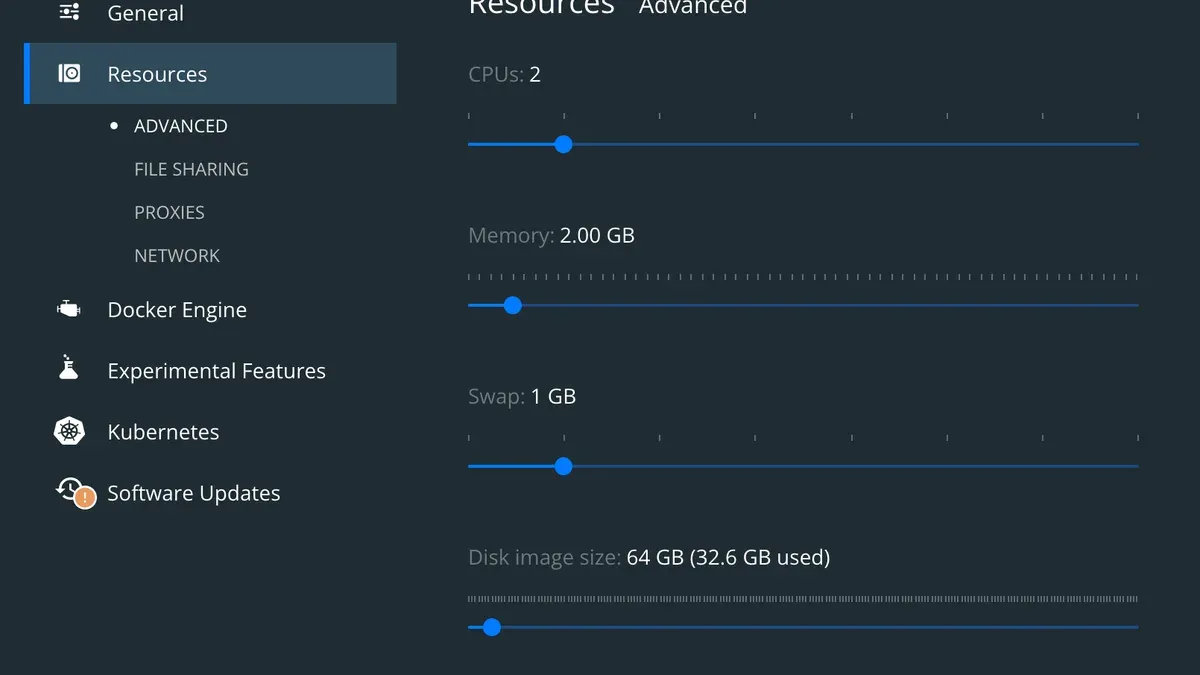
- Open Docker Desktop Preferences via the menu bar icon > Preferences > Resources > Memory. Verify you see the slider controlling memory allocation, typically defaulting to 2 GB or more.
- Ensure you have permission to restart Docker Desktop: right-click the menu bar icon and select Restart. Docker should shut down and start again within a minute.
Having these steps ready and understanding the underlying VM setup will help you make informed adjustments without unexpected disruptions.
Adjust Docker Desktop’s memory allocation settings
Docker Desktop on Mac runs inside a lightweight virtual machine, which has default memory limits that may not match your Mac’s available RAM or your container workload demands. Adjusting these limits can improve container performance and reduce unnecessary memory pressure on your system.
- Open Docker Desktop and click the Docker icon in the menu bar, then select Preferences. You should see the Preferences window open.
- Navigate to the Resources tab, then select Memory. Here you will find a slider or input box labeled Memory indicating the current RAM allocation for Docker’s VM.
- Adjust the memory allocation based on your Mac’s total RAM: for example, allocate 4 GB if you have 8 GB total, or 8 GB if you have 16 GB or more. Avoid setting it too high to prevent starving your macOS and other applications.
- Click Apply & Restart to save changes. Docker Desktop will restart, applying the new memory settings.
- After restarting, monitor container performance and Mac responsiveness. You should observe smoother container operations without excessive macOS swapping or slowdowns.
For instance, reducing Docker’s memory from 8 GB to 4 GB on an 8 GB Mac may free RAM for other apps but could cause container processes to slow if memory demands are high. Conversely, increasing from 2 GB to 4 GB often improves container stability at the cost of less free system RAM. Adjust incrementally to find the right balance for your workflow.
Optimize running containers to reduce memory consumption
To pinpoint containers consuming excessive memory, use the docker stats command or check Docker Desktop’s Containers/Apps UI. This live display shows memory and CPU usage per container, helping you identify heavy users.
| CONTAINER ID | NAME | CPU % | MEM USAGE / LIMIT | MEM % |
|---|---|---|---|---|
| abc123 | webapp | 3.5% | 450MiB / 2GiB | 22% |
| def456 | db | 1.7% | 1.5GiB / 2GiB | 75% |
To limit container memory, specify --memory and --memory-reservation flags when running containers. For example, docker run -d --memory=512m --memory-reservation=256m your-image caps hard and soft memory use, balancing performance and resource constraints.
If using docker-compose, add these under the service:mem_limit: 512m. This prevents containers from exceeding set limits, reducing system memory pressure.
mem_reservation: 256m
- Run
docker statsor open Docker Desktop’s UI to identify high-memory containers. You should see a real-time overview of memory use per container. - Stop or pause unused containers with
docker stop [container_name]ordocker pause [container_name]. Confirm they no longer appear in the active containers list. - Restart memory-heavy containers with explicit memory limits:
docker run -d --memory=512m --memory-reservation=256m [image]. Verify new limits by rerunningdocker statsand observing lower memory consumption. - Implement application-level memory optimizations inside containers, such as reducing cache sizes, limiting worker processes, or tuning JVM heap settings, depending on the app. You should see sustained lower memory use over time.
By managing memory at the container level, you avoid overcommitting the Docker VM’s resources while maintaining container functionality. Balancing limits prevents abrupt terminations but requires testing to find optimal settings.
Manage Docker images and volumes to prevent unnecessary memory load
Unused Docker images and volumes do not directly consume RAM but occupy disk space, which can slow Docker Desktop and increase memory overhead indirectly. Over time, accumulated images, stopped containers, and dangling volumes add to system load and may degrade performance.
- Run docker system df to view current disk usage by images, containers, and volumes. You should see a summary of disk space consumption.
- Execute docker image prune to remove unused images. You will be prompted to confirm; after pruning, the list of images will be smaller when you run docker images.
- Use docker volume prune to delete unused volumes safely. Confirm the prompt, and volumes no longer referenced by containers will be removed.
- Run docker system prune to clean up all unused data, including images, containers, volumes, and build cache. Adding the --volumes flag removes unused volumes as well. After this, rerun docker system df to verify reduced disk usage.
- Schedule regular cleanups by adding a cron job or using macOS launchd to run docker system prune -f --volumes periodically. This prevents resource buildup without manual intervention.
Cleaning unused images and volumes reduces disk usage significantly, often by several hundred megabytes or more, which contributes to improved Docker Desktop responsiveness and lowers the memory footprint required for managing stored data.
Leverage Mac system tools to monitor and control Docker memory use
Using Mac-native tools helps you pinpoint Docker Desktop’s memory impact and detect unusual usage patterns effectively.
- Open Activity Monitor from Applications > Utilities. In the CPU or Memory tab, search for Docker and related processes like com.docker.hyperkit or vpnkit. You should see these processes listed with their current memory usage.
- Look for memory spikes or consistently high RAM use that may indicate container leaks or inefficient resource use. Highlight the processes for a clearer view, and consider taking screenshots for reference.
- Launch the Terminal and run
docker stats --no-streamto view real-time memory consumption for each running container. This output shows memory usage in MB and memory limits, helping you identify which containers use the most resources. - Use
top -o MEMin Terminal to sort all system processes by memory usage. This lets you monitor Docker’s VM processes alongside other apps, providing a holistic view of system resource distribution. - Set up alerts by combining the
vm_statcommand with shell scripts or use third-party Mac notification tools to trigger warnings when memory usage exceeds thresholds. Logs fromdocker statscan also be scripted to track trends and catch anomalies early.
Troubleshooting common memory-related issues in Docker Desktop on Mac
If containers fail to start after lowering memory allocation, you may see errors like "Cannot allocate memory" or "Error response from daemon: failed to create shim task". First, increase memory allocation slightly in Docker Desktop Preferences > Resources > Memory and restart Docker. This often resolves startup failures caused by insufficient RAM.
If Docker Desktop’s VM crashes or hangs, symptoms include unresponsive Docker UI or error messages like "VM exited unexpectedly". Try resetting Docker Desktop from Troubleshoot > Reset to Factory Defaults; this preserves your images and containers but resets settings. If issues persist, quitting Docker and manually deleting the ~/Library/Containers/com.docker.docker folder can help.
When resetting settings, use the Troubleshoot menu’s options carefully to avoid data loss. Regular backups of important Docker volumes and images are recommended before major changes.
If memory problems continue despite adjustments, consider upgrading your Mac’s RAM or using alternative Docker setups such as Docker on a Linux VM or remote Docker hosts to offload resource use.
- Check container logs via
docker logs [container_name]for memory-related errors; look for messages about memory limits. - Adjust memory allocation incrementally in Docker Desktop Preferences; verify containers start successfully after each change.
- If VM instability occurs, use Troubleshoot > Reset to Factory Defaults; confirm Docker restarts normally.
- Backup critical data, then delete Docker’s container data folder if resets fail; restart Docker Desktop.
- Evaluate Mac hardware capabilities; if RAM is limited, consider alternative Docker environments.
- If all else fails, collect logs and contact Docker Support with detailed error messages and system specs.
- How to Fix Google Chrome High Memory Usage on Mac Step-by-Step
- How to Fix DaVinci Resolve GPU Memory Full Error on Mac
- How to Speed Up Photoshop Performance on Mac: Step-by-Step Guide
Frequently asked questions
How much memory should I allocate to Docker Desktop on Mac?
You should allocate enough memory to support your typical container workloads without starving your Mac of resources. A common starting point is 4 GB, but this depends on your containers’ needs and your Mac’s total RAM. Adjust this in Docker Desktop under Preferences > Resources > Memory, and monitor performance to find the right balance.
Can reducing Docker Desktop memory impact container performance?
Yes, lowering memory allocation can cause containers to slow down or crash if they don’t have sufficient resources. Containers running memory-intensive applications may experience out-of-memory errors or degraded responsiveness. It’s best to reduce memory cautiously and test container stability after changes.
Why does Docker Desktop use so much memory on Mac compared to Linux?
Docker Desktop on Mac runs inside a lightweight virtual machine to bridge the macOS and Linux environments, which adds overhead. This VM requires dedicated resources separate from the host, leading to higher memory use than on native Linux systems. The need to translate file systems and networking also contributes to increased consumption.
How do I know if a container is using too much memory?
Use Docker Desktop’s Dashboard or the command line with docker stats to monitor real-time memory usage per container. If a container approaches or exceeds its memory limits frequently, it’s likely using too much. Look for signs like frequent restarts, slow responses, or out-of-memory errors in container logs.
Limits of this guide and who should look elsewhere
This guide does not cover advanced Docker setups such as running Docker on remote Linux hosts or installing Docker without Docker Desktop on Mac. These alternatives can provide different memory management techniques and may be more suitable if you require fine-grained control or need to optimize for very large or complex container environments. Users looking for enterprise-grade resource optimization or custom orchestration might need to explore those options instead.
The single most effective next step is to regularly review and adjust Docker Desktop’s memory allocation via Preferences > Resources > Memory. Allocating just enough memory to your containers without over-provisioning helps maintain overall system responsiveness while ensuring container stability. Keep monitoring your container usage through the Docker Dashboard and macOS Activity Monitor to fine-tune settings over time.