
How to Fix Docker Cannot Connect to Daemon on Mac
Fix Docker cannot connect to daemon on Mac errors by starting Docker Desktop and managing the daemon lifecycle within the macOS environment.
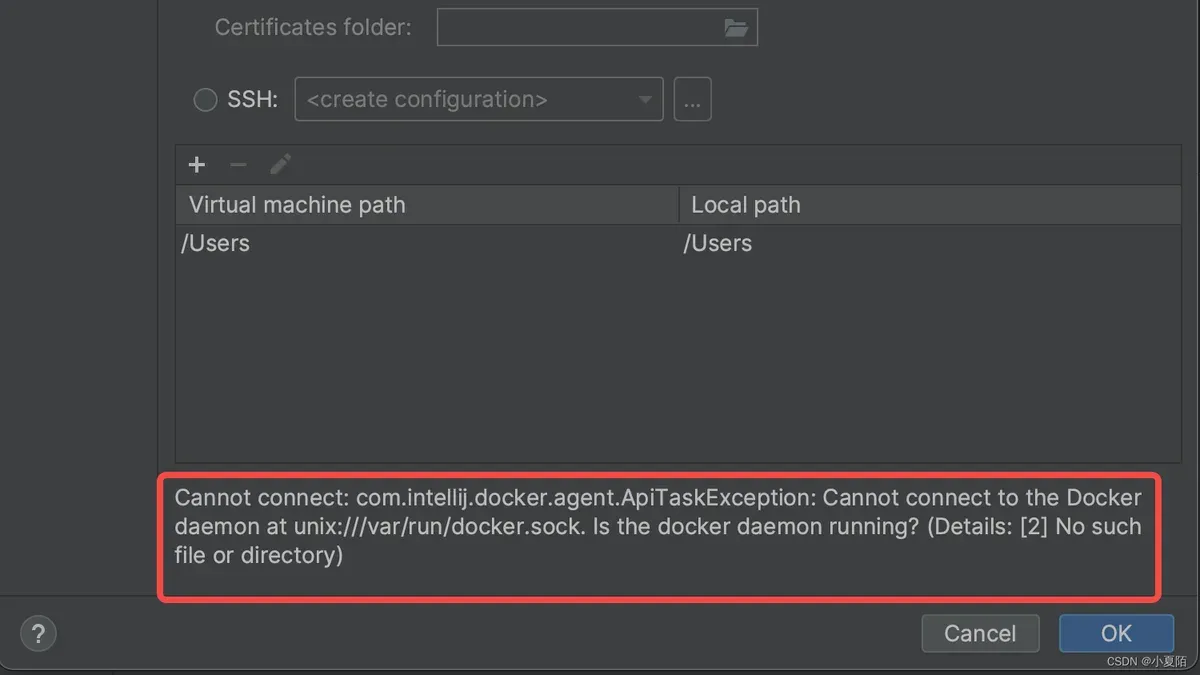
To fix "Docker cannot connect to daemon on Mac" errors, ensure Docker Desktop is running properly. Docker Desktop on macOS manages the Docker daemon inside a lightweight Linux virtual machine because macOS cannot run Linux containers natively. If Docker Desktop is not launched or has failed to start, the Docker CLI cannot connect to the daemon, causing this error.
It explains the necessary order of operations, common pitfalls unique to macOS, and how Docker Desktop integrates the Docker Engine, CLI, Compose, and Kubernetes into one application that controls the daemon lifecycle through the VM. Understanding these details will clarify why the daemon connection fails and how to resolve it effectively.
Every limit and setting name below comes from Wikipedia, Docker, as of November 2026.
How to start Docker daemon on Mac
Docker Desktop on macOS runs the Docker daemon inside a Linux virtual machine, since macOS does not natively support Linux containers. To activate the Docker daemon, the Docker Desktop application must be launched. This app manages the Linux VM and starts the daemon automatically as part of its startup process.
To start Docker Desktop, open it from the Applications folder or click its icon in the menu bar if it is already installed. Once launched, the Docker daemon will begin running without further action needed. The menu bar icon serves as the primary indicator of Docker Desktop's status and provides quick access to settings.
To avoid needing to start Docker Desktop manually on each login, enable the setting Start Docker Desktop at login. This option is found by clicking the Docker menu bar icon, selecting Preferences, then navigating to the General tab. Enabling this ensures the daemon and its supporting VM launch automatically with the user session.
- Open Docker Desktop from the Applications folder or click its menu bar icon if present. The icon should appear as a whale symbol.
- Wait for the Docker whale icon to become steady and stop animating, indicating the daemon is running.
- Click the Docker icon, choose Preferences, then select the General tab.
- Check the box for Start Docker Desktop at login to automate daemon startup on future sessions.
How to run docker daemon on Mac using the command line
When running Docker commands in the Terminal, the CLI sends requests to the daemon to perform actions like creating containers or fetching image information. If the Docker daemon is not active, these commands will fail, typically showing errors such as 'cannot connect to the Docker daemon.' This happens because the daemon handles all container orchestration in the background.
On macOS, the Docker daemon cannot be started natively without Docker Desktop or a virtual machine, as the daemon requires a Linux environment to run. Docker Desktop provides this environment by running a lightweight Linux VM that hosts the daemon, making the CLI commands functional. Without Docker Desktop running, the daemon is not available, and CLI commands will not work.
To verify whether the daemon is responding, open the Terminal and run docker info or docker version. A successful response includes detailed information about the Docker server and client versions, as well as system data. If the daemon is unreachable, the commands will output an error indicating the failure to connect.
- Open Terminal on the Mac.
- Type
docker infoand press Enter. If the daemon is running, detailed Docker system information will appear. - If an error appears, try
docker versionto confirm the connection status between client and daemon.
How to check if the docker daemon is running on Mac
First, verify that Docker Desktop is running by looking for the Docker whale icon in the macOS menu bar. If the icon is visible, it indicates that Docker Desktop has launched and the daemon should be active.
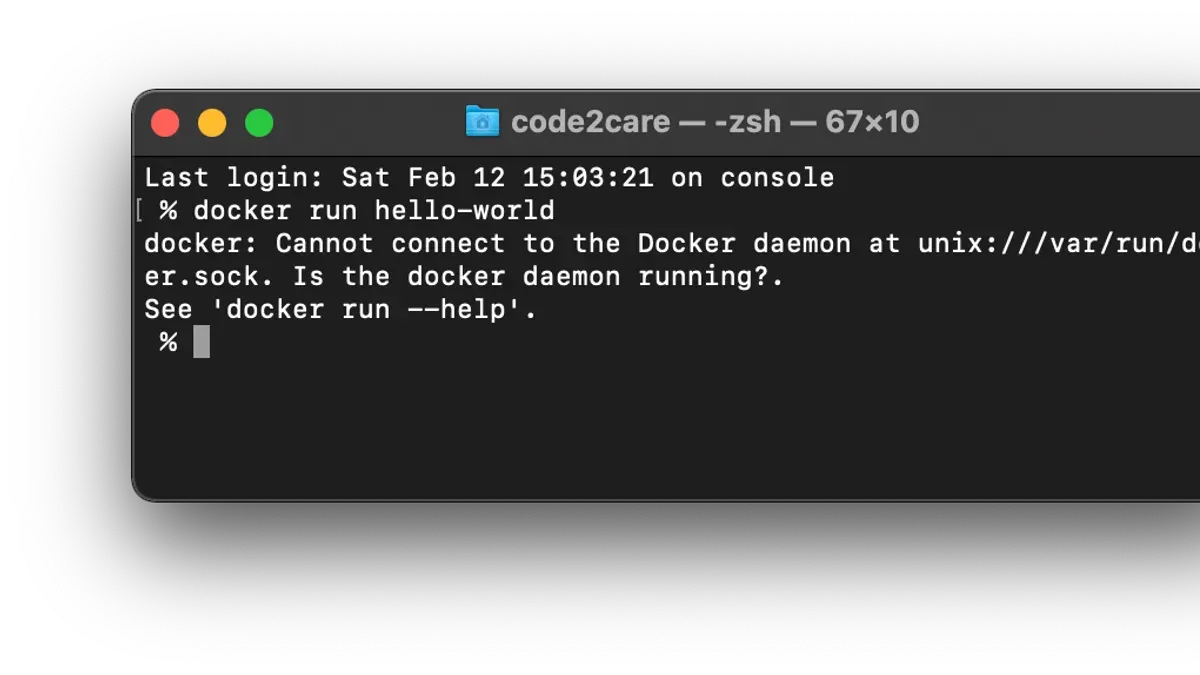
Next, open the Terminal and enter the command docker info. A successful response will display details about the Docker daemon and its environment, confirming it is responsive. If this command returns an error stating it cannot connect to the daemon, Docker Desktop may not be running properly or the daemon is not accessible.
Keep in mind that Docker Desktop relies on hardware virtualization to run a lightweight Linux VM hosting the daemon. If hardware virtualization is disabled or unsupported on the Mac, Docker Desktop cannot start the VM and thus cannot run the daemon. Ensuring virtualization is enabled in the system firmware settings is a prerequisite for Docker Desktop’s operation.
- Look for the Docker whale icon in the macOS menu bar; presence means Docker Desktop and the daemon are running.
- Run
docker infoin Terminal; a detailed output confirms the daemon is responsive. - If the daemon is unresponsive, verify that hardware virtualization is enabled on the Mac to allow Docker Desktop to run its VM.
What to do if Docker cannot connect to the daemon on Mac
Restarting Docker Desktop is the primary step when facing connection issues. Click the Docker Desktop icon in the menu bar, select Troubleshoot, then choose Restart Docker Desktop. This action restarts the Linux VM hosting the Docker daemon, resolving many transient errors. After restarting, the Docker icon should become stable and responsive.
Next, verify that the Mac supports hardware virtualization and that it is enabled. Docker Desktop requires this to run the lightweight Linux VM necessary for the daemon to operate. Without hardware virtualization, the Docker daemon cannot start, so connection attempts will fail.
A common mistake is attempting to run Docker commands when Docker Desktop is not running. The Docker daemon only runs within the Linux VM managed by Docker Desktop, so commands like docker run will return connection errors if the application is closed or not fully started. Also, the Docker daemon does not run natively on macOS without Docker Desktop or a VM, since macOS’s kernel does not support Linux containers. Any effort to bypass Docker Desktop and run the daemon directly on macOS will not work.
- Open the Docker Desktop menu bar icon, navigate to Troubleshoot, and click Restart Docker Desktop. Wait until the icon stabilizes, indicating the daemon started.
- Confirm that the Mac’s hardware virtualization is enabled by checking system settings or using virtualization detection tools. Ensure the Mac is running a supported macOS version.
- Only run Docker CLI commands after Docker Desktop is running and the menu bar icon shows it is active.
How Docker Desktop on macOS manages the daemon compared to other platforms
Because macOS does not support Linux containers at the kernel level, Docker Desktop runs a lightweight Linux virtual machine to host the Docker daemon and execute containers. This VM runs transparently behind the scenes, ensuring compatibility and seamless operation.
| Platform | Docker Daemon Host | Daemon Management | Container Support |
|---|---|---|---|
| macOS | Lightweight Linux VM | Managed by Docker Desktop app | Linux containers via VM |
| Windows | Native or WSL2 | Docker Desktop or native service | Linux containers via WSL2 or Windows containers |
| Linux | Native kernel | System service (systemd/upstart) | Native Linux containers |
Common mistakes that cause 'cannot connect to docker daemon' errors on Mac
Since the Docker daemon only runs inside the Docker Desktop-managed Linux VM, commands issued without Docker Desktop active cannot connect to any daemon. This results in immediate connection errors.
Another common misunderstanding is expecting the Docker daemon to run natively on macOS. Unlike Linux, macOS does not support containerization natively, so Docker Desktop uses a lightweight Linux VM to host the daemon. Trying to bypass Docker Desktop or run the daemon directly on macOS will fail.
If virtualization is disabled in firmware settings or the macOS version is unsupported, Docker Desktop may fail to start or run the daemon, causing connection issues.
In these cases, the daemon is not running even though the app appears to be starting. Verifying Docker Desktop’s status and restarting it usually resolves this.
| Symptom | Cause | Fix |
|---|---|---|
"Cannot connect to the Docker daemon" error when running docker commands | Docker Desktop is not running | Start Docker Desktop and wait for the daemon to initialize |
| Daemon connection failure despite Docker Desktop installed | Hardware virtualization disabled or unsupported macOS version | Enable virtualization in firmware and update macOS to a supported version |
| Commands fail, assuming native macOS daemon | Trying to run Docker daemon without Docker Desktop or VM | Use Docker Desktop to run the daemon inside a Linux VM |
| Docker commands fail without visible Docker Desktop errors | Docker Desktop crashed or failed to start the VM | Restart Docker Desktop and check VM status |
Frequently asked questions
Is the docker daemon running mac?
The daemon runs inside a Linux virtual machine managed by Docker Desktop, so native macOS processes alone do not indicate its status. Monitoring the Docker whale icon provides immediate visual feedback on whether the daemon is active.
How to start docker daemon macos?
Starting the daemon manually via command line is generally ineffective without Docker Desktop running. This approach ensures all components—including Docker Engine and Kubernetes—are initialized in the correct order.
Why does docker cannot connect to the docker daemon error occur?
Permissions or networking issues can also block communication via the Unix socket. Misordered startup steps, such as attempting Docker CLI commands before the daemon is ready, often cause the connection failure.
How to fix cannot connect to docker daemon at unix socket on Mac?
Check that Docker Desktop is fully started and the whale icon shows it is running. If issues persist, restarting Docker Desktop or rebooting the Mac can resolve transient VM or socket problems. Also, verifying that the user has permission to access the Docker socket file can prevent permission-denied errors. These steps restore the communication channel between the CLI and the daemon.
Selecting the appropriate approach depends on the situation: use the Docker Desktop app interface to manage the daemon for routine tasks, the command line for scripting or troubleshooting, and regular status checks to ensure stability after updates or system changes. Maintaining awareness of common failure points helps prevent recurring problems and keeps container workflows smooth.
When encountering connection errors, restarting Docker Desktop often resolves transient issues, but persistent problems might need verifying the VM's status or updating the application. Command-line commands offer direct control and diagnostics, especially useful when the GUI does not respond.
Sources checked
- Docker (software) - Wikipedia — Wikipedia
- Docker Desktop: The #1 Containerization Tool for Developers | Docker — Docker
See also: Fixing pip Externally Managed Environment Error on Mac: A Clear Guide · How to Fix Microsoft Teams Crashing on Mac: A Clear Troubleshooting Guide · How to Install Docker on Mac: A Clear Step-by-Step Guide · How to Fix Homebrew Permission Denied Errors on Mac


