How to Enable and Use Type to Siri on Your Mac
Discover how to enable Type to Siri on your Mac for silent, typed commands that enhance privacy and accessibility.
You’re working on your Mac in a quiet environment where speaking aloud isn’t an option, or perhaps you simply prefer typing your commands. Instead of using voice activation, you want a discreet way to interact with Siri by typing your requests.
This article explains how to enable Type to Siri on Mac, guiding you through the process step-by-step. You will learn how to activate this feature, use it effectively, customize its activation, and troubleshoot common issues. Additionally, the article covers how Type to Siri fits into your broader Apple device ecosystem and how to manage Siri settings on iPhone and iPad in relation to your Mac.
Key takeaways
- Enable Siri in System Settings under Accessibility to activate Type to Siri.
- Use the keyboard shortcut or menu bar icon to start typing commands to Siri.
- Type to Siri offers a silent alternative to voice commands, improving accessibility and privacy.
- You can customize Siri activation shortcuts in System Settings for convenience.
- Common issues include microphone permissions and network connectivity affecting Siri’s responsiveness.
Before you start: What you need to enable Type to Siri on Mac
To use Type to Siri on your Mac, ensure your device meets certain hardware and software requirements. This feature is available on Macs running macOS Catalina or later versions, as Apple introduced Type to Siri starting with macOS 10.15.
You also need to have an active Apple ID signed in on your Mac. Siri requires this to personalize responses and sync preferences across devices.
An internet connection is necessary because Siri processes commands online to provide accurate and up-to-date information.
Familiarity with navigating System Preferences on your Mac helps streamline the setup process, as enabling Siri and accessibility features requires adjusting settings within this panel.
- Click the Apple menu () at the top-left corner of your screen. You should see a dropdown menu.
- Select System Preferences. A window with various system settings will open.
- Locate and click Siri in the System Preferences window. You will see options for enabling and configuring Siri.
- Verify that your macOS version is Catalina or newer by clicking the Apple menu (), selecting About This Mac, and checking the version number displayed.
- Ensure you are signed in by opening System Preferences and clicking Apple ID. If you see your name and email, you are signed in.
Meeting these prerequisites prepares your Mac for enabling and using Type to Siri effectively.
How to enable Siri on your Mac
- Open System Preferences by clicking the Apple menu at the top-left corner of your screen and selecting System Preferences. The System Preferences window will appear.
- Click on the Siri icon within System Preferences to open Siri settings. You will see options to configure Siri on your Mac.
- Check the box labeled Enable Ask Siri. When enabled, this activates Siri on your Mac and allows you to use voice or typed commands if Type to Siri is enabled later.
- Set your preferred Language from the dropdown menu. This determines the language Siri understands and speaks.
- Choose your Voice Feedback preference. Options typically include Always On, Control with Ring Switch, or Hands-Free Only, depending on your macOS version. This setting controls when Siri provides spoken responses.
- Select the Microphone Input you want Siri to use. If you have multiple microphones connected, pick the one you prefer for voice commands.
- Optionally, click the dropdown next to Keyboard Shortcut to customize how you activate Siri with a key press. Default options include holding Command (⌘) and Space, or you can set your own shortcut by choosing Customize.
- Close System Preferences. Siri is now enabled on your Mac and ready for use, either by voice or typing commands once Type to Siri is set up.
How to activate Type to Siri on your Mac
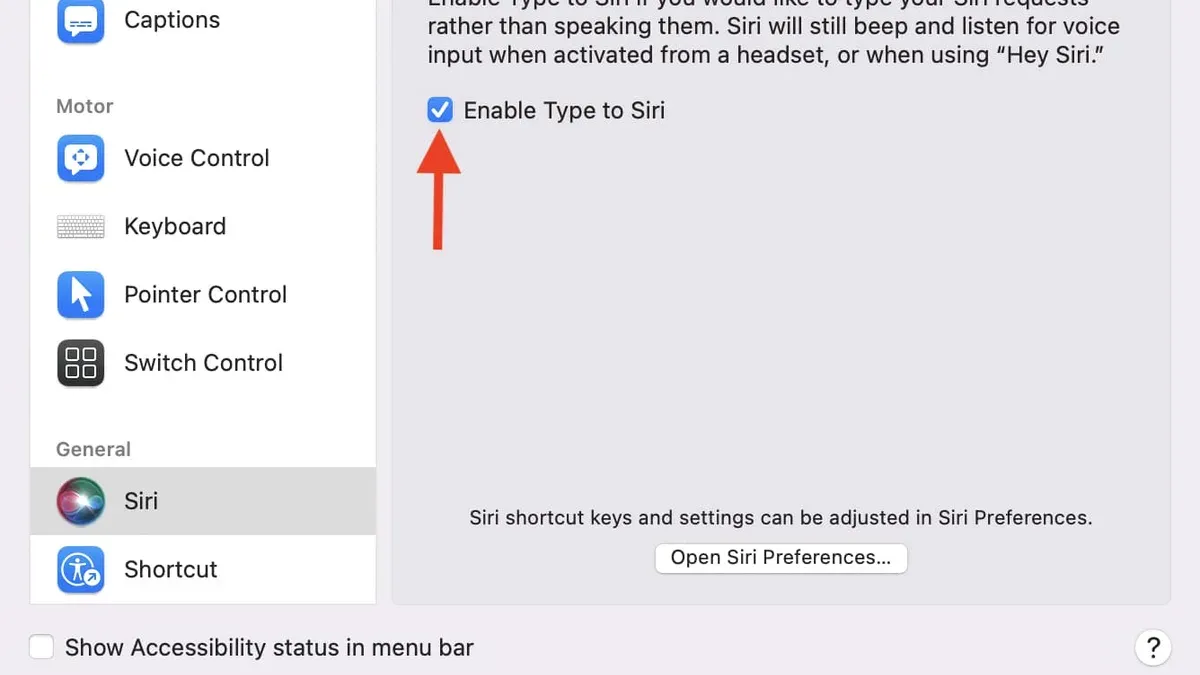
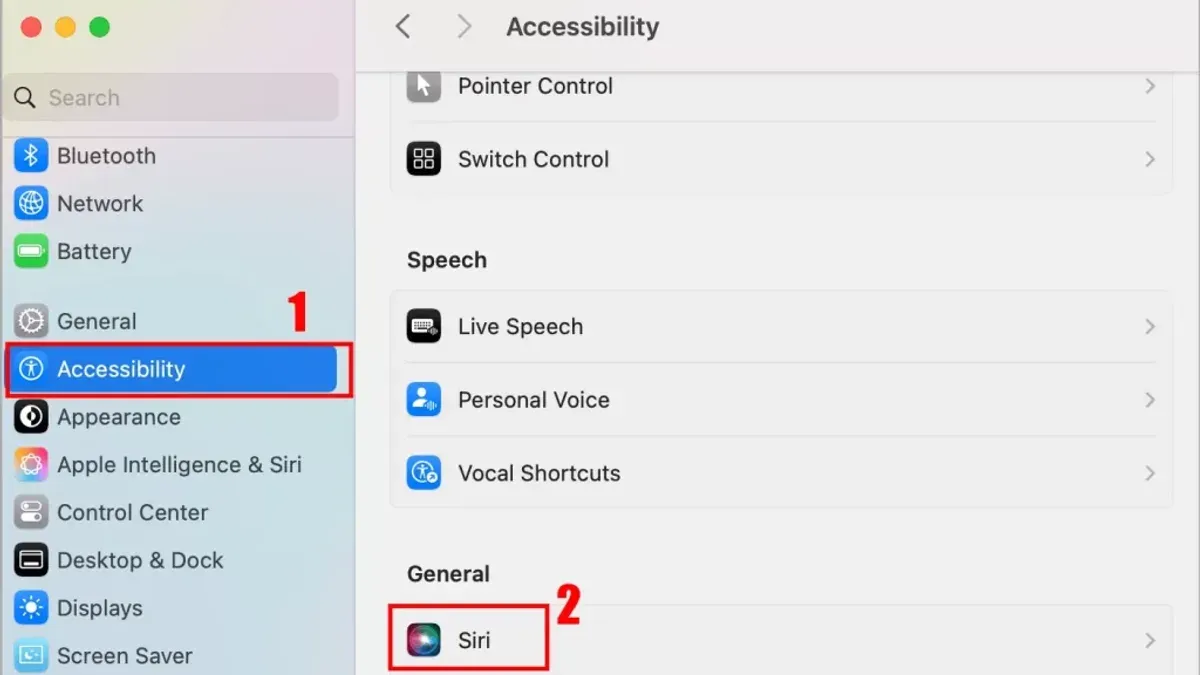
- Open System Preferences from the Apple menu and select Accessibility.
- In the Accessibility sidebar, scroll down and click on Siri.
- Check the box labeled Enable Type to Siri. This turns on the feature allowing you to type commands instead of speaking.
- Close System Preferences. You can now access Siri using your keyboard shortcut or by clicking the Siri icon in the menu bar.
- To start typing a command, activate Siri with the keyboard shortcut (by default, hold Command (⌘) and Space) or click the menu bar Siri icon. A text input box will appear.
- Type your command, such as "Open Safari" or "What's the weather today?", then press Return to send it.
- Siri will respond in text or voice depending on your settings. You can continue typing follow-up commands or questions.
Enabling Type to Siri allows you to interact quietly or in environments where speaking is inconvenient. Remember that the keyboard shortcut for Siri can be customized in System Preferences > Keyboard > Shortcuts if the default conflicts with other apps.
How to use Type to Siri effectively on MacBook and other Macs
Using Type to Siri allows you to type commands instead of speaking them, offering a quiet and discreet way to interact with your Mac. For example, you can type "Set a reminder for 3 PM to call Alex" and Siri will create the reminder without any voice input. Similarly, typing "Open Safari" launches the Safari browser immediately.
Type to Siri is especially useful in environments where speaking aloud is impractical or for users with speech difficulties. It also reduces background noise interference common with voice commands.
- Press the keyboard shortcut assigned for Siri activation (commonly Option + Space). You should see the Siri window appear on the screen with a text input field.
- Type a command, such as "Search the web for nearby coffee shops." When the command is processed, Siri displays search results or opens the default browser with the search page.
- Try typing "Play my Chill Mix playlist on Apple Music." Siri will start playback of the requested playlist without needing voice interaction.
- For quick app access, type "Open Notes." Siri will launch the Notes app immediately.
- When finished, close the Siri window or press the keyboard shortcut again to exit.
Using keyboard shortcuts to activate Type to Siri keeps your hands on the keyboard and speeds up task completion compared to navigating menus. Typed queries can be more precise, reducing misinterpretation that sometimes happens with voice commands.
How to disable Siri or Type to Siri on your Mac
Disabling Siri on your Mac can enhance privacy by preventing voice and typed interactions from being processed by Apple servers. You can choose to turn off Siri entirely or disable only the Type to Siri feature while keeping voice activation active.
Disabling Siri entirely
- Open System Preferences from the Apple menu.
- Click Siri & Spotlight.
- Uncheck the box labeled Enable Ask Siri. When disabled, the Siri icon will disappear from the menu bar and Dock.
- Close System Preferences. You will no longer be able to use Siri by voice or typing, and no Siri requests will be sent to Apple.
Disabling Type to Siri while keeping voice Siri active
- Open System Preferences and select Accessibility.
- Scroll down and click Siri in the sidebar.
- Uncheck Enable Type to Siri. This disables typing commands but leaves voice activation functional.
- Close System Preferences. You can still summon Siri by voice or keyboard shortcut but cannot type commands.
Privacy considerations: Apple states that disabling Siri stops your voice or typed input from being sent to Apple servers, reducing data collection. However, some Siri functionality relies on server processing, so disabling it may affect related services.
Before disabling, note the visual changes such as the removal of the Siri icon and absence of the Siri interface when attempting activation. After disabling, you will no longer see Siri responses or be able to use Siri features until re-enabled.
How to enable and use Siri on iPhone and iPad in relation to Mac
Enabling Siri on your iPhone and iPad complements your Mac experience by allowing seamless interaction across Apple devices. To turn on Siri, open Settings, select Siri & Search, then enable Listen for "Hey Siri" and Press Side Button for Siri (or Home Button on older devices). You will see a setup prompt to train Siri to recognize your voice.
Using Siri across devices is enhanced by Handoff and Continuity features. When enabled, these allow you to start a Siri request on one device and continue or complete it on another, such as asking Siri on your iPhone to send a message through your Mac. For this to work, all devices must be signed into the same Apple ID with Bluetooth and Wi-Fi enabled.
| Setting | iPhone | iPad | Mac |
|---|---|---|---|
| Enable "Hey Siri" | Yes | Yes (on supported models) | No |
| Press Button Activation | Side or Home Button | Top or Home Button | Keyboard Shortcut |
| Type to Siri | No | Yes | Yes |
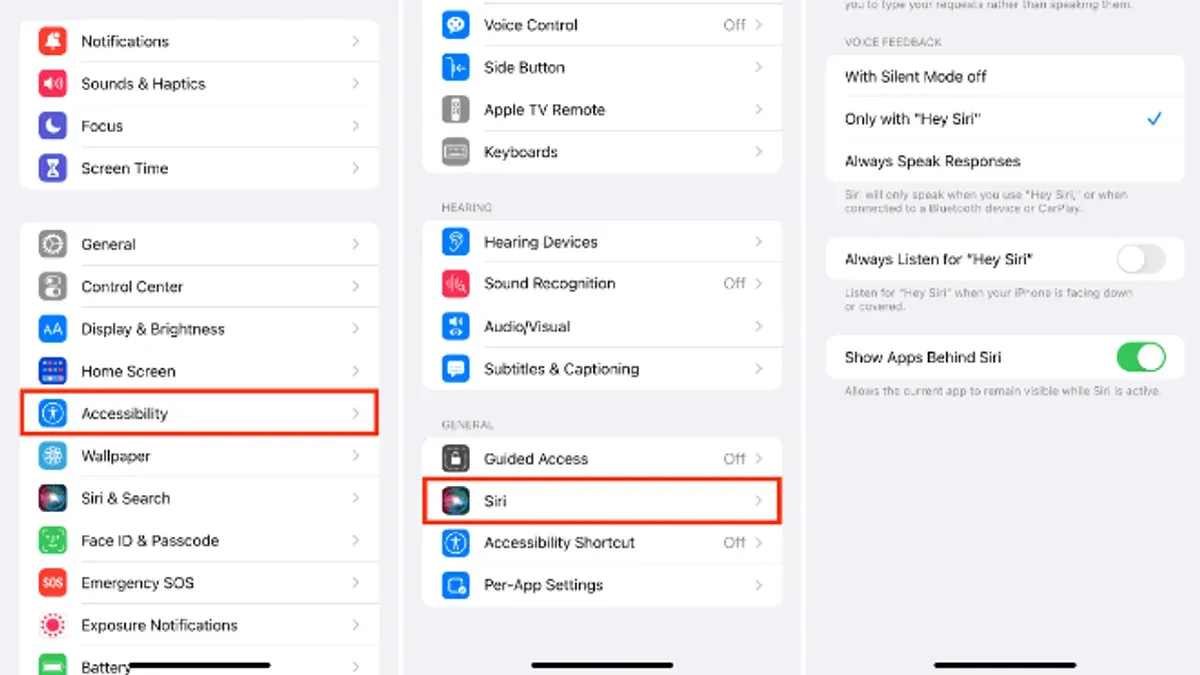
On iPad, you can enable Type to Siri in Settings > Accessibility > Siri, allowing typed commands similar to Mac. This differs from iPhone, which supports only voice or button activation. Together, these options provide flexibility depending on your environment and preference.
- Go to Settings > Siri & Search on your iPhone or iPad.
- Toggle on Listen for "Hey Siri" and/or Press Side/Home Button for Siri. You should see a confirmation that Siri is active.
- If on iPad and preferring typed commands, navigate to Settings > Accessibility > Siri and enable Type to Siri. A keyboard icon appears when activating Siri.
- Ensure all Apple devices use the same Apple ID and have Bluetooth and Wi-Fi enabled to use Handoff.
- Test cross-device Siri usage by initiating a command on one device and continuing it on another. A Siri icon or prompt indicates successful Handoff.
Troubleshooting Type to Siri not working on Mac
If Type to Siri is unresponsive or not activating, several common issues might be the cause. Error messages like "Siri isn't available" or "Unable to process your request" often indicate connectivity or settings problems.
- Check your macOS version by opening the Apple menu > About This Mac. Ensure it runs macOS Catalina or later. If not, update via System Preferences > Software Update. Successful update means Type to Siri can be supported.
- Verify Siri is enabled by going to System Preferences > Siri. Confirm "Enable Ask Siri" is checked. Then, navigate to System Preferences > Accessibility > Siri and ensure "Enable Type to Siri" is checked. The feature should now be active.
- Restart your Mac to refresh system services. Alternatively, toggle Siri off and on again in System Preferences > Siri to restart the Siri service. When done, Type to Siri should respond to your keyboard shortcut.
- Check for keyboard shortcut conflicts by going to System Preferences > Keyboard > Shortcuts > Siri. If the shortcut overlaps with another app or system command, change it. After adjusting, pressing the shortcut should open the Type to Siri window.
- Ensure your Mac is connected to the internet. Siri requires a stable network connection to process requests. Open a browser and load a website to confirm connectivity. If offline, Type to Siri will not respond until the connection is restored.
Following these steps resolves most issues related to Type to Siri. If problems persist, consider contacting Apple Support for device-specific diagnostics.
Shortcut for Siri on Mac and customizing activation
The default keyboard shortcut to activate Siri on a Mac is usually holding the Command (⌘) key and the Space bar together, or pressing and holding the Function (Fn) key, depending on your Mac model. You can customize this shortcut in System Preferences to better fit your workflow or accessibility needs.
- Open System Preferences and select Keyboard.
- Click the Shortcuts tab and choose Siri from the sidebar.
- Here, you'll see the current shortcut assigned to activate Siri. Click on the shortcut key combination to change it.
- Press the new key combination you want to use, such as a function key like F5 or a custom combination like Control (⌃) + Option (⌥) + S. The new shortcut will appear next to the Siri option.
- If you have a MacBook Pro with a Touch Bar, you can also add or remove the Siri button from the Touch Bar by going to Customize Control Strip within the Keyboard preferences, allowing quick tap access.
Customizing the Siri shortcut can improve activation speed and convenience, especially if you prefer a key combination easier to reach or less likely to conflict with other shortcuts. For example, assigning a single function key without modifiers can allow instantaneous access, while a multi-key combination reduces accidental activations.
Choosing a shortcut that fits your typing habits or ergonomic preferences helps maintain workflow flow and accessibility, making Siri more readily available when needed.
Frequently asked questions
How to have siri on your mac?
To have Siri on your Mac, open System Preferences and select Siri. From there, enable the checkbox labeled "Enable Ask Siri." You can then customize voice feedback, language, and keyboard shortcuts to suit your preferences.
How to enable siri on iphone?
On your iPhone, go to Settings, tap Siri & Search, then turn on "Listen for 'Hey Siri'" and "Press Side Button for Siri". Follow the on-screen prompts to set up "Hey Siri" voice recognition if you want hands-free activation.
How to use siri on macbook?
Once Siri is enabled on your MacBook, activate it by clicking the Siri icon in the menu bar or Dock, or by using the keyboard shortcut (default is holding Command (⌘) + Space). You can speak your commands or, if you have Type to Siri enabled, type your requests instead.
How to disable siri on mac?
To disable Siri on your Mac, open System Preferences, select Siri, and uncheck the box labeled "Enable Ask Siri." This will turn off all Siri features, including voice and Type to Siri input.
How to activate siri on mac?
You can activate Siri on your Mac by clicking its icon in the menu bar, Dock, or using the default keyboard shortcut Command (⌘) + Space. If Type to Siri is enabled, the Siri window will accept typed commands instead of voice input.
What this guide does not cover
This guide focuses on enabling and using Type to Siri on compatible Macs and does not cover configuring advanced Siri Shortcuts or third-party integrations. Users with older Mac models or outdated macOS versions may not have access to Type to Siri and should consider system upgrades to use these features.
The most useful next step is to explore System Settings > Accessibility > Siri to customize how Type to Siri behaves, including keyboard shortcuts and voice feedback options. Adjusting these settings will help tailor the feature to your workflow and improve your productivity when using typed commands with Siri on your Mac.